


There are 3 datasets that can be displayed in the system data area, these can be cycled using the up/down arrow keys. Additionally a short preview of each hidden view is shown at the top / bottom of the screen.
Timing Status
Active Loop Information
Current system Loop and Channel IDs are shown with the loop power.
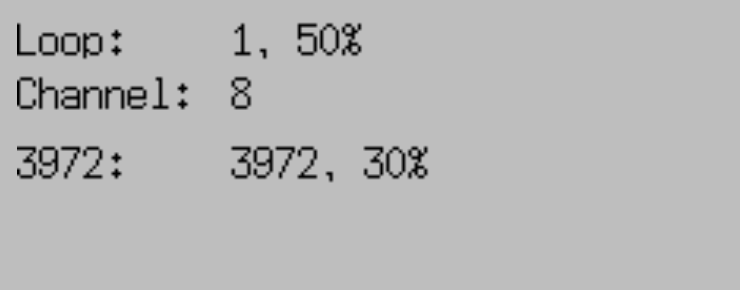
Additional systems on the same channel within range are also shown below.
Loop Boxes in range in repeat mode will be listed below with the Loop ID and Loop Power.
Passive Antenna Information
Currently connected antennas are shown with their corresponding antenna number. A solid antenna indicates the antenna is currently detecting a transponder.
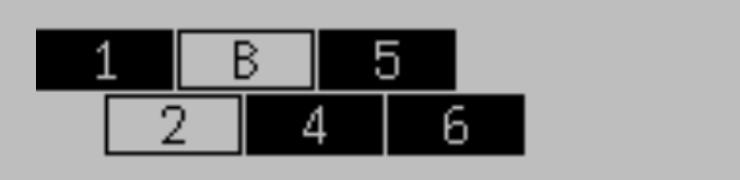
If a letter is displayed instead of the antenna number then the antenna is currently reporting an error, the possible errors are as follows:
- B - Bad: The antenna reports some bad monitoring values (most commonly from reflections or obstructions from items placed on the antenna, or from an incorrectly mounted mat cover)
- ? - Unavailable: A previously connected antenna is no longer communicating with the System
- M - Mute: Can occur shortly after booting before an antenna is ready for operation
- U - Update: The element is undergoing a firmware update and will be available again soon
- (empty): Element is unresponsive but is still able to pass through data and power
- ! - Unknown Error: This should be reported to RACE RESULT for further diagnosis
Passing Information
Passing information displays the current last reads on the left side. If the detections are within 1 second of the last timestamp displayed then a gap will be shown rather than the full time.
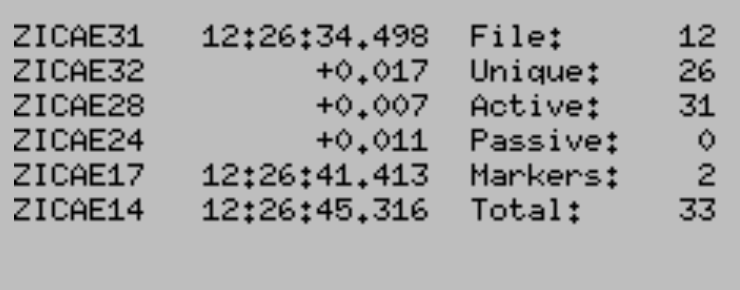
Additionally displayed on the right side is data relating to the current passings file:
- File Number
- Unique Transponders seen
- Active passings recorded
- Passive passings recorded
- Markers recorded
- Total passings recorded
Networking Information
Current connection status for Ethernet, Wi-Fi, Mobile (GSM) and Cloud Connection, for network connections, there are three possible icons.
- Black cloud - This connection is currently being used to connect to the internet
- Cloud outline - This connection has an internet connection available but is not currently being used
- Crossed out cloud - No internet connection is available on this network'
This is followed by the IP address for the ethernet and Wi-Fi connections and additional mobile network information for the mobile connection.
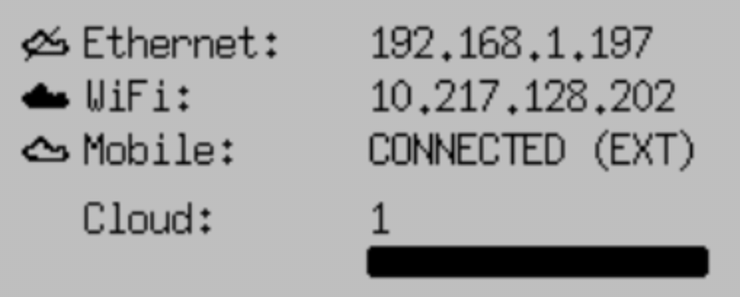
When the Cloud upload is enabled then the count of passings which have been uploaded will be displayed below and the status bar will also indicate the percentage of passings which have been uploaded.
The mobile status will also indicate whether it is using the internal or external SIM card. Note that unless the internal SIM has been explicitly unlocked for the system it will not be able to connect to the cloud using the internal mobile connection.