


There are various ways to calculate points in races which may be used as part of a series, team scores or other special requirements, below are a few of the most common ways to calculate points in RACE RESULT 14.
Note that these examples only show the calculations which can be used, it may be necessary to apply additional filters (using If() or Switch() statements) to only assign points to participants who are finished or have a Rank>0 since they may still return a positive value otherwise.
Points = Rank
The most simple method is when the points equal the rank.
For example 1st place gets 1 point, 100th place gets 100 points.
To assign points in this way simply call the corresponding Rank field directly into a result, you may wish to create a special rank for this which filters only eligible athletes.

Points = Inverted Rank
Commonly, points are also assigned according to the number of athletes who finished a race.
For example, 367 males Finished, the 1st male gets 367 points and the 367th male gets 1 point.
To assign points in this way we write a short calculation in a result using the MaxRank and Rank fields.
([MaxRankX]+1)-[RankX]
The +1 is necessary to balance the equation, since otherwise the points would always be 1 less, first place would get MaxRankX-1 and last place would get 0 points.

Points At Fixed Interval
Points may be assigned that first place receives a certain value and each rank thereafter reduces by a fixed value. This can be done with a simple calculation. In this example, first place according to the Gender rank gets 1000 points, and each rank thereafter receives 10 points less (2nd = 990, 3rd = 980, 4th = 970...).
1000-(([GenderRank]-1)*10)
The starting value is defined as 1000, and we must in this case subtract 1 from the Rank to ensure that the assignment correlates correctly with our deduction as 10.

Simple Points Table
In some races points may be assigned specially to the Top X finishers, with all other finishers receiving a nominal value of points. This is done with another calculation but this time also using our Choose() function which returns a value according to their rank.
In this example 1st place according to the Gender rank gets 15 points, 2nd = 13, 3rd = 11, 4th = 9, 5th = 7 and all other finishers get 5 points.
Switch([GenderRank]<=5;Choose([GenderRank];15;13;11;9;7);[GenderRank]>0;5)
Our switch first checks if they have a GenderRank less than or equal to 5, if true then assigns the corresponding points using the Choose() function, next we check if their GenderRank is greater than 0 and if true assign 5 points.

Complex Points Table
In the event that points cannot be calculated or assigned with a simple calculation then you can create a points table in the Results to assign points accordingly. To do this we need to select the hand icon to open the calculation window and select Table.
Each table can have up to 4 indexes, these are the values which the calculation looks up in the table to assign the points, for example Rank and Gender. Note that since Indexes must be numerical it is necessary to convert our Gender to a number here.
This example assigns points according to the GenderRank (Index 1) and Gender (Index 2, male = 1 / female = 2) , the points assigned reduce randomly.

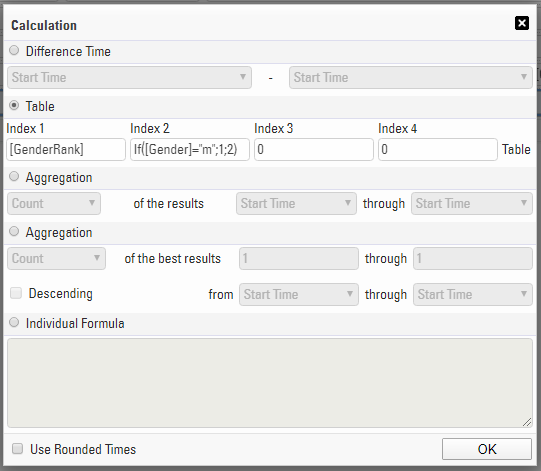
First assign the Indexes which should be referenced, clicking Table brings up the index table where you can assign the index values and points value which should be returned. This can be imported from a standard excel file.
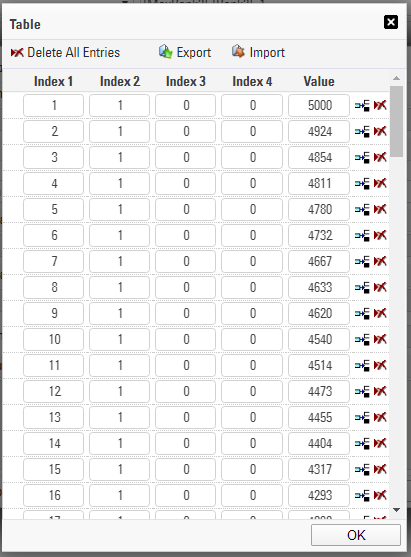
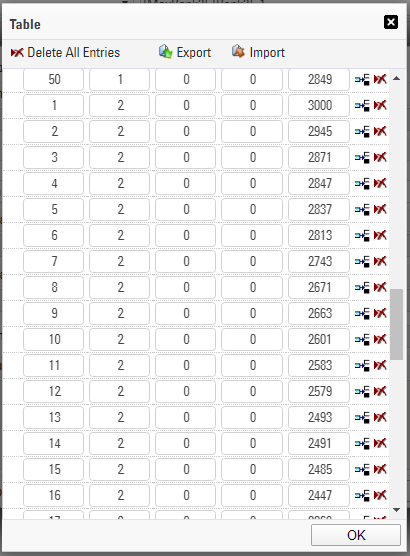
We can see that when Index 1 = 1 and Index 2 = 1 (GenderRank = 1 and Gender = Male) then 5000 points are assigned, down to Index 1 = 50 gets 2849 points. Moving to Index 2 = 2 then GenderRank = 1 gets 3000 points and so on.