


Use the Timing tab of RACE RESULT 12 in your browser to connect to your decoder and read all of your timing data.
Open your event in RACE RESULT 12 and navigate to the Timing window from the top navigation bar. The first screen you will see is Chip Timing, which gives you a simple overview of your timing setup. If you are working online, you need to run the RACE RESULT Web Server which creates a connection between any devices connected to your computer and RACE RESULT 12.
As soon as USB Timing Box communicates with the Timing tab, the internal clock is automatically synchronised to the computer time of day.
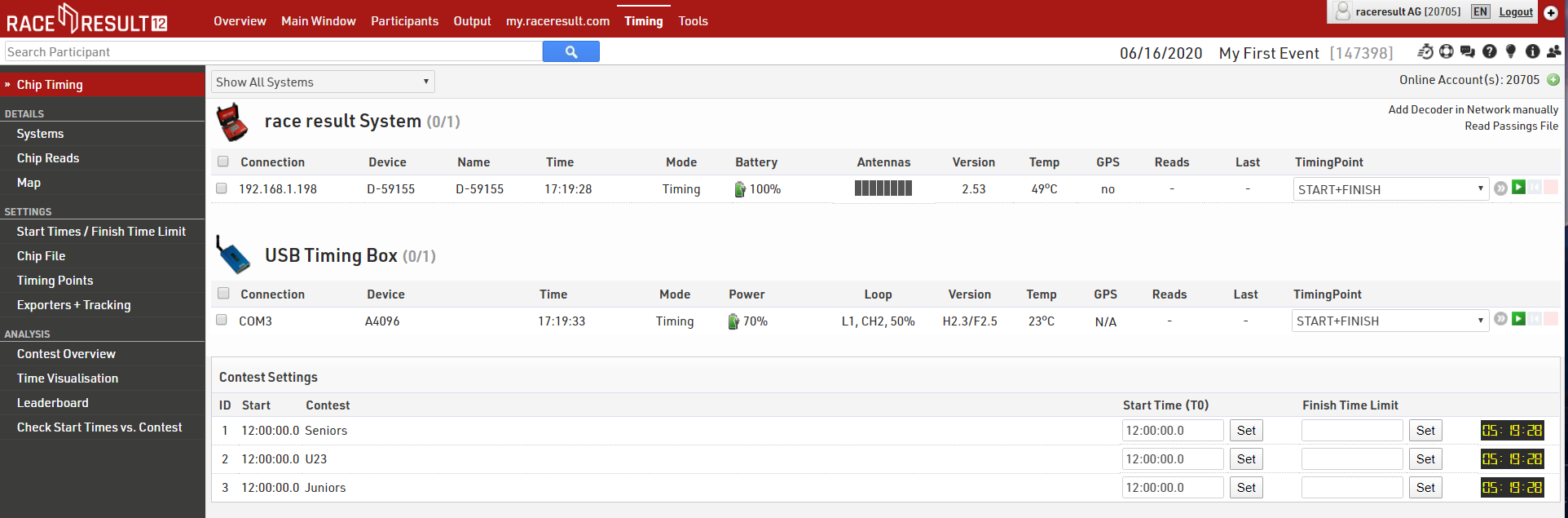
Your USB Timing Box should automatically show in the systems list with the Device ID, current time and some additional information about your device. If you cannot see the device you should see the previous section to configure your USB Timing Box and ensure that the drivers are installed correctly.
To read the timing data from the USB Timing Box, simply select a timing point and click the green play button. Any existing reads are then written in the raw data, and incoming reads are written in real time.
If you are using the Automatic Timing Point Selection rules, make sure that your devices are set to the correct loop and channel ID, and leave the timing point field in the connection settings blank.