


Your NEW Ubidium System
Inside your package you should find the following items:
- Ubidium System
- 1 x 98 Wh Ubidium Battery (Pre-Installed)
- 1 x AC Charging Cable
- 1 x 13 m Loop Cable
If you ordered additional accessories or spare parts they may be included separately.
Ubidium Overview



Powering On Ubidium
Ubidium has two battery compartments which are located on the lower front side of the system, each compartment is protected by a transparent plastic cover allowing you to always see the current state of the batteries on the integrated LCD display.
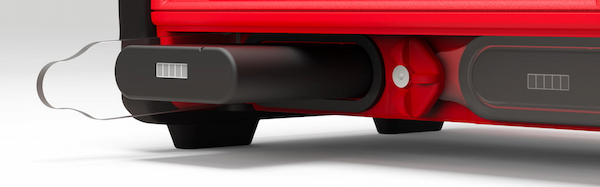
To open a battery compartment turn the center locking knob to align the cut-out edge with the compartment you wish to open.
The batteries can only be installed in the correct orientation with the groove facing upwards to align with the notch in the compartment opening.
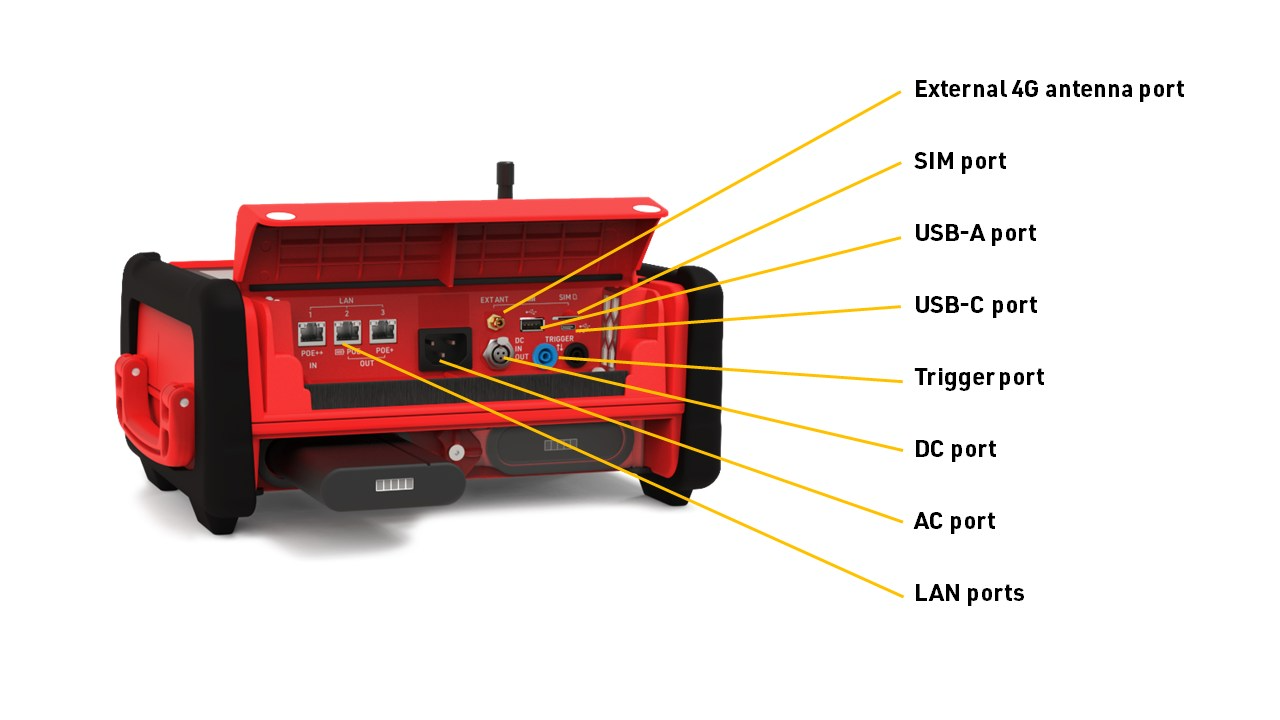
We advise fully charging your Ubidium system using the provided AC charging cable, which is plugged in to the AC Charging port below the port flap. The charging status of the installed batteries will be shown on the display even if the system is powered off.
To turn the system on, firmly press and hold the power button on the main keypad, until the status LED illuminates green.
Setting The Time
Ubidium contains a highly accurate Real-Time Clock inside which maintains an accurate time even when the system is powered off.
When starting up Ubidium will automatically search for GPS satellite signal in order to sync the clock with GPS time which provides the most accurate synchronisation available.
You will need to ensure that the Time Zone is correctly set on the system in order to have the correct local time. This is set through the time menu which can be accessed by pressing the first (top) navigation button on the right side of the screen.
To change the time zone select the menu item which corresponds to Timezone by using the navigation keys to the right side of the screen.
Scroll up and down this menu using the arrow keys to find the correct time one for your location and press the OK button to store this.
Pressing the Back button will exit any open menus to return to the main timing display.
Connect To The Cloud
If you plan to use Ubidium as an online device to connect to RACE RESULT 14 you'll need to configure some basic settings to connect the system to your account.
From the main timing display, open the network menu by pressing the third navigation button to the right side of the screen.
Depending on how you will be connecting to the internet you may need to configure either the Ethernet, WiFi or Mobile settings in order to establish an internet connection, for more information see Ubidium Network Settings.
If you are using a RACE RESULT SIM card then simply insert this to the SIM port which is located under the flap and this will be automatically configured for you by the system.
Once online, select the Cloud menu item and from there you'll need to set the Customer Number to your RACE RESULT Customer ID. To change the number use the up and down arrow keys to change each digit, and right and left arrow keys to select the digit. Take care that if your Customer ID is less than 6 digits, then the first digit should be set to 0. Press OK once done to save the value.
Once the Customer Number is set, select Enabled and change the value to YES, you can also force this to automatically enable on startup if you choose to.
Start Timing
To start timing with Ubidium you simply need to connect your Active Timing Loop or Ubidium Foldable Ground Antenna to the system.
These are both connected to the corresponding ports on the rear of the system, protected by a rubber cap, note that the banana plugs in the main port compartment are for connecting impulse devices and cannot be used to connect an Active Timing Loop.
When operating as an Active system also make sure to open the 2.4GHz Timing Antenna from its slot and rotate this so it is pointing up vertically.