To import participants from an external source, you can import an Excel/CSV file in Participants⇒Import Participants. This tool allows you to upload Excel or CSV files and map the data directly to your event fields. To start the import select a file with the data to import on the first worksheet of the workbook. After selecting the file to import, you’ll be able to preview the data and map fields from the file to your participant database.
Best Practices:
- Include column headers in the first row. These determine which Field in the event file each column will populate. You can adjust these mappings in the preview screen. If column headers are not in the upload data, then each column will have to be mapped individually.
- An example Excel template with default fields is linked directly in the import screen. You can use this as a starting point for simple uploads.
- It is important to only import Age or DateOfBirth or YearOfBirth. If you import more than one of these fields they will conflict with each other and your data will be incorrect. More information on these fields can be found in our article YearOfBirth and DateOfBirth.
Mapping Fields

The first row from the import file with the column headers will appear at the top of the import preview. Fields that are not mapped to a current database field will display  . There are 3 options for handling these fields:
- Import as a new field: Leave the mapping blank to create a new additional field that will appear in the participant data.
- Do not import column: Uncheck the Import Column checkbox to ignore this data
- Map to an existing field: Edit the Field box and select the database field you want to match. A tooltip is available with a list of current fields.
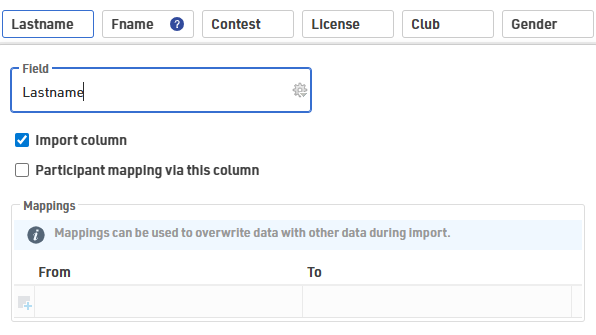
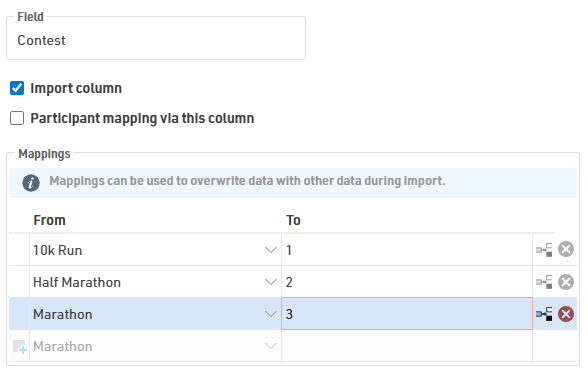
Additionally, the Mappings box allows for data manipulation prior to importing the data into the race file. This is particularly useful if your registration system’s export format doesn't perfectly match your event file's structure.
Import Modes
There are three import modes, the default mode is Only add new participants. You can change the mode in the lower-left corner of the import preview.
The setting Participants Mapping Via this column defines which record in the event file and which record in the import file correspond to each other. Usually, records are mapped by Bib, but you can also use other columns such as a participant/registration ID or First Name and Last Name combination. Mapping columns are indicated by  in the import preview.
| Mode | Description | Mapping |
| Only add new | Creates new records only. If a bib number in the file matches one already in the event, that row is skipped. | Optional |
| Update existing | Updates all records in the event file based on the selected mapping key. | Required |
| Add and update | Updates existing participants that match the selected mapping key and creates new records for all other rows in the import file. | Required |
When adding new participants, if the import file does not contain a bib number, a new bib number according to the Bib Number Settings will be assigned.However, if the import file contains the column Bib and a number is entered, this bib will be used. This means that the record will not be imported if the bib number already exists in the event file.
Additional considerations
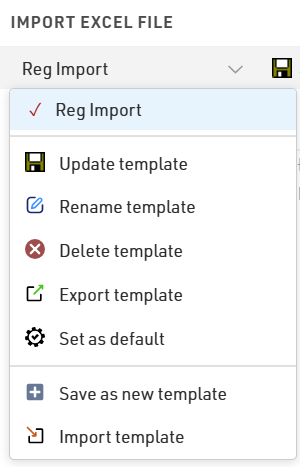
If you frequently import data in the same format, you can save your field mappings and import settings as an import template for faster future imports. Templates can be exported for use in other events or set as the default template so it will load automatically every time you preview an import.