The my.raceresult.com page is used to configure the registration and results platform my.raceresult.com and to handle inquiries from my.raceresult.com
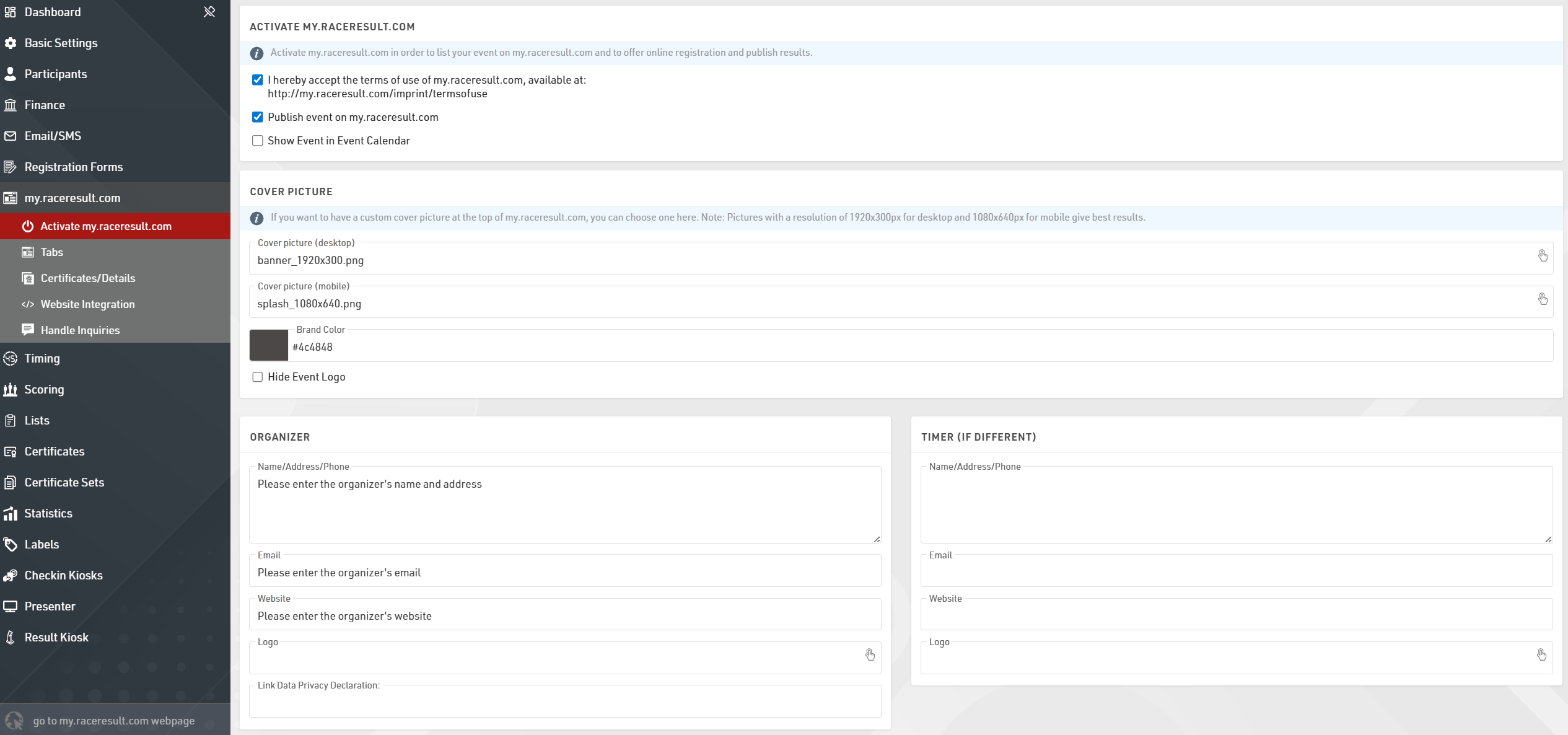
Activate my.raceresult.com
In order to show your event in the calendar on my.raceresult.com, to use the online registration, and to publish results, you need to first accept the terms of use as advertised and then publish the event using the checkboxes.

By default the event will be published in the main event calendar on my.raceresult.com, if you wish to hide it from these lists you can untick the box to show the event in the event calendar.
When viewing the event a banner is shown at the top of the page, by default a standard cover picture is used, depending on the type of event you have selected in Basic Settings > Event settings.
You can choose to upload your own banner images to use here instead. The size of the banner for desktop is 1920x300px and mobile is 1080x640px, images which do not conform to this size may be stretched or compressed in order to fit.

The color for the menu items can be defined using the Brand Color function. Best practice is to use darker colors for the Brand Color so it shows up on the lighter background. The apply contest color will use the Contest color setting to indicate the contest for results boxes and favorites on my.raceresult.com.
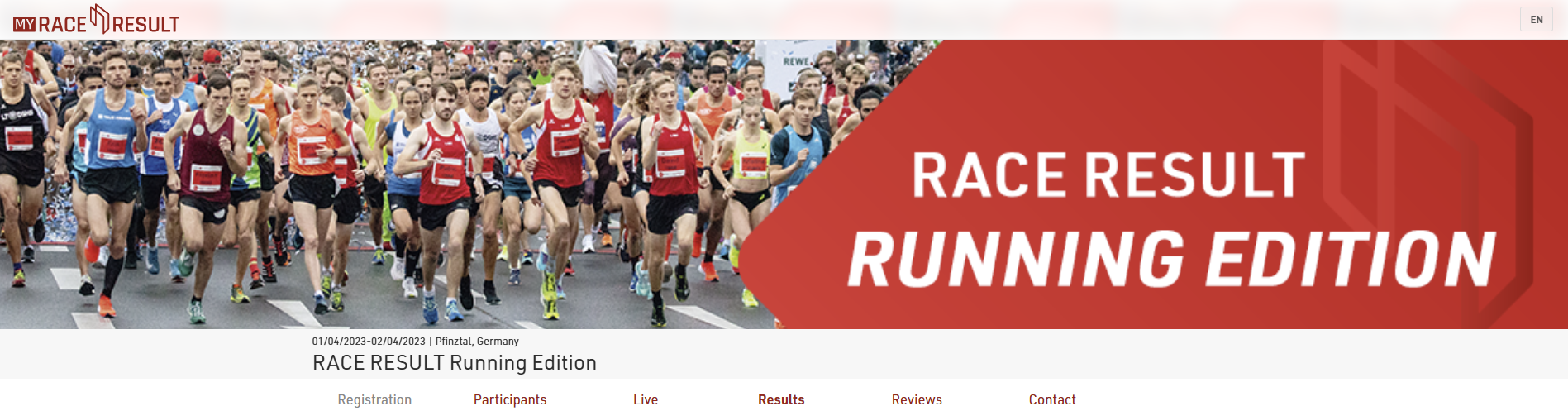
If you uploaded an event logo, it will display. As the event logo will overlap with the banner, you can hide it by ticking the box to "hide event logo".
Note that the cover picture is cached by your browser, if the image does not change after updating this then you may need to clear your browser cache, or alternatively try to open the page in a private/incognito window or a different browser.

Contact information for the race director, timer, and 3rd party payment processor can be entered on this page. This information will be shown on the contact tab, which is the only tab that can not be deleted if publish is enabled.
In the Additional Features section it is possible to configure tracking via Google Analytics/ Meta Pixel on your my.raceresult.com webpage. Select the tracking platform and enter your specific ID to setup the configuration. To ensure compliance with data privacy regulations, these tools will only be active for visitors who have explicitly accepted third-party cookies via the cookie consent popup.

Tabs / Pestañas
La página de eventos de my.raceresult.com ha sido rediseñada, pasando de un conjunto fijo de subpáginas a un sistema más flexible basado en pestañas. Las pestañas pueden configurarse con diferentes nombres, tipos y tiempos de publicación, lo que te permite controlar mejor el diseño de la página del evento en my.raceresult.com.
Los archivos de eventos existentes se convierten automáticamente a esta nueva estructura. Los eventos nuevos se crearán con un conjunto estándar de pestañas predeterminadas, que incluyen Información, Inscripción, Participantes, En Vivo, Resultados, Reseñas y Contacto. Cada una de estas pestañas ahora puede moverse, renombrarse o programarse de forma independiente.

Configuración de Título / URL
Este apartado define cómo aparece la pestaña en el menú de navegación, qué plantilla se utiliza y cuál será la dirección web.
URL Preset (Preajuste de URL):
Selecciona una plantilla y ruta estándar. Esto configura automáticamente el comportamiento de la pestaña.
Título:
Si deseas un nombre personalizado en el menú (por ejemplo, “Mirá tus tiempos” en lugar de “Resultados”), ingrésalo aquí.
Es posible agregar traducciones seleccionando los idiomas deseados y escribiendo el texto correspondiente.
Si se deja vacío, se utilizará el nombre del URL Preset.
URL personalizada:
Cuando se utiliza un preset de tipo Custom URL, aquí podés definir la dirección web personalizada.
Configuracion: General:
Estos controles gestionan el estado y la visibilidad de cada página.
El botón Publicar (Publish) habilita la URL pública de la pestaña.
La opción Visibilidad en el menú (Menu Visibility) determina cómo los usuarios acceden a la pestaña:
- Nunca (Never): siempre oculta en el menú; solo es accesible mediante enlace directo o incrustación.
- Cuando esté activa (When Active): visible únicamente durante las fechas definidas en Página activa desde / hasta (Page Active From / To).
- Siempre (Always): siempre visible; aparece atenuada (en gris) fuera del rango de fechas Página activa desde / hasta.
Utiliza los campos Página activa desde / hasta para automatizar el acceso a la pestaña según un calendario; por ejemplo, desactivar Inscripción y activar Resultados en Vivo al inicio del evento.
Añadir una nueva pestaña
Al agregar una nueva pestaña, primero debes seleccionar el tipo de contenido que tendrá.
La plantilla de la nueva pestaña dependerá de esa selección:
- Texto: utilizará la plantilla de Info.
- Contenido externo: incrustará contenido o video proveniente de fuentes externas.
Importación/Exportación
Cualquier pestaña, excepto Contact, puede exportarse e importarse a través de la interfaz de usuario (UI). Esto permite reutilizar la configuración de una pestaña en otra pestaña o evento sin necesidad de editar directamente el archivo JSON del evento.
Durante la importación, el Nombre (Name) y la URL de la pestaña de destino se mantienen sin cambios y no se sobrescriben, ya que ambos deben seguir siendo únicos. Todos los demás ajustes se reemplazan por la configuración importada.
Una pestaña solo puede importarse en otra pestaña del mismo tipo. Si se intenta importar la configuración en una pestaña de un tipo diferente, se generará un error.
Info / Text
Events on my.raceresult.com can have an "Info" tab that can display text, HTML or embed a website, this is the default landing page for the event if configured.
Inside the Info text it is possible to use a limited set of specific fields for dynamically displaying data, the supported fields are as follows:
- [Event.Name]
- [Event.Location]
- [Event.Zip]
- [Event.State]
- [Event.Street]
- [Event.Date]
- [Event.AttributeName] - The user-defined attributes for the Event.
- [CounterX] - Where X should be replaced by a Contest ID to display the number of participants currently registered for that Contest.
These fields can also be used in the Info text on the Registration page.
Note that some websites may not permit embedding and so will not load, you will need to check the hosting settings for your website in this case.
Registration
Your Registration Forms can be included in the my.raceresult event to accept registrations and payment online.
Basic Settings
The registration page must be activated by checking Activate Online Registration, and a date range can be entered to define when the registration page should be available, according to the time zone set in your event file basic settings. Note that this is separate from the individual Registration Form active date range.
Info Text
The Info Text is displayed at the top of the registration page to provide additional information to participants looking to register, this can be entered as HTML allowing for complete customisation.
Registration Forms
Multiple Registration forms can be added to the registration page, each of which already defines the available dates and contests for the form.
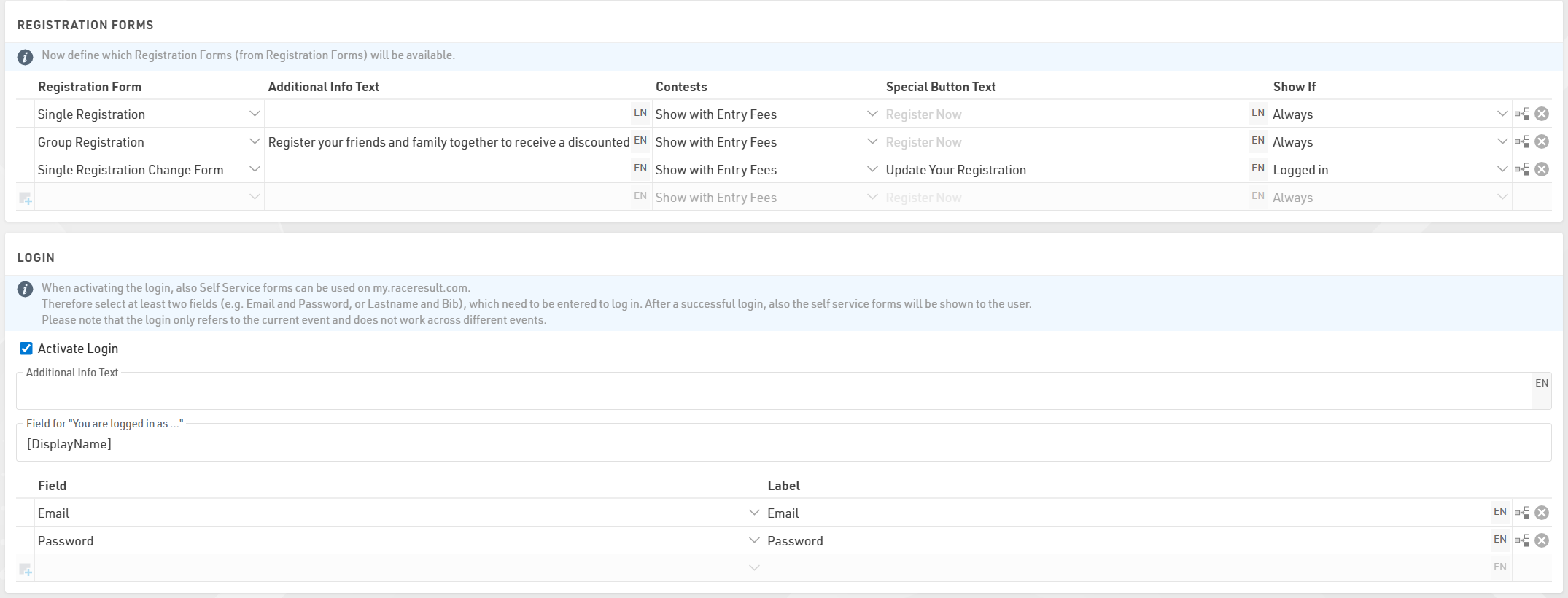
For each form you can define some additional info text to be displayed below the form title.
Selecting Show with Entry Fees will show a summary of the applicable entry fees for each available contest in that form.
You can also optionally relabel the button to start registration for each form.
If Login is activated then an additional dropdown will control which forms should be shown always, only when logged in, or only when not logged in.
Test Mode
Test mode allows you, or a third-party to test a registration form before the registration period, when in test mode the payment will not be captured.
It is advised to enter a date up to which the test mode is active to prevent this link from being used for an actual registration.
A link is available to open the registration page in test mode so this page can be accessed even before it is available according to the date range, note that it still must first be activated .
When in test mode it is possible to simulate specific dates by adding the query parameter &testDate= to the URL, this is useful for validating entry fees or active date ranges for specific fields.
e.g. &testDate=2026-12-25 would simulate registration on 25th December 2026.
Listas
Las plantillas de Listas permiten publicar listados en my.raceresult.com, y cada pestaña está diseñada para facilitar que los usuarios encuentren lo que necesitan.
El caso de uso general para cada plantilla es el siguiente:
- Participantes: Pensado para listas de salida e información antes de la carrera.
- En Vivo: Diseñado para mostrar resultados en vivo DURANTE la carrera, como clasificaciones y avances.
- Resultados: Destinado a publicar las listas completas de resultados después de la carrera.
Configuración:
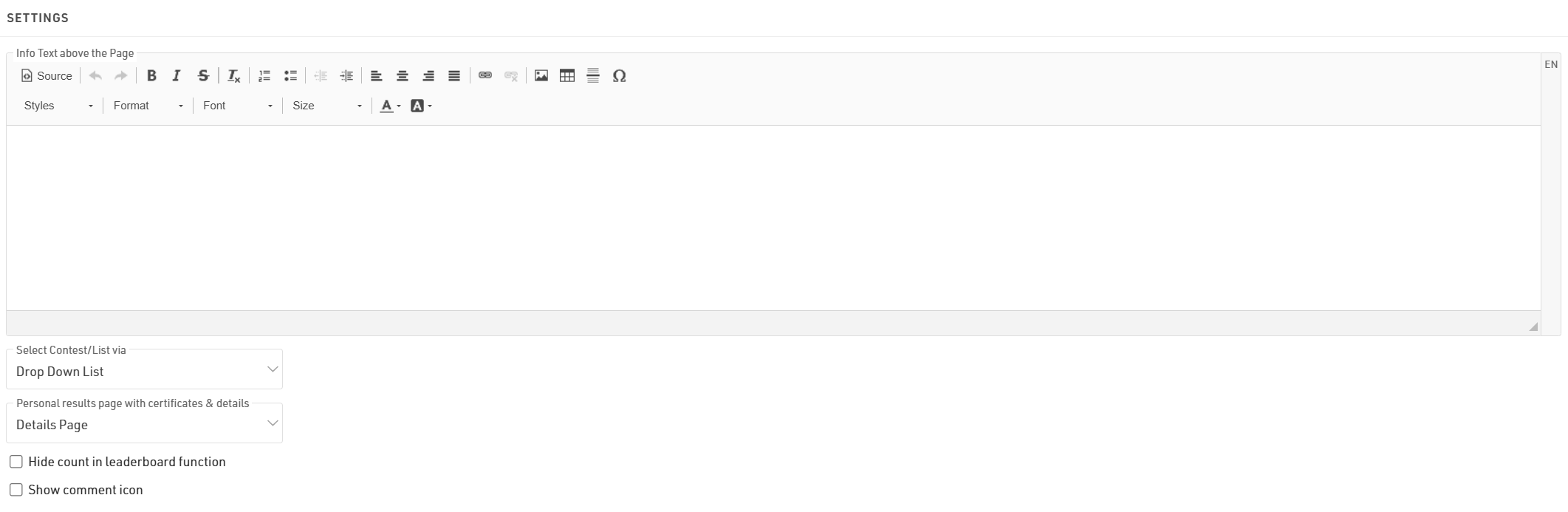
El texto informativo
El texto de información se mostrará encima de tus listas y puede contener contenido HTML adicional.
Si tienes varias listas, pueden mostrarse o seleccionarse mediante un menú desplegable o cuadros de selección. Ambas opciones se explican en el artículo mencionado más abajo.
Si seleccionas una Página de resultados personales con certificados y detalles, se habilitará una ventana emergente al hacer clic en un participante dentro de una lista.
Esta ventana mostrará la lista de detalles y otra información adicional configurada en los ajustes de Certificados / Detalles.
Al usar la función Leaderboard para una lista, aparecerá la opción “Mostrar X participantes”, donde X es la cantidad total de participantes del grupo.
Si ocultas esta opción, X se reemplazará por “todos”.
Seleccionar Mostrar ícono de comentarios mostrará un ícono junto a cada participante de la lista, permitiendo que los usuarios vean y agreguen comentarios sobre participantes específicos.
Publicar Listas
Puedes publicar múltiples listas a través de my.raceresult.com; sin embargo, en la mayoría de los casos se recomienda publicar una sola lista que contenga toda la información necesaria, lo cual simplifica la experiencia para el usuario.
Cuando se publican varias listas en una pestaña, el usuario podrá seleccionarlas usando los menús desplegables o el selector de cajas, según la configuración de Seleccionar Competencia/Lista vía El nombre de la lista puede adaptarse utilizando la etiqueta opcional.

Listas
Las listas pueden activarse o desactivarse individualmente, por lo que pueden mantenerse ocultas hasta que se necesiten.
Al hacer clic en el enlace para abrir una lista, la página se abrirá directamente con esa lista ya seleccionada. Esto seguirá funcionando incluso si la lista o la pestaña no están activas según las fechas de publicación, lo que permite previsualizar una lista antes de publicarla.
Puedes aplicar filtros de Competencia (Contest) a las listas.
Si tienes varias competencias seleccionadas, los filtros o el selector de cajas incluirán primero las opciones de Competencia antes de mostrar la lista.
La función de Leaderboard para las listas reducirá cada grupo dentro de la lista al número correspondiente de registros.
Debajo de cada grupo se mostrarán botones para mostrar más o mostrar todos.
Con la actualización en vivo habilitada, las listas se actualizarán automáticamente en tiempo real, lo cual es muy útil para clasificaciones en vivo (live leaderboards).
Ten en cuenta que esto solo estará activo dentro del rango de fechas del evento, según los Ajustes Básicos.
Cada lista puede tener configuraciones avanzadas:
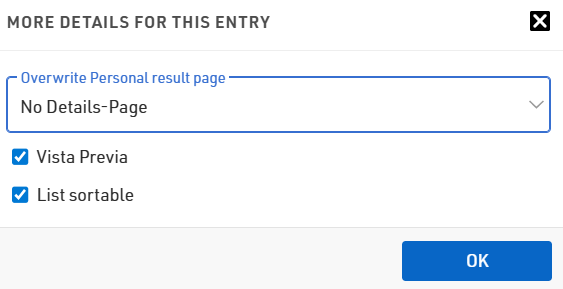
Funciones avanzadas de las listas
Si deseas mostrar la Página de Detalles solo en listas específicas, puedes usar la opción Sobrescribir página de resultados personales, que permite habilitar o deshabilitar las páginas de resultados personales para esa lista en particular.
Si la Vista previa de una lista está deshabilitada, entonces al seleccionar esa lista se abrirá automáticamente un PDF con la información.
Del mismo modo, si la opción PDF está habilitada, se mostrará un enlace arriba que permitirá a los usuarios abrir la lista en formato PDF.
Cuando Lista ordenable está activado, los usuarios pueden ordenar cada columna en orden ascendente o descendente haciendo clic en los encabezados de las columnas.
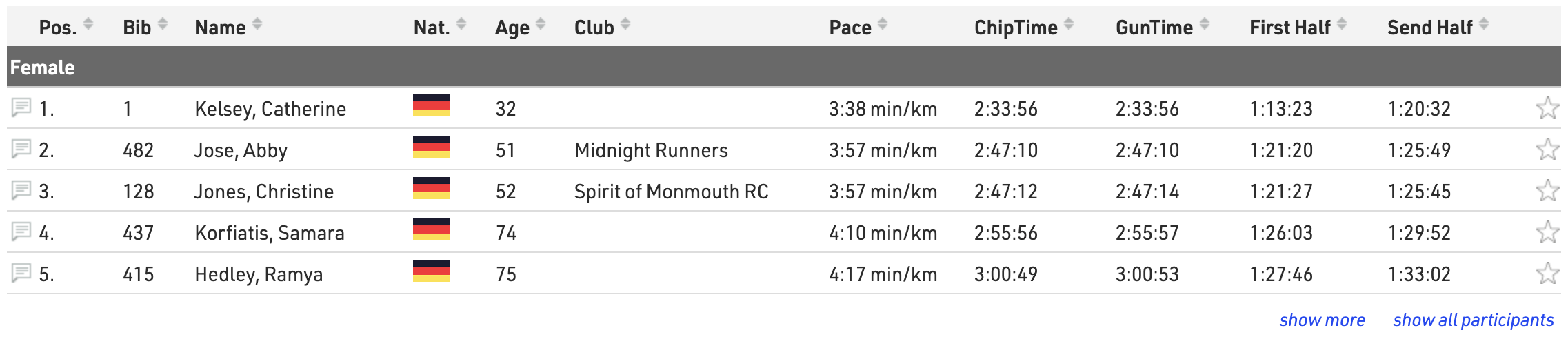
Reviews
Visitors can leave comments in two places on my.raceresult.com:
- On the Reviews tab they can leave longer texts and rate the event with a 5-star-system.
- Comments can be left for specific participants in the Participant View. If there are comments for a participant and the comment logo is enabled then the comment icon on the left side of the Output list will be solid.
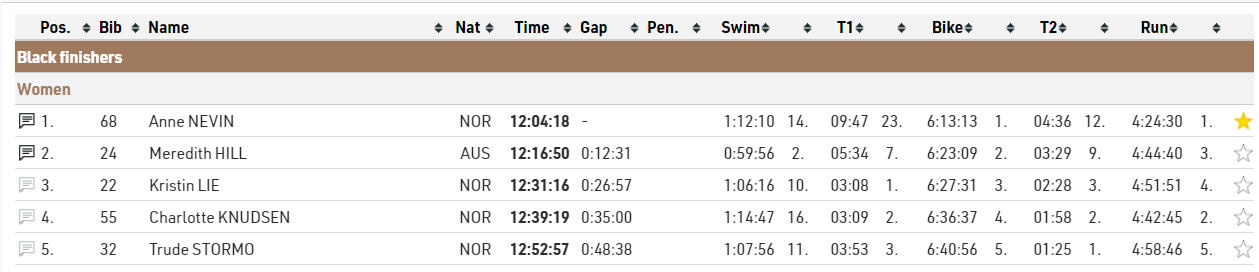

Comments can be set in Particpant Views and the Reviews tab can be disabled if you choose, and you can also moderate comments through the Handle Comments page.

Note that new comments are checked on a daily basis by RACE RESULT and comments deemed inappropriate will be removed.
Contact
Specific Contact Details for the race organizer, timer or payment processor can be listed in the Contact page, it is strongly advised to update these in Activate my.raceresult.com settings to ensure participants know who to contact for any queries - otherwise some may contact RACE RESULT who are unable to answer event specific queries.
The page also shows a Contact form through which participants can submit Inquiries or report missing/incorrect data, this can optionally be disabled if not wanted.
External Content
When adding a new External Content tab it is possible to embed content from a website or YouTube.

iFrame
To load a website directly in a tab, enter an embeddable URL in the iFrame field. Please avoid using standard website homepages or top-level URLs for this purpose, as most sites block this for security reasons, which may cause the tab to appear blank or function incorrectly.
YouTube Video
To display a YouTube video, enter the unique Video ID found at the end of the video's URL. Please note that if a user has not accepted third-party cookies in their browser, the video will not load automatically. Instead, a cover image will be displayed that allows the user to accept YouTube’s terms of use to view the video.
Favorites
The Favorites Tab enables spectators to search for participants and maintain a personalized tracking list. End users can add participants to their favorites directly when viewing lists or via the integrated search.
Search Settings

The favorites search is a global search across the entire event file, so you must define the search parameters to ensure relevant results.
- Search Fields: Add the specific participant fields that the system will query when a user types a search term.
- Filter: Apply a filter expression to restrict the searchable pool, for example, to exclude participants who canceled their registration
Visualisations Configuration
Use the Search Result Visualisation to adjust how users see the results of their search and look for athletes to add to their favorite list.
- Order by Field: Sort the search list in a logical order by adjusting the order by field.
- Elements: Construct the row layout by setting up the elements in the same way as in the Participant View to display relevant data for each participant

The Favorite List Visualisation configures the actual saved favorites list. Here you define how the list looks once a spectator has chosen their favorites and what happens when they click on a participant.
- Order by Field: Set the sorting logic for the active favorites list.
- Linked Participant View: Specify which detailed Participant View layout opens when a user clicks on a participant in the list.
- Elements: Build the list display layout, for example show latest split data so that spectators have relevant data for all favorites without having to click into indivual participant views.

Note: Favorites are stored locally in the user's browser cache. They do not sync across different devices or browsers (e.g., from a phone to a computer).
Participant Views
Display individual result details with the Participant Views either as a pop-up from within a published list, or from a direct URL. Create different views for different purposes, or adjust one view with filters to match what's required.
Preview a Participant View and verify the direct URL by entering a bib and click on 'Open tab'.
General settings

Activate the view and enable Live Update to allow an instant update of information when having the Participant View open, both in the pop-up and the direct view.
The name of the view is only used internally for better overview if there are several different views and to select a view in Tabs.
Provide a meaningful and concise URL. This is used as an extension for the direct URL and must not be reused in either tabs or participant views.
Lastly, define a date range during which the view shall be active.
Elements

The elements contain all the information that shall be displayed. In here, place and structure different types of information to make up for the participant view.
Drag & Drop to change the order of single elements by clicking on the left edge of an element line.
Select one or more elements by ticking the respective boxes. This opens a tool bar and allows to copy, cut and paste elements across different Participant Views and even across different event files. Copied or cut elements will be pasted above the currently selected element. Further, selecting multiple elements at once simplifies deleting, unindenting or indenting several elements.

Indenting certain elements makes the first element of a "higher" level the parent element. All display filters such as the 'Active selection' or the 'Show If' apply to children of an element accordingly.
Type
The type defines what sort of information is shown and how it is structured. Select from different options.
Structure - structure elements define how data and information is organized.
- Box: A box puts a white background and border around the children elements. Optionally, enter a box title in the 'Data' column. Box titles support fields and hence support both normal and full-text expressions.
- Adaptive Columns: In adaptive columns all children of the same level will be displayed in a new column as long as the available width allows. If the screen is too narrow, adaptive columns will break and display elements underneath each other.
- Fixed Columns: Fixed columns will always display children of the same level side-by-side. If the screen is too narrow, elements will overlap.
- Compact Row: In a compact row all children on the same level can be placed directly next to each on the same row and positioned based on the compact row alignment setting.
Content - content elements fully customize the Participant View with any personal, or event related data.
- Text: A text element is a fixed text-only element. It does not accept expressions. Enter the text in the 'Data' column.
- Field/Expression: This supports both normal and full-text expressions and allows tailoring the view to the participant who's viewing. Optionally, add a title for this field/expression or display it as a Badge. These settings are found under 'More Details'.
- HTML: Add an HTML element for full graphical flexibility. The HTML editor opens in the 'More Details' and support expressions.
- Picture: Add a picture to the participant view and display for example a sponsor banner, or some other event related pictures.
Adv. Content - advanced content uses pre-set options. For all advanced content elements an optional checkbox to Embed in box with header under 'More Details' simplifies the setup by displaying the element in a box, with a pre-defined multilingual header. Most advanced content elements require settings from the 'More Details'.
- Splits/Legs: Display an overview of all splits and/or legs. Customize which splits/legs details shall be shown, including whether or not to show predicted times.

- Links: Publish personal links to other websites. Customize the URL by using an expression to forward participants to a custom landing page, such as their personal race photos or videos.

- List: Select a list to be shown as details. The list will be filtered to the participant currently viewed.
- Ext. photo provider: Link directly to an individual participant's event photos with one of the available integrations. Select the platform to link to, enter the platform's Event ID, and it will show samples of the first 5 photos for that participant which also link to a unique gallery for that participant. If matching is done on an alpha-numeric bib number, do so using the optional field.
- Certificates: Select which certificate sets should be published and for which contests. Enable or disable Individual sets as required. By default a preview of the certificate is shown as visible in the designer. Alternatively, upload a custom image preview to be shown instead. Similarly the name of the certificate set will be shown or define a custom label.

- Comments: Add the ability to post comments to a participant.
- Map: Allow the user to track a participant's progress on a map.
Active
Define whether an element shall be active or not. Further, distinguish between availability of an element in a popup view or direct access only.
More Details
Apply a date range under 'More Details' during which the element is active. Further, display fields dynamically, e.g. based on input in participant data, by entering any expression as a filter under 'Show If'.
Lastly, find a range of pre-set CSS styling options at the bottom. These may vary between element styling and title styling options. Element always refers to the data of this line, title refers to the title only. The title comes either from the 'Data' column or the title entered in the 'More Details' section, depending on the used element type.
Map

If the contest has a GPX track set in the Contests settings it is possible to enable a tracking map in the Participant View. Enable map tracking with Map as the element type. At the current time, tracking is not available for multi-day races. For spectators to get real-time progress updates without refreshing their browsers, make sure to check the Live Update option.

GPX Track & Split Alignment
The tracking map uses your defined splits to accurately show the athlete's progress along the course. It is important to upload a GPX route that is close to the listed length of the contest; otherwise, the visual placement of the participant will not be entirely accurate. If your race includes multiple laps, they must be fully drawn out in the GPX file.
If your timing points include GPS coordinates that fall near the GPX track, the map will automatically snap the split location to those exact coordinates. If no GPS coordinates are provided for a split, the system will place it based on the cumulative distance along the GPX file. Splits which are set to Internal Only are still used to position the marker, but are not shown on the map.
The map's tracking behavior relies heavily on the splits algorithm selected in your splits setup:
-
V1 Algorithm: Progress predictions will not be available until the participant passes the first split on the course.
-
V2 Algorithm: Tracking begins instantly as soon as the participant crosses the start line.
Display and Customization

If favorites are enabled for the event, the map can display up to 50 favorited athletes simultaneously alongside the primary participant being viewed.
Each participant is represented by a bubble icon. By default, the map displays the participant's Bib as the visual label, FirstLastname as the tooltip, and applies a default filter of status=0 to ensure only active, valid participants are displayed. You can fully customize these fields and filters in the advanced settings.
If the forecast is too fast, the Wait at timing point if prediction is too fast setting holds the marker at the next timing point until the participant has passed it, rather than letting it continue along the course on a prediction which is running ahead of them. Note that the marker does not wait at splits which are set to Internal Only.
The GPX route line color is defined by the Contest Color.
Integración de Sitio Web
RACE RESULT ofrece numerosas opciones para integrar la inscripción en línea y los resultados al sitio web de su evento.
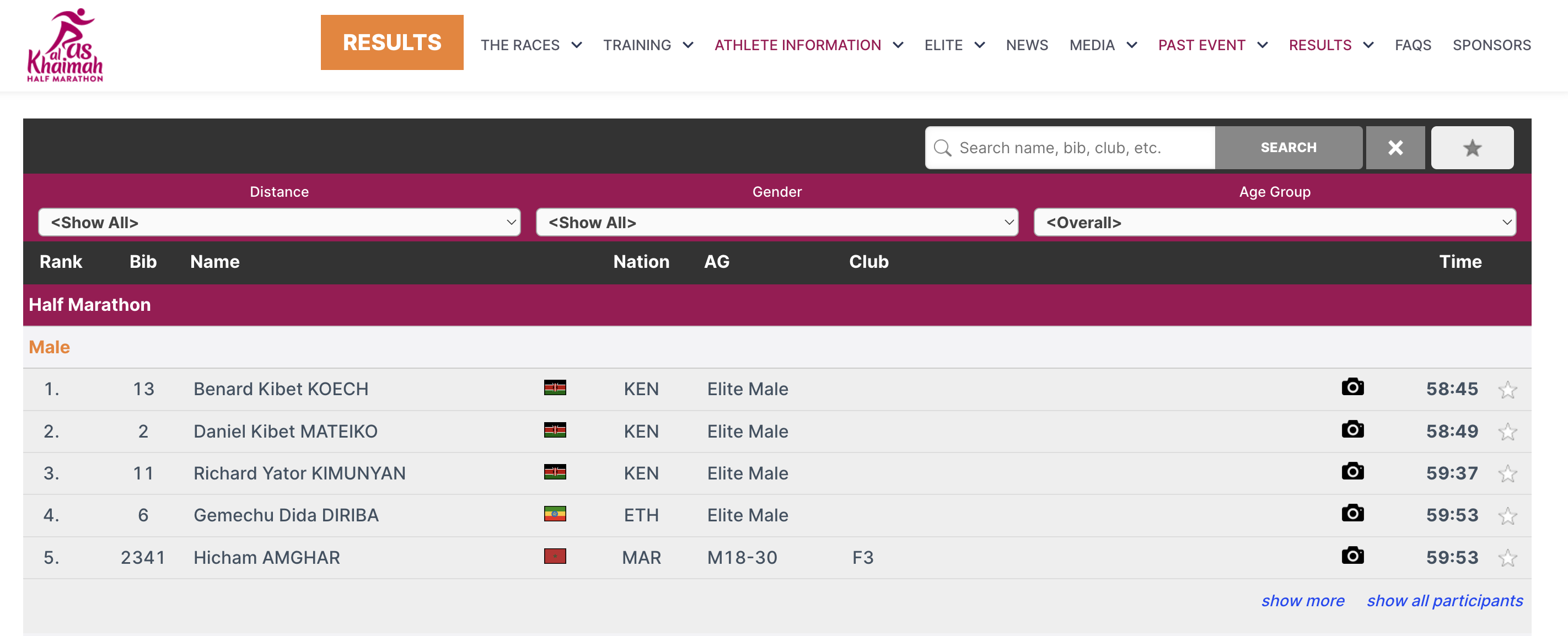
Esto se realiza mediante pequeños fragmentos de JavaScript que cargan los resultados directamente en su sitio web, sin utilizar iframes. Todos los estilos CSS de su sitio web también se aplicarán al formulario de inscripción en línea y a los resultados. Si es necesario, puede añadir CSS adicional para ajustar y personalizar la apariencia.
El código JavaScript que debe copiar y pegar en su sitio web se encuentra en my.raceresult.com → Website Integration.
En la sección Embed Single Tab, seleccione la pestaña o la Vista de Participantes (Participant View) que desea integrar y configure las opciones correspondientes. El fragmento de JavaScript y el shortcode de WordPress que aparecen debajo se actualizan automáticamente, por lo que solo necesita copiar el que corresponda a su sitio web.
Cualquier pestaña puede integrarse de esta manera, incluidas:
Las opciones que configure se incluirán tanto en el shortcode de WordPress como en el fragmento de JavaScript. Antes de utilizar el shortcode, actualice el complemento de WordPress a la versión 1.1.4 o posterior. Puede descargarlo desde la misma página.
Los artículos que se muestran a continuación explican con más detalle los distintos tipos de código de integración disponibles.
Para los resultados, esto podría verse de la siguiente manera:

En la captura de pantalla anterior, algunos de los colores del marco de resultados han sido modificados. Esto se logra utilizando CSS personalizado dentro de las etiquetas <style>, lo que permite adaptar la apariencia de los resultados para que coincida mejor con el diseño y la identidad visual de su sitio web.
Embed Lists
In order to embed the lists you need to copy the corresponding source code. You might notice that all of these are very similar. There are a few key things to note that make them different and some features that allow you to customize these lists.
Here is the source code for reference.
<div id="divRRPublish" class="RRPublish"></div>
<script type="text/javascript" src="https://my.raceresult.com/RRPublish/load.js.php?lang=en"></script>
<script type="text/javascript">
<!--
    var rrp=new RRPublish(document.getElementById("divRRPublish"), 123456, "results");
    rrp.ShowTimerLogo=true;
    rrp.ShowInfoText=false;
-->
</script>
<style>
  /* Add custom CSS here or elsewhere to change the design */
</style>
This source code loads data based on the Event ID specified and the tab url specified. All of the sections in red are variables you can change to customize the embedded code. The above example will load the Results list for event 123456. If you want to load the Participants or Live lists you will need to change "results" in red to either "participants" or "live". In the case of a custom list tab you would simply use the custom url.
There are also two boolean options to turn on and off features.
- rrp.ShowTimerLogo - when set to true will show the timer's logo at the bottom of the results.
- rrp.ShowInfoText - when set to true will show the info text defined for the specified page.
Embed Registration and Online Self-Service
The online registration source code allows you to embed the registration portal directly on your site. This also allows you to link the ChangeLink for Online Self Service directly to your site when using the ChangeLink() function.
To start you will need to embed the online registration source code on your site, the same code will enable both standard registration and online self service.
<div id="divRRRegStart" class="RRRegStart"></div>
<script type="text/javascript" src="https://my.raceresult.com/RRRegStart/load.js.php?lang=en"></script>
<script type="text/javascript">
<!--
  var rrp=new RRRegStart(document.getElementById("divRRRegStart"), 230672);
  rrp.ShowInfoText=false;
-->
</script>
<style>
  /* Add custom CSS here or elsewhere to change the design */
</style>
There are 2 variables here as highlighted in red.
- EventID - the ID of the event to be embedded.
- rrp.ShowInfoText - Either true or false to define whether the info text of the registration page should also be included.
Handle Comments
Los visitantes pueden dejar comentarios en dos lugares de my.raceresult.com:
- Sobre el evento, en la pestaña Reseñas (Reviews).
- Sobre los participantes, en una Vista de Participantes (Participant View) que incluya un elemento de comentarios.
Ambos tipos de comentarios pueden revisarse y eliminarse desde my.raceresult.com > Gestionar comentarios (Handle Comments).
Esta página es independiente de la configuración de la pestaña Reviews, por lo que los comentarios realizados en una Participant View pueden seguir gestionándose incluso si la pestaña Reviews ha sido eliminada del evento.
Además, es posible conceder acceso únicamente a esta página mediante Derechos de Acceso (Access Rights). Por ejemplo, esto permite que un responsable de la comunidad gestione los comentarios sin necesidad de tener acceso al resto del archivo del evento.

Los comentarios se muestran en dos listas:

-
Eliminar comentarios del evento (Delete Event Comments): muestra los comentarios dejados en la pestaña de reseñas (Reviews), junto con la fecha y hora, el autor, el asunto y el texto de cada comentario.
-
Eliminar comentarios en las Vistas de Participantes (Delete Comments on Participant Views): muestra los comentarios dejados para un participante individual, junto con la fecha y hora, el autor, el participante y el texto de cada comentario.
Haga clic en el icono de eliminar situado junto a una entrada para borrar ese comentario.
Tenga en cuenta que Race Result también revisa diariamente los comentarios nuevos y eliminará aquellos que se consideren inapropiados.
Handle Inquiries
Athletes can file inquiries by filling out the inquiry form on the Contact page of an event on my.raceresult.com. It serves to standardize communication between participant and race director/timer.
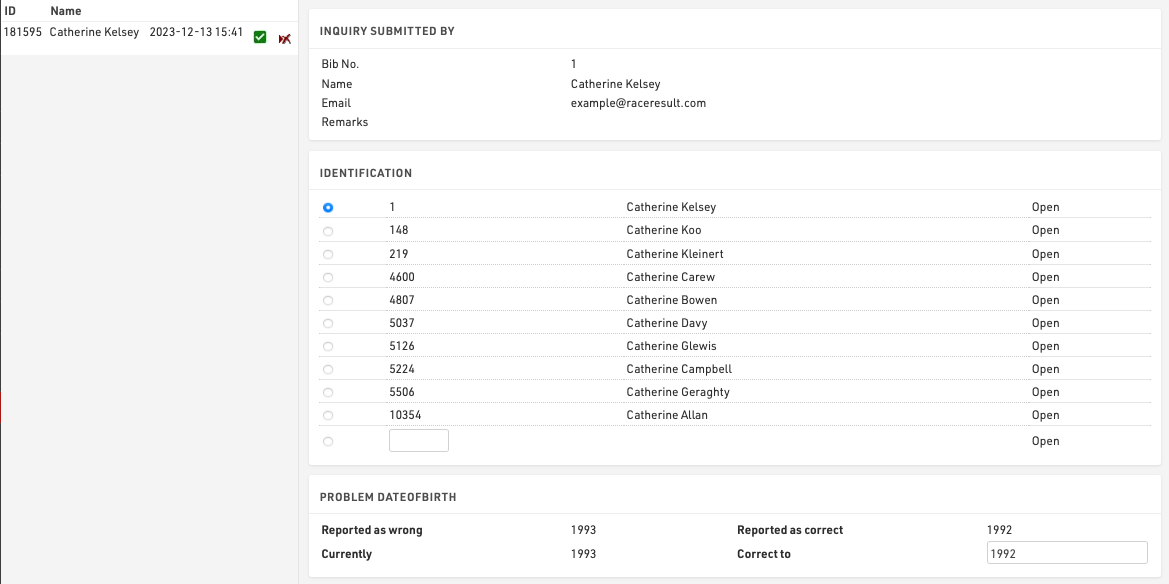
On the left side you can see all the inquiries which were submitted for this event. By clicking on an entry in the list the inquiry is shown on the right side. By clicking on the delete-icon in the list you can remove the inquiry completely or mark it as 'done' (in case you have already responded to it by email or phone).
There are five steps to handle an inquiry.
- Determine which participant sent the inquiry. Under Identification you can find some suggestions.
- The reported problems are displayed. Determine how to correct these.
- Optionally choose to send a response email and fill up the text.
- Optionally enter some notes (for internal reference)
- Click on Correct to finish editing, correct the problem and send the response email.