


The Results Kiosk is great at events for giving participants direct access to their results on-site, but some consideration should be put in to how much data can be easily displayed without the receipt being too long.
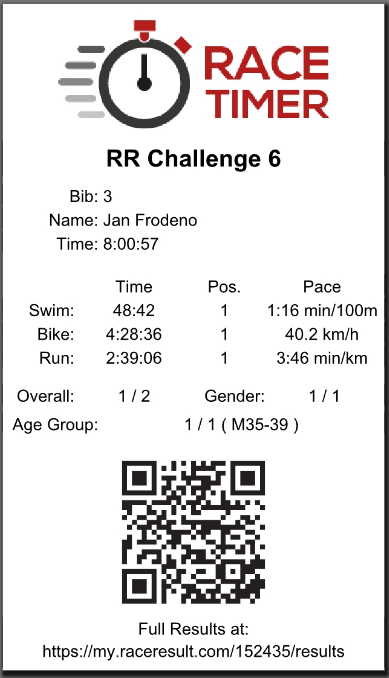
Layout
This receipt was based around a receipt printer with standard 80mm paper. The length was set to 140mm in the end. Whilst building the layout this was set to longer and reduced once all content was complete.
For this we opted to show the Race Timer logo at the top of the receipt, this shows the logo of the timing company for their recognition in the results service. 
It is worth remembering that as this will use a receipt printer which is a thermal printer no colour will be printed, this would be black / white / grey.
Basic Information
At the top of the receipt we want to show the most important and identifying information.
The EventName is shown first, this uses a data field set to max width with centered text. The data box is also set to double height to allow text to wrap on to a second line if necessary.
All text and data fields in this solution are set to use the Fit font size to ensure display compatibility and ensure that fields can still be displayed regardless of length, particularly in Event.Name and DisplayName below.

Three fields are shown for identification, these are useful to ensure participants can check they have the correct printout and to show their finish time, which is the most important time. Each field has a text box with the label, aligned to the right to ensure these line up uniformly, then a data field for the corresponding field.

The time is shown using the WithStatus() user-defined function so that the Status is shown if their status has been changed from regular. The DisplayName is important to set to Fit to always show the name regardless of length.
Times
Here we only want to show the most important and useful information to participants, we chose the 3 main legs; Swim, Bike and Run, and chose to show each leg's time, a rank for each and the speed for the leg. Text boxes were setup for each header we were going to show.
Leg names were aligned right, with each column aligned to the center.

A table is created with data fields to show the corresponding fields for each leg. For this we use each leg's Gender rank (e.g. Swim.Gender) and the .SpeedOrPace (e.g. Bike.SpeedOrPace) which shows the speed or pace for that leg according to the type of sport for that leg and the format used.

Ranks
A text box is created for each header, the Overall and Gender headers are spaced evenly, with the text aligned right so it clearly matches the following data field.

Three data fields are inserted for each rank we want to show, Overall, Gender and AgeGroup, this text is aligned to the center. The final Rankings setup is used here to avoid confusion.

We wanted to show the rank out of the number of participants in each group, if this count relied on a MaxRank then for early finishers it would not be truly reflective, if only 5 participants have finished it would show 1st of 5. For this we therefore use a DCount() which compares to the number of starters in each category respectively. The expressions used are as follows.
Overall, counting all starters in the Contest:
[OverallRank] & " / " & DCount("[Started] AND [Contest]=""" & [Contest] & """")
Gender, counting all starters of the same Contest and Gender.
[GenderRank] & " / " & DCount("[Started] AND [Contest] = """ & [Contest] & """ AND [Gender]=""" & [Gender] & """")
Age Group, counting all starters of the same Contest and Age Group, since each AgeGroup has a unique ID and age groups are separated by Gender already we don't need the Gender grouping here additionally. We also show the Age Group short name here, so they can also verify this is correct.
[AgeGroupRank] & " / " & DCount("[Started] AND [Contest] = """ & [Contest] & """ AND [AgeGroup1]="""& [ AgeGroup1] & """") & " ( " & [AgeGroup1.NameShort] & " )"
Results Link and QR Code
The final element added was a link to the results page, which in this case was assumed to be using the my.raceresult platform.

A barcode is inserted, which is then set to type QR Code. For the URL an expression is written which uses the Event ID so that this template could be copied for future events without the need to update the URL each time.
An additional data field is inserted below with a similar text expression with the URL for those who prefer to type the URL.
