During the event, you should continue to monitor the timing system and your results to ensure everything is being recorded and calculated as you expect.
Timing System
It is always advisable to monitor the timing system during the event, the Chip Timing screen gives you a good overview of your system at all times.
You should ensure that the system remains connected and that times are still being sent to the software, and monitor the battery life of your system - especially during long events. Additionally, ensure that the system is not reporting any errors - for example, if a loop cable has been pulled out or a passive antenna disconnected.
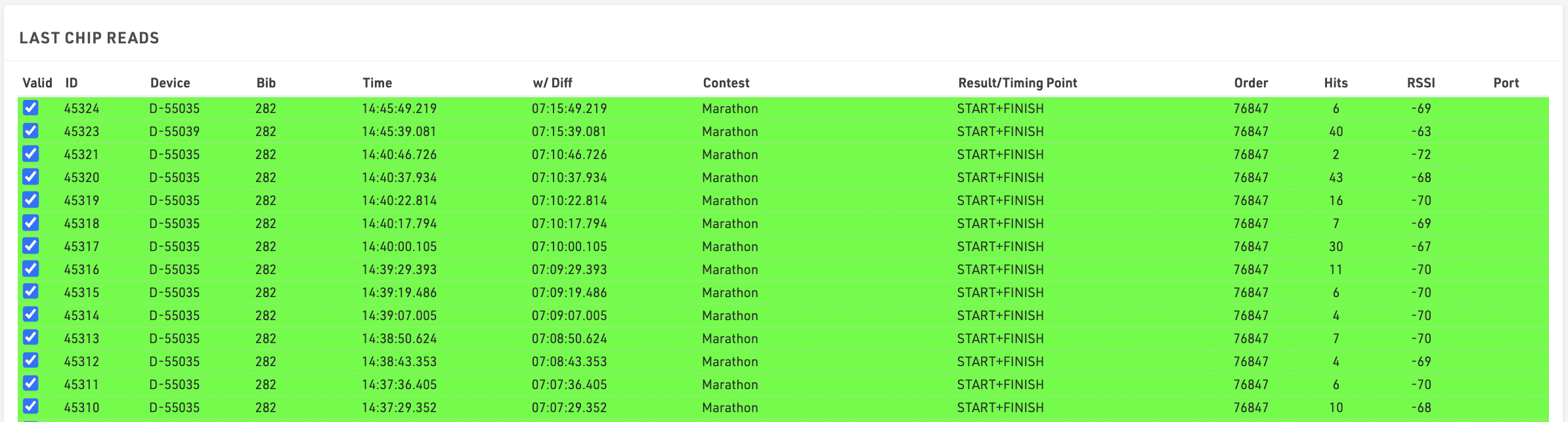
At the bottom of the Chip Timing screen, you can also see an overview of the Last Chip Reads, here you can see the latest data that has been received from your timing system.
Time Visualisation
Time Visualisation is a useful tool for quickly checking that your times are all handled correctly and identifying any missing passings.
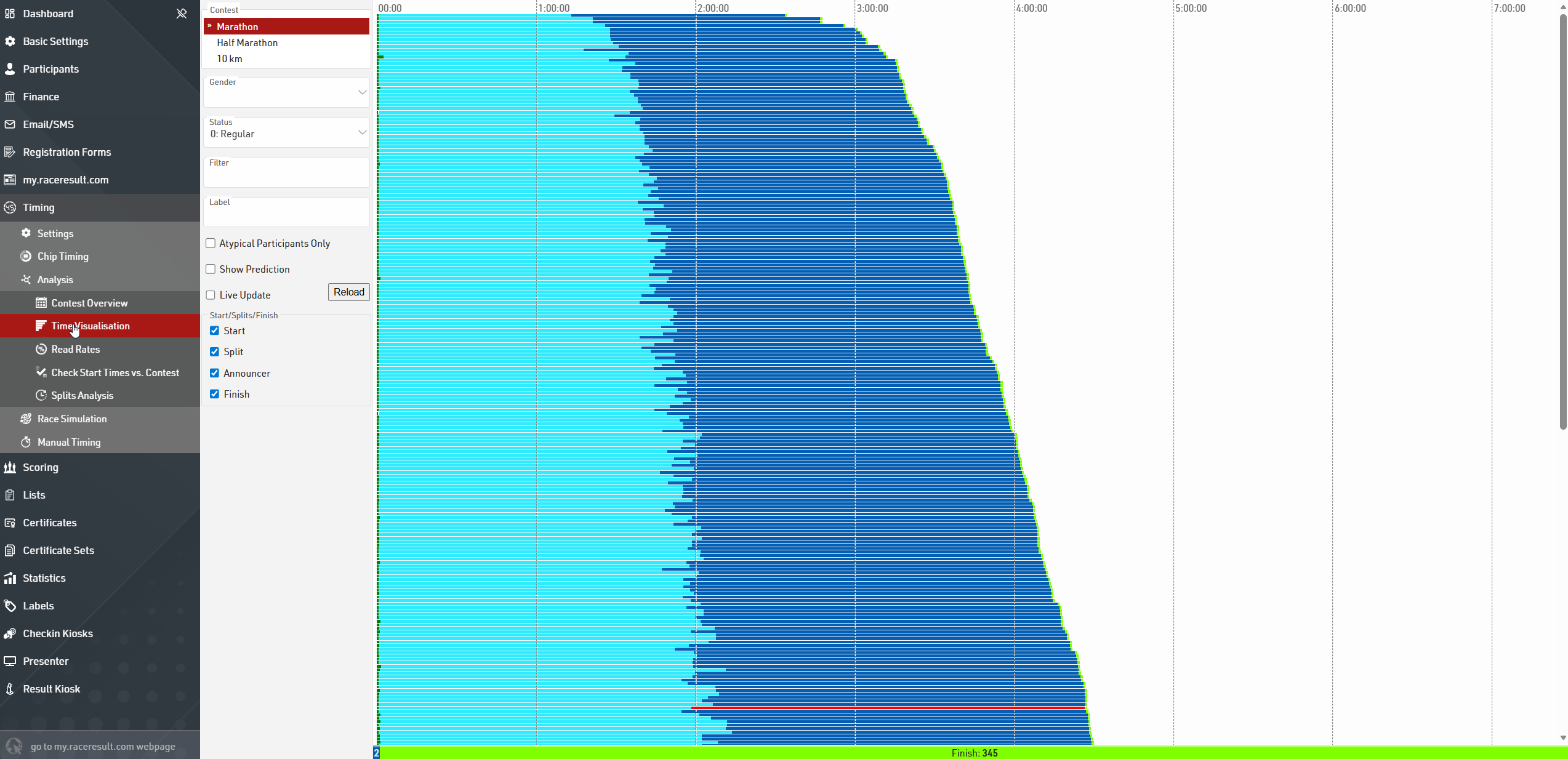
The graph shows a bar for each participant with at least one time in the selected Splits or Special Results. A red bar indicates that a time is missing and should be checked.

Clicking the bar will open a popup with the information for that participant including their times at each of the Splits or Results and the possibility to change their Status.
You can quickly view all participants with missing times by ticking the box for Atypical Participants Only.
Results
The simplest way to additionally check everything is correct is to check your results Output Lists. The best time to do this is immediately after the first participant has finished.
If they do not have a finish time then you may need to check why!
- Do they have a time recorded at the finish? Check the Timing Raw Data tab in the participant record.
- Does their time fit the minimum and maximum rules for your finish Split?
- Is the Start Time set correctly?
- Is their Status equal to 0 (Regular)?
Adding Missing Times
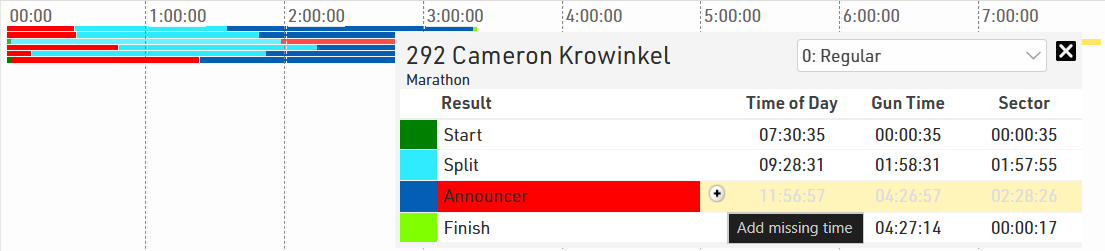
When viewing a participant with a missing time on the Time Visualisation, the missing time will be highlighted in red. You can quickly add predicted times by clicking the plus button and hitting enter after confirming the missing time.
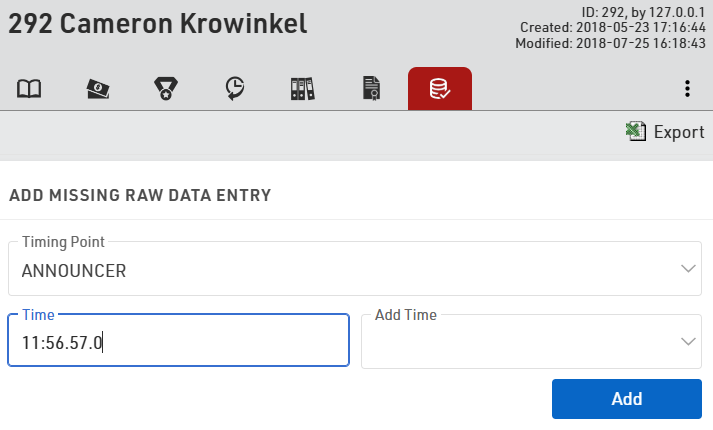
Additionally, times can be added manually in the Timing Raw Data tab of the Participant view. To do this, select the correct timing point and then enter the correct time to add to the participants raw data with "(Manual)" listed as the device.