When opening the participants view a table of all participants will be shown, if you have previously opened the participant view for an individual participant then your last viewed participants will be shown below for quick access.
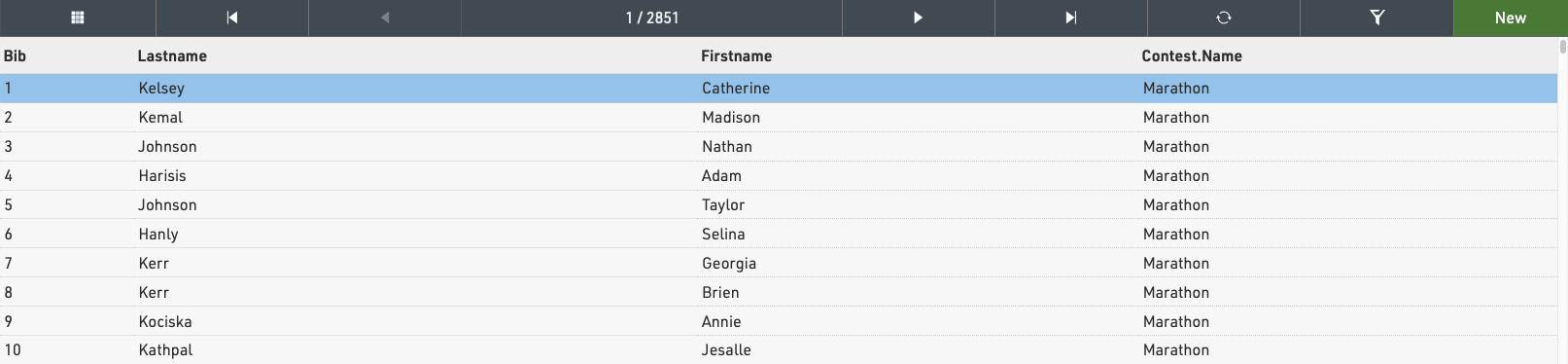
Clicking on a participant record from this table will open the Participant View for that participant to the right side of the table. The arrows in the top bar can be used to scroll through the participants one by one according to the current sorting of the main table view. Clicking New will immediately create a new blank participant record which will be opened in the participant view.
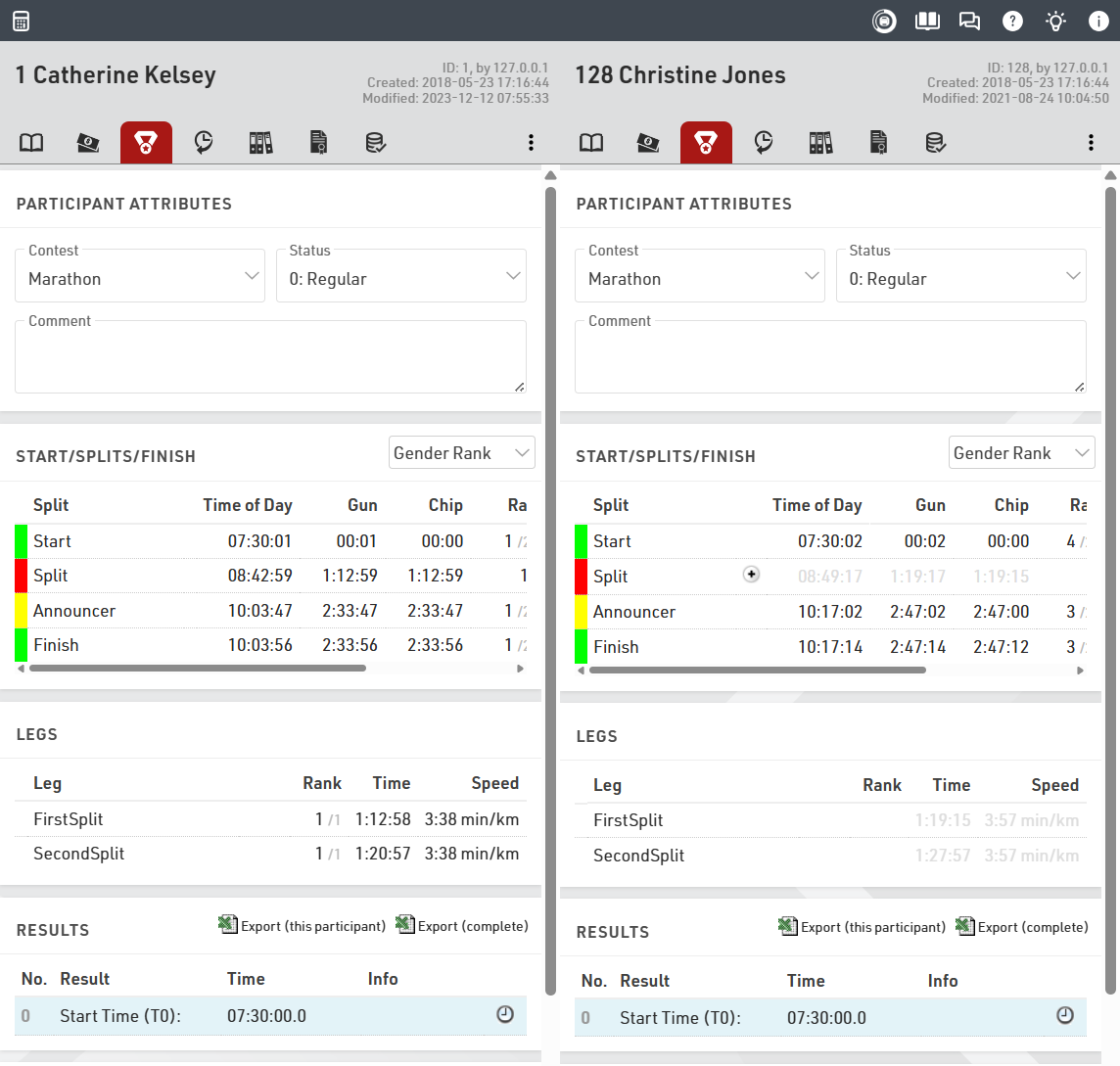
To view two participants side by side click on the first participant you want to display, and then click on the second participant while holding CTRL. You can navigate each participant view individually to compare data and times.
Note that the list of participants will be cached by the browser so when importing new participants or editing large batches of data you may need to reload the data using the reload icon in the top bar.
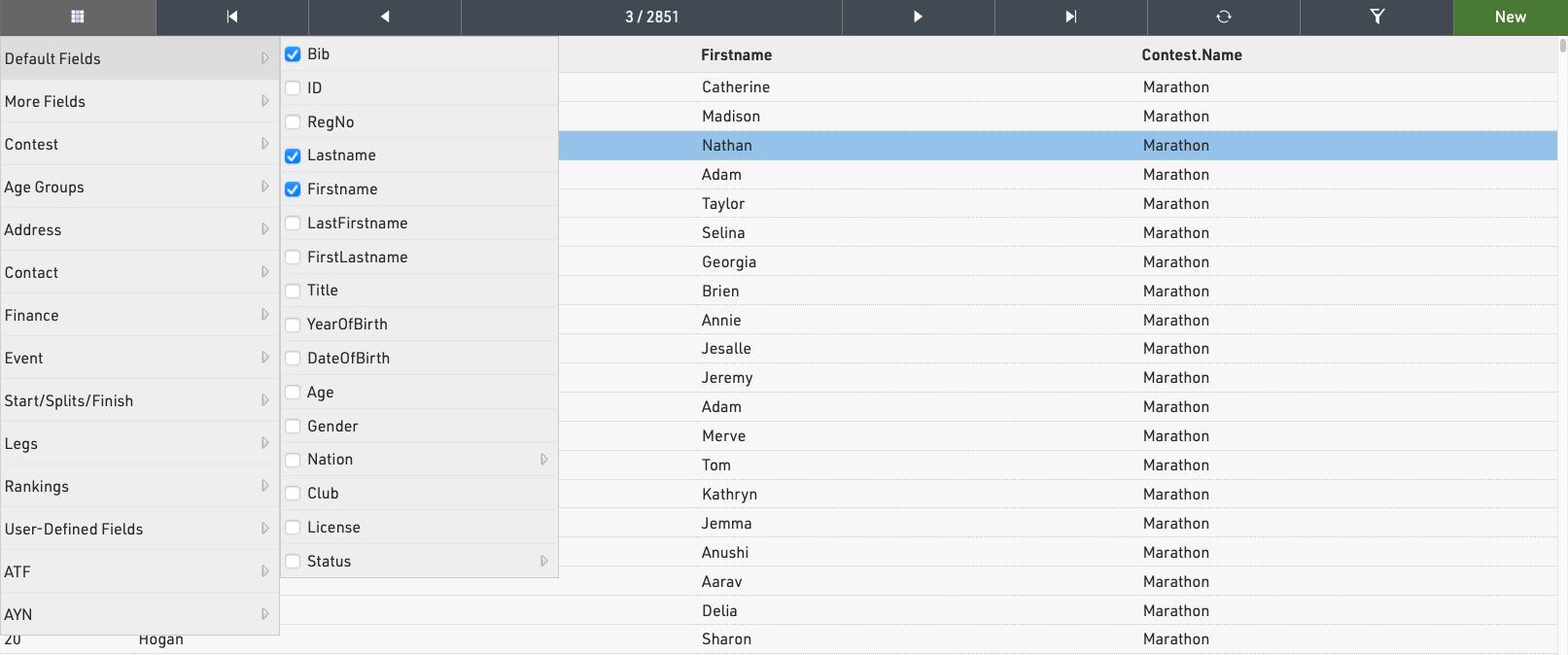
Add or remove columns to the table by clicking the grid icon in the top bar.
Sorting / Searching & Filtering
By clicking on the head of a column you can sort the table by this column. Press the same column head a second time to sort in descending order.
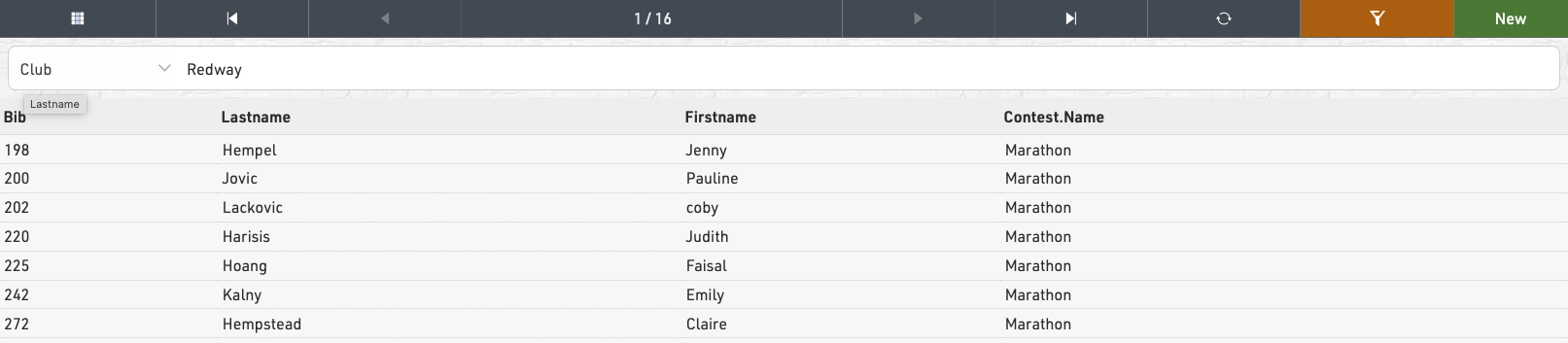
To filter the table click the filter icon in the top bar and select how you wish to filter participants, either using one of the standard fields or using any filter expression. When a filter is applied the filter button will be highlighted orange.