


This article will teach you how to configure the Time Zone setting on your decoder and then sync your decoder to GPS time.
- NOTE: The MENU button is in the center. The OK button is on the lower right.
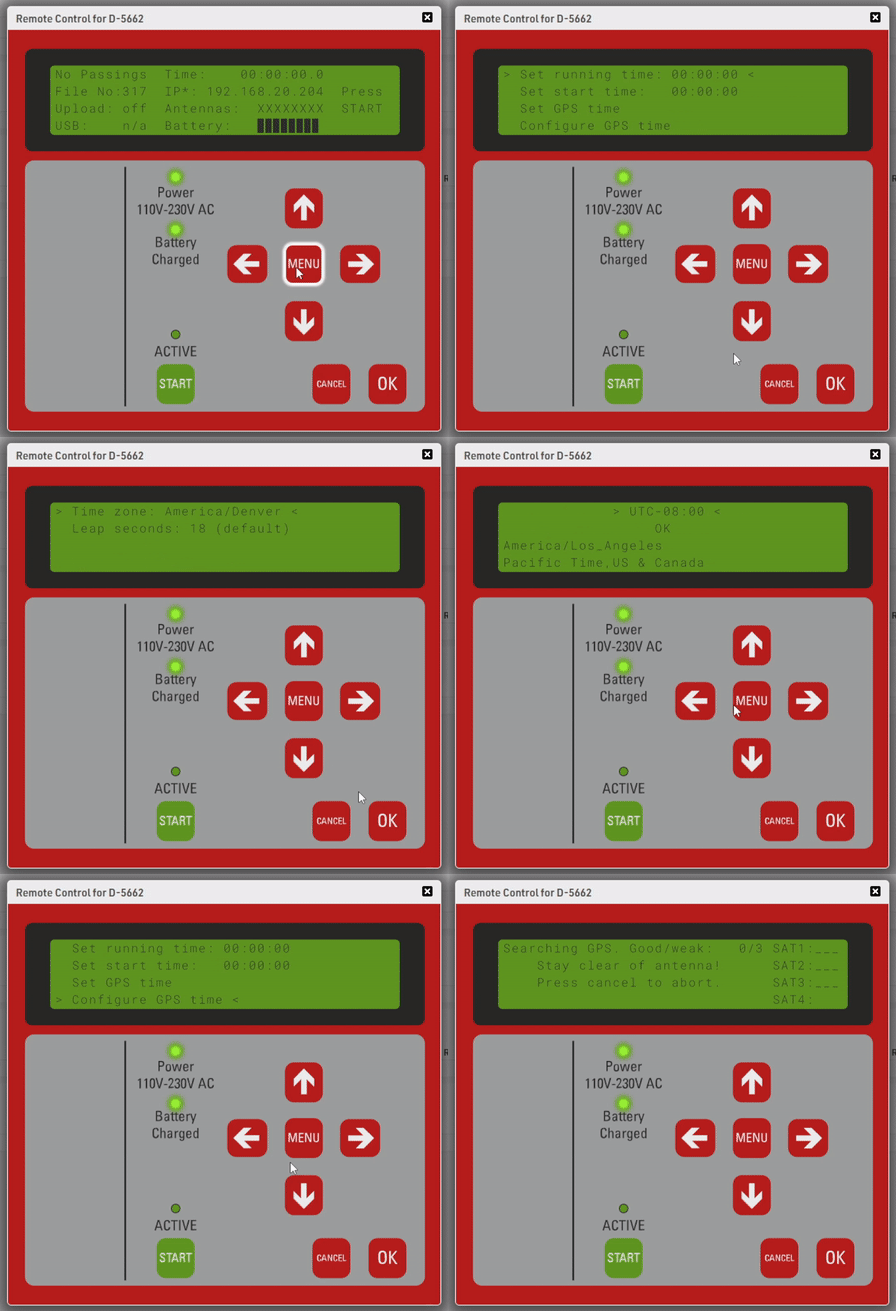
- Navigate to Menu > Time > Configure GPS time.
- Use the left and right arrow keys to select your correct time zone. Press OK to confirm.
- Press Cancel once to navigate back to the previous menu (Time menu).
- Select Set GPS Time and click OK. The decoder will then start searching for GPS satellites
- Wait for the decoder to connect to GPS.
- Once the decoder finds GPS, you will see a clock at the top of the screen. Make sure this is showing the correct time of day. If not, double-check your Time Zone and sync GPS time again.
The Time Zone setting is saved on your decoder. It will not need to be set again unless you change it or move to a different time zone.
You will need to sync GPS time each time the decoder turns on. If you want to automate this, you need to change the Startup Options under the System menu.