Zeitbasis
Die Zeitbasis von Ubidium wird von einer internen Uhr mit einer Genauigkeit von 0,28ppm beim Einschalten aufrechterhalten, was einer maximalen Abweichung von 0,024s pro Tag entspricht. Ubidium verwendet für das Timing immer die Tageszeit
Standardmäßig verwendet Ubidium die GPS-Zeit, sofern diese verfügbar ist. Während des Startvorgangs versucht Ubidium automatisch, sich mit der GPS-Zeit zu synchronisieren, was nach Möglichkeit immer im Freien und außerhalb von Gebäuden geschehen sollte. Stellen Sie daher sicher, dass die korrekte Zeitzone hinterlegt ist, damit die GPS-Zeit für Ihren Standort stimmt.
Verfügt das System über ein ausreichendes Signal der Satelliten, wird die Uhrzeit kontinuierlich überprüft und bei einer etwaigen Abweichung automatisch korrigiert. Wenn keine genaue GPS-Zeit ermittelt werden kann, versucht das System, auf NTP (Network Time Protocol) zurückzugreifen. Dies ist allerdings nur möglich, wenn eine Internetverbindung verfügbar ist.
Sollte weder die GPS-Zeit noch die NTP-Zeit verfügbar sein, greift das System auf die in der internen Uhr gespeicherte Zeit zurück.
Die interne Uhr läuft auch dann weiter, wenn das System ausgeschaltet ist. Hierfür wird eine Echtzeituhr (RTC) mit einer Genauigkeit von 5ppm verwendet, was bei ausgeschaltetem System eine maximale Abweichung von 0,432s pro Tag ergibt. Die RTC wird über die Batterien mit Strom versorgt. Sind keine Batterien eingesetzt, wird auf eine CR2032-Batterie auf der Hauptplatine zurückgegriffen. Diese Pufferbatterie hat eine geschätzte Lebensdauer von 20 Jahren, selbst wenn sie ständig benutzt wird.
Passings Files
Alle Timing-Daten werden in einem sog. Passings File auf dem System gespeichert. Jede Datei hat eine eindeutige ID, die auf dem Bildschirm mit den Passingsinformationen angezeigt wird.
Beim Starten von Ubidium wird automatisch ein neues Passings File erstellt. Sie können eine neue Datei auch erstellen, indem Sie die START-Taste gedrückt halten, bis die Taste orange leuchtet.
Bei der Verbindung mit Ubidium wird nur das aktuelle Passings File verwendet, bspw. wenn Sie Daten in RACE RESULT 12 erneut laden.
Ubidium Passings Files können nicht gelöscht werden und werden daher dauerhaft im integrierten Speicher abgelegt, was keine Auswirkungen auf die Leistung und die Speicherkapazität hat.
Auf Passings Files zugreifen
Auf die Passings Files kann entweder direkt über das Ubidium-System, über das RACE RESULT 14 Timing-Systeme Archiv oder über die RACE RESULT 14 Systemsteuerung für Ubidium zugegriffen werden.
Um direkt auf Dateien von Ubidium zuzugreifen, stellen Sie sicher, dass eine Netzwerkverbindung zum System besteht, entweder über LAN oder Wi-Fi, und geben Sie die IP-Adresse des Systems in Ihren Webbrowser ein.
Unter dem Bild des Ubidium-Systems befindet sich ein Link für den Zugriff auf die Dateien ("Files"). Wenn Sie auf diesen Link klicken, wird eine Liste aller auf dem System verfügbaren Passing Files angezeigt, und für jede Datei können Sie die Anzahl Detektionen zusammen mit den Zeitstempeln der ersten und letzten Detektion innerhalb der Datei sehen.
Jede Datei kann in 3 verschiedenen Formaten heruntergeladen werden:
- .pbuf - Protokollpufferdateien sind von Menschen nicht lesbare Dateien, die eine konsistente Datenstruktur gewährleisten sollen.
- .jsonl - JSON-Zeilendatei, bei der jede Zeile einen JSON-Datensatz der Detektionen enthält.
- .csv - Comma-Separated Values-Datei, bei der jedes Feld der Detektionen in jeder Zeile durch ein Semikolon getrennt ist
Wenn Sie ein Passings File in RACE RESULT 14 importieren, verwenden Sie die .csv-Datei.
Stecken Sie alternativ einen USB-Stick in Ubidium. Es wird automatisch ein Export von Passings Files und Einstellungen auf den USB-Stick kopiert. Sobald alle Daten übertragen sind, erscheint die Meldung "Settings have been copied to USB stick". Sie können nun die generierte .csv-Datei in RACE RESULT 14 einspielen.
Passive - UHF
Frequency Selection
The Ubidium system will automatically set the frequency of the Ubidium Reader Elements based on the location determined by both GPS and on-board Modem. If no location can be ascertained it will fallback to the last known configuration.
Ubidium contains the frequency settings of all known countries / territories to ensure compliance with local regulations with regards to frequency ranges, channel hopping and output power.
TrackTiming
TrackTiming is a software module which is integrated into the Ubidium system, it provides a simple solution for continuous timing of circuits and A-B courses. It is primarily designed for lap events and training sessions where participants may complete multiple laps or make multiple runs over a fixed course.
As TrackTiming is integrated into the Ubidium system, it can be accessed through any computer or mobile device which is connected to the system.
TrackTiming Features
- Fully integrated within the Ubidium system
- Persistent participant database meaning participants only need to register a single time
- Create multiple sessions of races for each event
- Time-based transponder assignments for specific events or races
- Ability to allow participants to access TrackTiming for direct access to registration and results screens
How does TrackTiming work
Once TrackTiming is enabled the Ubidium system will create a Wi-Fi network which can be used to access the TrackTiming software interface. This can be used by both operators and participants to access different areas of the software.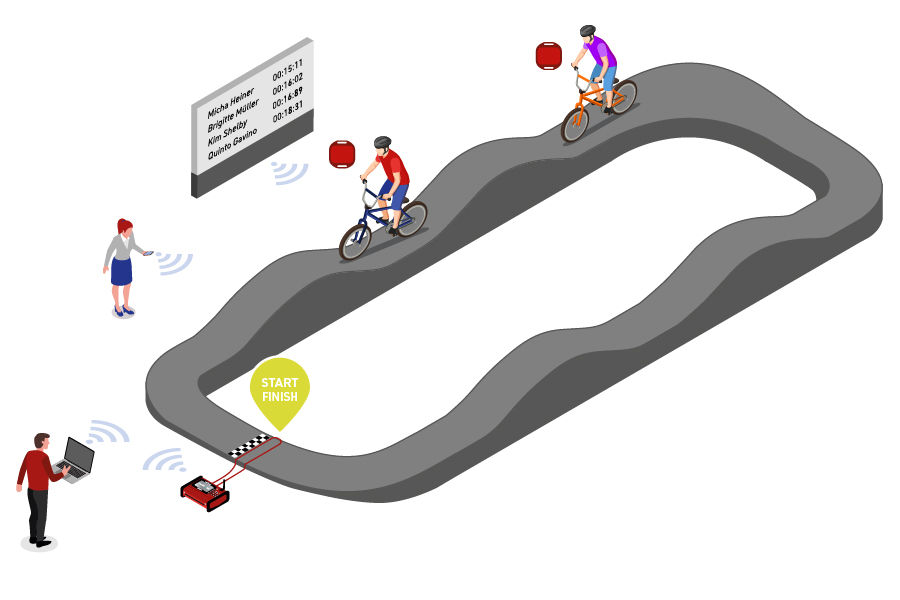
Within TrackTiming, events are defined for a specific course whether a simple circuit, for example a velodrome, or a fixed course with a defined start and finish, such as a BMX Track. Each event can have different races which may be used for different sessions or to separate different rounds, races can be started and stopped manually or run for a fixed time.
TrackTiming automatically receives all active passings generated on the Ubidium system, including data received from Loop Boxes, to then calculate every lap for participants within the current race. This then generates results lists based on each participant's fastest lap which can be accessed through the TrackTiming results display, results can be grouped or separated according to gender or age group.
Participants can also connect directly to TrackTiming for both registration or to view results without access to the system configuration.
Starting TrackTiming
TrackTiming is activated through the Detection Settings menu of Ubidium, once activated the System will additionally create a Wi-Fi access point which can be used to connect directly to the system.
The display will show two QR codes, the first can be scanned to connect to the Wi-Fi network of the Ubidium system, and the second will direct users to the IP address of the system which is used to access the TrackTiming user-interface.
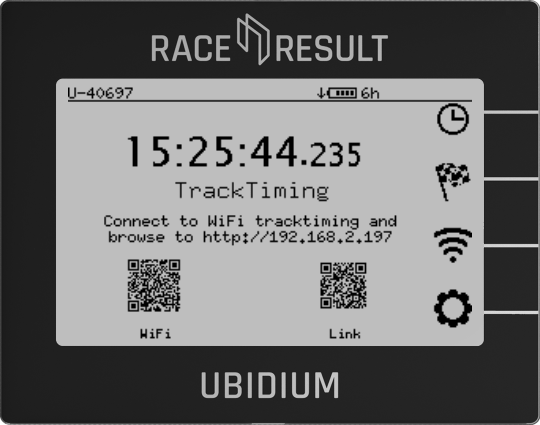
Alternatively, if the Ubidium is connected to your local network via ethernet you can access the user-interface by entering the system IP address as shown on the main display of the Ubidium system.
Operating System
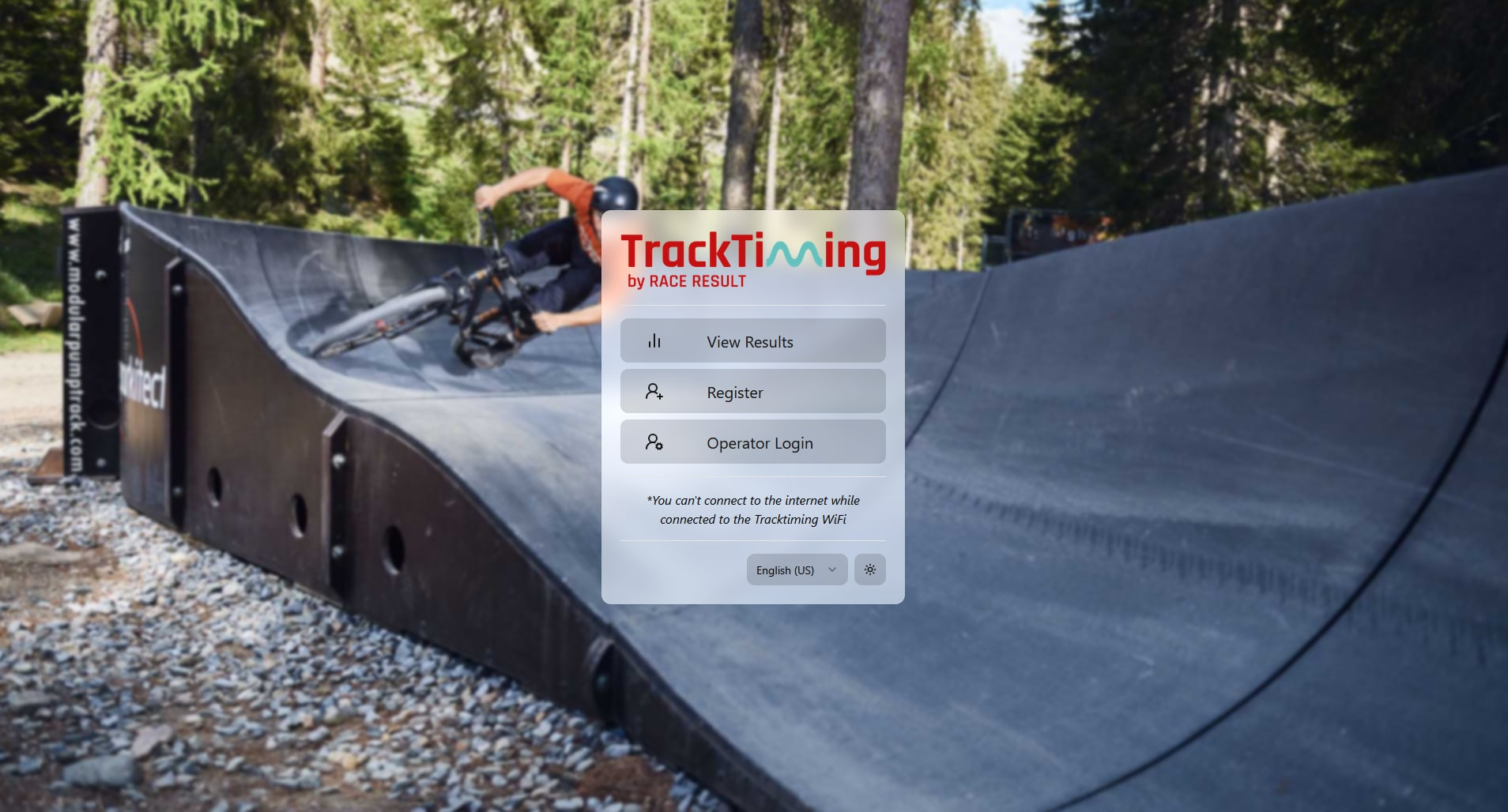
Upon loading the TrackTiming interface the main menu provides easy access to results, participant registration and a password-protected operator login, which is used to set up and manage the events.