Pri malých a stredných podujatiach je manuálne meranie časov cenovo výhodnou alternatívou oproti meraniu časov čipmi. Nepotrebujete stopky, race|result 11 prináša všetky nástroje potrebné na toto manuálne meranie.
Nižšie sú vysvetlené dve menšie metódy pre malé a stredné podujatie.
Malé podujatie
Ak sa podujatie môže považovať za malé v súvislosti s manuálnym meraním časov, záleží viac na počte účastníkov, ktorí skončia za minútu, než na ich celkovom počte. Detský beh na 250 metrov s 20 deťmi môže byť náročnejší než polmaratón s 200 účastníkmi.
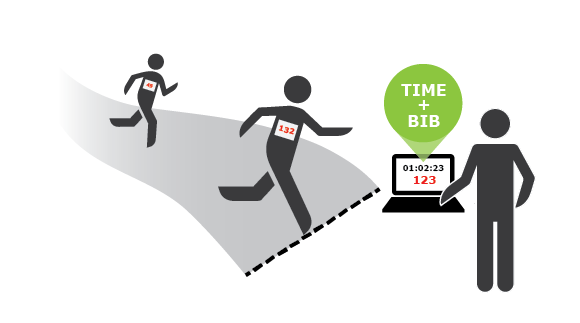
Metóda popísaná v tejto časti funguje dobre pri podujatiach s maximálnym počtom 10 finišerov za minútu. Časy a čísla bibov budú zachytené spolu na cieľovej čiare pomocou jedného počítača.
Capturing Times
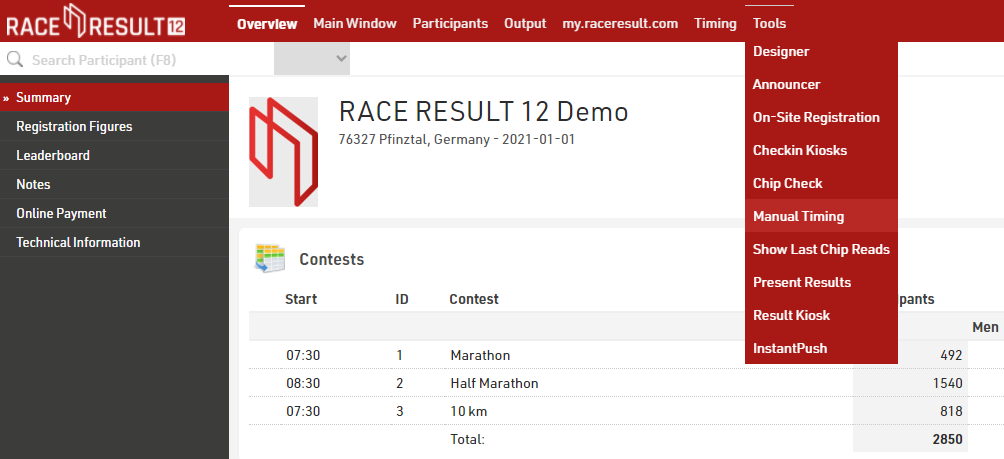
The Tool for Manual Timing can be found in RACE RESULT 12 in the Tools menu:
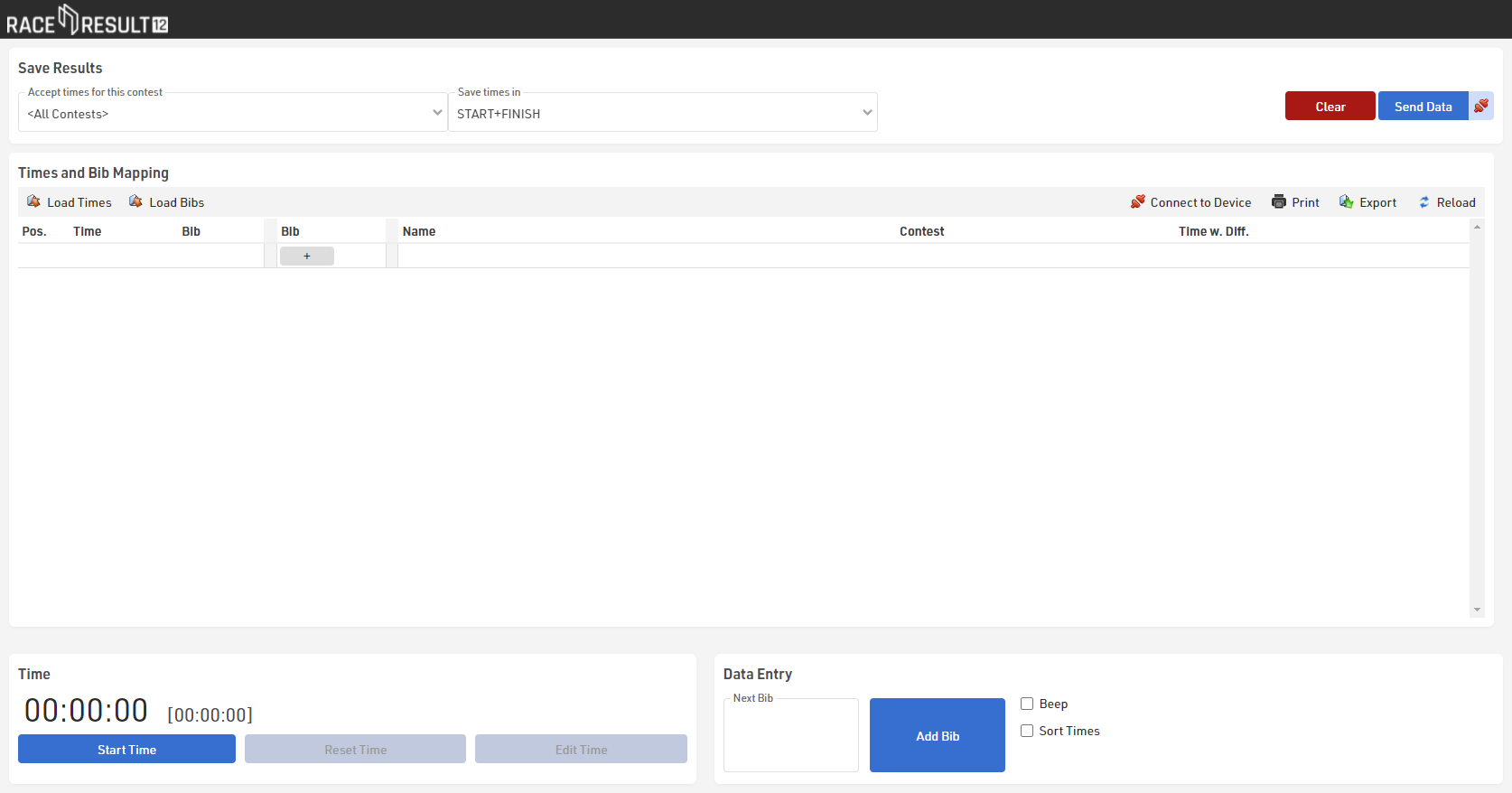
Start the time with the gun start by clicking the button in the bottom left corner. In case you missed the start, you can adapt the time afterward by clicking the button Edit Time.
Next, set the cursor in the field Next Bib, enter the bib number of the first participant approaching the finish line and press enter when they cross the line. The participants will be listed immediately in the table above:
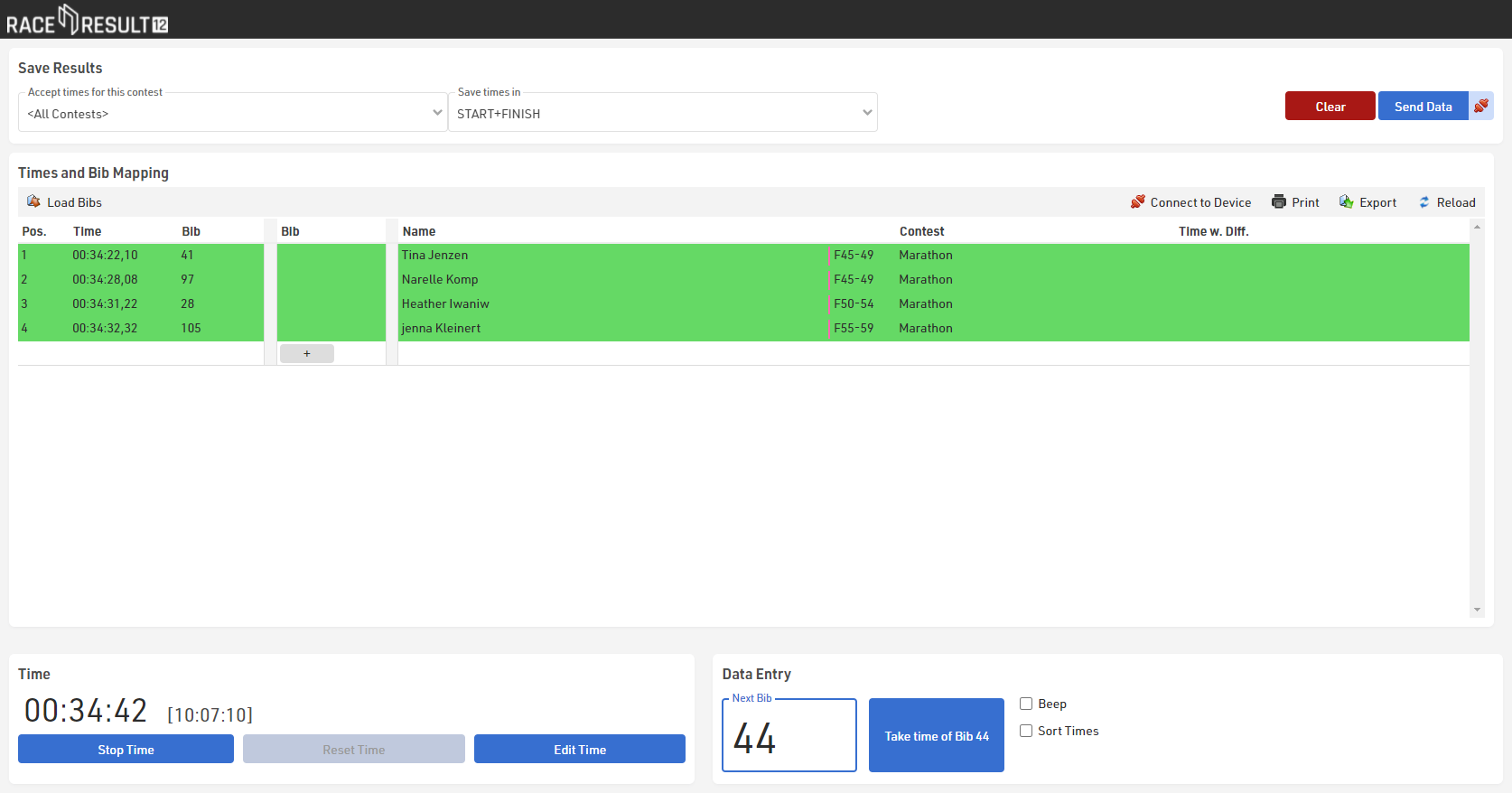
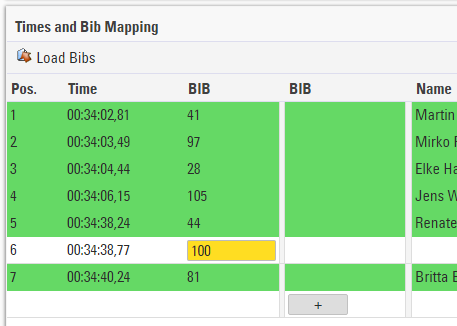
In case you cannot enter the bib number (too many participants finishing at the same time, bib number worn on the back, etc.), you can take the time without entering the bib by pressing Enter. You can enter the bib later in the table above:
Saving Results
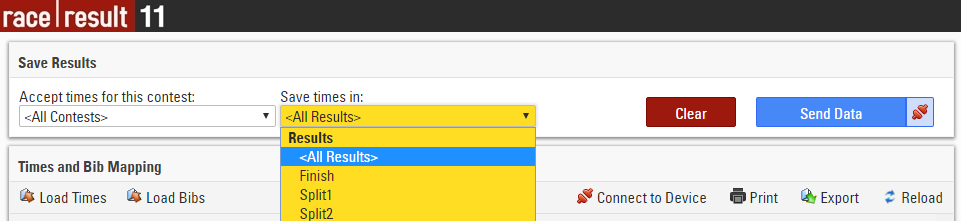
Once the last participant reached the finish, the results can be saved in the event file. Therefore, select the right contest in the dropdown at the top of the screen and the timing point where you want to save these times:

If a participant in the table is registered for another contest, he will be marked yellow and you need to decide if you have mistyped the bib, if he is registered in the wrong contest or if he should have not been captured (maybe he was just warming up).

You can either delete the time, change the bib or change the contest to the one selected at the top of the screen.
When the results are complete and correct, click the button Send Data to write the data into the event file and press Clear to clear the table and to begin timing the next contest. From then on, the results are available in RACE RESULT 12, for example in the Output Window.
Stredne veľké podujatie
Aj podujatia strednej veľkosti môžu byť merané ručne. V priemere nesmie byť viac ako 30 finišerov za minútu a najviac 15 za minútu.
Keď sa veľa účastníkov dostane do cieľa súčasne, nie je možné zachytiť každé bib číslo tak rýchlo. To je dôvod, prečo sa čas a číslo bib zachytávajú na dve úlohy. Na cieľovej čiare sa zberajú časy a účastníci sa zoradia do zúženia v rovnakom poradí v ako skončili. Na konci zúženia budú štartové čísla spísané buď rukou, alebo zaznamenané pomocou prenosného počítača zadaním čísel alebo skenovaním čiarového kódu na bočnom paneli.
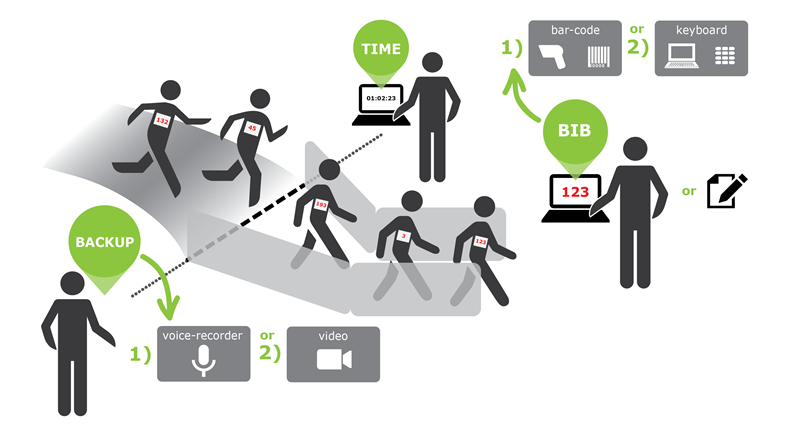
V prípade akýchkoľvek pochybností o výsledkoch je užitočné mať zálohu. Ak chcete nahrávať cieľovú čiaru alebo mať hlasový záznam, môžete nahrávať hlas pri nahlasovaní čísiel bib.
Capturing Times
For capturing the times, the tool Manual Timing will be used as well. If your race office (where you score the race) is at another spot (i.e. not at the finish line) you have the following options:
- You can work offline and your event file is stored on your main computer in the race office. This computer and the computer at the finish line can be connected through a local network, so that you can access the event file in the race office simply through your browser by entered the IP address (for example http://192.168.1.54).
- You can also create a copy of the event file for the computer at the finish. When the race is over, export the results in the Manual Timing tool (button “Export”) and import them at the computer in the race office (button “Load Times”).
- You can also work online, i.e. the event file is stored on the RACE RESULT servers. At the finish and in the race office you need Internet access in order to access the file online.
Taking times works almost the same as described above for the small event. Set up your laptop behind the finish line, ideally together with a table and a chair and power supply. Set up the table in a way that you can see the athletes as early as possible. Ideally, you work in a team of two.
Then start the time by pressing the button Start Time. If you missed the start you can change the time by clicking the button Edit Time.
By pressing Enter, you can take the times. When you do not have several people finishing at the same time, try to type in the bib number for as many participants as possible. Later this will facilitate mapping the list of times and the list of bibs because you have reference points which time belongs to which bib. You can do so by either entering the bib in the box Next Bib (before the athlete finishes) or by entering it in the table in the third column (after taking the time).
Recording Bibs
When athletes reach the finish, make sure that they enter the funnel in the correct order and that they do not leave the funnel before you record the bib. You can do this either handwritten on paper or also using the tool Manual Timing.
When using the Manual Timing tool, simply put the cursor in the field Next Bib (without starting the time), type in the number and press Enter, or use a barcode scanner to enter the numbers.
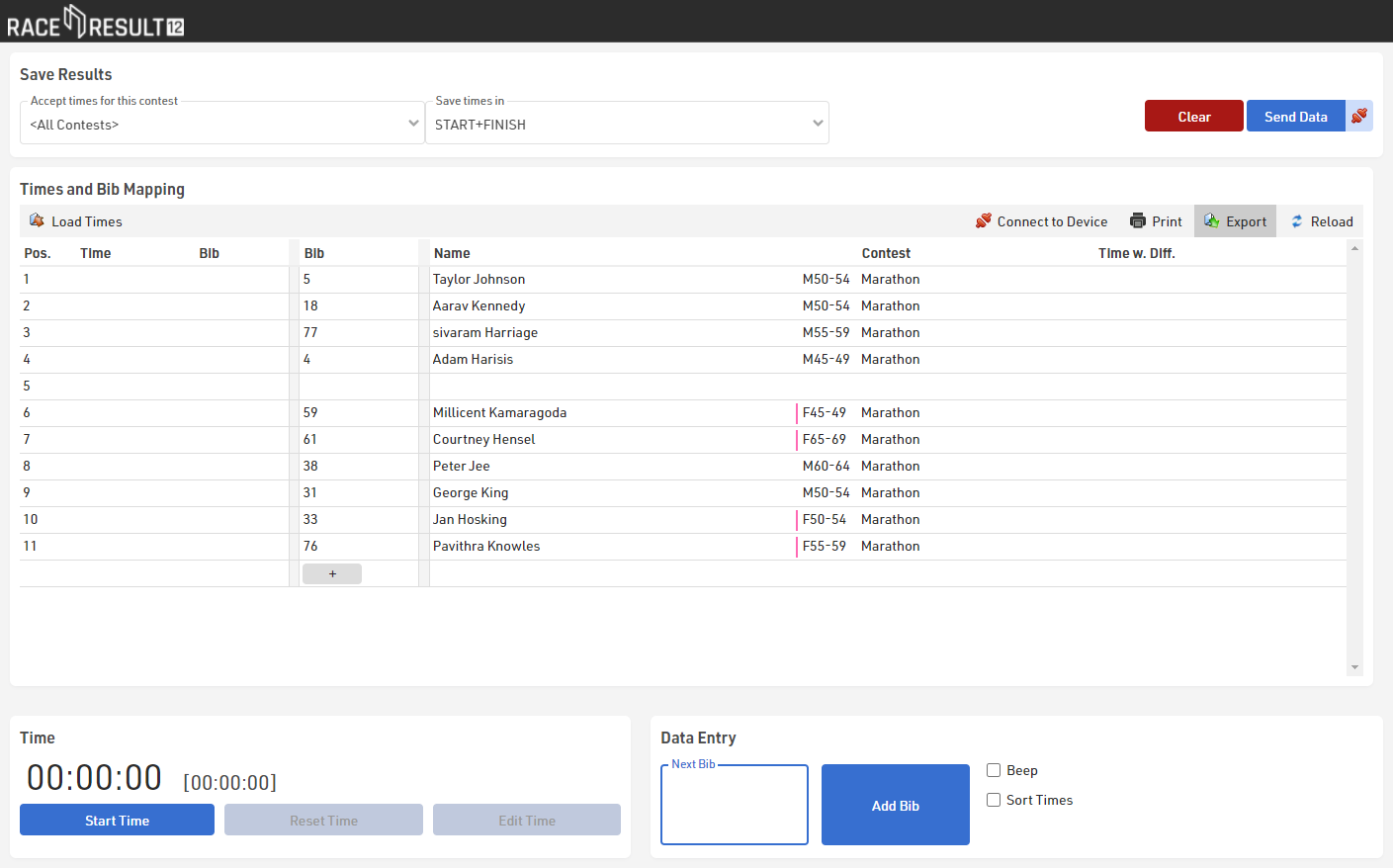
When the last participant has reached the finish, export the bibs by pressing the button Export.
Mapping Times and Bibs
After the end of the race the list of times and the list of bibs will be mapped, and the results be written in the event file.
In case you worked with a copy of the event file at the finish line, you first need to export the times (button “Export”), save them on a thumb drive and import them in the race office (button “Load Times”).
Next, the bibs will be added. If you wrote them down by hand, enter them in the third column (“Bib”) now. If there are discrepancies (for example too many or too few times taken), you need to decide how to solve the problem (for example insert or delete a time).
If you used the Manual Timing tool to record the bibs, you can now load the file by clicking the button “Load Bibs”.
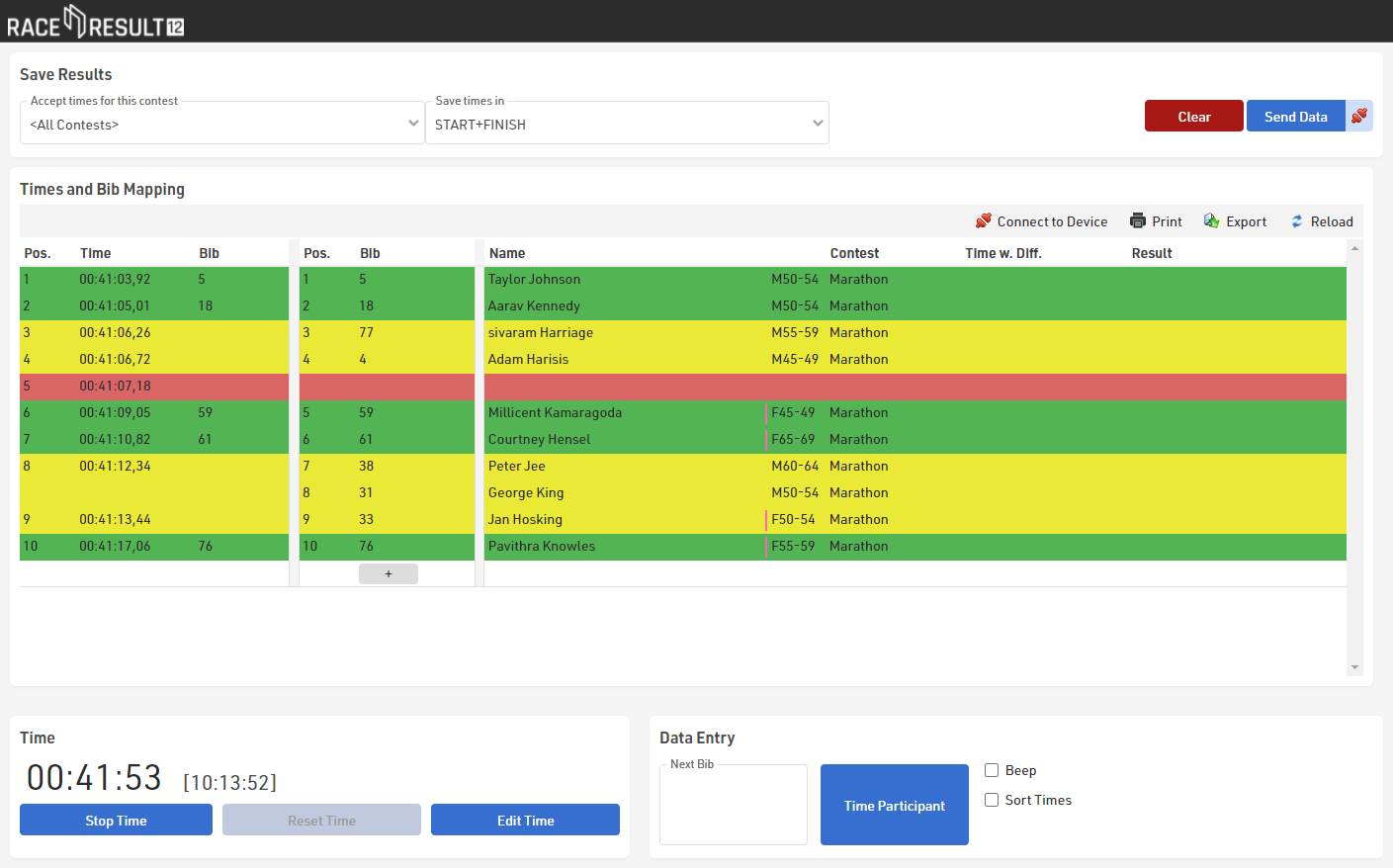
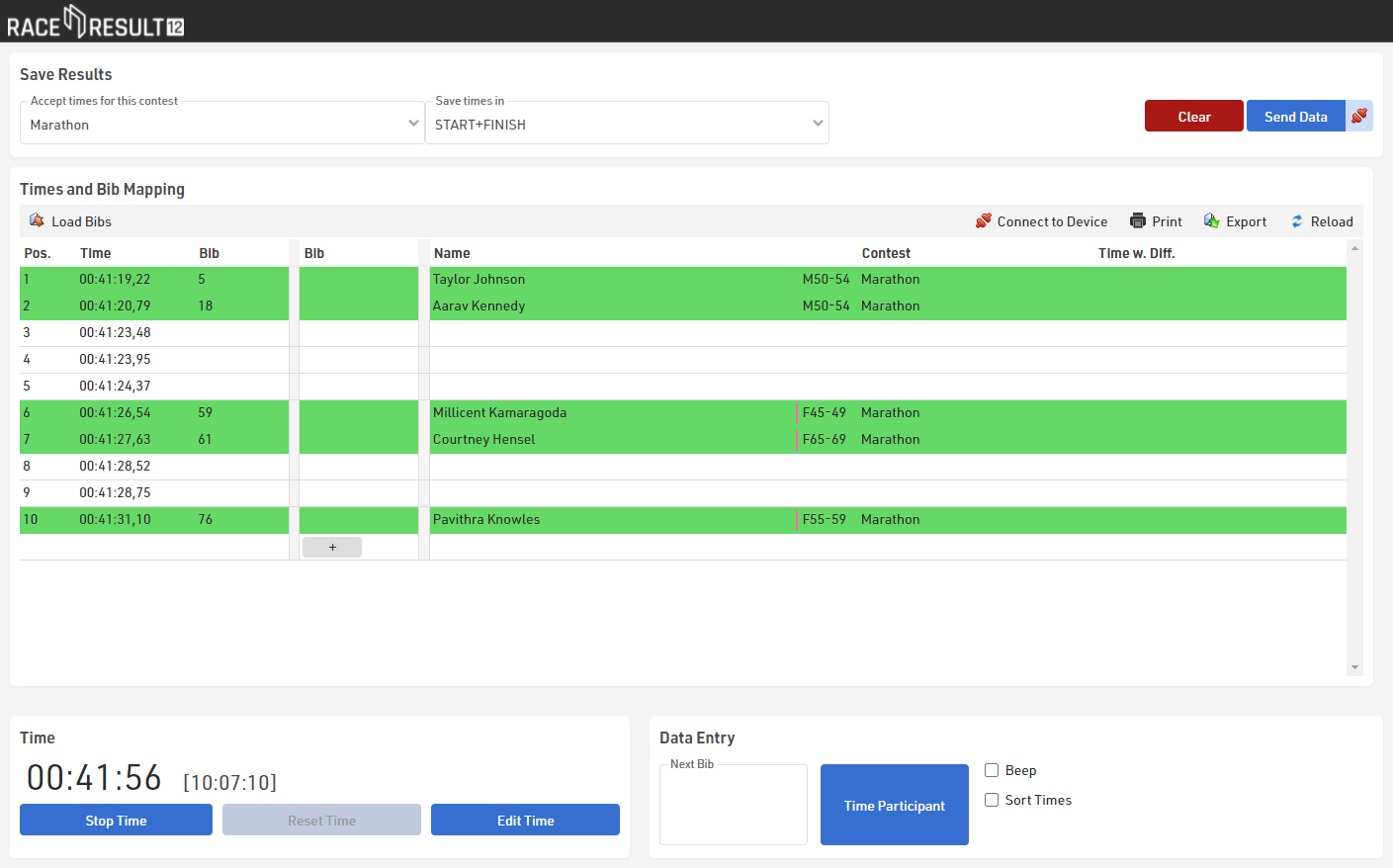
The tool tries to map the times and bibs automatically, but if the number of times and bibs in a block does not match, you need to investigate the situation and solve the problem manually. You can identify these blocks through the yellow and red background colors.
In the example above, a bib may be missing in the lines 3 to 5. This bib can be entered in line 5 or inserted in line 3 or 4 (when you hover the bib column, an Insert symbol will appear).
In line 8/9 a time may be missing or a bib was recorded accidentally. Either insert a time or delete a bib
In the end, all lines should be green and you can save the results in the event file by clicking the button Send Data:

Časovo prekrývajúce sa súťaže s rôznymi časmi začiatku
"Prekrývajúce sa preteky" znamená, že jedny preteky sa začínajú predtým, ako skončia všetci športovci iných pretekov. V takom prípade by ste mali pracovať s časom dňa, tzn. zaznamenávať čas, keď športovec skončí a neskôr odčíta čas začiatku príslušnej súťaže. Preto postupujte nasledovne.
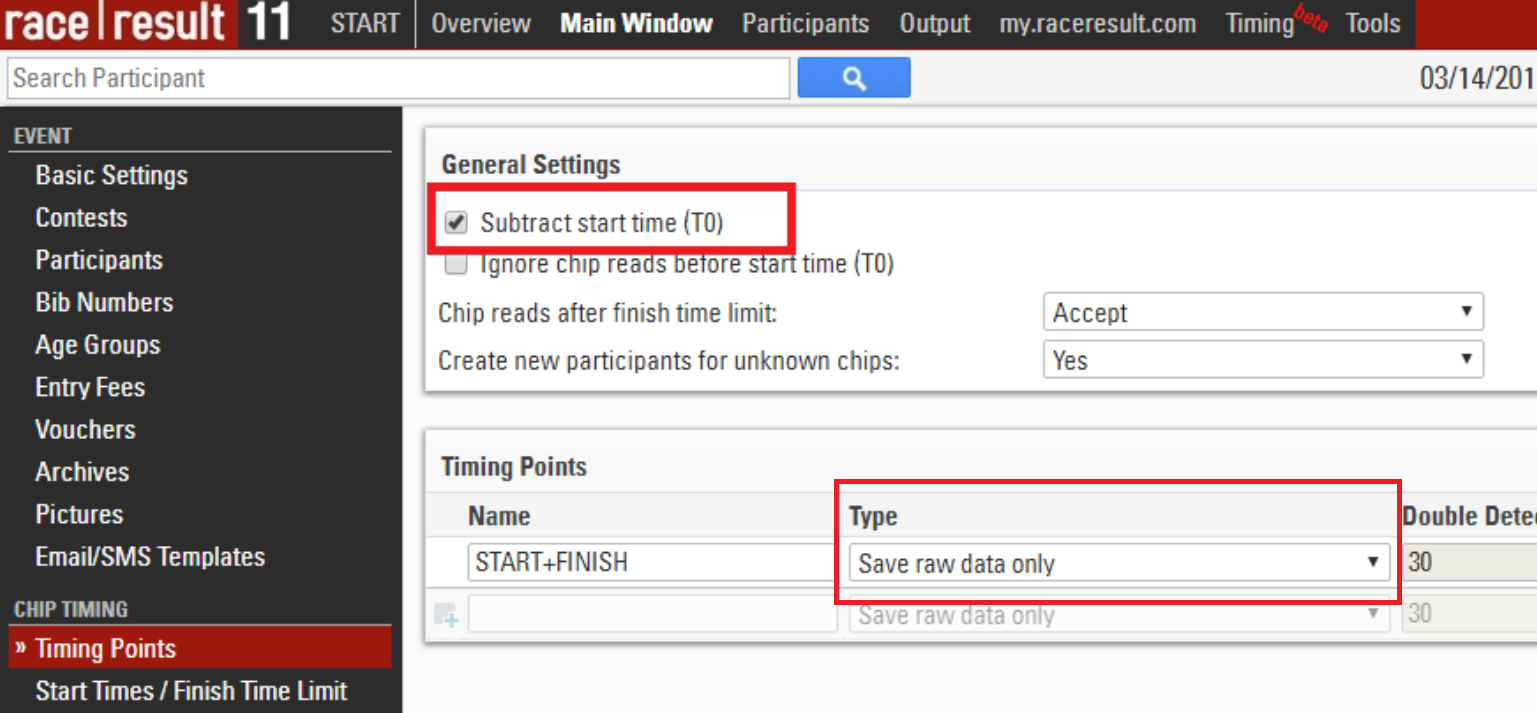
Najskôr sa na stránke „Časové body“ uistite, že je aktivovaná možnosť Odpočítať čas spustenia (T0) a že časový bod je nastavený na „Uložiť len nespracované údaje“.
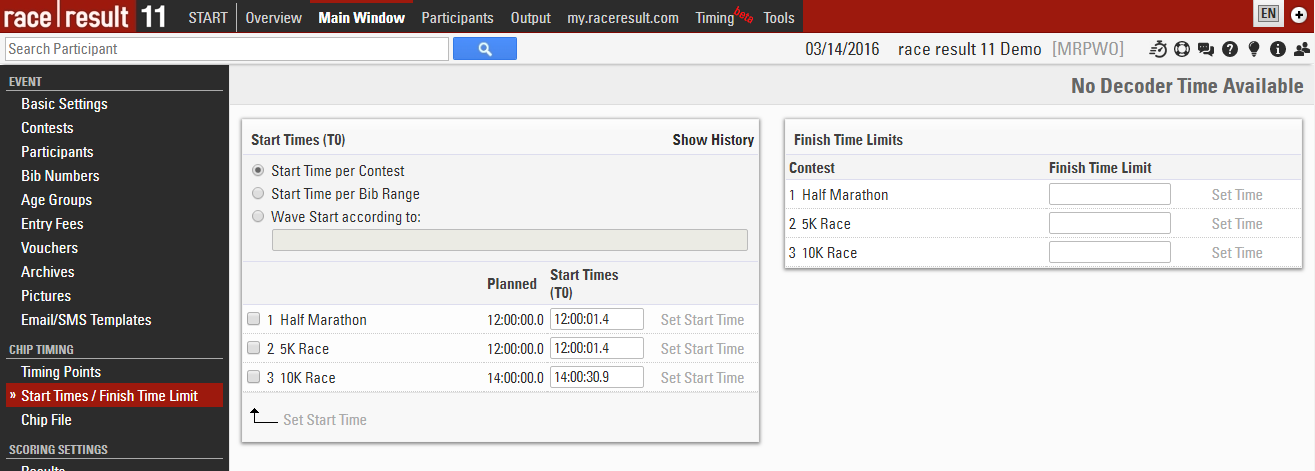
Potom, keď začne každý pretek, napíšte presný čas začatia a zadajte ho do hlavného okna -> štartovacia doba / časový limit dokončenia. Upozorňujeme, že ich môžete kedykoľvek zadať a opraviť.
Na cieľovej čiare spustite čas kliknutím na tlačidlo Štart merania a potom kliknutím na tlačidlo Upraviť čas nastavíte čas na čas dňa. Môžete buď zadať denný čas manuálne do poľa Nastaviť čas, alebo môžete jednoducho nastaviť čas na čas počítača. Potom zatvorte okno Upraviť čas.
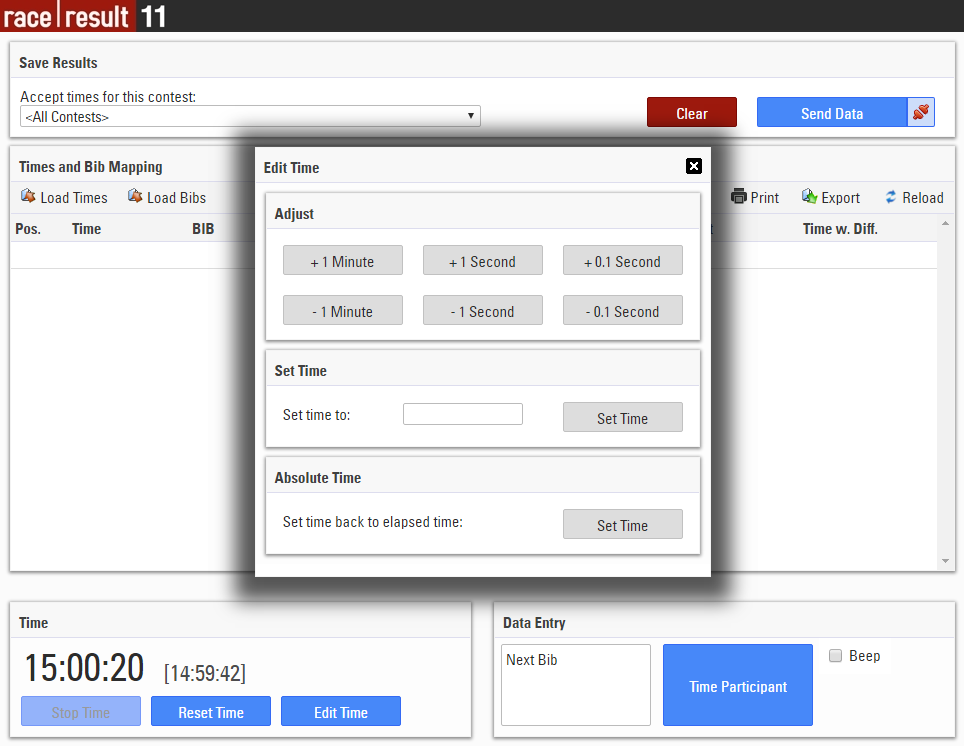
Keď účastníci prekročia cieľovú líniu, zaznamenávajú svoje časy a čísla bibov ako obvykle. Zaznamenaný čas je čas, v ktorom účastník prekročil líniu.
Nezabudnite tiež vybrať položku <Všetky preteky> v nástroji Manuálne meranie časov v hornej časti obrazovky ("Prijať časy pre tento pretek"), aby sa prijali časy pre všetky preteky.
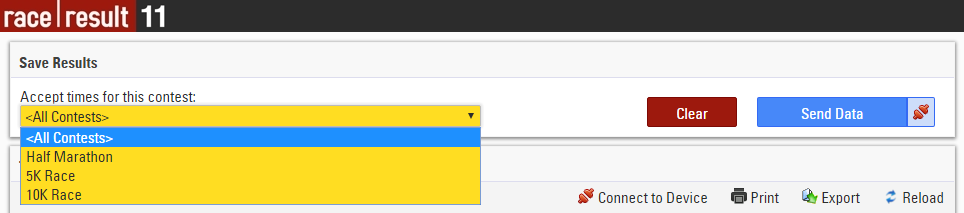
Keď použijete alebo importujete časy, môžete vidieť čas preteku v stĺpci "Čas s rozdielom". Denný čas bude uložený na karte Meranie neupravených dát každého účastníka, softvér potom odpočíta čas začiatku a zobrazí čas preteku na karte Výsledky.
Ak ste si pred nastavením času spustenia vybrali čas, musíte kliknúť na tlačidlo Znovu načítať v nástroji Manuálne meranie a zobraziť časy na základe nového času začiatku.
Správa medzičasových časových bodov
Pokiaľ je to žiaduce, môžete tiež použiť rozdelenie času pomocou manuálneho merania času. Počet účastníkov za minútu by mal byť nízky, aby ste mohli nahrávať čas a čísla bib spolu.
Za týmto účelom nastavte počítač na rozdelenom časovom bode a spustite nástroj manuálneho merania času. Ak ste v hlavnom okne nastavili niekoľko výsledkov / časových bodov, v hornej časti sa zobrazí rozbaľovací zoznam, v ktorom môžete vybrať, v ktorom výsledku sa zapíšu časy: