One of the most important aspects of managing an event is the handling of participant data, this includes a range of default fields and functions but also allows you to store or calculate your own custom fields and functions. To simplify the work flow you can enable / disable certain default fields and also control how these fields behave when editing through the Participants Window.
Default Fields
Define some general settings for data handling in the Participants Window. Activate or deactivate standard fields and define if these are mandatory or not. If mandatory fields are not filled in the Participants Window, they are highlighted with a red bar and a warning will show when trying to save. Note that for the Online Registration mandatory fields can be defined separately.
Input Assistance / Settings
Control how data should be handled when entering/editing participants directly in the Participants window. When Age Group changeable is enabled then the Age Group can be manually changed, which can be useful if working with overlapping Age Groups - but note that this will be overridden if the Age Groups are recalculated at a later time. You can also disable Agender if that shouldn't be used throughout the event file.
User Defined Boxes in Results Tab
It is possible to set an output list to show at the top a participant window. This can be useful for events with a large number of results that are difficult to scroll through or show additional data not shown in the main participant window. 
Štartové čísla
Tieto nastavenia určujú, ako systém spracováva štartovacie čísla.
Prideľovanie štartovacích čísel
Štandardne sa pri zadávaní nového účastníka navrhne najvyššie štartovacie číslo +1. Existujú však ďalšie dve možnosti: Prvé voľné štartovacie číslo navrhne najmenšie nepoužité štartovacie číslo a Žiadny návrh vás núti zadať štartovacie číslo manuálne pred zadaním údajov účastníka do okna Účastníci.
Ak nechcete povoliť určité štartovacie čísla, zadajte ich do vstupného poľa Vylúčiť štartovacie čísla. Potom nebudú navrhnuté.
Rozsahy štartových čísel
Štartovací rozsah priraďuje určitý rozsah štartovacích čísel jednej súťaži súťaži. Po definovaní štartovacích rozsahov existujú dve možnosti:
- Po zadaní štartovacieho čísla pre nový záznam v okne Účastníci sa vyberie súťaž podľa nastavenia štartovacieho rozsahu. Pre túto možnosť vyberte možnosť Použiť štartovacie rozsahy na navrhnutie súťaže.
- Po výbere súťaže pre nového účastníka v okne Účastníci sa účastníkovi priradí štartovacie číslo z štartovacieho rozsahu. Preto vyberte možnosť Použiť štartovacie rozsahy na navrhnutie štartovacieho čísla.
- Štartovacie rozsahy môžete tiež dočasne ignorovať.
Taktiež môžete definovať rôzne časy začiatku pre každý štartovací rozsah.
Vizualizácia štartového čísla
Vizualizácia štartovacích čísel vytvára tabuľku so všetkými štartovacími číslami dostupnými pre každú súťaž podľa nastavených štartovacích rozsahov. Štartovacie čísla môžu byť zobrazené v 3 rôznych farbách.
Biela - Štartovacie číslo je už priradené
Zelená - Štartovacie číslo ešte nie je priradené
Červená - Štartovacie číslo je priradené, ale účastníci súťaže nezodpovedajú nastaveným štartovacím rozsahom
Ďalšie polia
Ak chcete zhromažďovať ďalšie údaje, môžete definovať neobmedzený počet ďalších polí na ukladanie údajov o účastníkoch. Ďalšie polia je možné zoskupiť pomocou vlastných označení skupín, pričom každá skupina sa zobrazí v samostatnom poli na karte účastníci.

Ďalšie polia vyžadujú jedinečný názov poľa a môžu mať aj samostatný štítok, ktorý sa zobrazí v okne účastníkov a registračných formulároch.
Typ poľa
Každé ďalšie pole má typ, ktorý mení vstupné a zobrazovacie charakteristiky poľa alebo spôsob použitia poľa.
| Rozšírené nastavenia | |
| Aktívne | Či je pole aktívne a má sa zobraziť v okne Účastníci. |
| Povinné | Ak by sa pole malo považovať za povinné |
| Predvolená hodnota | Predvolená hodnota v poli pri vytváraní nových účastníkov |
| Zástupný symbol | Zástupný text zobrazený vo vstupe, keď je prázdny |
| Minimálna dĺžka | Minimálna dĺžka hodnoty pre pole |
| Maximálna dĺžka | Maximálna dĺžka hodnoty pre pole |
User-Defined Fields / Functions
Creating your own Fields and Functions allows you to quickly and easily call specific data without creating a long expression each time. User-Defined Fields/Functions are normally used with other data fields, or are used to return the same for every participant.
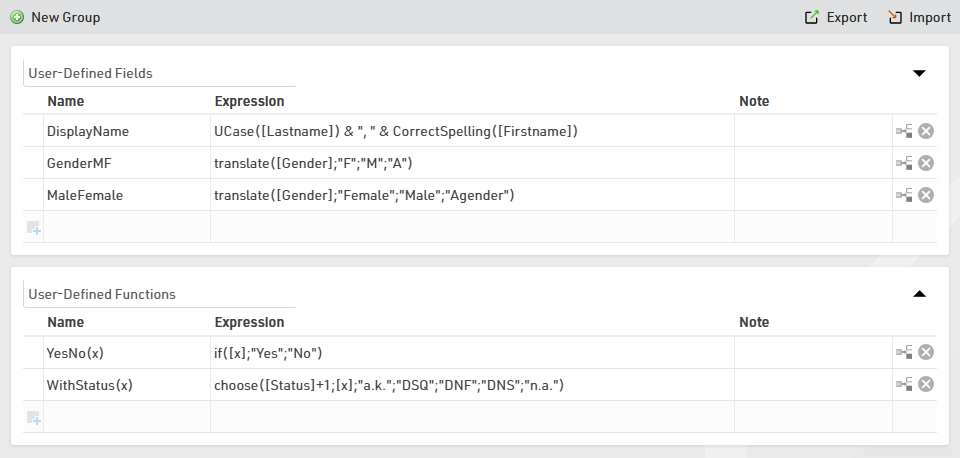
Some default User-Defined fields are available when creating a new file, such as MaleFemale which converts Gender to the full gender label. These default fields can be updated as you prefer.
When creating User-Defined fields the Expression must be formatted as a RACE RESULT 14 Expression.
When writing functions which should take additional parameters then the field name should use brackets around a semi-colon separated list of identifiers (e.g. Function(x;y) creates a function with 2 parameters x and y).
Parameters can be accessed inside the function by wrapping them in square brackets (e.g. [x] and [y]).
e.g. YesNo(x) - if([x];"Yes";"No") is normally used with Check Box values to return "Yes" or "No" in an Output List if the value of [x] is 1 or 0.
It can also be useful to write a note for each function to describe its purpose or how it should be used.
Archives
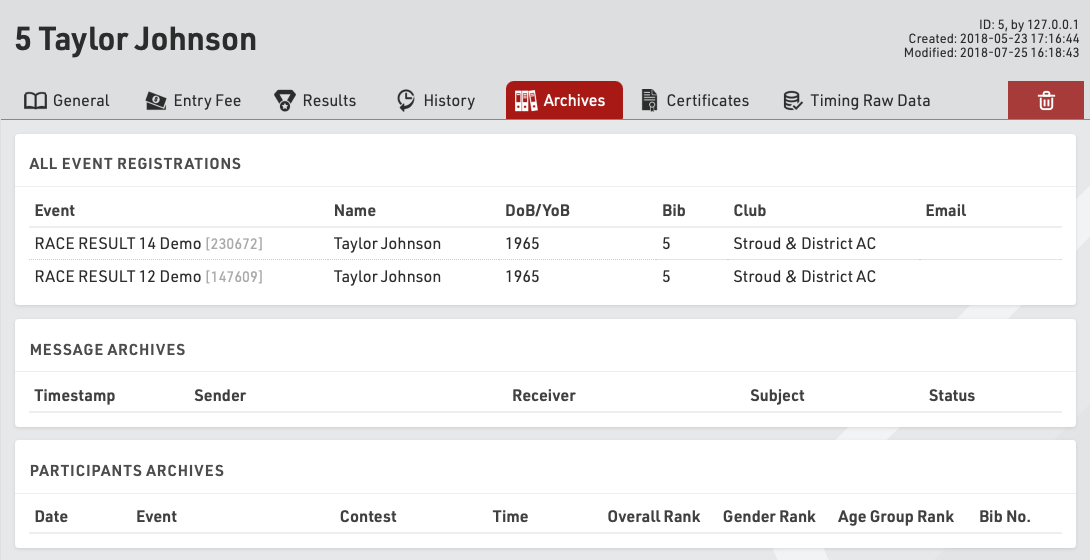
Using Archives, you can access data from previous events in the Participants Window:
- When manually entering a new participant, the records from the Archives will be suggested, so that you can import the record including attributes from the Archives.
- Results from previous events will be available in the Archives tab.
Procedure for Using Archives
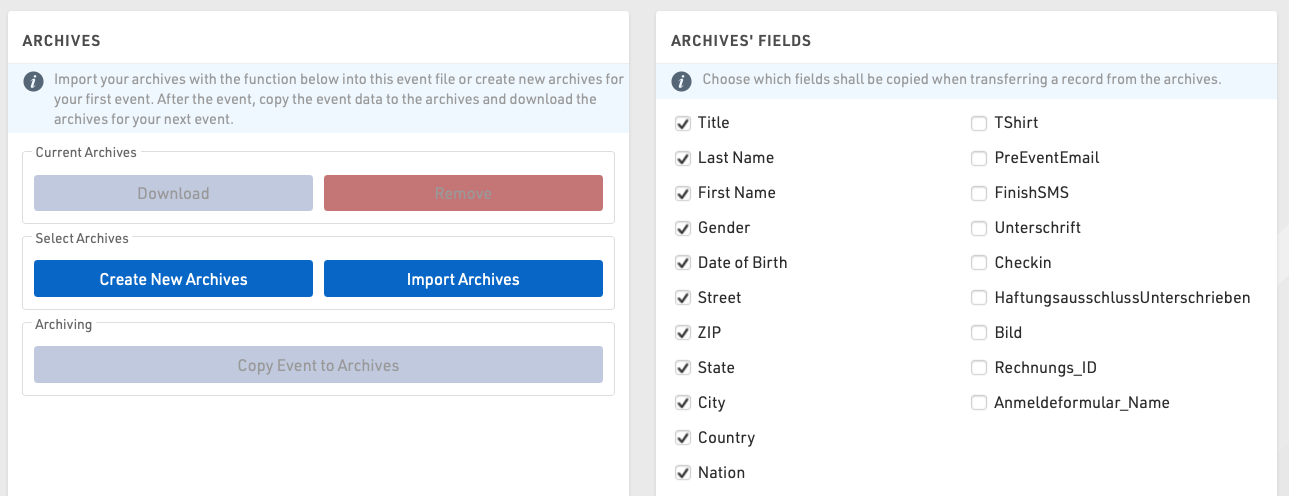
After the event, go to the Archives settings. When using the archives function for the first time, create a new archives file and then write the data into it (button Copy Event to Archives).
For next year's event you can create a copy of the event file which then still includes the archives file.
If you already have an event file for the upcoming event, you can proceed as follows:
- Open last year's event and create a new archives file in the Main Window. Copy the event data to the new archives file and then download it to your local PC.
- Open next year's event and import the archives file from your local PC. If there already is an archives file in the new event, it needs to be deleted first.