Quando si lavora offline, è necessario prima scaricare e installare il software RACE RESULT, quindi avviare il server Web RACE RESULT ed estrarre il file dell'evento.
Lavorare offline ti consente comunque di cronometrare completamente la tua gara e di produrre risultati che possono ancora essere esportati tramite elenchi di output in PDF, Excel o altri formati standard.
RACE RESULT Web Server
Per prima cosa scarica RACE RESULT 14 dal nostro sito e installalo sul tuo computer principale (quello che funzionerà da server locale).
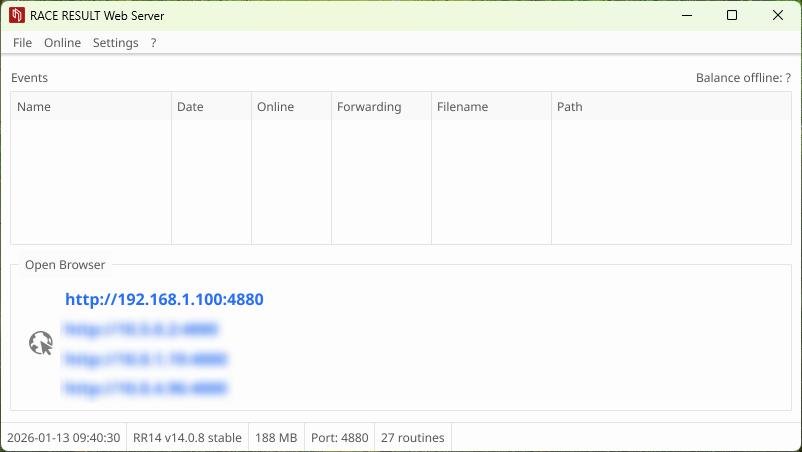
A questo punto avvia RACE RESULT Web Server andando sul menu Start di Windows o nel menu Applicazioni in MacOS. Questo, come detto, agirà da server web locale quindi mostrerà sul tuo browser web il sito RACE RESULT 14 (cosa che viene solitamente eseguita dai server nel data center RACE RESULT).
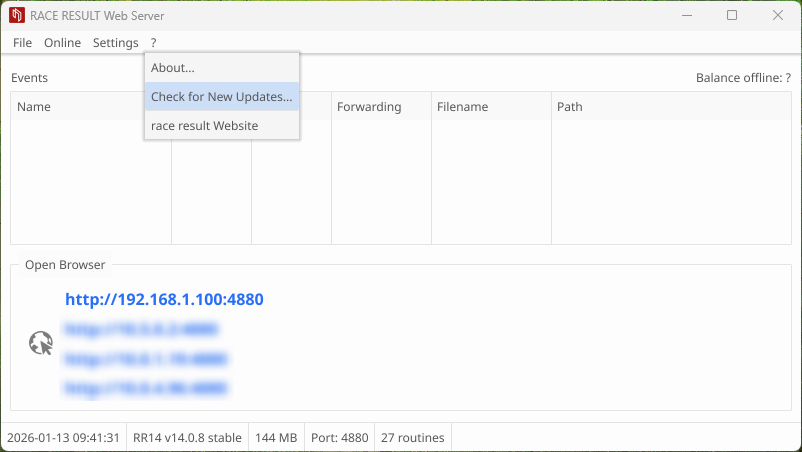
Assicurati di aver installato l'ultima versione di RACE RESULT Web Server prima che l'evento abbia luogo. Per cercare nuovi aggiornamenti, clicca ? -> Check for New Updates...:
Aprire Eventi
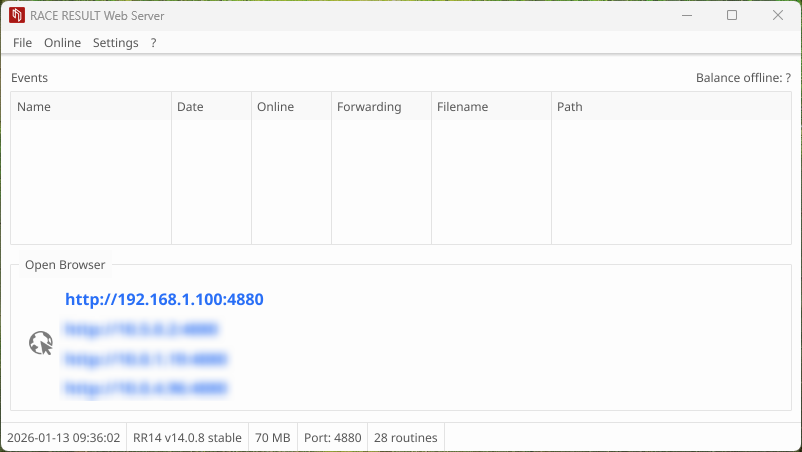
RACE RESULT Web Server viene utilizzato per aprire i tuoi File evento sul server RACE RESULT locale; puoi creare nuovi file se prevedi di lavorare completamente offline, tramite File-New Event.
I tuoi eventi aperti verranno elencati nella tabella del Web Server.
Check-Out Eventi
Se hai intenzione di utilizzare un file evento creato online, dovrai prima estrarre il file tramite Online->Scarica un evento dal server (Check-Out):
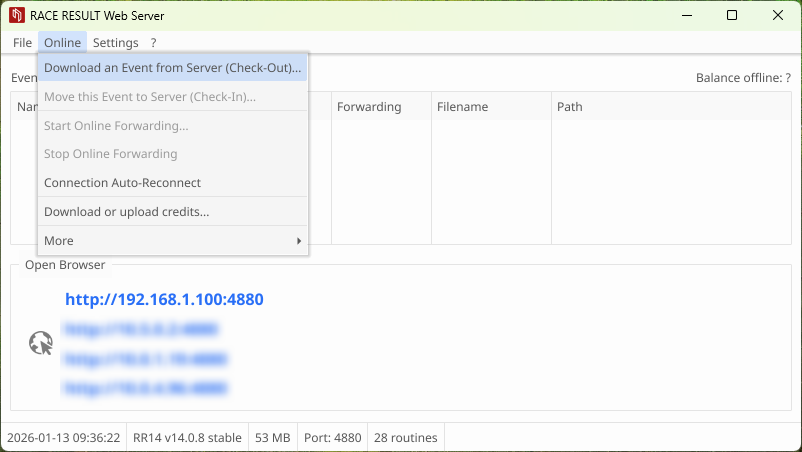
Inserisci i tuoi dati di accesso e seleziona l'evento che desideri scaricare, quindi il file dell'evento verrà scaricato sul tuo computer: assicurati di salvarlo in un posto sicuro!
Non è possibile lavorare su un file sia online che offline contemporaneamente, pertanto non è più possibile accedere al file online dopo il checkout, e il checkout è possibile solo se la registrazione online non è attiva.
Scaricare una copia per test
Puoi anche scaricare una copia del file dell'evento mentre l'originale rimane online. Ciò è possibile anche mentre la registrazione online è ancora in corso. Andate quindi nel vostro file online su "Dashboard > Riepilogo" e scaricate una copia di backup. Aprilo nel server web facendo doppio clic sul file.
Tieni presente che non sarà possibile archiviare nuovamente questo file senza prima aver estratto completamente la versione online, poiché ciò rischia di perdere eventuali modifiche apportate online durante quel periodo.
Accedere all'evento
Dopo il check-out o dopo aver creato un nuovo file evento offline, puoi accedervi dal browser facendo clic su Open Event:
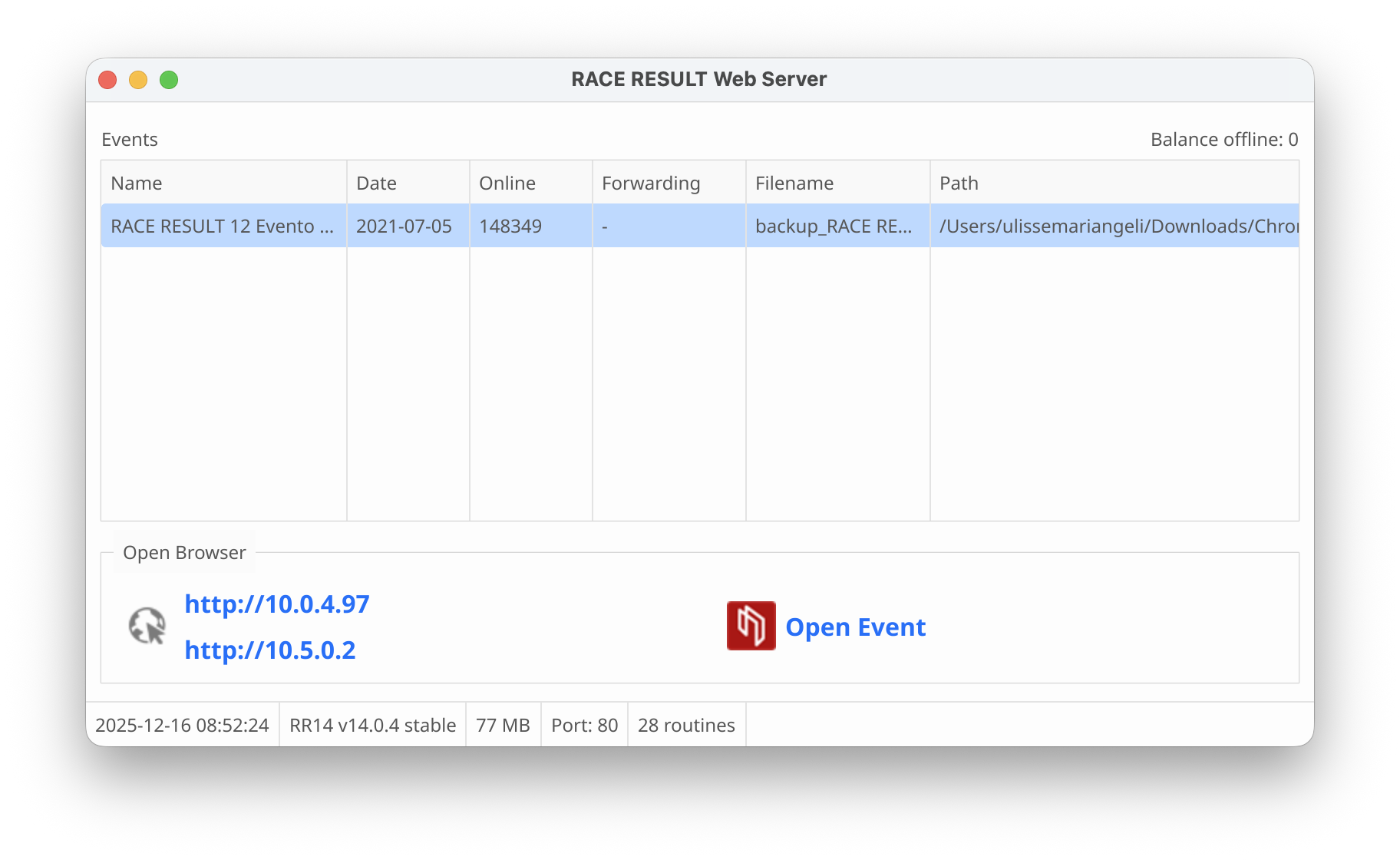
Per accedere al file tramite altri computer nella rete locale, è necessario solo inserire l'indirizzo IP (mostrato in basso a sinistra in RACE RESULT Web Server) nel browser:
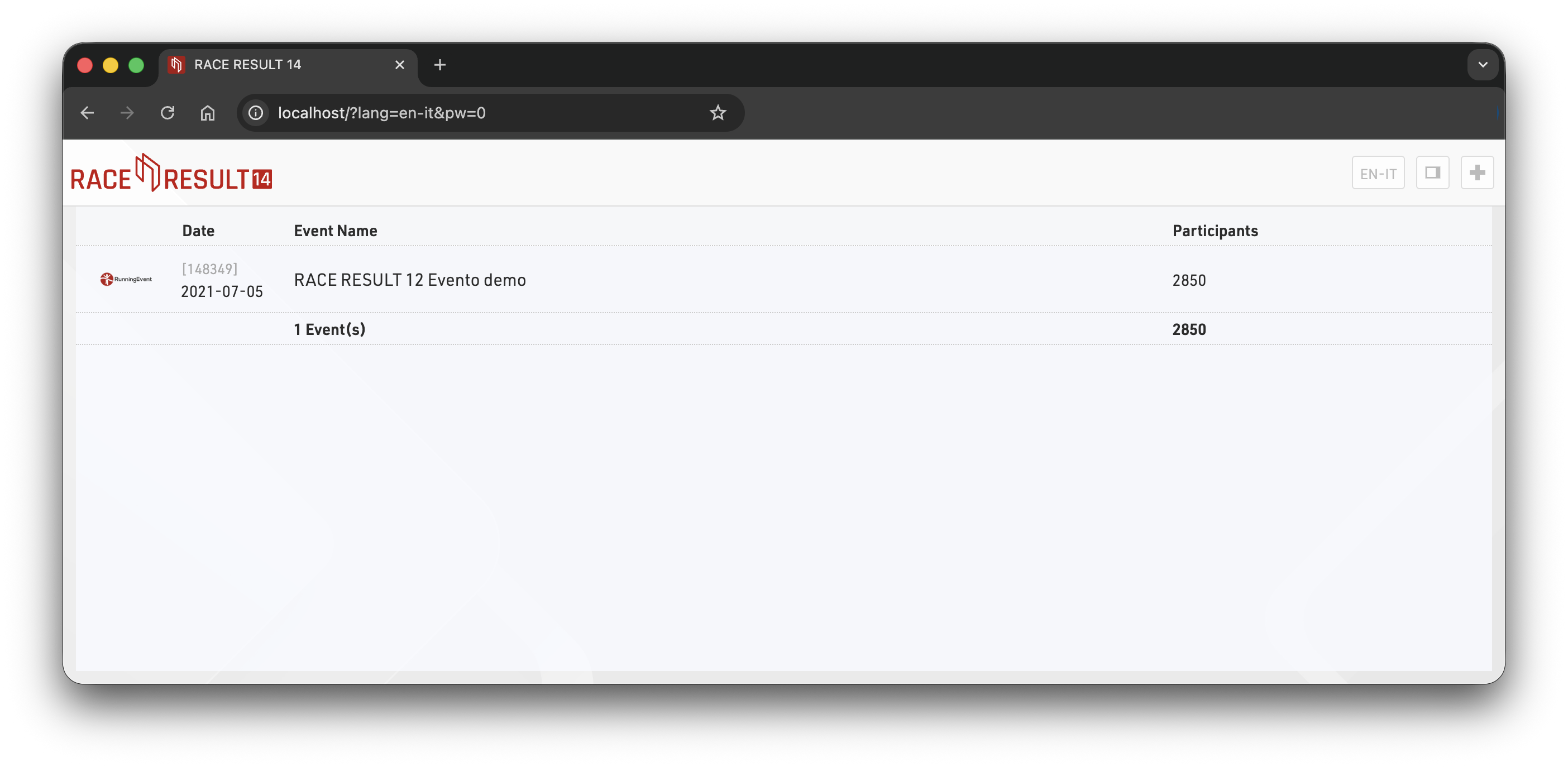
Tieni presente che se sul tuo laptop sono in esecuzione altri server Web, potrebbe essere necessario fornire anche il numero di porta che viene aggiunto all'indirizzo IP.
Online Forwarding
Quando si lavora offline è possibile utilizzare l'inoltro online per inoltrare le modifiche apportate offline al file online. In questo modo, my.raceresult.com ha accesso ai dati di gara più recenti e può mostrare i risultati in tempo reale. Dato che in Internet vengono inoltrate solo le modifiche, i dati da trasferire sono pochi, per cui nella maggior parte dei casi è sufficiente anche una connessione 3G.
Per avviare l'inoltro online, fare clic su Online->Start Online Forwarding nel RACE RESULT Web Server. Se desideri interrompere l'inoltro online, la funzione Interrompi inoltro online è disponibile nello stesso menu.
Quando inizi l'inoltro online, se hai dei partecipanti che non sono stati attivati ti verrà chiesto di attivarli, il Web Server scaricherà automaticamente il numero di crediti richiesto e attiverà i tuoi partecipanti. Non è possibile avviare l'inoltro online senza prima attivare tutti i partecipanti. I partecipanti creati dopo l'avvio dell'inoltro online non verranno attivati automaticamente, questo ti dà la possibilità di eliminare i record indesiderati, ma significa che i nuovi partecipanti verranno riempiti di underscore (_) finché non verranno attivati manualmente.
Se la tua connessione Internet si interrompe, anche l'Inoltro online si interrompe, ma hai comunque accesso a tutti i tuoi dati e puoi semplicemente riavviare l'Inoltro online una volta ripristinata la connessione.
Finché è in esecuzione l'inoltro online, il RACE RESULT Web Server mostra la quantità di dati trasmessi nell'elenco degli eventi vicino all'ID evento. Se l'inoltro online si interrompe, ad esempio quando la tua connessione Internet rallenta, riceverai un avviso.
Check-In del file evento
Al termine della manifestazione, il giorno della gara, è possibile fare il check-in del file dell'evento. Si noti che in seguito non sarà più possibile accedere all'evento offline, ma è necessario accedere nuovamente su www.raceresult.com per accedere all'evento.
Quindi, assicurati di aver finito con il lavoro quando esegui il check-in del file o sii pronto ad apportare le ultime modifiche online.
Per fare il check-in del file clicca Online -> Move this Event to Server (Check-In). Il caricamento potrebbe richiedere alcuni secondi o minuti a seconda delle dimensioni del file e della velocità della connessione. La colonna Online mostra l'avanzamento.