La USB Timing Box de RACE RESULT le permite reemplazar cajas decodificadoras con una simple conexión USB a su computadora.
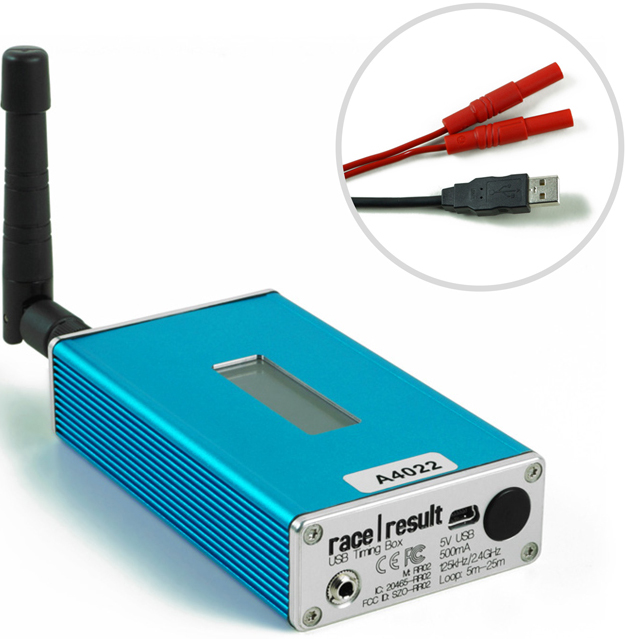
La USB Timing Box se usa mejor para cronometrar eventos deportivos, para escanear etiquetas al recoger el paquete de la carrera o para cualquier otra aplicación: el software de código abierto de la USB Timing Box le permite desarrollar cualquier solución que no tenga nada que ver con cronometraje deportivo.
La USB Timing Box es compatible con nuestra Loop Box, donde la USB Timing Box puede recibir pases de una Loop Box en el modo de repetición. La USB Timing Box no incluye funciones adicionales, como conexión 4G sincronización de hora GPS.
Encender y Apagar la USB Timing Box
Para encender la caja, mantenga presionado el botón hasta que el LED rojo central se apague y se muestre una pantalla de inicio con información sobre el sistema.
Para apagar, presione el botón una vez. La pantalla mostrará lo siguiente:
| press again: OFF |
| hold for config |
Presione el botón nuevamente para apagar.
El dispositivo también se encenderá automáticamente al conectarlo por USB y no se puede apagar.
Al desconectar el USB, se apagará automáticamente si no hay ningún bucle conectado y no se han registrado pases desde su encendido.
Configuración de la USB Timing Box
La USB Timing Box tiene los mismos ajustes que la Active Extension : Loop Power, Channel ID, Loop ID. Adicionalmente, el Modo se puede establecer.
La USB Timing Box se puede configurar presionando el botón durante 2 segundos. La primera de las cuatro configuraciones comenzará a parpadear y se puede cambiar presionando el botón nuevamente. Al presionar nuevamente el botón durante 2 segundos, se confirmará la configuración y se podrá cambiar la siguiente configuración. Para salir de los menús de navegación, continúe presionando el botón hasta que ya no parpadee ningún ajuste.
En este ejemplo, el Loop ID está siendo cambiado:
| Loop█ 1 020% < |
| CH# 8 TIME |
El segmento negro parpadeará para indicar cuál configuración se está cambiando.
USB Timing Box Modes
Timing
In this mode, the USB Timing Box operates as a primary timing device. Times from transponders are received and can be read out via the USB serial connection.
It can additionally receive passings from Loop Boxes in Repeat Mode or Stored Passings from transponders.
Kiosk
Kiosk is intended for when the USB TIming Box should be used for short range applications such as race pack collection or transponder assignments. In Kiosk mode the 2.4Ghz sensitivity is greatly reduced and it is anticipated that only detections from transponders within ~30 cm of the device will be received.
Note that the 2.4Ghz antenna must be connected in order to use Kiosk mode, without the antenna then the sensitivity will be too low to receive any detections.
Repeat
In this mode, the USB Timing Box activates the transponder, receives its data and sends (repeats) it to a primary system.
This is an easy way to connect several timing points within an area, e.g. a triathlon finish, transition in and transition out. The maximum distance between repeating / receiving devices can be up to 900 m depending on conditions.
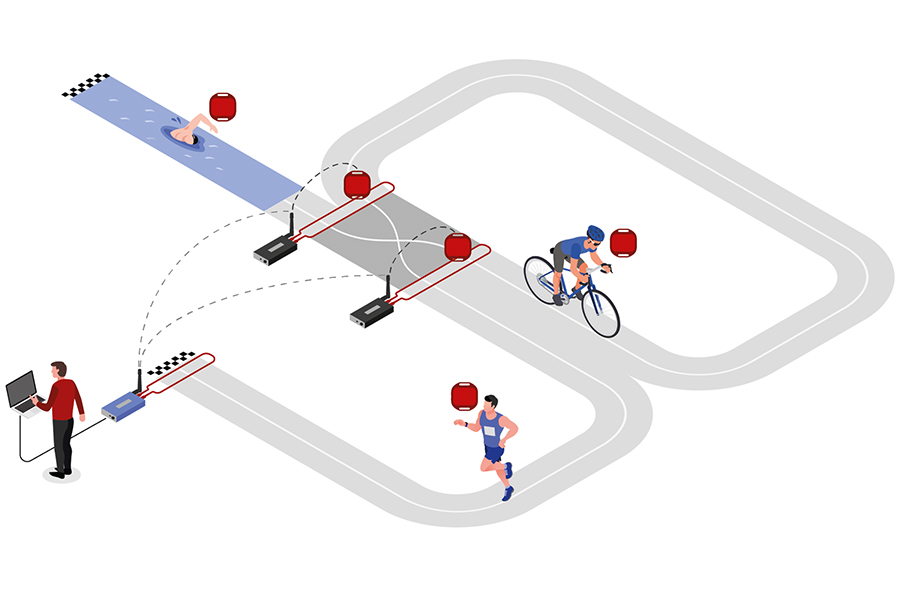
Note that the USB Timing Box has an internal buffer for 1000 detections. Even if the connection between devices is interrupted, the detections will not be lost: once the connection is recovered, the USB Timing Box will transmit the buffered detections. Thanks to the precise internal clock of the device, the detection time will still be correct and precise.
For the communication between devices when using Repeat Mode please note:
- Devices need to run on the same channel (see Channel ID Setup). It is recommended that you select a fixed channel on the main system instead of using the auto mode.
- The main loop that will receive the detections from the devices in Repeat Mode must have Loop ID 1. This way the devices know where to send the data even if several systems are present.
Whilst in Repeat mode USB serial communication is disabled, however the port can still be used to provide power.
Store & Copy (FW2.5 and above)
This mode only works with the ActivePro and MotorKart transponders, V2 transponders may additionally return less accurate times.
In this mode, when the transponder is activated by the USB Timing Box, it will create a stored passing on the transponder and additionally send a copy of the time to the USB Timing Box. The passing which is received by the USB Timing box can then be read out via the USB Serial connection as normal.
Additionally note that the copied passing may have lower accuracy than the stored passing or regular Timing Mode, as the internal calculation and communication prioritises the stored passing.
Display Explained
The display of the USB Timing Box can have the following indications:
|
USB Timing Box when it is in Timing mode and connected via USB to a computer. The moving icon in the top right corner indicates that a Loop is connected. The bottom right section of the screen will flash between these two screens. The top screen shows the battery indicator. The bottom screen shows the USB voltage. A range between 5.0V and 4.5V is good. |
||||
|
USB Timing Box when it is in Timing Mode and on battery power. The "19h" displayed in the bottom right corner indicates the time until zero battery in hours. |
||||
|
USB Timing Box when it is in Store&Copy mode and connected via USB to a computer. Store&Copy mode is indicated by an S in the display. |
||||
|
USB Timing Box when it is in Repeat mode and connected via USB to a computer. Repeat mode is indicated by an R in the display. In Repeat mode the USB connection allows charging the device but no data communication. The antenna symbol in the bottom left indicates a wireless connection to the receiving device (Loop# 1 on the same Ch#) |
||||
|
USB Timing Box when it is in Kiosk Mode and connected via USB to a computer. The K indicates Kiosk Mode. |
Conexión USB
La USB Timing Box se conecta fácilmente con el Módulo del Transpondedor, la Pestaña Cronometraje y el Conector RACE RESULT. Su PC debe tener los drivers USB adecuados para conectarse a la USB Timing Box . Si este no es el caso, consulte Solución de Problemas para obtener instrucciones sobre cómo instalar los drivers de Windows.
Asegúrese de que los softwares TagReaderKeyboard y TagTool no estén abiertos cuando el Módulo de Transpondedor se conecte con la USB Timing Box . Ya que usan puertos COM virtuales para conectarse a la USB Timing Box , no puede conectarse a dos aplicaciones al mismo tiempo.
Actualización de Firmware En Línea
Se recomienda actualizar el firmware cuando haya uno nuevo disponible. Vea Notas de Versiones de Firmware.
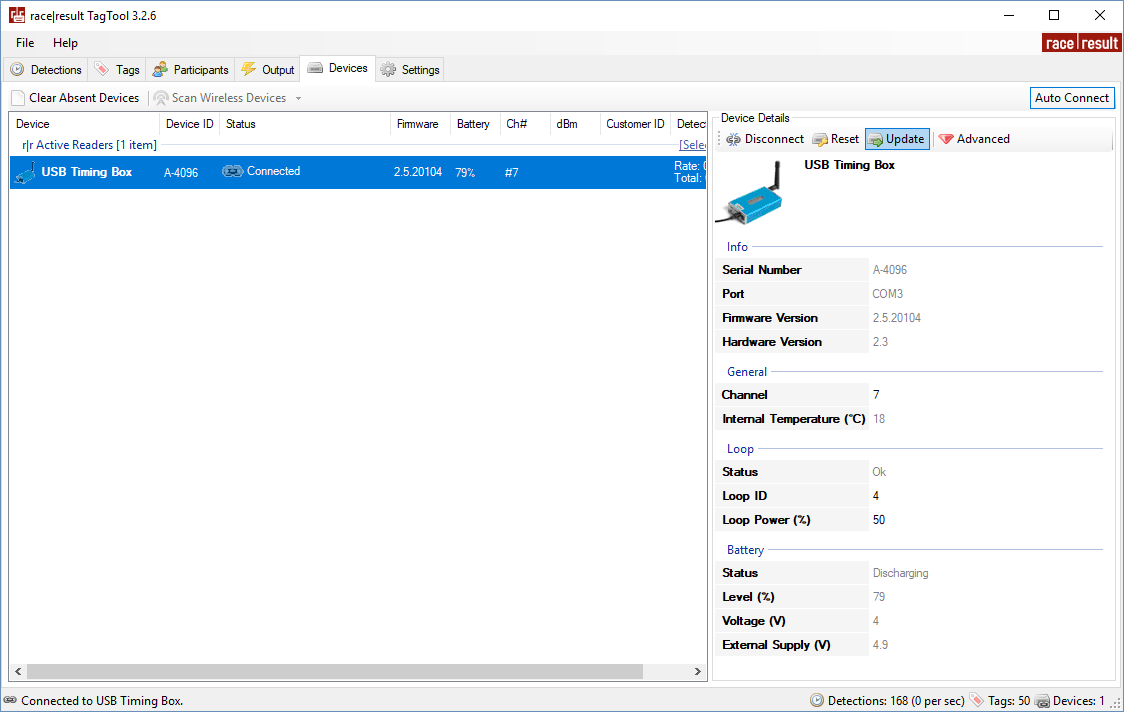
Para actualizaciones de firmware para la USB Timing Box y la Management Box, abra TagTool y conecte su dispositivo, el firmware más reciente de Active Device se incluye en la versión más reciente de TagTool. Una vez que esté conectado, seleccione el dispositivo que desea actualizar, luego haga clic en Update en la ventana Detalles del Dispositivo y seleccione la versión de firmware más reciente (la de valor más alto). Es importante que no desenchufe el dispositivo durante la actualización.