Esta sección explica RACE RESULT 14 con más detalle, incluido cómo funciona, los menús y configuraciones disponibles, los campos y funciones y guías de aprendizaje adicionales.
Se espera que tengas una comprensión básica de RACE RESULT 14, de la Introducción a RACE RESULT 14
Cómo funciona RACE RESULT 14
RACE RESULT 14 se accede a través de un navegador web, ya sea mediante la versión en línea alojada en https://events.raceresult.com o como un software instalado localmente en Windows o macOS. Actualmente, no existe soporte para sistemas basados en Linux.
Un mismo evento puede ser accedido y gestionado simultáneamente por varios usuarios; del mismo modo, puedes acceder a múltiples eventos desde un mismo dispositivo al mismo tiempo.
La funcionalidad de las versiones en línea y fuera de línea de RACE RESULT 14 es idéntica, aunque ciertos flujos de trabajo pueden diferir entre ambas según lo que necesites realizar.
Trabajar en línea tiene varias ventajas, entre ellas:
- Registro en línea a través de la plataforma my.raceresult.com
- Publicación inmediata de resultados mediante my.raceresult.com
- Todos los eventos se almacenan en un lugar seguro y con respaldo
- Colaboración sencilla con colegas, clientes y el soporte de RACE RESULT desde cualquier parte del mundo
En algunos casos, por ejemplo cuando la conexión a internet en un evento es limitada, puede ser conveniente trabajar fuera de línea para asegurar la generación de resultados en el lugar, los cuales pueden publicarse en línea más tarde. Para estos eventos, el archivo del evento puede ser extraído (checked out) del servidor en línea para trabajar sin conexión. Aun así, es posible publicar resultados en línea mediante Online Forwarding, y después de la carrera el archivo puede ser devuelto (checked in) para continuar trabajando en línea.
Al utilizar RACE RESULT 14 fuera de línea únicamente con RACE RESULT Systems, el uso es gratuito. En otros casos, el modelo de precios es sencillo: se paga una pequeña tarifa por participante. Consulta Activación de Participantes para más detalles.
El software RACE RESULT 14 contiene múltiples elementos, los cuales se explican a continuación, junto con algunas guías para trabajar con el sistema tanto en línea como fuera de línea.
Trabajar Online
Se puede acceder a RACE RESULT 14 en línea desde cualquier dispositivo con conexión a Internet y navegador web, computadoras portátiles, teléfonos móviles, tabletas y más.
Cuando trabaje online, simplemente inicie sesión en www.raceresult.com (o https://events.raceresult.com). Varias personas pueden trabajar en el mismo archivo de eventos al mismo tiempo. También el día de la carrera, puede abrir su evento incluso desde diferentes ubicaciones y colaborar a través de Internet.
Una vez que haya iniciado sesión, será dirigido al Start Menu que contiene su lista de eventos o le permite crear nuevos eventos a partir de las plantillas disponibles o copiar un archivo existente para usarlo como plantilla.
Trabajar online antes y después de la carrera siempre es recomendable. Puede que sea necesario trabajar en línea en el día de la carrera, por ejemplo si necesita acceder al archivo de eventos desde diferentes ubicaciones que se encuentren demasiado lejos como para conectarlas con un cable de red. Por ejemplo, la oficina de la carrera podría estar en la línea de meta y, al mismo tiempo, las personas en la recolección de paquetes tendrán la opción de ingresar y editar registros.
Trabajar Offline
Al trabajar sin conexión, primero debe descargar e instalar el software RACE RESULT, luego iniciar el servidor web de RACE RESULT y consultar el archivo del evento.
Trabajar sin conexión le permite cronometrar completamente su carrera y generar resultados que pueden exportarse mediante listas a PDF, Excel u otros formatos estándar.
Cronometraje y Otras Conexiones
Aquí encontrará algunos escenarios típicos y cómo se conectan las diferentes cosas para llevar los tiempos de su hardware al archivo de eventos en el Sports Event Server.
Leyenda
- Sports Event Server: Administra sus archivos de eventos.
- [@1150|RACE RESULT Web Server] gestiona todos los elementos de red de RACE RESULT 14
- RACE RESULT 14 Browser: la interfaz de usuario basada en navegador del software
- RRS Proxy: Almacenamiento online y un proxy para comunicarse con Track Boxes y Decodificadores con carga habilitada.
Flechas
- azul: conexión online
- negro: conexión local o de red
- púrpura: exportando
Cuadros
- gris-marrón: local o LAN
- azul: online
- rojo: interfaz de usuario
Manejo de Múltiples Idiomas
Tanto en RACE RESULT 14 como en my.raceresult.com, el usuario puede elegir entre diferentes idiomas.
RACE RESULT 14 contiene una tabla de traducción para cada idioma, que se aplica a todos los textos y etiquetas predeterminadas/fijas.
Además, los textos definidos por el usuario, como el nombre del evento, competiciones, campos adicionales, encabezados de listas, plantillas de correo electrónico, entre otros, también pueden definirse en diferentes idiomas.
Campos Predeterminados
Todas las entradas de texto que admiten traducciones en varios idiomas tienen un selector de idioma a la derecha:
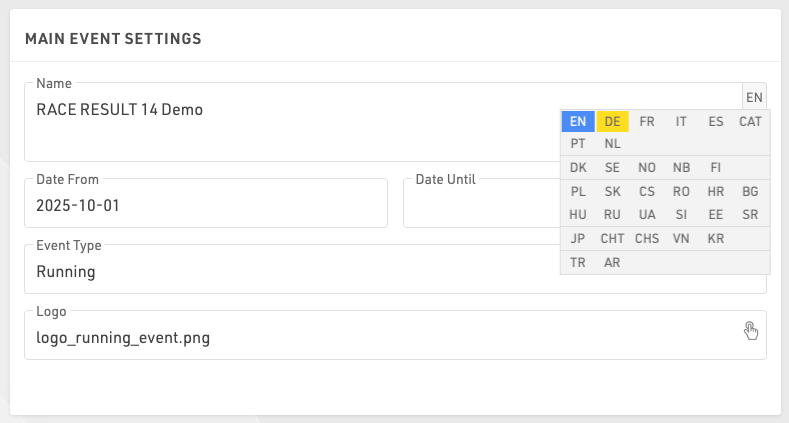
Simplemente mueva el cursor del mouse allí y seleccione el idioma en el que desea ingresar la traducción. Los idiomas que ya tienen una traducción están marcados en azul.
Si un cuadro tiene más de un idioma, también está marcado en azul:
Campos Adicionales
Valores en campos adicionales. Cada valor se puede definir en varios idiomas, cada valor está contenido dentro de una llave con cada idioma definido. p.ej. "{de:Bier|en:Beer|jp:ビール}".
- Dentro de la llave ingrese el código de idioma seguido de dos puntos, ingrese el valor respectivo. Varios idiomas están separados por una barra vertical.
- Cierre la llave y separe el siguiente valor con un punto y coma como de costumbre.
Mostrar campos traducidos
En my.raceresult.com y cuando se utilizan enlaces a quioscos de registro y pantallas de presentador, se utilizará automáticamente el idioma predeterminado del navegador.
Se puede configurar un idioma específico agregando el parámetro de consulta &lang=XX a la URL.
Para usar en plantillas de correo electrónico donde el valor del campo Idioma de los participantes se usará para elegir la plantilla, puede reemplazar "lang" con [Idioma].
Para mostrar el valor de un campo (por ej. [Competencia.Nombre] or [Evento.Nombre]) en un idioma específico use la funcion Text().
Text([Field];"lang")
Para usar en plantillas de correo electrónico, donde se utilizará el valor del campo de idioma del participante para elegir la plantilla, puedes reemplazar "lang" por [Language].
Si un campo no tiene traducción en el idioma seleccionado, se mostrará el texto en inglés como alternativa.
Si no se encuentra una traducción en inglés, se utilizará la primera traducción disponible.
Tiempos en RACE RESULT 14
En RACE RESULT 14, todos los tiempos se almacenan en la base de datos como un valor en segundos, lo que se conoce como tiempo decimal.
Un tiempo formateado es una cadena de texto que representa el tiempo en el formato que normalmente esperarías leer.
Por ejemplo:
Tiempo Decimal: 36015.125
Tiempo Formateado: 10:00:15.125
El tiempo decimal se considera un número, mientras que la hora formateada se considera una cadena de caracteres. En programación informática, llamamos a estos diferentes tipos de valores Data Types.
En los dos ejemplos anteriores, también tenemos milisegundos que están representados por los números después del decimal. Los milisegundos serán los mismos en un tiempo formateado que en un tiempo decimal.
¿Cuándo utilizar el tiempo decimal?
El tiempo decimal debe usarse cada vez que necesite realizar un cálculo matemático o al clasificar/ordenar por tiempo.
Matemática
Por ejemplo, digamos que queremos agregar 00:30:00 a 00:15:00. Como humanos, podemos ver fácilmente que esto sumaría 45 minutos, pero una computadora no ve esto como lo hacemos nosotros. Para una computadora, los tiempos primero deben convertirse a tiempo decimal, sumarse y luego formatearse como tiempo para que podamos leerlos fácilmente.
00:30:00 equivale a 1800 segundos.
00:15:00 equivale a 900 segundos.
Si sumamos 1800 a 900 obtenemos 2700 segundos. Luego podemos reformatear esta hora a 00:45:00.
Puedes utilizar herramientas como Time to Decimal Time o Decimal to Time para hacer estas conversiones
Clasificar/ordenar
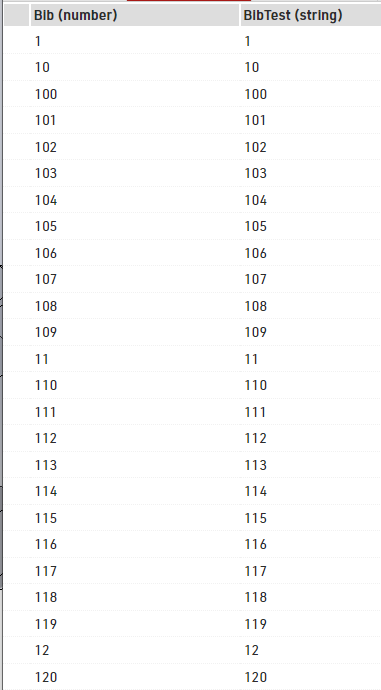
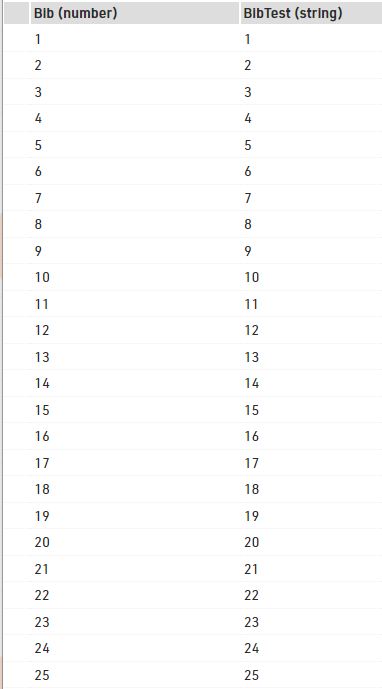
Al clasificar/ordenar por un valor, también notarás una diferencia entre cadenas y números. A la izquierda hay un informe ordenado por BibTest que es una cadena. A la derecha está la misma lista ordenada por Bib que es un número. Al ordenar por cadena, puede ver que la lista se ordena por el primer carácter, luego por el segundo y así sucesivamente. Al ordenar por número, se considera el número completo en lugar de solo un carácter a la vez.
Navegador Windows
Inicio
Eventos
El menú de Eventos en RACE RESULT 14 te permite acceder a tus archivos de eventos o crear nuevos. Al trabajar sin conexión, no todas las opciones del menú estarán disponibles. Tus eventos más recientes se mostrarán primero o puedes explorar los últimos (recientes), los próximos (próximos) o todos los eventos. La barra de búsqueda te permitirá buscar en todos los eventos.
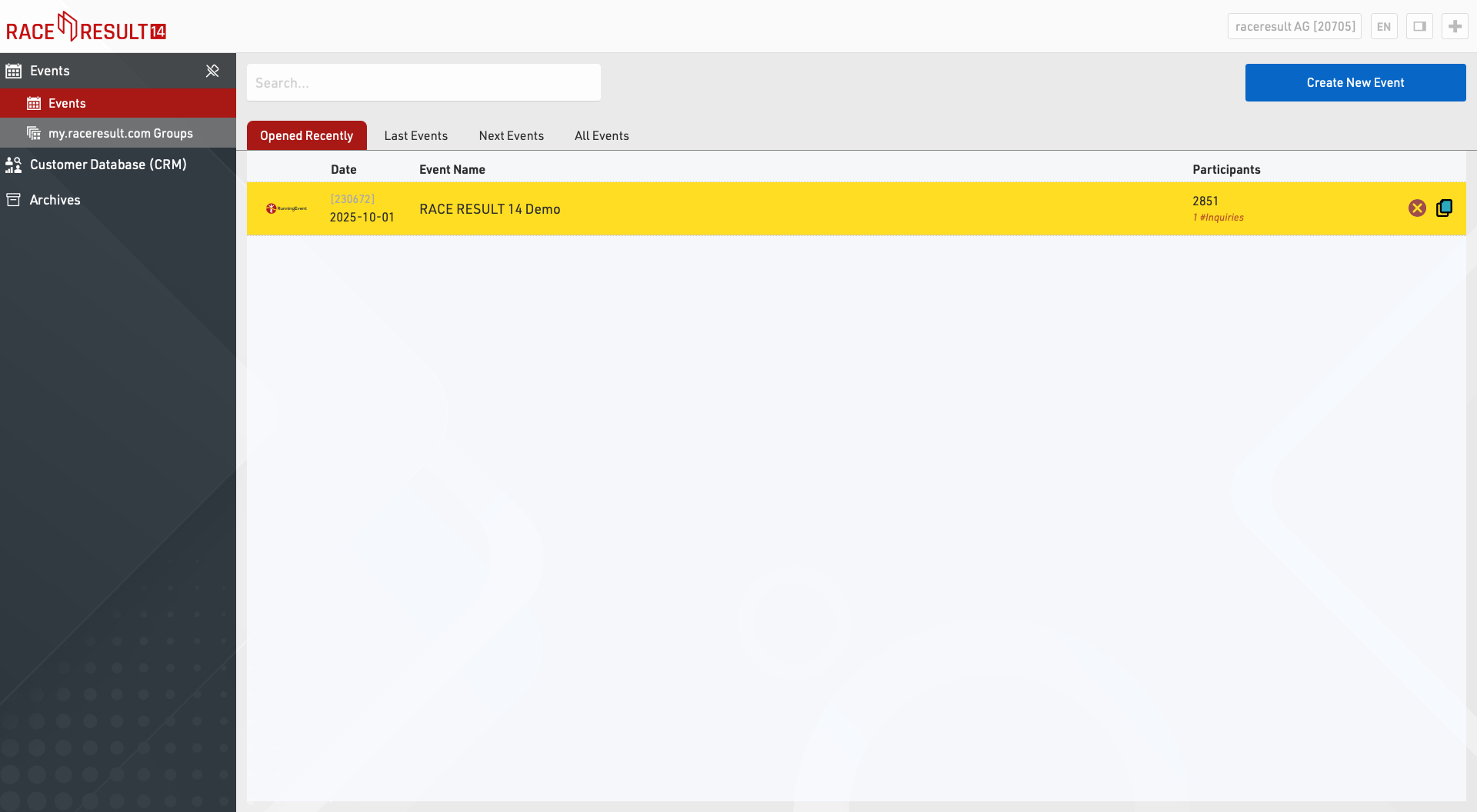
Para crear un nuevo evento, haga clic en el botón Nuevo Evento, ingrese el nombre del evento y la fecha, seleccione una plantilla y haga clic en Crear (esta función solo está disponible cuando se trabaja online.
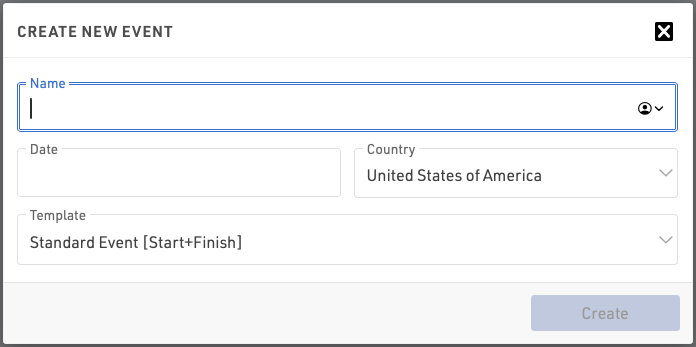
Si trabaja offline, puede crear nuevos archivos de evento en el Servidor Web RACE RESULT).
Para copiar un evento, haga clic en el ícono de copia en la fila del evento original que desea copiar.
Para eliminar un evento, haga clic en el icono de eliminar a la derecha (solo disponible cuando trabaja online). Al eliminar un evento, se le pedirá su contraseña de inicio de sesión (que pertenece a su número de cliente).
Participantes
Con la función Participantes, puede buscar participantes en todos los archivos de eventos.
Grupos de Eventos
Grupos de eventos se utiliza para ordenar sus eventos en my.raceresult.com en las diferentes categorías que se muestran. Puedes encontrar más información en el artículo Groups.
Análisis de clientes
La base de datos de clientes (CRM) le brinda información valiosa sobre quiénes son realmente sus participantes (clientes), dónde y con qué frecuencia compiten y de dónde son.
Pestaña General
El Panel de Control (Dashboard) proporciona una vista rápida de tu evento, en particular información sobre las cifras de inscripción y los pagos.
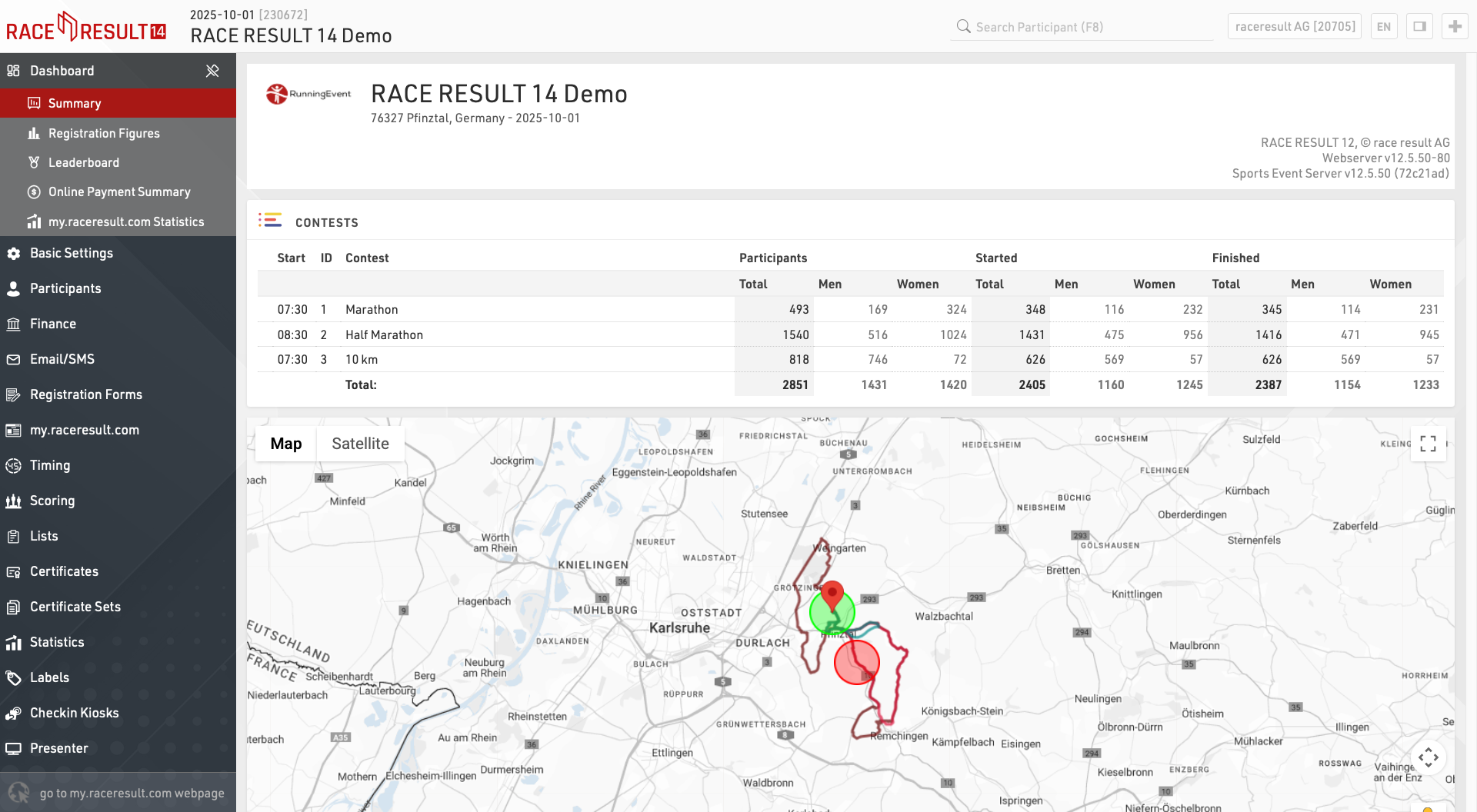
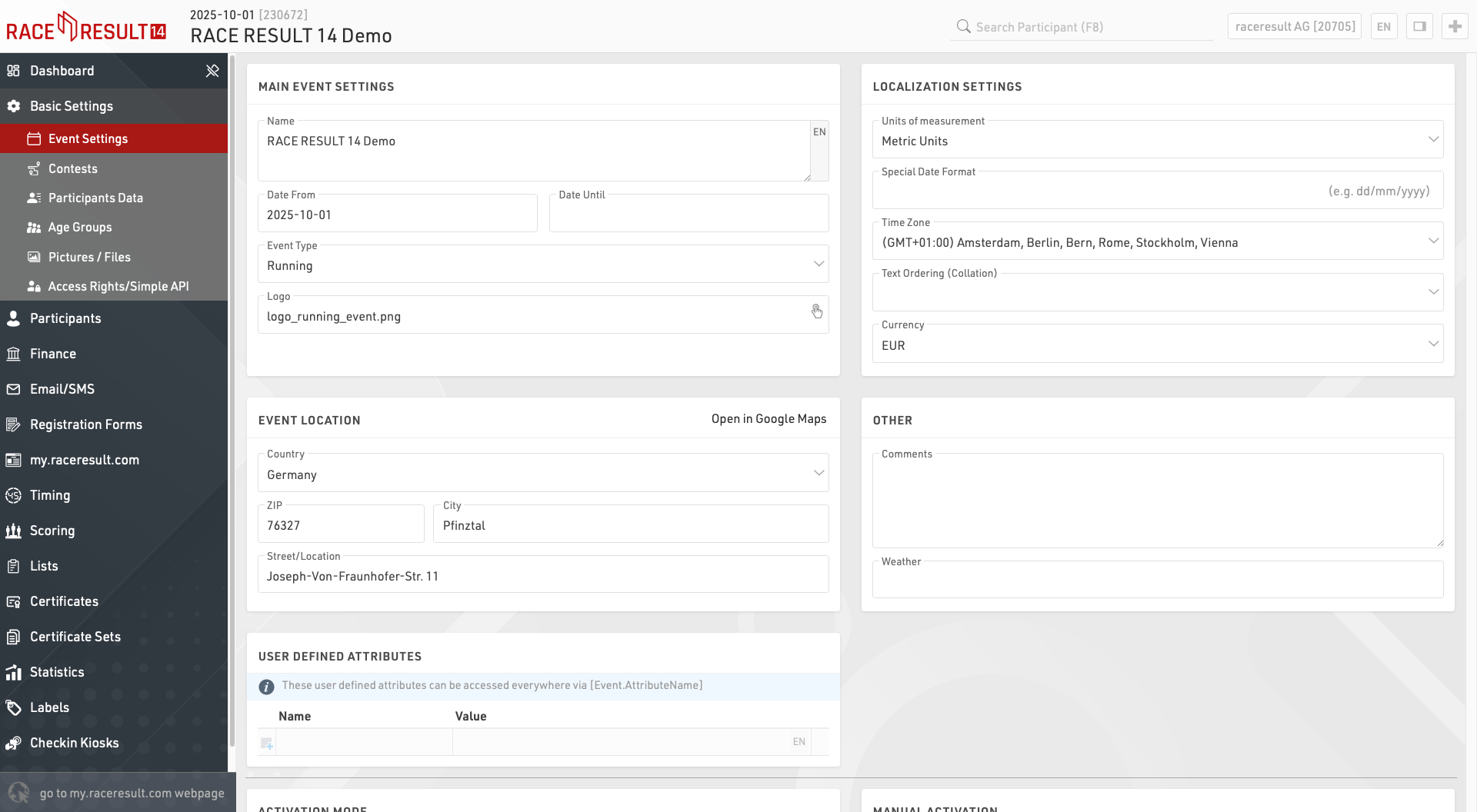
Ventana Principal
Pestaña Participantes
La ventana de Participantes se utiliza para gestionar todos los datos de los participantes dentro del archivo del evento.
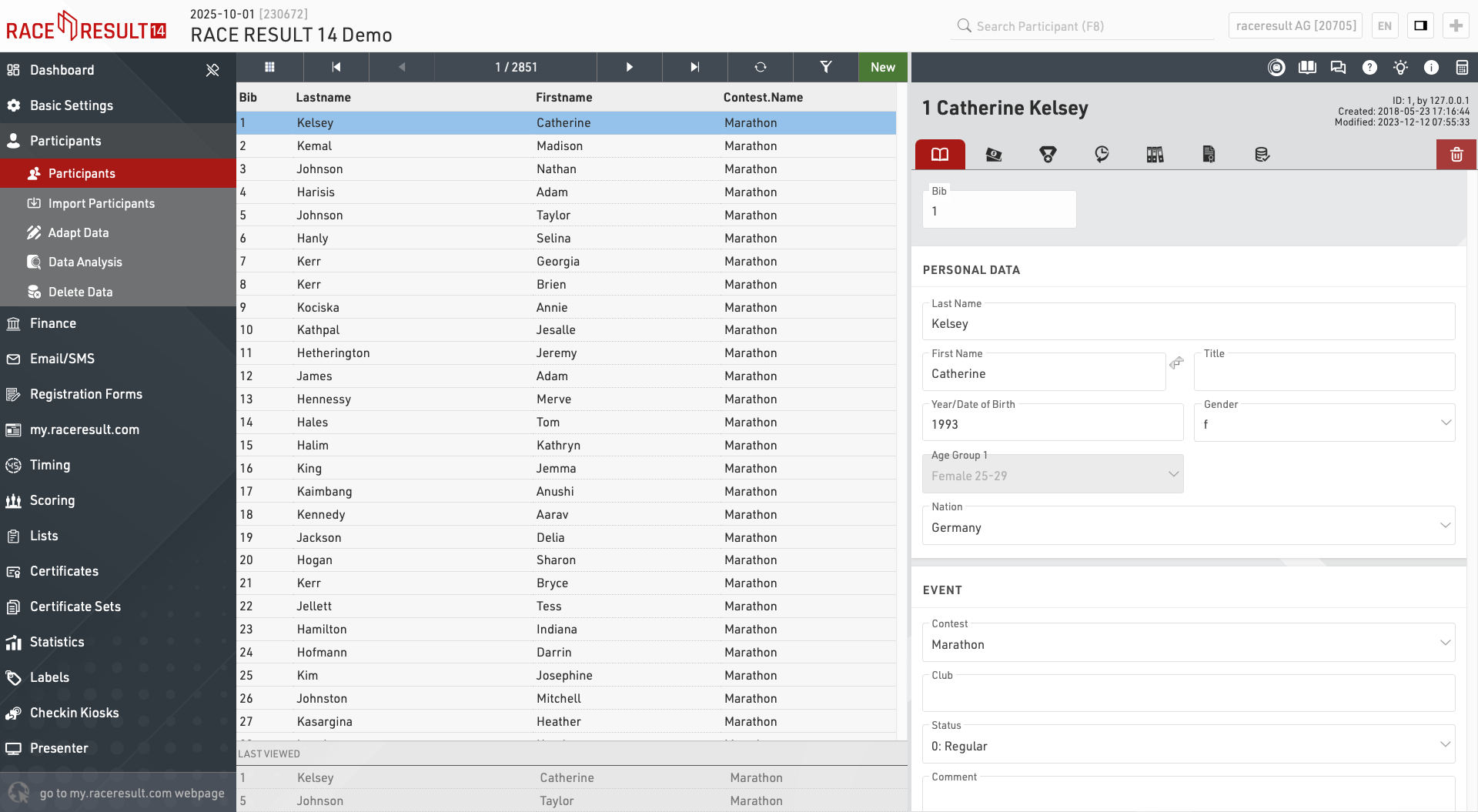
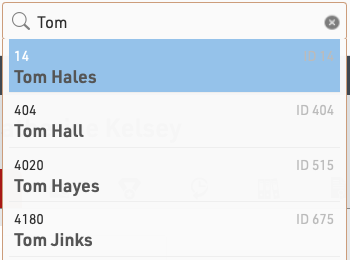
También puedes acceder a la ventana de participantes utilizando la barra de búsqueda en la barra de navegación principal. Al seleccionar un nombre desde la búsqueda, se abrirá automáticamente ese participante en la vista principal.
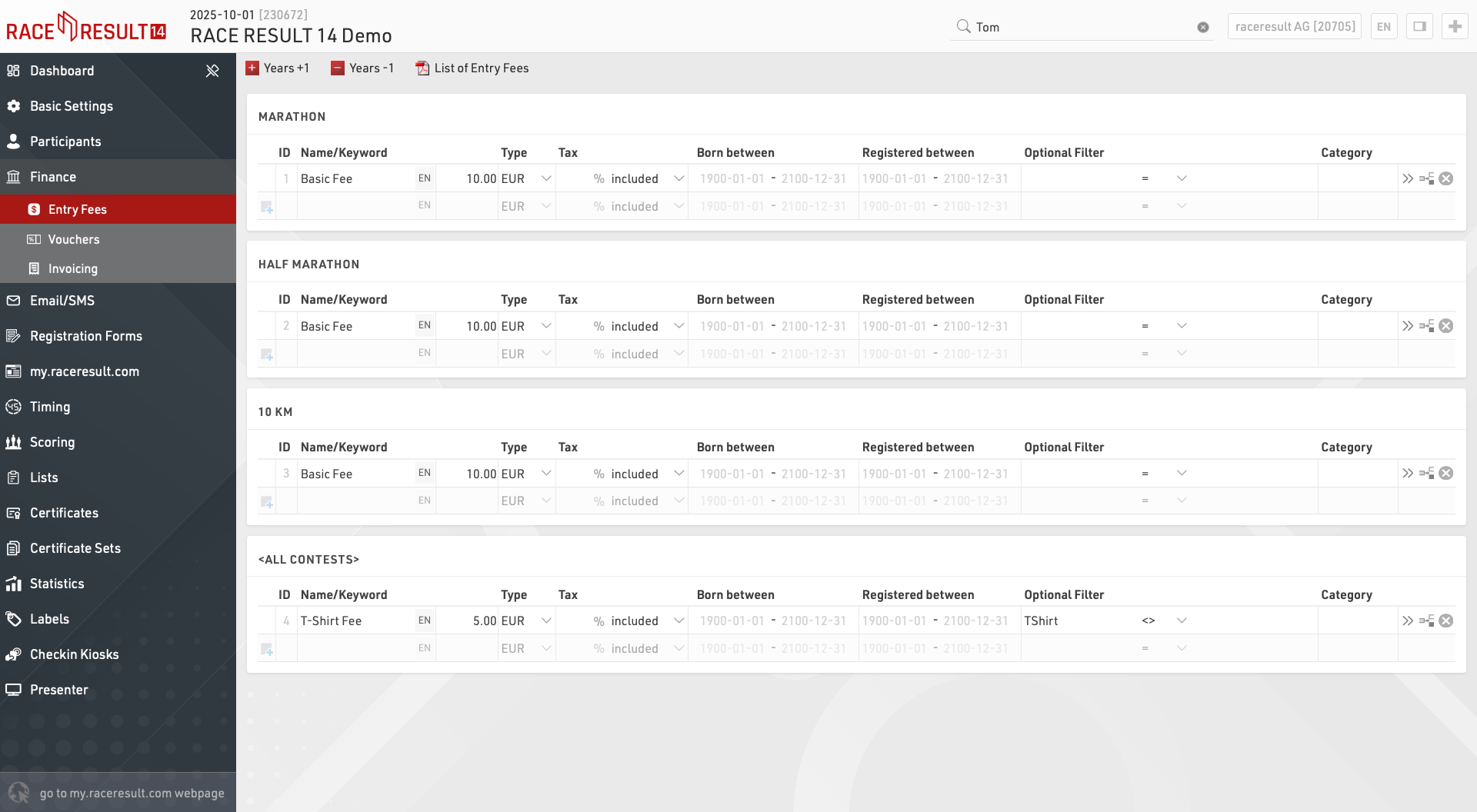
Finance
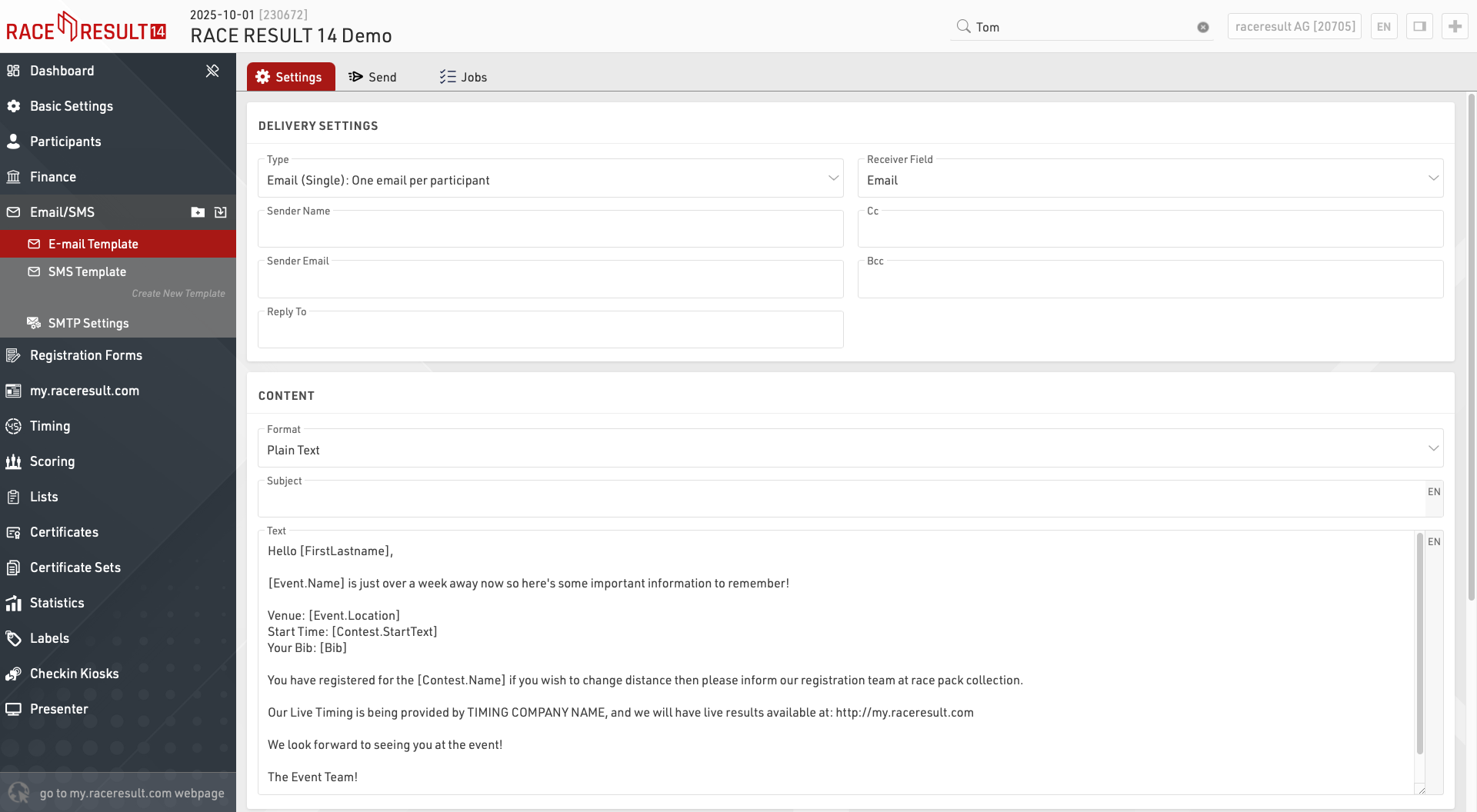
Email / SMS
The Email / SMS Module allows for bulk sending of Emails or SMS to participants.
You can create an arbitrary number of templates for different purposes which can be sent through the E-mail / SMS window or may be triggered through an Exporters.
The list on the left shows all templates in your event file which can be rearranged using drag & drop by clicking the free space to the left of the template name.
Templates can be further sorted into folders, to create a new folder, click the Add Folder icon in the Email/SMS Header. By clicking the folder header, the folder can be expanded / collapsed, to sort the items within a folder alphabetically, click the  icon. Empty folders will be deleted automatically when you reload the window.
Clicking the name of a template from the menu opens the settings for that template where the template can then additionally be sent from.
Formularios de Registro
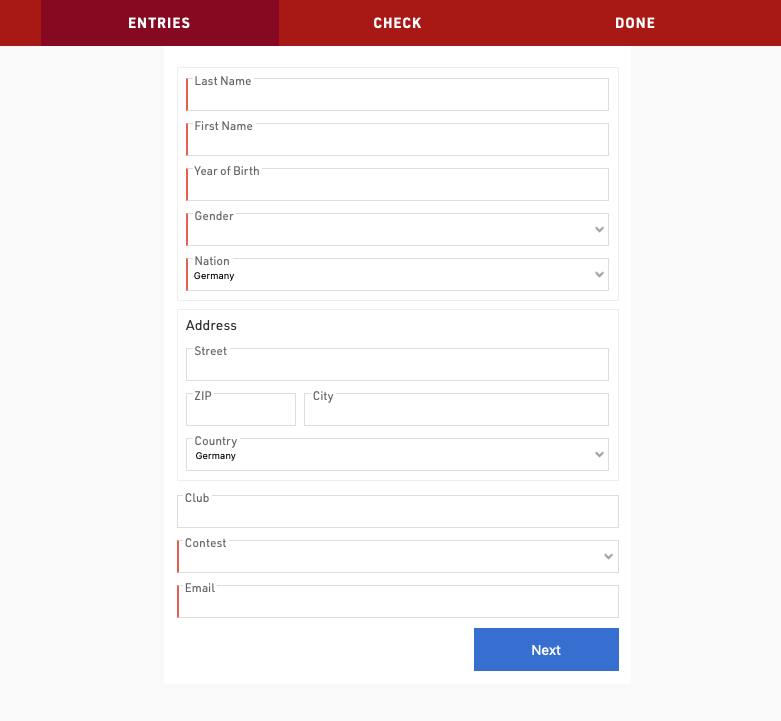
Los formularios de registro se utilizan para proporcionar registro tanto en línea como en el sitio, esto también se puede extender al autoservicio en línea que permite a los participantes actualizar sus datos directamente.
La lista de la izquierda muestra todos los formularios de registro de tu evento. Puedes reorganizarlos con la función de arrastrar y soltar haciendo clic en el espacio libre a la izquierda del nombre del formulario.
Las listas se pueden organizar en carpetas. Para crear una nueva, haz clic en el icono "Añadir carpeta" en el encabezado de listas. Al hacer clic en el encabezado de la carpeta, esta se puede expandir o contraer. Para ordenar los elementos de una carpeta alfabéticamente, haz clic en el icono Las carpetas vacías se eliminarán automáticamente al recargar la ventana.
Cada formulario de registro es totalmente personalizable y se pueden configurar varios para diferentes propósitos. Cada formulario es de cuatro tipos:
- Inscripción individual
- Inscripción grupal (Ingrese varias inscripciones simultáneamente)
- Autoservicio individual
- Autoservicio grupal
Para acceder al autoservicio, se genera una URL única para cada participante, que contiene una clave única de seguridad. Esta URL se puede recuperar mediante la función Changelink().
Cada formulario de registro generará una URL única que se puede abrir directamente o se puede incluir en la página de registro de my.raceresult.
my.raceresult.com
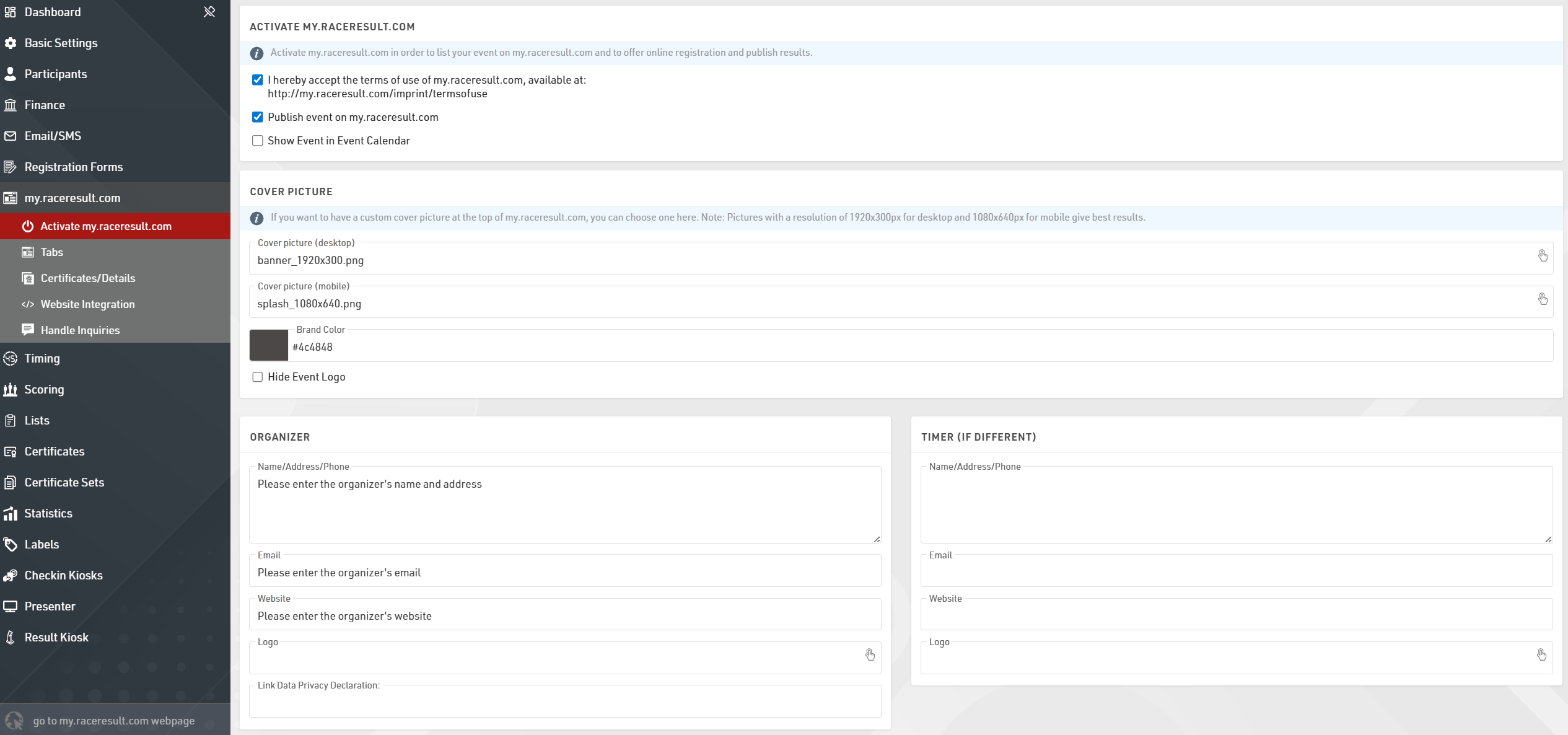
The my.raceresult.com page is used to configure the registration and results platform my.raceresult.com and to handle inquiries from my.raceresult.com
Timing
The Timing window contains important timing settings and the main interface for connecting to timing systems during the event.
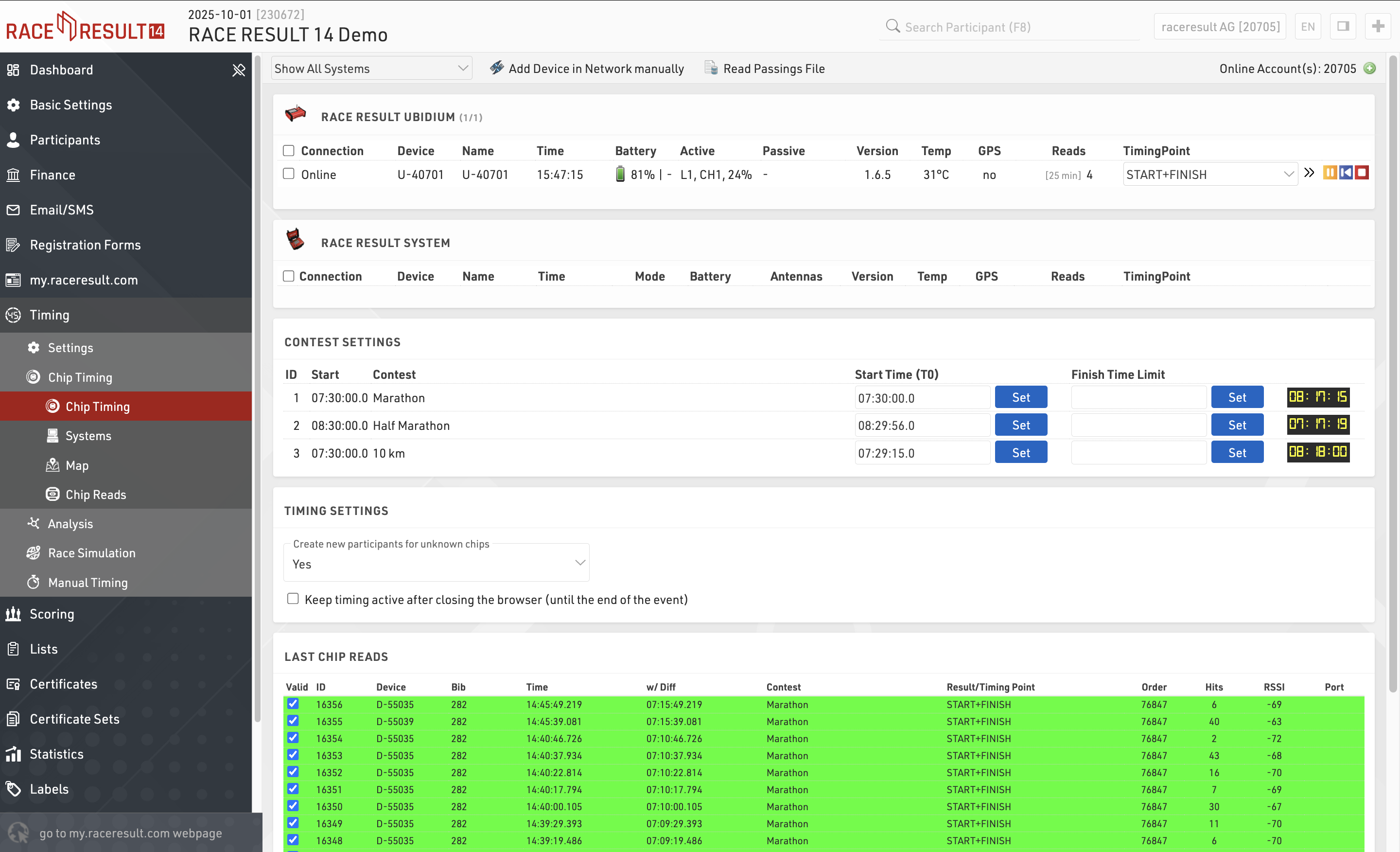
By default the Settings page will be opened if the current date is before the start of the event, after which the Chip Timing page will be opened automatically.
Ajustes del Puntaje
La configuración de puntuación define cómo RACE RESULT 14 utiliza tus datos en bruto para calcular los tiempos de cada participante.
La opción más simple es usar Splits, que ofrecen la configuración más rápida para carreras que siguen un patrón estándar, con una salida y llegada definidas, como una carrera punto a punto o con un número fijo de vueltas. Los Splits también generan automáticamente muchos de los tiempos y clasificaciones necesarios para las listas, así como segmentos adicionales (legs) que pueden abarcar varios Splits. Además, los Splits generan una amplia variedad de campos para cada uno, incluyendo diferentes formatos de tiempo, clasificaciones y ritmo (pace).
Para carreras más complejas o métodos de puntuación personalizados, puede que necesites definir configuraciones más avanzadas.
Resultados especiales: Los resultados son campos asociados a un tiempo, que pueden extraerse o calcularse a partir de los datos en bruto (Raw Data) o de los Splits u otros datos. Estos resultados pueden ser necesarios para ciertos tipos de eventos, como carreras con vueltas variables.
Clasificaciones: Revisión de la configuración de clasificaciones específicas, por ejemplo, clasificación general, por género o por grupo de edad
Puntuación por equipos: Una puntuación por equipos, por ejemplo, suma los tiempos de los tres mejores atletas de cada club y crea una clasificación basada en el tiempo total del equipo.
Nota: Por defecto, un archivo de evento ya incluye clasificaciones generales, por género y por grupo de edad. Solo necesitas trabajar en las clasificaciones si deseas que se calculen de una manera diferente o si quieres calcular clasificaciones adicionales.
Lists
Lists are the most important method for getting data out or RACE RESULT 14, and are used for a variety of applications - printed results, publishing online results, presenter screens, creating custom statistics lists, checklists for verifying results or any custom report you need.
The list on the left shows all lists in your event file which can be rearranged using drag & drop by clicking the free space to the left of the list name; list names highlighted in blue are published online through my.raceresult.com.
Lists can be further sorted into folders, to create a new folder, click the Add Folder icon in the Lists Header. By clicking the folder header, the folder can be expanded / collapsed, to sort the items within a folder alphabetically, click the icon. Empty folders will be deleted automatically when you reload the window.
Clicking the name of a list from the menu opens an overview page for that list.
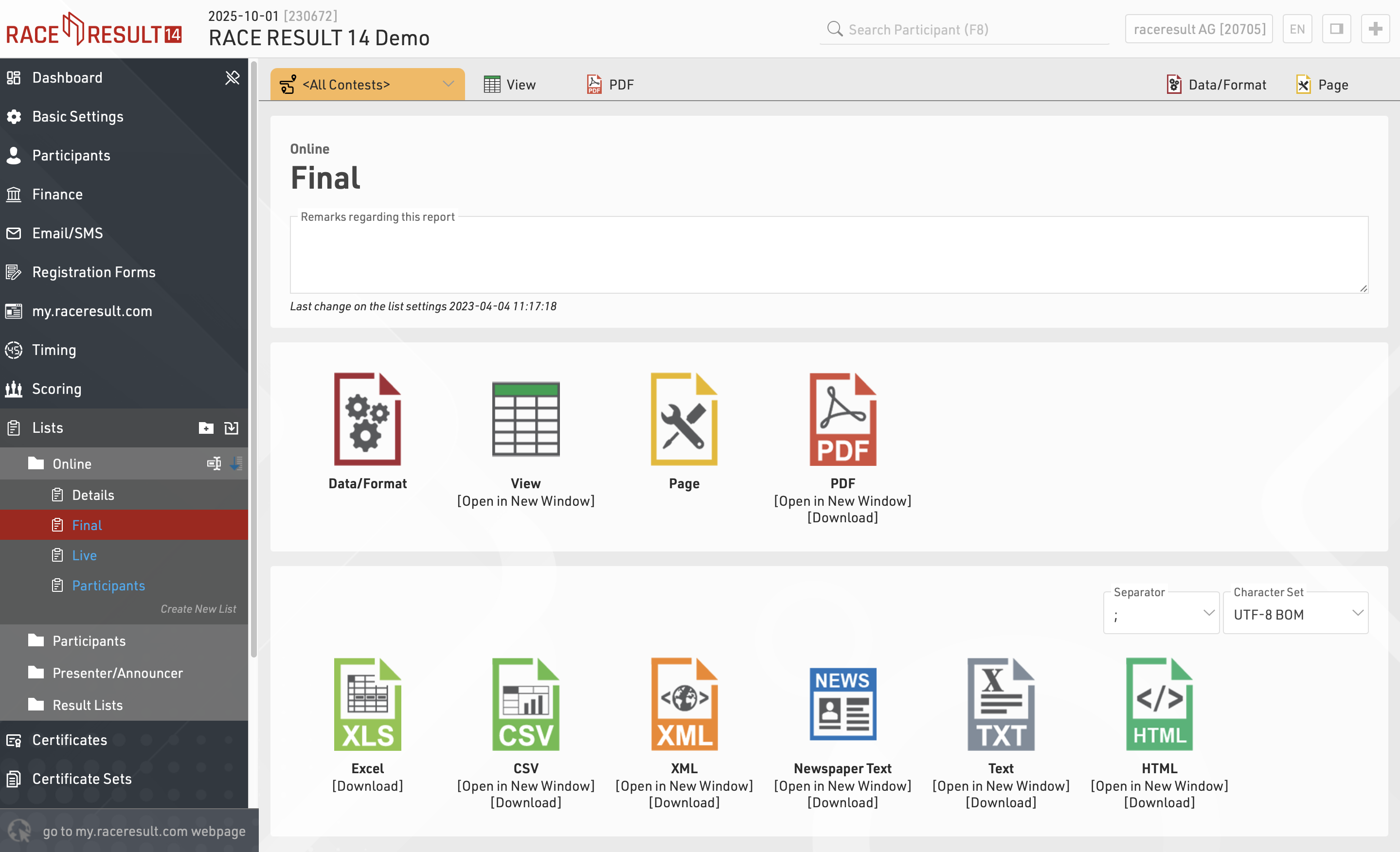
Lists show a defined set of fields for a specific set of records. The settings of a list determine:
- which participants are shown
- which data fields (columns) are shown
- how the records are sorted
- how the records are formatted
- how the page is formatted (page format, margin etc)
The settings of a list are split into the tabs Data/Format and Page. Data/Format contains all settings regarding the data shown on the list and how it is formatted, whereas the Page settings concern the general page layout and are only relevant for the PDF and HTML output form.
To view a list click the View button or tab, this can also be opened in a new window, lists can also be opened directly to the View tab by double clicking the list name from the menu. A PDF view of the list can also be previewed or downloaded.
Lists can also be exported in different formats as EXCEL, CSV, XML, TXT and HTML.
Diseñador
El Certificado crea un diseño gráfico que puede contener imágenes, texto e incluso campos de datos.
Los certificados deben ser usador para:
- Diseños de conjuntos de certificados para generar certificados individuales de participantes
- Imagen de fondo para una Lista
- Hoja de portada y página de cierre para una Lista
- Contenido de Etiquetas
Los certificados pueden diseñarse en cualquier formato de tamaño, lo que permite adaptarlos a distintos tipos de impresoras. Además, los certificados pueden contener múltiples páginas.
La lista a la izquierda muestra todos los certificados en tu archivo de evento, los cuales pueden reorganizarse mediante arrastrar y soltar haciendo clic en el espacio libre a la izquierda del nombre de la lista.
Los certificados pueden organizarse en carpetas. Para crear una nueva carpeta, haz clic en el ícono Agregar carpeta en el encabezado de certificados.
Al hacer clic en el encabezado de una carpeta, esta se puede expandir o contraer. Para ordenar los elementos dentro de una carpeta alfabéticamente, haz clic en el ícono Ordenar.
Las carpetas vacías se eliminarán automáticamente al recargar la ventana.
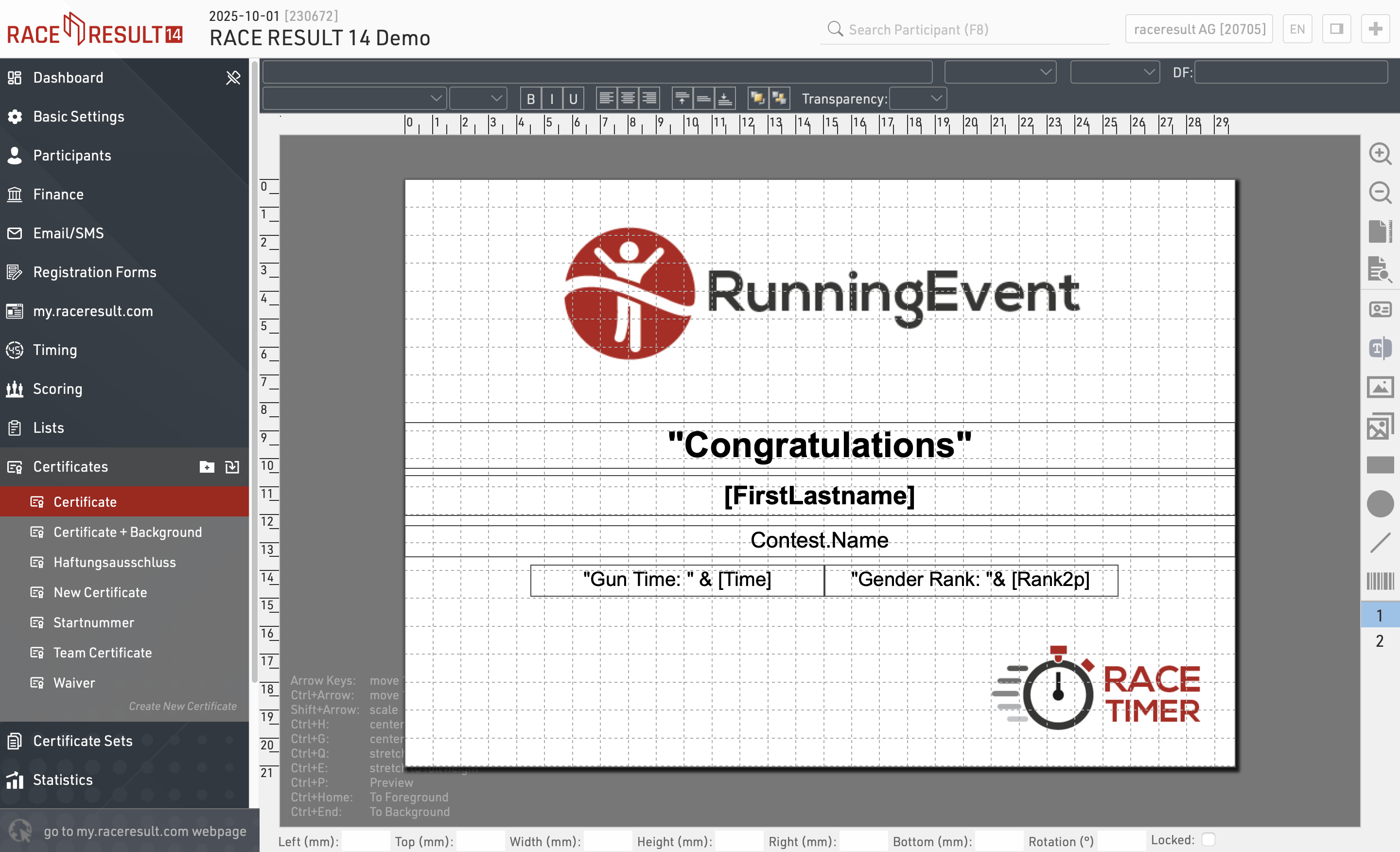
Al hacer clic en el nombre de un certificado en el menú, se abre el editor de diseño para ese certificado.
}
Prevista en cualquier momento puedes generar una vista previa real del certificado para cualquier número de dorsal utilizando este botón:
Adherir elementos
El menú de la derecha ofrece diferentes tipos de elementos que se pueden colocar en el certificado:
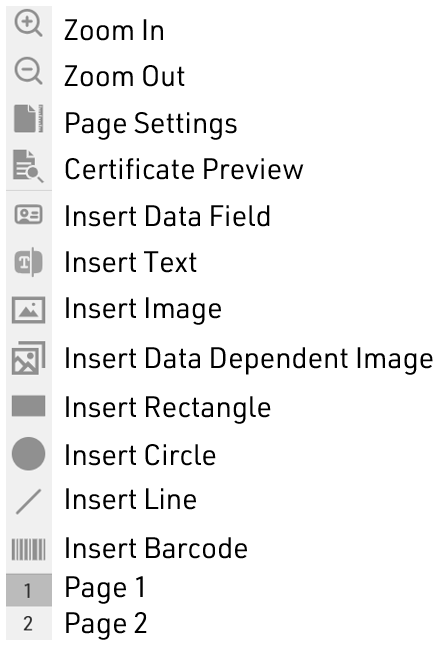
Campo de Datos
Puedes ingresar un Campo o una Expresión en un Campo de Datos para mostrar información específica del participante. El ejemplo siguiente muestra el nombre del participante.
Nombre
Usando una expresión, podrías mostrar texto estático junto con texto dinámico.
"Genero Ranking: "&[GenderRank]
Texto
El elemento Texto se puede usar para mostrar texto estático. Ten en cuenta que no puedes aplicar formato dinámico a los elementos de texto. Solo los elementos Campo de Datos pueden tener formato dinámico.
Imagen
El elemento Imagen se puede usar para mostrar imágenes estáticas. Al seleccionar este elemento, tendrás la opción de elegir una imagen de la lista de imágenes disponibles en tu archivo de evento o desde las carpetas disponibles.
Imagen Dependiente de Datos
El elemento Imagen Dependiente de Datos se puede usar para mostrar imágenes dinámicas utilizando una Expresión. La expresión debe evaluar el nombre de la imagen, incluyendo la extensión (por ejemplo, .jpg).
Por ejemplo, puedes usar el campo Nation.Alpha2 en una expresión para evaluar el nombre de cada archivo de imagen. El siguiente ejemplo se evaluaría como "flag_DE.jpg" suponiendo que el participante sea de Alemania.
"bandera_" & [Nation.Alpha2] & ".jpg"
Otro ejemplo sería si quisieras usar una función de control, como una instrucción if(), para determinar qué imagen mostrar. Aquí tienes un ejemplo:
si([GeneroRanking] IN "1-3";"Winner.jpg";"Blank.jpg")
Formas (Rectángulo, Círculo y Línea)
Puedes usar las opciones Rectángulo, Círculo o Línea para mostrar figuras de color. Usando Formato Dinámico, los colores pueden cambiar dinámicamente para cada participante.
Código de Barras / Código QR
Puedes codificar cualquier Campo o Expresión en uno de los siguientes formatos:
- Código de Barras 39
- EAN 13
- Código de Barras 128
- Código QR
Barra de Configuración de Elementos
Cada elemento listado anteriormente tiene varias configuraciones. No todas las configuraciones disponibles funcionan para todos los elementos. Estas configuraciones se encuentran en la parte superior de la ventana del certificado.
Fila Superior

La fila inferior de opciones incluye las opciones estándar de formato de texto, como negrita, cursiva y texto sin subrayado. También hay opciones para la alineación del texto dentro de una caja de texto, opciones de capas, color, contorno del texto y transparencia del elemento.
Alineación de elementos
Después de agregar un elemento al certificado, puedes posicionarlo y escalarlo en el certificado usando el ratón. Alternativamente, puedes usar las teclas del cursor (consulta los códigos de teclado en la esquina inferior izquierda) o usar los campos de entrada en la parte inferior de la pantalla para posicionar y escalar el elemento.
Selecciona varios elementos al mismo tiempo haciendo clic y manteniendo presionado el botón del ratón mientras arrastras el rectángulo de selección sobre los elementos.
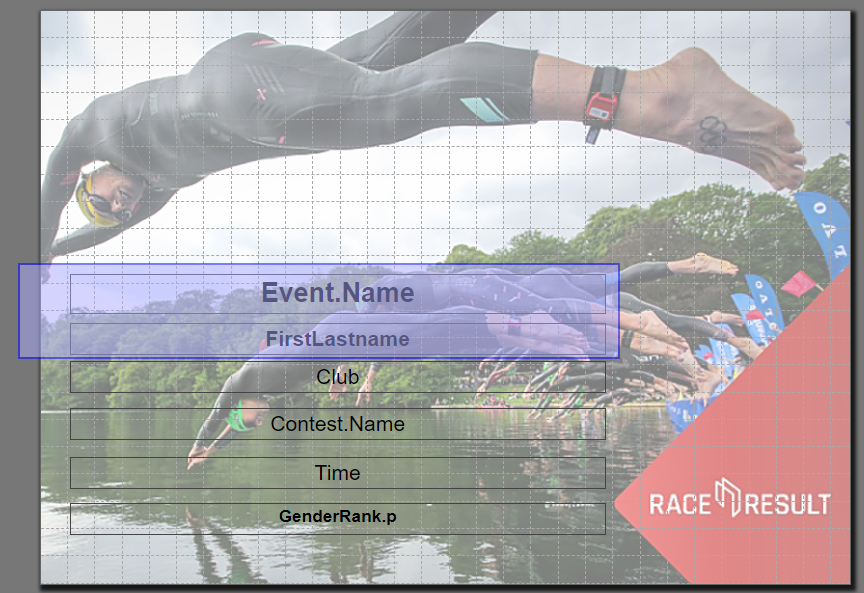
Alternativamente, puedes mantener presionada la tecla Ctrl en el teclado y hacer clic en un elemento tras otro.
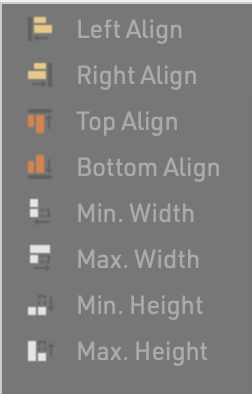
Luego, estas funciones aparecen en la esquina superior izquierda para alinear los elementos:
Páginas
Opcionalmente, un certificado puede incluir más de una página. Simplemente haz clic en “2” en la barra de herramientas de la derecha para acceder a la página 2. Una vez que hayas colocado un elemento allí, podrás agregar una página 3 y así sucesivamente.
Certificados de Equipo
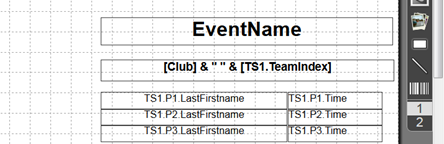
Los certificados para equipos funcionan exactamente igual que un certificado normal. En lugar del puesto y tiempo individual, mostrarías el puesto y tiempo del equipo. Si deseas mostrar también información sobre los otros miembros del equipo, simplemente ingresa el campo/expresión en la esquina superior izquierda y luego selecciona la puntuación del equipo y el participante.

Por ejemplo, para mostrar el apellido del segundo participante del equipo (según la puntuación de equipo 1), el sistema usará el campo:
TS1.P2.Lastname
En la vista previa, puedes ver que seleccionar una puntuación de equipo/participante solo te ayuda a configurar tu certificado, pero internamente se utilizará el nombre del campo.
Conjunto de Certificados
Los Conjuntos de Certificados se crean en la Pestaña Output. Un conjunto de certificados contiene Certificados para ciertos participantes en un orden dado. Los ajustes de un conjunto de certificados deciden:
- para qué participante se creará un certificado
- qué diseño de certificado se usará
- cómo están ordenados los certificados
Por ejemplo: los certificados de los primeros tres de cada grupo de edad, ordenados por el nombre del grupo de edad y el rango del grupo de edad.
Seleccione un conjunto de certificados en la pestaña Output y luego haga click en Ajustes para acceder a los siguientes ajustes:
Diseño del Certificado
Primero, seleccione el certificado que ha creado usando el Diseñador. Después decida si desea crear certificados individuales o de equipo. Si selecciona Certificado de Equipo (1 por Participante), los certificados se crearán solo para los miembros de un equipo. Si selecciona Certificado de Equipo (1 por Equipo) se creará un certificado solo para el primer miembro de cada equipo.
Para qué Participante desea crear certificados?
Puede limitar aún más para quién se imprimirán los certificados. A menudo, los conjuntos de certificados se filtran por un rango, por ejemplo, si desea imprimir certificados sólo para los tres mejores. También puede introducir un filtro general.
Orden de los Certificados
Determina en qué orden se crearán los certificados.
Statistics
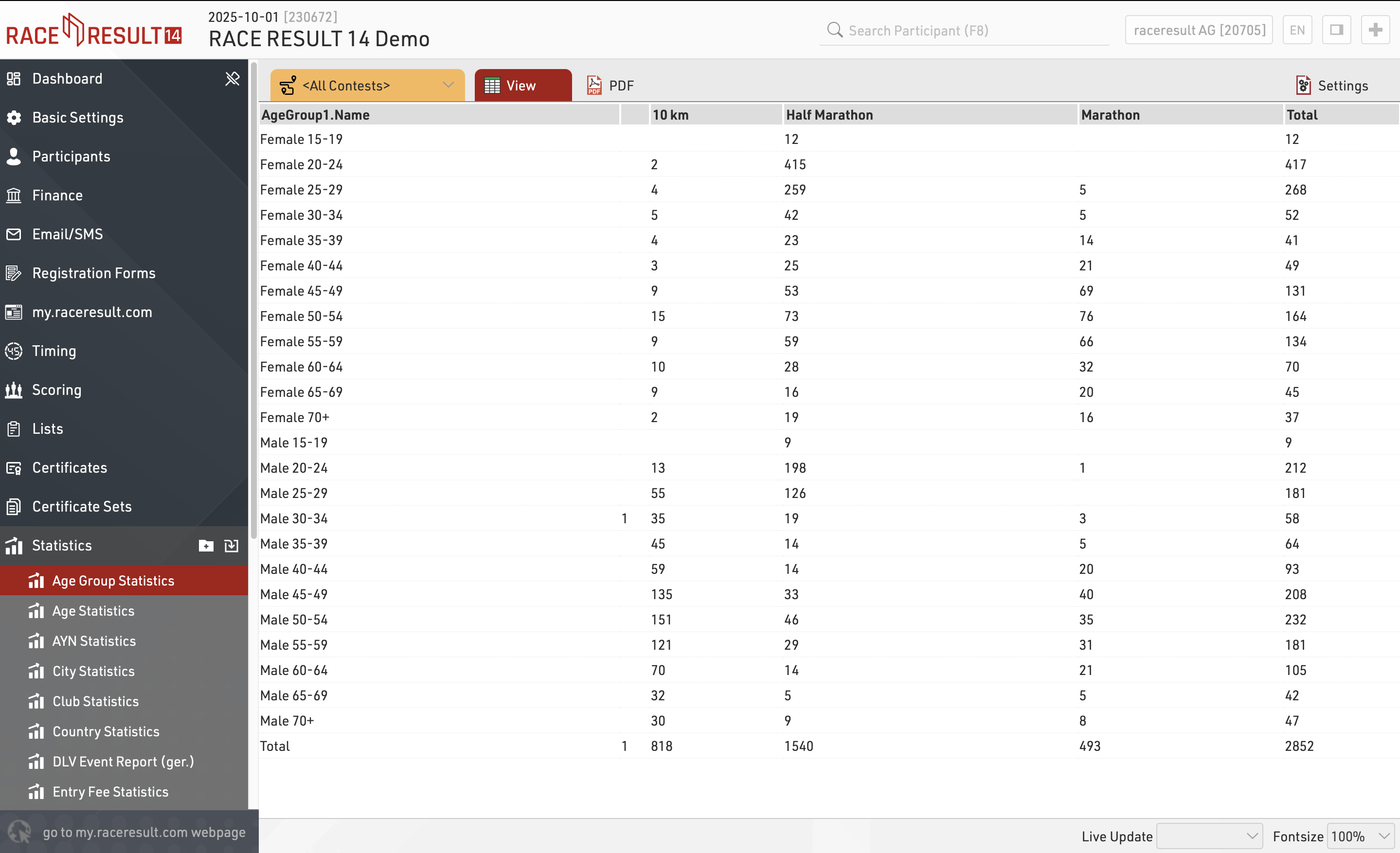
Statistics can create tables of statistical data either with custom rows/columns or using some of the pre-defined templates.
The list on the left shows all statistics tables in your event file which can be rearranged using drag & drop by clicking the free space to the left of the statistics name.
Statistics can be further sorted into folders, to create a new folder, click the Add Folder icon in the Statistics Header. By clicking the folder header, the folder can be expanded / collapsed, to sort the items within a folder alphabetically, click the icon. Empty folders will be deleted automatically when you reload the window.
Clicking the name of a statistic from the menu opens an overview page for that list.
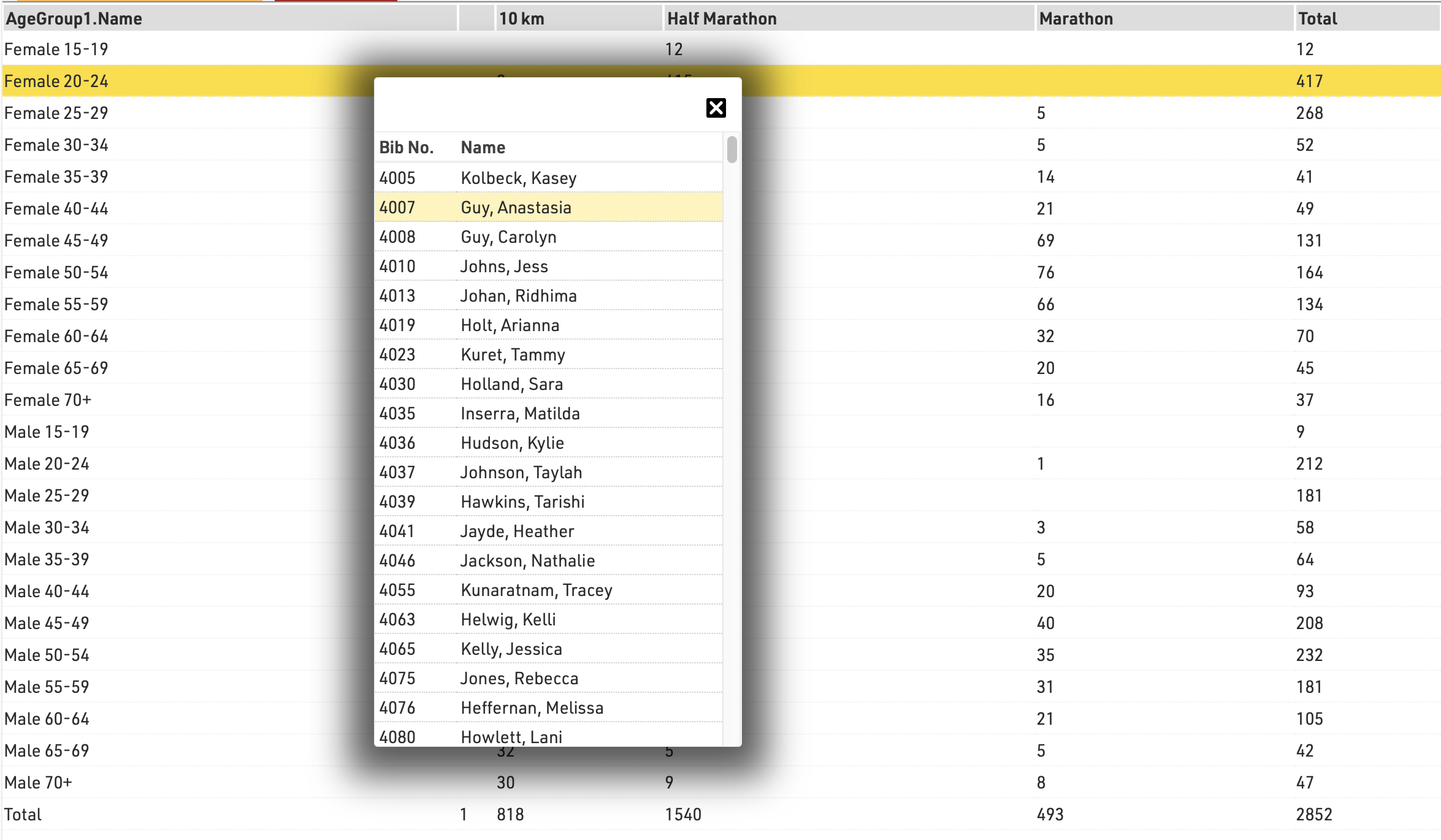
When viewing statistics, clicking on a value in the table will open a popup window with a breakdown of the participants considered in that item, clicking a participant will open that participant's details in the right-side window.
Labels
Labels are normally printed on pre-cut label sheets and allow you to place either text or a certificate design on each label.
The Label Settings determine the basic layout and template for the labels.
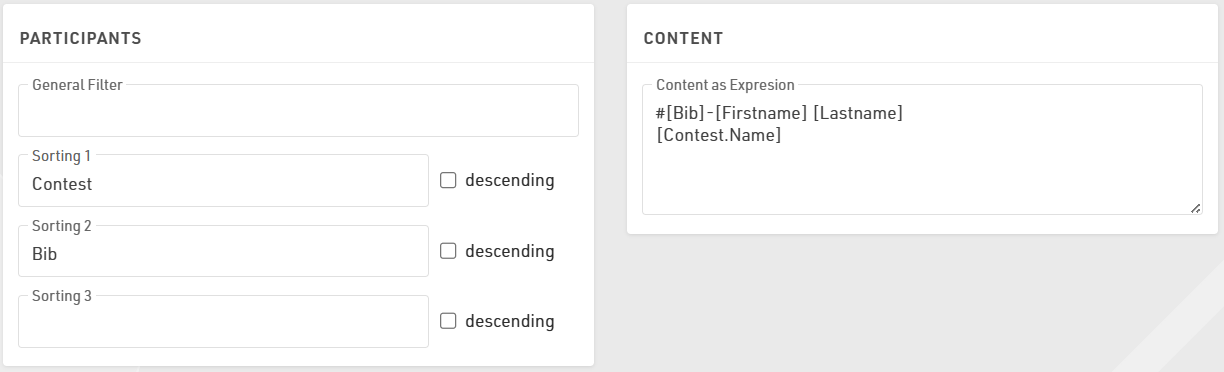
Participants
A Filter that defines for which participants a label will be created.
Sorting Fields that define how the labels will be sorted.
Content
Enter an Expression that defines the content for each label. This is handled as a full-text expression and can support multiple lines.
Other
The Directional layout (row / column direction) of the labels.
Optionally a design to be printed instead of the Expression, see Labels with Design, if a design is selected then it can be edited directly through the Layout tab.
Optionally include an automatically generated Barcode for each label, the barcode will include the bib number. If using a certificate that already has a barcode, leave this blank
Font
Define the font, font size, formatting and alignment for text.
Page
Page settings for each sheet, these are normally provided by the manufacturer of the label sheets.
Label
The individual label sizing / spacing, these are normally provided by the manufacturer of the label sheets.
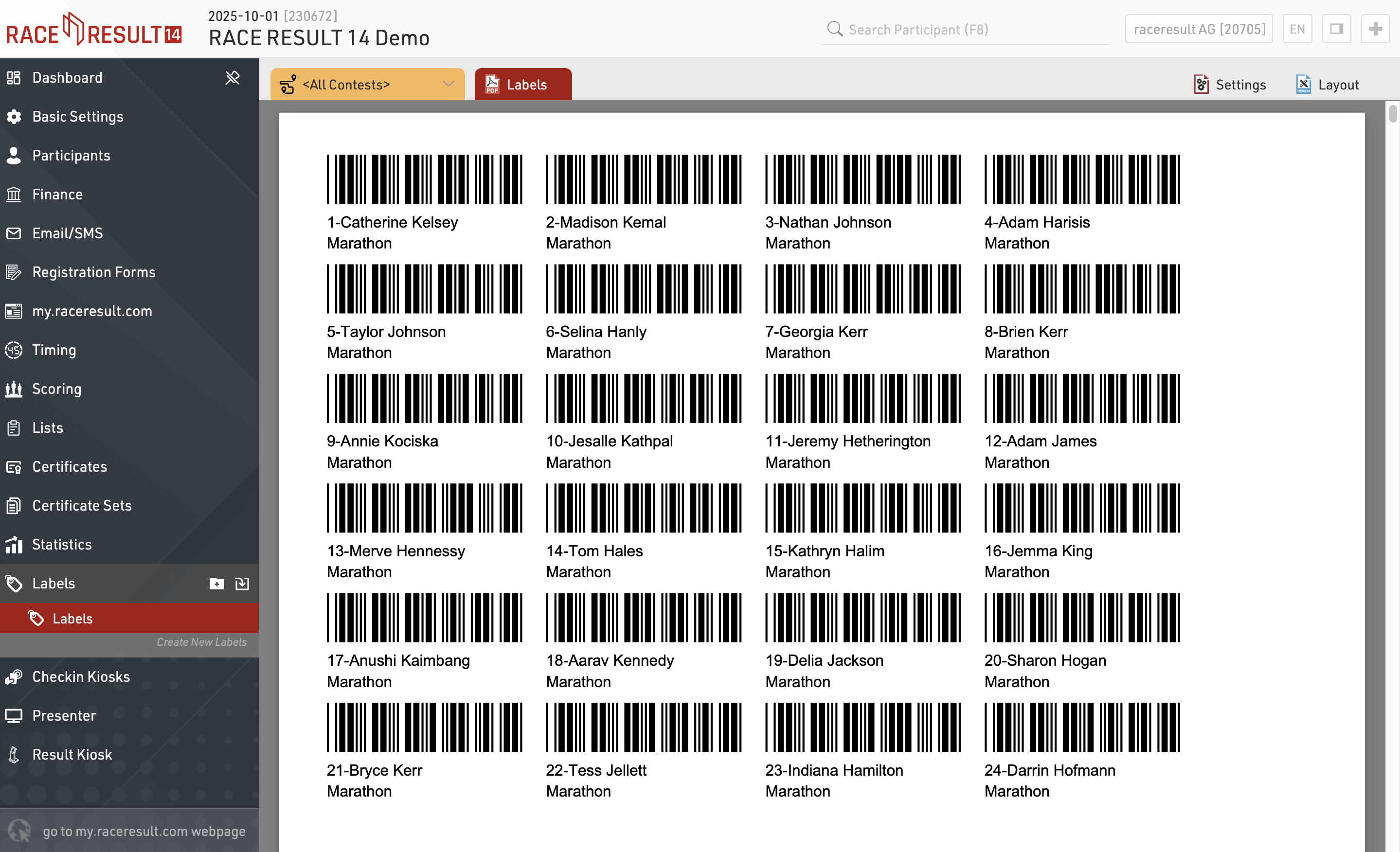
Once the settings are defined you can preview, download and print the labels through the Labels tab, an example might look like this.
Checkin Kiosks
The Kiosks provide a flexible tool for looking up and editing participant data during an event for example at registration, or giving access to individuals to easily lookup and edit fields without providing full access to RACE RESULT 14.
Within an event file multiple templates for kiosks can be created, each of which can be accessed by a unique URL, this allows different templates to be defined for different purposes.
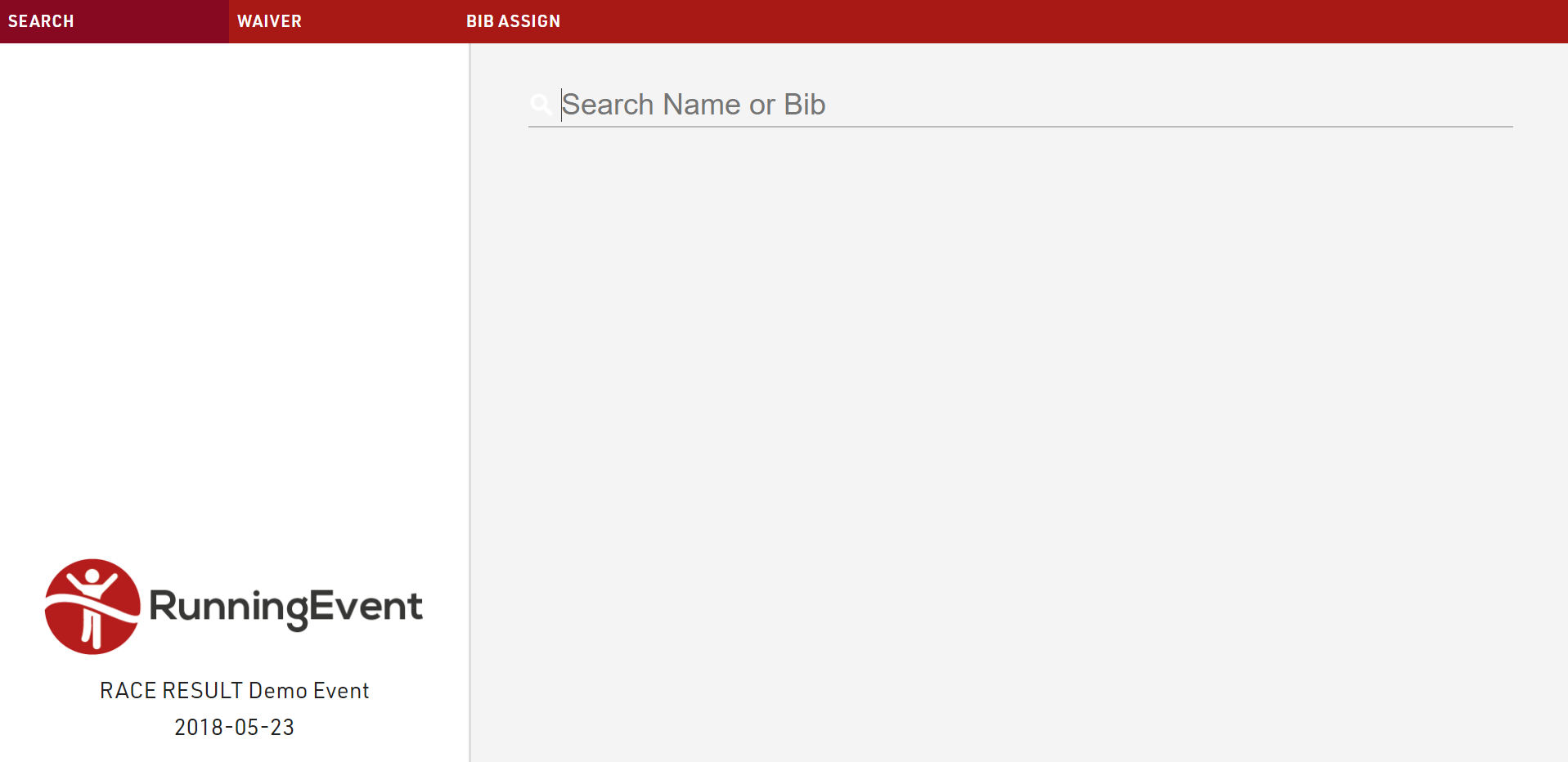
The given name to each kiosk will be shown in participants' history, when changes are made: in this way, you can always retrieve from which kiosk (and user) a change has been made.
Presenter
Presenter is used to create displays for primarily on-site results presentation, announcers, or for other staff / volunteers to easily access data.
Within an event file, multiple templates for presenter displays can be created, each of which can be accessed by a unique URL. This allows different templates to be defined for different purposes. The URLs can be accessed without logging in to RACE RESULT 14, meaning they can easily be shared without giving full access to the event file. By default, you will find three presenters in your event file: Chip Check, Present Results, and Show Last Chip Reads.
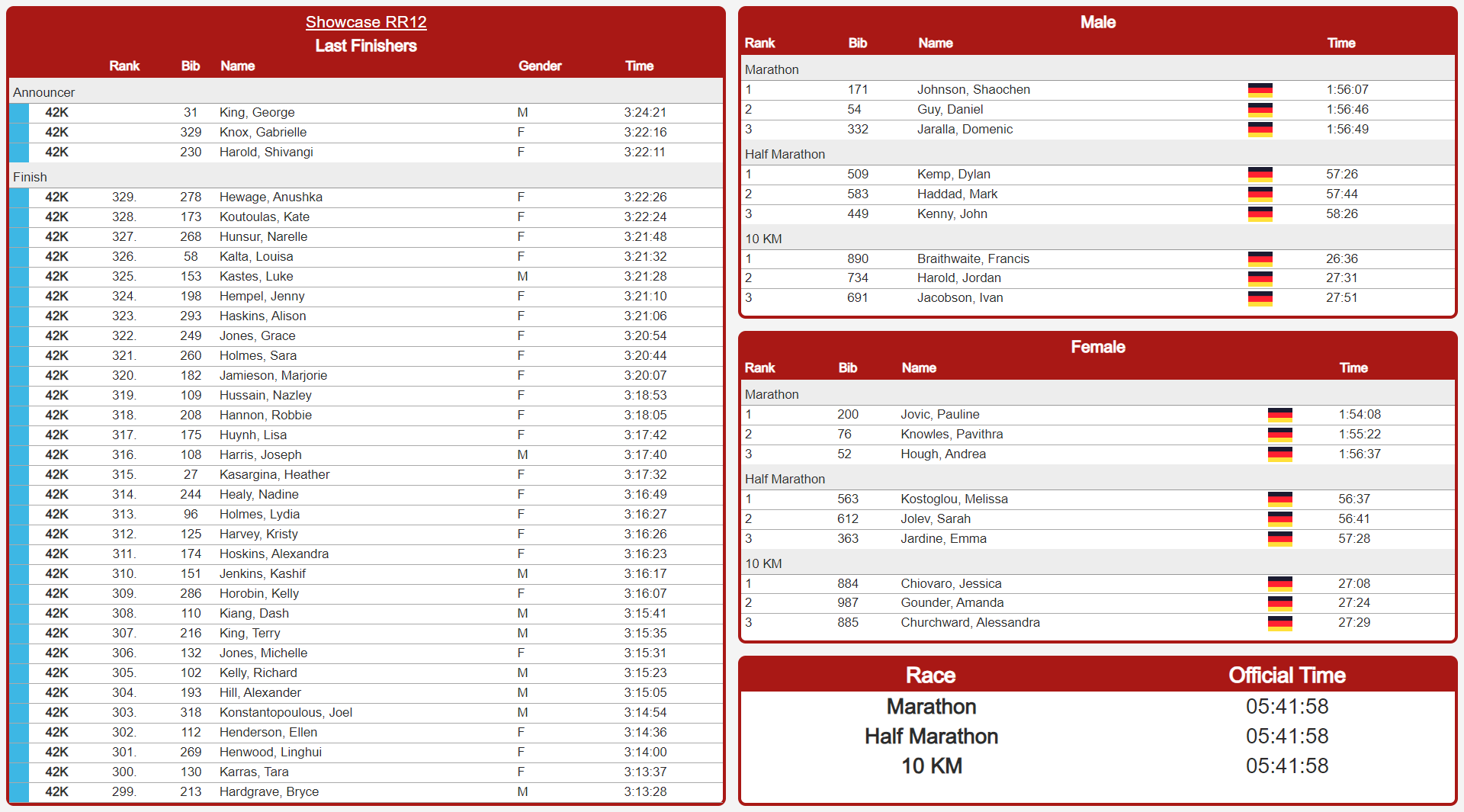
Displays may contain multiple screens which can be switched manually, using a touch screen, or using the FN-Keys 1-4.
Result Kiosk
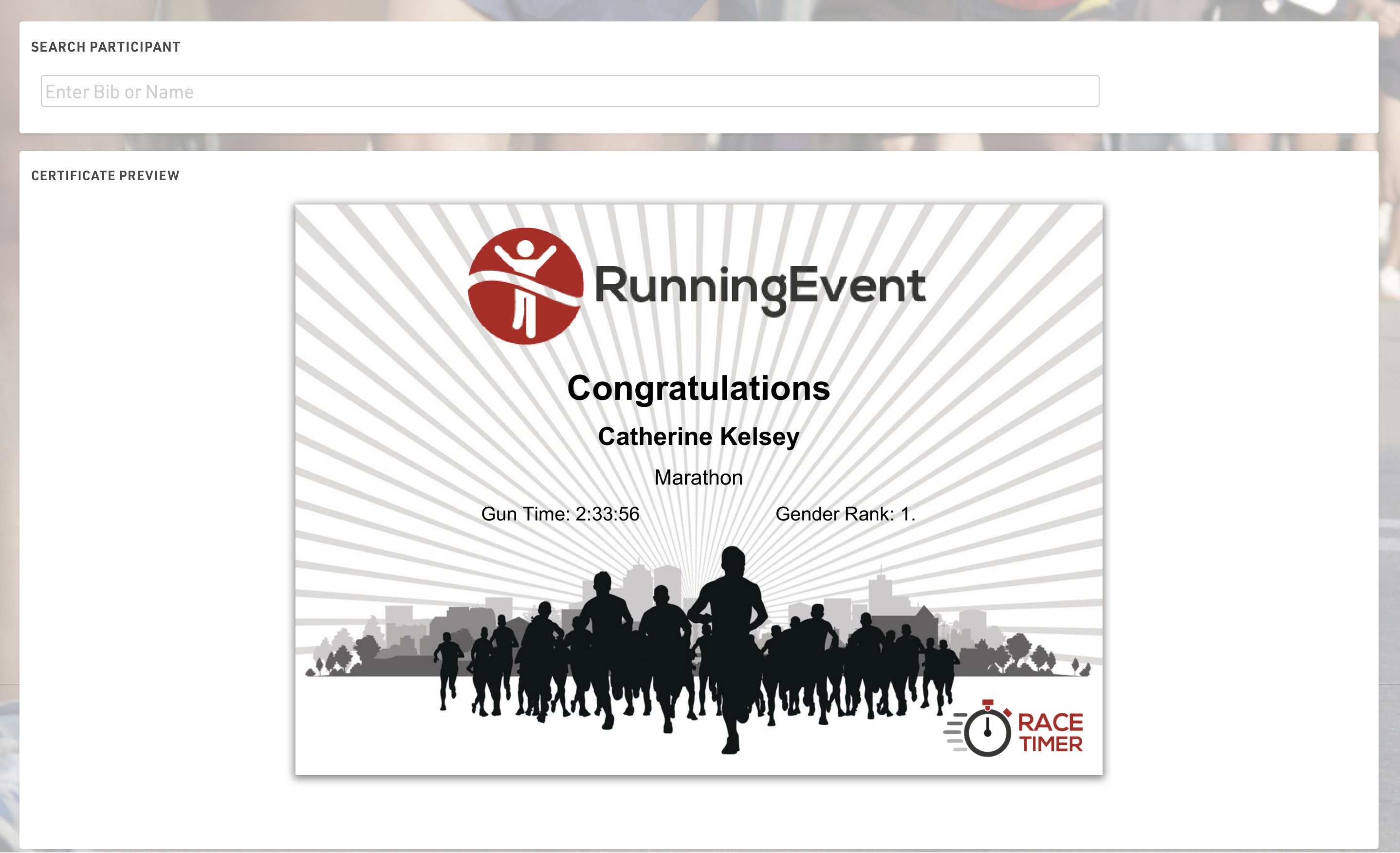
Athletes can use the Result Kiosk tool to check and/or print their result/race certificate on race day, most commonly it is used with a thermal receipt printer so participants can get a quick print out of their Results / Ranks to take home. It can be found in the Tools menu.
Settings
Make sure to define the following important settings:
- Decide if the user can view and/or print his race certificate. If you would like to support printing, RACE RESULT Web Server needs to be running.
- Select one or more Certificate Sets that can be shown/printed for each contest.
- Optionally, you can add customs texts, automatically set an Additional Field and forbid multiple print outs for the same participant.
Input
The input field can search from either Bib or Name fields or lookup by Transponder Code when using alpha-numeric chip codes (note that standard passive transponders mapped in a chip file cannot be used at this time).
You can use the RACE RESULT Decoder. Tag Reader or USB Timing Box to scan transponders directly into the search bar. To connect to a device click the connection icon in the top right of the search input, this will list available devices below and allow you to connect directly to the device for input of Transponder code. The RACE RESULT Web Server must be running for this.

Herramientas y Programas
Campos, Expresiones y Funciones
Los Campos contienen datos los cuales pueden ser datos almacenados o datos calculados a partir de otros datos como un rango.
Al usar Expresiones y Funciones puede combinar campos, hacer cálculos, modificar valores, y mostrar el resultado en Listas or Certificados. Por ejemplo, un Campo Adicional de Si/No tiene el valor 1 si se está marcado y 0 en caso contrario. Usando una expresión puede mostrar si/no o X/- en su lugar.
Syntax
Definition of Syntax (programming languages): The syntax of a computer language is the set of rules that defines the combination of symbols that are considered to be a correctly structured document or fragment in that language.
Definition of Syntax: The arrangement of symbols and characters to form expressions or functions.
Symbols and their names
The following are symbols used to write Expressions and functions.
|
[ |
Open bracket |
| ] | Close bracket |
| ( | Open or left parenthesis |
| ) | Close or right parenthesis |
| " | Quote, quotation mark, or inverted comma |
| | | Pipe, or vertical bar |
| & | Ampersand |
| { | Open brace, squiggly brackets, or curly bracket |
| } | Close brace, squiggly brackets, or curly brackets |
| ; | Semicolon |
| : | Colon |
| # | Hash |
When to use each symbol
When to use Brackets?
Brackets are used when referencing a Field within an Expression or a function.
Example: If we want to reference a participant's Contest we would do this
[Contest]
Example: If we want to compare a participant's Contest to see if it matches a specified contest id we need to do this
[Contest] = 1
If a participant is in contest 1 when we reference [Contest] with the use of brackets we will get the value of 1 back. This would evaluate the above example as true because 1 does equal to 1.
When to use Parentheses?
Parentheses are used to contain parameters within a Function.
Example: If we wanted to write an if statement to return yes if a participant is in contest 1 otherwise return no we could do this
if([Contest]=1;"yes";"no")
In the above example, we are using an if statement with parentheses to contain our expression.
Parentheses are also used to define the order of operations.
Example: You have a variable laps race with a parade lap, where the parade lap is 1 mile and a full lap is 10 miles. You want to calculate how many miles each participant completes, including the parade lap. You could use parentheses to define the order of operations for this calculation.
(([NumberOfLaps]-1)*10)+1
First, we want to calculate the number of full laps a participant completes. To do this, we subtract 1 lap (the parade lap) from the NumberOfLaps data field. Then we need to multiply that value by 10 miles. Lastly, we need to add 1 mile for the parade lap. If we were to fill in the above example with 5 laps the result would be 41 miles, which is 4 10-mile laps and 1 parade lap of 1-mile distance. This example assumes that the start/lap/finish timing point is the same for all laps, normal laps and the parade lap.
When to use Braces?
Braces are used when referencing the value of a Record Multiplier within a List.
Example: If we wanted to reference laps 1 through 3 and the laps are named Lap1, Lap2, Lap3 under Main Window->Special Results then we could do this
[Lap{n}]
In the above example, we are referencing laps 1 through 3 by appending the text Lap with the value of the record multiplier which is defined within two braces.
Braces are also used to translate strings into different languages.
Example: If we want the example above to display "Yes" or "No" when using the software or my.raceresult.com in English, or "Si" or "No" for Spanish, we would write:
if([Contest]=1;"{EN:yes|ES:si}";"no")
Note that the value for the different languages is separated by a pipe.
Braces are also used to call a Splits Selector in an output list.
Example: To call a selector you need to surround the selector with braces like this:
{Selector}.TimePositive
When to use Quotes?
Quotes are used to reference a text string.
Definition of String (computer science): A string is traditionally a sequence of characters, either as a literal constant or as some kind of variable.
Example: If we wanted to find all participants with the first name of John then we could set a filter like this
[Firstname] = "John"
In the above example, John is in quotation marks because his name is a String we are trying to compare to. Firstname is in brackets because it is a field that will return a String value to compare with the String John.
When to use a Semicolon?
Semicolons are used to separate parameters within a Function.
Example: In an if statement there are three parameters. Each parameter needs to be separated with a semicolon like this
if([Bib]=1;"yes";"no")
In the above example, we are checking to see if Bib is equal to 1. If Bib is equal to 1 (true) then we return Yes otherwise (false) we return "No".
When to use an Ampersand?
Ampersands are used to append one string to another.
Example: If you want to add a string like "John" to a data field like [Lastname] then you can do something like this
"John " & [Lastname]
In the above example if the value of [Lastname] was "Doe" then the returned string would be "John Doe". This is also known as concatenating two strings together.
When to use a Hash?
A hash indicates that the expression is full-text. This way, you don't need to use quotes around text strings, and to use ampersands to combine fields, strings and functions. Fields and functions do need to be in square brackets.
Example: You can obtain the same result as above by writing the expression like this:
#John [Lastname]
Expressions
RACE RESULT offers two types of expressions. In Normal Expressions fixed texts will be in quotations marks, fields, functions and user defined fields/functions in square brackets and the text operator & connects several parts:
"My name is " & [FirstName] & " " & [LastName]
If you use this expression on a certificate, it will show for example: My name is John Doe.
Full-Text Expressions, on the other hand, are more suitable for longer texts such as the text of the confirmation email of the online registration. They start with a hash tag (#) and fields, functions and user defined fields/functions will be in square brackets:
#My name is [FirstName] [LastName]
In expressions, you can use Fields, Functions, User Defined Functions, Operators and User Defined Fields.
Campos
Los Campos se pueden diferenciar entre Campos de Datos, los cuales se usan para almacenar información como Apellido o Club, y campos que contienen valores calculados de otros datos como rango.
Todos los campos se pueden mostrar en listas o certificados directamente o se pueden usar en expresiones. Se pueden seleccionar fácilmente en el Asistente de Campo.
Algunos campos utilizan una lógica de puntos, lo que significa que para los conjuntos de datos que todos hacen referencia al mismo contexto se utiliza el mismo prefijo y parámetros subsiguientes se pueden definir despúes de un período.
Por ejemplo, la Competencia puede tener una variedad de parámetros relacionados con la competencia que se pueden anexar, como Nombre.Competencia o Longitud.Competencia.
Operators
The following Operators can be used in expressions:
Arithmetic Operators
Using the following arithmetic operators you can make any type of calculation:
| + | addition |
| - | subtraction |
| * | multiplication |
| / | division |
| \ | integer division |
| % | the remainder after division of integers |
| ^ | exponentiation |
| ( | opening parenthesis |
| ) | closing parenthesis |
| : | time operator, multiplies the left operand with 60 and adds the right operand |
If you would like to add the race number and the year of birth and multiply the result with two, use the following expression:
([Bib] + [Year]) * 2
Comparison Operators
Use the following comparison operators to compare two values:
| < | less than |
| > | greater than |
| = | equal |
| <> | not equal |
| <= | less than or equal to |
| >= | greater than or equal to |
Logical Operators
Using logical operators, you can combine two conditions, for example in a Filter. The following operators are available:
- OR (At least one of the values is true)
- XOR (Must be one OR the other, cannot be both)
- AND
Array Operators
- IN
- NIN (NOT IN)
If the Data field is IN or is NOT IN the text string, multiple values can be separated by commas.
Examples:
[Contest] IN "2,4,8-10"
[Lastname] NIN "Smith,Doe"
Funciones
Las funciones añaden cierta funcionalidad a las expressions. Después del nombre de la función, siguen los parámetros separados por punto y coma entre paréntesis:
FunctionName(parameter1; parameter2; parameter3; ...)
Campos/ Funciones personalizados
Usando Campos Definidos por el Usuario, puede asignar un nombre específico a cualquier Expresión. Luego, se puede acceder a la expresión a través del archivo de eventos.
Por ejemplo, por defecto, el campo personalizados DisplayName se define utilizando esta expresión:
trim([Title] & "" & [Nombre] & "" & [Apellido])
DisplayName se utiliza en casi todas las listas para mostrar esa expresión. Si decide utilizar una expresión diferente como
UCase([Apellido]) & "" & [Nombre]
entonces sólo tiene que cambiar el campo personalizado una vez en lugar de modificar cada lista.
User Defined Functions
Similar to User Defined Fields you can also define your own User Defined Functions.
Assume you would like to change the upper/lower case of words, so that the first letter is in upper case and the other letters in lower case. For this you could define a function RightCase:
RightCase(x)
lcase(left([x];1)) & lcase(mid([x]; 2))
You can use the new function like any other function now. For example this will return Raceresult:
RightCase("raCEreSuLt")
Functions can also have several parameters. As an example, define a function add:
add(x;y)
[x]+[y]
The names of the parameters can be defined freely. When using them in the definition of the function, they have to be in square brackets.
Filtro
In many parts of RACE RESULT 14 you will find a textbox to enter a filter. A filter is an expression that returns true or false. It is based on the comparision, array, and logical operators.
Field names will be in square brackets and values (apart from numbers) in double quotation marks. For example:
En muchas partes de RACE RESULT 12 encontrará un cuadro de texto para introducir un filtro. Un filtro es una expresión que devuelve verdadero o falso. Se basa en los operators de comparación, de matriz y lógicos.
Los nombres de los campos irán entre corchetes y los valores (aparte de los números) entre comillas dobles. Por ejemplo:
[Apellido]="Miller"
Si desea conectar varios filtros, puede utilizar los operadores lógicos AND y OR:
[Apellido]="Miller" AND [City]="New York"
Dynamic Formatting
Dynamic Formatting allows to format the individual records of Lists and Certificates differently, for example men could be printed in blue and women in pink.
An Expression is used which generates a text with formatting instructions. This expression is entered for lists in the Extended Column Settings and for Certificates.
The formatting text can contain several instructions which are separated by semicolons:
Element1;Element2;...
These elements can be:
|
B |
Bold |
| I | Italic |
| U | Underlined |
| S | Strike-Through |
| AL | Align Left |
| AC | Align Center |
| AR | Align Right |
| C(X) | Font Color X |
| BG(X) | Background Color X |
| T(X) | Transparency level (0-100%) |
|
BTC(X) / BRC(X) BBC(X) / BLC(X) |
Border Top / Right / Bottom / Left Color X |
| BTW(X) / BRW(X) BBW(X) / BLW(X) |
Border Top / Right / Bottom / Left Width X |
| FS(X)* | Font Size X in pt |
| OC(X)** | Outline Text Color X |
| OW(X)** | Outline Width X Value 0-5 in 0.5 increments |
* only applicable to outputs in PDF and certificates in Designer. For PDF outputs X must be smaller than the default font size.
**only applicable to certificates in the Designer
Possible color values are:
See more information on colours HERE
Examples
A field will be printed italic for women:
if([Sex]="f"; "I"; "")
A field is formatted with a red background and white text for participants with Age less than 18.
if([Age]<18; "BG(#FF0000);C(#FFFFFF)"; "")
A field is marked red for participants from USA:
if([Nation.IOC]="USA"; "C(255,0,0)"; "")
Colores
Los Colores del texto en las Lists y Certificados se pueden modificar. De manera predeterminada todos los textos se muestran en negro-RGB.
RACE RESULT 14 soporta colores RGB, así como colores CYMK.
Los colores de las columnas en una lista se pueden editar en los Ajustes de Columna Extendida. Puede utilizar los siguientes formatos:
- un valor hexadecimal, como en HTML (RGB), por ejemplo #FF3300
- RGB como valor decimal, p. ej. 255,51,10
- CMYK como valor decimal, p. ej. 30,30,30,100
En el Diseñador, tanto RGB como CYMK se pueden establecer por medio de la barra de Herramientas en la parte superior de la pantalla.
Con la ayuda del Formateo Dinámico, los campos se pueden modificar de manera diferente para cada registro de datos.
La siguiente página web es útil para elegir colores y puede convertirlos entre HTML, RGB y CMYK: https://html-color-codes.info/
Field Wizard
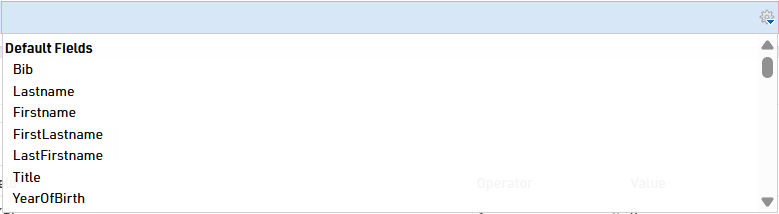
The Field Wizard pops up at many places in RACE RESULT Software below setting fields, for example, in the settings of lists or when defining ranks. The Field Wizard makes it easy to select the fields shown on a list for example. The field wizard will automatically appear when entering a new field, if editing an existing field then you can choose to show the wizard by clicking the gear icon on the right of the entry field.
How To...
Website Integration
You can embed the pages from my.raceresult.com on your own site using some simple Javascript. To find the source code for this you open any of your event files and navigate to my.raceresult.com > Website integration section.
You can use either the HTML code which uses javascript, or the Wordpress plugin, although this is much more limited.
CheckIn Kiosks
The following articles show different ways how to use a Checkin Kiosk for different purposes.
Registration
The following articles show different ways to manage and customize the registration process.
Timing
The following articles show different ways to setup the timing of your event.
Scoring / Awards
The following articles show how to handle different scoring and awards setups.
Outputs / Displays
The following articles detail ways to customize lists and displays that can be used to streamline operations and improve visual elements of the event.
Technical
The following articles detail some administrative and technical steps for Race Result Software.
Ejemplos para aprender
Local 10K - Splits
Event Splits Setup
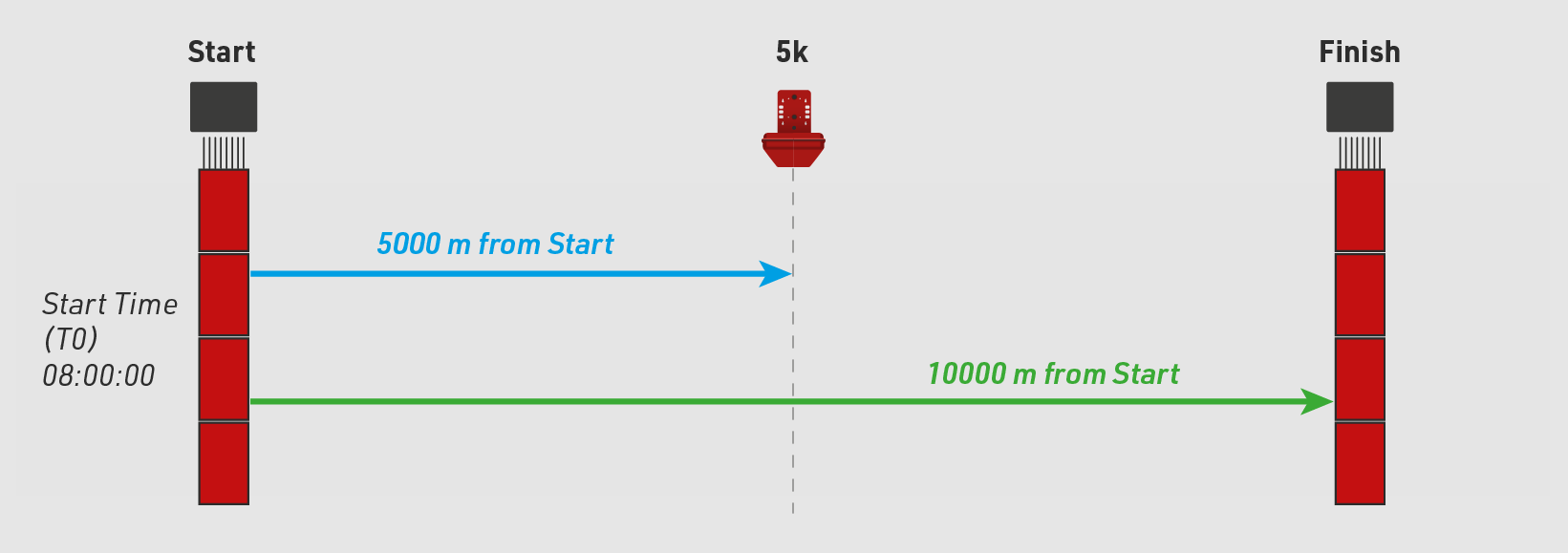
This event is a 10 km running event over a point-to-point course. We have a start line, 5K split point, and separate finish line.
The diagram below represents the setup of the event and will be referenced throughout setting up the Splits within RACE RESULT 12.
Maratón Internacional
Archivo del Evento
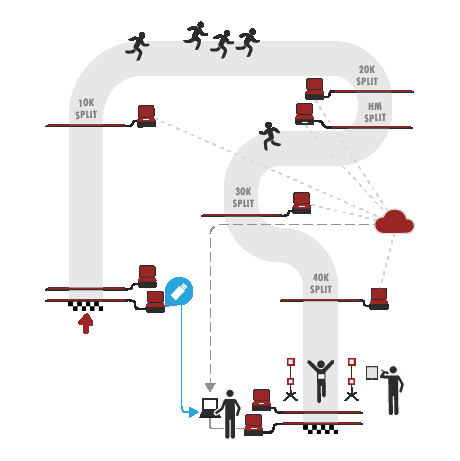
Los tiempos de los participantes se registran en el inicio, split de 10km, split de 20km, split de 21.1 km, split de 30km y en la meta. Además incuimos un sistema para el anunciador, para que sepamos quién está por cruzar la línea de meta.
Prepara el Archivo del Evento
- Descarga una copia del archivo de eventos de maratón.
- Define las datos del evento (fecha, ubicación, zona horaria)
- Importa los participantes
Tiempo Inicial T0
En este ejemplo hemos incluido el Campo de Texto Adicional "Wave" ("Oleada"). Se usa para mostrar a los participantes en qué oleada comenzarán dependiendo de su objetivo de tiempo y para establecer su Tiempo Inicial T0.
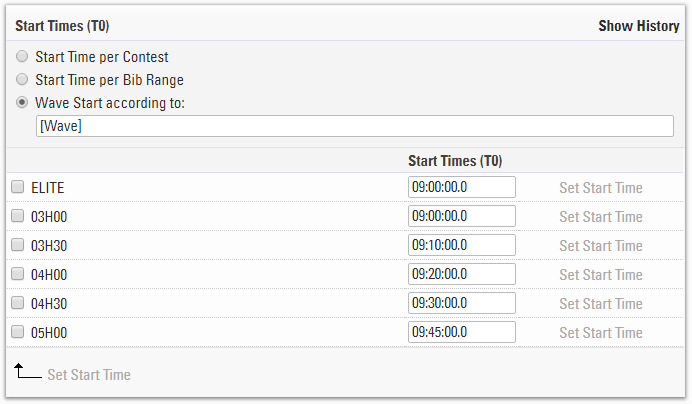
Establecemos el Tiempo Inicial (T0) en Inicio de Oleada de acuerdo con: y el CTA [Wave]. Esto nos permitirá ingresar los tiempos iniciales para cada oleada.
Configuración de Splits
El modo del cronometraje se establece en Cronometraje con Tiempo de Pistola, el cual es de acuerdo a la oleada inicial.
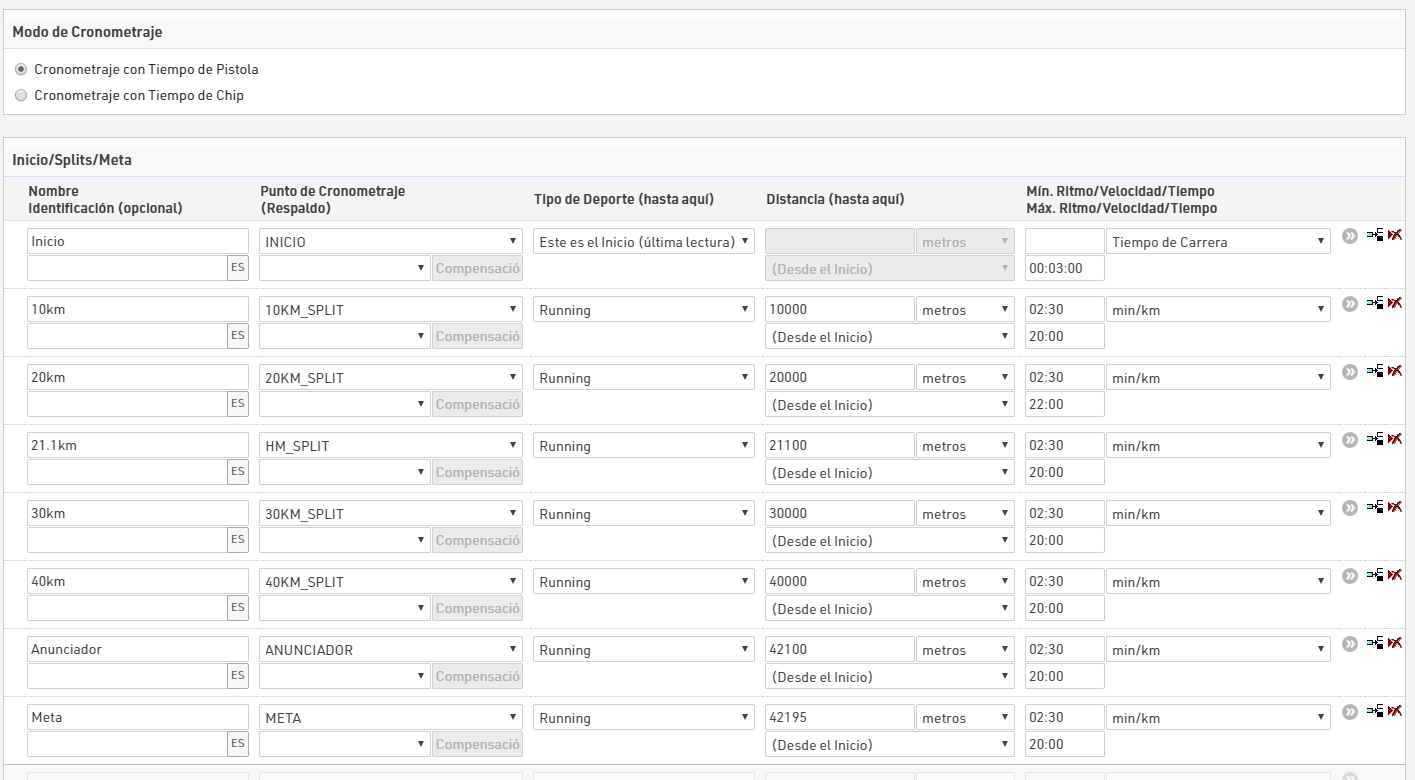
El Anunciador se establece en Interno para que no se publique en las tablas de posiciones en línea.
Las Etapas se configuran abajo, tenemos una etapa definida para cada mitad de la carrera.

Cálculo Estimado del Tiempo de Meta
Belinda Ward acaba de cruzar la marca de los 30 km y queremos saber en cuánto tiempo se espera que termine
Splits automáticamente proporciona tiempos previstos para cualquier Split que aún no haya registrado un tiempo. Esto se basa en el ritmo promedio actual de los participantes, la distancia del sector y el ritmo/tiempo mínimo del sector o la máxima velocidad.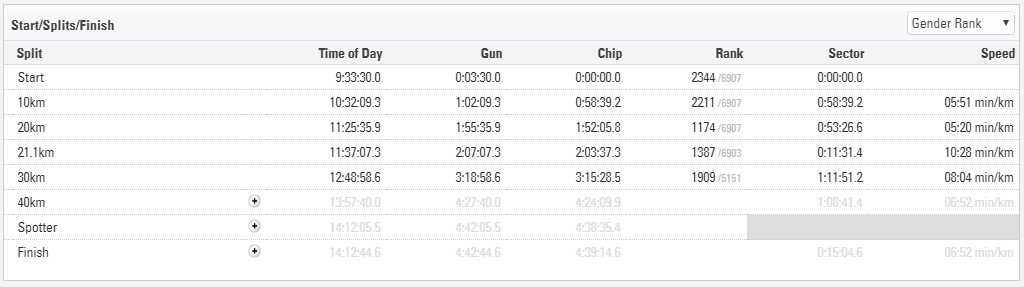
Los tiempos pronosticados se muestran en gris, pero se pueden insertar como tiempos manuales haciendo clic en el icono de más si es necesario. Se puede acceder a esto en una lista de output con [Finish.Predicted]
Cálculo de Velocidad y Ritmo
Cada tipo de deporte incluido con Splits tiene una unidad predeterminada para velocidad o ritmo, esto también depende de la región y la unidad de velocidad que se utilice, esta unidad se puede editar para cada split individualmente.
Para denominar la velocidad o el ritmo para un split simplemente use [SplitName.SpeedOrPace], en nuestra lista En Vivo lo usamos con el selector para devolver el ritmo actual, esto también devuelve la unidad como texto.
{Selector}.SpeedOrPace
Lista del Anunciador
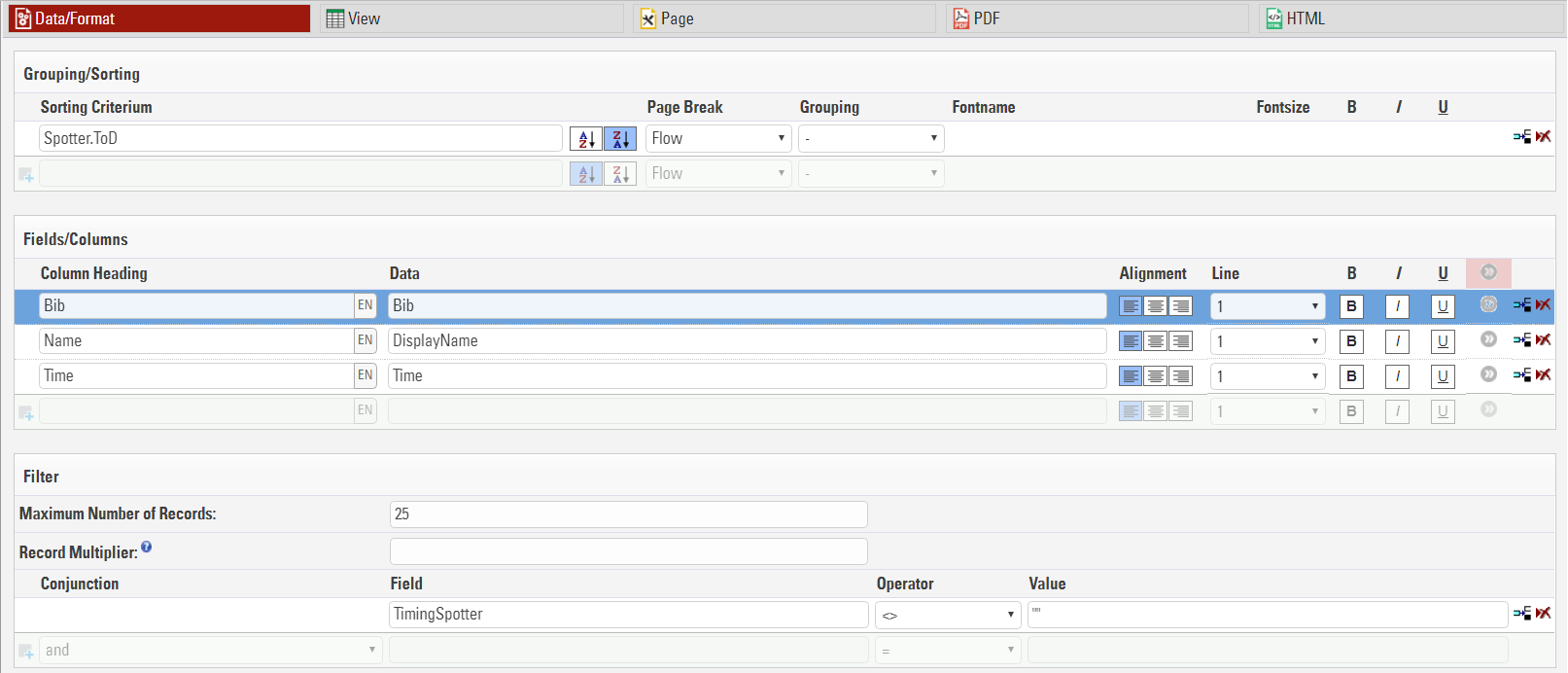
Queremos permitirle al anunciador seguir la carrera y que sea capaz de saber qué participante es el siguiente en cruzar la línea.
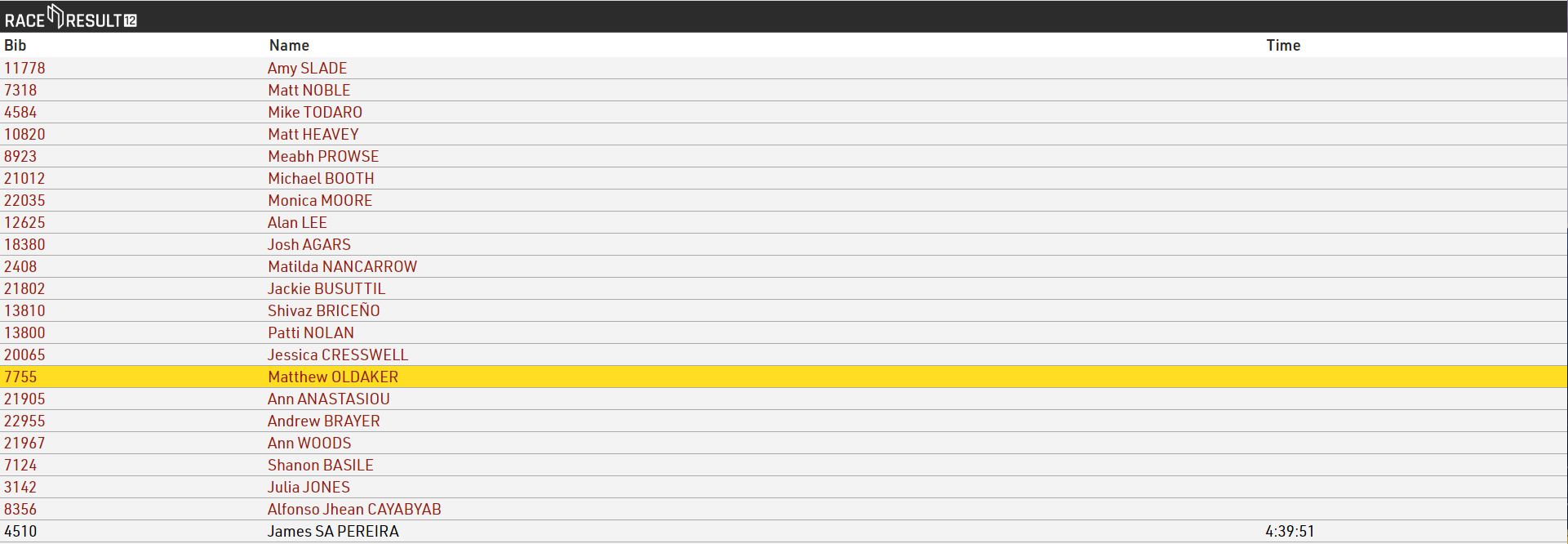
La Línea de Meta En Vivo se ordena con [Anunciador.TOD] la hora del día en que el participante cruza el sistema del anunciador y nosotros lo ordenamos al revés para mostrar el último hasta arriba.
Podemos darle un formato a la lista de output para que muestre a los participantes que han cruzado el Anunciador pero aún no la línea de meta con diferentes colores usando el Formateo Dinámico. Los participantes se mostrarán en rojo cuando se estén acercando a la meta y se mostrarán en negro cuando hayan terminado.
La herramienta para Presentar Resultados mostrará los resultados automáticamente en tiempo real. Perfecto para el anunciador en la línea de meta.
Formateo Dinámico
Si [Finalizado] es verdadero, entonces usar color 0,0,0 (negro), de otra manera usar 157,25,13 (rojo).
if([Finished];"C(0,0,0)";"C(157,25,13)")
Lea más sobre las opciones de Formateo Dinámico.
Output Resultados Online
- En Vivo (Live) muestra en qué ubicación y tiempo se le vio al participante por última vez, el tiempo neto actual, hora de meta prevista y tiempo neto previsto.
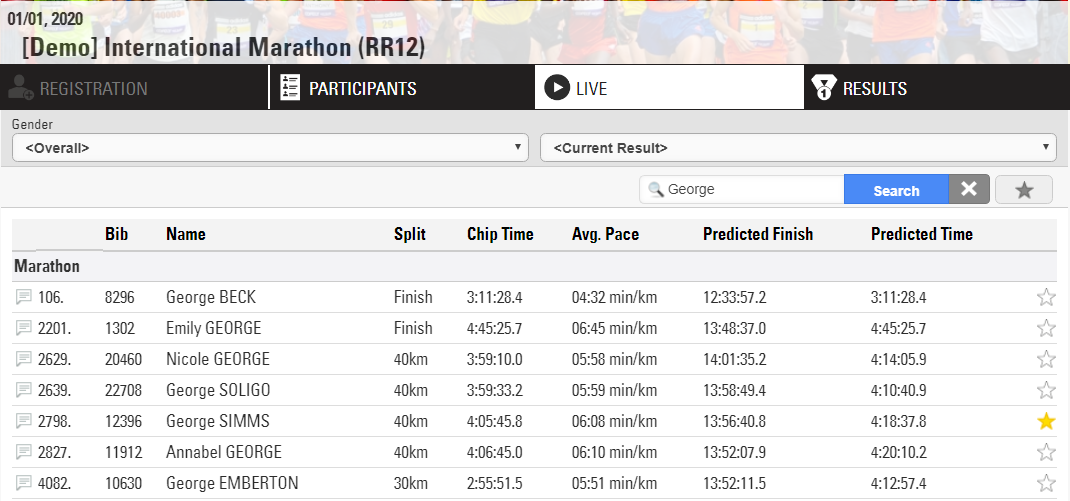
por ejemplo George Simms pasó los 40km con un tiempo de 4:05:45, a este ritmo se espera que finalice a la 1:56 pm con un tiempo neto previsto de 4:18:37
Los usuarios pueden buscar corredores por nombre, dorsal, club, etc. y pueden ser marcados como favoritos por si uno o varios amigos compiten en la carrera.
-
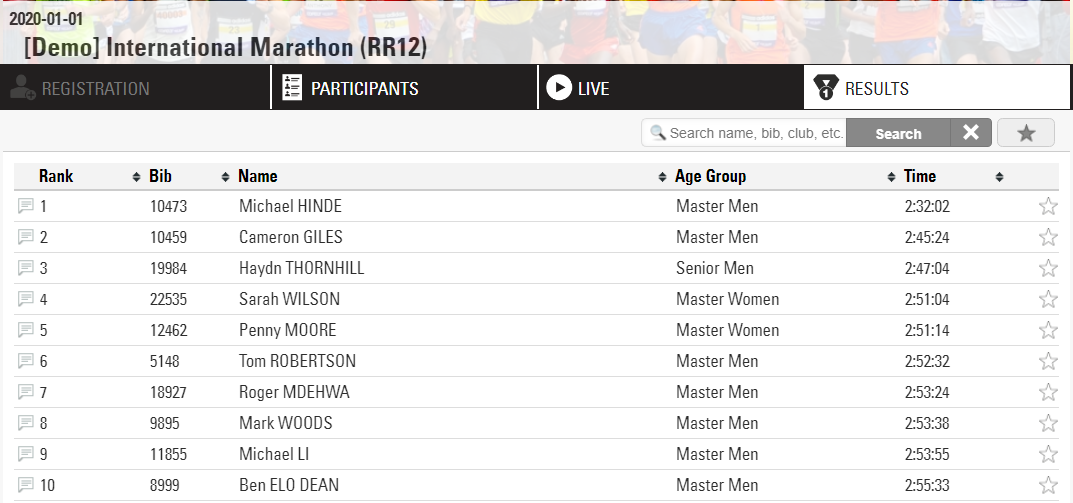
Los Resultados muestran el rango, dorsal, nombre, grupo de edad y el tiempo total de finalización.
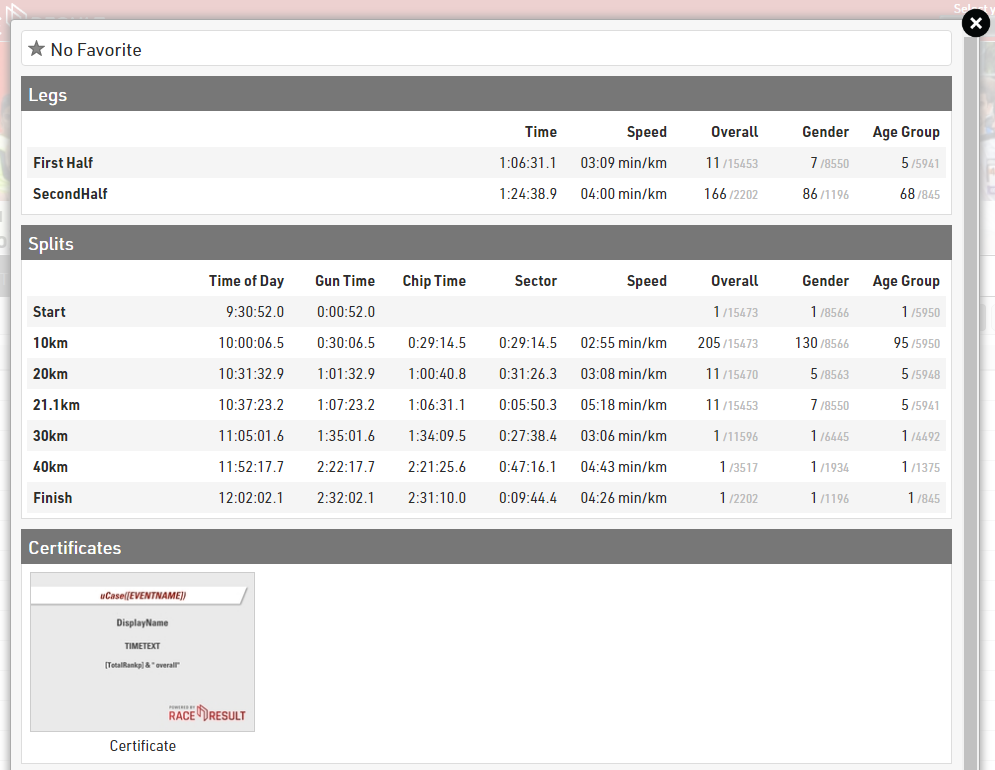
Al seleccionar un corredor en específico, se muestra un vistazo profundo a su carrera con tiempos parciales, clasificación de grupo de edad, velocidad y ritmo.
Herramientas Adicionales
RACE RESULT 12 cuenta con una colección de herramientas para asistir en la presentación y análisis de resultados. Considera utilizar Perspectiva General de la Competencia, Presentar Resultados o Visualización de Tiempos en tu próximo evento.
Puntuación de la Serie
Hay tres maneras de puntuar Series:
- Todas las carreras de la serie se gestionarán en un solo Archivo del Evento. Esto es más factible cuando los atletas mantienen sus dorsales para toda la serie.La principal ventaja es que puedes producir resultados de series en cualquier momento, incluso mientras una carrera de la serie está en marcha. La desventaja es que tendrá que configurar Resultados, Clasificaciones y Listas para cada carrera de la serie. Esto es similiar a cómo un Carrera por Etapas seria configurada.
- Alternativamente, el archivo de evento puede contener el resultado, relevante para la puntuación de la serie, de cada carrera (como el tiempo de finalización o puntos) y se utiliza para cronometrar la carrera actual al mismo tiempo. Después de cada carrera, los tiempos de finalización o los puntos se copiarán a un resultado separado, el archivo se copiará para la siguiente carrera y los resultados de tiempo se eliminarán en la copia.
-
La última alternativa es tener un archivo de evento por carrera de la serie y un archivo de evento adicional para la puntuación de la serie en la que se importarán los resultados de cada carrera. Por lo general, estas carreras son completamente independientes. Los atletas tienen diferentes dorsales por carrera. A menudo las carreras incluso serán organizadas por diferentes directores de carreras.
Las subsecciones siguientes proporcionaran guías para las opciones 2 y 3.
Event Series - Registration form, timing and results
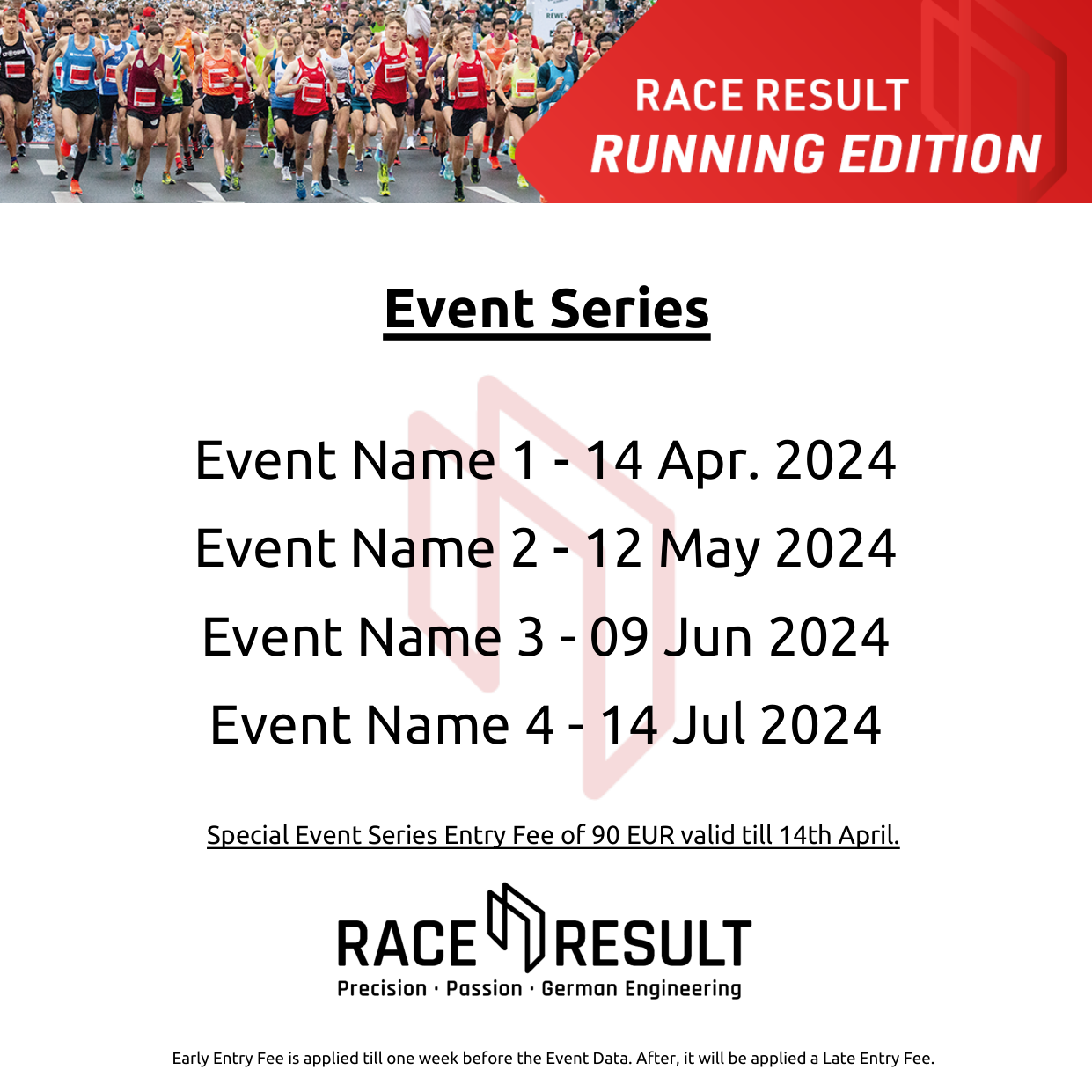
This event is meant to be used for an Event Series, where registration, timing and result presentation are all in the same event. We will be focusing on the main features of the event file, which allows you to make the participant's experience unique.
In this example, we will build a Series with 4 events, which will take place the second Sunday of each month from April to July 2024.
Carreras de Relevos
Existen tres maneras de configurar una carrera de relevos:
-
El equipo de relevos puede registrarse como un solo conjunto de datos, igual que un participante individual normal. El manejo no difiere del de participantes individuales.
El equipo tiene solo un chip.
Datos como nombre, edad o sexo de los miembros del relevo pueden configurarse en los Campos Adicionales ([@20312]). -
Los miembros del equipo se guardan como registros individuales de participantes, pero el equipo tiene solo un chip, por lo que todos los tiempos se guardarán en uno de los registros de los participantes.
-
Los miembros del equipo se guardan como registros individuales de participantes y cada miembro tiene su propio chip.
Backyard Ultra
The example file is at the bottom of this article!
A backyard ultra is an endurance running event that challenges participants to complete a set distance, usually a loop course, within a specific time frame, typically one hour. The unique aspect of this race is that it repeats indefinitely, with participants starting a new loop every hour. If a participant completes a loop within the hour, they rest until the next hour begins, and then they start the next loop. The race continues until only one participant remains able to complete the loop within the hour, and that participant is declared the winner.
For this kind of race, the special results are the tool to use to run the proper calculations for the whole event.
MULTI-DAY EVENTS Settings
The first setting to apply is on the event date: since participants may run for more than 24 hours, it is mandatory to select a Date Until (under Basic Settings > Event Settings)
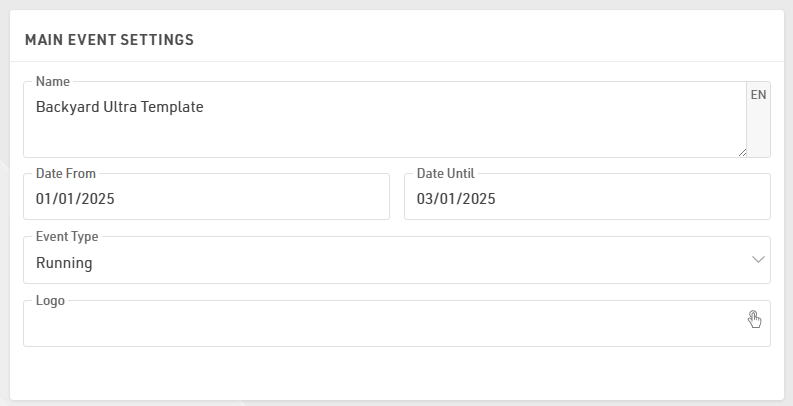
in order to unlock the section MULTI-DAY EVENTS under the Timing > Chip Timing.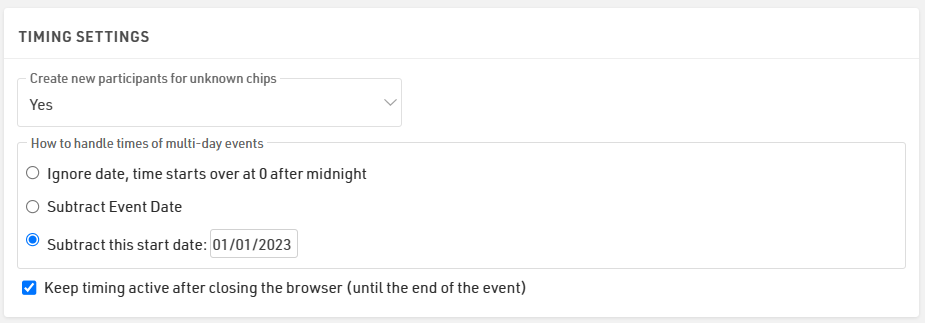
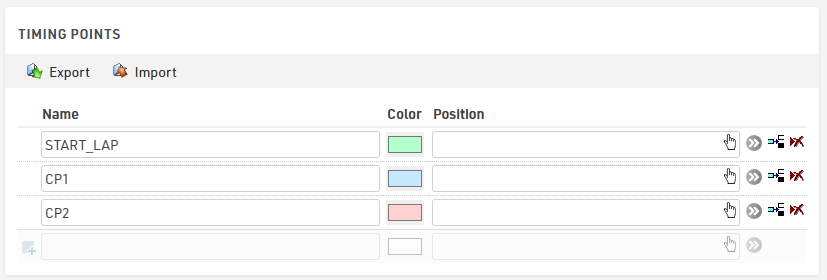
Define the timing points
In this example, we will use 3 different timing points: one decoder for the start/lap detection and 2 more decoders for 2 additional timing points on the course, which will be used as a check to check that all participants run the whole loop.
Build the Special Results
Since we are not going to use the official T0 the following settings are un-ticked to have a better control of all the special results.
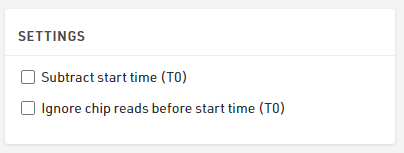
The T0 under Timing > Settings > Start Times / Finish Time Limit can be left to 00:00:00.
Dynamic Start Times
To define the start time of each lap, we need first to create a reference for the race start.
In T101 we store 10:00:00, which is the start time of the race.

In results T102-T106 we will store the start times of the next 6 yards (example has to be expanded accordingly!), which will be calculated dynamically for each participant, based on the calculation entered for those results: the time will be, indeed, calculated only if the participant finished the previous yard (T300X) in less than 1 h (3600 seconds).

To calculate the finish time of each yard, we need first to get all the right detections from our timing points.
Start, Checkpoint 1, Checkpoint 2 and Finish Detections
Since the current record for Backyard Ultra is 102 yards, our advanced results should be set by considering future developments: that's why we choose to store the Start/CP1/CP2/Finish detection at least 200 IDs apart from each other.
Start Detections T1001-T1006
For the Start, we always take the last detection between 10 s before and 30 s after the dynamic statr time of each yard. This ensures a chip detection is also captured for those who start slightly before or after the official start. For the calculation of the Yard Time, we will be taking the OfficialStart - the chip detection is used as a check.

CP 1 Detections T1201-T1206
For the first checkpoint, we consider valid the first read after the start of the respective yard, thus we set the reference with the relative Start Detection.

CP 2 Detections T1401-T1406
For the second checkpoint, we consider valid the first read after the first checkpoint of the respective yard, thus we set the reference with the relative CP1 Detection: this ensures that participants are running with the right course-direction and not in reverse.

Finish Detections T2001-T2006
For the finish detections, we have chosen to keep a bigger gap with the result IDs in order to have enough room in case the organizer wants to have extra checkpoints on the course.
In this case, for the finish, we consider valid every detection which occurs after at least 20 min from the Start Detection and before the end of the hour. For an extra-control, it could also be possible to reference the finish detection directly with the CP2 detection. 
Time Calculations
Now that we have all the detections, we can run our calculations for the run time of each yard, the running time of each checkpoint and the rest time that each athlete has after the conclusion of each yard. Once again, we keep the same IDs gap between the different calculations, in order to have consistency with the other results and to have enough room for development.
Yard Time
For calculating the time of each yard, we need to take each finish detection and subtract the relative official start time. In case the finish detection is missing (participant didn't complete the run, or participant finished the run above the time-limit) the Yard Time won't be calculated at all.

CP1 and CP2 running Time
For these, we subtract the CP detections with the relative start detection of each yard.
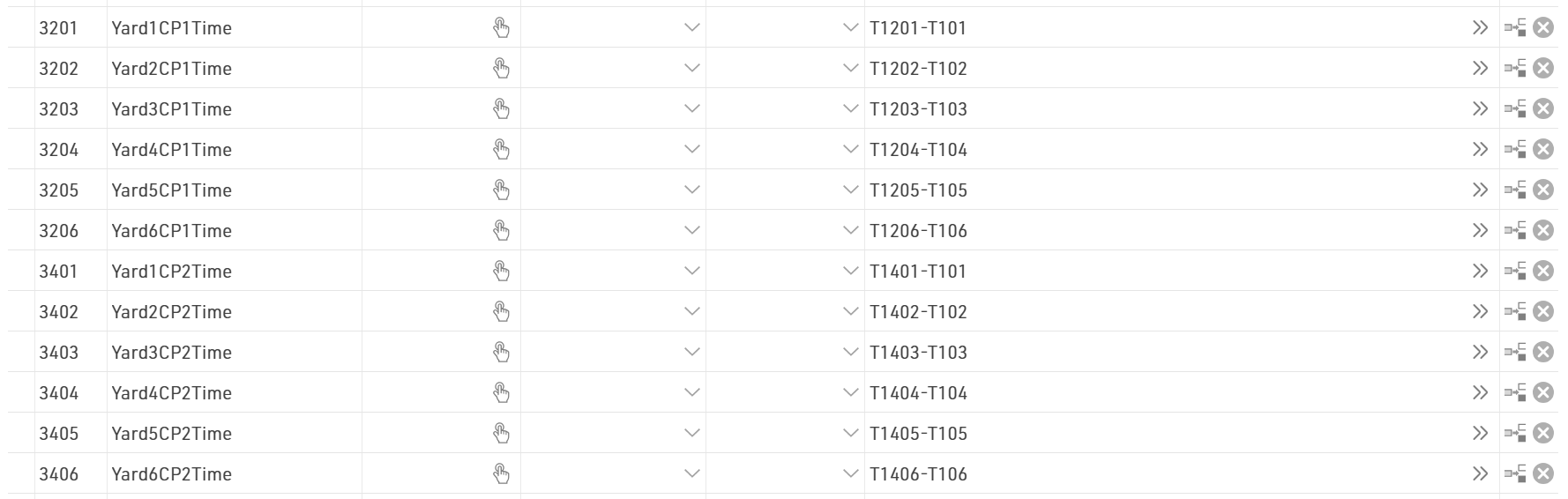
Rest Time
For the rest time, we calculate it by subtracting the next yard start time with the current finish detection. In this way, we are able to know how much time each athlete can spend resting before the next yard start.

Summary of results
With these functions, we can store all the info we may need for our output lists. 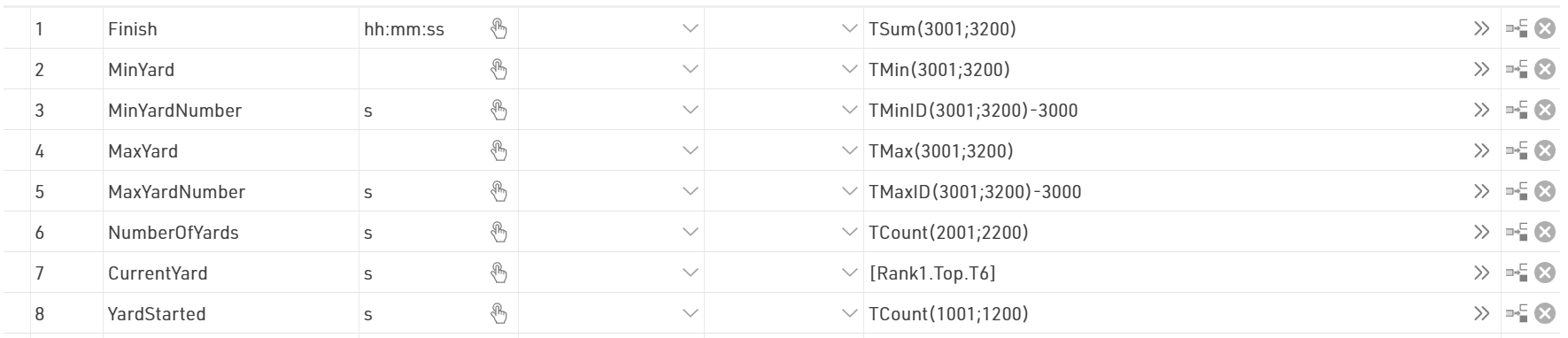
Note that the CurrentYard result (ID7) stores the number of yards ran by the leading participant: this will be extremely useful for calculating automatically the status of every participant during the event.
The YardStarted (ID8) stores the number of Yards started by each participant and NumberOfYards (ID6) the number of Yards completed.
Displaying Results
With all the results calculated, we can now focus on result presentation.
Final List
To automatically set the status DNF to all participants who didn't start the round on time, it is possible to create a User Defined Function with the following formula:
AutoStatus(x): switch([Status]>0;WithStatus();[Status]=0 AND T6<T7;"DNF";1;[x])
Trying to put the formula in words; if the status of a participant is already set to something other than regular ([Status]=0), their status will be displayed straight forward. In case the status is regular (0) and the NumberOfYards of that participant (T6) is smaller than the number of yards ran by the leading participant (T7), then we will automatically display "DNF"; for all other scenarios, we will display the field we want to show.
Final List
In this list, we want to display all participants who have started the race or if they have a status different from regular.
For that, we apply in the filter the following conditions:
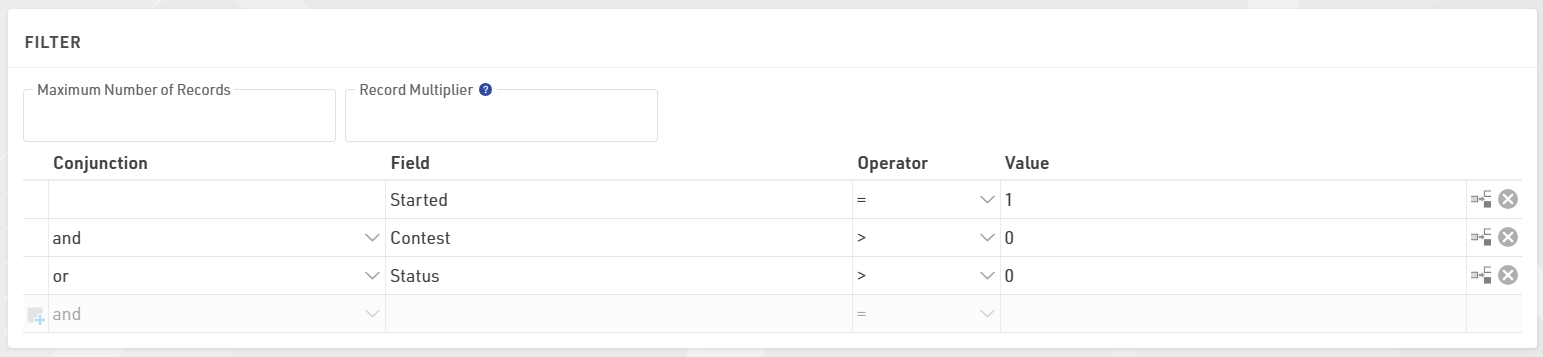
where [Started] refers to the result selected under Basic Settings > Contests
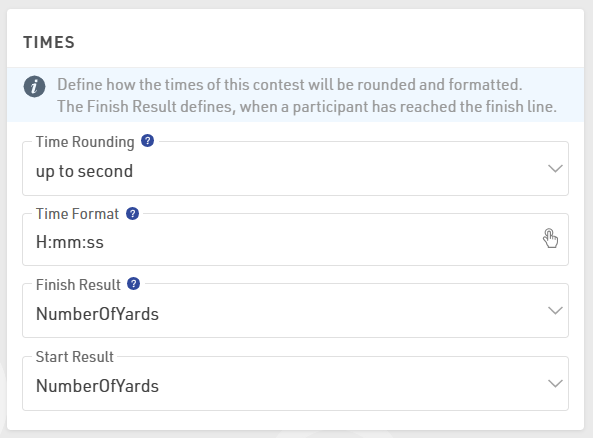
To order participants properly, we sort by OverallRank.
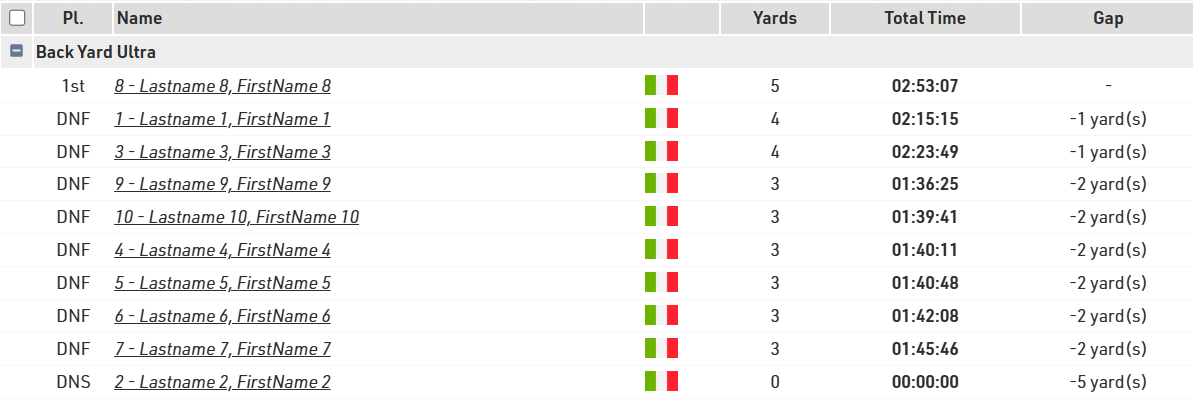
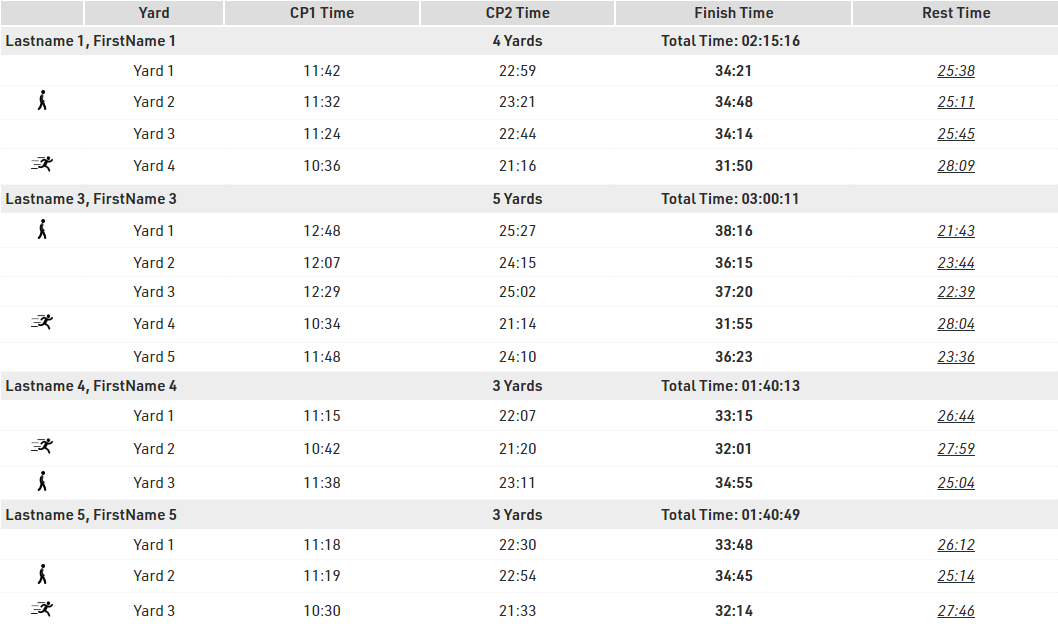
Detail List
For showing each yard for each participant, we can prepare a detailed list by using the record multiplier [NumberOfYards] which will create one line for each yard completed by each participant.
By referring to the row number via {n}, we can call each calculated time and with the format() function, we can show the times in the preferred format.
Two images are also added based on the fastest and slowest yard completed: these refer to the row number and the values stored in the advanced results T3 and T5.
Live List
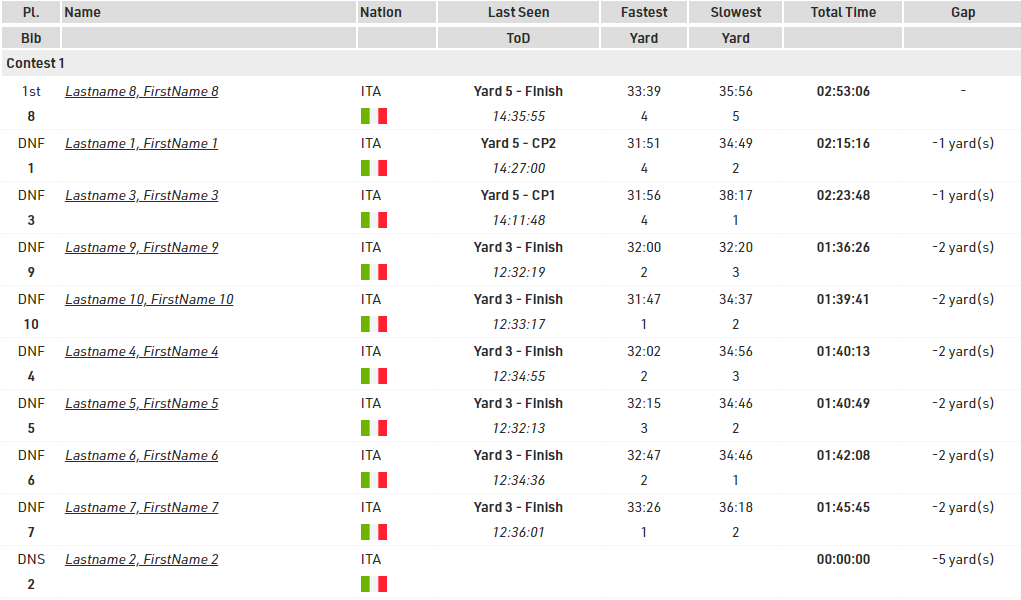
In the live list, we display the current position of each participant (Last Seen column), with the relative Time of Day (ToD) and Gap from the first participant.
Triatlón
Archivo del Evento
Se registran tiempos en la entrada y salida del área de transición, y en la línea de meta.
Se utiliza un sistema adicional como control de natación, para que el organizador sepa quién comenzó realmente y se asegure de que todos los participantes salieron del agua. El público puede seguir la carrera en vivo en my.raceresult.com.
Este ejemplo muestra al transpondedor ActivePro en uso con dos Loop Boxes en el área de transición transmitiendo los pases de forma inalámbrica a una USB Timinf Box en la línea de meta.
También es posible usar el sistema pasivo y HuTags, la configuración del archivo del evento sigue siendo la misma.
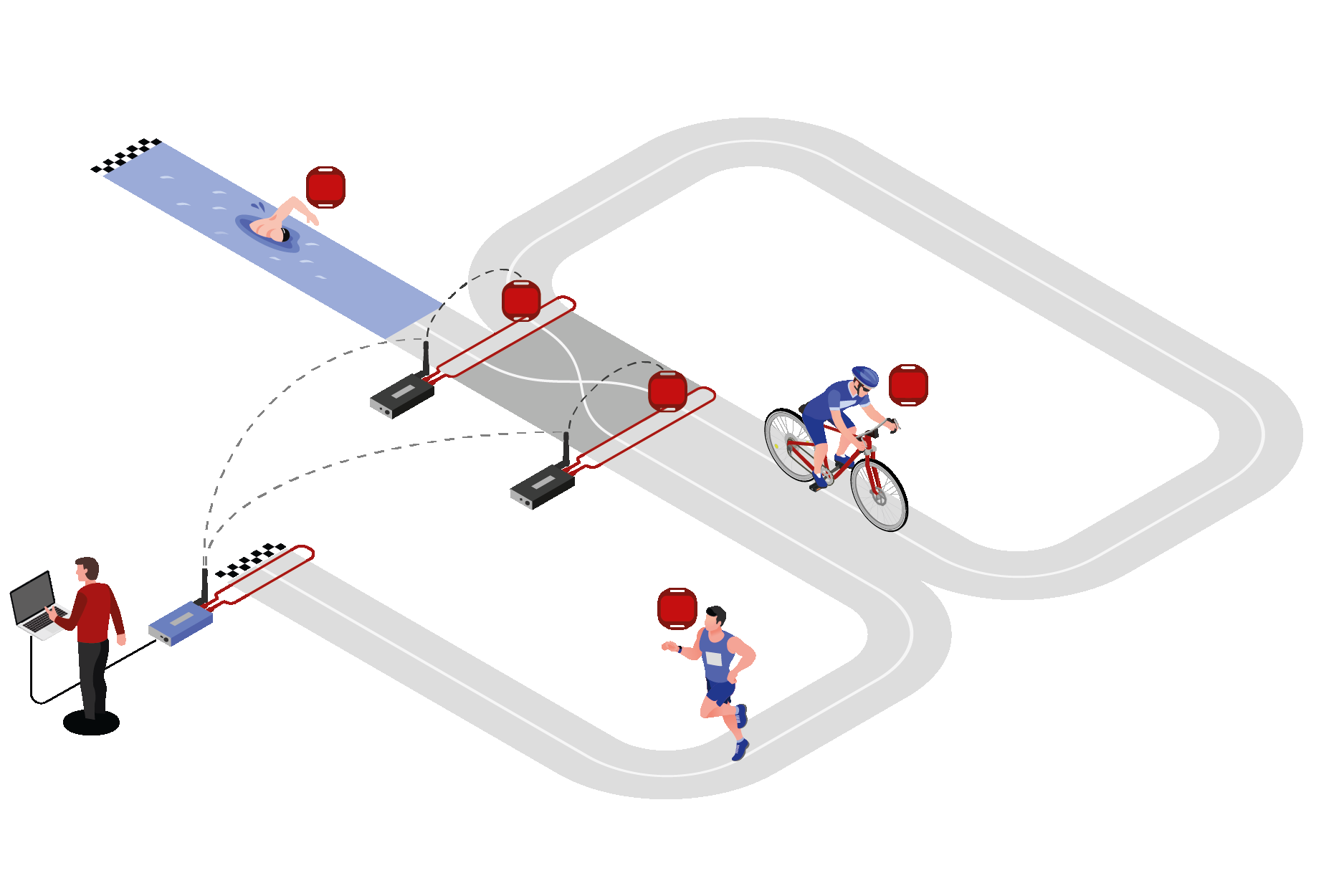
Posiciones del Cronometraje
Control Inicial, Entrada Transición, Salida Transición, Meta.
Preparar el Archivo del Evento
- Descargar una copia del archivo de evento de triatlón.
- Definir los datos del evento (fecha, ubicación, zona horaria)
- Confirmar la información de la competencia
- Importar participantes
Ajustes de Splits
Los Splits se configuran para cada competencia individualmente, el Modo de Cronometraje se establece en Tiempo de Pistola. Ya que no contamos con Splits adicionales, no definimos Etapas adicionales aquí ya que los tiempos de sector nos darán los tiempos por etapas.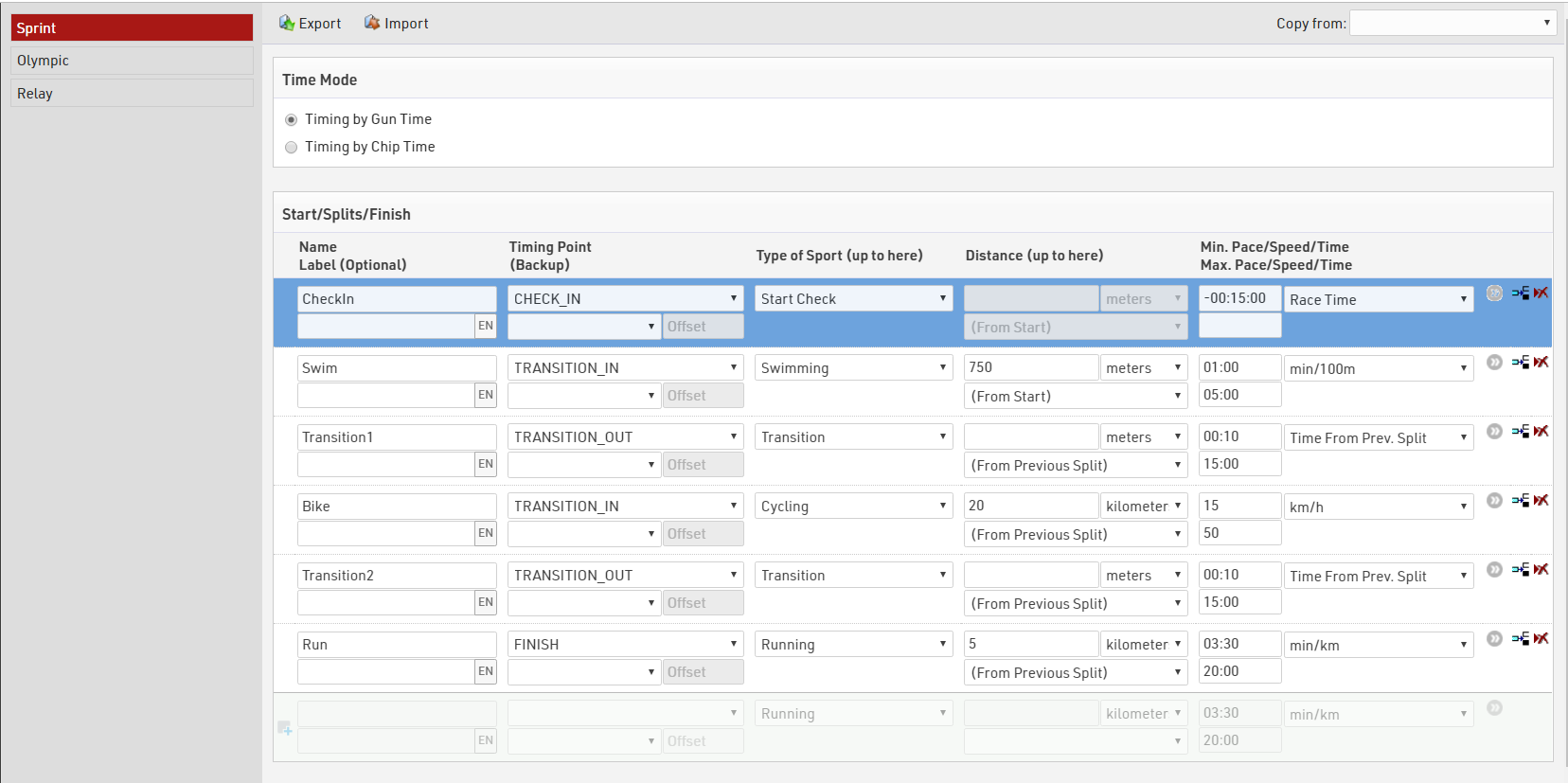
Miembros del Equipo
En este ejemplo, un miembro del equipo completa una etapa del curso. Se entrega un transpondedor al equipo y se pasa entre los miembros del equipo después de cada etapa.
Se usan Campos de Texto Adicional para capturar el nombre, apellido y sexo del participante 2 y participante 3.
Mostrar Miembros del Equipo
Para mostrar todos los miembros del equipo en múltiples reportes de manera fácil, creamos un campo definido por el usuario para mostrar los segundos y terceros participantes. Otro campo DisplayName ya habrá corregido el nombre y apellido al caso correcto para cada miembro del equipo.
DisplayNames:
[DisplayName] & if([DisplayName2]<>" ";" / " & [DisplayName2]) & if([DisplayName3]<>" ";" / " & [DisplayName3])
Output: Katherine WADDELL / Jo LAMBRICK / Marina TYSON
Funciones Definidas por el Usuario - Determinar Sexo del Equipo
Podemos determinar el sexo del equipo automáticamente. Para calificar como equipo de un solo sexo, el sexo de los miembros debe ser el mismo. Primero creamos una función para convertir el sexo ya sea a 0 o 1, y sumamos los valores por cada miembro, de la suma de estos valores podemos determinar si el equipo es únicamente de mujeres, hombres o si es mixto.
GenderToNumber(x): Translate([x];0;1)

GenderSum: Val(GenderToNumber([Gender])+GenderToNumber([Gender 2])+GenderToNumber([Gender 3]))

TeamGender: Choose([GenderSum]+1;"female";"mixed";"mixed";"male")
Reporte de Estadísticas
En cualquier momento el organizador o los encargados pueden necesitar saber cuántos participantes hay en cada momento del curso. Podemos determinar una visión general utilizando un conjunto de estadísticas. Nuestro conjunto de estadísticas revisará nuestro campo llamado LastSeen, este se hace {LastSplit}, una función especial para permitir la consulta de los campos del último participante en los que este participante registró un tiempo.
Switch([{LastSplit}.Name]="CheckIn";"0. Check-In";
[{LastSplit}.Name]="Swim";"1. Swim Finish";
[{LastSplit}.Name]="Transition1";"2.Bike Start";
[{LastSplit}.Name]="Bike";"3.Bike Finish";
[{LastSplit}.Name]="Transition2";"4. Run Start";
[{LastSplit}.Name]="Run";"5. Finish";
[Started]=0;"Not Started")
Usando los Ajustes de Estadísticas > Formato de Columna WithStatus([LastSeen])
El conjunto de estadísticas producirá el output siguiente:
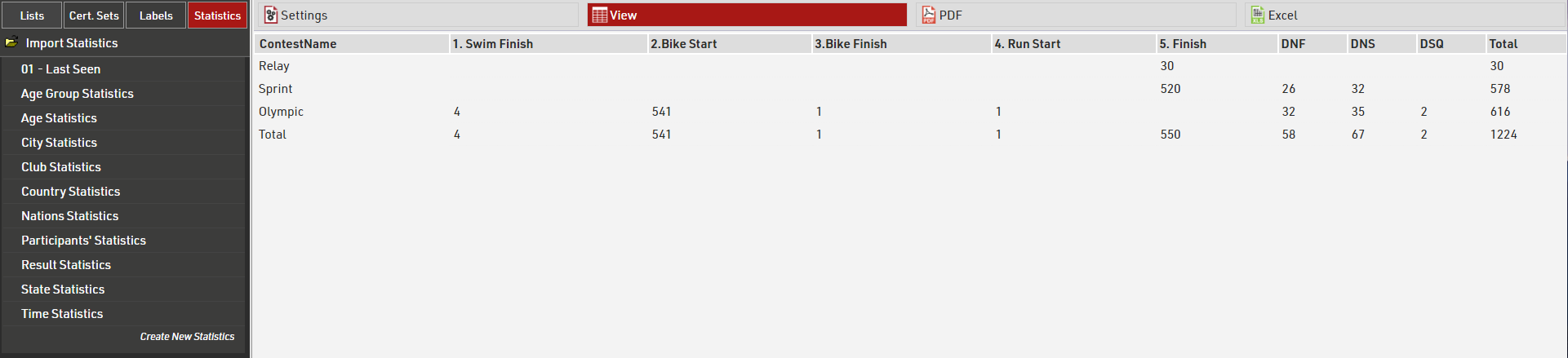
Si el estado de un participante es regular, se usará el últimpo split donde se le vio, de otra manera se mostrará su estado.
Podemos ver que en Relay y Sprint todos están reportados al final o registrados como DNF/DNS/DSQ. En la carrera olímpica, 4 participantes fueron vistos por última vez en SwinFinish y por lo tanto se presume que todavía están en la Transición 1, 541 participantes en el curso de Bicicleta, 1 en la Transición 2 y 1 en el curso de Correr.
Outputs de Resultados
- En Vivo cuenta con una tabla de posiciones la cual agrupa a todos los participantes por la ubicación donde fueron vistos por última vez, clasificados por tiempo de carrera acumulado, utilizamos el campo especial {LastSplit} para ordenar a los participantes y mostrar los tiempos relevantes. Usando {LastSplit}.Gender vemos su sexo en su último split, esto permanecerá igual hasta que lleguen al siguiente split.
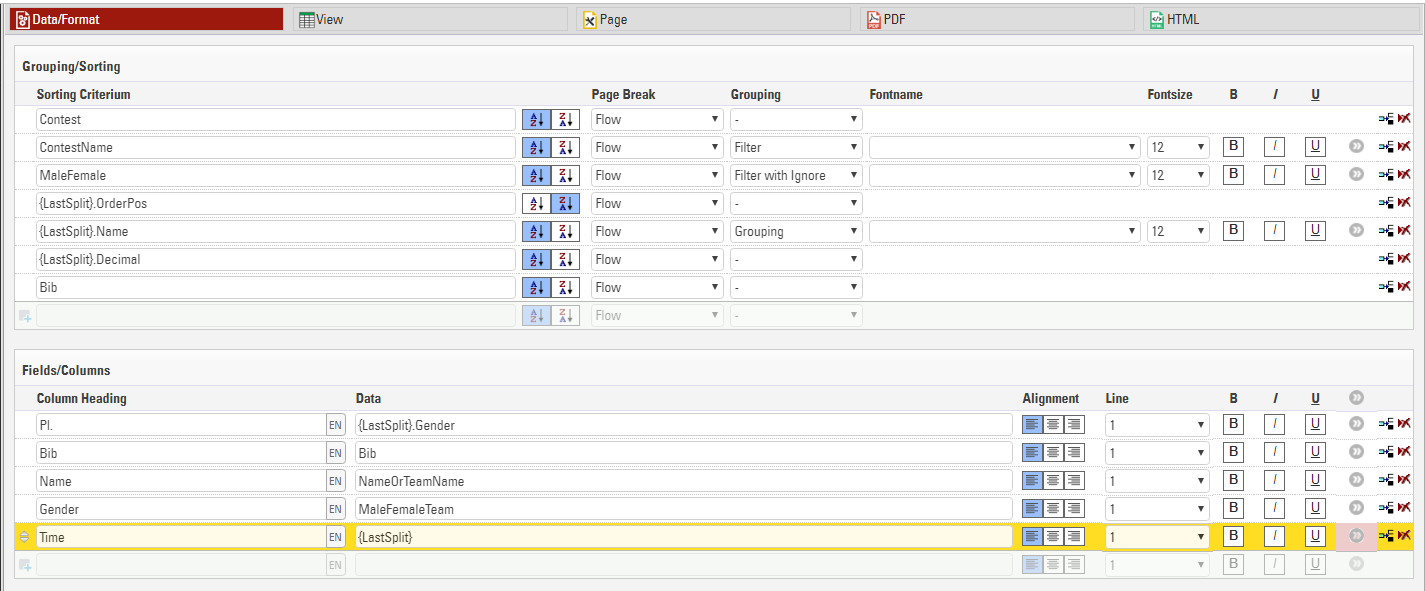
Habilitamos el filtro de Competencia y Sexo para que los espectadores puedan elegir qué carrera mirar y puedan mirar una categoría de género específica si así lo desean.
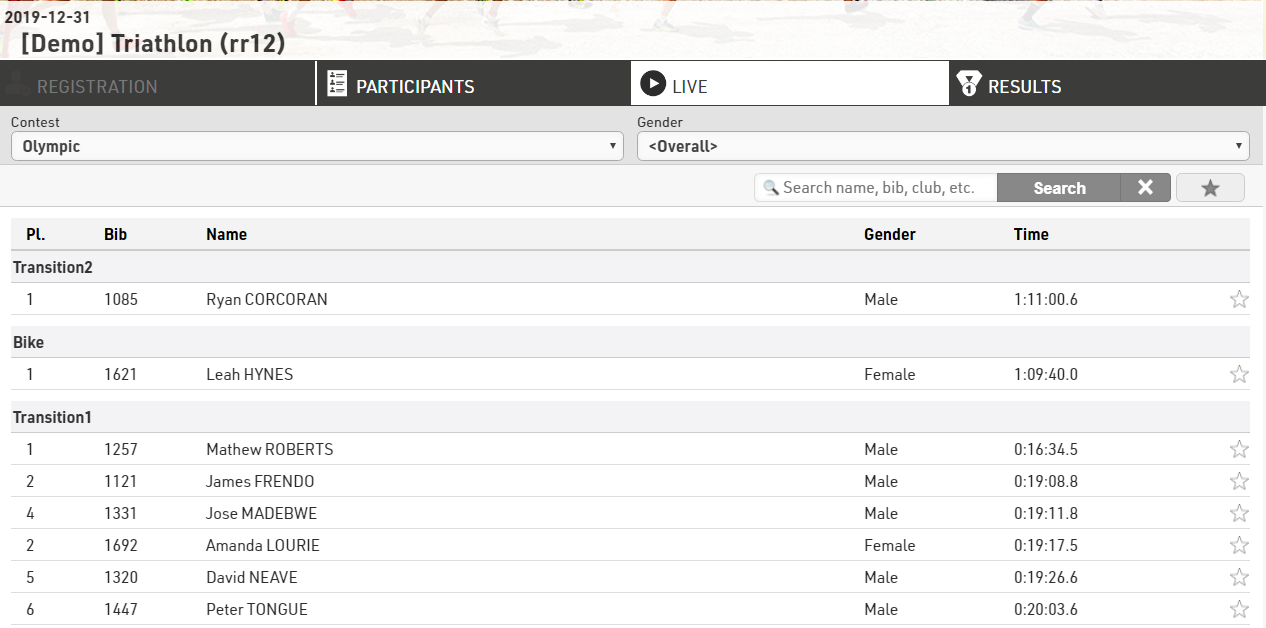
Desde aquí podemos ver que en la competencia Olympic, Justin Appelman fue el primer Hombre en dejar la transición 1, sin embargo no se le ha visto desde entonces y tenemos a los que están más adelante en el curso con sus respectivas filas en esos splits.
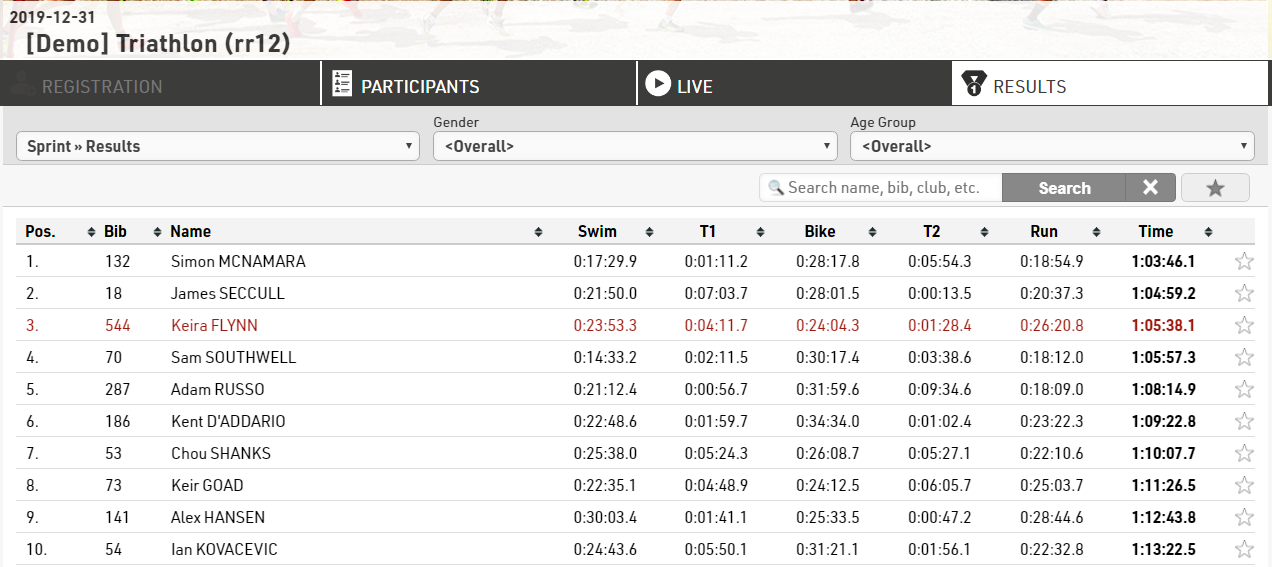
- Los Resultados Finales muestran clasificación, dorsal, nombre y tiempos de splits para cada etapa y tiempo de meta general.
Lista de Detalles
Seleccionar un participante específico muestra un vistazo profundo a sus tiempos de Splits, y una lista de detalles adicionales con su información personal se muestra debajo.
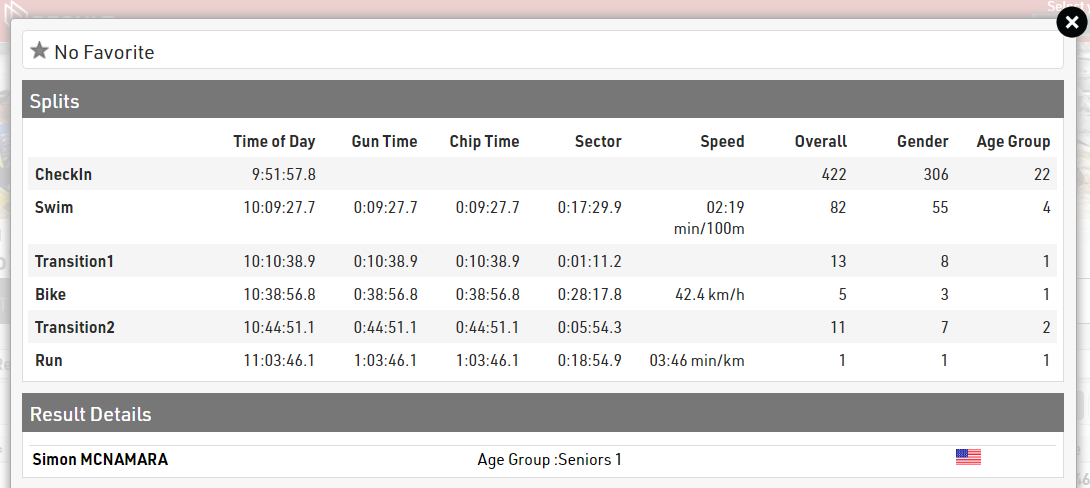
Esto se logra habilitando la casilla Mostrar Splits en la opción Certificados/Detalles de la pestaña my.raceresult.com y también publicando el output Detalles Individuales debajo de la lista de detalles para el output correspondiente.
Triathlon Elite Mixed Relay
Event File
The relay consists of 4 team members, 2 males and 2 females. The first team member completes their triathlon before the next team member starts. 3 team members will finish at an alternative finishing line relay finish with the final team member running through the finish.
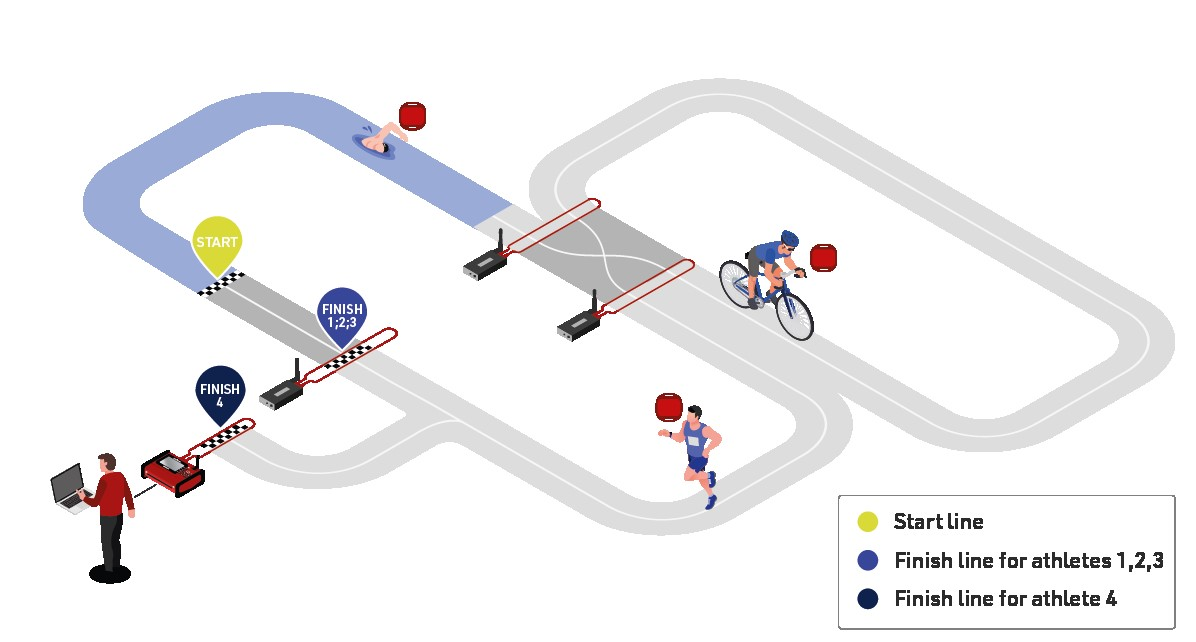
Timing Locations
Start, Swim Out, Transition Out, Transition In, Relay Finish, Finish
Result Calculations
Since each participant's start time depends on the previous team member's finish time, for this event type we will use the advanced results setup.
1 - 6: Times calculated for each split

10 - 20: Raw data from timing systems

30 - 36: Cumulative split times

101 – 102: Determine where the participant was last detected

Team Members
Participants are identified on course with a combination oftheir team number and letter to identify their position in their team. This can be calculated by combining two functions into one user defined field:
DisplayBib:
[TeamID] & choose(right([Bib];1);"/A";"/B";"/C";"/D")
DisplayBib: Take the team index, which is the first 1 or 2 bib numbers from the participant's bib, and the right most digit of the bib, if this is 1, display A, if 2 display B and so on. Bib 133 would be translated as 13/C (TeamID 13, team member C)
Ranks
The HelperRank orders team members by their RelayID. The RelayID is taken from the last digit of the bib number (1-4).
Start Time Calculation
The first team member's time is calculated from T0, the following participant's times are calculated from the previous team member's finish time. Thanks to the dot logic we can identify the finish time of the previous team member as defined by the HelperRank (Rank100.Prev.T15).
switch([RelayID]=1;T0;[RelayID]>1 AND nz([Rank100.Prev.T15])>0;nz([Rank100.Prev.T15]))
Using RelayID the switch function identifies in which position the participant is starting, if RelayID is 1 use T0; if RelayID > 1 and the finish time of the previous team member is > 0 then use the finish time of the previous team member.
Finish Time Calculation
The first 3 team members use an alternate finish Relay Finish whilst the last team member uses the finish line. We can determine the finish location by using the choose function:
choose([RelayID];T15;T15;T15;T16)
If RelayID = 1,2 or 3 use time from TimingRun (T15), if RelayID = 4 use the time from TimingFInishLine (T16).

e.g. The raw finish time for team member C (relay ID 3) is determined from the finish of TimingRun.
Team Score Calculation
Team members are determined by having the same contest and club name to a maximum of 4 participants. The overall finish result is the minimum time for the Result AfterFinishLine which only the 4th team member receives.
Live Output List
To enable the grouping by finishers and location we have several layers of grouping and sorting.
- Contest and ContestName
- RelayID and RelayName
- LastSplit and LastSplitName
- Time102 Time of the last split
A live rank has been used to determine the position on the course at each of the timing locations. start, swim, transition1, bike, transition2, run and finish line.
The rank of the last split can be determined using Rank(x) with the LastSplitID Result:
Rank([LastSplitID])
Final Result
Grouping Participants by Team
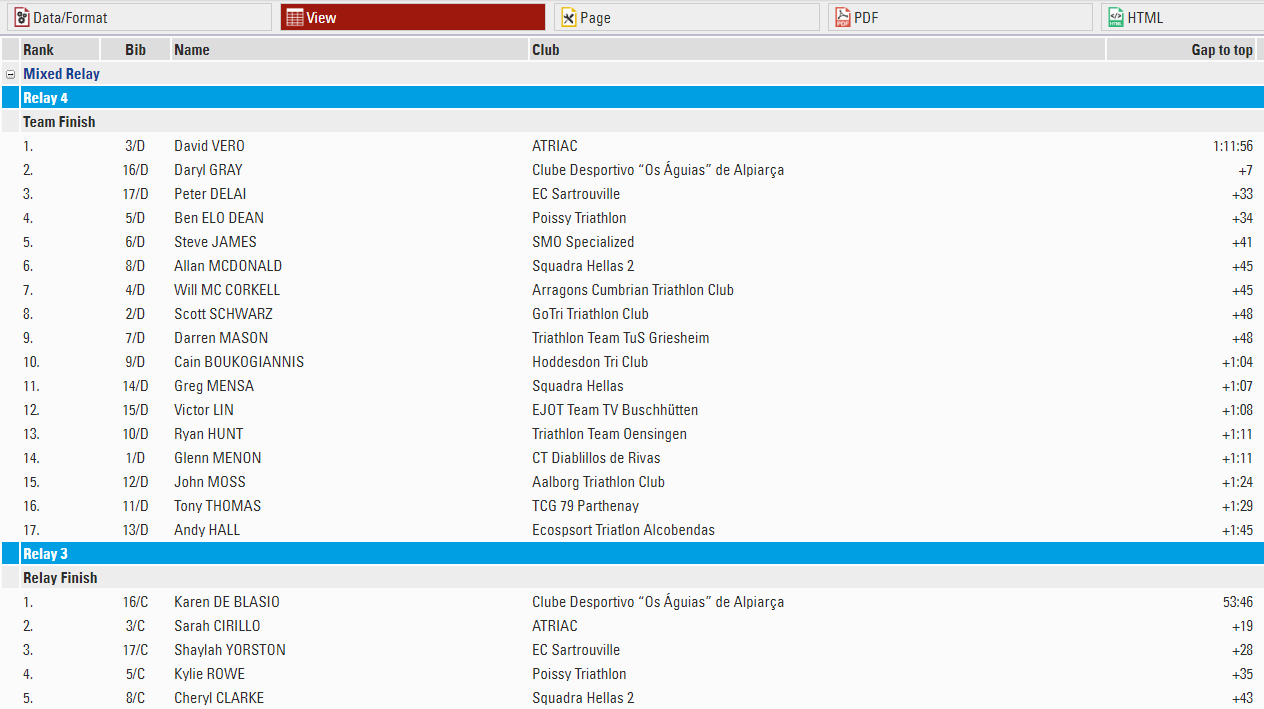
To group team members we use the user-defined function OrTeamStatus([TeamTime.Rank]) & ".///" & [Club] & "///" & [CountryIOC] & "///" & [TeamTime.Time1]
This will group all team members and sort by the overall rank of the team score, club name, country and team time. If the team has a status of non regular, the team status will be shown.
Using "///" will push the field into the next column along.
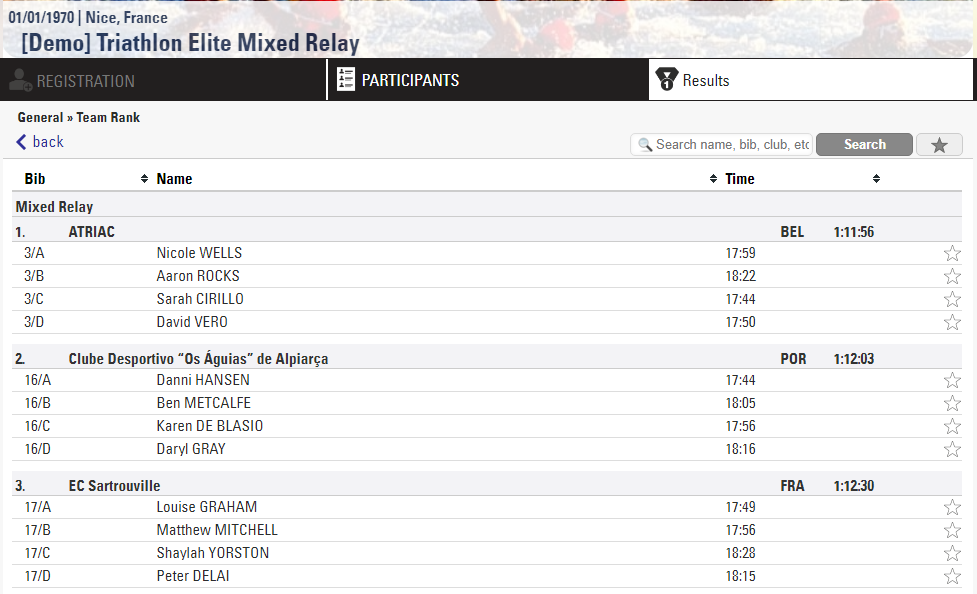
Qualifications / Heats / Finals
This example looks at how you can manage events with qualification rounds and progressive heats in RACE RESULT 14.
In this we show the core concepts of how to manage such events, but this example does not consider all possibilities, the basic methods shown here can be adapted to handle a range of requirements such as additional rounds, different genders, lap races and more.
Event Format
In this event we have all participants registered in a single Contest and only use a single Gender. The event is based on a simple short race (modelled on a 1km cycling time trial), with a fixed start time and single detection for each round. We keep this example short with just 16 participants starting.
The event starts with a Qualification round, where participants are assigned a unique individual start time.
From the Qualification round the best 8 will progress to the Semi-Finals, with 2 rounds of 4 participants.
The Finals will be formed of the best 2 participants from each Semi-Final round.
Timing Points
This setup uses a unique Timing Point for each, this isn't critical for this setup, but it makes it easier to understand the data later, especially if the event is spread out over multiple days
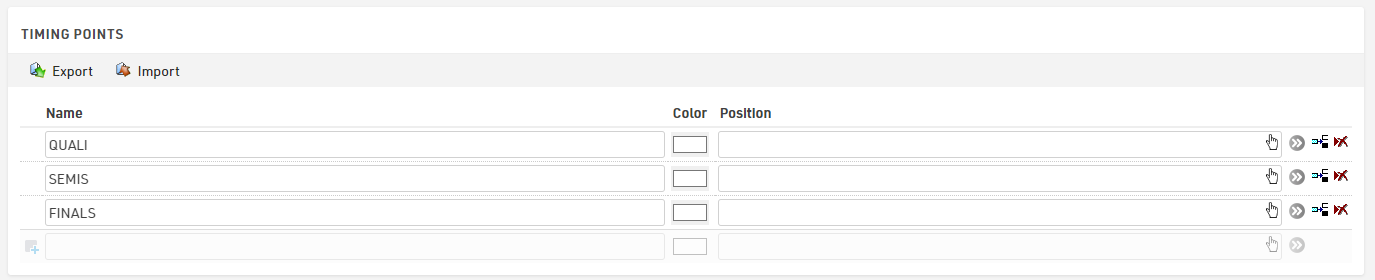
Results
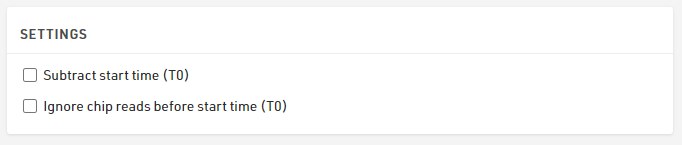
The results setup here is kept as simple as possible.
Given that T0 is irrelevant in this type of event where the same participant has multiple starts, we do not subtract this in our settings.
For each round we have a start time, which is a fixed time and a single finish detection at the relevant Timing Point, which is simply the first time after the start, and then for each round we calculate the individual participant's time.
We also calculate the number of rounds each participant has completed and their best time of the 3 rounds.
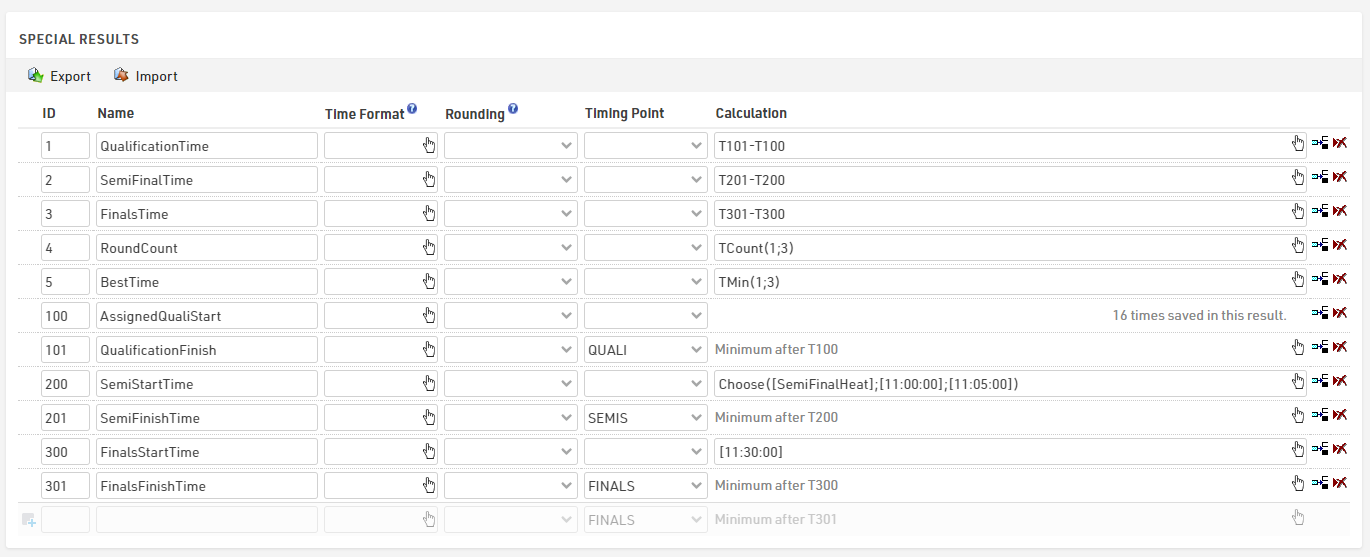
For the qualification we set the times using the Adapt Data - Single Start feature which sets a static time for each participant at set intervals according to the sorting criteria. This could alternatively be calculated directly in the result or imported with the participant data.
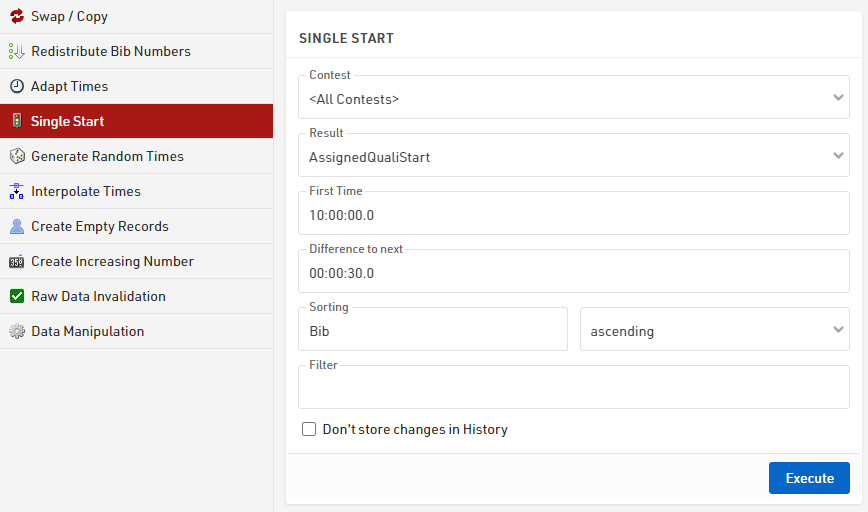
The Semi-Finals time uses a Choose() function based on the heat number (which we will calculate later) which then returns a time for each heat.

Since the Finals are a single round we use a fixed time.

Note that for both the Semi-Finals and Finals the times are in square brackets, this ensures that the software knows to convert this to a time that is internally stored as a decimal value in seconds.
Rankings
For this we need 3 main ranks, one for each round, and also produce a final overall ranking which helps put everybody in one output list later on.
Each of the round ranks filters on TimeX.Positive, so only those with a time in the round are ranked, the Semi-Finals additionally groups by the HeatNumber so that we only compare those of the same heat for the progression to the finals.
Our final overall rank is based on the number of rounds completed from largest to smallest (so those who qualified for the Finals will have 3 rounds whereas those knocked out during Qualification will only have 1. We then sort based on their Finals time, Semi-Finals time and lastly the Qualification time.
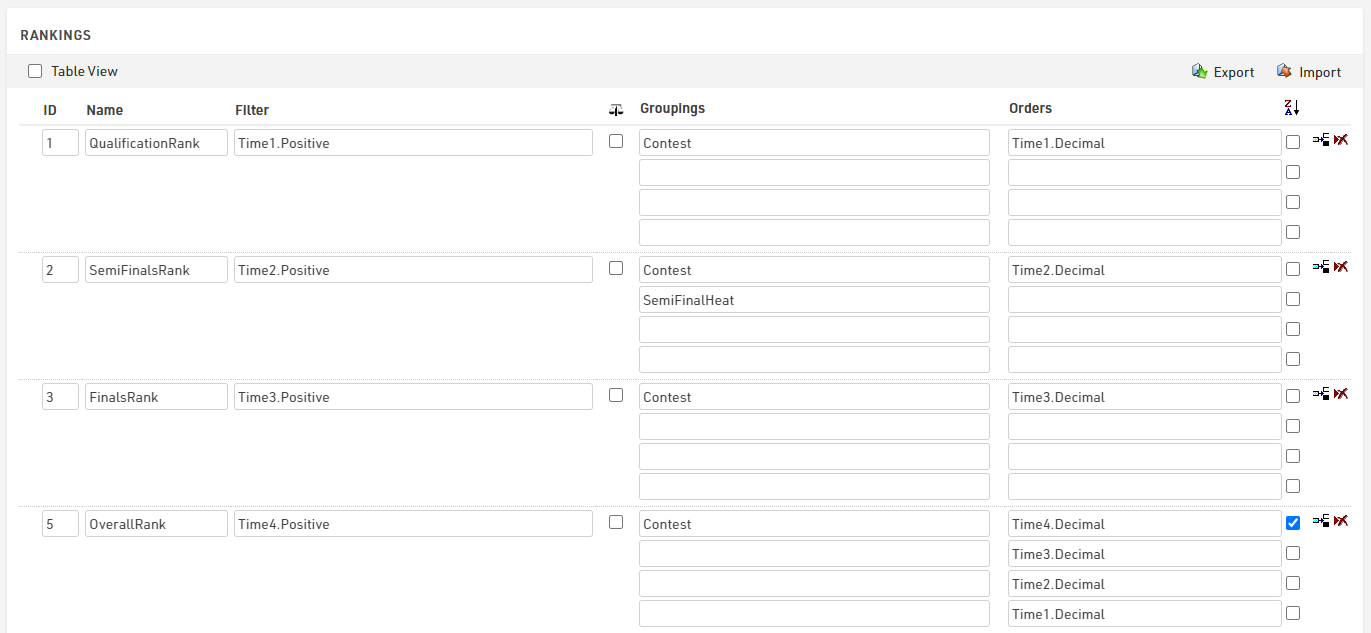
Round Progression
The most important part of this setup is how participants progress from Qualification to Semi-Finals to Finals. This is calculated automatically and dynamically using 2 User-Defined Fields.
Each User-Defined Field looks at the relevant rank to return a heat number for the next round.
For the SemiFinalHeat we take their Qualification rank as an input and return the heat number based on this using a Choose() function.
Choose([QualificationRank];1;2;1;2;2;1;2;1)
To understand this, here is the mapping of the ranks to heats.
| Rank | Heat | Rank | Heat | |
| 1 | 1 | 5 | 2 | |
| 2 | 2 | 6 | 1 | |
| 3 | 1 | 7 | 2 | |
| 4 | 2 | 8 | 1 |
Those with a Qualification Rank of 9 or higher therefore do not receive a SemiFinalHeat and do not progress.
For the Finals we can simplify this and use a simple If() statement to only take those in the top 2 of their Semi-Final heat, we need to also check that the rank is greater than 0, since those who are not ranked will return a rank of -1.
If([SemiFinalsRank]<=2 AND [SemiFinalsRank]>0;1)
Outputs
Start Lists
For each round we produce a Start List of participants, for the Semi-Finals and Finals this is filtered to only qualified riders, and within each heat participants are sorted by their time from the previous round.
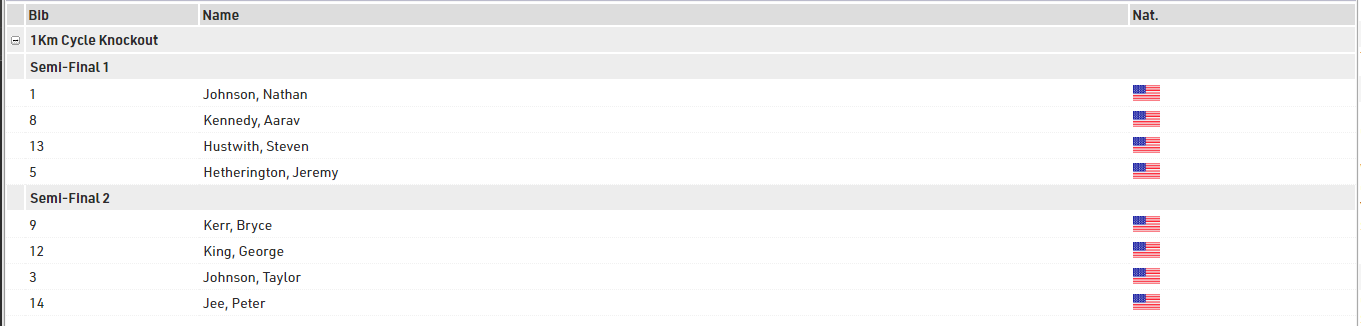
For the Semi Finals we group by Contest and then concatenate "Semi Final " and their heat number, then sort by decimal value of their qualification time.
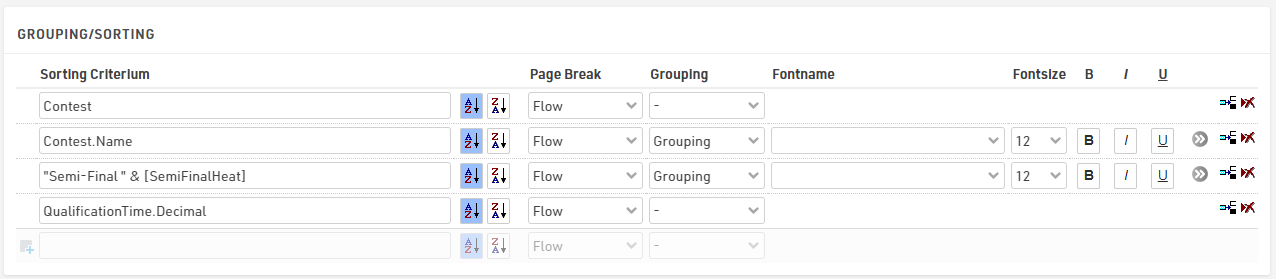
The filter is used to only take those who have a SemiFinalHeat assigned.

The Finals Start list applied the same logic but simply groups by "Finals" and filters on the FinalsHeat.
Results Lists
For results we want to show for each round the participants' times and also who has qualified to move on to the next round.
Each round's result list is filtered and sorted by the corresponding rank, so they are only shown if they have completed the round. We also apply the same grouping / filtering logic from the Start Lists to group by the round / heat number.
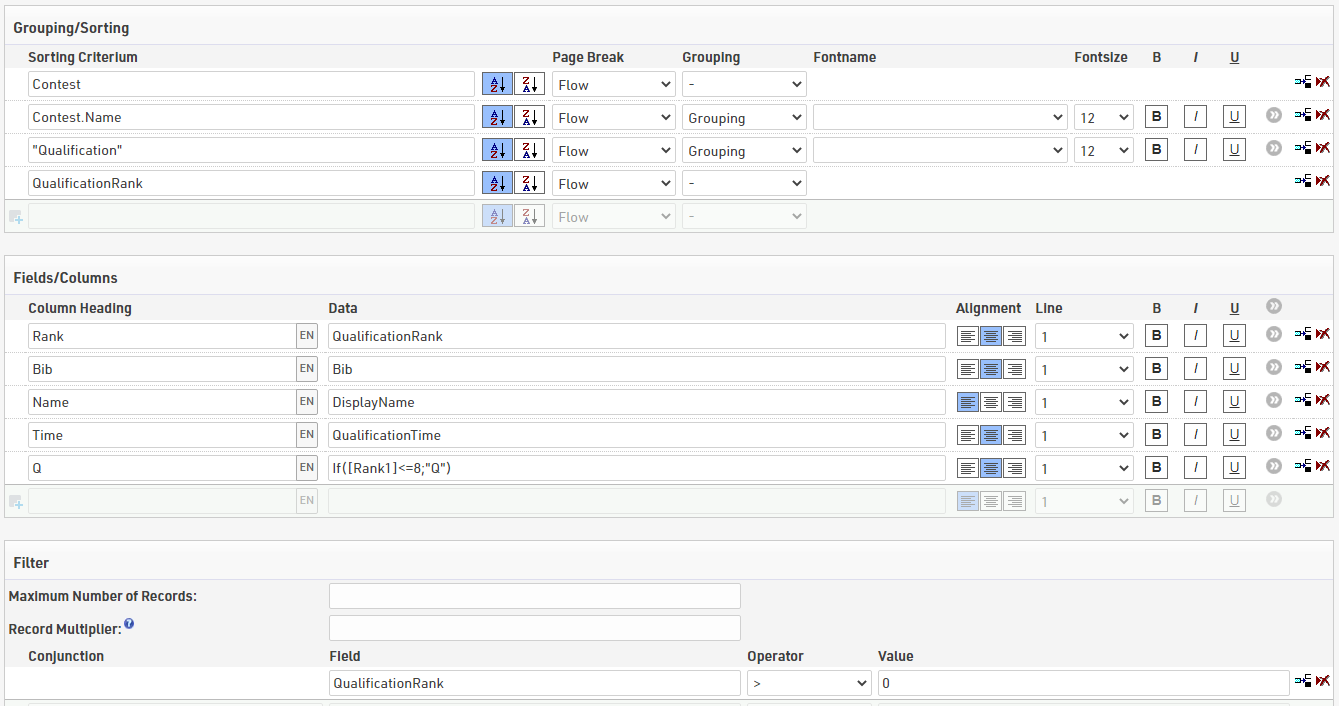
To show who has qualified we add a column which looks at the relevant rank and if this is less than or equal to the maximum rank to qualify shows a Q, for qualification this is the top 8.
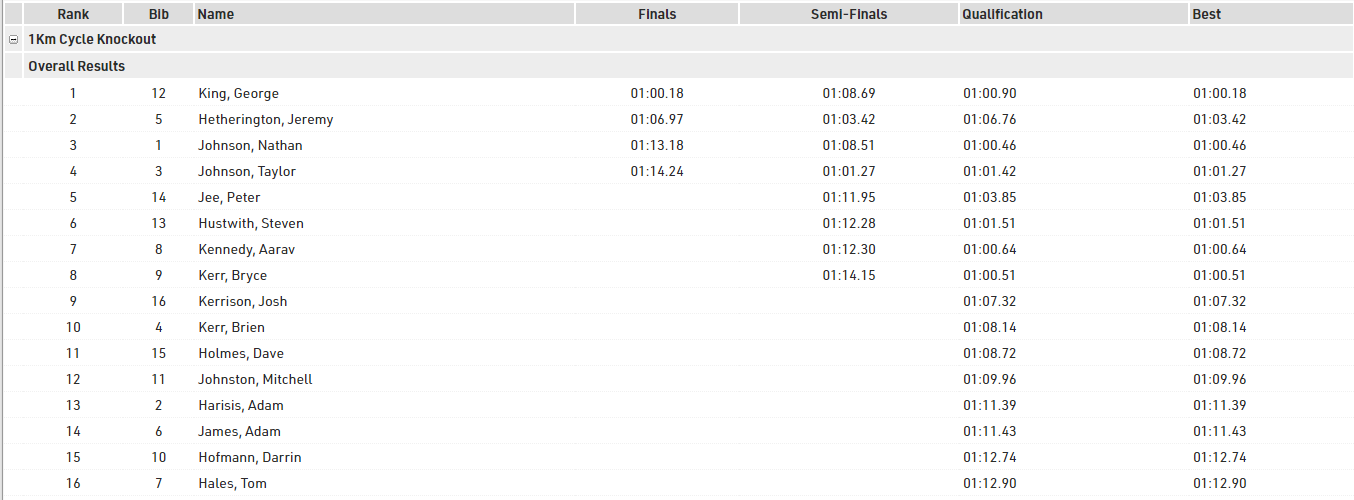
We also created an overall results list, which uses the overall rank setup earlier. With this as the main sorting criteria we can then also easily and clearly show who qualified for each round, and we also show their best time in an additional column.
Lap Race - Time Limit
This event is a general description of a lap race, where participants are allowed to race (in this example) for a maximum of 2 hours in a circuit of 2 km where the timing device is placed at the start/lap line. Scoring is anyway based on the most number of laps completed and then on the fastest total time.
Creation of a new event
When creating a new event, select the template Lap Race [variable number of laps], which is the perfect template for this kind of race. Once the template has been selected, define the Maximum #Laps expected to be completed from the winner. We highly suggest entering a number which is roughly 5-10% higher of the expected laps, just for your safety. It would be inconvenient to adjust the event file during the race, if participants are running more laps than expected.
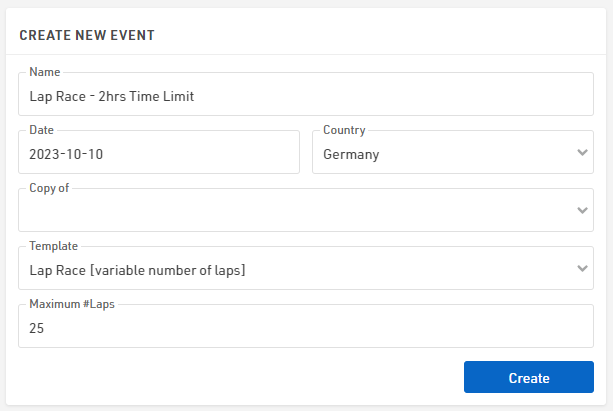
In this example, we expect participants to run with a pace above 3:00 min/km: even if a participant runs exactly at this pace, the laps completed in 2 hours will be 20, thus 25 Maximum Laps are more than enough for the following simulation.
Based on the laps entered, the template will generate Special Results accordingly: note that with more than 100 laps, the results for each lap will NOT be generated but everything is still calculated.
Definition of the Raw Data Rules
Under Scoring ⇒ Special Results, the software has created already a set of special results reflecting the Maximum #Laps defined during the event's creation. These results are divided into 3 macro-sections, looking at the Results' IDs used.
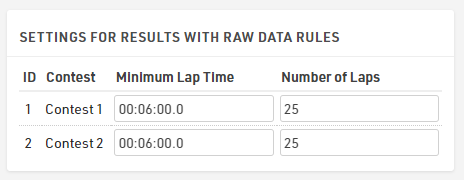
Before looking at them, it is important to focus the attention on the Settings for Results with Raw Data Rules.
By default, in the template, the Minimum Lap Time is set to two minutes. In our case, considering that a lap is 2 km long, we set 6:00 minutes, considering the fastest pace to be 3:00 min/km.
Lap Times (IDs 1000 - 1025)
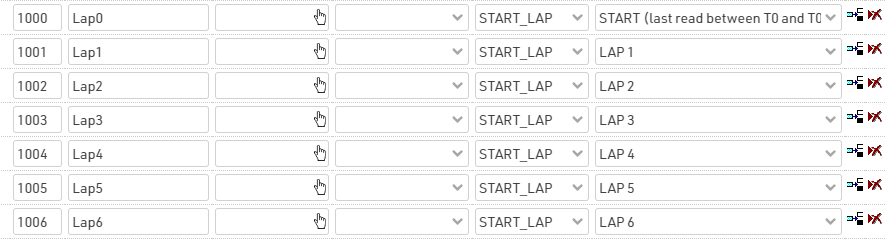
This set of results calculates the time of each completed lap. Result 1000 takes the last read from the timing device, which occurs between the official race start and the minimum lap time set for this event. For all the other results, the software will consider, as a lap detection, the first detection which has occurred after the minimum lap time.
Cumulative Lap Times (IDs 2000 - 2025)
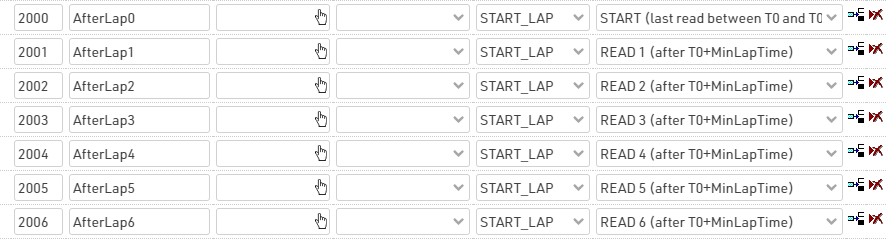
This set of results calculates the race time after Nth read.
Calculation Times (IDs 1 - 6)
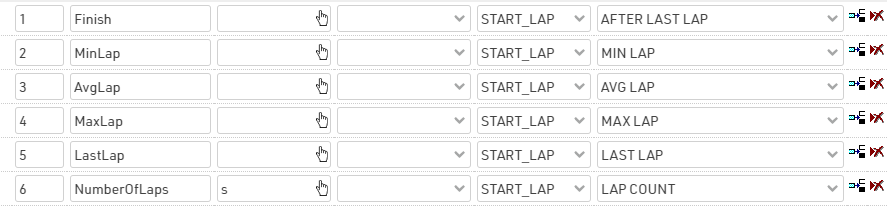
This set of results is useful for creating rankings and output lists. For our final list, we want to order participants by number of laps completed (highest to lowest), and then for Finish Time (fastest to slowest). More info on Lap Race Rules.
Start Time and Finish Time Limit
Under Timing ⇒ Settings ⇒ Start Times / Finish Time Limit, it is possible to set the official start time of the race (T0) and, consequently, the official Finish Time Limit considering that our race has a limit of 2 hrs. Note that both times have to be expressed in Time of Day.
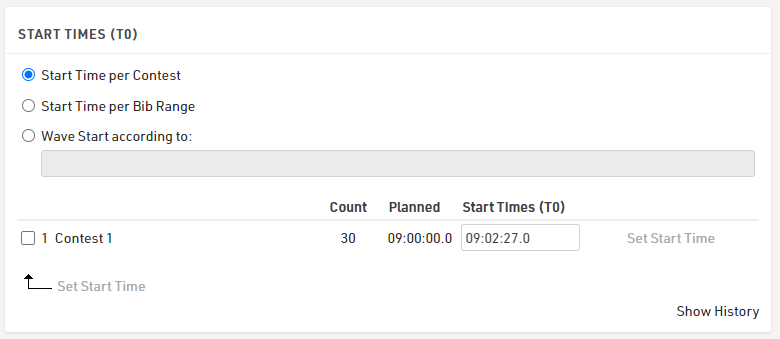
In the section Finish Time Limits, it is possible to define either to ignore any chip read after the 2 hours, or to allow one last chip read in order to allow participants who start their last lap before the finish time limit to complete this lap.
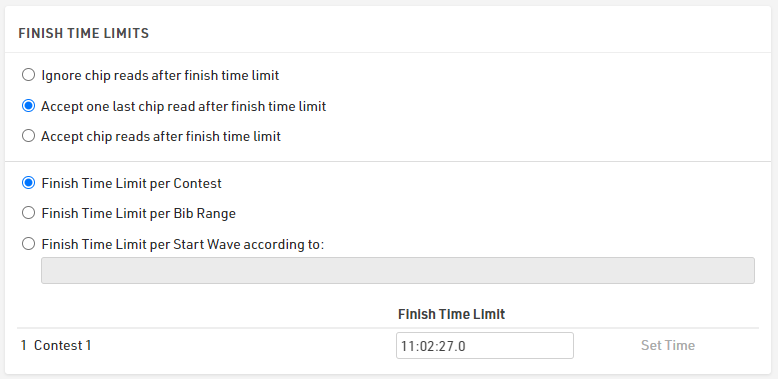
Rankings
By default, 3 Rankings are defined under Scoring ⇒ Rankings.
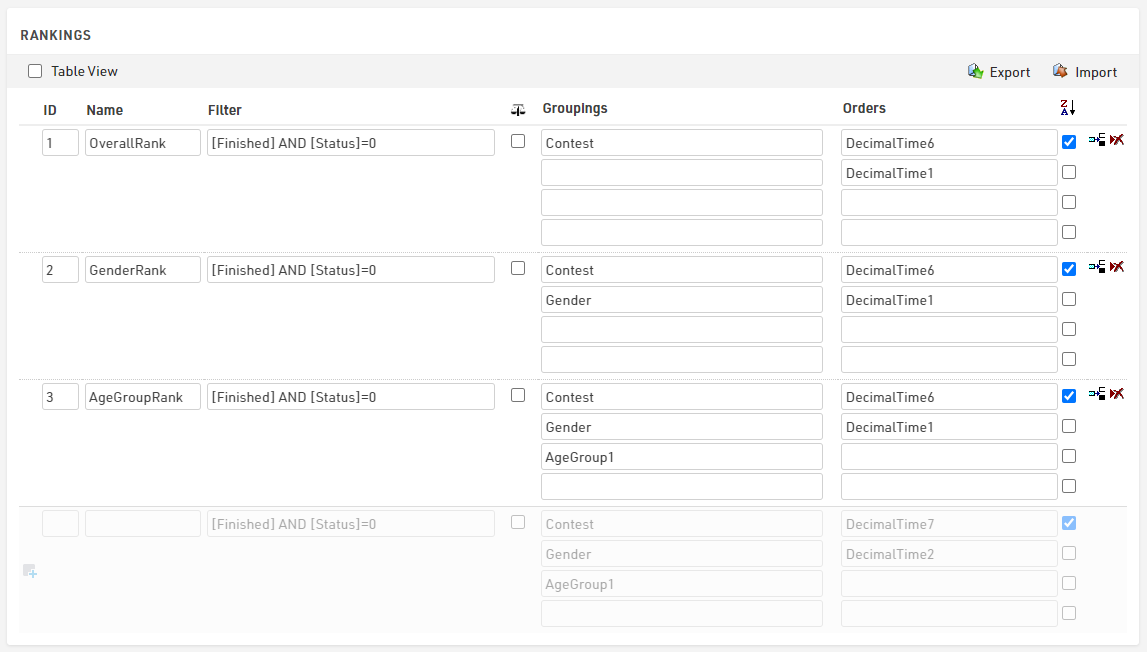
These differ from the groupings' settings, but all sort participants by NumberOfLaps (Special Result ID6) completed (Z>A), and then by FinishTime (Special Result ID1).
Output Lists
The template includes most of the output lists requested from the organizers. The final list displays the total number of laps and finish time of each participant, together with the gap time or the difference in number of laps from the first.
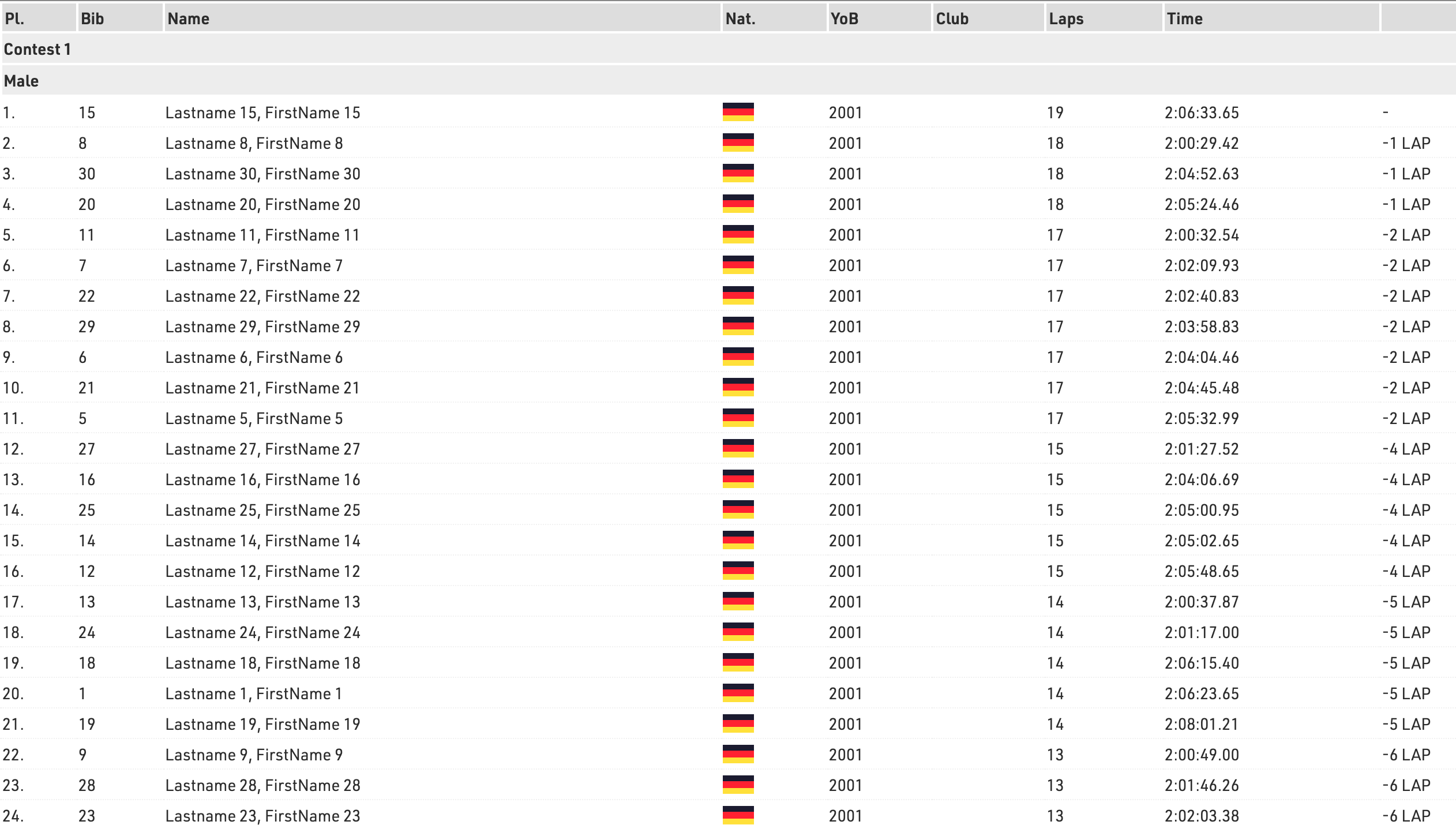
The Lap Details list displays the information of each lap of each participant, by using the advanced Record Multiplier. In the Record Multiplier field, the special result NumberOfLaps will define for each participant {n} lines matching the NumberOfLaps completed by each participant.
{n} will then trigger the calculation of the AfterLap and the Lap time for each lap.
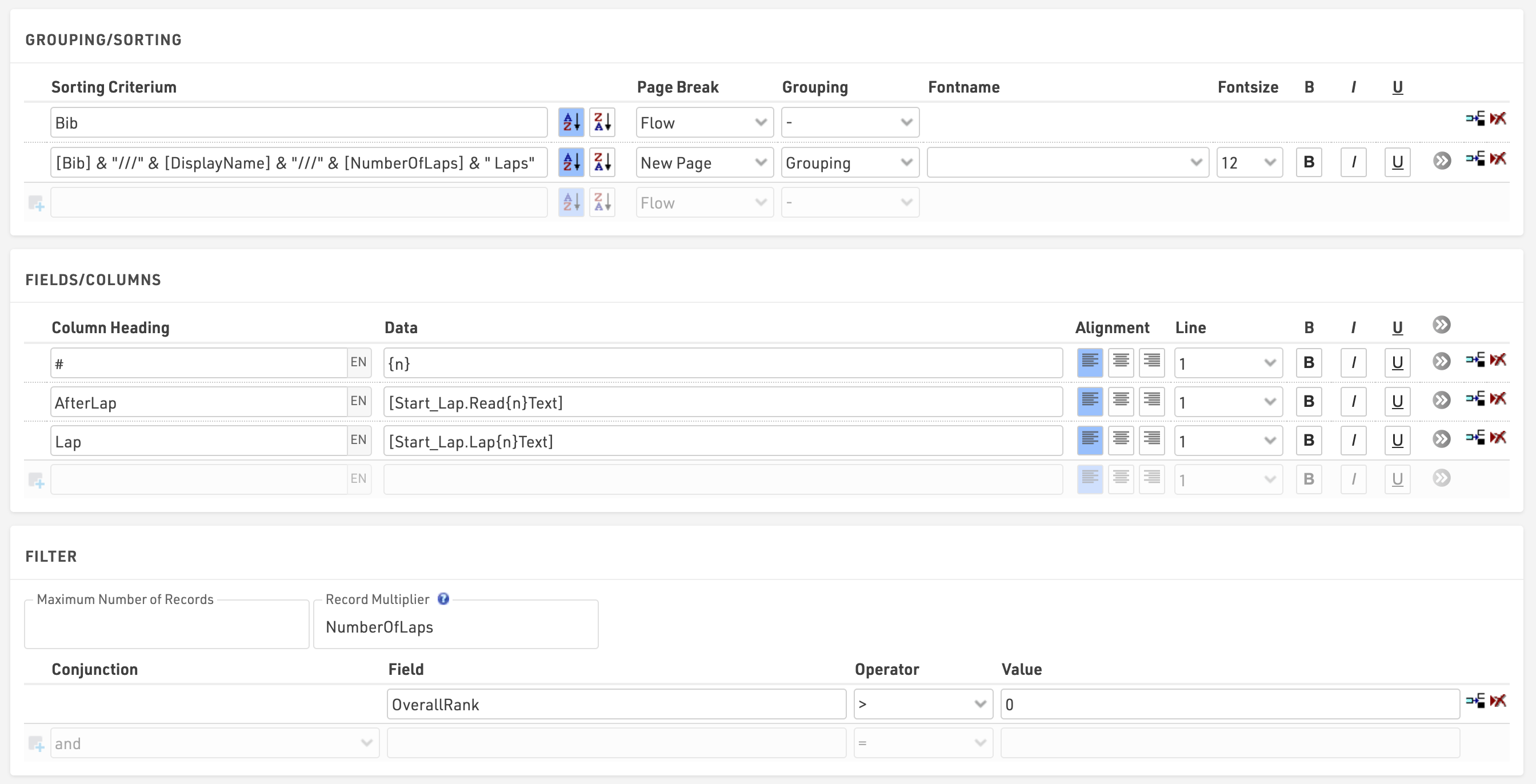
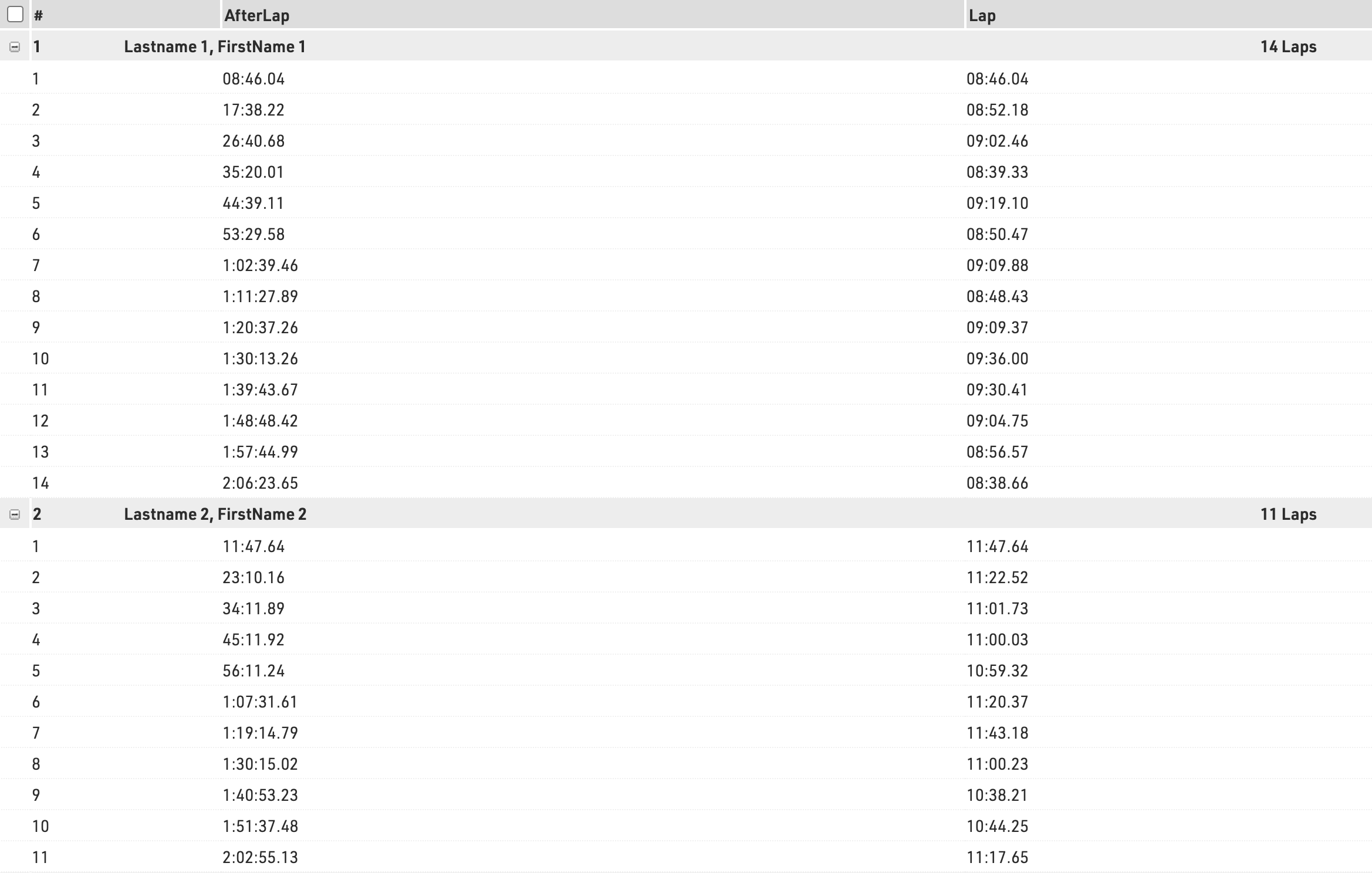
This list will be accessible on my.raceresult.com, as a detailed list of the Final output published under the Result Tab, for each participant when clicking on the participant's name.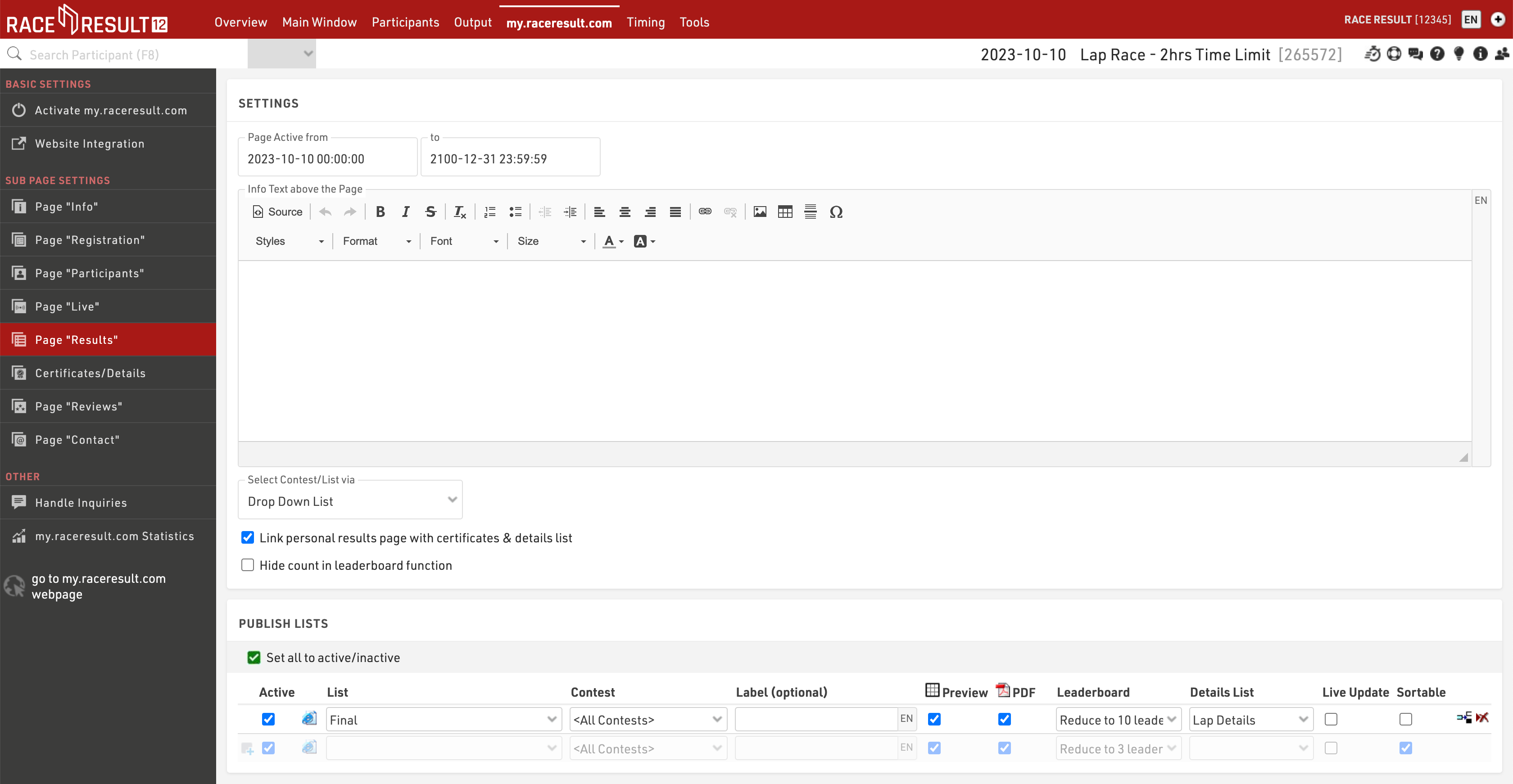
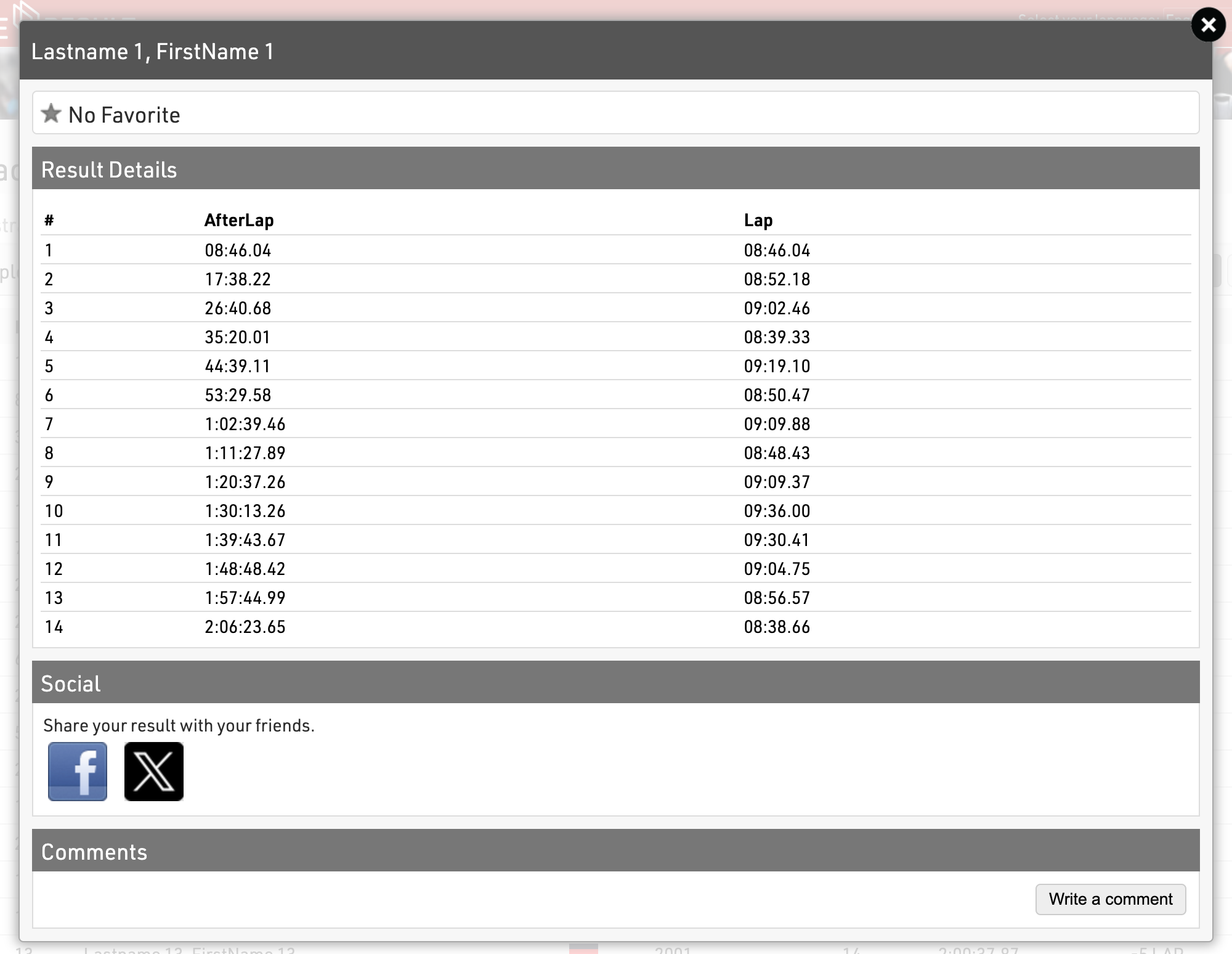
Stage Race - Simple
This is a simple setup to show the core concepts required in order to time a stage race or series race with all races setup in the same event file.
This event consists of 3 stages which all contribute to an overall tour rank based on the sum of times from each stage. There is also a team element, with teams scored on the best 2 times for each stage, to be considered for the team time for a stage a participant must have completed each previous stage as well.
Each stage is only scored on gun time.
All participants are entered into a single Contest.
Timing Points
A unique timing point is created for each stage finish, since we are only scoring based on gun time for each stage.
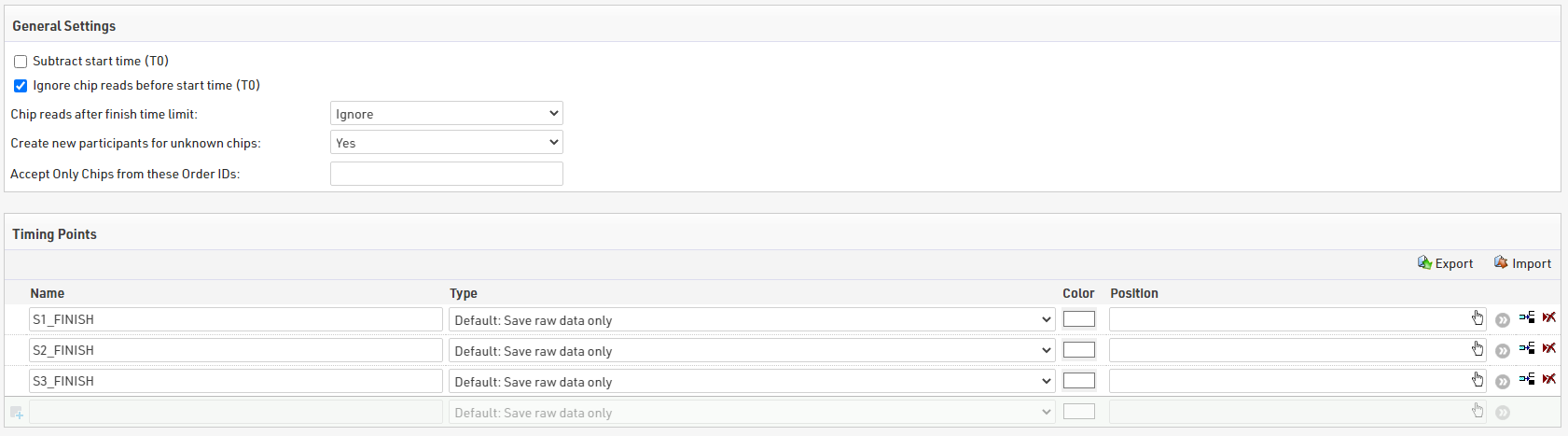
Subtract start time (T0) is unticked, since we will not be referencing or using T0 at all in this setup.
Results
We'll first look at the individual results required for each stage and the overall tour.
Stage Results
To make results easier to understand we create distinct blocks of results for each stage, and use a specific Result ID range for each block.

We use results blocks of 100 for each stage (Stage 1 = 100-199, Stage 2 = 200-299, Stage 3 =300-399)
For each stage we create a result for:
- A start time as a time of day, ID X01
- A finish detection as a minimum after the start time of day, ID X02
- A calculated stage time as the finish detection minus the start time, ID X00
By following this pattern across all stages it makes later setup easier since IDs all follow the same pattern.
Tour Results
We need to know the total time at the end of each stage, for this we create a block of results with the total time at the end of each stage.

The time after stage 1 is simply the stage 1 time, subsequent stages are calculated as the time at the end of the previous stage plus the stage time. In this way a rider must complete each stage in order to have a total time. If we were to use a TTSum() to add stage times together then somebody who only completed 2 stages would still have a tour time and is likely to have a faster time than those who did complete all 3 stages.
Rankings
Individual rankings are setup for each stage, with both overall and gender ranks, then additional for the tour after each stage as both overall and gender ranks.
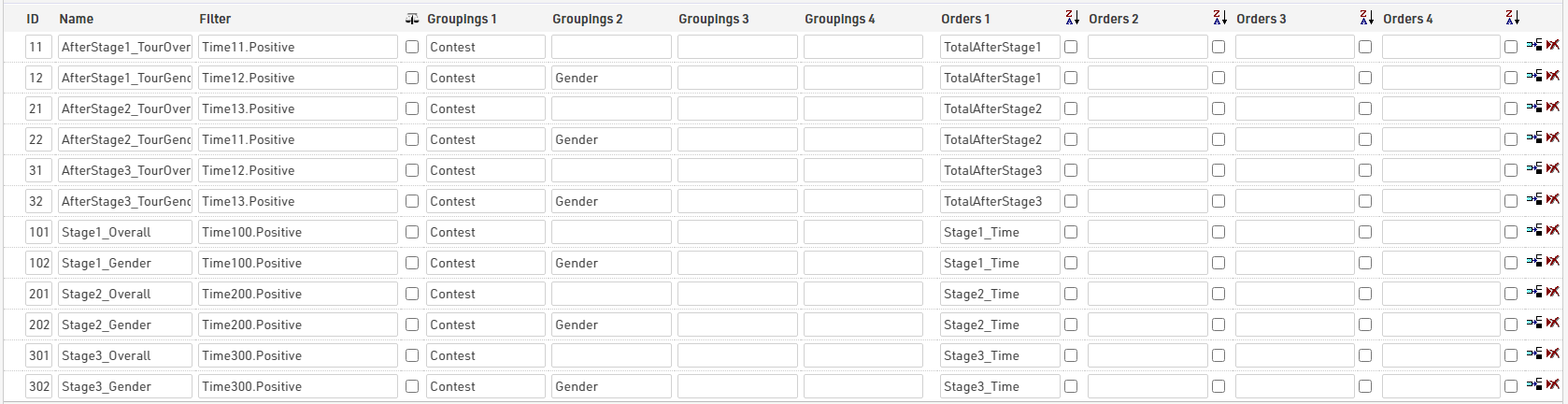
Team Scores
In this setup each team has 3 members, using the club field to denote who should be in the same team.
For each stage the best 2 times from the team are used to calculate the team's stage time, and then a team tour time / rank is also calculated for each stage. For the tour time / ranking a team member must have competed in each previous stage to be considered.
We created 2 team scores for each stage, the first calculates the teams' stage time, and the second is used to rank teams with their tour time.
Team Stage Time
For team scores we follow the same ID grouping to identify each stage.
The filter is set so that they must have a club and must also have a total time after the corresponding stage, since we calculated this so they will only have a total time if they have completed each stage this filters as such too. For example bib 1 completed stages 1 and 3, but because they did not complete stage 2 they are not counted for the team's stage 3 time.
The Max number of teams is set to 1 and show part. w/o time this ensures that all team members with the same club are grouped together, and all receive the team time / rank.
For number of participants the min and max are both set to 2, since we are only considering the best 2 times from each team.
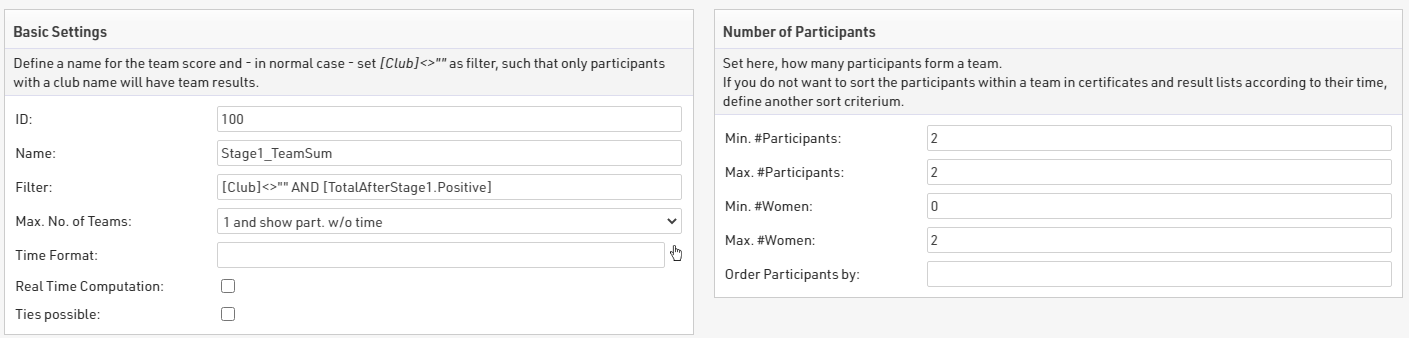
Teams are formed based on Contest and Club, and grouped according to Contest, since this setup only uses a single Contest and does not use any gender specific teams.
The results use the sum of each participant's Stage 1 time, and teams are sorted with times ascending.

Team Tour Time
To ensure we have the tour time for each team member we first call each stage time into a result for eligible participants. To make this simpler we created a user-defined function called IfPositive(x)

This will check if X is greater than zero and if it is, will return X.
In the results for each stage we used this to call each team stage time.

The total time after each stage is then calculated in the same way as the individual totals, with a new block of results adding each team stage time individually.

To now rank teams according to their total time after each stage we create a second team score for each stage.This uses the same basic settings, aggregation and grouping, but the number of participants is set to a min / max of 1. Since all team members will have the team total time in their results we only need to look at one team member for each.
Since we are only looking at 1 participant to get the time we simply take the sum of the TeamAfterStage time, with times sorted ascending.

Output Lists
We needed to create output lists for both stage results and the overall tour results, and again for individuals and teams. Here we show 2 different approaches to producing lists, each with their own advantages / disadvantages. Some balance could be found between the 2 types, for example using a gender filter and autorank in the detailed results.
Quick Setup
The quick setup lists make use of the Results Selector which creates an additional drop down to select which result we want to look at. The selector allows for the quickest setup of a single output list to show different results in a single list, also making for a simpler online results setup. It is however limited without creating some advanced formulas, these are used briefly in the team quick results.
The selector calls the relevant stage time, or team stage time with the corresponding label and AutoRank is used to display the stage rank.

For individual results we also apply a filter to the Gender, allowing to quickly see gender specific results, or an overall result.

Team results have an additional filter to only show 1 record per team filtering by team score position is equal to 1. However as we need to look at a different team score depending on the selector we use a function here to take the ID of the selected result to calculate which team score to reference.
This is simplest in the Team Tour Results where the selector looks at results 21-23, so we use a choose() function with [SelectorID]-20, which will return 1,2 or 3, to return the corresponding stage team score.

Detailed Setup
The detailed results include a more thorough breakdown, with this setup we had to create separate overall / gender outputs for individual results, for each stage.
The breakdown outputs use the ranks which were setup for each stage, ensuring that the rank displayed is correct. This becomes particularly important with more complex stage races which may have more advanced requirements for ranks.
By using a specific list for each display needed we can more easily include additional fields such as gaptime() which rely on a result ID and rank ID, which could otherwise only be shown with a more complex formula.
For team stage results we apply a grouping for each team to show each eligible team member who finished the stage, here we also highlight the team members who were used for scoring. To do this we use a simple IF statement looking at TSx.Scored which is true if their time was used for the team calculation.
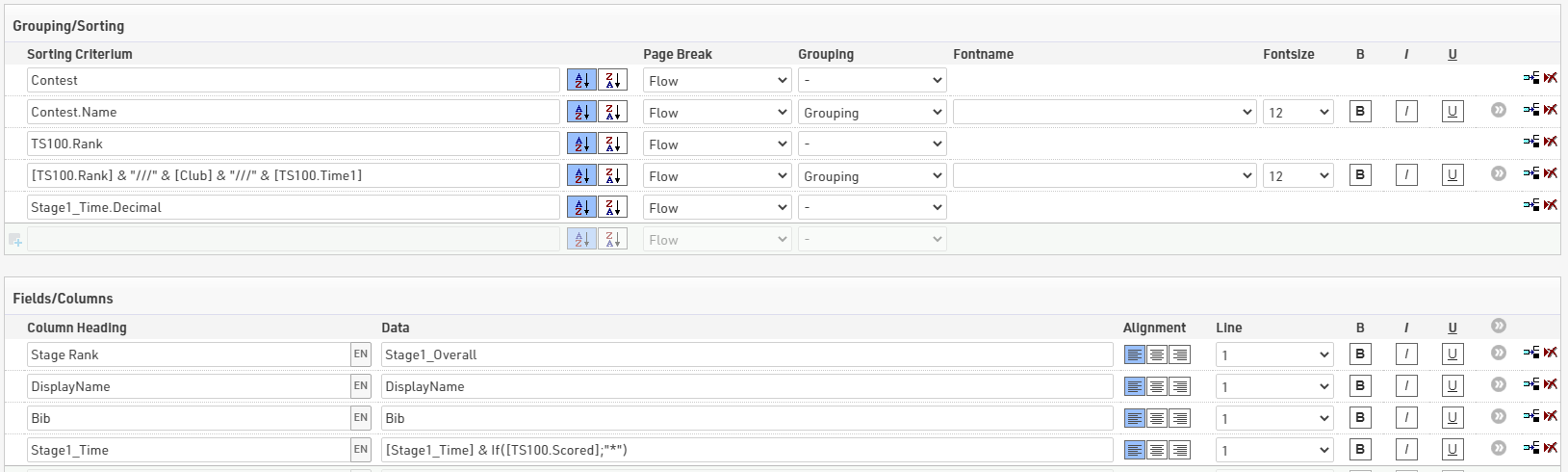
Within the tour results we're also able to show the time for each stage up to and including that point in time, making for a more detailed breakdown of each team's time.
Stage Race / Series Considerations
This setup is a simple example to show the principles of how to setup a stage race or series in a single event file. When dealing with such events there may be a number of other aspects to consider, these include;
- different start waves for each stage
- bunch time calculations (for cycling)
- age group calculations
- penalties / bonuses
- points per stage / total
- subtract start date (requires use of d:hh:mm:ss for stage start times)
The same concept can be applied to all of these but the complexity can increase exponentially with such races.
MTB Downhill Enduro - 7 Stages
Introduction
In this guide we explain how a MTB Downhill Enduro event could be managed using RACE RESULT 12, providing timing, scoring and live results presentation.
For this example, the event consists of 7 stages, spread over two consecutive days. For each day there is an initial start which is later used to calculate a total sector time for the first stage of each day.
In this example, an Ubidium System is used for each stage Start and Finish to provide live results. A similar setup could be achieved using Loop Boxes in Store Mode for the stage starts, this would not impact the results setup but would limit the live results.
Day 1 - Stages 1, 2 and 3
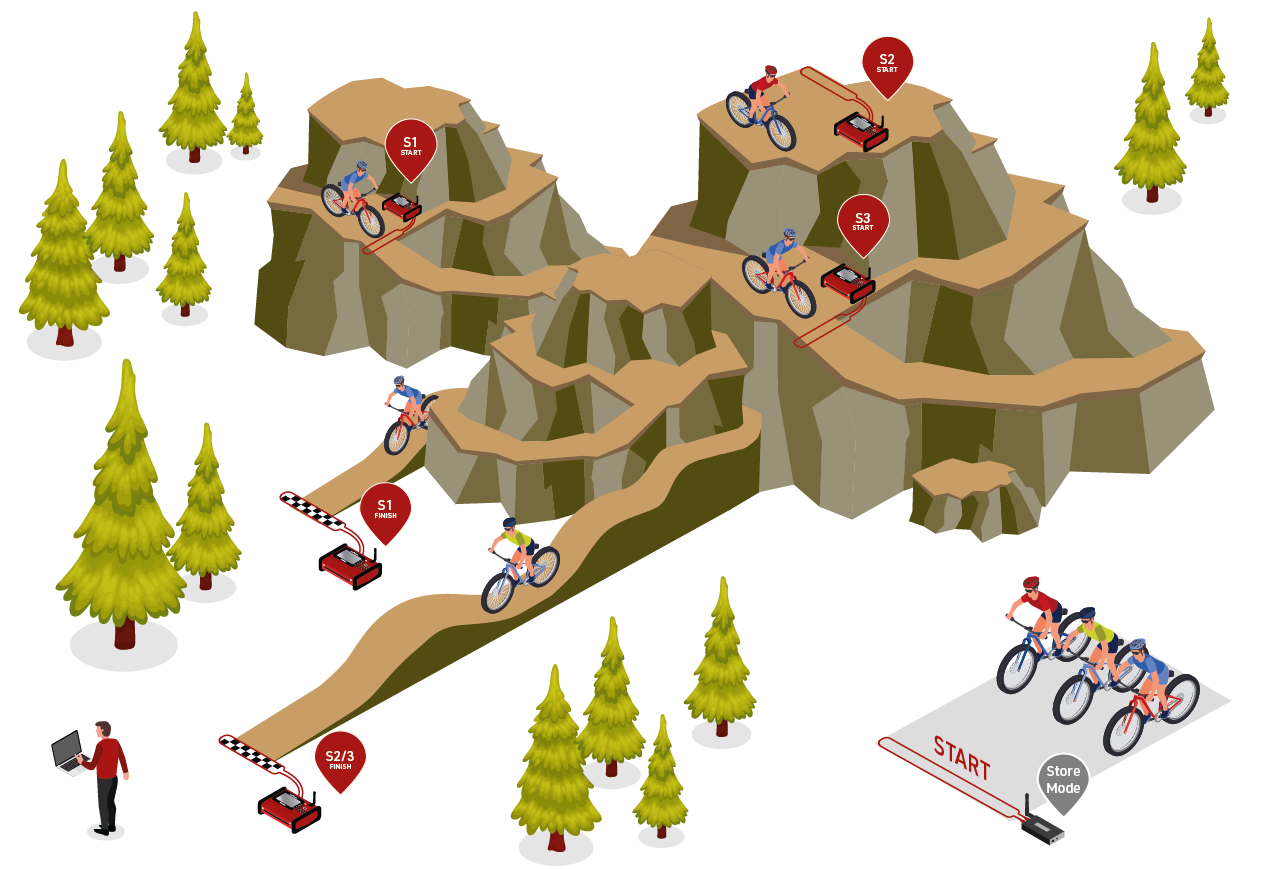
Day 2 - Stage 4, 5, 6 and 7
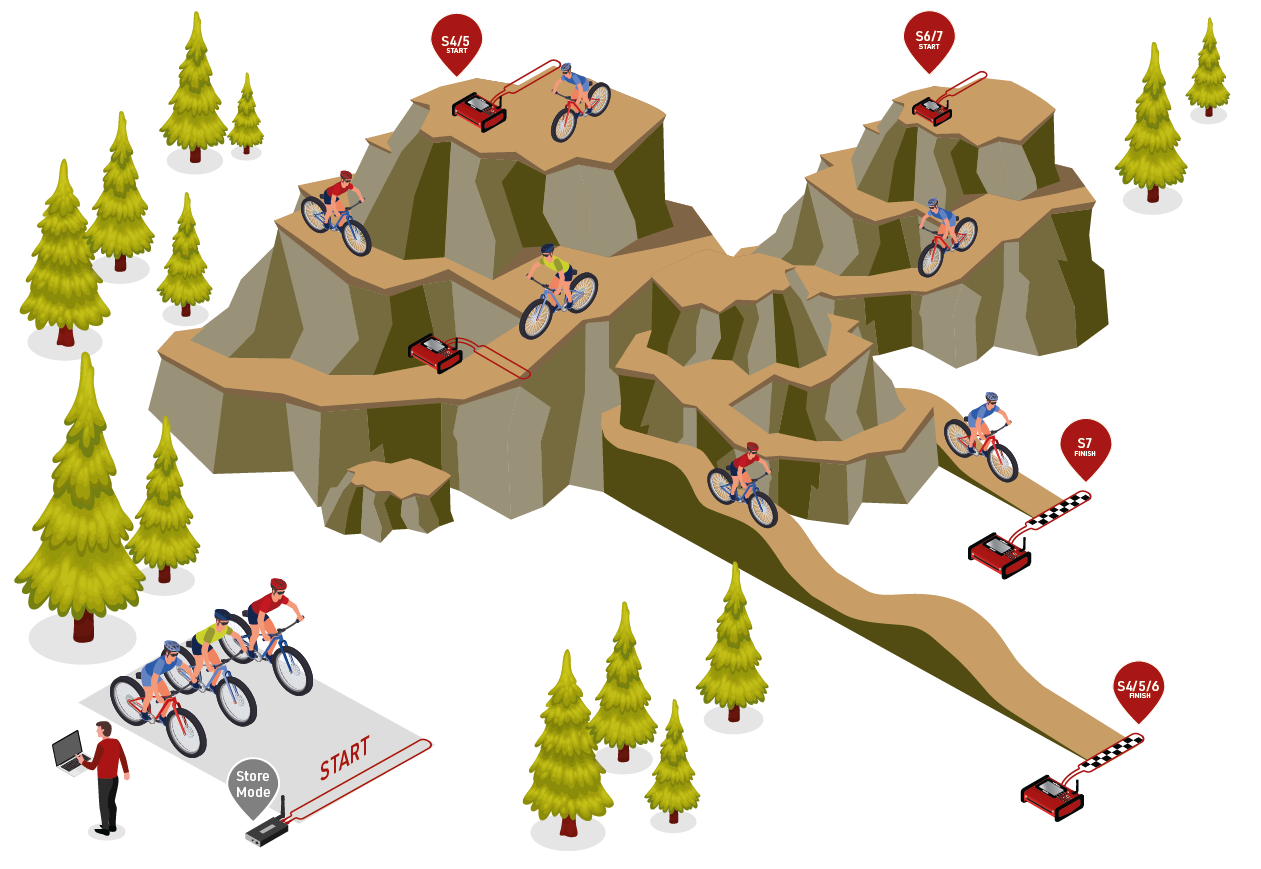
Semi-Permanent Events
Calculos/Resultados por puntos
Hay varias formas de calcular puntos en carreras que pueden usarse como parte de una serie, puntuaciones de equipo u otros requisitos especiales. A continuación se muestran algunas de las formas más comunes de calcular puntos en RACE RESULT 12.
Tenga en cuenta que estos ejemplos solo muestran los cálculos que se pueden usar; puede que sea necesario aplicar filtros adicionales (usando funciones If() o Switch()) para asignar puntos solo a los participantes que hayan terminado o que tengan una clasificación>0, ya que pueden De lo contrario, aún devolverá un valor positivo.
Puntaje = Rank
El método más sencillo es cuando los puntos son iguales al rango.
Por ejemplo, el 1.º lugar obtiene 1 punto, el 100.º lugar obtiene 100 puntos.
Para asignar puntos de esta manera, simplemente llame al campo Clasificación correspondiente directamente en un resultado; es posible que desee crear una clasificación especial para esto que filtre solo a los atletas elegibles.

Points = Rango Ivertido
Comúnmente también se asignan puntos según la cantidad de atletas que terminaron una carrera.
Por ejemplo, 367 hombres terminan, el primer hombre obtiene 367 puntos y el 367° hombre obtiene 1 punto.
Para asignar puntos de esta manera escribimos un breve cálculo en un resultado usando los campos MaxRank y Rank.
([MaxRankX]+1)-[RankX]
El +1 es necesario para equilibrar la ecuación, ya que de lo contrario los puntos siempre serían 1 menos, el primer lugar obtendría MaxRankX-1 y el último lugar obtendría 0 puntos.

Puntos en intervalo fijo
Se pueden asignar puntos para que el primer lugar reciba un valor determinado y cada rango posterior se reduzca en un valor fijo. Esto se puede hacer con un simple cálculo. En este ejemplo, el primer lugar según la clasificación de Género obtiene 1000 puntos, y cada clasificación posterior recibe 10 puntos menos (2º = 990, 3º = 980, 4º = 970...).
1000-(([GenderRank]-1)*10)
El valor inicial se define como 1000 y, en este caso, debemos restar 1 del rango para asegurarnos de que la asignación se correlacione correctamente con nuestra deducción de 10.

Tabla de puntos Simple
En algunas carreras, los puntos pueden asignarse especialmente a los X primeros clasificados, y todos los demás finalistas reciben un valor nominal de puntos. Esto se hace con otro cálculo, pero esta vez también usando nuestra función Choose() que devuelve un valor según su clasificación.
En este ejemplo, el 1.º lugar según la clasificación de Género obtiene 15 puntos, el 2.º = 13, el 3.º = 11, el 4.º = 9, el 5.º = 7 y todos los demás finalistas obtienen 5 puntos.
Switch([GenderRank]<=5;Choose([GenderRank];15;13;11;9;7);[GenderRank]>0;5)
Nuestra función Switch() primero verifica si tienen un GenderRank menor o igual a 5, si es verdadero, luego asigna los puntos correspondientes usando la función Choose(), luego verificamos si su GenderRank es mayor que 0 y, si es verdadero, asigna 5 puntos.
Tabla de puntos compleja
En el caso de que los puntos no se puedan calcular o asignar con un cálculo simple, puede crear una tabla de puntos en Resultados para asignar puntos en consecuencia. Para hacer esto debemos seleccionar el ícono de la mano para abrir la ventana de cálculo y seleccionar Tabla.
Cada tabla puede tener hasta 4 índices, estos son los valores que el cálculo busca en la tabla para asignar los puntos, por ejemplo Rango y Género. Tenga en cuenta que, dado que los índices deben ser numéricos, es necesario convertir aquí nuestro género en un número.
Este ejemplo asigna puntos según GenderRank (Índice 1) y Género (Índice 2, hombre = 1 / mujer = 2), los puntos asignados se reducen aleatoriamente.

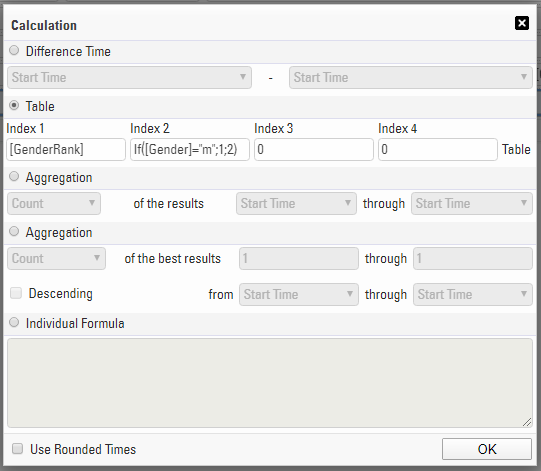
Primero se asignan los índices a los que se debe hacer referencia, al hacer clic en Tabla aparece la tabla de índice donde puede asignar los valores de índice y el valor de puntos que se deben devolver. Esto se puede importar desde un archivo Excel estándar.
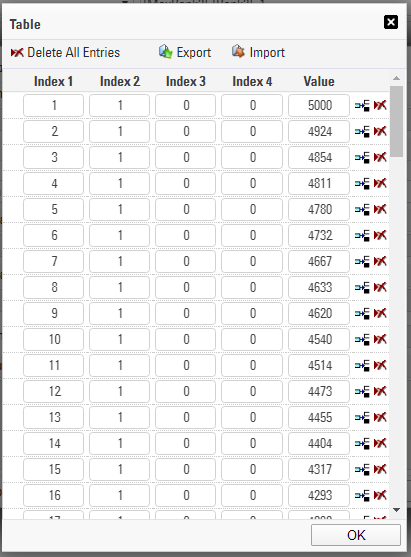
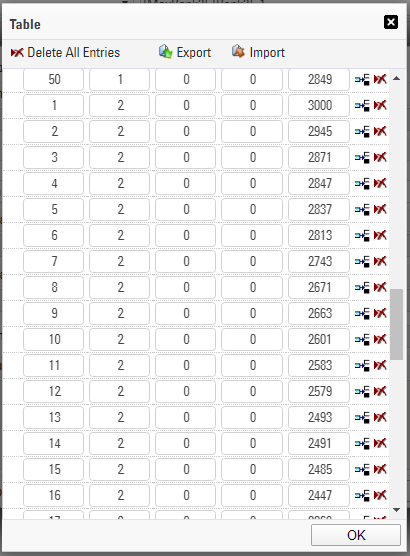
Podemos ver que cuando el Índice 1 = 1 y el Índice 2 = 1 (GenderRank = 1 y Género = Masculino) entonces se asignan 5000 puntos, hasta el Índice 1 = 50 se obtienen 2849 puntos. Pasando al Índice 2 = 2, luego GenderRank = 1 obtiene 3000 puntos y así sucesivamente.
Timing a Time Trial Race
Time Trials are a common race format in which participants start individually at different times, rather than all at once. These events require a different timing setup than mass start races, and RACE RESULT 14 offers two main approaches to handle them: using Splits or using Special Results.
While both methods ultimately give you each participant’s net time, the way they handle start times differs significantly. Choosing the right method depends mostly on how your event is structured — whether you have scheduled start times, use a light barrier, or simply let participants start freely, one by one.
To help you get started, a sample event file demonstrating both methods is available for download at the bottom of this article.
When to Use Splits vs. Special Results
The simplest and fastest method is to use Splits. This setup is ideal if participants start at their own discretion, and you're using chip detections to mark both the start and the finish. It’s quick to set up and works well in informal or smaller-scale time trials.
However, if your event requires precise control over start times — for example, if each participant has a scheduled start time, or you’re using a light barrier or a manual trigger at the start — then you’ll need to use Special Results. This method gives you much more flexibility and accuracy but involves a slightly more advanced setup.
Link to Finisher Video
It is possible to link your results page or details list to a finisher video showing each participant crossing the line, this example links to YouTube however the same principals may be applied to other hosting sites or even static photo sites.
Videos can be shot on any standard video camera, GoPros are a popular choice due to their versatility. Once the race is finished, it's a good idea to crop the video down, you'll want a bit of time (around 15 seconds or more depending on your finish setup) before the first finisher crosses the line.
The link for each participant contains three parts; the base URL, the VideoCode (a unique identifier for each video) and the playback controls which determine at what point the video should start playing from, when it should end and whether it should automatically play once loaded.
e.g. https://www.youtube-nocookie.com/embed/hZCHKy0ESPU?start=0&end=14&autoplay=1
links to Video hZCHKy0ESPU, starts automatically playing at 0 seconds and will automatically stop at 14 seconds.
(Our knowledge base uses 'www.youtube-nocookie.com' by default, which you use is up to you as both work the same)
In order to form this URL we first need to calculate the time difference between each participant and the first person to cross the finish line (based purely on finish order / time of day).
To do this it is useful to first call the Finish Time of Day into a unique result, either using [SplitName.TOD.Decimal] or you may need to use Tx+T0.

We also need to Rank all participants according to this FinishITOD result, this is done with a specific rank which has no grouping and sorts according to our result or split.

With these we can now calculate the gap time for each participant, there are a number of ways this can be calculated but using the GapTimeTop() Function is most simple. In this case we use GapTimeTop(1;4;0;"s") since the first participant should have a gap of 0 and the gap should be in seconds.
We also want to know the time in the video at which the first finisher crosses the line, or when their video should end, this is simply entered as a value in seconds.
These values are used to calculate the end time for each participant, so the video stops once they have finished.

We can now form the URL, this is done using 2 User-Defined fields so that the template can be copied across and have just the VideoCode updated rather than the full URL.

VideoLink: "https://www.youtube-nocookie.com/embed/" & [VideoCode] & "?start=" & Val([VideoOffset]-14) & "&end=" & [VideoOffset] & "&autoplay=1"
Note that the start must never be negative otherwise the video will fail to play automatically.
Now our VideoLink is calculated we can link this in an output list, this example has the video linked as part of the details window but it can be linked to any output or even under the Links in my.raceresult.com Certificates/Details
It's nice to use an image as a link rather than show the full URL, so in your output first insert an image, we use a png of the YouTube logo which has a transparent background.

Bring up the additional field details by clicking the grey arrows to the right side and in the HTML Link as Expression field enter our User-Defined Field [VideoLink].
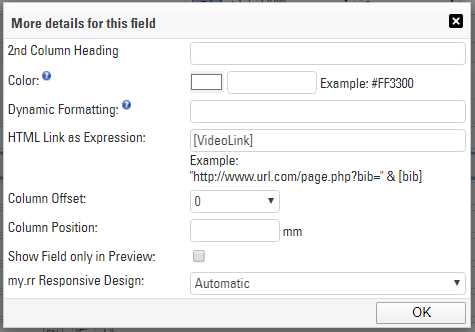
The image will now be a clickable link in the output list which will take you directly to the finisher video for the corresponding participant.
Fitness Race
The example file is at the bottom of this article!
Fitness races are becoming increasingly popular. They combine endurance and strength activities where participants alternate running legs with activity zones — for example, a format with eight running sections and eight workout activities.
This article explains a simple approach to setting up such an event using the Splits function in RACE RESULT 14.
Event Concept
In this example event file, four timing points are used:
- START
- IN_ZONE
- OUT_ZONE
- FINISH
Participants start the race, run 1 km, enter the IN_ZONE to perform the first activity, and exit via OUT_ZONE to begin the next running segment.
This pattern repeats until the final activity, after which competitors go directly to the FINISH, skipping the OUT_ZONE.
Splits Setup
The entire event is structured using the Splits table.
Each row defines either a running segment or an activity. Running legs are measured by distance (e.g., 1 km), while activities are time-based and use the “Other” sport type.
The Label field is used to name each split — for example, 1KM Running, 1000m SkiErg, or 50m Sled Push.
These labels can then be shown on the LIVE list, so spectators can follow which part of the race each participant is currently in.
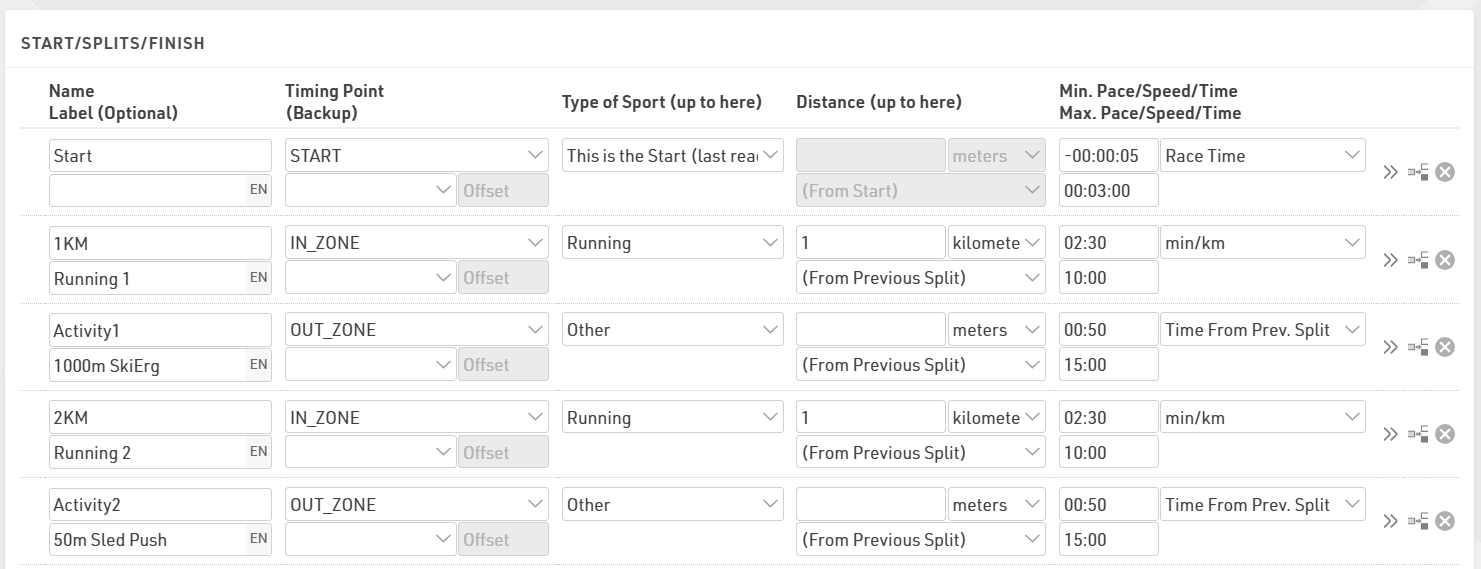
In this example, the event is set for a single contest (Race 1) with the Start split open for 3 minutes. All participants must cross the start line within this time window from the official race start (T0).
When working with multiple start groups, there are two different approaches depending on the structure of the event:
- Different race categories - Create separate Contests
For example, if your event has Elite Men, Elite Women, and Open divisions running independently, each category should have its own contest. This ensures separate rankings, timing logic, and results.
- Multiple start waves within the same category - Use Wave Starts
If participants in the same category simply start in several waves — for instance due to capacity limits or flow — you can use Wave Starts and assign participants based on their wave field. Waves allow staggered starts while still keeping the group ranked together in one contest.
Displaying Participant Progress
To make the LIVE view more interactive, a User Defined Function (UDF) is used to display a progress bar indicating how far a participant has advanced through the course.
The function, called ProgressBar(x), uses the number of completed splits {Selector}.SplitCount to determine progress:
choose(([x]-1)\2+1;
"□□□□□□□□"; "■□□□□□□□"; "■■□□□□□□"; "■■■□□□□□"; "■■■■□□□□"; "■■■■■□□□"; "■■■■■■□□"; "■■■■■■■□"; "■■■■■■■■")
Each full square (■) corresponds to the completion of an activity section. As participants complete runs and activities, the bar fills up, giving a clear visual overview of their progress.
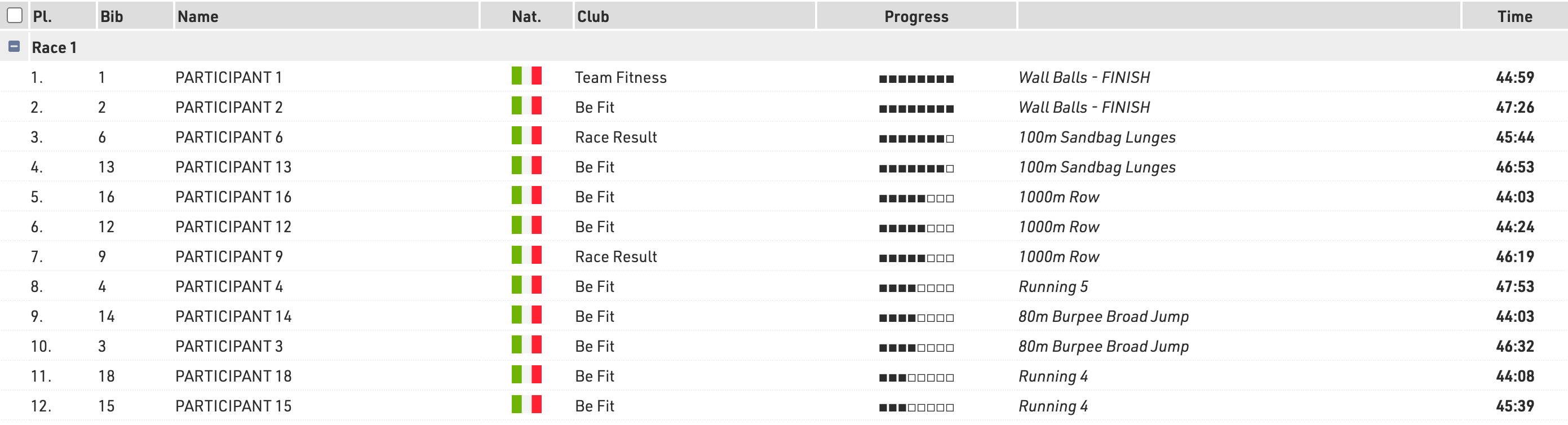
Optional Improvements
This example keeps the setup simple, but it can easily be expanded.
For more detailed timing, you can add dedicated IN/OUT timing points for each activity to capture the exact time spent inside each station, rather than combining the short running transition.
Since these events typically attract large participation numbers, it’s strongly recommended to use a Check-In Kiosk. This helps efficiently manage and recycle transponders by reassigning them to new participants as soon as previous participants finish their race.
The event template attached already includes a Check-In Kiosk setup configured for this purpose. The kiosk uses Transponder Assign mode: Delete Existing Assignment, meaning that when a transponder is assigned to a new participant, any previous assignment is automatically removed.
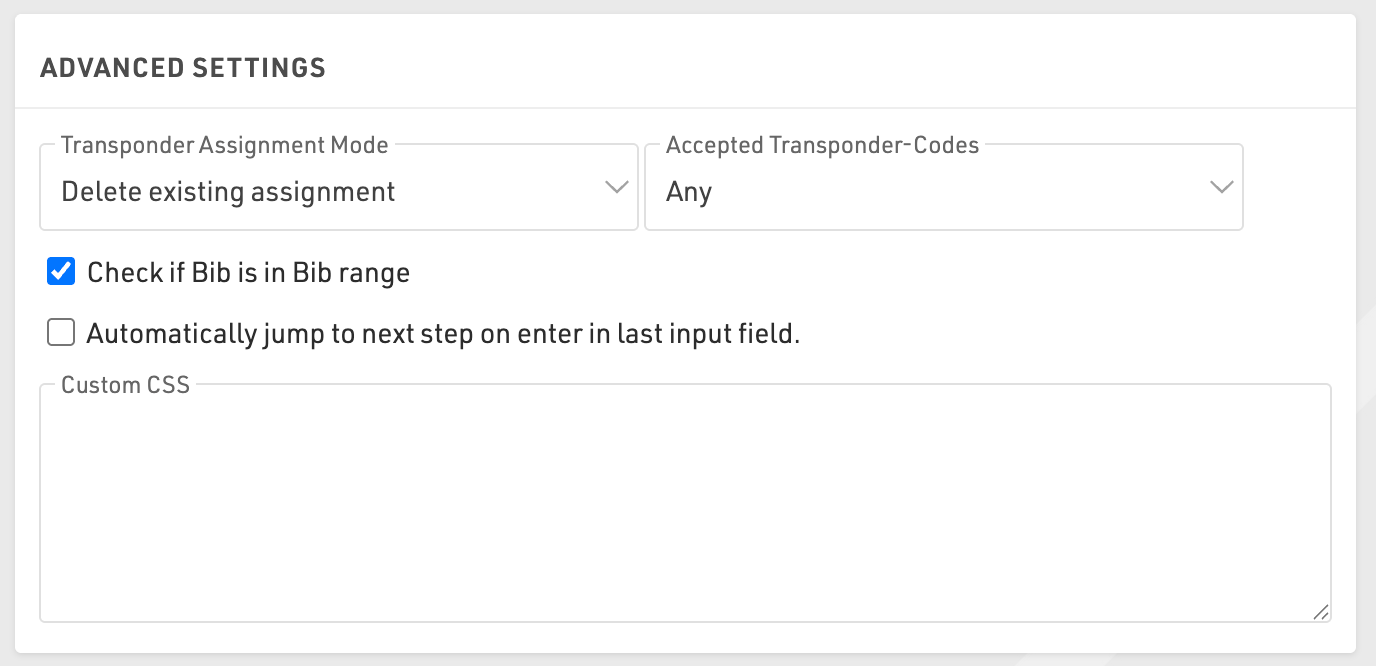
This ensures a smooth transponder-reuse workflow without manual intervention.
Release Notes
race|result 10
| race|result 10.0.6.134 (2011-08-31) | |
| - | SMS Sender: new transfer protocol for faster sending (thanks @Aaron Clarke) |
| - | Online Registration: optional text for after registration period (thanks @Jan Andersson) |
| - | Transponder Module: problem Ultra fixed (thanks @Aaron Clarke, Andreas Bär) |
| race|result 10.0.6.133 (2011-07-11) | |
| - | Transponder Module: connections keep connection numbers after closing connections (thanks @Jan Andersson) |
| - | Transponder Module: new connection type "RFID Ultra" (thanks @Andrew Peterson) |
| - | Rundenmodus: new fields LTTeamMinLap und LTTeamMaxLap (thanks @Andreas Bär) |
| race|result 10.0.6.129 (2011-06-08) | |
| - | Improvements in the Output Window |
| - | Transponder Module: issue with option "Ignore Times Before" fixed (thanks @Andreas Seeli) |
| - | SES Import: new option not to add participants (thanks @Armin Bär) |
| - | IOC Code for Serbia added (thanks @Mario Persch) |
| - | Issue with Online Forwarding after changing event password fixed (thanks @Wolfgang Kiefer) |
| - | Issue with Live Backup fixed (thanks @Guido Jansen, Dirk Schafmeister) |
| race|result 10.0.6.123 (2011-05-05) | |
| - | Transponder Module: new setting "Do not create new participants" (thanks @Andreas Bär) |
| - | Max. field length for entry fee setting "Multiply with" extended (thanks @Reinhard Standke) |
| - | Max. field length for age group names extended (thanks @Reinhard Standke) |
| race|result 10.0.6.116 (2011-04-10) | |
| - | Manual Timing: supports "TimeMachine" device (thanks @Chris Oroshiba) |
| race|result 10.0.6.114 (2011-03-31) | |
| - | New event type "Women's Run" with different header picture on Your-Sports.com (thanks @Hanno Maier and Torsten Beeth) |
| - | Issue with basic settings of online registration fixed (thanks @Hanno Maier) |
| race|result 10.0.6.113 (2011-03-22) | |
| - | Main Window: GUI bug in result table definition fixed (thanks @Clemens Herz) |
| - | Announcer: can show data dependant images now (thanks @Clemens Herz) |
| - | List: can show [ContestStart] in list/page header/footer now (thanks @Horst Stuhlweissenburg) |
| - | Transponder Module: shows additional status information for AMB P3 connections now (thanks @Hanno Maier) |
| - | Transponder Module: shows disconnected connections in red now (thanks @Hanno Maier) |
| - | Some issues concerning Google Chrome fixed (thanks @Jenna Ginsberg) |
race|result 11.0
| race|result 11.0.0.210 (2014-03-31) | |
| - | Minor bugs fixed |
| race|result 11.0.0.207 (2014-03-14) | |
| - | Main Window->Adapt Data redesigned |
| - | New Option: Ignore Bib Number Ranges |
| - | New fields Position1, Position2, .. for numbering on lists within groups |
| - | Team scores with lap mode: minimum lap time |
| - | Team scores with lap mode: ignroe times before/after |
| race|result 11.0.0.204 (2014-03-04) | |
| - | Minor bugs fixed |
| race|result 11.0.0.202 (2014-01-29) | |
| - | New web-based Designer |
| - | Transponder Module with new Simple Mode |
| - | Support of Time Zones |
| race|result 11.0.0.195 (2013-12-23) | |
| - | Participants Window->Results: Export times |
| - | Excel Import: import age |
| - | Transponder Module: Supporting RRS chip codes |
| - | Minor bugs fixed |
| race|result 11.0.0.194 (2013-12-04) | |
| - | Minor bugs fixed |
| race|result 11.0.0.192 (2013-10-29) | |
| - | Minor bugs fixed |
| race|result 11.0.0.191 (2013-10-11) | |
| - | Issue with checkin/out on hebrew computers fixed |
| race|result 11.0.0.187 (2013-10-01) | |
| - | race|result Webserver optimized |
| - | Minor bugs fixed |
| race|result 11.0.0.140 (2013-07-15) | |
| - | race|result Webserver optimized |
| - | Minor improvements, minor bugs fixed |
| race|result 11.0.0.121 (2013-05-11) | |
| - | Minor bugs fixed |
| race|result 11.0.0.114 (2013-04-25) | |
| - | race|result Webserver optimized |
| - | Minor bugs fixed |
| race|result 11.0.0.98 (2013-04-09) | |
| - | Some new functions in the Designer |
| - | Minor bugs fixed |
| race|result 11.0.0.97 (2013-03-26) | |
| - | Issues with SMS Sender fixed |
| race|result 11.0.0.93 (2013-03-22) | |
| - | Some minor issues fixed |
| race|result 11.0.0.90 (2013-03-08) | |
| - | Some issues with new CameraServer fixed |
| race|result 11.0.0.89 (2013-02-27) | |
| - | Online registration: refinements |
| - | Transponder Module: bug in wave starts fixed |
| race|result 11.0.0.88 (2013-08-02) | |
| - | New program "Camera Server" for race|result Camera |
| - | Transponder Module can show the finish line photo from the Camera Server |
| - | New fucntions: isUCICode, isNumeric, isAlpha |
| - | Online registration: many new special settings |
| race|result 11.0.0.86 (2013-01-14) | |
| - | my.raceresult.com: certificates can now be linked on participants lists |
| - | Choose between program languages in top right corner |
| - | Edit groups: rename, cover picture, etc. |
| - | Q&A in dock window on right side |
| - | Online registration: configuration pages redesigend |
| - | Online registration: new element <HTML Line> |
| - | Online registration: new special functions: password etnry, select value, propose values, email addresse |
| - | New access rights control: several users can now get access to an event file |
| race|result 11.0.0.85 (2013-01-03) | |
| - | GUI layout adapted according zu race|result CI |
| - | Chat/Help/Info area revised |
| - | Fields "NationFlag" and "CountryFlag" added |
| - | Field "BasicFee" added (basic entry fee without optional fees) |
| - | SES import: selection of contest extended to 1-100 |
| - | Manual Timing: optimization for ALGE devices |
| - | Online registration -> Form Fields -> Validation Rules |
| - | New GUI for publishing lists on my.raceresult.com |
| - | Transponder Module: Option "Ignore Times After" added |
| - | Transponder Module: new tab "Overview Contests" |
| - | my.raceresult.com: event groups introduced |
| race|result 11.0.0.79 (2012-12-12) | |
| - | Transpondel Module: GUI redesigned |
| - | Presenter: slide mode "Manual Scrolling/Sliding" for result terminals with touch screen |
| - | my.raceresult.com: you can publish any kind of links on the personal result page (will be shown below the certificates) |
| - | Online Registration: additional options for fields: color, background, format |
| race|result 11.0.0.77 (2012-11-28) | |
| - | Output Window: list of contestes fixed |
| - | Confirmation email of online registration: can now have attachments |
| race|result 11.0.0.76 (2012-11-21) | |
| - | Output Window: you can bring all lists by one click to alphabetic order |
| - | Output Window: you can define colors for the page head, page footer, column heads and grouping heads |
| - | Output Window: you can define the background color of grouping heads |
| - | Participants Window: automatic upper case for city entries |
| - | When file is being checked out, active users will be "kicked out" |
| - | Designer: ruler added |
| - | Designer: Cut, Copy, Paste added to menue |
| - | Designer: Undo of last operation |
| - | Designer: Elements in the background can be scaled |
| - | Designer: Rename/page settings redone |
| - | Offline mode: no facebook, no Google maps |
| race|result 11.0.0.73 (2012-11-01) | |
| - | Terminal: can show a preview of the certificate |
| race|result 11.0.0.71 (2012-10-18) | |
| - | Minor bugs fixed |
| race|result 11.0.0.62 (2012-10-09) | |
| - | Minor bugs fixed |
| race|result 11.0.0.61 (2012-08-31) | |
| - | Minor bugs fixed |
| race|result 11.0.0.58 (2012-08-02) | |
| - | Minor bugs fixed |
| race|result 11.0.0.52 (2012-07-03) | |
| - | Connection issues via port 1023 in American mobile connection fixed by using alternative port 10023 |
| race|result 11.0.0.51 (2012-06-29) | |
| - | Minor bugs fixed |
| race|result 11.0.0.50 (2012-06-05) | |
| - | Minor bugs fixed |
| race|result 11.0.0.49 (2012-04-30) | |
| - | Participants Window: edit participants in the list view |
| - | Main Window->Age Groups: many new function |
| - | Main WIndow->Event Settings: regional settings added |
| race|result 11.0.0.46 (2012-03-12) | |
| - | Clicking a record in a list in the Output Window opens the record in the Participants Window |
| - | Participants: optional entry by age (thanks @Mark Bockmann, Alain Ferry) |
| - | New functions in new support |
| - | Problem with online forwarding fixed |
| - | Confirmation mails on my.raceresult.com can contain HTML tags |
| race|result 11.0.0.45 (2012-03-05) | |
| - | New support center integrated into race|result 11 |
| race|result 11.0.0.44 (2012-02-29) | |
| - | Transponder Module: many new features |
| - | Participants Window: new list view |
| race|result 11.0.0.42 (2012-02-12) | |
| - | Wave start times introduced (thanks @many) |
| - | New time editing function in participants window (thanks @Andi Seeli) |
| - | AM/PM time formats added (thanks @Mark Bockmann) |
| - | Settings->Archives: all additional fields can be selected/deselected (thanks @Andreas Bär) |
| - | Participants Window: mandatory fields can be defined (thanks @Andreas Bär) |
| race|result 11.0.0.40 (2012-01-05) | |
| - | Minor bugs fixed |
| race|result 11.0.0.39 (2011-12-12) | |
| - | rebranding |
| RunManager 11.0.0.31 (2011-11-07) | |
| - | Some minor bugs in RM11 fixed |
| RunManager 11.0.0.22 (2011-10-21) | |
| - | New GUI |
race|result 11.1
race|result 11.2
race|result 11.3
race|result 11.4
RACE RESULT 12.0
RACE RESULT 12.1
RACE RESULT 12.2
RACE RESULT 12.3
RACE RESULT 12.4
RACE RESULT 12.5
RACE RESULT 14.0
News
2023-10-11: Access rights
With today's update we slightly change the behavior of access rights when copying an event. From now on, all access rights will be copied together the event!
If you don't want the same user accounts to access the copied event file, please remove the access rights after copying the file.
2024-01-31: New WordPress Plugin for new registration
We updated the WordPress plugin for the website integration. Especially when using the new registration, please update the plugin in your WordPress page and use the updated Shortcodes. You'll find the plugin under "my.raceresult.com > Website Integration".
Alternatively, use the regular code snippet for your website integration.
2024-02-27: DIY-API NVP de PayPal en desuso
Por razones de confiabilidad, deshabilitamos la antigua API NVP de PayPal para todos los eventos con ID superiores a 278685. La API NVP requería un nombre de usuario, contraseña y firma. En caso de que vea un error al intentar realizar el pago a través de su propia cuenta PayPal, actualice el ClientID y la SecretKey. Deberá crearlos en la configuración comercial de PayPal.
2024-11-28: Discontinuation of Old Online Registration
One and a half years after we first introduced our new registration forms, the old online registration functionality will be disabled in the first week of January 2025. What does this mean? Events with an ID smaller than 255225 where registration should remain open need to switch to the new registration forms. The easiest way to do so is to copy the event. For assistance, please refer to the Knowledge Base: Registration Forms.
If you are using the deprecated [ChangeLink] please update your templates to work with the new ChangeLink().
For users of the deprecated [PaymentLink], please create a simple self service form to use together with the ChangeLink(). We put together a guide here: Sending a Payment Link with a Self Service Form.
2024-12-30: Categories for various settings
Today, we introduced categories, similar to those used in output lists and certificate sets, to other settings such as registration forms, email templates, certificates, labels, statistics, presenters, and Checkin-Kiosks.
Caution: Moving existing templates into newly created categories will change the underlying file name, which will affect pre-existing access URLs for registration forms, presenters, and Checkin-Kiosks as well as references for statistics or custom strings in Simple APIs.
2025-01-16: Two-Factor Authentication (2FA)
Today, we have introduced 2FA for access to your customer account. For now, 2FA is optional and needs to be enabled from your customer area. You can use any Authenticator App providing a Time-based one-time password (TOTP). 2FA helps protect you against unauthorised access to your event files and the associated data.
Third-party platforms which interface directly with RACE RESULT 12 should switch to using API Keys for authentication.
2025-03-17: Major Refactoring
We performed a major refactoring under the hood of RACE RESULT 12. Consequently, if you want to check-out an event or open an offline backup copy, you are required to have RACE RESULT version 12.5.34 (or newer) installed on your local machine.
2025-04-08: Handling of [Created] and [Modified]
The internal handling of dates in RACE RESULT 12 has changed. We recommend using the date() function to query the date/time from such strings as needed.
For example, use date("yyyy-mm-dd";[Created]) to call the date of the Created timestamp or date("hh:nn:ss";[Created]) for the time of the creation.
2025-05-15: Refactoring Online-Payment statistics
We have refactored the online-payment statistics. From now on, you will find a "Sales list" in the Online-Payment overview. In here, define a timeframe and receive an accumulated overview of calculated entry fees within the given timeframe. Please note, the timeframe refers to the time of creation of a transaction, not the date of the payout.
2025-06-27: Search bar functionality
Did you know you can enter a formula as a filter in the search bar to preview all participants matching that filter? Instantly see how many participants match, review the records, or simply validate your filter. Try it out by entering [Contest]=1.
2025-07-21: New TagTool released
A new version of TagTool has been released here. It includes the Firmware 2.6 for download and installation on USB Timing Box and Management Box. TagTool 4.1.0 requires Firmware 2.6 to be installed on your Active Devices.
2025-09-24: Shutdown of SOFORT payment
As the SOFORT payment method is being discontinued by the provider, we will no longer be able to offer it from 26 September onwards. If affected, please select from the range of other payment methods.
2026-01-05: New Online-Payment fields
We added support for a more fine-grained overview of payments. You can now monitor and call fields for each payment. Check out the new Payment & Finance Fields.
2026-02-19: Cover Picture Size
To give our registration & results portal my.raceresult.com a more modern and fresh appearance, we have updated the cover picture size to 1920 × 300 px. Please review your current cover image and adjust if necessary.
2026-03-09: Access Rights for EventTools
With the latest update, we introduced access rights for the EventTools App. Manage them directly in the event file and control access for each user individually.
2026-03-23: New look for my.raceresult.com
Today, we pushed an update to the landing page of my.raceresult.com to give it a fresher look. If you have embedded your company’s event list on your website, please check the embed and make any adjustments if necessary.
2026-05-20: Vistas de detalle de participantes
Ya están disponibles las nuevas Vistas de Participante. Esto permite crear páginas de detalles de participante totalmente personalizables, tanto para que aparezcan en una ventana emergente desde una lista como para acceder directamente mediante una URL. Las Vistas de Participante reemplazan la antigua página de Certificado/Detalles.
Lee más al respecto en nuestra Knowledge Base.
2026-06-03: New Favorites Tab
We have introduced a new Favorites Tab for my.raceresult.com, enabling spectators to search for participants and maintain a personalized tracking list. The feature includes global search, fully configurable search results, and an active favorites list layout that supports linked Participant Views and direct split data displays.
Read more about it in our Knowledge Base.
2026-07-17: New Bib Range settings
Since the most recent update this week we support filters in bib ranges. Please read the documentation on the new bib range handling in our Knowledge Base.
With this addition, the settings for bib suggestions when manually creating new participants have been moved to the Input Assistance under "Basic Settings > Participant Data > General Settings".