
HW & FW Details

System (Device ID)

Firmware Version
Display the latest firmware changelogs
Hardware Revisions
List the currently installed internal hardware board versions
Power
Information on the current power management system

Firmware Version
Firmware version of the installed power board
Hardware Revision
Hardware version of the installed power board
Battery Info
Technical data on the currently installed battery / batteries

Power Flow Monitor
Technical data on how power is flowing through the system

Active

Firmware Version
The currently running Active firmware version
Hardware Revision
The version number of the installed Active board
Passive

Firmware Version
The currently bundled passive reader firmware - this will be synced to all connected reader elements
Mat Element Monitor

Shows the currently connected reader elements including the individual serial numbers, string position, state and total reads per element.
User Interface
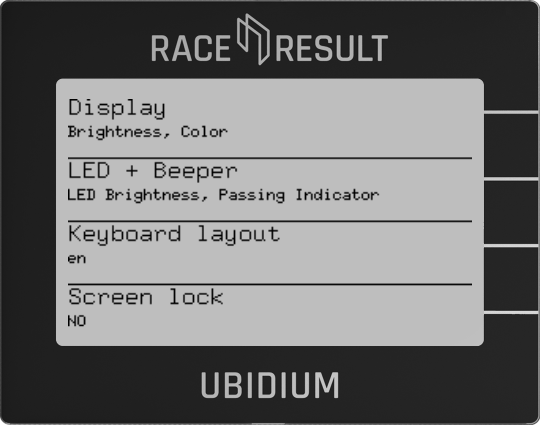
Display
Change the settings of the display backlight.
Brightness
Set the brightness of the backlight, choose from off, low, medium, and high.
Color
Change the backlight color between white, red, green, or blue.
LED + Beeper
Keyboard Layout
For text inputs, you can define the keyboard layout. Currently supported layouts are English, German, and French.
Screen Lock
Enable or disable the screen lock which will prevent any input from the keypad from being registered, with the exception of the START button which can still be used to create markers.
When enabling the screen lock the display will show the combination of keys to press to unlock the screen.
Once activated, the screen lock will automatically enable 60 seconds after the last key press or when the power button is pressed once. This allows you to select a screen to display and then manually lock it using the power button.
Maintenance

Upload Passing Analysis Data
In some cases, RACE RESULT Support may request analysis data from your system, this will be uploaded directly to the RACE RESULT Servers. If you choose to upload this without being requested, please also e-mail support@raceresult.com with further information.
Upload Log Files
Upload the internal system logs directly to RACE RESULT by time frame:
- Since (last) system startup
- From today
- Last 96 hours
- Everything
Firmware Upgrades
See the Ubidium Firmware guide for more information on how updates are processed.
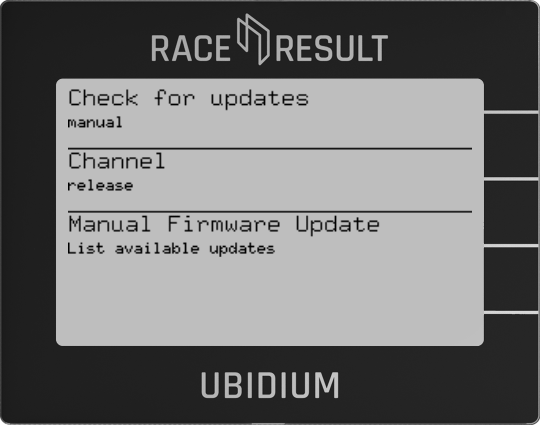
Check For Updates
Choose how to handle firmware update checks - either automatic or manual.
Channel
Choose between release or beta channel for firmware updates
Manual Firmware Update
Only available when set to manual check mode - press navigation button for List Available Updates to check and list available firmware updates.
Settings

Store all Settings to List
Creates a settings configuration list with the current system settings, the list will be saved with the entered name
Settings lists stored on the system will be automatically copied to an external USB drive when connected
Settlings List
Choose from a previously saved settings list, or remove previously saved settings lists
Load from USB-Stick
If a USB drive is connected then it will be scanned for available settings lists which can be imported to the system
Reset all Settings
Will do a full factory restore on all system settings to return the system to it's original state, the system will restart after completing a factory reset
Status & Error Logging
The firmware will log any errors which occur which can be viewed by opening the menu item.
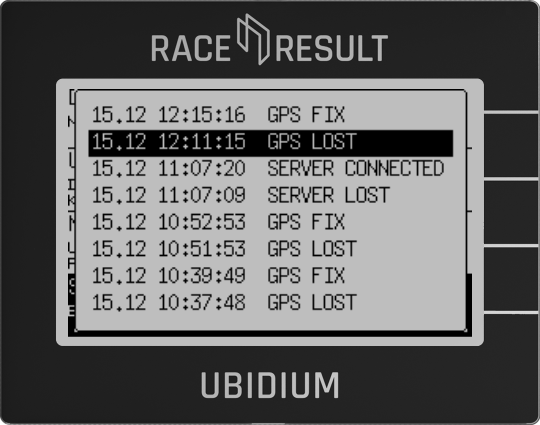
Opening the error log will clear the errors from the main display.