The RACE RESULT BLE Reader connects via Bluetooth-Low-Energy directly through the RACE RESULT EventTools app.
Scanning for devices will only list and connect to RACE RESULT BLE Readers to prevent errors with other devices.
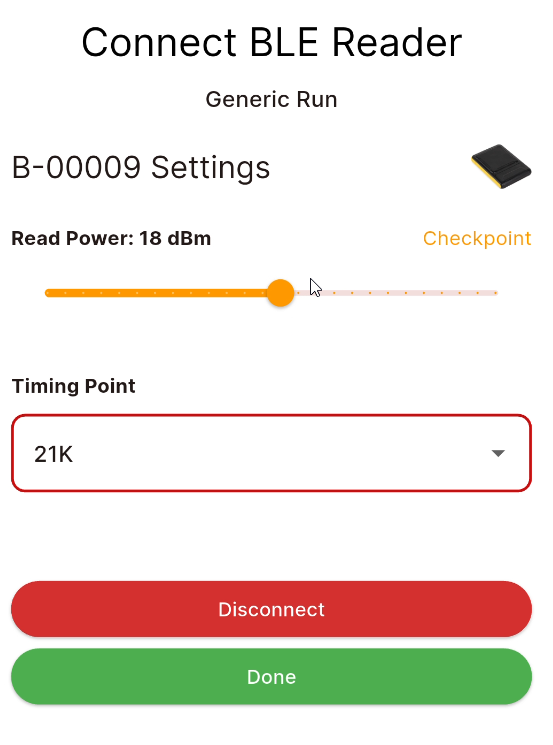
When connecting the BLE Reader the output power can be set between 5-30dBi according to your needs, the following values are estimated for different applications:
- 5-10 Kiosk Mode (Participants physically scan their bib)
- 10-15 Scanner Mode (Participants stand in front of the reader)
- 15-20 Timing Mode (Participants are read as they pass within medium range)
- 20-30 Long Range (Not recommended - maximum detection range)
Setting higher power will impact on the battery life of the reader, at Max power the estimated battery life is 2 hours.
Checkpoint
For those hard to reach areas or where you want to manually time participants the BLE Reader can be used to send timing data to RACE RESULT 14.
Once connected to the reader set the output power and select the Timing Point, and press Go to open the timing screen.
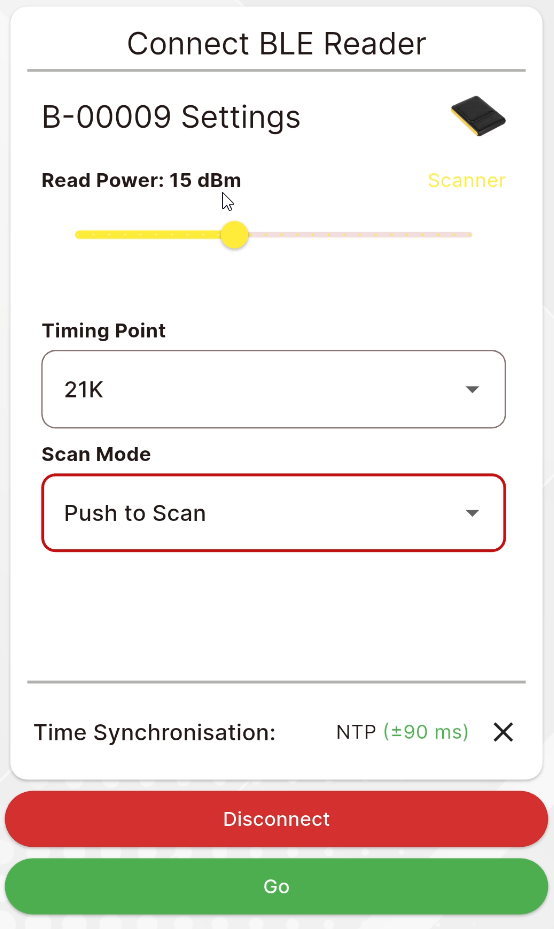
Time Source
The time will be automatically taken from your device's internal clock, since this normally runs on NTP (Network time protocol) it is accurate enough for timing. There is an experimental setting to sync the time with GPS or force and NTP update for the most accurate time.
The timing screen will automatically try to check the difference between your device time and an online server and will display a warning if this differs by more than 2 seconds.
If a time sync warning is displayed you may wish to compare the time to a decoder set to GPS and update your device time manually.
When initialising the timing screen the app will check if any start date is set in the RACE RESULT 14 Timing tab for mult-day events. If a start date is set then this will be used automatically by the app to calculate the time. If enabled then this will be shown below the main clock.
Reading Transponders
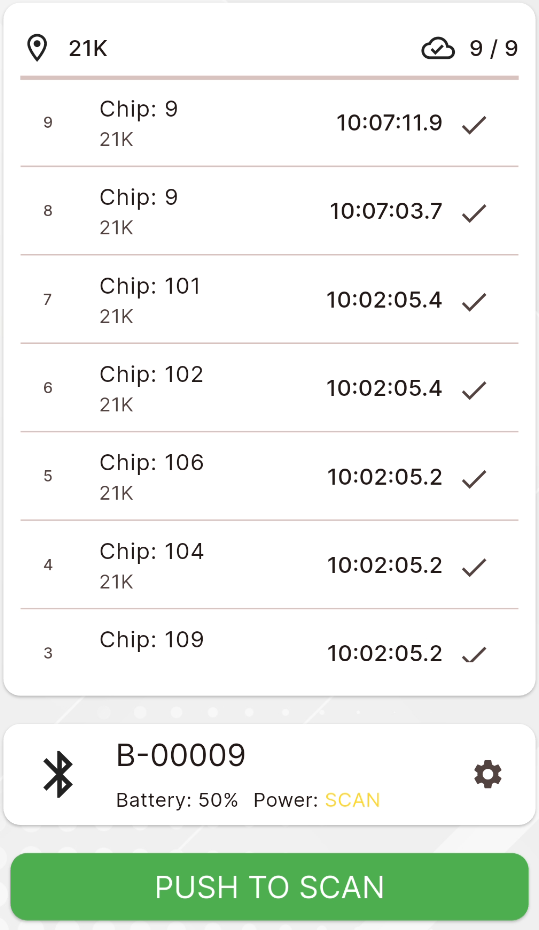
The reader and app do not contain any algorithms for accurate timing, the reader simply records the first time a transponder is seen, and then a dead time of 5 seconds is automatically observed for all transponders.
It is recommended to only enable reading to preserve battery life of the RACE RESULT BLE Reader.
The Scan Mode controls how the reader is activated.
In Standard Mode sliding the power button to the RIGHT will turn on the UHF module and start reading transponders, then slide LEFT to switch off the UHF module and stop reading transponders.
With Push to Scan you must press and hold the START button to switch on the UHF module and read transponders, releasing the button will switch the UHF module off.
Data
When a transponder is detected it is first processed by the server, when a valid transponder is detected then it will be listed in the main display and sent to your event file.
The display will show the Chip Code, which may not stricly match the bib number depending on your chip file settings.
The right side indicates whether the read has been successfully uploaded.
In the event that the internet connection is lost then the app will continuously retry to process / upload chip reads.
All chip reads are backed up to a local database on your device, in the event that internet connection is lost and not restored by the end of the event then these can be reprocessed and reuploaded from the settings page.
Reader Status
The status of the reader is constantly monitored in the background and is displayed on the screen.
Clicking the settings icon allows you to change the reader power, note that the UHF module must be off (stopped reading) in order to change the reader power.
Multi-BLE
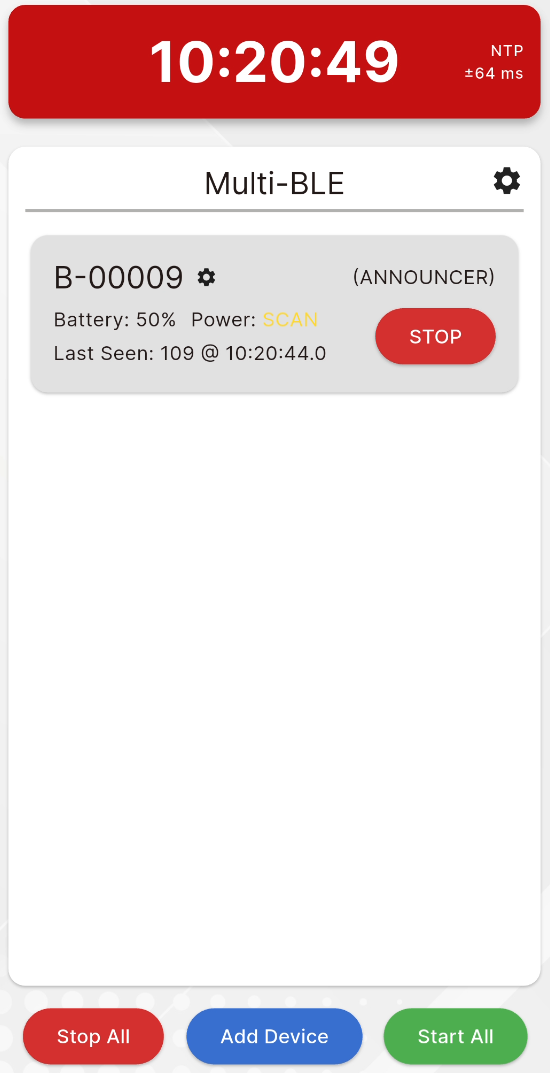
Multi-BLE mode allows the connection of multiple BLE Readers simultaneously, primarily for where the exact times are not important such as kiosks or as triggers for presenter displays.
Connecting Devices
You can connect devices by pressing the "Add Device" button at the bottom of the screen. Each device must be assigned to a Timing Point, the same Timing Point can be used for multiple devices.
Connected devices will be shown as a list with their current status. You can open the settings for each inidiviudal reader by clicking the settings icon next to the Device ID. Time sync can be done in the Multi-BLE settings. Additionally devices can be disconnected through the settings menu.
Devices can start and stop reading individually or all together using the corresponding buttons on each device tile or at the bottom of the display.
Data
When a transponder is detected it is first processed by the server, when a valid transponder is detected then it will sent to your event file.
Each device will show the last transponder detected.
Chip Check
Using the RACE RESULT BLE Reader in conjunction with the RACE RESULT 14 Chip Check allows you to quickly and easily see participant data on the screen.
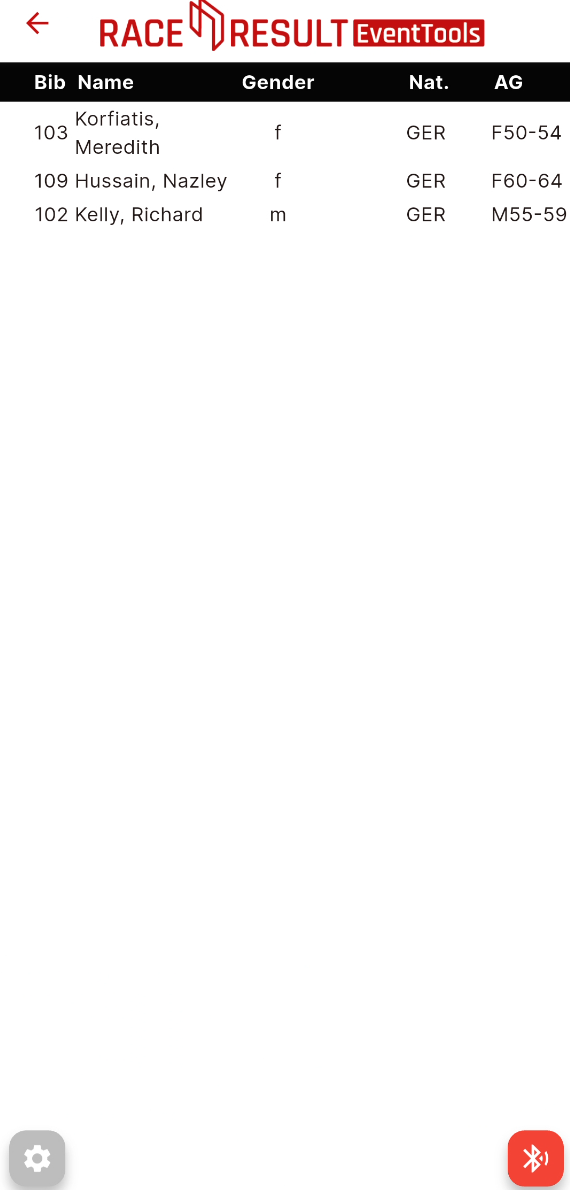
Once connected to the reader, choose your output power and proceed to the chip check display.
The display is a simplified copy of the main tool from RACE RESULT 14, you can select the output list and font size as normal using the dropdowns at the bottom of the screen.
Clicking the red button will start the reader and hide the dropdown selectors, the display will now be full-screen.
Stop the reader by clicking the green button which will now show the dropdown selectors.
Settings
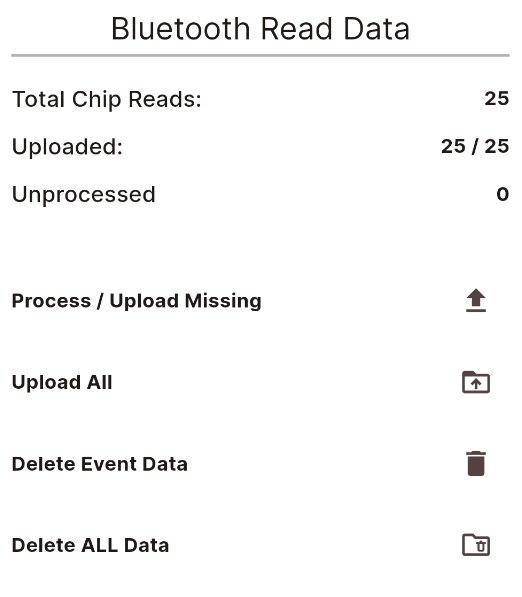
All chip reads recorded through the Checkpoint screen are stored on a local database on your device, times are stored as UNIX timestamps.
The settings screen shows an overview of the data for the event on your device.
You can also reprocess and upload either those which were not processed / uploaded or upload all times to your event again.
Note that when doing this - the CURRENT time zone of your device will be taken as well as the CURRENT start date in the timing module, this is to allow data to be fixed if your settings are incorrect during the event.
To minimise the storage used on your device you can also delete the data from the database for either the current event or all data (all events).