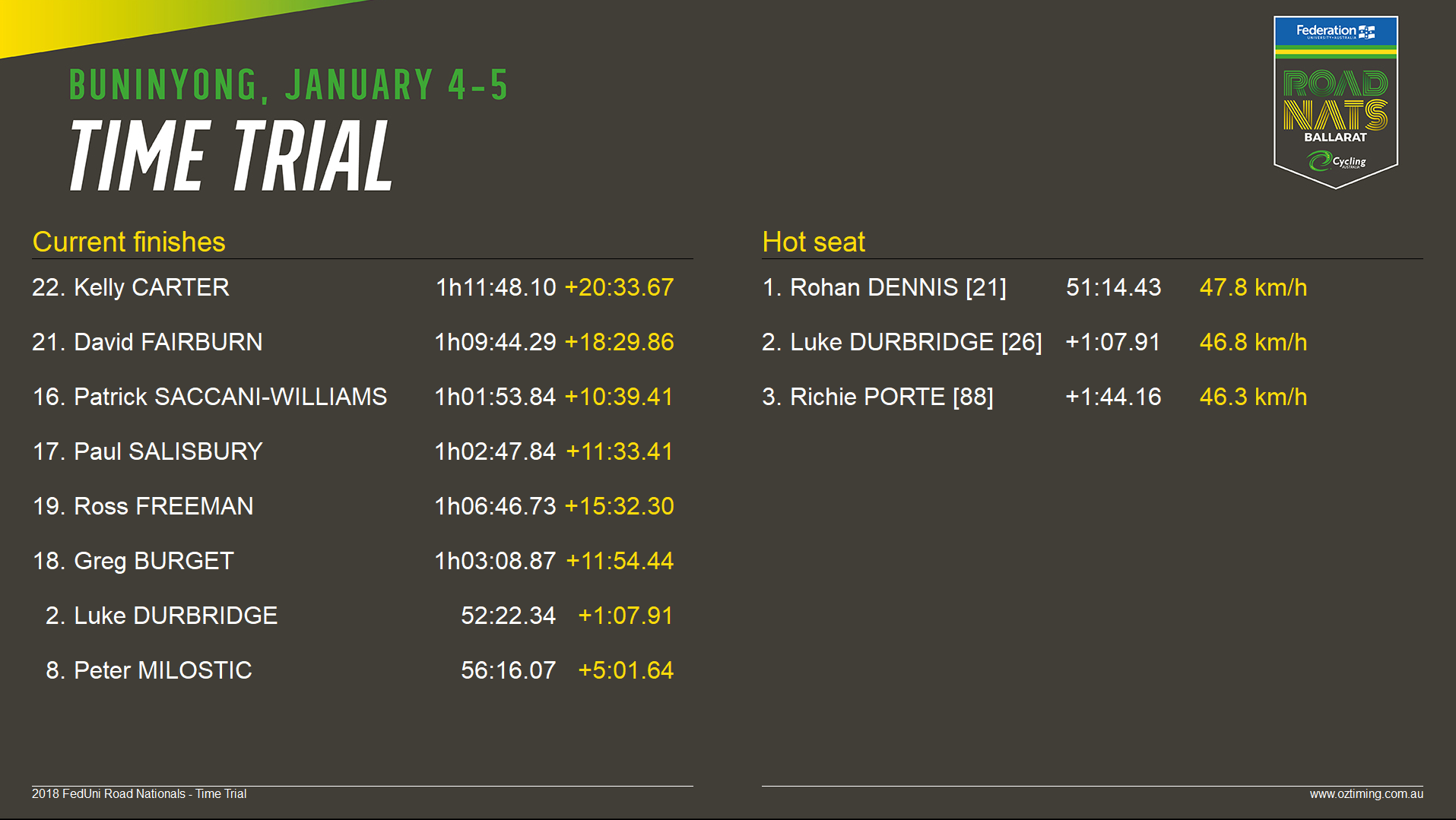
The Presenter program is primarily used to display results on display screens, it offers more advanced customisation of the display and more functionality than the browser based Present Results, similarly it also uses the output lists which you have setup in your event file. Customisation of the display is controlled by both the Presenter settings and the Output List page settings as explained in the following sections.
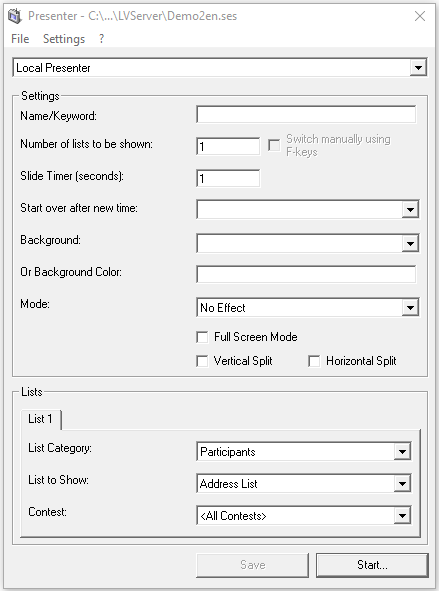
You can select to run the presenter as a "Local Presenter" or from one of 10 "Remote Controlled Presenter" options, when run locally the settings can only be controlled by the machine running the program. If you want to be able to control the display from another computer then you can use a remote controlled presenter, in this mode the settings are updated from the server and so you can update the settings from another computer without exiting the display.
Settings
These settings control how the data is displayed.
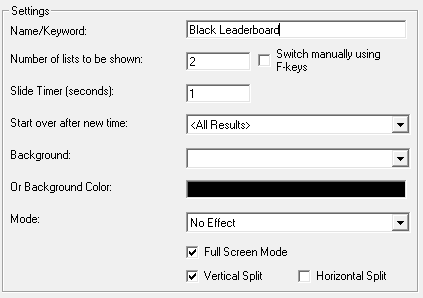
Name/Keyword: A name for the settings profile
Number of lists to be shown: The Presenter can be used to show multiple output lists either side-by-side (see vertical / horizontal split), or sequentially. Enter the number of output lists you wish to display on the screen. If not using split screen then the presenter will cycle between output lists once it reaches the end of a list, alternatively there is a tick-box to enable manual switching only using the F-keys. With manual switching enabled use F1-F12 keys to select the related list.
Slide Timer: The frequency of updating the display either with new data, or cycling through multiple pages of a single output list.
Start over after a new time: You can force the display to update when a new result is calculated, you can select either all results which would be useful for a leaderboard or a particular result such as the Finish result.
Background: The presenter can use an image from any of the pictures which are saved in your event file (under Main Window-Pictures).
Or Background Color: Alternatively you can simply set a fixed background color.
Mode: This controls the transition between multiple pages / output lists. Choose from: no effect, Slide in from top / bottom / left / right or manual scrolling / sliding.
Full Screen Mode: The display will be in full-screen with no taskbar above, to exit full screen hit esc.
Vertical Split: Used to show 2 output lists simultaneously, left and right sides of the screen split down the middle.
Horizontal Split: Used to show 2 output lists simultaneously, top and bottom halves of the screen.
If Vertical / Horizontal split are used together then up to 4 output lists can be displayed simultaneously.
Lists
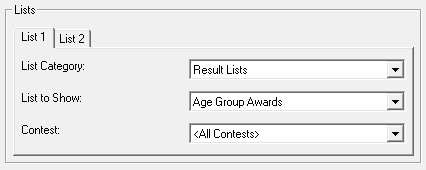
All data shown through the Presenter is controlled by the Output lists in your event file. If you enter more than 1 list to be shown then multiple tabs will be created for each list.
Select each list you wish to show and to which contests this should apply, lists are sorted by category and then the name of the list to show.
Customization
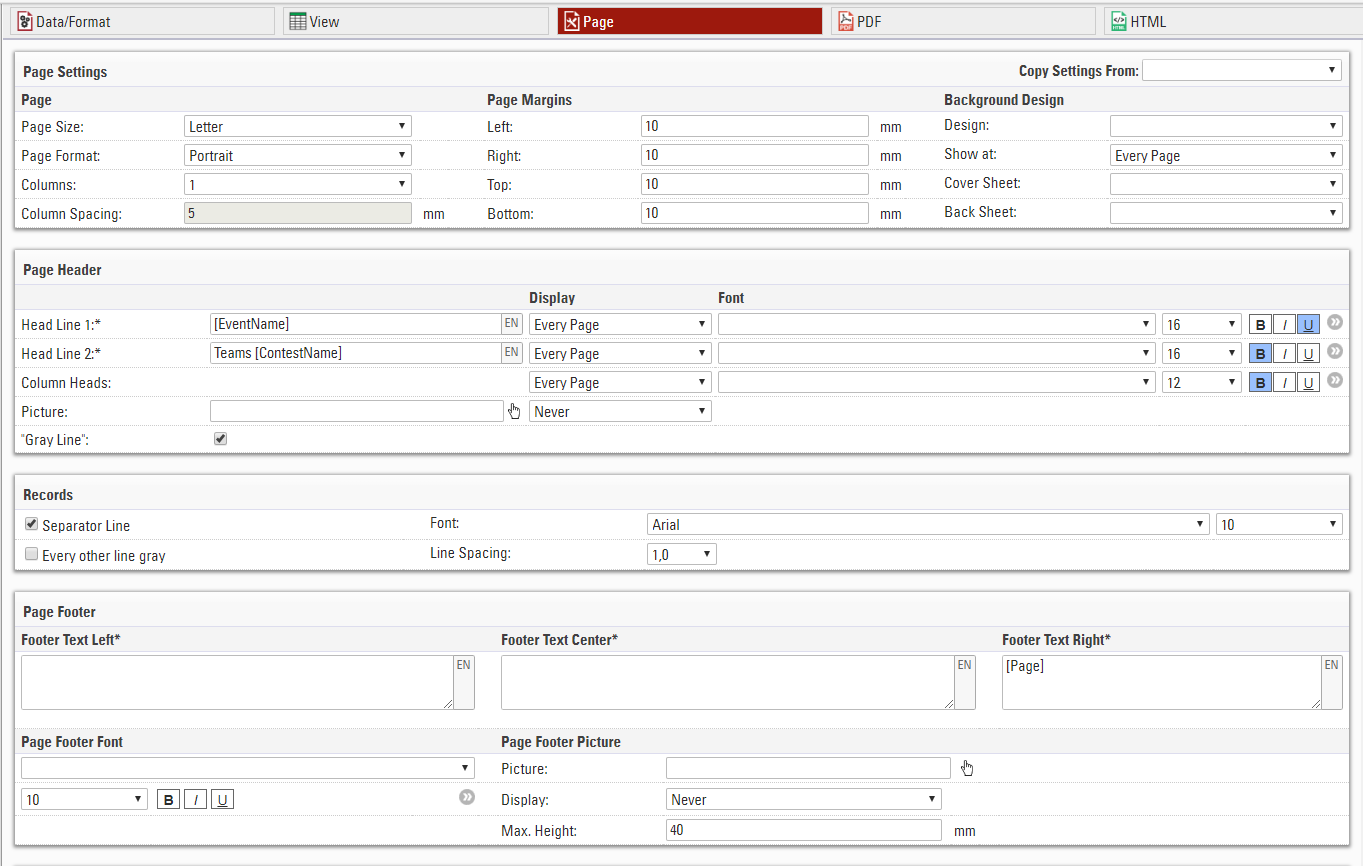
When using the Presenter you have near complete control over how the text is shown, this is controlled using the advanced field formatting for font colours and page settings in your Output list setup, the same as used for modifying PDF layout.
This gives an idea of what can be achieved using 2 output lists with vertical split, background image and custom formatting on the text. Credit to Oz Timing for this display screen.