RACE RESULT offers a variety of hardware. This guide will focus on two:
the Ubidium System and the 5000 Series System. Other systems will follow a similar protocol once connected to RR14.
Ubidium
Ubidium
- Out of the box, Ubidium should be ready to go for a local connection
- Connect antenna by plugging in the cable to the back of the decoder
- Press the ON button to turn on the system
- The system is in Timing mode by default
- You should verify the time is synced and matches your current time zone

5000s
5000 Series
- Power on the decoder by pressing the ON button. Give the decoder a minute or two to power on. The main screen of the decoder should look like the below example.

- NOTE: The MENU button is in the center. The OK button is on the lower right.
- Navigate to Menu > Time > Configure GPS time.
- Use the left and right arrow keys to select your correct time zone. Press OK to confirm.
- Press Cancel once to navigate back to the Time menu.
- Select Set GPS Time. Wait for the decoder to connect to GPS.
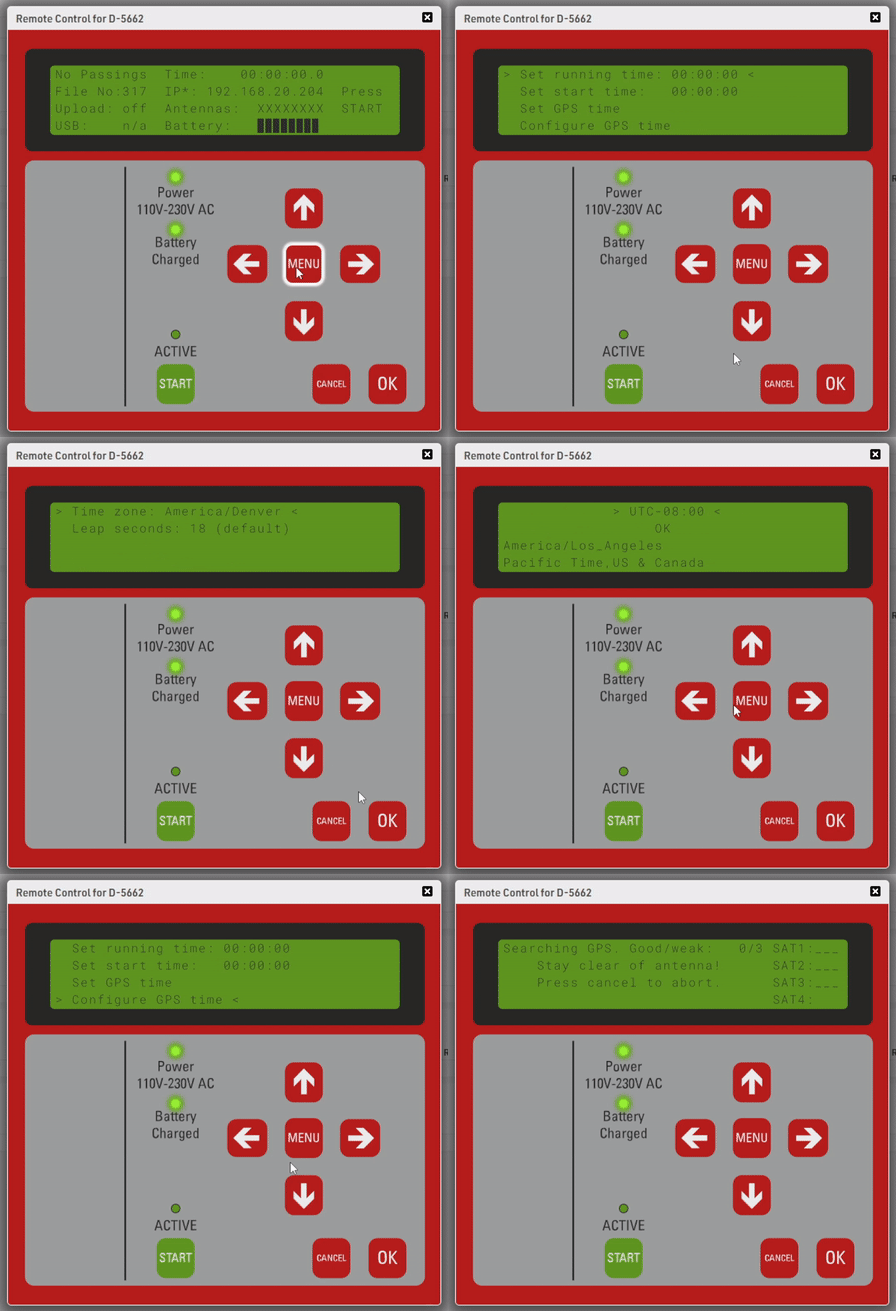
- Once the decoder finds GPS, you will see a clock at the top of the screen. Make sure this is showing the correct time of day. If not, double-check your Time Zone and sync GPS time again.
-
IMPORTANT! Press the green START button on the decoder to enable timing mode.