The following articles show how to handle different scoring and awards setups.
Calculate the Average Time of a Contest, Based on the Finishers' Time
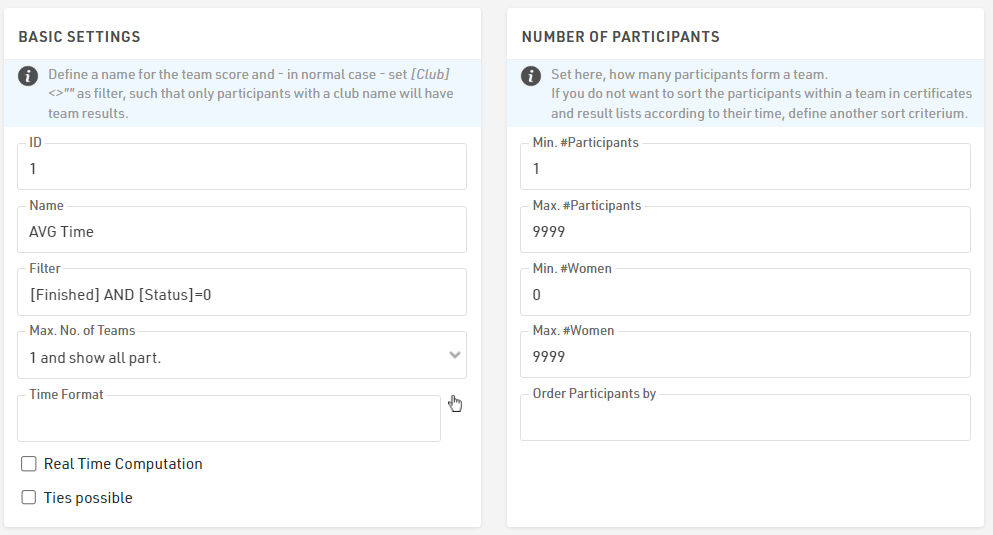
To calculate the average time for a specific contest based on finishers' times, a Team Score needs to be created. This will group all participants who have completed the same race.
To filter the participants, you can use the condition: [Finished] AND [Status]=0.
When configuring the Team Score, set the following parameters:
- Participants: Minimum 1, Maximum 9999
- Women: Minimum 0, Maximum 9999
- Max. No. of Teams: "1 and show all participants"
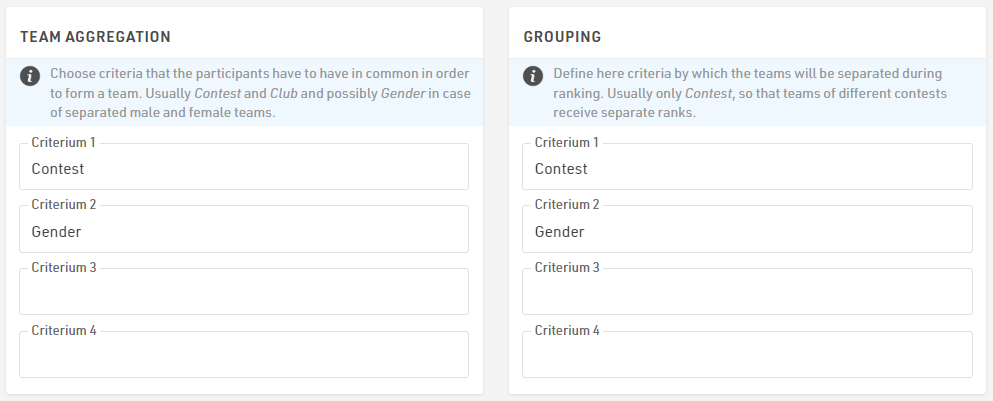
If you want to calculate the average time based on both Contest and Gender, ensure that these fields are included in the Team Aggregation and Grouping Settings.
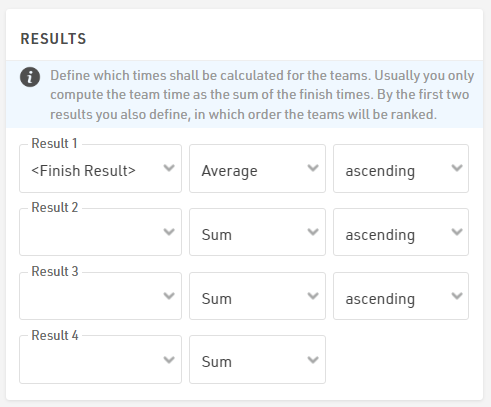
To calculate the average time, go to the Result section of the Team Score and select the <Finish Result> with the "Average" mode.
Finally, you can access the average time for each contest and gender by referencing the fields [TSX.Time1] or [TSX.DecimalTime1]. This allows you to perform additional calculations requested by the race organizer.
Add Penalties to the Finish Time
In some events, it may be necessary to apply penalties to participants, which are added to their finish times and can impact the final rankings.
Penalties can only be applied using Special Results. This article will guide you through implementing penalties when scoring a race using Splits and Special Results.
In both cases, don't forget to reference the FinishResult in your ranking calculations and output lists to consider the penalties!
Scoring via Splits
If you are scoring the race using Splits, follow these steps:
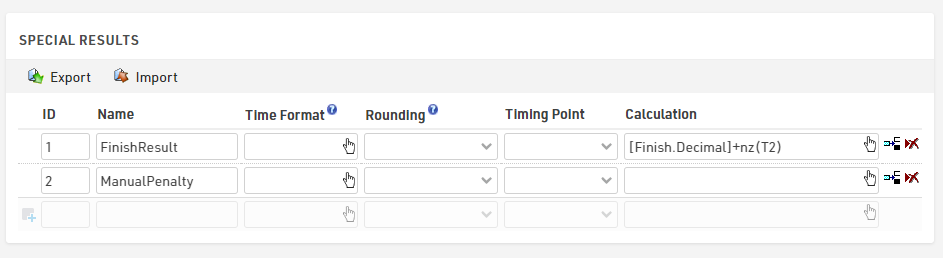
- ManualPenalty: Create a Special Result to store the penalties for each participant.
- FinishResult: Create a second Special Result where you reference the specific split time you wish to consider (e.g., [Finish.Decimal]) and add the penalties using the nz() function.
Scoring via Special Results
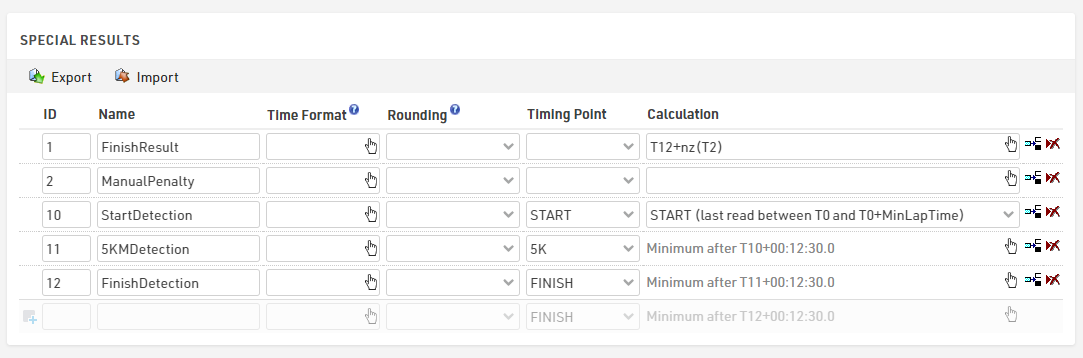
If your race is already scored using Special Results, simply create an additional Special Result to store the manual penalties. Then, add these penalties to the finish time using the nz() function.
Assigning penalties to Participants
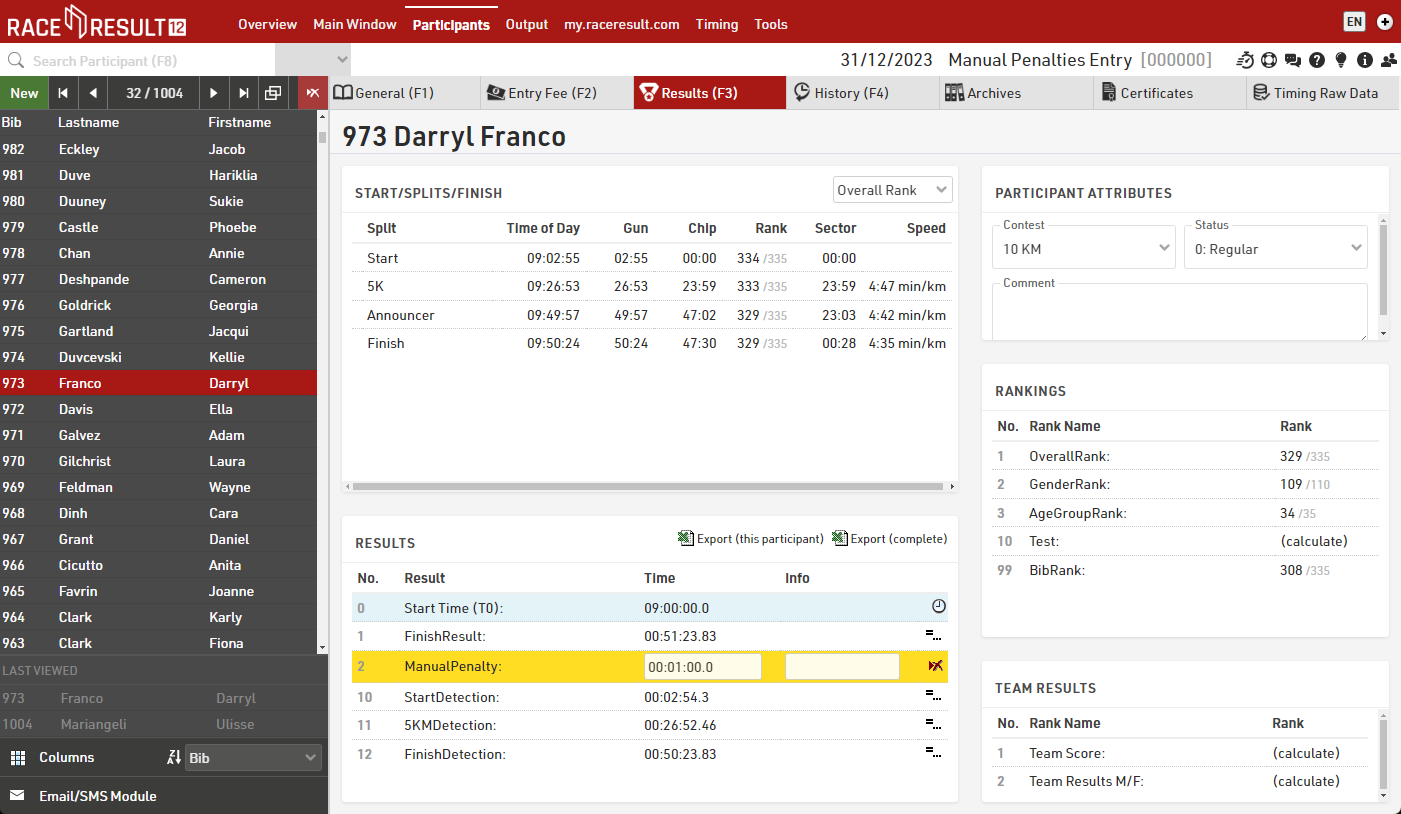
To manually assign penalties to individual participants, navigate to Participants > Results and enter the ManualPenalty in the appropriate field.
Pro tip: Use an Additional Field to Store Penalties
To allow referees to add penalties directly to specific participants, create an Additional Field to store the penalty time and include it in a Check-In Kiosk: reference now the additional field in the ManualPenalty result with the function TimeFromString().
Master, GrandMaster, and Double dipping
Our Knowledge Base article Stop "Double Dipping" for Age Group Award will explain the basics of double-dipping. This article will discuss an advanced double-dipping setup where you have a MasterRank and a GrandMasterRank.
User-Defined Fields/Fcts.
First, create UDFs to help us organize the various filters needed for our rankings. Listed below are the UDFs you will need.
These two UDFs check for rank eligibility. For example, IsMaster checks to see if the participant is aged 40 to 49.
| Name | Expression |
| IsMaster |
[Age] IN "40-49" |
| IsGrandMaster |
[Age]>=50 |
The award depths UDFs are where you store the award depth value for each ranking.
| Name | Expression |
| GenderAwardsDepth | 3 |
| MasterAwardsDepth | 1 |
| GrandMasterAwardsDepth | 1 |
These three check to see if someone is an award winner for that ranking. For example, IsGenderWinner checks to see if someone has a GenderRank greater than 0 and a GenderRank less than or equal to the GenderAwardsDepth. If they do, they are considered a winner for that ranking which will be represented by the number 1. Those who do not fit this filter will be represented with the number 0.
| Name | Expression |
| IsGenderWinner |
[GenderRank]>0 AND [GenderRank]<=[GenderAwardsDepth] |
| IsMasterAwardWinner |
[MasterRank]>0 AND [MasterRank]<=[MasterAwardsDepth] |
| IsGrandMasterAwardWinner |
[GrandMasterRank]>0 AND [GrandMasterRank]<=[GrandMasterAwardsDepth] |
Rankings
The above UDFs can now be used to filter your rankings.
| Name | Filter |
| GenderRank |
[Finished] AND [Status]=0 |
|
MasterRank |
[Finished] AND [Status]=0 AND [IsMaster] AND [IsGenderWinner]=0 |
| GrandMasterRank |
[Finished] AND [Status]=0 AND [IsGrandMaster] AND [IsGenderWinner]=0 |
| AgeGroupRank |
[Finished] AND [Status]=0 AND [IsGenderWinner]=0 AND [IsMasterAwardWinner]=0 AND [IsGrandMasterAwardWinner]=0 |
GenderRank has the default filter checking for if the racer finished the race and if their status is normal (represented by a 0).
MasterRank, we add the filter
AND [IsMaster] AND [IsGenderWinner]=0
IsMaster checks to make sure the participant is eligible for the MasterRank. [IsGenderWinner]=0 checks to make sure the participant is not a GenderRank winner meaning they are not within the specified awards depth for GenderRank.
GrandMasterRank has a similar filter to MasterRank. The only difference is that IsMaster is changed to IsGrandMaster.
AgeGroupRank filters by all the IsWinner UDFs since it is last in the ranking order, we want to make sure that none of the previous winners are eligible for the AgeGroupRank.
Output Report
For an advanced awards report, please see Advanced Awards Report (Different Award Categories in one List).
To add a basic output report for MasterRank and GrandMasterRank you can simply copy the Gender Results report from our standard template. Make sure to update GenderRank to MastersRank in all three sections, Grouping/Sorting, Fields/Columns, and Filter.
Attached to this article is a copy of a basic event file with all of these functions, rankings, and output reports.
Advanced Awards Report (Different Award Categories in one List)
The following example shows how to create a single output list that lists all award winners in a single list. Note that this method is only possible when preventing "double dipping" - since each participant can only appear in the list once.
User Defined Functions
This setup uses some User Defined Functions, isGenderWinner, isAgeGroupWinner, and AwardsDepth to automate some of the calculations.
This assumes you are using one of the standard templates where your ranking that groups by gender is called GenderRank and your ranking that groups by age group is called AgeGroupRank. If your rankings are different, adjust accordingly.

Rankings
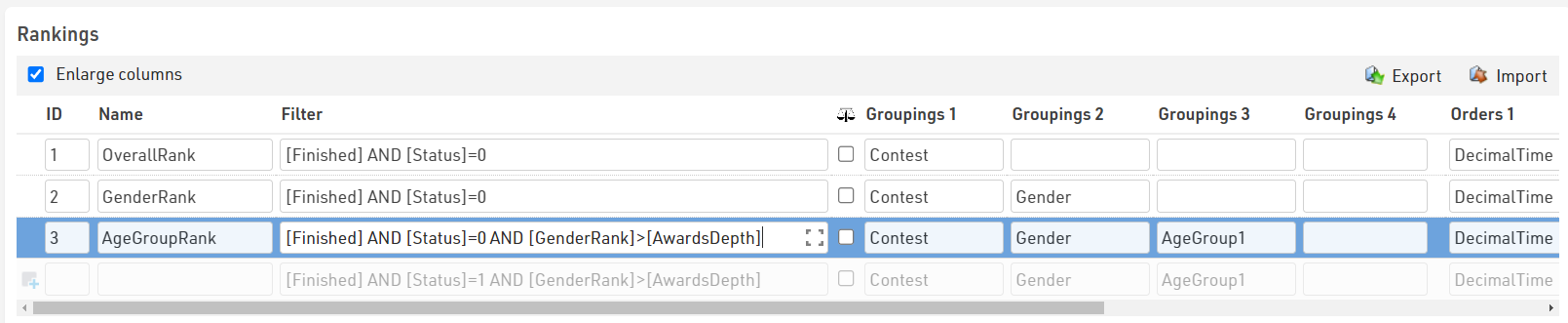
Add rules for double dipping to the Rankings settings, add the below to the filter of AgeGroupRank.
AND [GenderRank]>[AwardsDepth]
This will ensure the participants with GenderRank less than or equal to our AwardsDepth will not get a ranking for AgeGroupRank.
Output List
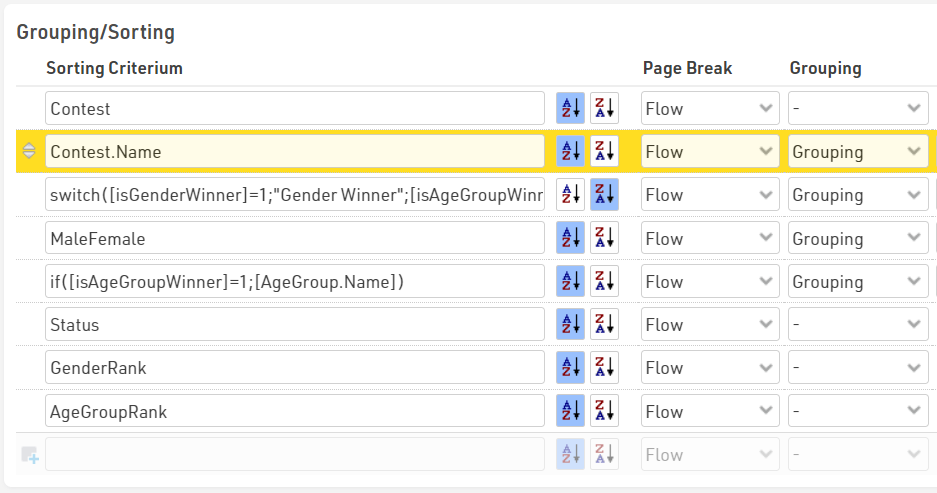
What makes this list work is the Grouping/Sorting and Filter settings. The first grouping should be [Contest.Name] so that all contests are separated in the report.
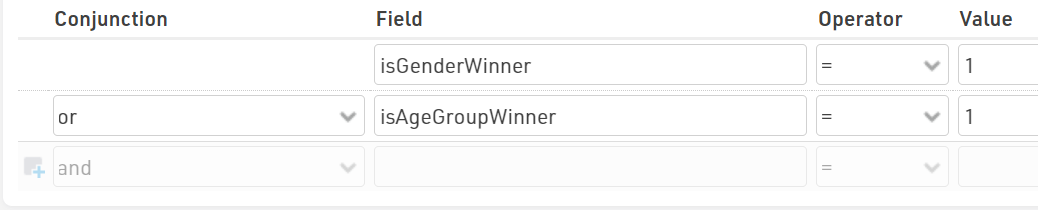
Use a switch() statement to determine who on the report is considered an OverallWinner and who is an AgeGroupWinner. The UDFs, isGenderWinner, and isAgeGroupWinner, will help with this.
switch([isGenderWinner]=1;"Gender Winner";[isAgeGroupWinner]=1;"Age Group Winner")
Since GenderRank and AgeGroupRank are grouped by Gender, use the UDF MaleFemale as the next grouping criteria. Next, group by AgeGroup.Name but only for the AgeGroup winners.
An if() statement can be used to check the isAgeGroupWinner UDF and return the data filed AgeGroup.Name for participants who are age group winners. Lastly, sort by Status, GenderRank, and then AgeGroupRank.
Output List Filter
For the Filter, the isGenderWinner and isAgeGroupWinner functions can be used. Looking back at the UDF setup, these UDFs are set to filter by Rank greater than 0 and Rank less than AwardsDepth. This ensures that only participants who are in the allotted awards depth will appear on the report.