Introduction
In this guide we explain how a MTB Downhill Enduro event could be managed using RACE RESULT 12, providing timing, scoring and live results presentation.
For this example, the event consists of 7 stages, spread over two consecutive days. For each day there is an initial start which is later used to calculate a total sector time for the first stage of each day.
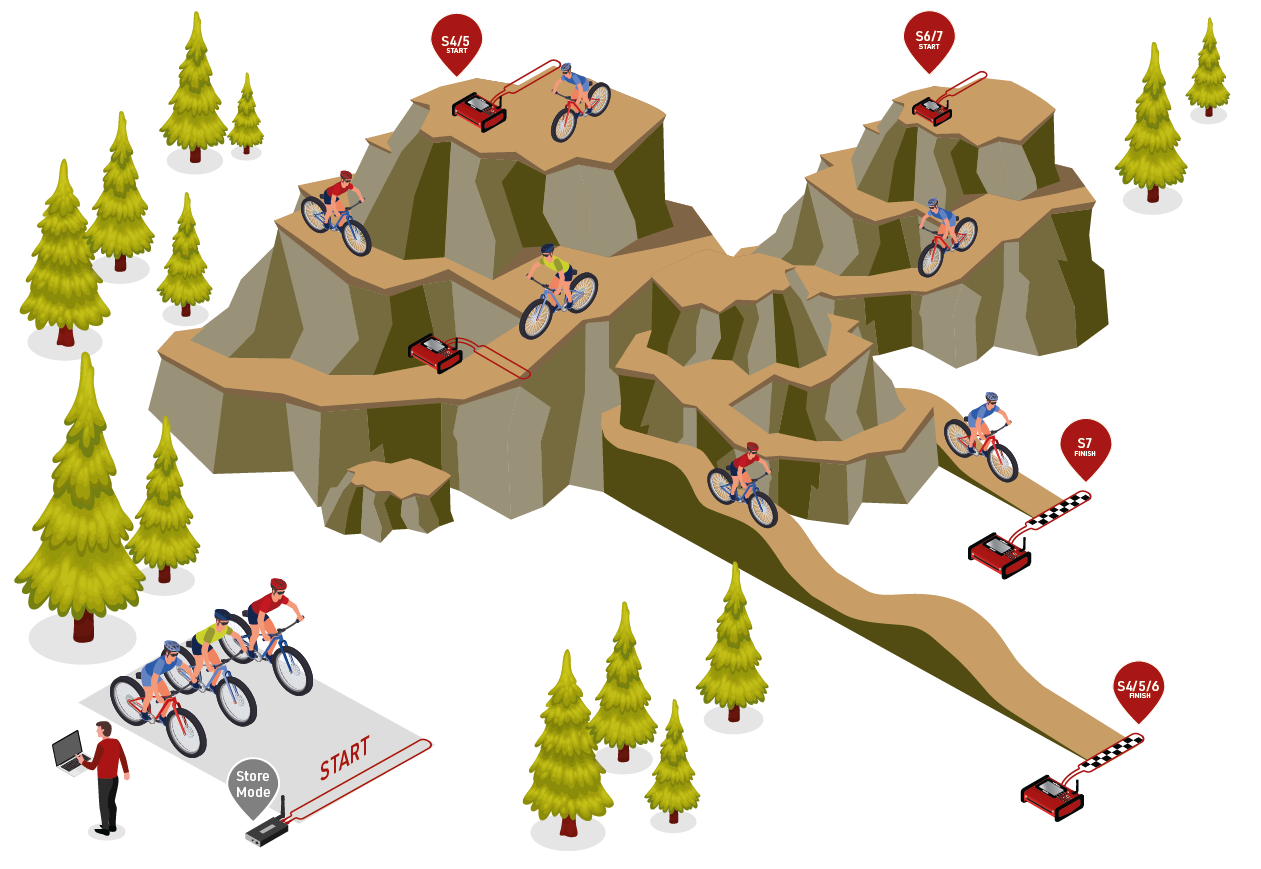
In this example, an Ubidium System is used for each stage Start and Finish to provide live results. A similar setup could be achieved using Loop Boxes in Store Mode for the stage starts, this would not impact the results setup but would limit the live results.
Day 1 - Stages 1, 2 and 3
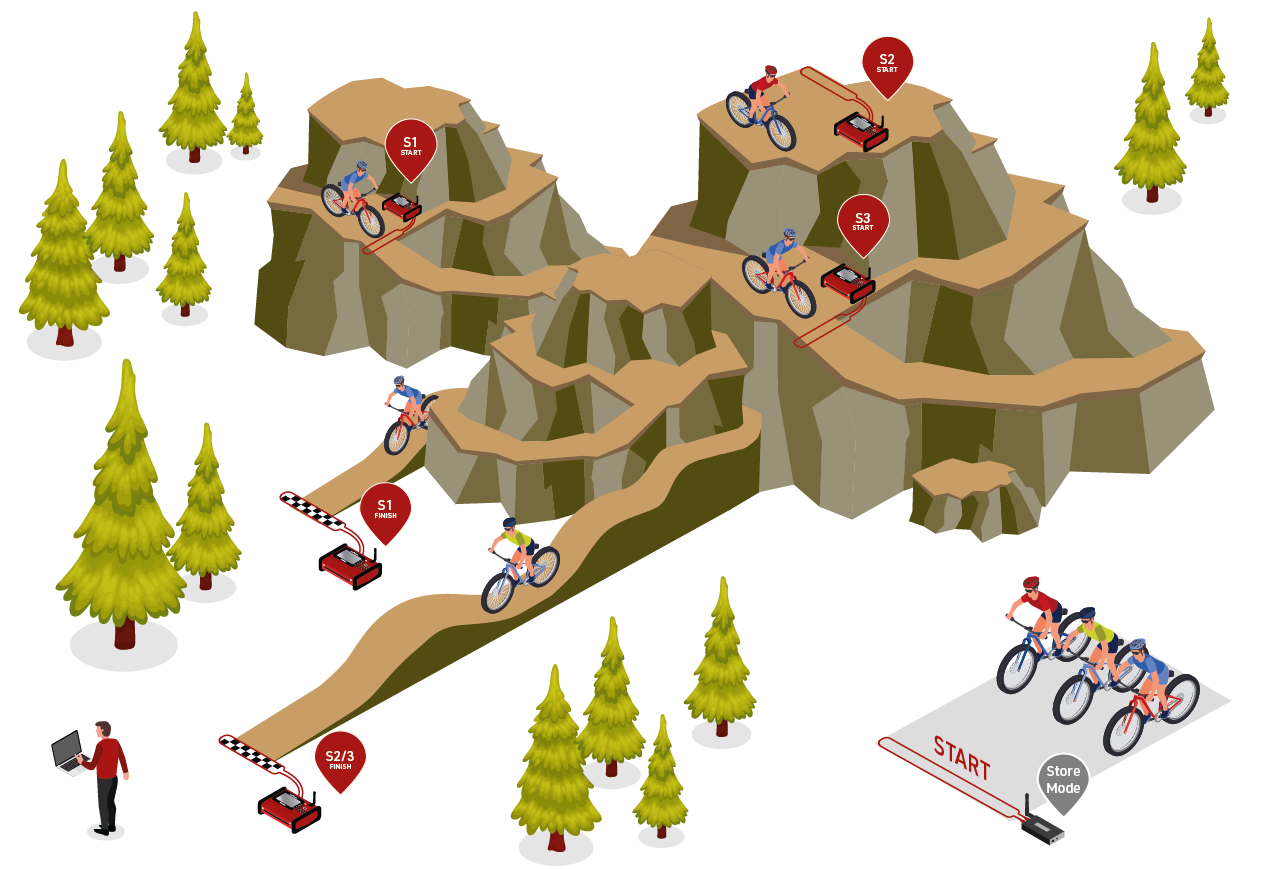
Day 2 - Stage 4, 5, 6 and 7
Event Settings
Additional Fields
Since the event consists of 7 stages, we may need to manage participants' status per each stage, however, RACE RESULT 12 offers only one single field for defining the Status of participants.
Using Additional Fields we can create 7 additional status fields, one for each stage, in order to change the participant's status of a specific stage.
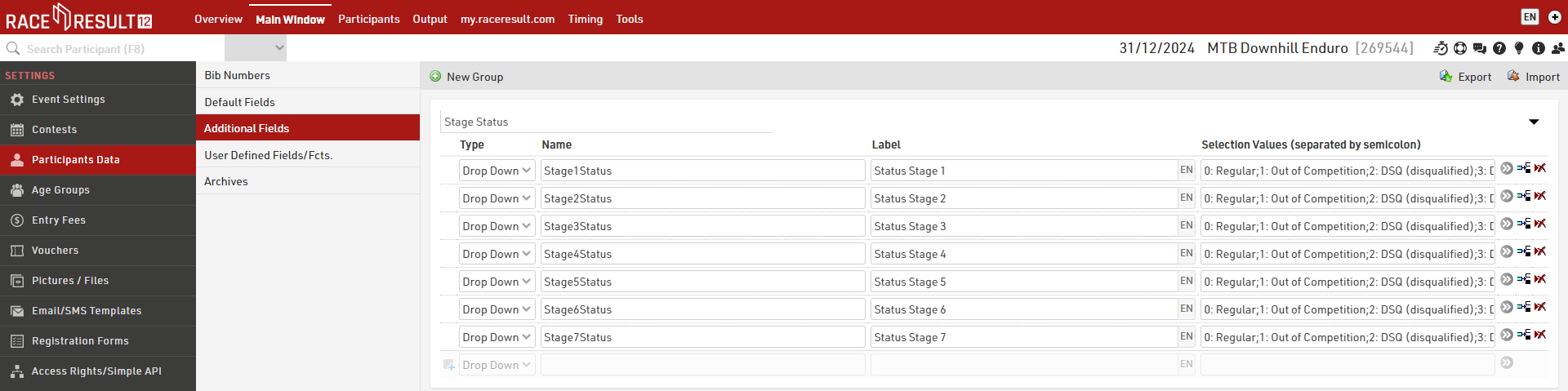
These are defined as a Drop Down and for the selection values we maintain the same logic as the default Status field, using a number and a description for each different status. This format later helps with the sorting of participants in output lists by using the numerical value for sorting.
0: Regular;1: Out of Competition;2: DSQ (disqualified);3: DNF (did not finish);4: DNS (did not start);5: did not show up
Event User Defined Attributes
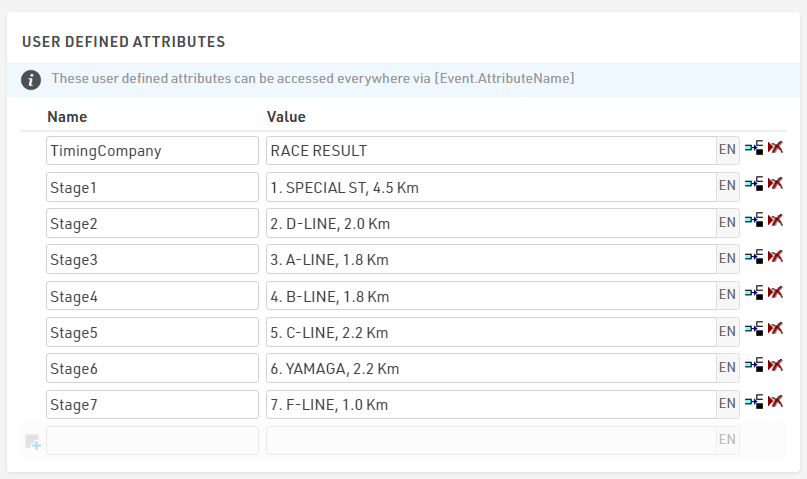
To make it easier to later call the details of each stage in Output lists we use Event User Defined Attributes.
Here we created a User Defined Attribute for each stage giving the stage number, stage name and stage length.
These can be called using for example [Event.Stage1], which returns the same value for each participant. In the event that you have different stages for different participants in different Contests you could choose to store these in Contest User Defined Attributes.
User Defined Fields/Fcts.
User Defined Fields / Functions allow us to create our own functions which can be easily called to make it easier to return specific data without needing to copy long expressions each time.
Here we created two User-Defined Functions to easily call the stage name and participant stage status.
The first is a function called StageName which takes a single parameter which we call StageID, this is purely a placeholder to make it easier to understand what value the function expects to receive.
StageName(StageID) - choose([StageID];[Event.Stage1];[Event.Stage2];[Event.Stage3];[Event.Stage4];[Event.Stage5];[Event.Stage6];[Event.Stage7])
This function uses a choose() function which takes a number input to return a value. In this example, StageName(1) would return the value for [Event.Stage1].
The second function, StageStatus, returns a numerical value for each stage status. Again, this uses StageID as a parameter.
StageStatus(StageID) - left(choose([StageID];[Stage1Status];[Stage2Status];[Stage3Status];[Stage4Status];[Stage5Status];[Stage6Status];[Stage7Status]);1)
This function uses a combination of left() and choose() functions to return only the first character of the stage status fields which we defined earlier in the Additional Fields.
A third UDF, ShowStatus(x) is used for returning the stage status abbreviation whenever (x) is different from zero. This will be used in the announcer list to define the status of participants who did not cross the finish line of each stage. [x] will be filled with the StageStatus(StageID) explained above.
ShowStatus(x) - choose([x]+1;"OK";"a.k.";"DSQ";"DNF";"DNS";"n.a.")
Timing Points
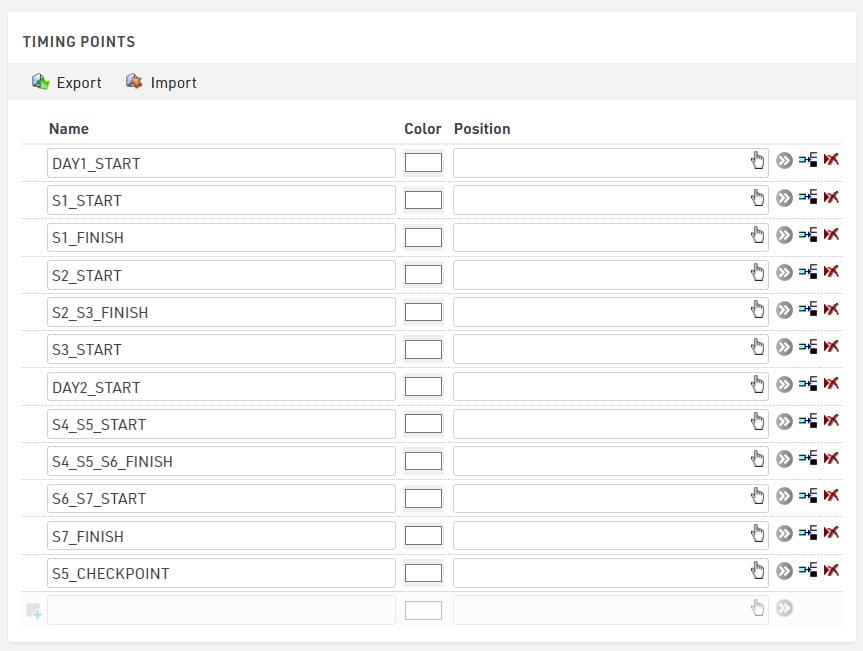
The same systems are used for both days of the event.
To make it easier to manage the assignment of times we create separate Timing Points for each stage, although note that some stages may share Timing Points (e.g. Stages 2 and 3 both finish at the same Timing Point).
Automatic Timing Point Selection
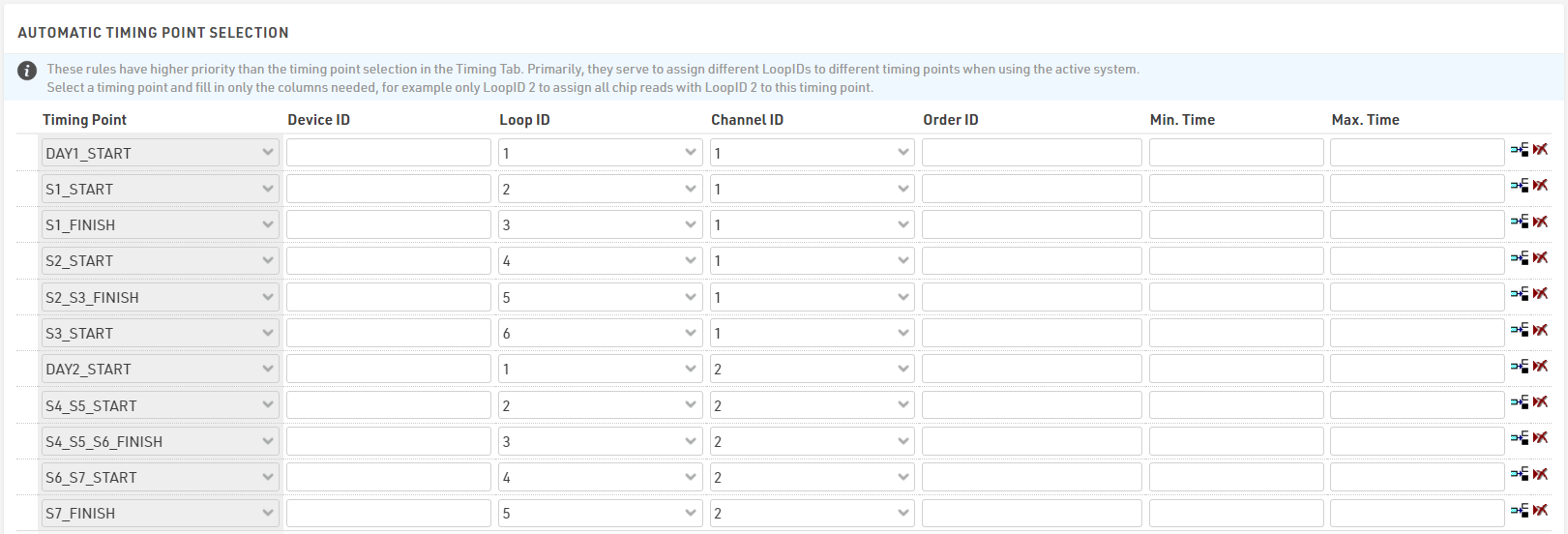
When using multiple active systems it is recommended to use the Automatic Timing Point Selection to assign data from each system to the correct Timing Point. Each Timing Point should be setup with a unique combination of Channel ID and Loop ID.
To make things easy to check we used unique Channel IDs for each day, and then used sequential Loop IDs for each Timing Point.
Special Results
When timing events with multiple stages you will need to use Special Results to calculate your results. It is important to keep a consistent structure here to make it simple to understand and easier to expand as needed.
The basic Stage Race example outlines the basic principles of how you will need to structure Special Results for a stage race.
Individual Stage Results
We first create results for the Start of each day in results 51 and 61. This takes the Maximum after T0, but it is important to note that T0 is set to 0 for this, since the stages on subsequent days may not start at exactly the same time.

For each stage, we create a set of results which will store the raw timing data and the necessary calculations for each stage.
Each stage follows the same logic, with each stage starting at a new hundreds unit, which matches the stage number.
The Finish result always refers to the start detection of that stage, taking the first read from its timing point which satisfies the rule set.

Each subsequent stage will reference the finish time of the previous stage in order to ensure the correct stage start time is used. For example the result for Stage2_Start is defined as the Maximum after T111, where T111 refers to the result Stage1_Finish.

Cumulative Stage results
For displaying the overall rank after each stage, with the relative time, we create a set of results where we sum up the stage times.
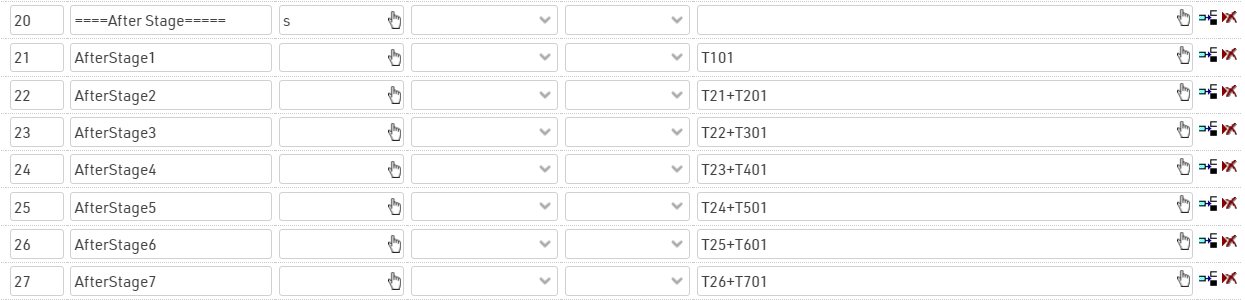
In this case, we don't use TSum() since if a rider does not have a result for a particular stage then the cumulative times for subsequent stages should not be calculated.
Calculation of Sector Times and Penalties
For this event, the regulations state that each rider must complete a full stage in less than 1h30min to avoid incurring in penalties.
A full stage is considered from the finish of the previous stage to the finish of the current stage, for stage 1 this is from the initial start until the finish of stage 1.
We calculate each sector time in a new set of results with IDs 40+, referencing the corresponding raw data results.
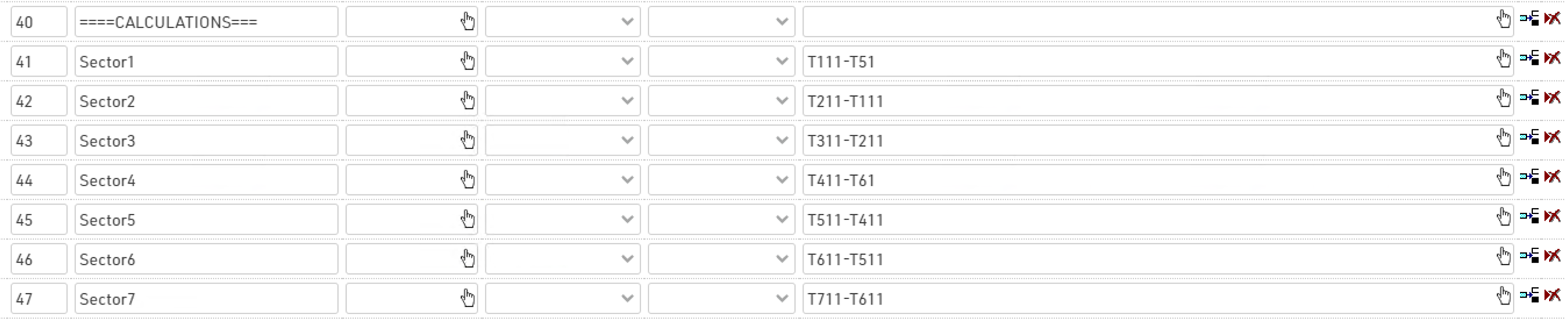
By referencing these results, with a Switch() it is possible to calculate if a penalty has to be applied to riders and how much time to add based on the time needed to cover the whole sector.
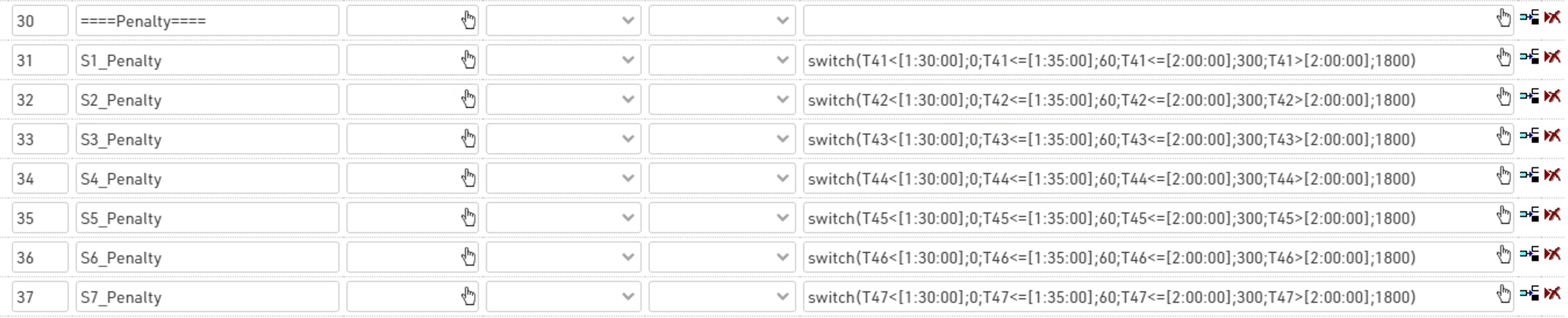
The penalty time to assign follows the table:
|
Sector Time |
Penalties |
| less than 1:30:00 | 0 s |
| between 1:30:00 and 1:35:00 | 60 s |
| between 1:35:00 and 2:00:00 | 300 s |
| more than 2:00:00 | 1800 s |
es. switch(T41<[1:30:00];0;T41<=[1:35:00];60;T41<=[2:00:00];300;T41>[2:00:00];1800)
E.g.: if Sector1Time is smaller than 1:30:00, no penalty is applied. If it is smaller or equal than 1:35:00, then 60 seconds are applied, and so on. Remember that the switch() formula stops at the first true condition!
Overall Results
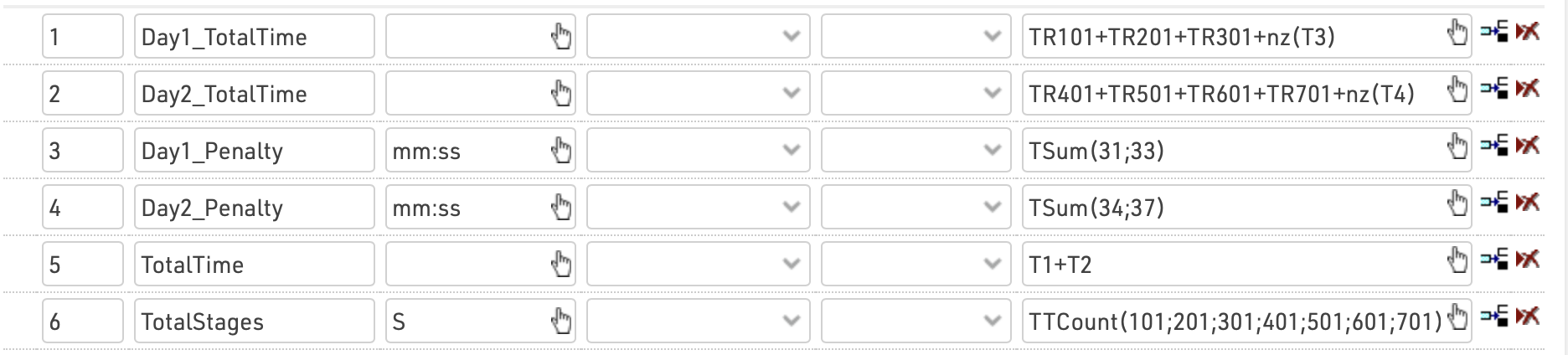
In Results 1-6 we calculate the overall results which are used to create our rankings for each day and the final results.
We first create a sum of times for each day, this uses the rounded times for each stage and the sum of penalties for that day. By using TR we ensure that only participants who have completed all the stages on that day have their total time calculated.
We additionally calculate the sum of penalties for each day using a TSum() function on the corresponding set of results.
We then calculate the total time as the sum of results 1 and 2, which are our individual day totals. Since these results only calculate if all stages have been completed, then the total time is also only calculated if all stages are complete over both days.
As an additional reference we count the number of stages which have been completed by using a TTCount function to count the number of stage results which have a time. Set the time format to s here, so the count is just displayed as a number 1-7.
Rankings
Following the same logic used in creating Special Results, Rankings have been generated for both individual stages and cumulative stage times.
Individual Stage Ranks
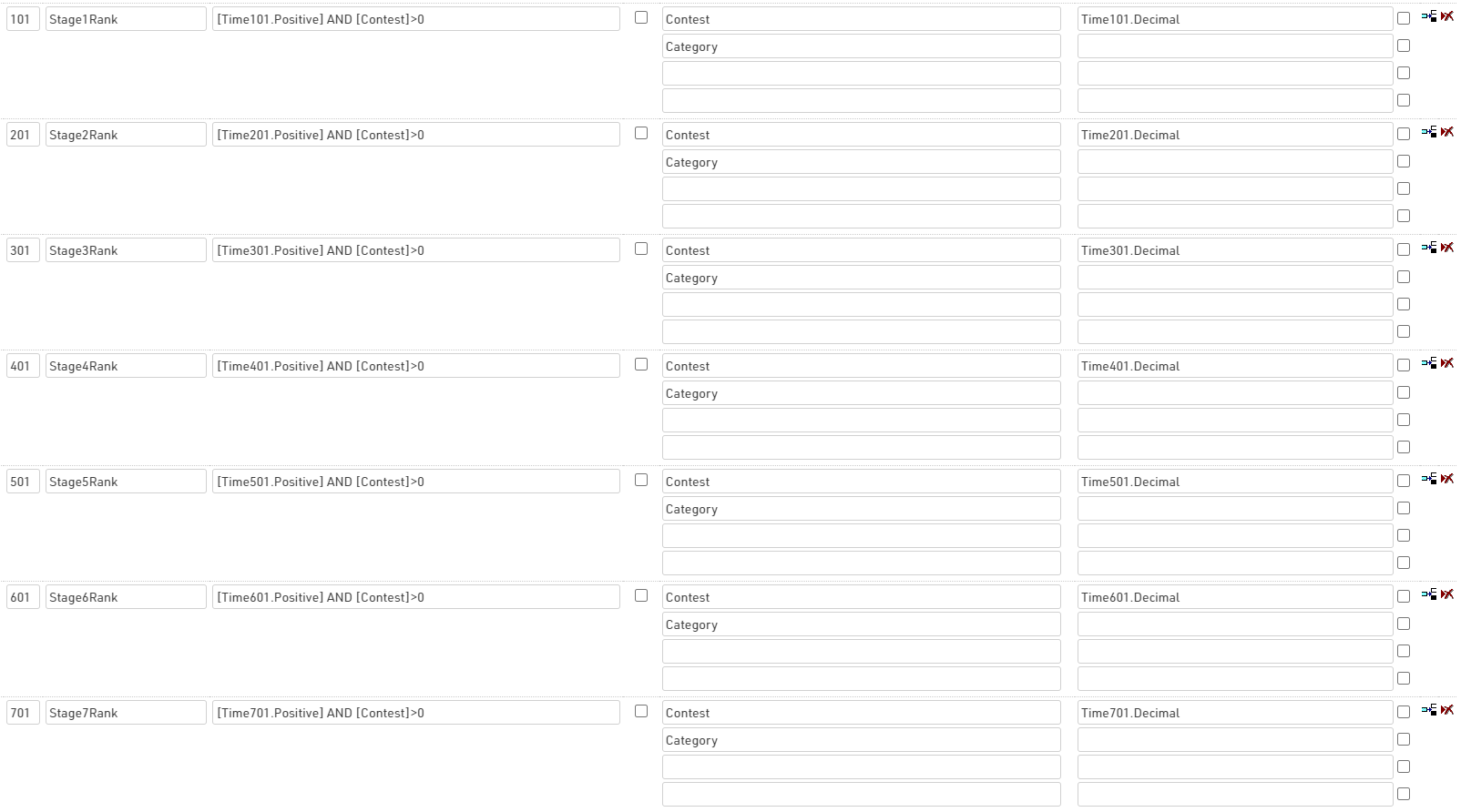
Each individual stage rank corresponds to the same ID as the special result it refers to. The filter ensures that only participants with results for that specific stage are considered. The grouping is done by Contest and Category, and the participants are ordered from fastest to slowest in the stage.
Cumulative Stage Ranks
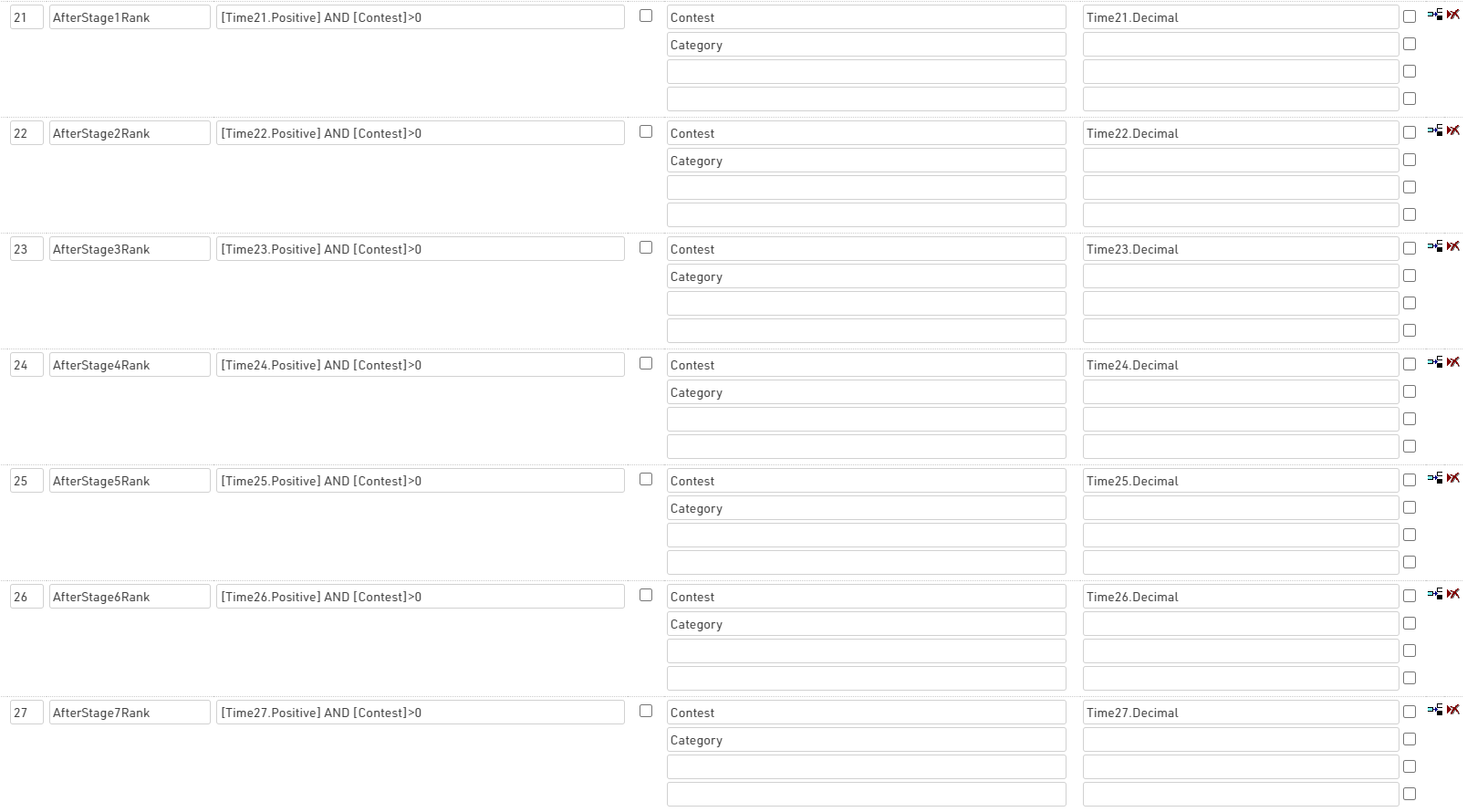
Again matching the special results IDs, the AfterStage Ranks look at the cumulative stage time and ranks participants following the same logic of the individual stage ranks.
Overall Ranks
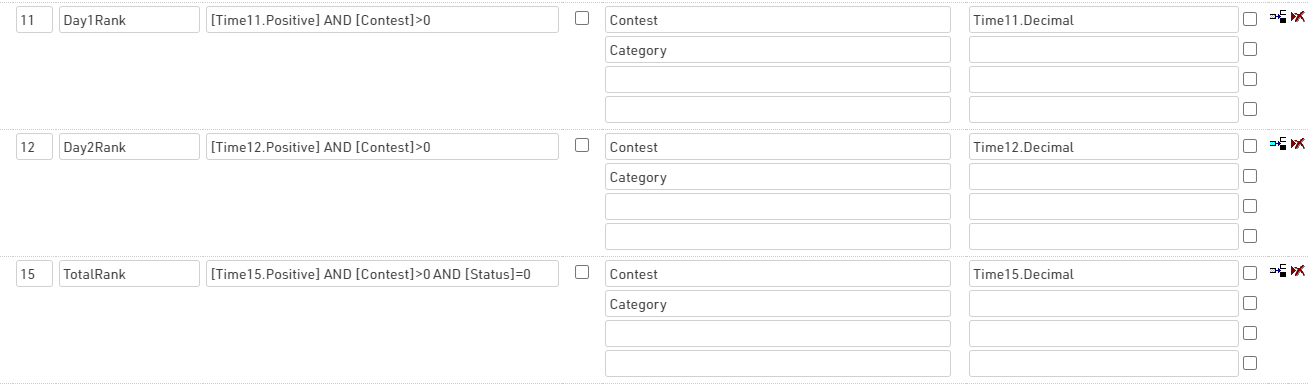
Looking at the results IDs 11, 12 and 15, which store the day1, day2 and Total Time with penalties included, the rankings 11, 12 and 15 assign a rank to all participants who have completed the full 7-stages event, declaring the winner of the whole competition.
Result Presentation
We provide two approaches to producing output lists for results presentation of differing complexities, for both versions we create lists for both an announcer feed and final results presentation.
The first is a simple approach which creates a separate output list for each stage.
The second is an advanced approach which uses the Results Selector to create dynamic lists which can easily switch between the different stages. This approach uses some of the same structure as the simple output.
Simple - Separate Output Lists
Announcer List
This list is intended for an announcer to be able to provide live updates to spectators, a separate output list will be created for each stage following the same format.
To provide an overview of the stage, participants are sorted and grouped according to whether they have started, finished, or not yet started the stage, with participants currently on the stage (started) shown at the top, followed by those who have already finished and yet to start shown last.
The sorting first assigns a value based on the special results for the stage, returning 3 for started (and not finished), 2 for finished and 1 for not yet started. This uses a switch() statement looking at the values of the StageX_Time and StageX_Start values.
The same logic is then used to group participants, returning the corresponding label for each possible value.
Within each group participants are then sorted either by their stage finish or stage start times according to whether they have finished or not. These results store the time of day so the last to start or finish are shown at the top of the respective group.
A final sorting is applied using the StageStatus() User-Defined Function which was built to sort participants who have not yet started the stage.

The output then shows some fields specific to each individual stage. The first column first checks the StageStatus() for the corresponding stage and then either returns the value for ShowStatus() or the stage rank.
The speed should only be shown if the participant has completed the stage, this is checked by looking at whether the decimal value is greater than zero. Similarly, if the stage has been finished then the stage time is shown, otherwise the ElapsedTime() function is used to show the participants' current running time on that stage.
Stage Result List
This list groups participants by their category, sorting them by fastest to slowest. Speed, Time and Gap Time are the most important info to be displayed. Again, an example of the first 3 stages result lists is shown down below in the Presenter section.

Presenter
With the presenter tool, it is possible to show the live results of a specific stage, by loading the list for the announcer.
Playing with some CSS, you can add colors, format the list based on device width, add a background to make it look nicer and much more...

And for the LED Wall, it is possible to load a presenter with the final result of each stage at the end of DAY 1 and DAY 2, with the option to auto-scroll the list.

Advanced - Results Selector
Announcer List
The results selector allows you to define a list of results which can then be selected from a dropdown to show different data according to that result, additionally a second result can be referenced from that dropdown value. Read more about the Results Selector to understand the fields being used here.
The Selector Results can be set when any of the Results Selector fields are included in the Fields / Columns of the output list. Each stage time is included as a result, and the second result then looks at the start time for that stage as we will need to reference both in the output, a stage label is given for each result.

Similar to the simple output list we group and sort participants according to whether or not they have started the stage but this time we call the SelectorTimePositive field to check whether they have finished the stage and the stage time sorting then Selector2DecimalTIme to check whether they have started the stage and for the start time sorting.
Since we are now using the Selector we simply use AutoRank to show the participants' rank within that stage, with some additional calculations based on SelectorID it would be possible to show the corresponding stage rank or status but as this is an announcer list it is not critical.

For the Time field we now reference the corresponding Selector times for the stage time and stage start time.
The GapTimeTop function relies on a result ID and rank ID, this is why it was important to use the same IDs between our rankings and special results since this now allows us to use the SelectorID which will return the ID of the special result which is the same as the required Ranking ID.
Stage Result List
For the Selector Results we have the same Results selected, but do not need to use the Result 2 for this output list.
This output provides the same grouping, but rather than calling a fixed rank for sorting we use the Rank() function with the SelectorID since again the Rank ID is the same as the Result ID.

We again use AutoRank here for the ranking, and the time and GapTimeTop instead again reference SelectorTime and SelectorID for the corresponding values to insert.

For this we additionally apply a filter to only show participants who have finished the corresponding stage by using SelectorTimePositive.
