Your Registration Forms can be included in the my.raceresult event to accept registrations and payment online.
Basic Settings
The registration page must be activated by checking Activate Online Registration, and a date range can be entered to define when the registration page should be available, according to the time zone set in your event file basic settings. Note that this is separate from the individual Registration Form active date range.
Info Text
The Info Text is displayed at the top of the registration page to provide additional information to participants looking to register, this can be entered as HTML allowing for complete customisation.
Registration Forms
Multiple Registration forms can be added to the registration page, each of which already defines the available dates and contests for the form.
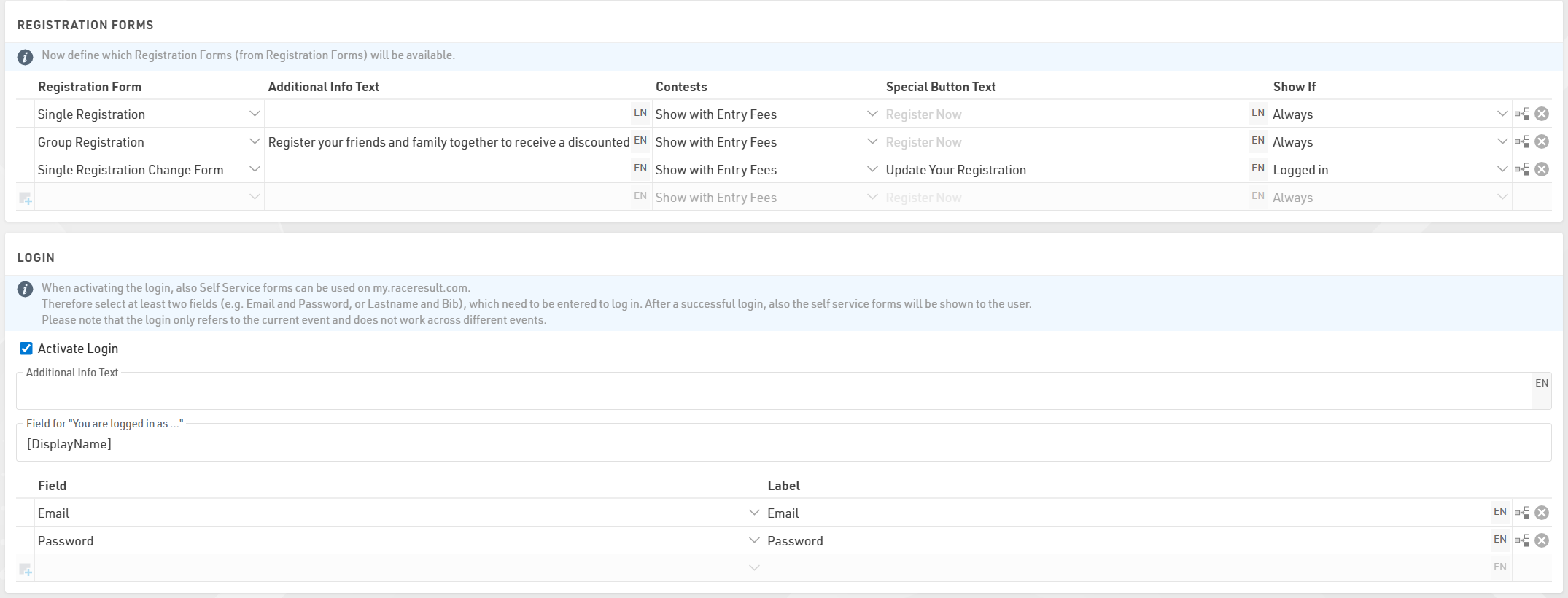
For each form you can define some additional info text to be displayed below the form title.
Selecting Show with Entry Fees will show a summary of the applicable entry fees for each available contest in that form.
You can also optionally relabel the button to start registration for each form.
If Login is activated then an additional dropdown will control which forms should be shown always, only when logged in, or only when not logged in.
Test Mode
Test mode allows you, or a third-party to test a registration form before the registration period, when in test mode the payment will not be captured.
It is advised to enter a date up to which the test mode is active to prevent this link from being used for an actual registration.
A link is available to open the registration page in test mode so this page can be accessed even before it is available according to the date range, note that it still must first be activated .
When in test mode it is possible to simulate specific dates by adding the query parameter &testDate= to the URL, this is useful for validating entry fees or active date ranges for specific fields.
e.g. &testDate=2026-12-25 would simulate registration on 25th December 2026.
Login
Login can be used to allow users to login to access specific registration forms or self service forms: this is commonly used for Company-Races where only one member of a team is in charge of the registration of all members of a team.
Please note the Login is not mandatory for using the Online Self Service. You can set up a self service form and use ChangeLink() to send a Changelink to participants via mail, by integrating the ChangeLink() in the email body.

This is primarily used for corporate registrations where a team manager may then register additional team members and ensure they are registered to the correct team / club, or with series registration where members may login to retrieve their details easily.
Note that the login is only accessible within the event it is set up and cannot be used across multiple event files.
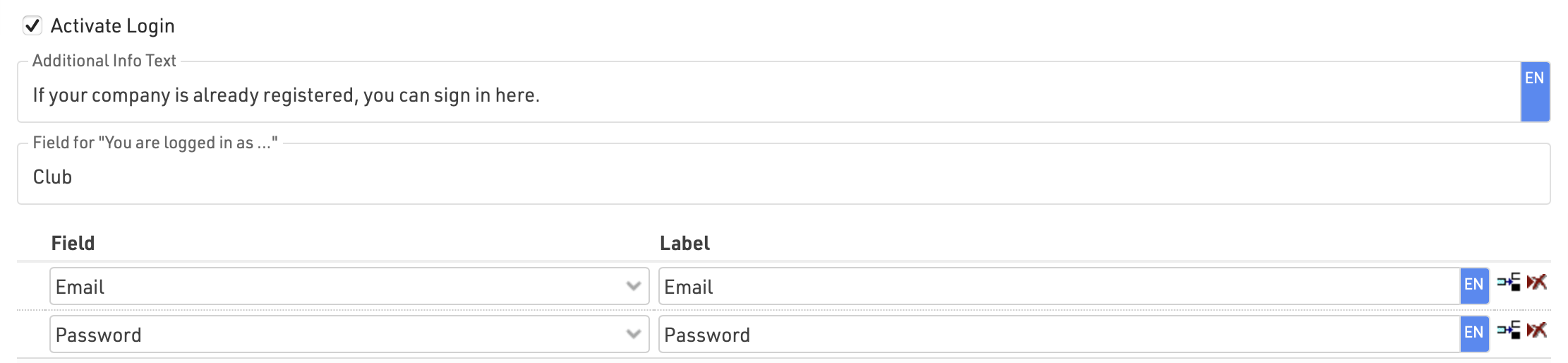
To allow users to login add at least two fields to be used to login, these should be captured in the initial registration and must be unique. Most commonly this would be an e-mail and the password field (which is stored as a hashed value).
When logged in you can show additional specific registration forms or self-service forms for the user to access.
Additionally, fields from the logged in user can be called in Store Additional Values in the advanced settings of registration forms.