Event Splits Setup
This event is a 10 km running event over a point-to-point course. We have a start line, 5K split point, and separate finish line.
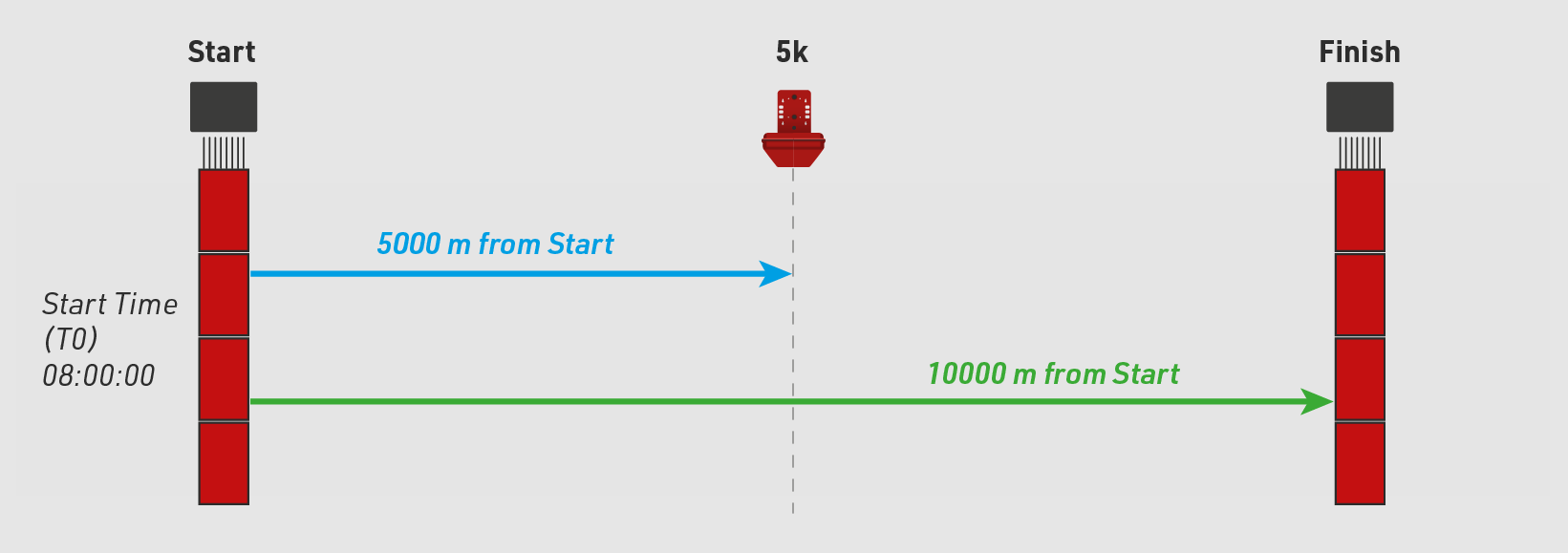
The diagram below represents the setup of the event and will be referenced throughout setting up the Splits within RACE RESULT 12.
Timing Points & Timing System Connections
Labeling Timing Points
A Timing Point defines a physical location at which chip times are recorded.
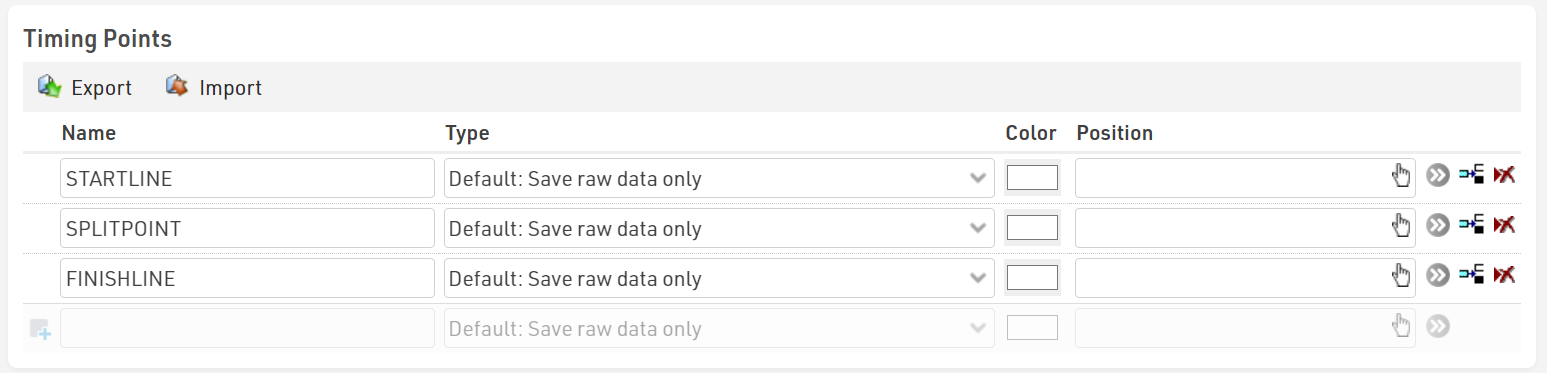
In this example, we are using three Timing Points, one for each timing location on the course, these are defined as STARTLINE, SPLITPOINT, and FINISHLINE.
All three Timing Points are configured in RACE RESULT 12, in particular note that all Timing Points are using the type of Default: Save raw data only. Splits will only work with Raw Data.
Connecting Timing Systems to Timing Points
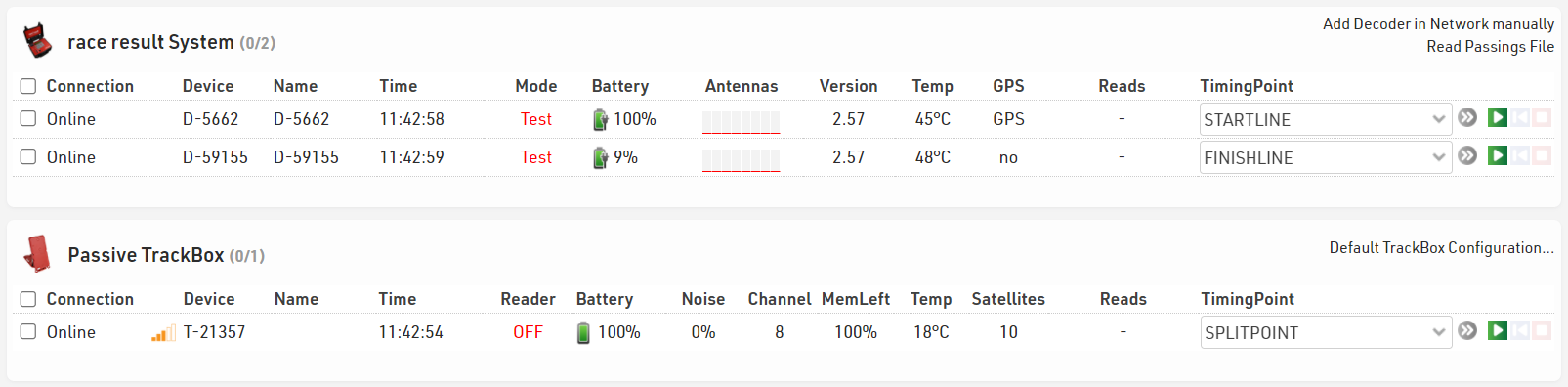
When connecting your timing systems to RACE RESULT 12 in the Timing Tab, it is important to assign each decoder to the correct Timing Point.
Later in our Splits setup, we will assign these timing points to various splits on the course. Below you can see we have three systems connected. There are two decoders, one for the Start line and one for the Finish line. We also have one Passive Track Box as our 5k split.
Splits Setup
What information is needed to calculate a Split?
Each Split point relies on three bits of information, Name, Timing Point, and a minimum valid time. The minimum valid time is calculated using either a minimum time or by using distance with a speed/pace. Together these bits of information help the software determine if a chip read is valid for each specified split on the course. You can also reference General Splits Setup for more information on Splits.
- The Name of a Split should be something that describes a location on the course without making the name too long or complicated.
- The Timing Point tells the software which raw data to use for the split.
- The Type of Sport is only necessary for defining the start of a race. When using This is the Start, the last chip read will be taken and defines the Split to be used to calculate Chip Time. When using one of the available sport types, the first read will be taken. Sport type will also provide a recommended speed or pace to use for easy setup.
- Distance is defined from a previous point on the course. For the start of a race, this will be a distance of 0. Further Splits can be defined either from the start or from any previous split.
- Pace/Speed/Time is where you define the minimum or maximum time a participant can complete the specified split.
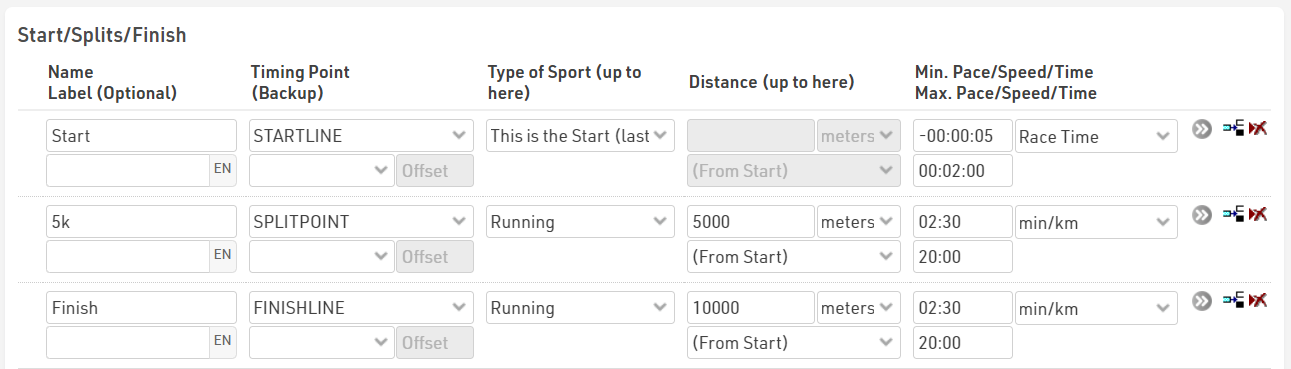
This file again has 3 Splits setup, one for each of the 3 Timing Point locations on the course.
Start Split
This first row defines the start of the race where we want to collect the last chip read for each participant as they leave the start line. This is also known as the Chip Start if you are scoring based on Chip Time. The reason we want the last chip read here is that participants who are standing on the start line will receive several chip reads before the race starts. Most of these will be ignored because they are before T0 but some participants will still get multiple reads after T0 because they are moving slowly at the start of the race. The last read is the most accurate read as a participant leaves the start line.
- We set the name to Start since this is the start of the race. This is shown on the course map as the first decoder labeled Start.
- We set the Timing Point to STARTLINE.
- Since this is the start, we set the type to This Is the Start (last read).
- Since this is the start of the race, there is no distance up to here. This option is greyed out.
- We are using Race Time which is the time from the Start Time (T0). We set a min time of negative 5 seconds and a maximum time of 2 minutes. This defines a start range of 2 minutes from T0. Any participant starting after 2 minutes will not get a start time. If it is going to take more than 2 minutes for everyone to cross the start line, this value should be increased.

Here we can see a breakdown of the above Start split. This shows us the time range in which a chip read is valid for this split point. For a detailed explanation of how this information reflects a participant's results, please see Participant Splits & Troubleshooting.
| Time of Day | Race Time | |
| Min | 07:59:55 | -00:00:05 |
| Max | 08:02:00 |
00:02:00 |
5k Split
The next row defines our 5k split point where we want to collect the first read as each participant passes this location on course.
- Split name is 5k.
- We set the Timing Point to SPLITPOINT.
- The type of sport should be set to the type of sport you are timing, this event is a running event.
- We set the distance to 5000 meters and then define this as the distance (From Start). We can see this represented on the course map by the blue line.
- By default when selecting running as the Type of Sport this is set to use pace (min/km or min/mile according to your event file's units or measurement), here we are using min/km with a minimum (fastest) pace of 2:30/km and maximum (slowest) pace of 20:00/km. When using a speed/pace with distance, the valid time window will be calculated relative to the previous split.

Here we can see a breakdown of the above 5k split. This shows us the time range in which a chip read is valid for this split point.
| Pace | Race Time From Previous Split | |
|---|---|---|
| Min | 2:30 min/km | 00:12:30 |
| Max | 20:00 min/km |
01:40:00 |
Finish Split
The last row defines our finish split where we want to take the first read as each participant crosses the finish line decoder.
- Split name is Finish.
- The Timing Point is set to FINISHLINE.
- We set the type of sport to Running.
- Distance is set to 10000 meters and defined as (From Start). We can see this represented on the course map by the green line.
- We are again using the default pace settings according to the type of sport.

Here we can see a breakdown of the above Finish split. This shows us the time range in which a chip read is valid for this split point.
| Pace | Race Time Relative To Previous Split | |
|---|---|---|
| Min | 2:30 min/km | 00:12:30 |
| Max | 20:00 min/km |
01:40:00 |
Final Splits Setup
Now that we have looked at each individual split this is what the entire Splits setup will look like.
Participant Splits Troubleshooting
Now that we have our Splits setup, we will look at a few participant examples. We will look at why some participants might have times, while others do not. For all examples, we will assume an 08:00:00 start time. The course map at the beginning of this section can be used for reference.
5k Split Analysis
First, let us take a detailed look at the below 5k split. At a minimum pace of 2 minutes and 30 seconds per kilometer, the fastest a runner can run and still get a valid 5k split is 12 minutes and 30 seconds. We know this because we can multiply a 2 minute and 30-second pace by the distance traveled which is 5 kilometers.
At a max pace of 20 minutes per kilometer, the slowest a runner can run and still get a valid 5k split is 1 hour and 40 minutes. We know this because we can multiply a 20 minute pace by the distance traveled which is 5 Kilometers.
Based on the Splits Setup we know a runner must pass this point on the course between 12 minutes 30 seconds and 1 hour, 40 minutes. We will need this information as we analyze each participant.
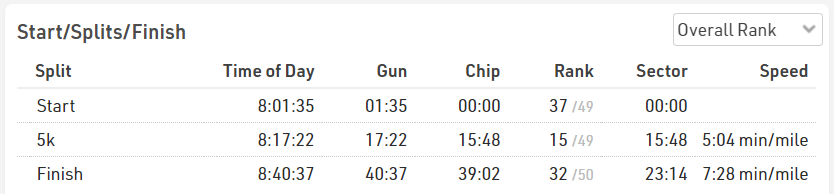
Finisher with full Splits
This shows what a normal participant who received all split times would look like. This information can be found by going to any participant's profile and navigating to their Results tab. Here we can see this participant has a time for each of our three split points. We can see both their chip time and gun time are within the range we calculated above. We can also see the pace is within the specified range.
Finisher with missing 5k split
This example shows a participant who is missing the 5k split time, but why?
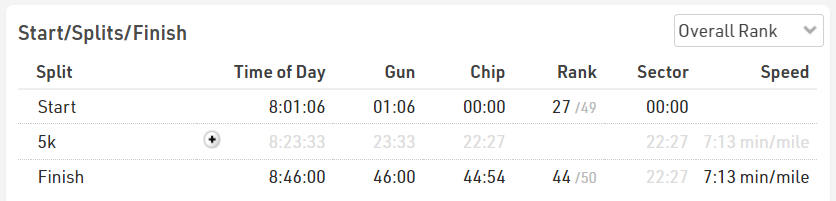
Looking at this participant's Timing Raw Data, we see there is a chip read at the SPLITPOINT Timing Point but there is no calculated Split value in the Split column.
Since we know the race started at 08:00:00 and we can see the chip read at the SPLITPOINT Timing Point is at 08:12:00 we can calculate this runner ran 5 kilometers in 12 minutes. This is equal to a 2 minute and 24 second pace. This is faster than what we allowed for in our Splits set up so this chip read is ignored and not used to calculate the 5K split.

Missing Start split
Our third example is of a participant who is missing their start time. If we take a look at this participant's Splits we see there is no Start split.
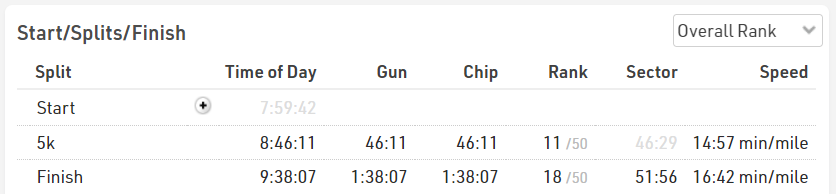
In the participant's Timing Raw Data we can see they do have a STARTLINE chip read but in the Split column, there is no Start split.

If we take a closer look at the STARTLINE timing point we can see the Time is 08:02:10.0. Our Start Split point has a maximum limit of 2 minutes race time. This time is not within this limit which was calculated as 08:02:00 so this participant's chip read does not count for the Start split.