The Participant History log allows you to track, filter, and manage all modifications made to participant data. From this view, you can audit specific changes, export data for reporting, or roll back unauthorized edits.
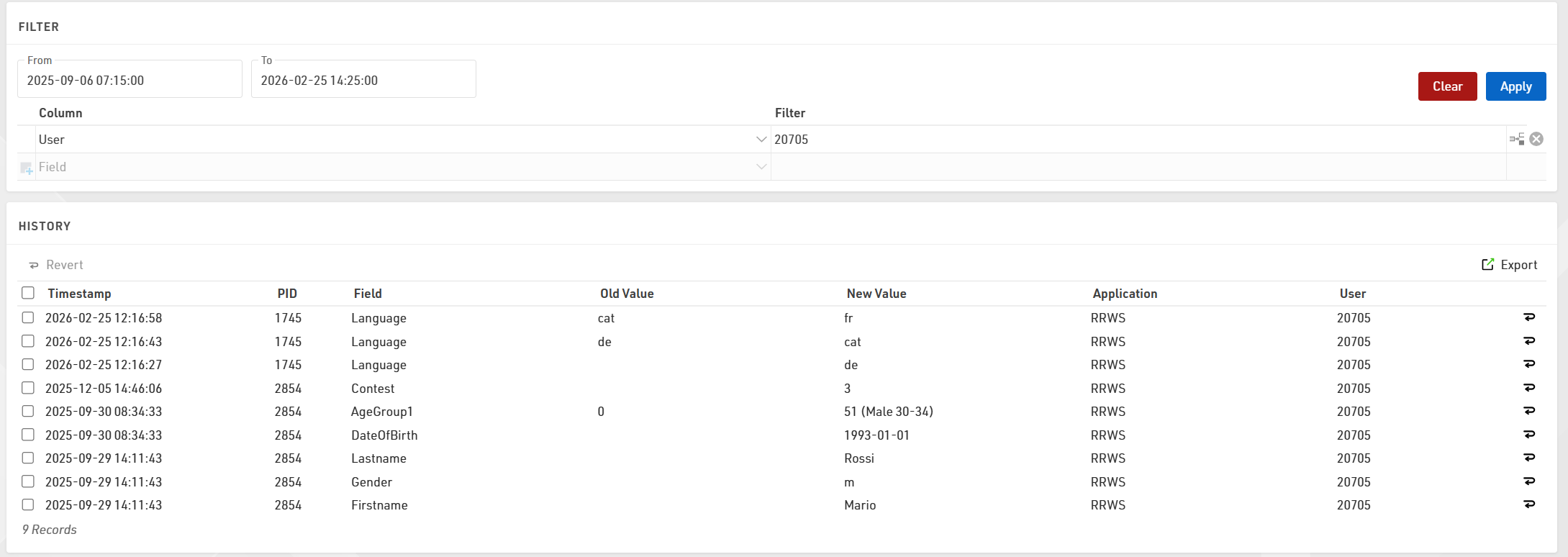
Filtering and Sorting
To locate specific records, you can sort the list by any column or apply filters using the following criteria:
- Date Range: Set From and To dates down to the minute to view changes within a specific timeframe.
- Target Data: Filter by specific Bib (PID), Field, or the exact text of the Old Value or New Value.
- Application: Filter by how the data was modified (e.g., Online, Import, or Change Form).
- User: Filter by the specific User-id that performed the update.
- Expressions: Use custom expressions for advanced data filtering.
Reverting Changes
If data was entered incorrectly, you can restore previous values directly from the history log. To undo a single change, click the Revert symbol  at the end of the specific row. To make a bulk edit, select the checkboxes for multiple rows and click the Revert button located at the top of the list.
Exporting Data
To save a copy of the history for external use, click the Export button to generate a CSV file of the currently filtered or selected view.