When using online registration you may need to produce invoices for participants with their payment information for accounting purposes. An invoice is a unique and singular document containing a fixed set of data which should not change.
Invoices are not be linked to just a single participant record, they may group multiple participants together under a single invoice. Each invoice contains the data as to which specific entry fees have been linked to that invoice, this allows multiple invoices to be generated for participants for later payments or refunds if required. Invoices have their own set of fields to be used which relate to the invoice settings.
Invoices can also be generated as e-invoices in the ZUGFeRD format. It is important to note that an invoice does not necessarily have to be linked to a payment process and can therefore also be created and sent independently of online payment. One invoice could also contain several payments of different participants.
Creating and sending invoices can optionally be combined with the email confirmation, but is generally independent of the registration process. Application examples for creating and sending invoices can be found in our How To.
Settings
The settings determine the Invoice Fields which can be used in the invoice layout, and how invoices should be grouped.
General
General Settings
The first invoice number can be any fixed alphanumeric string, the last character must however be a number and you cannot use any fields/functions in this field. The only placeholders you can use are [yyyy] to call the current year and [YYYY] for the event year. Invoice numbers will automatically generated sequentially from this number, in the event of missing numbers due to the deletion of individual invoices then these will be automatically filled by the next created invoices.
Invoices can also optionally be generated in ZUGFeRD format to generate EU-compliant e-invoices.
Invoice Issuer
The invoice issuer fields must be fixed string values - they cannot use other fields/functions.
Invoice Receiver
Invoice Receiver fields can use fields / functions in case of requiring different invoice details for some participants, for example if group registrations should be invoiced to a company instead of individual participants.
Payment Terms
When creating invoices manually then the payment terms will be used, these should be fixed values.
If invoices are automatically generated using the After Save Actions of a registration form, then the payment details and terms of the selected payment method will be used.
Advanced
Participants grouping
The filter determines which individual participants should receive an invoice. By default, invoices are generated for each individual participant, however in some cases only a single invoice should be issued to a group of participants, for example in group registrations.
The combination field determines the value on which participants should be grouped.
All participants who match the filter will receive an invoice, and participants who do not match the filter will be grouped with a participant who does according to the combination field if applicable.
For example the following combination will create a single invoice for group registrations but invoice single registrations individually. Any participants with [GroupRegPos]>1 will not receive an invoice, but will be put on the invoice of the participant with the same GroupID and [GroupRegPos]=1.

Exclude Entry Fees
Select all entry fees you want to exclude from an invoice (e.g. donations).
Creating & Sending Invoices
When an invoice is created then the unique invoice data is saved to the event file and cannot be edited, invoices are considered individual items and are not intrinsically linked to an individual participant.
The layout of the invoice may still be changed and regenerated using this data at any time however the PDF files are not stored, if you need a copy of these then either download them or send via e-mail.
Invoices List
The invoices list contains all invoices which have been generated.
To take further action with invoices select the corresponding checkboxes (or select all with the top checkbox) and then choose the corresponding action.
Download will download a .zip file of all selected invoices as PDF with the current layout.
Send emails will allow you to select an e-mail template filtered to the corresponding participant IDs, the selected e-mail template should include the Unsent Invoice option in the Attachments.
In the event that invoice data is incorrect - invoices can be recreated, deleted, or a credit note can be issued.
- Recreate: The invoice will be recreated using the same invoice number and items, but the invoice receiver will be re-evaluated. This should only be done shortly after creating an invoice.
- Delete: The invoice will be deleted and invoiced entry fees will be marked as not invoiced internally and hence listed under Not yet invoiced again.
- Credit Note: This generates a second invoice that reverses the invoiced items, these items are also considered as not yet invoiced again. In the event of cancellations where you need to issue refunds instead change the entry fees to zero for participants which will now have all affected participants listed as not yet invoiced with a negative value which credits the originally invoiced entry fee.
If an invoice has been sent via e-mail, it will be displayed by a check sign in the invoices list.
Manually Create Invoices
The Not Yet Invoiced list provides a list of invoices with entry fees which have not yet been invoiced, this list can be optionally filtered. Clicking on a line will show the fees (invoice items) which will be invoiced for including the source items with links to different participants in the case of grouped invoices.
Clicking Create Invoices will generate and save the invoice data for those participants, this will always create all invoices visible in the list. To create single invoices apply a filter first.
Automatic Creation/Sending of Invoices
Invoices can be automatically created when participants have completed their online registration using the After Save Actions of the registration forms.
These invoices can then additionally be sent immediately using the send email action, the selected email template should include the Unsent Invoice option in the Attachments.
Layout
Each event file contains only a single invoice layout, this can be designed similarly to Certificates using the same elements and formatting techniques.
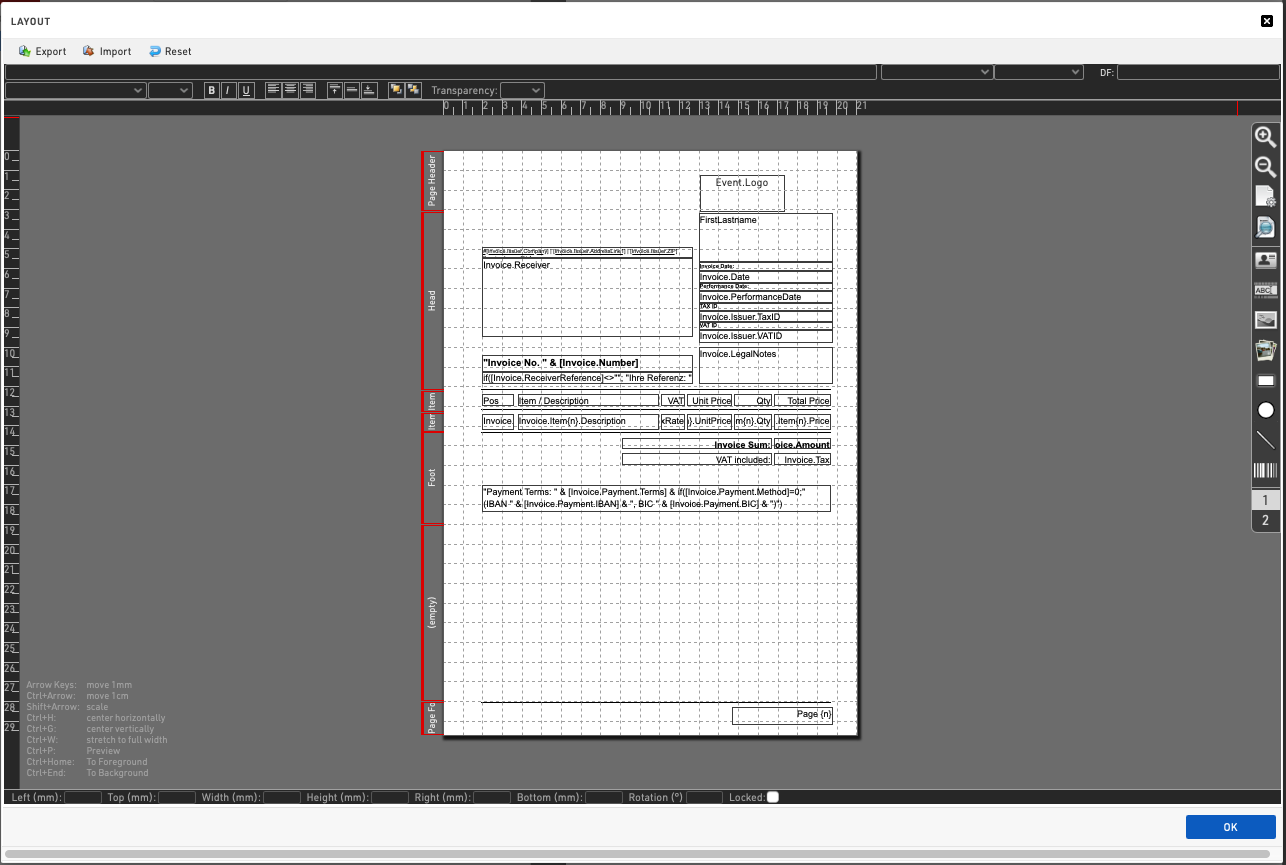
Importantly - invoices should refer to the specific Invoice Fields and not participant fields. Although it is still possible to query participant fields - these may differ from the required invoicing details.
Furthermore, the invoice layout contains several distinct zones and each element belongs to the zone in which its top edge lies.

The height of each zone can be adjusted by clicking and dragging the upper and lower bounds of the red zone highlighter on the left side of the layout, hovering over this area will highlight the area covered by that zone.
Each zone has a distinct behaviour
-
Page Header – repeated on every page, this could be a full-page graphic provided the top of the graphic lies within the page header zone.
-
Head – displayed only on the first page, typically including the recipient, invoice date, invoice number, etc.
-
Item Head – repeated on every page. After each page break this is positioned directly below the page header.
-
Item – repeated for each individual invoice item. On a page break, the next item is placed below the item head. This can be used with the {n} record multiplier to query the specific line number.
-
Foot – displayed only once after the last item on the last page.
-
(empty) – placeholder only.
-
Page Foot – repeated at the bottom of every page.