RACE RESULT 14, in combination with the RACE RESULT Event Tools application, enables the creation of a presenter that can serve as a Selfie Screen before and after a race event.
In essence, the Event Tools application transmits transponder detections to RACE RESULT 14, which subsequently displays the data on a screen or LED wall via a presenter.
Create the Timing Structure
Create a Timing Point for the BLE Reader
Within the Main Window under the Timing Point section, create a timing point to store all detections received from the BLE Reader.

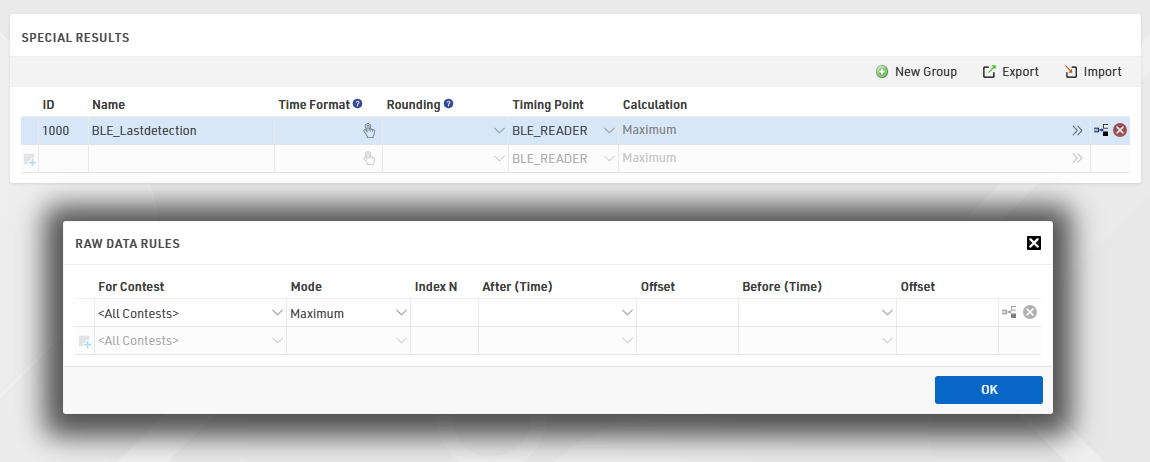
Create a Special Result for BLE Reader Detections
In the Main Window under Special Results, create a result that retains only the latest detection for each transponder. This ensures that if a transponder is scanned multiple times, only the most recent detection is updated and used for display in the Output List.
Create the Output Lists
Once the timing structure is configured, proceed with creating the desired output lists. To ensure that the most recent participant scanned by the BLE Reader is always displayed, adjust the following settings:
- Grouping/Sorting: Configure the sorting order (Z-A) based on the Special Result. This arrangement ensures that the most recent detection appears at the top of the list.

- Filter: Set the Maximum Number of Records to 1 to display only one participant at a time and apply a filter to include only those participants scanned by the BLE Reader.

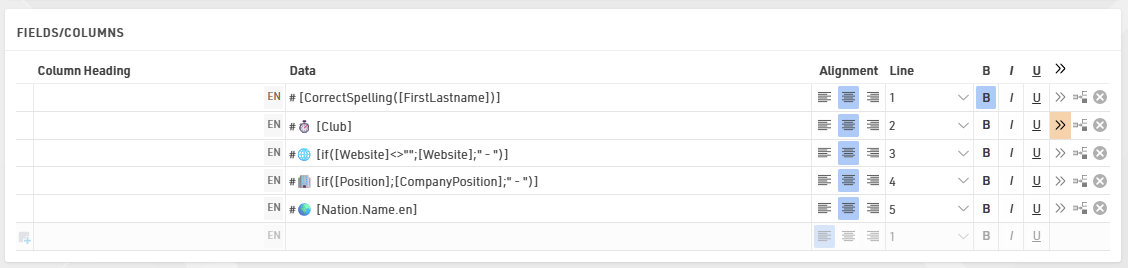
- Fields/Columns: define the information to be displayed on the presenter. For example, you may include the participant’s name, club details, company website, and nationality. The if() function is used to display a placeholder (e.g., “-”) when specific information is missing, and the use of the Line feature allows data to be displayed in a multi-line template.
Connecting the BLE Reader in Event Tools
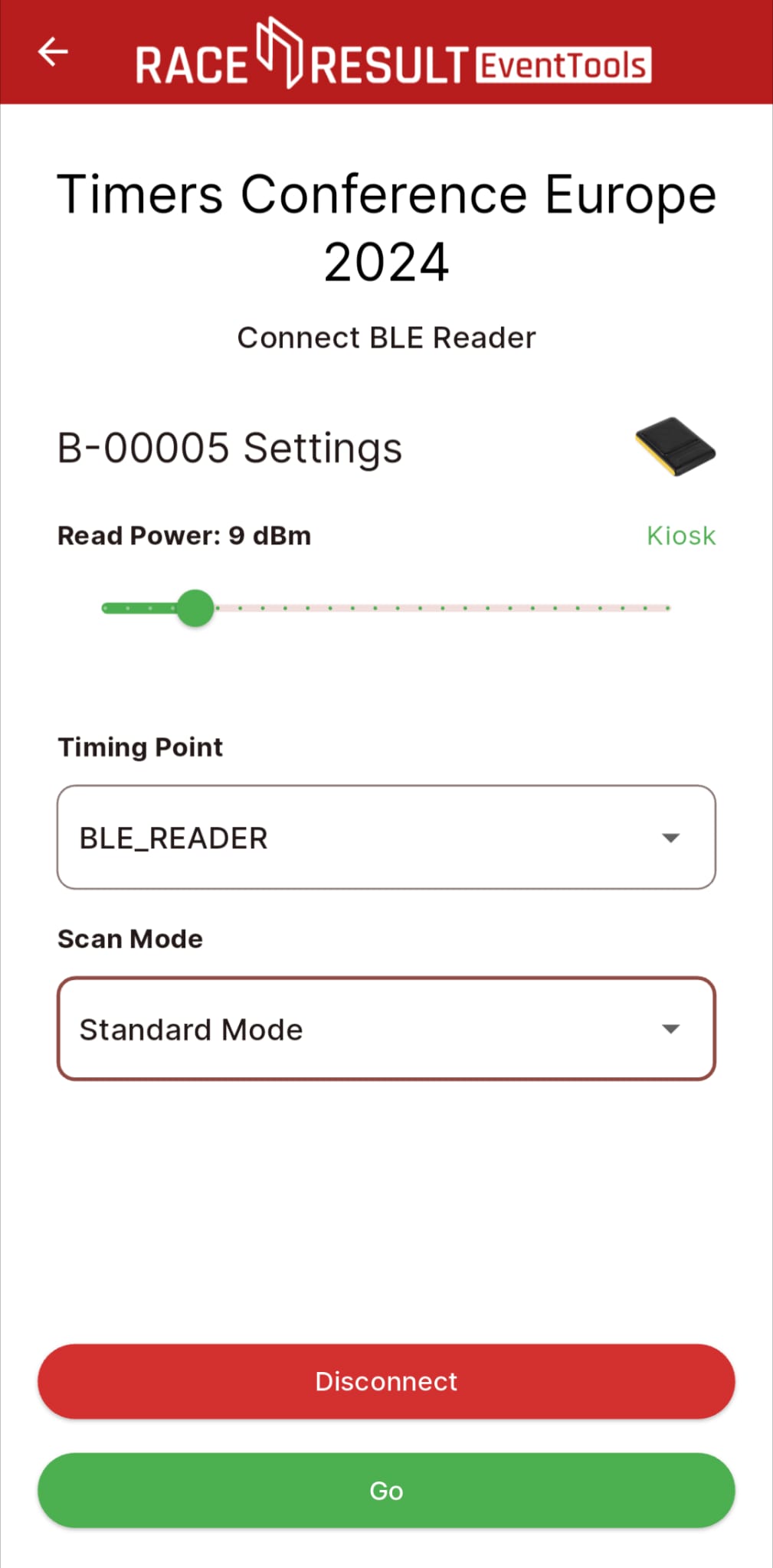
Within the RACE RESULT Event Tools application, connect the BLE Reader to the Timing Point created in RACE RESULT 14 by accessing the Event File, selecting the BLE Reader option, and then choosing Checkpoint. It is recommended to reduce the Reader Power to the “Kiosk” level to prevent the detection of transponders outside the intended range.
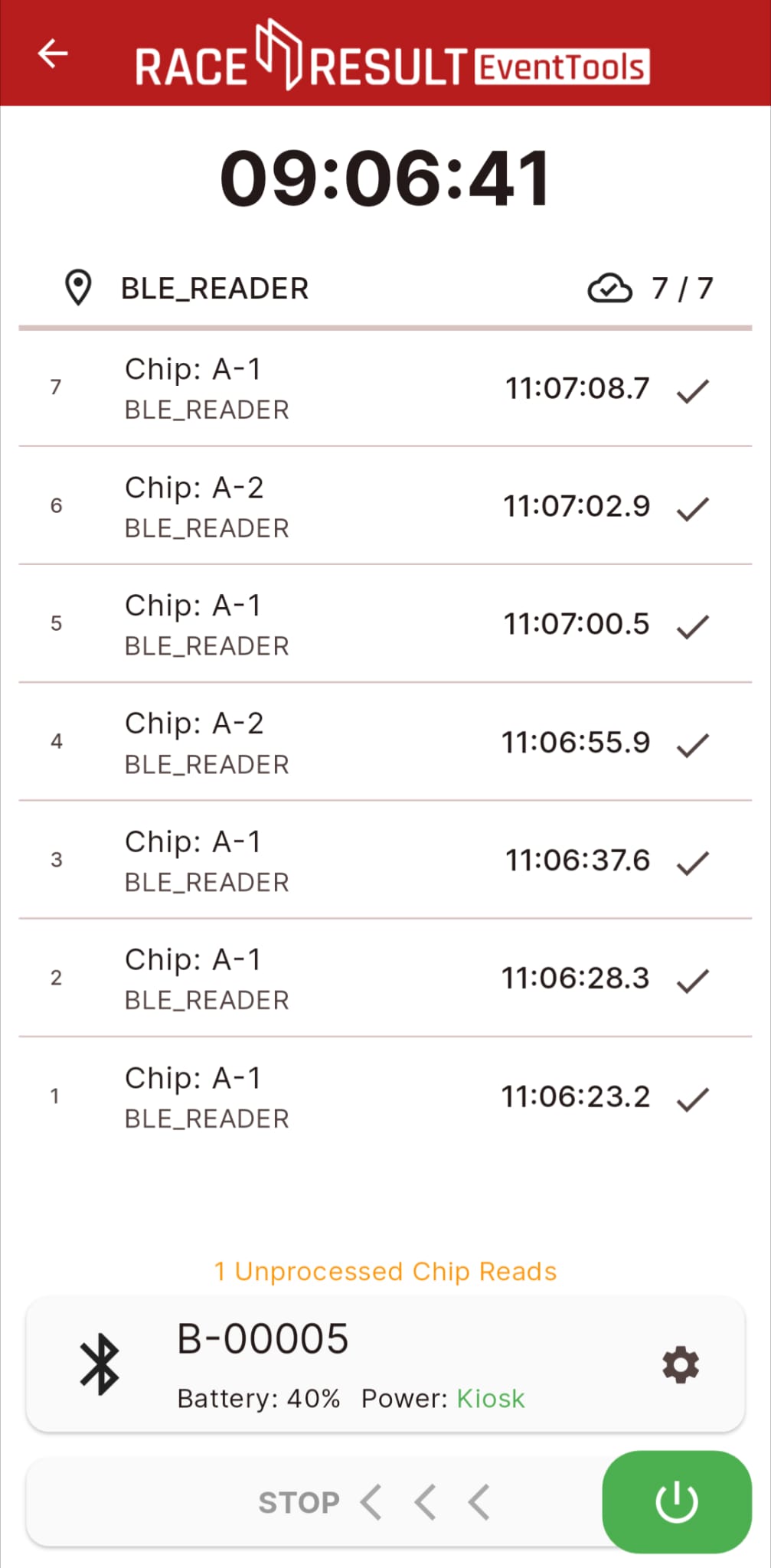
After swiping to the right, the BLE Reader begins transmitting transponder detections to the Event Tools application, which then uploads the data directly to the event file in RACE RESULT 14.
Alternative: Connecting to Manual Timing
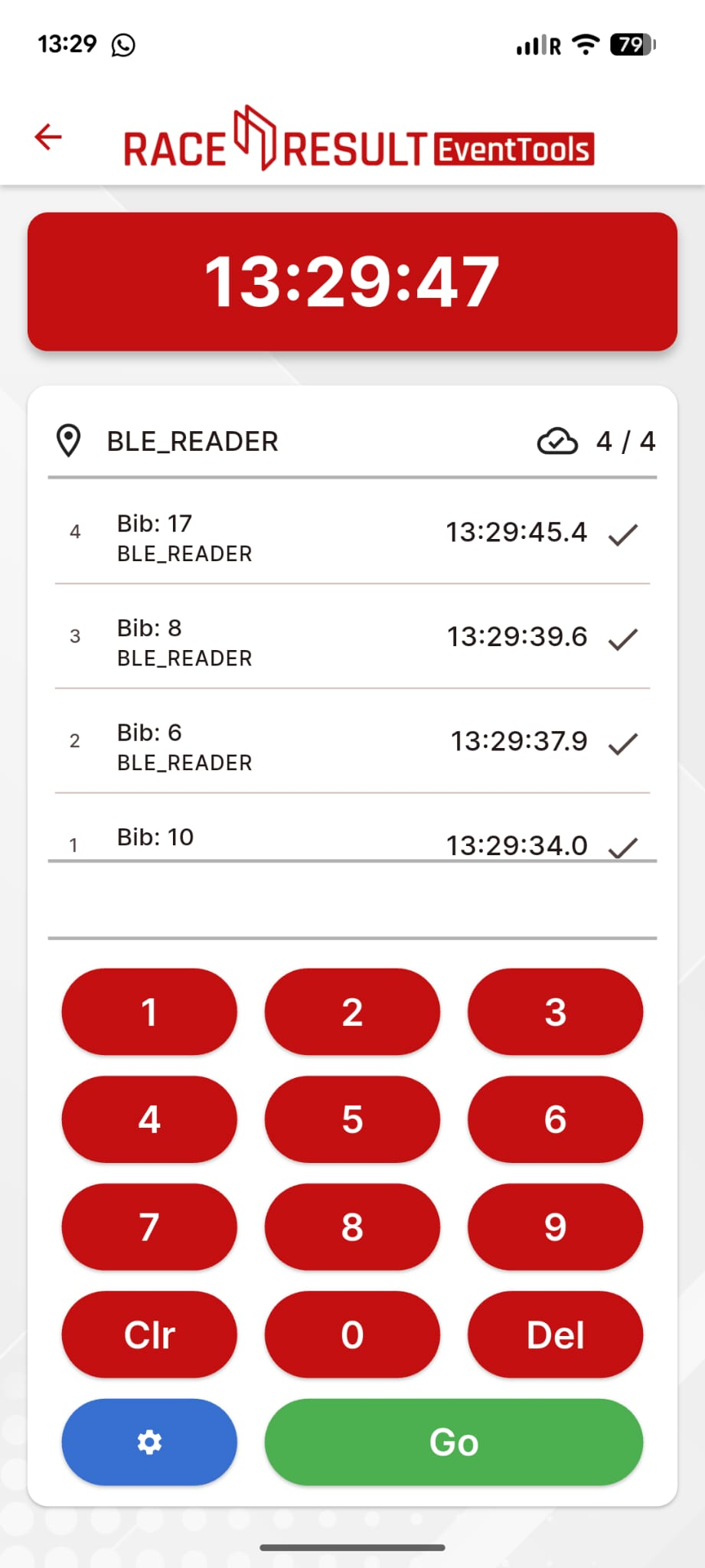
In case a BLE reader is not available, it's possible to use the Manual Timing tool in EventTools, in order to push manually to the Event File the detection of each participant who wants to see its information on Presenter.
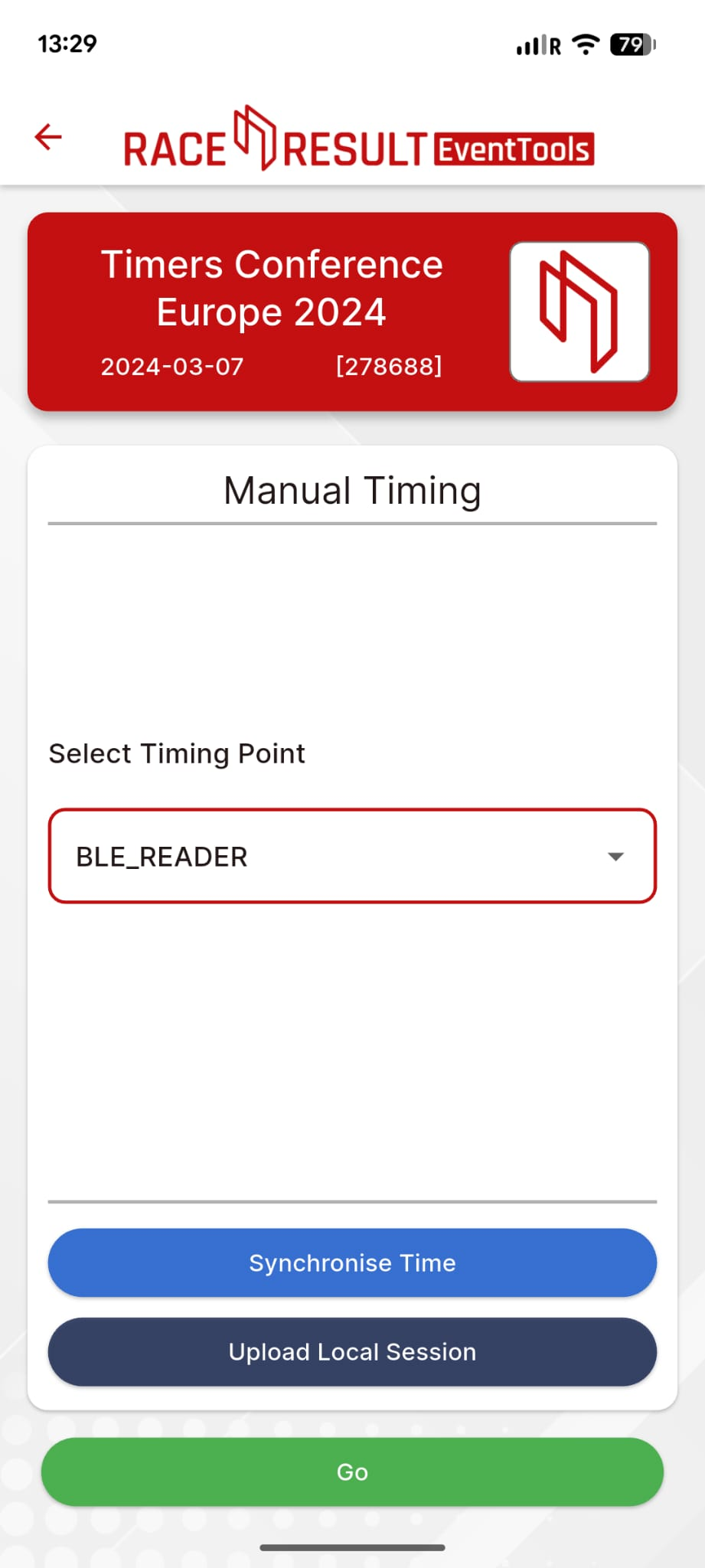
Once the Timing Point in Manual Timing is selected, it's possible to type the BIB of the participant and press GO to send the detection to the event file.
Creating the Presenter
After the output lists are configured, set up the presenter under Tools – Presenter to display the output on an LED wall or other screen.
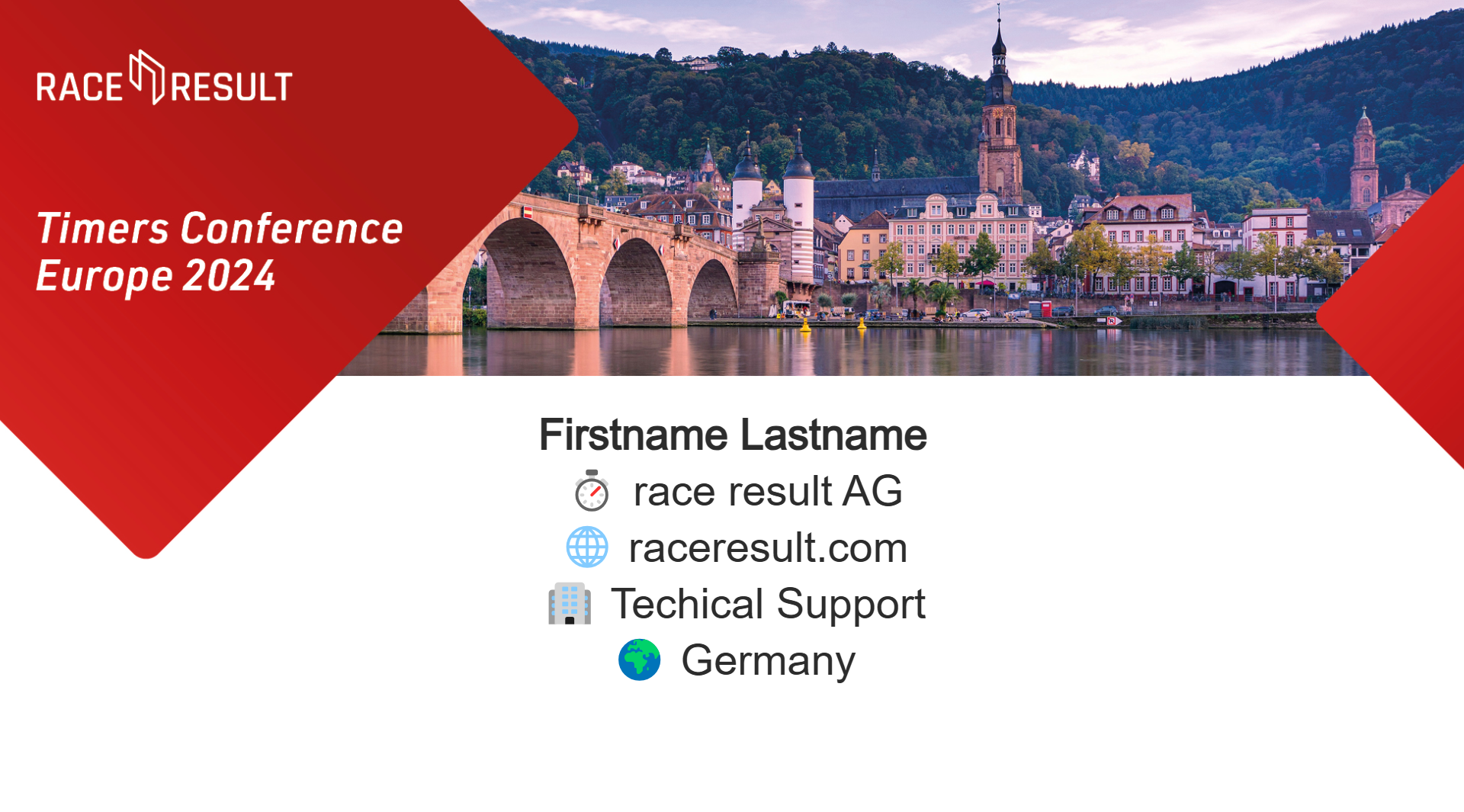
For enhanced visual appeal, a background image may be added, with the output list positioned in the available space.
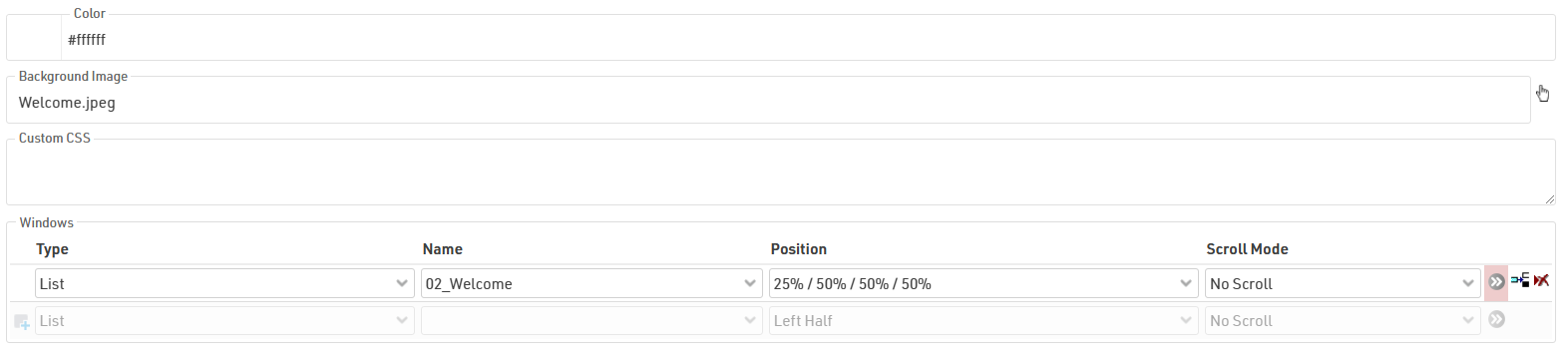
In the advanced settings of the presenter list (accessible via the grey arrows), configure the Font Size and set the page time to 1 second. This ensures that the presenter updates every second to capture new detections from the BLE Reader.

The final output should resemble the configuration illustrated above.
Equipment needed
BLE Reader:
For each presenter a customer wants to set up using the BLE Reader integration, the following components are required:
- one timing point
- one special result
- one BLE Reader
- one Smartphone/Tablet with EventTool session
Each presenter operates independently, meaning multiple presenters can run in parallel without interfering with each other.
Manual Input:
For each presenter a customer wants to set up using Manual input, the following components are required:
- one timing point
- one special result
- one Smartphone/Tablet with EventTool session
Each presenter operates independently, meaning multiple presenters can run in parallel without interfering with each other.