To make it easy for participants to download their finisher certificates, it is possible to add a QR Code on the Bib number with an encoded link to the personal certificate of that specific participant. The basic steps that need to be done are creating a certificate with the results of the race that should be able to download later, adding a certificate-set and then publishing this certificate-set online on the my.raceresult.com page of your event. These basic steps are explained in the following article.
In the following steps it is explained how to add a QR code on your certificate that is used for the bib layout and encode a personal link which leads the participant to the downloadable certificate.
Certificate (Bib) with attached QR code to link to personal result
A QR Code can be added to a certificate by clicking on the small bar code icon on the right tool side in the certificates designer. By doing so, a barcode will be added to the certificate in the first step. The type of the code can be changed via a dropdown in the upper tool bar.
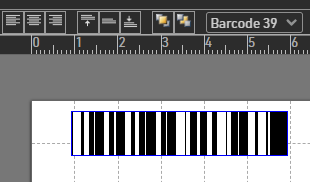
After changing the code type, the link to the certificate with the personal result needs to be added in the entry line on the top left:
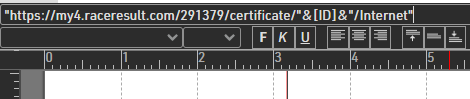
The link must be set into quotation marks and the field [ID], which links to the individual ID-Number of a participant, needs to be excluded from those:
"https://my4.raceresult.com/EventID/certificates/"&[ID]&"/Internet"
It is also possible to copy the general code from an opened certificate on the my.raceresult.com page to make sure that the correct format of the link is encoded in the QR code. Note, you need to adapt the part with the [ID] field, otherwise the link would be hard coded and would direct to a specific certificate.

If now this participant's QR code is scanned with a smartphone, the published certificate will be automatically be downloaded: