To power on Ubidium, firmly press and hold the power button until the status LED illuminates green.
Ubidium will now commence the startup process, during this time it will begin to search for a GPS signal, Ubidium will automatically set the time using GPS when available. When using GPS time, the time zone of the system will also be set automatically based on the GPS location.
Once the Startup process is complete, or if the timeout is reached, you should check the time which is displayed, if the time is incorrect then please refer to the guide below for troubleshooting the time.
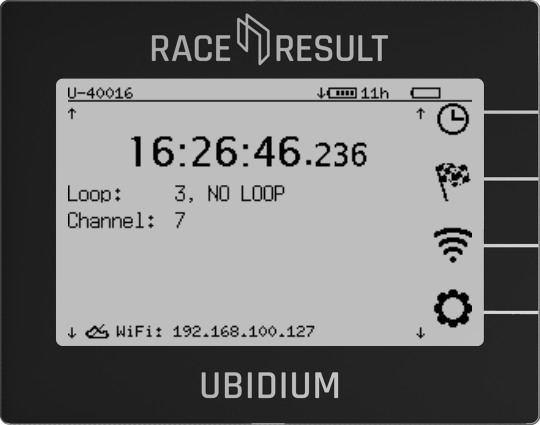
Ubidium is now ready to begin timing and will automatically start recording all passings, the Start Button will be illuminated green if the system has GPS time sync, an Active Loop connected and either a successful cloud connection (via SIM, Wi-Fi or Ethernet), or a connection to a locally networked instance of RACE RESULT 12.
Time Troubleshooting
There should only be two possible causes for an incorrect time to be displayed on Ubidium.
No GPS Signal Found
In order to obtain a GPS lock for GPS time Ubidium requires a high level of GPS signal lock, this is often not possible to achieve when inside a building. If you are inside, please move to an outdoors location, in some open space, to re-sync the GPS.
To attempt to sync to GPS time again, open the Time Settings by pressing the top Navigation Button. This opens a second menu with additional options, press the top Navigation Button again to open the Update time menu.
In this final menu, press the top Navigation Button one more time to Update time, this will force Ubidium to attempt to Sync to GPS if available or Sync via NTPD whichever is available.
When Ubidium cannot locate a GPS signal, and no NTPD time is available, then it will use the time of its internal clock to set the time. This internal clock still maintains a high level of accuracy, even when the system is switched off, however it may therefore not reflect the correct time zone. In such cases the time will normally be incorrect by a value of hours only, see the following section to check the time zone.
Incorrect Time Zone
It is usually possible to identify an incorrect time zone when the system time is incorrect by a factor of hours, but the minutes and seconds are correct. This may occur when the system cannot obtain GPS time and so reverts to the internal clock, or potentially if you are operating close to the border of two time zones.
The time zone can be manually set through the Time Settings menu which can be opened by pressing the top Navigation Button. This opens a second menu with additional options, press the third Navigation Button again to open the Timezone menu.
Here you can choose to set the Timezone from a list, press the top Navigation Button to open the list of available Timezones. Recently used Timezones will be displayed at the top of the list, Timezones are then sorted alphabetically, first grouped by region and then by city. You can scroll the list faster by pressing and holding the corresponding Directional Button, then select the Timezone with the OK button.