Each screen can contain multiple windows which behave independently of each other.

Type
Each window has a type, different types behave differently and have different options available.
List
List types simply display the selected Output list identically to the Output window, any filter groupings will be handled as Show All.
When using long lists you can optionally set the scroll behaviour to no scroll, automatic smooth scroll, or page-by-page scrolling. With no scroll and page-by-page the advanced settings window page timer controls how frequently the data updates or the page changes.
Contests can be filtered in the advanced settings window so the same Output list could be used to create different windows for specific Contests.
Last Chip Reads
Uses a trigger (Timing Point, Split or Advanced Result) to show a specific participant, the most recently triggered participants will be shown at the top of the list by default.
The columns shown are controlled by the selected Output list.
The advanced settings window allows you to filter to a specific contest and select the trigger source.
Chip Check
In Chip Check you can connect to a locally connected RACE RESULT device (RACE RESULT Web Server needs to be launched locally) to specifically call fields for the participant linked to that particular bib. The list will then define the format of the columns. You can also manually search for a transponder code or bib number. The most recently triggered participants will be shown at the top of the list by default, a repeated check will result in several rows filled with the same participant.
Search List
A search list works like the Chip Check, but the search works only with the fields displayed in the selected output list.
Event Overview
The event overview shows the number of registered, started, and finished participants split into contests and gender.
Details (Certificate)
Especially helpful for a detailed overview for announcers, you can select a certificate to be shown when clicking on a participant in any window with a list. Please note, the format of the certificate may vary from the Designer as, in the Presenter it is rendered as an HTML and positions of fields or logos may change slightly.
Details (List)
Similar to the details list on my.raceresult.com, you can select a list that will only render for the participant you click in any window with a list. This comes in handy when using a record multiplier with an unpredictable number of laps/splits.
HTML
Insert your own HTML content such as text, external media or fully custom elements. HTML content can be entered directly into the Name field. Note that the HTML content cannot reference any field or functions.
Image
Insert images makes it easier to add images to a window without needing to create an entire background image. You can select any of the images which are stored in your event file.
QR Code
Display a QR code without needing to create an entire background image. Define the target address directly in the name of the field.
Clock
Display a clock - either as Time of Day, or based on your start time settings per contest, bib range, or per wave.
Countdown
Display a countdown timer. Configure the settings in the advanced settings. Set the Countdown Duration (required) and an optional Start Time (defaults to 12:00 AM if not set); the timer will display the Countdown Duration until the set start time of day. If Repeat Countdown is active, the Countup field can be set as a buffer between cycles. You can also customize the timer's styling and add a series of beeps to signal the end of a countdown.
Rectangle
Adds a simple geometric shape, useful for framing or sectioning.
Circle
Adds a circular element to the display.
Text
A dedicated window for static text, simpler than using HTML for basic labels.
Position
Position allows multiple windows to easily be displayed on a screen, for example the left side could show a leaderboard where the top right corner shows the latest finishers and the bottom right corner shows certificate details for the announcer.
Default position options provide from 1-4 different positions for windows, or a custom position can be defined.
Custom positions place the window from the top-left corner, defining the margin to be used from top and left. Each window also has a width and height.
Based on the Layout Mode chosen, the custom window positions can be set accordingly:
Relative Mode
All values are defined as a percentage of the total display size. This is ideal if the display will be viewed on various screens with different resolutions. A window with Left 25%, Top 0%, Width: 50%, and Height 100% fills the middle 50% of the display from top to bottom with even margins on the left and right.
Absolute (px) Mode
Uses fixed pixel values for positioning and sizing. It is best used when you are targeting a specific hardware setup, such as a large LED wall or a specific monitor. If no specific display dimensions are set in the presenter's advanced settings, 1920x1080px is used as the default reference. To achieve the same setup as the relative mode on a default display, the window settings would be Left 480px, Top 0px, Width 960px, and Height 1080px.

Additional Settings
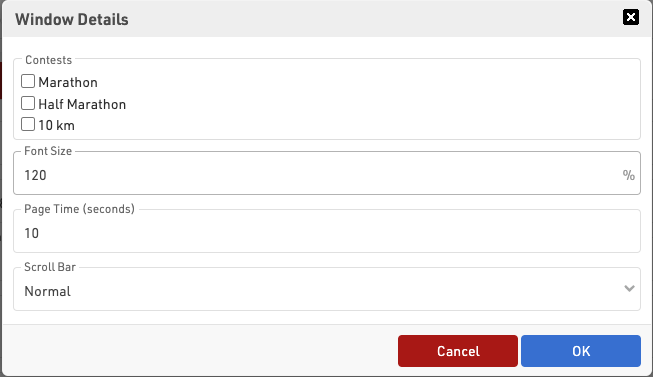
In the extended settings you can define a contest filter or any additional filter using an expression. For every window you can define the font size, a page time and the scroll bar behavior. When using "No Scroll" scroll mode, the page time also defines the refresh rate of your list. For lists that do not fit on one page, you can hide the scroll bar or use a thinner scroll bar.
For "Show Last Chip Reads" you find the selection of trigger sources in the additional settings.
Styling
Basic styling and sizing of the list is possible through both the setup of the output list and window setup.
Formatting applied in the Output List Data/Format will be applied automatically including group headers, except font sizes.
Some additional controls are available from the Output page setup for records, column heads and page headers.
For the different windows within a screen the advanced options offer limited styling options for a color, background-color and padding. Additional advanced styling can be applied using custom CSS.