Below are two examples of how to create an announcer report in RACE RESULT Software. One is explained using Splits. The other is explained using Special Results.
Announcer Report with Splits
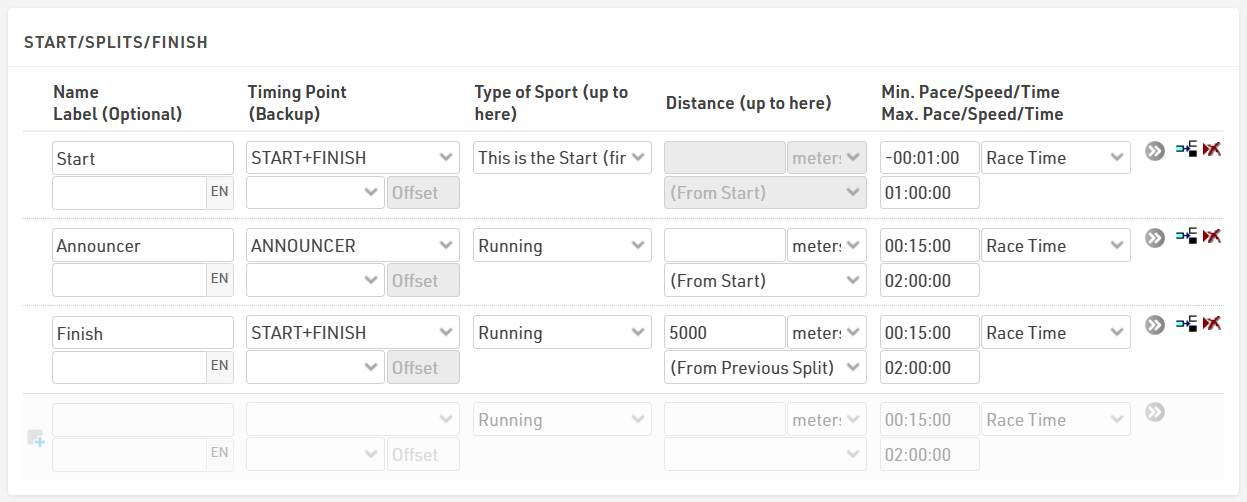
To create an announcer feed, you need to configure your Splits with an announcer split location. If you only have a single timing system at the finish, you can still create an announcer feed, but you would utilize the finish split rather than the announcer split. Below is a basic example of how to add an announcer split to your Splits settings.
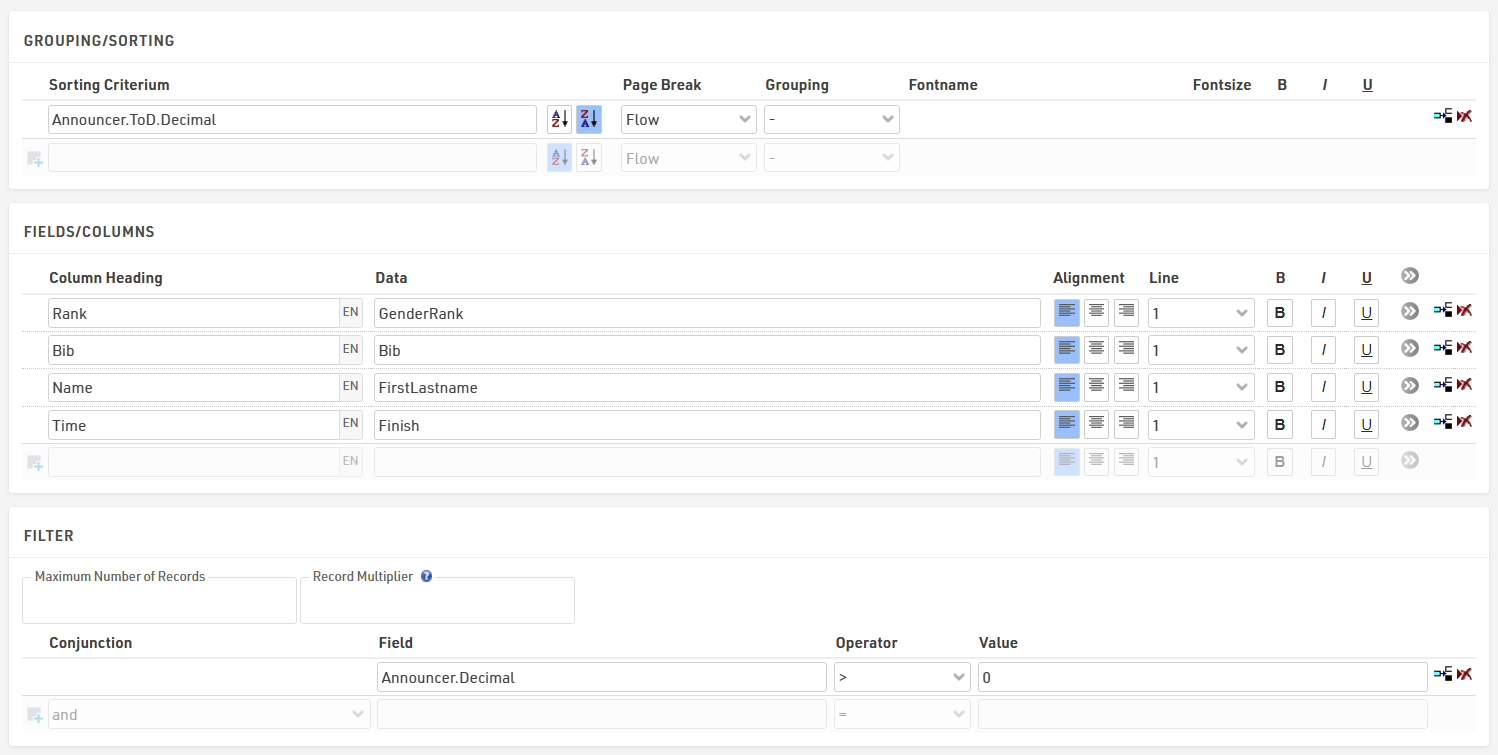
For the report, create a new List under Output and label it Announcer Feed. In the Data/Format for this list, we want to sort by the time of day a participant crosses the announcer line. We can do this by adding Announcer.ToD.Decimal. Make sure to reverse the sort order (Z>A) since we want the last time across the line at the top. The Data section can be configured as you wish to display the columns you want. For the filter section, you can set the Max Number of Records to 20, since you typically only need to show the last few names. The filter can be set to Announcer.Decimal>0 so only participants with an announcer read will show on the report.