There are a few things to consider when wanting to include items in event registration, and one of these is to consider the nature of the item you want to offer.
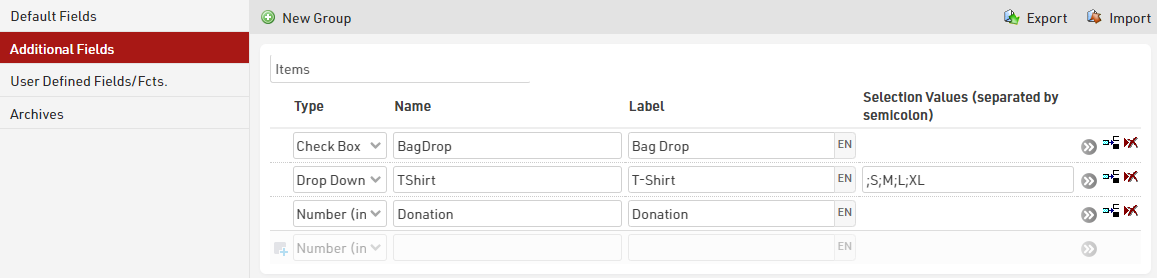
In this example, the focus will be on 3 different items: A Bag-Drop service at the start line, a T-Shirt and a charity donation.
Set up different types of Additional fields
Choosing the right type of additional field will provide a better user-experience during the registration.
Since the Bag-Drop is a yes/no choice, the Check Box is the best solution to ask participants if they need it or not; For the T-Shirt, a Drop Down becomes beneficial because it lets participants decide which size they need from a pool of pre-defined values; For the donation, the Number (integer) gives the ability to fill the field with the desired numerical-only value.
Entry fees settings
Under Main Window > Entry Fees, it is possible to define the price for each item. Using the filter, the entry fee will be applied only for those participants who have selected the items in their registration.

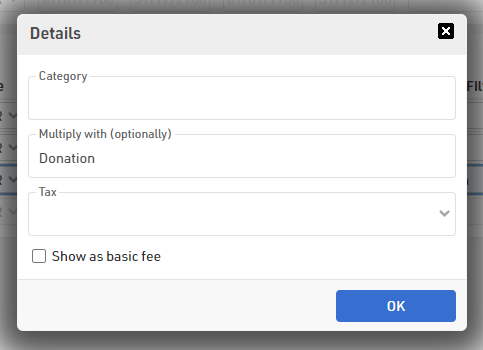
Since the Donation varies among participants, this can be calculated by setting its value to 1 EUR and then multiplying it with the value chosen by each participant during registration. To do so, the advanced setting "Multiply with" can be found by pressing the grey arrows at the end of the entry fee line.
Set up the Online Registration
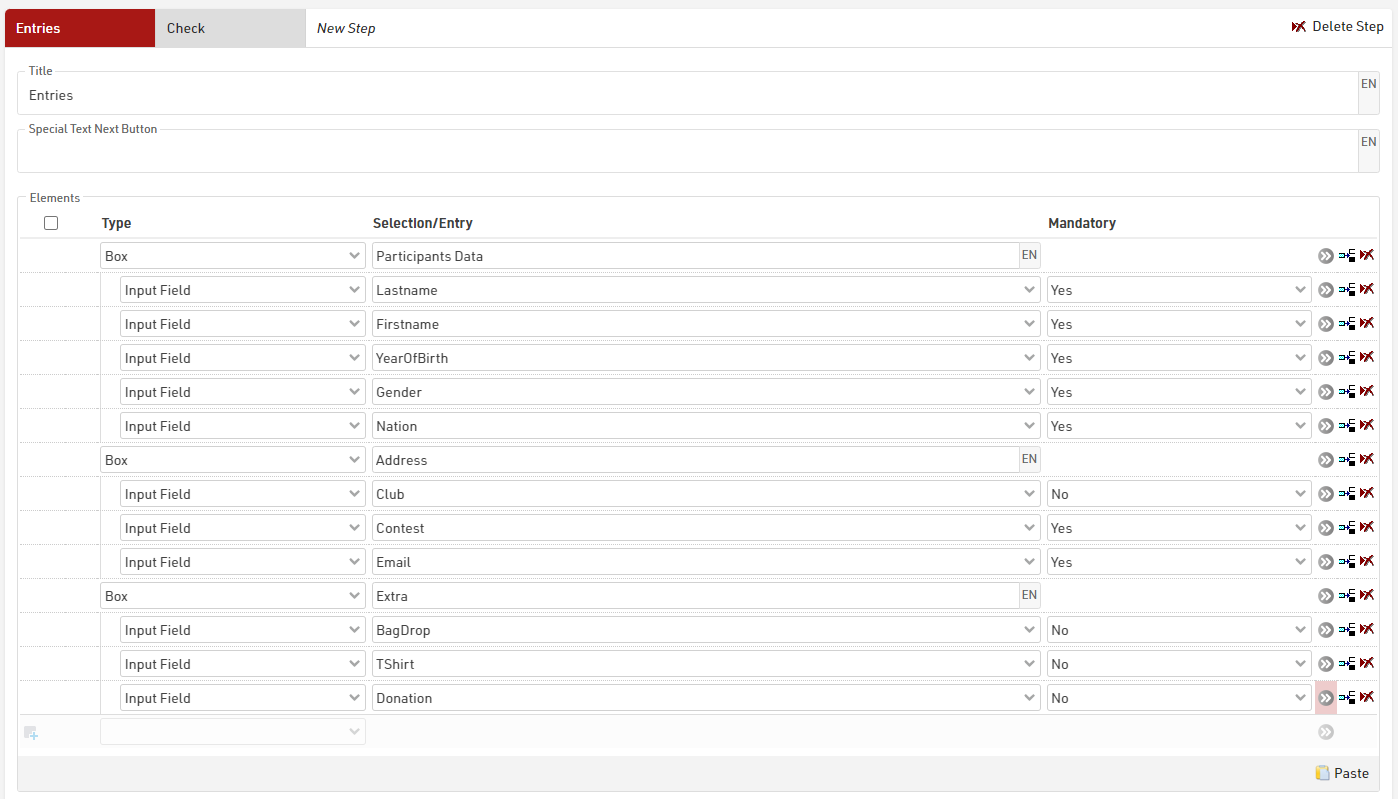
Under Main Window > Registration Form, it is possible to include the 3 additional fields inside the Single and/or Group Registration templates already included in the event file by default.
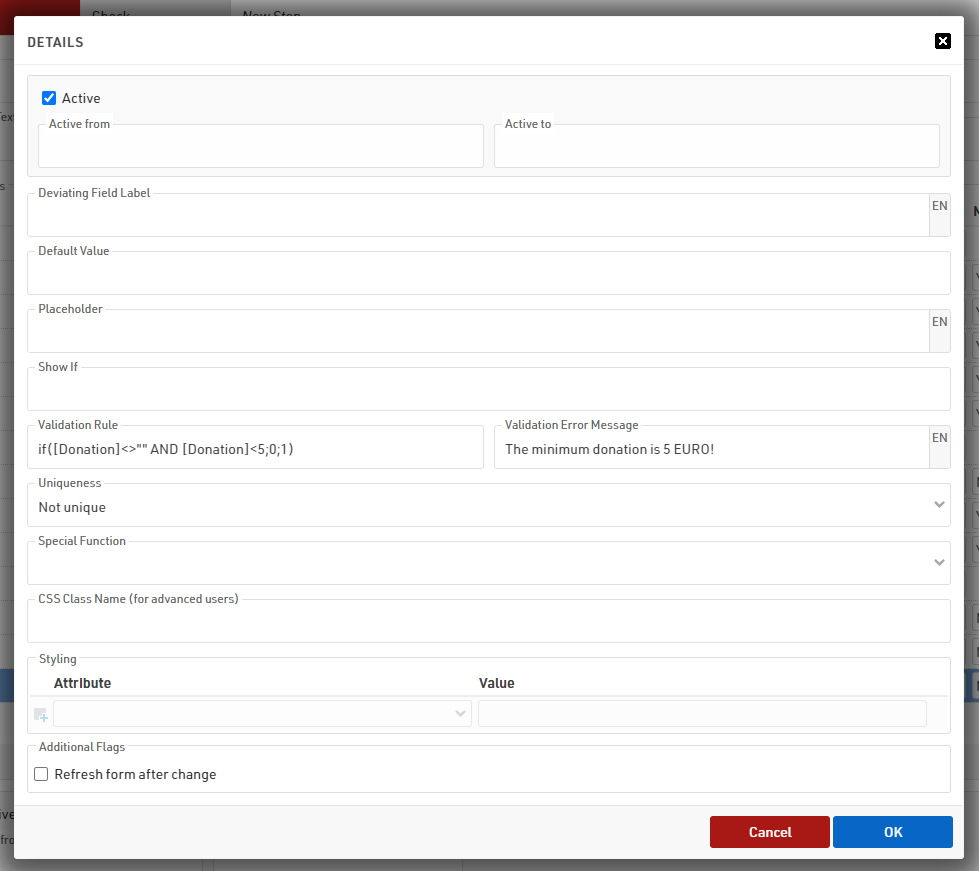
For the Donation field, it is possible to apply a validation rule which checks if the entered value is higher than 5: if the donation is smaller than 5 EUR, a validation error message will be returned.
Once again, the advanced settings for the registration fields can be found by pressing the grey arrows at the end of each line.