Each kiosk can have multiple steps defined for different purposes which will automatically progress in order. Each step is labelled and the labels for each step are shown in the top navigation bar. With the exception of the search, steps can be rearranged by clicking and dragging, or deleted if not required.

There are 2 types of step, and each step is separated into display fields on the left and action on the right.
Search
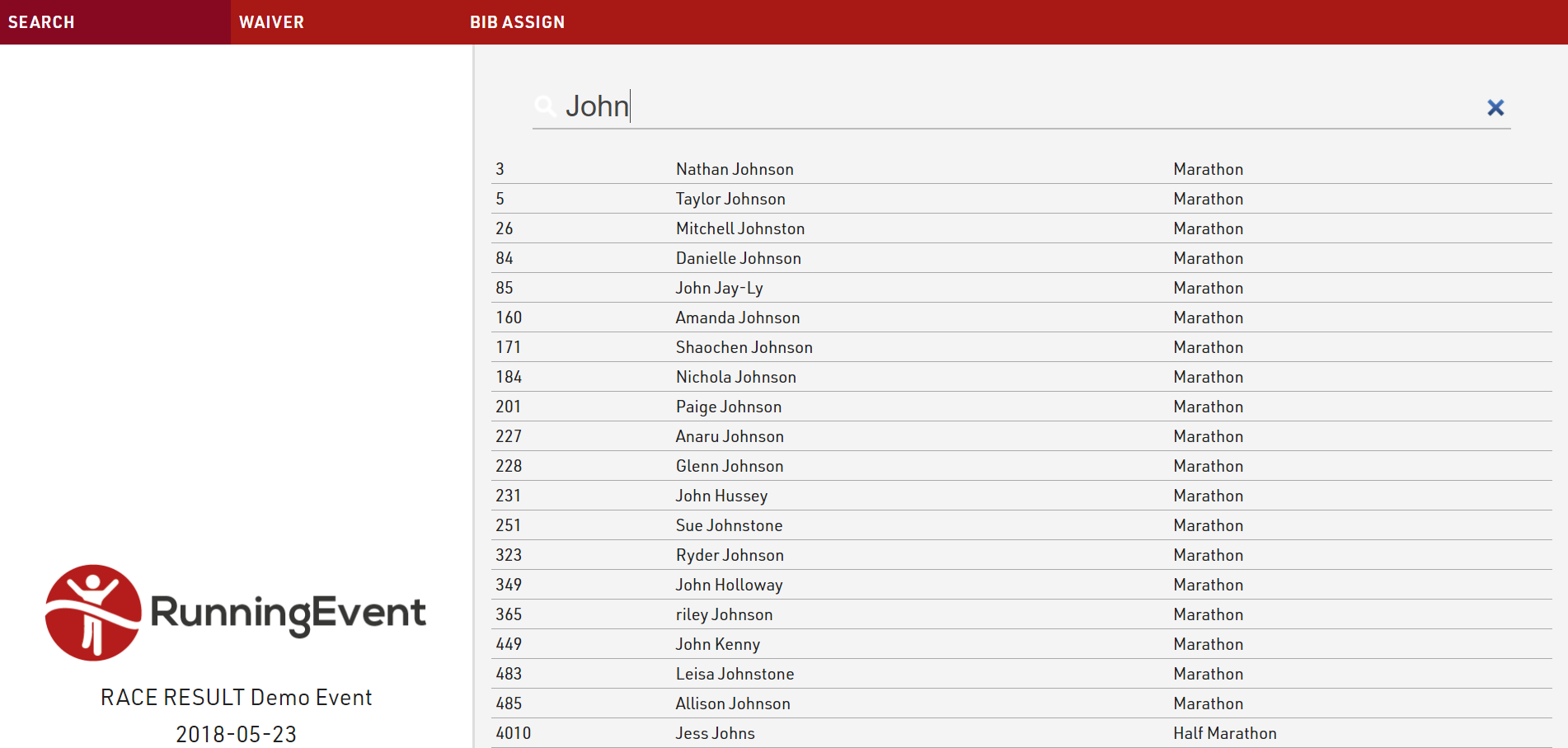
The first step of a kiosk is always a Search, this is where participants are looked up.
The step is first given a label to display, and a placeholder can be defined for the search input. If required a filter can be applied to the search to only return certain participants. This can be useful for when multiple kiosks may be setup for different purposes, however special considerations should be taken when using filters in kiosks:
- Filters should not contain any fields which are themselves included in that step, otherwise the changes will not be saved.
- When opening for a specific bib the kiosk creates a temporary record with the default fields and additional fields BUT without any Time/Team Score/Ranking. Due to this, a filter cannot contain any calculation based on Times/Team Scores/Rankings.
- If you really need to rely on the "real" participant values, then the DFunctions() allows specific Time/Team Score/Rank to be called.
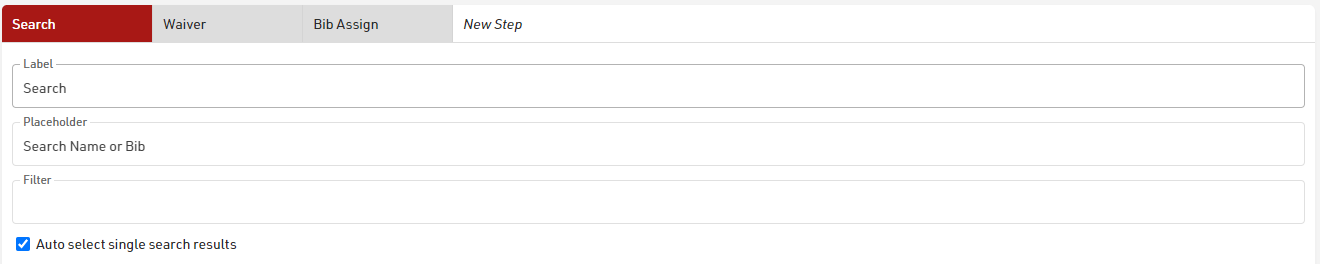
Enabling Auto select single search results will mean the kiosk automatically progresses to the next step if only a single search result is returned. This can be useful if entering or scanning a unique registration number for example.
The fields which should be searched must be specified, these can be any field from the event file, search fields may be hidden from the results list if it is not applicable to show. The search will only return a result if the searched text is matched to one of these pre-defined fields.

For the search step the display fields may currently only be taken from basic Event settings or pictures stored in the event file, such as an event logo.

Edit
An edit step allows for editing of participant data, this can be taken from the default fields or additional fields. All changes are only saved after clicking Finish at the end of the kiosk which will then also return to the search.
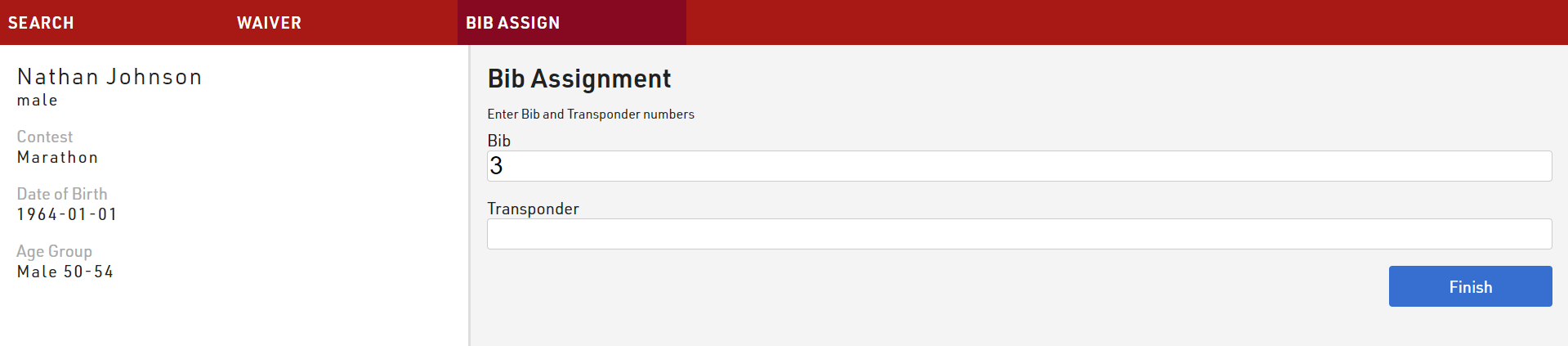
You can optionally display a title and text at the top of the edit step, below this the editable fields will be displayed.
The Show Step only if filter should not contain any fields which are to be edited or Times/Team Scores/Rankings.
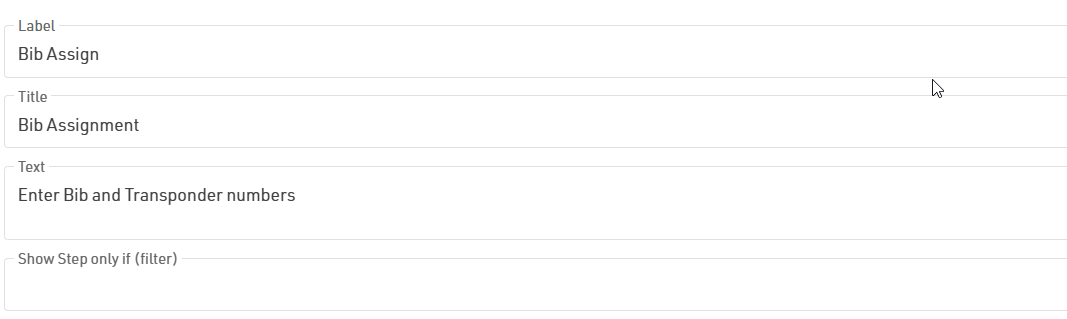
You can add as many editable fields to each step as required, each edit field has a label and can be set to mandatory if it should be required to progress.

When using Transponder1 or Transponder2 it is also possible to connect to a decoder, USB Timing Box or Management Box directly (requires the RRWS to be running on the computer running the kiosk) so transponders can be scanned in to avoid errors.

Additional data inputs are available through either the special functions or extended settings menu.
Special Functions
Hide Current Value - hides the existing value in that field allowing it to be easily overwritten without having to first delete the existing value.
Upload Picture - Allows uploading an image file which will be stored on the server. The field will display a link to the location of the file where it can be downloaded, or the image can be used elsewhere later on. This works best with mobile devices which will allow you to take a picture directly using the camera.
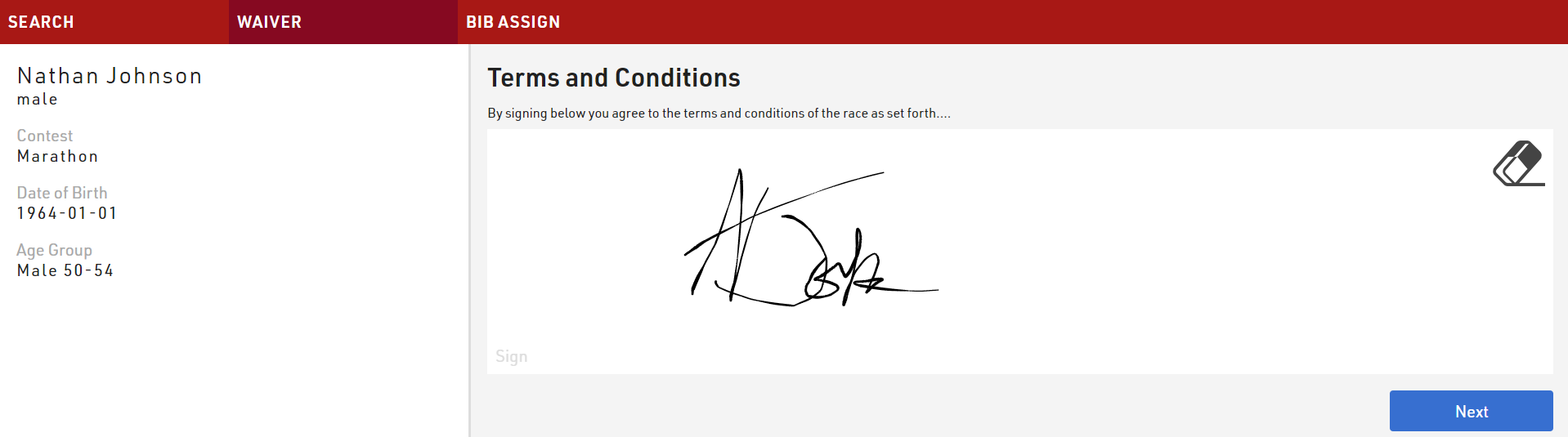
Signature - creates a drawable input to capture signatures. With this an image of the signature is saved and stored on the server, similar to Upload Picture a link to the image will be stored in the field. The signature input works best with touchscreen displays.
If working offline then the images/files will be saved to the server inside the RACE RESULT installation folder.
Extended Settings
For edit fields you can define a validation rule and validation error message for each field, this should be written as a standard Expression.
The kiosk will only allow the user to proceed to the next step or save the registration if the validation rule is met.
Additionally you can configure individual fields to use an input from either a BLE Reader or Barcode / QR Scanner when accessing the kiosk from the RACE RESULT EventTools app.
You should only define a maximum of one input of each type for each step.
Display Fields
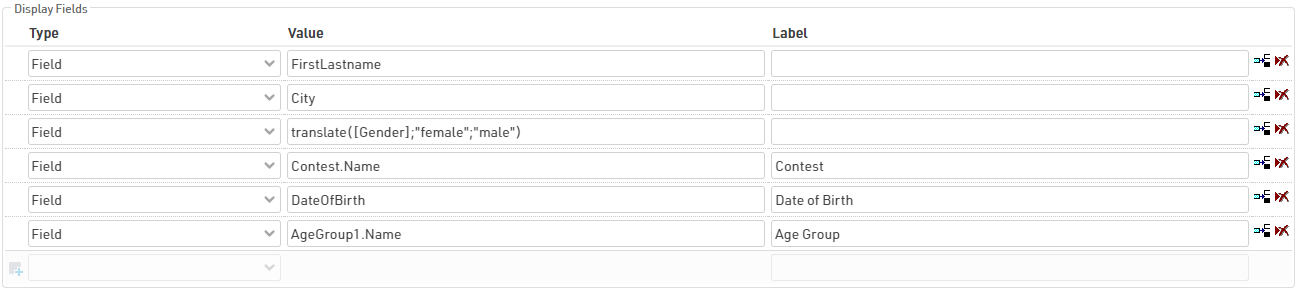
For the display fields you can display any field from your event file in addition to the settings or picture options, these can be written as the field name or a standard Expressions or Functions