A semi-permanent event where participants only have one attempt during the total event period, doesn't differ much from a regular event.
In the attached learning example we look at an event with a 5km - one lap - and a 10km - two laps on the same course. There is one split timing point after 2.5km on the course. Participants can register online or through the Online Self-Service, during registration they can choose a starting slot of 1 hour during the 1 week event period. Using an event attribute, we limit the number of starting slots.
The below guide looks at the timing setup for such an event - the settings for the Online Registration and Self-Service will follow later.
Timing Points
For this it is more useful to have the Time of Day for each result, rather than subtracting T0, under Timing ⇒ Settings ⇒ Timing Points untick the first box to subtract T0.
Additionally with Create new participants for unknown chips set to No the software will only allow registered participants to take part in the event. Optionally, you can add the Order ID of your order to only allow tags from this special order to be detected.
We create two timing points. One for START/FINISH, and one as SPLIT. If you don't have a split timing point, you can simply delete this timing point.

Results (Advanced)
In the advanced results we define the calculation for each required result. Let's first have a look at results 10-15 which use raw data rules.

These results will be saved as the Time of Day of each detection.
T10 is the first detection and serves as a reference for all further detections.
T11 is the actual start detection. As participants often wait at the start line, whether to read instructions, wait for a friend or start their own wristwatch, we allow a maximum of 5 minutes after the first detection (T10) to receive our actual start detection. A negative offset is also applied so the first detection can be the actual start detection. Within these 5 minutes, we will use the latest possible detection, so if a participant waits to start, they will still get an accurate start detection as they leave the start.
For a concise setup, we use T15 as a finish result for both Contests. As the 10km race stretches over 2 laps, whereas the 5km only has 1, we will define separate raw data rules depending on the Contest.
In the 5km race, we only allow a finish detection which is at least 10 minutes after the actual start detection.
For the 10km race, we first setup a result for lap 1, this is T13 which uses the same rule as the 5km finish, accepting the first detection 10 minutes after the actual start. Then for the finish, we look for a finish detection at least 10 minutes after the first lap.
As the course is the same for both Contests, the first split (2.5km) is identical for both. We define it as the first detection a minimum of 5 minutes after the start detection. The second split is only relevant to the 10km race, therefore we adapt the raw data rule accordingly and use the second detection after the start detection. Alternatively, we could define the second split as the first detection after T13 + 05:00.
For further calculations and for more elegant output lists, we also define results 31 & 32 as the last detection and the result (ID) it belongs to.
For the last detection we use TLast(11;15)-T11, which returns the last available time from the results 11-15, and then deducts the individual start time.
For the last ID we will use TLastID(11;15)-10, which works in the same way but returns the ID of the result so we will receive 1 if someone has a start time, 2 if someone reached the first split, 3 after the first lap, etc.

To create more dynamic output lists for our live leaderboards, we also setup a predicted time based on the available results. The prediction uses the following expression.
In other words, for Contest 1 (5km) we return either nothing (we can't do an estimation based on the start time only), double the 2.5K Split time, or return the finish time once the participant has finished.
For the 10km we either return nothing, quadruple the 2.5K split, double the first lap time, multiply the 7.5K split by 1.33 - or return the finish time.
Finally, we conclude the most important results in 1-3.
T1 is always the finish time.
T2 is the time for lap 1 and is either the difference between finish- and start time (5km), or from AfterLap1 and the start time (10km).
T3 is lap 2 for the 10km calculated as the finish minus AfterLap1.

User defined fields / functions
We create a user-defined field called LastSplitName, which we will use to provide a name for the last available detection ID. This uses a choose() function looking at the LastDetectionID result to return a corresponding name for the result.

Contests
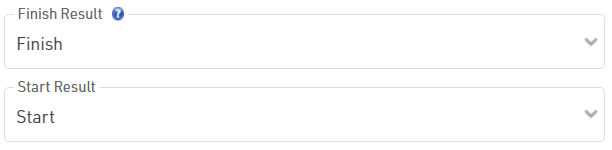
In the Contest settings, it is important to adapt the start and finish result for both Contests to use the results we have set up in order to use the default fields [Finished] and [Started].
Rankings
There is no need to change the default rankings OverallRank, GenderRank and AgeGroupRank, as we updated the finish result in the Contests, we can still use these default rankings.
Additionally, we will add another ranking based on the estimated finish time, in this example - Rank11. The rank is filtered using [Time32.Decimal]>1, this limits the ranking to only consider participants with a valid first split detection. As the start time is 00:00 for everyone, it doesn't make sense to provide a ranking based on the start detection.
We are grouping only by Contest, if needed, you can also add additional groupings - or another ranking.
Sorting is based on DecimalTime21, which is our estimated finish time. The participant with the fastest estimated finish time shall be the leader of this ranking, as this returns the actual finish time for those already finished it will compare those on course to those already finished.
Output Lists
We adapted all lists slightly, but the default lists Final and Live are most important.
Final
For the Final output, used for final results, we removed some columns such as gun time, since there is no gun time in such an event.
Live
In the Live list, we use results 31 & 32 and the user-defined field for the sorting and grouping.
For the groupings, we use the "filter" functions to allow the user to apply custom filters. For the grouping MaleFemale we use "Filter with Ignore" to allow for a simultaneous grouping of Men and Women. This allows participants and spectators to view all participants, filter by the last available split or check who is currently on course.
In the data columns, we use the following expression to display either a ranking (AutoRank), if the participant has finished, or no ranking for anyone who is on course.
Lastly, we use the following expression to show the last available time and for participants still on course the expected finish time and ranking:
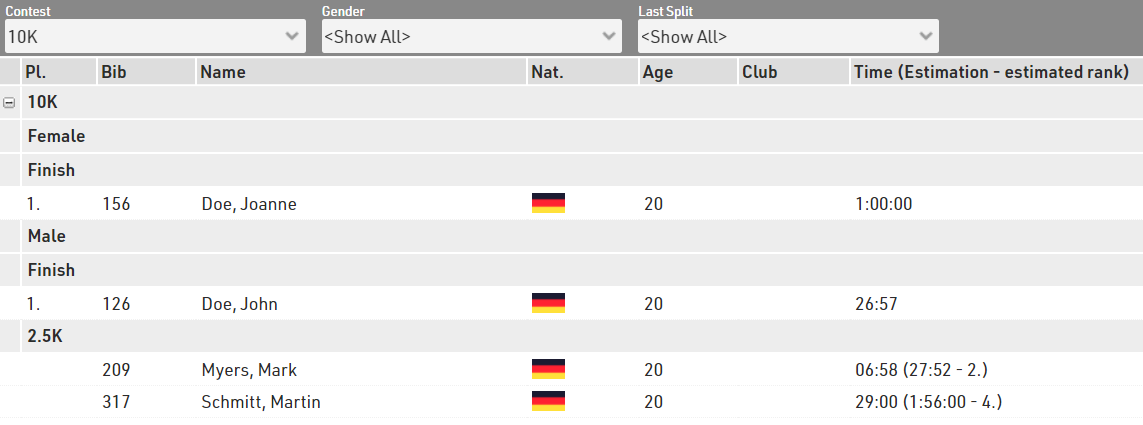
The Live list will look something like this:
Online Registration with Starting Slot Selection
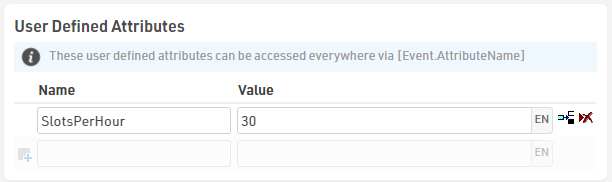
First, we create an event attribute under Basic Settings ⇒ Event Settings, named SlotsPerHour, as we will use this attribute to limit the availability of our start slots. In this example, we have 30 slots available per hour.
Next, we create two fields for the selection of the start slot. One field for the desired day, and another one for the time on that day.

We then add these two fields to the end of the form fields of the Online Registration (the same can be applied to Online Self Service for events which have switched from a regular event to a semi-permanent format).
In the advanced settings for either of the two, we add the following validation rule:
This makes sure that only as many participants can select the same combination of date & time as we have configured in the event attribute. The disadvantage of this layout is that full slots can't be hidden automatically.
You will find further information on the setup of Track Boxes and how to connect to them in RACE RESULT 12 in this video: