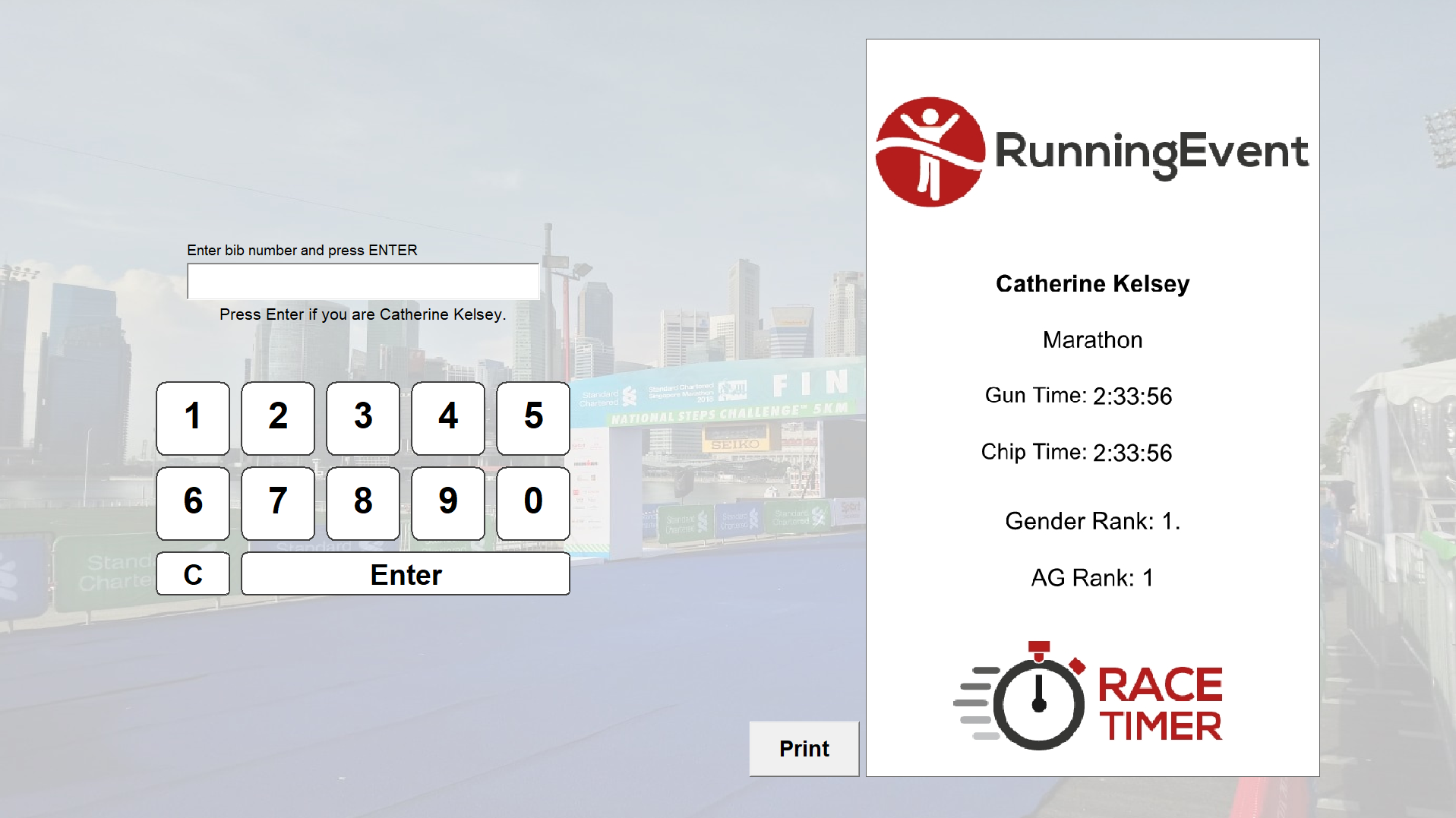
The Certificate Terminal is similar to the Result Kiosk and is used for printing Certificates at a venue, normally on a receipt printer, with the participant's results. It runs independently of the main RACE RESULT 14 software and can open a file directly or connect to a local or online web server.
You will need to setup your Certificate Sets which you want to print before running the software.
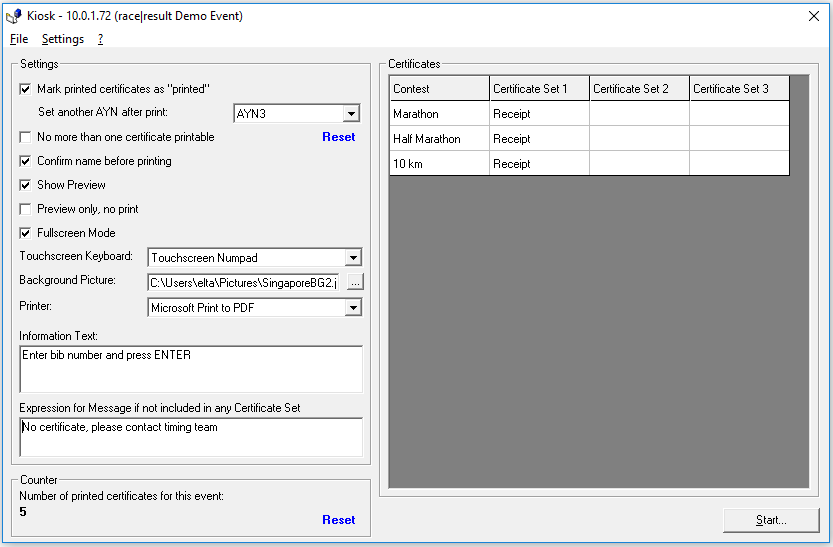
Once open and connected to an event file you will have a number of settings to customize the functionality of the kiosk.
Settings
Mark printed certificates as 'printed' - When a certificate is printed it is marked in the event file as printed, this can be used to then prevent the same certificate being printed multiple times.
Set another AYN after print - You may wish to also set an AYN for each participant to later check who printed certificates or to apply a filter to your certificate set to manually filter double printing of certificates. Select the relevant AYN from the drop down.
No more than one certificate printable - To prevent the same bib printing their certificate multiple times then tick this setting, certificates marked as printed cannot be printed again without clicking reset.
Reset - This will reset the printed status of all certificates in the event, this will allow them to be printed again.
Confirm name before printing - When the bib number is entered a warning will come up below the input "Press enter if you are [Name]", certificates will only be printed if enter is pressed again or another bib number can be entered.
Show preview - The entry field will be shifted to the left of the screen, when a bib is entered a preview of the certificate from Certificate Set 1 will be shown on the right, pressing enter or clicking print will then print the certificates.
Preview only, no print - Certificates may only be previewed on the screen and will not be printed.
Fullscreen mode - The kiosk will be opened in fullscreen and can only be exited by pressing Esc 5 times in a row.
Touchscreen Keyboard - Will display either an on-screen-keyboard or on-screen number pad below the entry for participants to type their name or bib using a touch-screen.
Background picture - Select a background image to use for the kiosk, this can be selected from your local machine.
Printer - The printer which should be used to print certificates.
Information Text - This text is displayed above the entry field, usually to prompt participants how to use the kiosk.
Expression for message if not included in any certificate set - Custom text to display if no certificate is available for the participant.
Counter - The count of certificates which have been printed.
Certificates
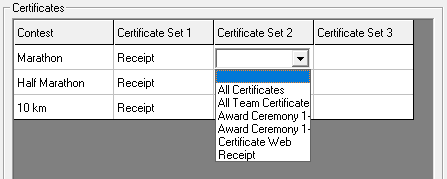
Up to 3 certificate sets can be selected for each contest, the kiosk will print all available certificates for a participant, you should therefore ensure that if using different certificate sets that participants only appear in one set.
Display
Start the kiosk with the Start button in the bottom right, it can be exited using the X or by pressing Esc 5 times when in fullscreen mode.