Participants ⇒ Adapt Data offers numerous functions to change data of several participants at the same time.
Swap / Copy
To use the Swap or Copy functions, simply enter the two bib numbers and click the button according to what you need to achieve, the options and use cases are explained below.
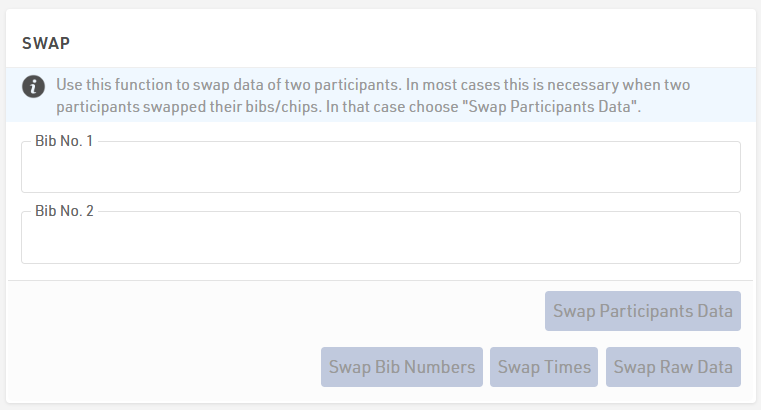
The Swap functions allow you to:
- Swap Bib Numbers of two participants if they interchanged the bib after packet pickup. In this case, the transponder was not interchanged, so times/results were correctly assigned to each bib.
- Swap Times of two participants if they interchanged the transponder but not the bib or data was incorrectly stored. Bibs and participant data are correct but times saved directly in Special Results need to be swapped.
- Swap Raw Data of two participants if they interchanged the transponder (but not the bib). Bibs and participant data match in this case, but the raw timing data needs to be swapped.
- Swap Participant data of two participants if they interchanged the bib and the transponder. In this case, both Bib and Raw Data were not correctly assigned to the right participant.
In some cases it may be necessary to perform more than one swap, for example if bib and transponder have been swapped.
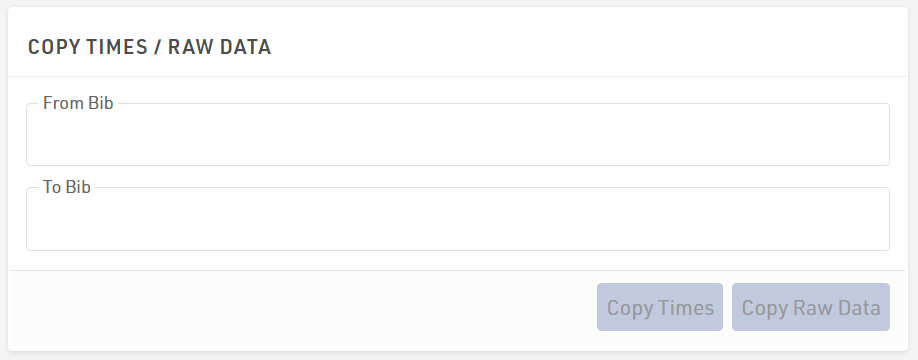
- Copy Times from one participant to another, this copies times saved directly into Special Results.
- Copy Raw Data from one participant to another, this copies all raw timing data.
Redistribute Bib Numbers
With this function you can allocate new bib numbers for some or all participants at the same time. If the current bib numbers are only preliminary, you can use this function to assign the final bib number, for example in alphabetical order.
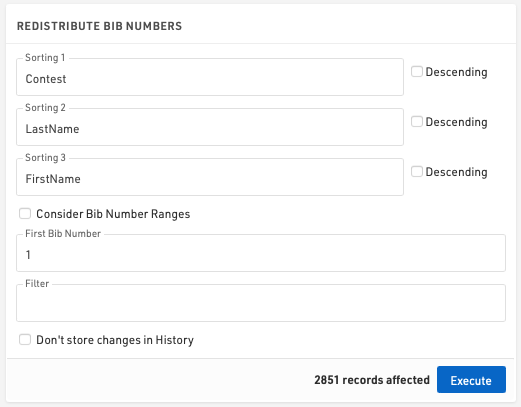
For this purpose you can select up to three fields which define in which order the new bib numbers will be assigned. If you activate Consider Bib Number Ranges, only numbers from the bib ranges of the chosen contest will be assigned.
Via First Bib Number you can define the smallest bib number to be assigned. If you leave the field blank, the first number will be 1.
When using a filter only certain participants will be assigned a new bib number.
Adapt Times
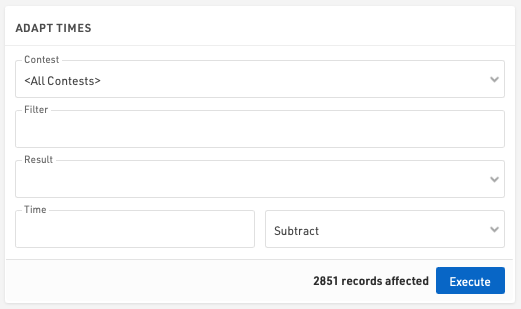
With this function you can adjust the times (in static Special Results) of all participants of a contest by adding or subtracting a certain time value. This has no impact on raw timing data.
Single Start
With this function you set special results at fixed intervals to the participants of a certain contest, for example for a staggered Time Trial start. Select the Results in which the start times shall be saved and define the start time for the first participant and the intervals to the next start times. The Sorting field defines in which order participants will receive the start times.
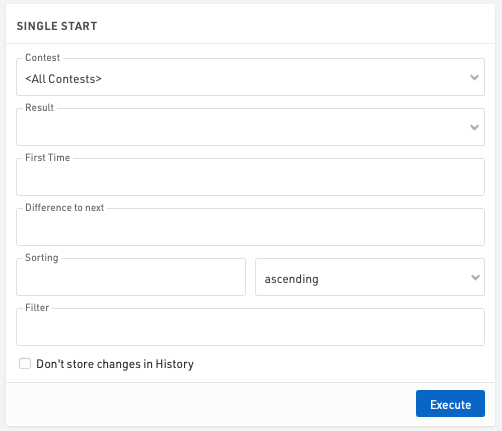
When using a filter only those participants matching the filter will receive a start time.
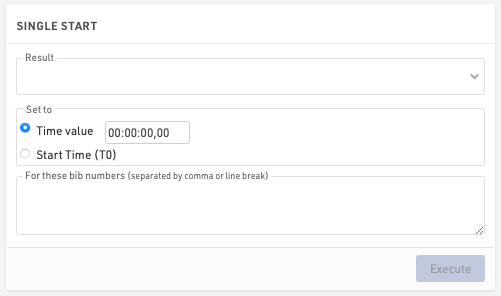
The second function allows you to set a result to a fixed time for a set of participants. Select the result that shall save the time, define the time and enter the bib numbers that shall receive the start time.
Generate Random Times
You can generate random times in Special Results for example for testing purposes. Simply select the result which shall save the random times and specify the minimum and maximum time.
The setting Add this time to random time is helpful if you want to make sure that the random time is greater than another time.
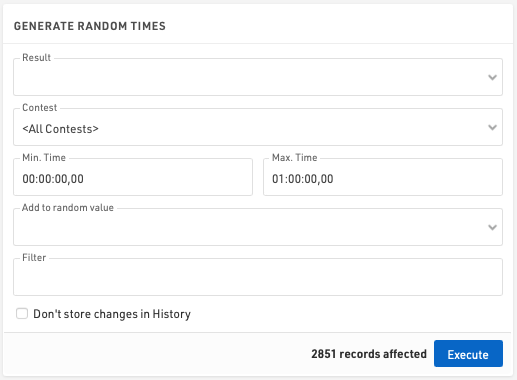
Using a filter, only those participants matching the filter will receive a random time.
For more advanced testing of your race, you can use the Race Simulation tool.
Interpolate Times
If you missed many reads, for example if your system was setup incorrectly, you can use this function to interpolate missing times.
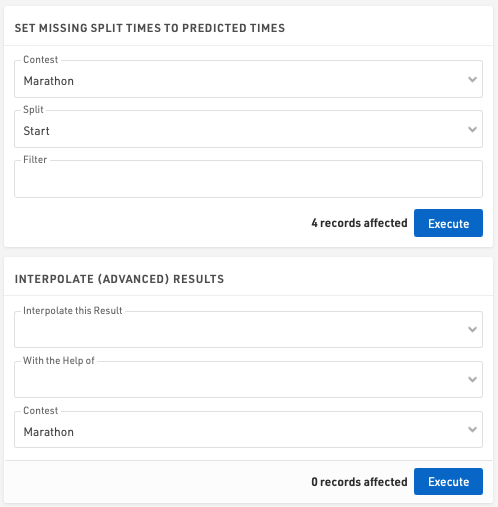
When using Splits then the Predicted Times for Splits are used, in this way a manual raw data record is created at the predicted time.
When using Results, you need to select the result you would like to interpolate and a "helper" result. If for example you interpolate the start with the help of finish, the following will happen:
For each participant missing the start time, the system looks for the 5 participants that finished right before him/her and the 5 participants that finished right after him/her. The system then calculates the average start time of these 10 participants and uses this average as an interpolated value.
Create Empty Records
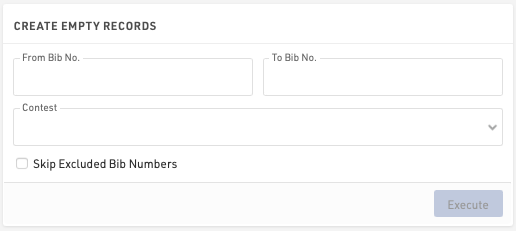
Sometimes it is useful to add empty records to your event file. This function helps you to do this easily.
Create Increasing Number
This function can be used to create an increasing number which will then be saved in an Additional Field.
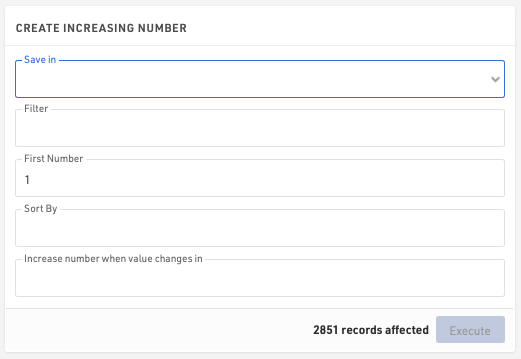
Save in: Select the field in which the number will be saved.
Filter: enter a filter if only a specific group of participants should be used.
First Number: define the starting number of the sequence.
Sort By: select a field by which the records will be sorted. In other words, in which order the increasing number will be assigned.
Increase number when value changes in: select a field which defines when the number will be increased by 1. If for example everyone in the same club shall have the same number, select Club. If however every participant shall receive a different number, select Bib.
Click Execute to create and save the number sequence.
Raw Data Invalidation
When using Raw Data Mode, sometimes it is useful to ignore groups of detections without deleting all the data.
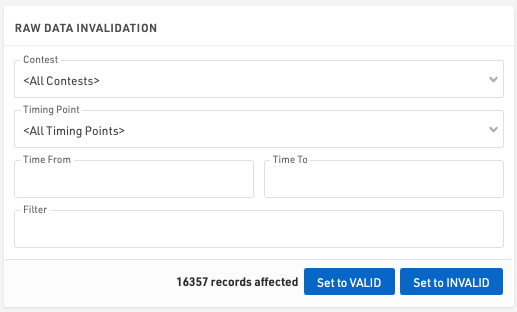
Using the Raw Data invalidation you can quickly select Raw Data for certain contests, timing points, time ranges and apply any filter. This will set all the Raw Data which fits the criteria to invalid and so will not be used in Results calculations.
You can also re-validate data here if necessary.
Move Raw Data
Use the Move Raw Data function to shift data from one timing point to another. This is typically used to correct setup errors or participant flow issues.
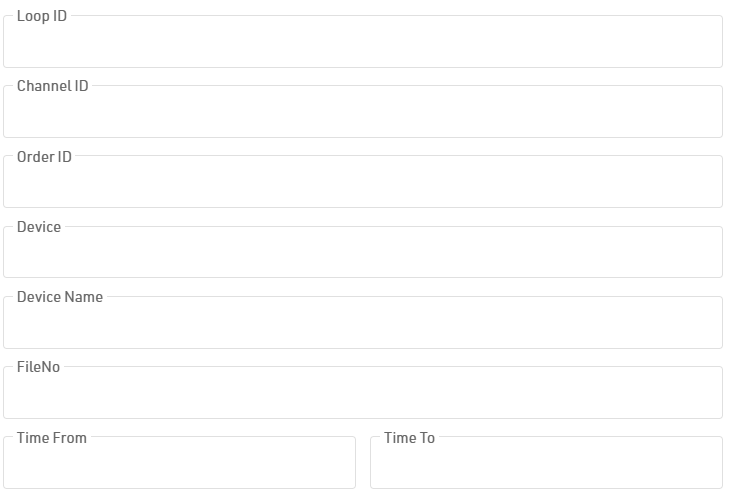
To begin, select your source Timing Point and Target Timing Point. You can limit the scope of the move by filtering for specific contests, applying a custom expression. For more granular control, select Show Raw Data Filters to filter by specific devices, setups, tags, timeframes, or files.
Data Manipulation
Data Manipulation is a frequently used function to modify several participants at the same time.
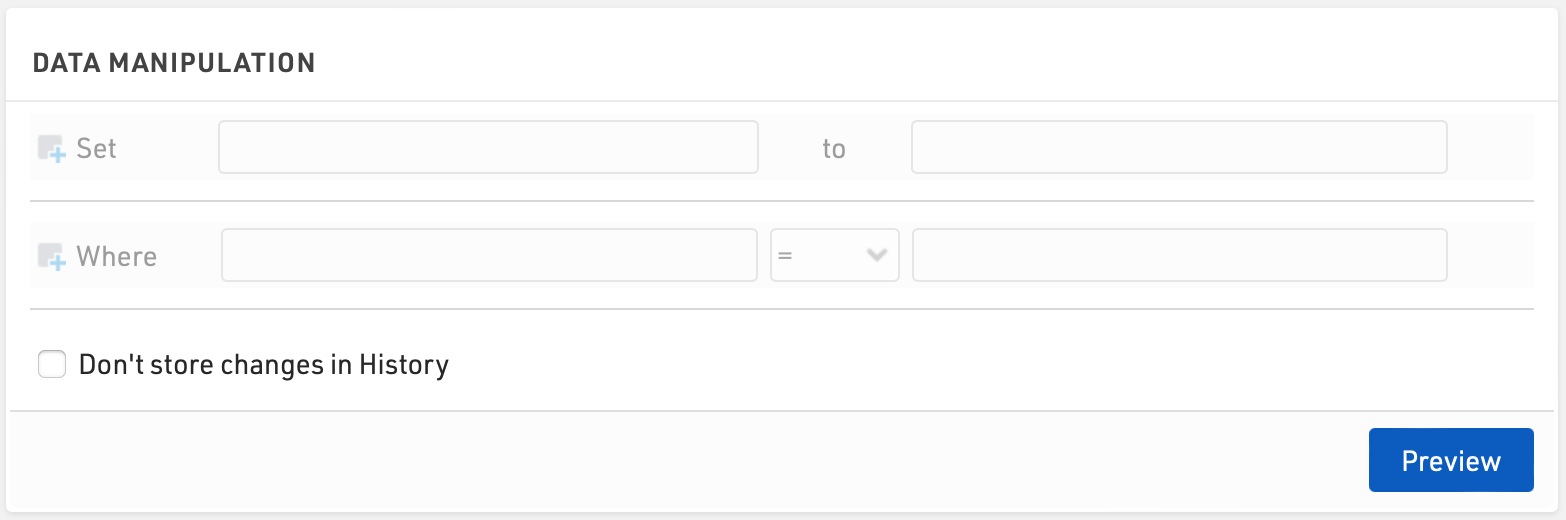
Enter the Data Fields you wish to update, under Set, and the value to which they should be assigned. The value can be entered as an expression using fields / functions, or if no match is found, will be considered as a text / numerical value.
Additionally enter a filter, Where, to determine which participants should be updated.
Once set, click Preview to show a list of the affected participants and the fields which will be updated. To confirm the changes click the Execute button.
Via Save/load templates you can also store the settings and retrieve them later easily.