


In some cases participants may have to pay additional fees after their initial registration either for additional services or because the fees were not captured originally. These fees can be captured using the same Online Payment methods as used in the Registration Forms, and can be sent to participants by creating a Self-Service form with the online payment enabled.
Registration Form Setup
The payment form is setup as a Registration Form, create a new form and select the type Single Self Service.

In this case it is not necessary to have a step in the registration form where the participant is able to adapt any data, therefore, we add only a very basic "Finalize Payment" step in the self service form, where only the Entry Fees are shown:
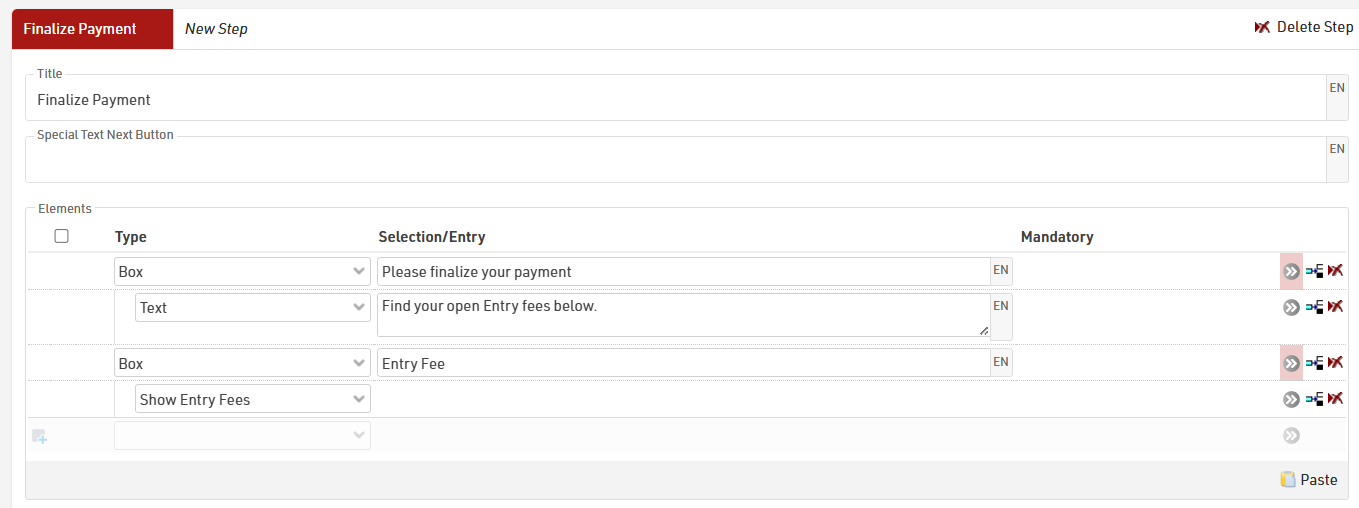
To then enable the payment in the form, activate the Online Payment in the form settings. See here for detailed information: Online Payment.
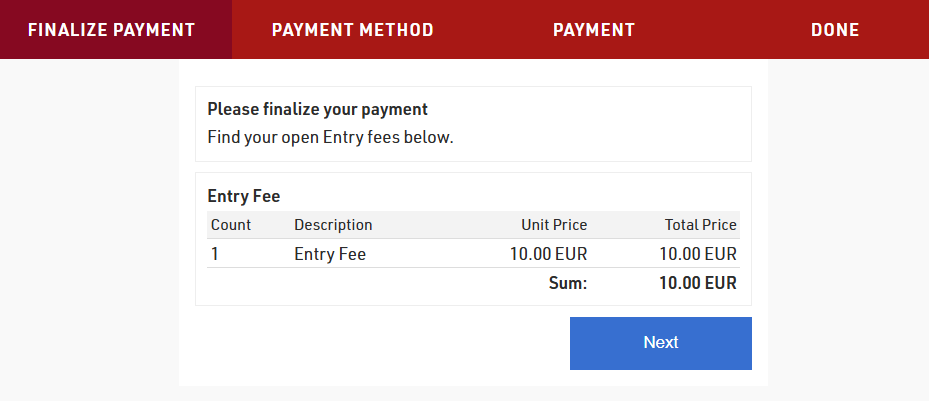
When the participant opens their Self Service form, they will see the summary of entry fees that are due, and the second step will then allow them to complete the online payment.
The URL to the participant's personal Self Service form is generated using the Changelink() function, this can be sent in an e-mail template, to see how check our Knowledge Base guide on Adding a URL-Link for a Self Service form in an Email template.