To import participants from an external source, you can import an Excel/CSV file in Participants⇒Import Participants. This tool allows you to upload Excel or CSV files and map the data directly to your event fields. To start the import select a file with the data to import on the first worksheet of the workbook. After selecting the file to import, you’ll be able to preview the data and map fields from the file to your participant database.
Best Practices:
- Include column headers in the first row. These determine which Field in the event file each column will populate. You can adjust these mappings in the preview screen. If column headers are not in the upload data, then each column will have to be mapped individually.
- An example Excel template with default fields is linked directly in the import screen. You can use this as a starting point for simple uploads.
- It is important to only import Age or DateOfBirth or YearOfBirth. If you import more than one of these fields they will conflict with each other and your data will be incorrect. More information on these fields can be found in our article YearOfBirth and DateOfBirth.
Mapping Fields

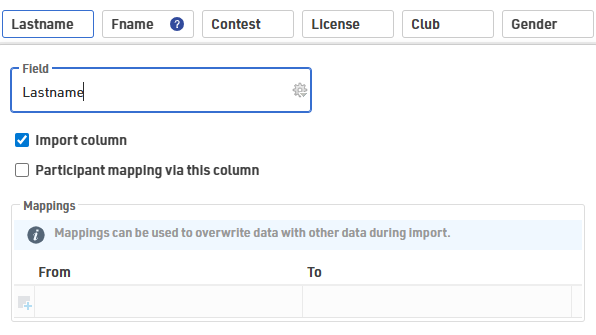
The first row from the import file with the column headers will appear at the top of the import preview. Fields that are not mapped to a current database field will display  . There are 3 options for handling these fields:
- Import as a new field: Leave the mapping blank to create a new additional field that will appear in the participant data.
- Do not import column: Uncheck the Import Column checkbox to ignore this data
- Map to an existing field: Edit the Field box and select the database field you want to match. A tooltip is available with a list of current fields.
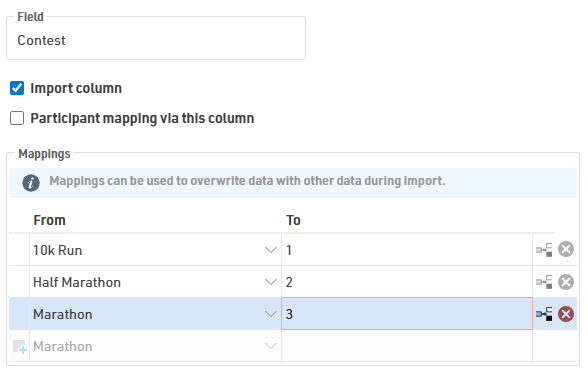
Additionally, the Mappings box allows for data manipulation prior to importing the data into the race file. This is particularly useful if your registration system’s export format doesn't perfectly match your event file's structure.
Import Modes
There are three import modes, the default mode is Only add new participants. You can change the mode in the lower-left corner of the import preview.
The setting Participants Mapping Via this column defines which record in the event file and which record in the import file correspond to each other. Usually, records are mapped by Bib, but you can also use other columns such as a participant/registration ID or First Name and Last Name combination. Mapping columns are indicated by  in the import preview.
| Mode | Description | Mapping |
| Only add new | Creates new records only. If a bib number in the file matches one already in the event, that row is skipped. | Optional |
| Update existing | Updates all records in the event file based on the selected mapping key. | Required |
| Add and update | Updates existing participants that match the selected mapping key and creates new records for all other rows in the import file. | Required |
When adding new participants, if the import file does not contain a bib number, a new bib number according to the Bib Number Settings will be assigned.However, if the import file contains the column Bib and a number is entered, this bib will be used. This means that the record will not be imported if the bib number already exists in the event file.
Additional considerations
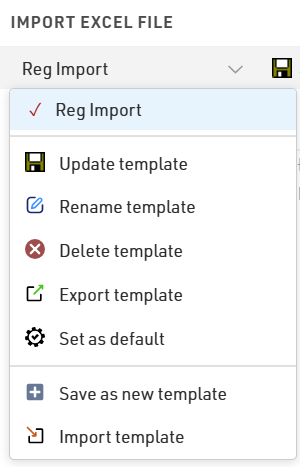
If you frequently import data in the same format, you can save your field mappings and import settings as an import template for faster future imports. Templates can be exported for use in other events or set as the default template so it will load automatically every time you preview an import.
Importing Participants by Event File
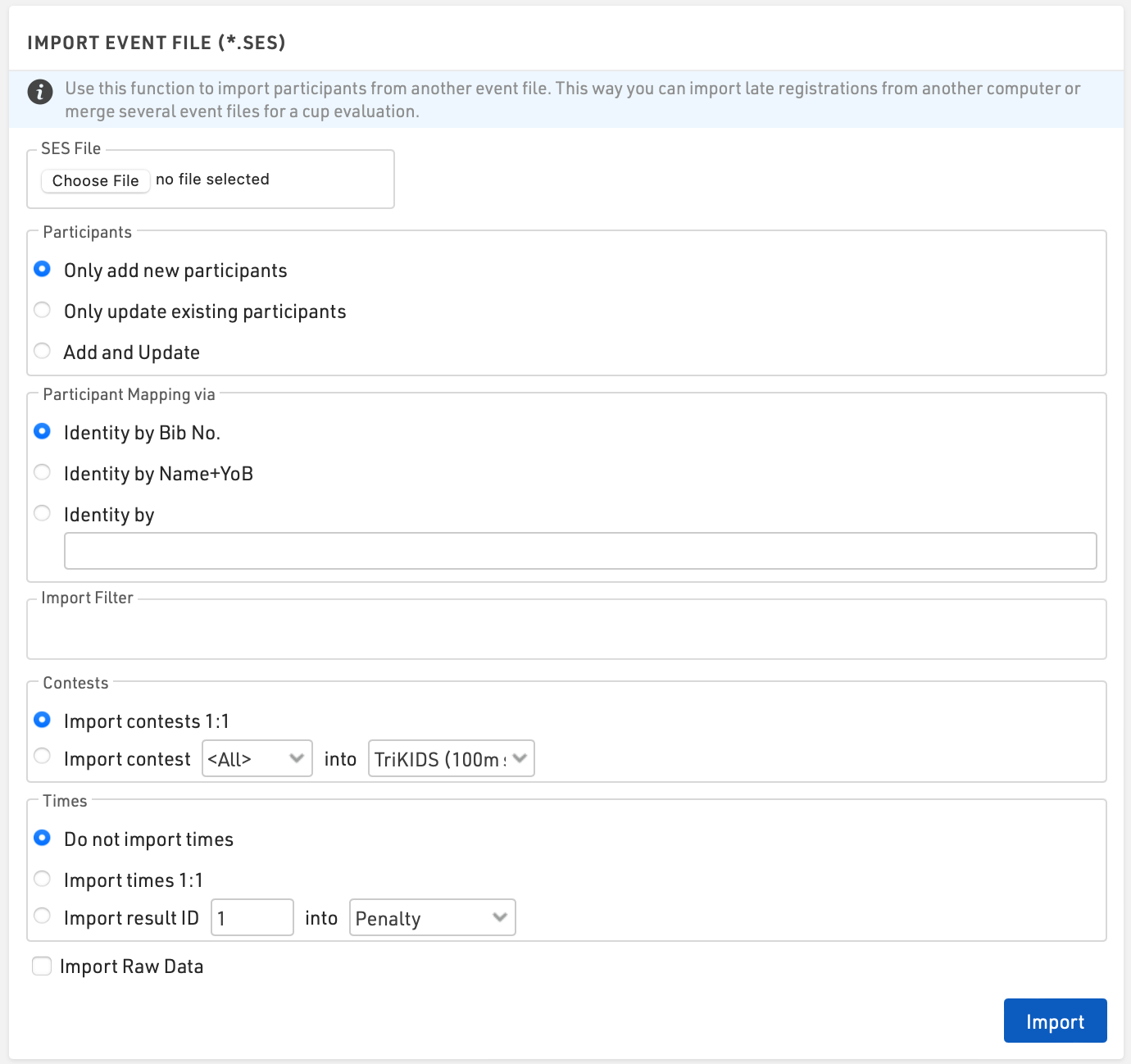
Used to import participants and times from another event file. This way you can import late registrations from another computer or merge several event files for a series evaluation.
Tip: When importing and identifying participants it is recommended that you first make a local backup of the event file.
Participants
Choose how to handle the data you are importing
- Only add new participants
- Only update existing participants
- Add and Update
Participant Mapping
Most commonly participants are identified by bib. If participants do not use the same bib number, alternative identity options such as Name+YOB or a unique identifier such as Registration Number can be used.
Filter
A filter can be applied to the import, for example, you may only want to import records for bibs between 1 and 500 or for a specific Contest
Contests
Participants will be assigned to a Contest according to the contest matching settings.
Contest 1:1 requires the contest ID number of both event files to match exactly. This option is commonly used when a copy of the same event files is being used, such as when late registrations are being taken.
Contests that do not have matching ID’s can be imported by selecting the contest number and corresponding contest name.
Tip: If a participant enters a series event and changes contests partway you should identify participants by your preferred identifier and contest e.g. [Bib] & [Contest].
Times
Times in Special Results can be imported similarly in the same way. Times with matching result IDs can be imported with Times 1:1. If the imported file is being used for a series evaluation you can map the result ID into another result field.
Raw Data
When the option Import Raw Data is selected, all Raw Data records will be imported. It is important that the timing points name match in both files.
Possible Excel import error messages
When importing participants it is possible to receive an error message if something in your import file is incorrect. Below is a list of possible error messages with explanations and possible fixes.
Bib Not Unique, Bib xx.
- This indicates you have more than one of the same bib numbers in the Bib column.
- In your Excel file, check the Bib column for duplicates. It helps to sort your file by the Bib value.
Bib Existing
- This error happens when you are trying to import a list of participants and mapping on a value other than Bib.
- This error indicates that one of the participants being imported has a Bib value that already exists in the event file and the mapping value does not line up.
- For example, Bib 100 exists in the event file with a mapping value of 1. You try to import bib 100 under a mapping value of 2. Bib Existing error will be thrown.
Bib must not be negative
- The Bib column must not be a negative number
- The Bib column must be a whole number, not decimal values
No columns for participant mapping selected
- When using the import mode "only update existing particiapnts", you must define at least one mapping field.
[n] row(s) with empty particiapnt mapping fields
- When using the import mode "only update existing participants", all participants being imported must have a value in the column used for mapping.
- [n] represents the number of rows effected
- effected rows will be highlighted in red
participant mapping fields are not unique in import date: John, Doe
- This means that two rows in your import file have the same mapping values
- In the above, John, Doe is listed twice in the import file
participant mapping fields are not unique in existing event: John, Doe
- This means that there are duplicate mapping values in the event file
- In the above, John, Doe exists as two participants in the event file