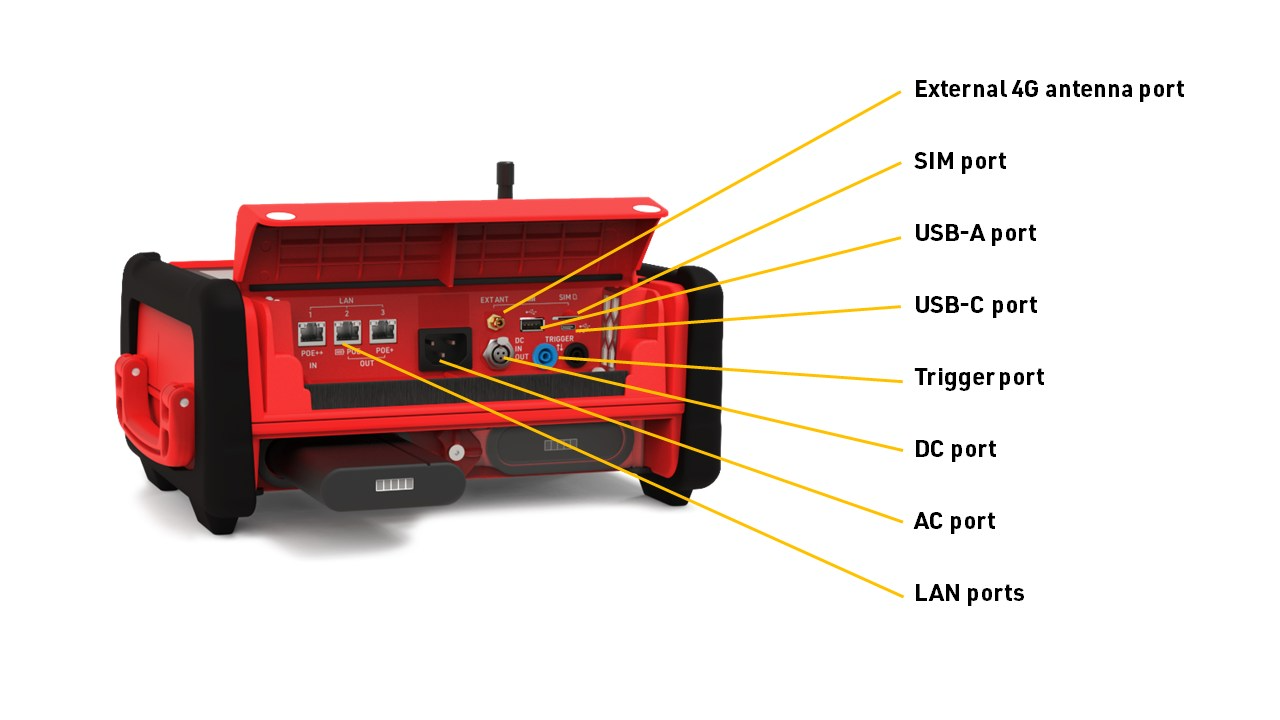
Ubidium is the most advanced timing system available with support for both Active and Passive timing with unbeatable battery life and connectivity. Below is an overview of the elements of Ubidium, some of these will be referenced later in the guide.
System Overview



Starting the System
To power on Ubidium, firmly press and hold the power button until the status LED illuminates green.
Ubidium will now commence the startup process, during this time it will begin to search for a GPS signal, Ubidium will automatically set the time using GPS when available. When using GPS time, the time zone of the system will also be set automatically based on the GPS location.
Once the Startup process is complete, or if the timeout is reached, you should check the time which is displayed, if the time is incorrect then please refer to the guide below for troubleshooting the time.
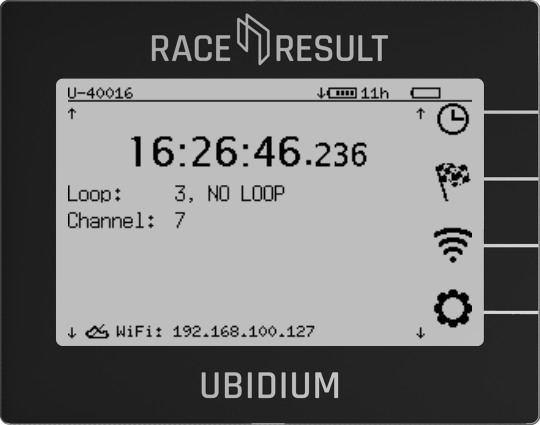
Ubidium is now ready to begin timing and will automatically start recording all passings, the Start Button will be illuminated green if the system has GPS time sync, an Active Loop connected and either a successful cloud connection (via SIM, Wi-Fi or Ethernet), or a connection to a locally networked instance of RACE RESULT 12.
Time Troubleshooting
There should only be two possible causes for an incorrect time to be displayed on Ubidium.
No GPS Signal Found
In order to obtain a GPS lock for GPS time Ubidium requires a high level of GPS signal lock, this is often not possible to achieve when inside a building. If you are inside, please move to an outdoors location, in some open space, to re-sync the GPS.
To attempt to sync to GPS time again, open the Time Settings by pressing the top Navigation Button. This opens a second menu with additional options, press the top Navigation Button again to open the Update time menu.
In this final menu, press the top Navigation Button one more time to Update time, this will force Ubidium to attempt to Sync to GPS if available or Sync via NTPD whichever is available.
When Ubidium cannot locate a GPS signal, and no NTPD time is available, then it will use the time of its internal clock to set the time. This internal clock still maintains a high level of accuracy, even when the system is switched off, however it may therefore not reflect the correct time zone. In such cases the time will normally be incorrect by a value of hours only, see the following section to check the time zone.
Incorrect Time Zone
It is usually possible to identify an incorrect time zone when the system time is incorrect by a factor of hours, but the minutes and seconds are correct. This may occur when the system cannot obtain GPS time and so reverts to the internal clock, or potentially if you are operating close to the border of two time zones.
The time zone can be manually set through the Time Settings menu which can be opened by pressing the top Navigation Button. This opens a second menu with additional options, press the third Navigation Button again to open the Timezone menu.
Here you can choose to set the Timezone from a list, press the top Navigation Button to open the list of available Timezones. Recently used Timezones will be displayed at the top of the list, Timezones are then sorted alphabetically, first grouped by region and then by city. You can scroll the list faster by pressing and holding the corresponding Directional Button, then select the Timezone with the OK button.
Active Timing Setup
When being used as an Active system a Loop Cable is used to activate the Transponders which generate the times.
This loop cable must be secured to the ground, covering the full width of your timing point, it is important to ensure that the loop cable is setup correctly to ensure reliable and accurate recording of times. The Loop Cable is connected to the Active Loop Port on the back of the system , NOT the Trigger port under the flap. You additionally need to raise the black 2.4 Ghz antenna so this is pointing vertically up, this is used to receive data from the transponders.
Loop Cable Setup
The loop cable should form a rectangle with a width of 60cm, the exact line on which you wish to record a time should be positioned across the middle of the length of the loop.

Normally the loop cable will be fixed to the ground using duct tape along the length of the loop, or covered with a mat to secure it in place. Loops can be buried in the ground, particularly for motorsports or on soft surfaces, when doing so it is common practice to protect the loop using some sort of pipe.
Where possible use a loop of exactly the required length, never coil any excess loop cable since this can cause interference resulting in transponders not being activated. Loop cables cannot be installed on metal surfaces, this will completely inhibit the loop signal meaning no passings will be generated.
Loop Settings
Depending on where transponders are being worn or mounted, and the setup of your loop, it may be necessary to check the system settings to adjust the detection height of the loop. This is done by adjusting the Loop Power setting.
To open the settings for the Active Loop, press the Navigation Button second from the top, this opens a menu for Detection Settings, which now has 3 options, the top one is for Active, so press the top Navigation Button to open this menu.

To change the Power value press the Navigation Button next to this menu item, you can now adjust the Power in increments of 10, from 0 to 100, by using the up and down Directional Buttons, then pressing the OK button to select a value.
A higher Loop Power will result in a higher maximum detection height, a value of zero will mean the Loop is switched off.
As a general rule you should try to ensure that the system can detect transponders at a height 50% higher than the expected maximum height of a transponder. To test the maximum detection height, walk away from the loop to a point further away than the maximum height, hold the transponder at the height you wish to test and walk across the loop at a moderate pace.
If the system generates a passing, which will be indicated by both a beep and red LED flash then the transponder was detected, if no passing was generated you may need to first move further away from the system or adjust the Loop Power.
Normally it is only necessary to change the Channel and Loop ID values if you are working with multiple systems or Loop Boxes for additional timing points. The use of Channel and Loop ID is explained in the Active Settings guide.
Connecting the System
In order to receive the times from Ubidium in your event file it will either need to be connected via the internet, or connected locally to your computer.
The below options are sorted according to ease of use.
Cloud Upload
Ubidium can be set to upload via the internet, this is the best option for connecting to your system as when doing so the system will be automatically displayed in the RACE RESULT 14 Timing tab and can be accessed and monitored from any location.
If you are renting Ubidium directly from RACE RESULT then this will be pre-configured on the system prior to shipping and upload will be enabled via the system's internal SIM card.
Cloud upload can be enabled when an internet connection is available either via SIM, Ethernet or Wi-Fi.
LAN - Ethernet
Ubidium can be connected via ethernet cable directly to your computer or to any local network. Ubidium has three ethernet ports located under the front flap, any of these can be used to connect to your computer or network.
When connecting Ubidium via a local network you will need to run the RACE RESULT Web Server on your computer in order to connect through RACE RESULT 14.
Note that many laptops do not offer an ethernet port as standard so it may be necessary to use a USB-Ethernet dongle if you plan to connect directly to your computer.
When connecting to a network every device will be assigned an IP address, this is a unique identifier for each device. If your network contains a router then normally this will automatically assign IP addresses, otherwise, it may be necessary to manually assign IP addresses, particularly if you are connecting directly to your computer.
For more information on network configuration see the Networking Guide
By default Ubidium will use automatic IP assignment, to manually set the IP address on Ubidium press the third Navigation Button to open the Network Settings, then press the top Navigation button to open the Ethernet Settings.
Set the Method to manual, press the top Navigation Button, and then use the arrow keys to select manual and press OK to confirm.

You can then set the IP address and other network settings by pressing the second Navigation Button to open the Static IP menu, then select the corresponding value you wish to set.
Wi-Fi
Ubidium contains an internal Wi-Fi module which can be used as both a Client (to connect to wireless networks) or can also be set as an Access Point to provide a wireless network.
When connecting Ubidium via a local Wi-Fi connection you will need to run the RACE RESULT Web Server on your computer in order to connect through RACE RESULT Software.
If you plan to use Ubidium as a client then please refer to the Wi-Fi settings under the Cloud Upload Settings.
It is only recommended to use Ubidium as an Access Point if you plan to work entirely offline during your event. Note that Ubidium will not share any other internet connections via the Wi-Fi access point so it will not be possible to connect your computer to the internet through Ubidium.
To enable the Ubidium access point press the third from the top Navigation Button from the main screen to open the Network Settings, then from here press the second Navigation Button to open the WiFi settings.

Use the top Navigation buttons to first change the Mode from Client to Access Point, use the Directional Buttons to change the selection, and press OK to confirm.
By default the access point name (SSID) will be the device ID, but the password should be changed. To set the password then press the bottom Navigation Button to Configure Access Point, here you can change the SSID and Key using the corresponding Navigation Buttons.
It is not recommended to change the IP settings unless you are familiar with networking.
When Ubidium is operating as an Access Point it will show as Connected to itself in the Choose connection information.