The Data/Format Settings tab is divided into three sections: Grouping/Sorting, Fields/Columns and Filter. Each of those sections will be explained in the following. According to the settings and selections made in those sections, the participant data will be displayed in the list.
Grouping/Sorting
This section defines how the records on the list will be sorted.
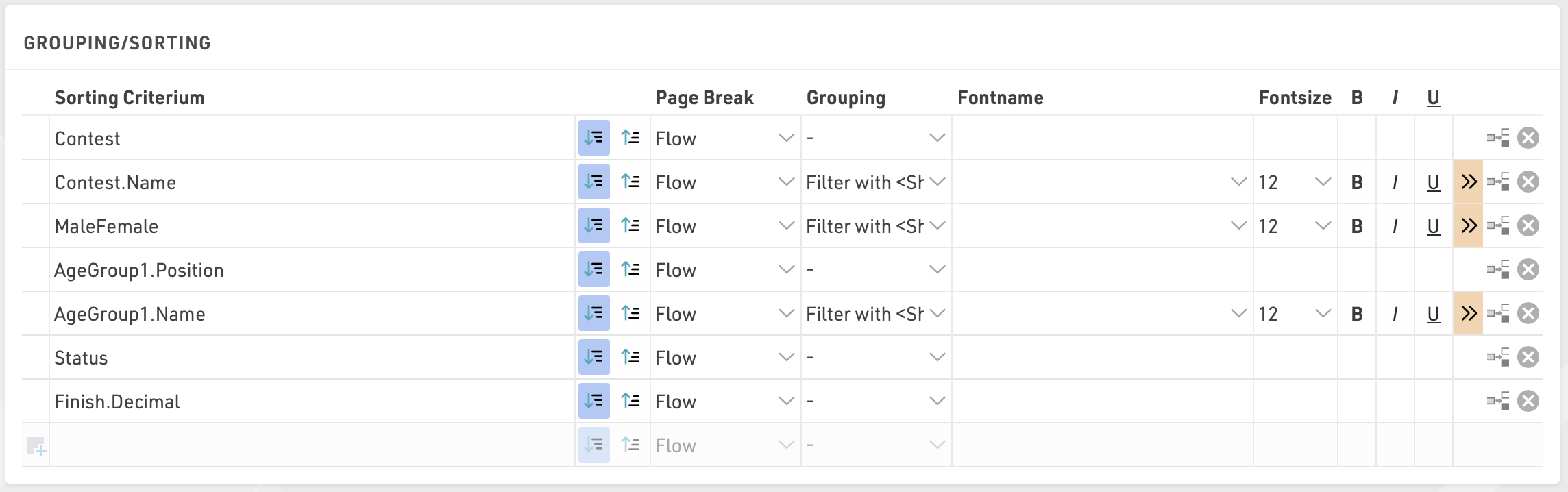
Simply select one or more fields from the Field Wizard which pops up below the input box. The list will be sorted by the first field and, if this field is not decisive, by the second, and so on. Additionally, for each field, choose if the records shall be sorted in ascending or descending order.
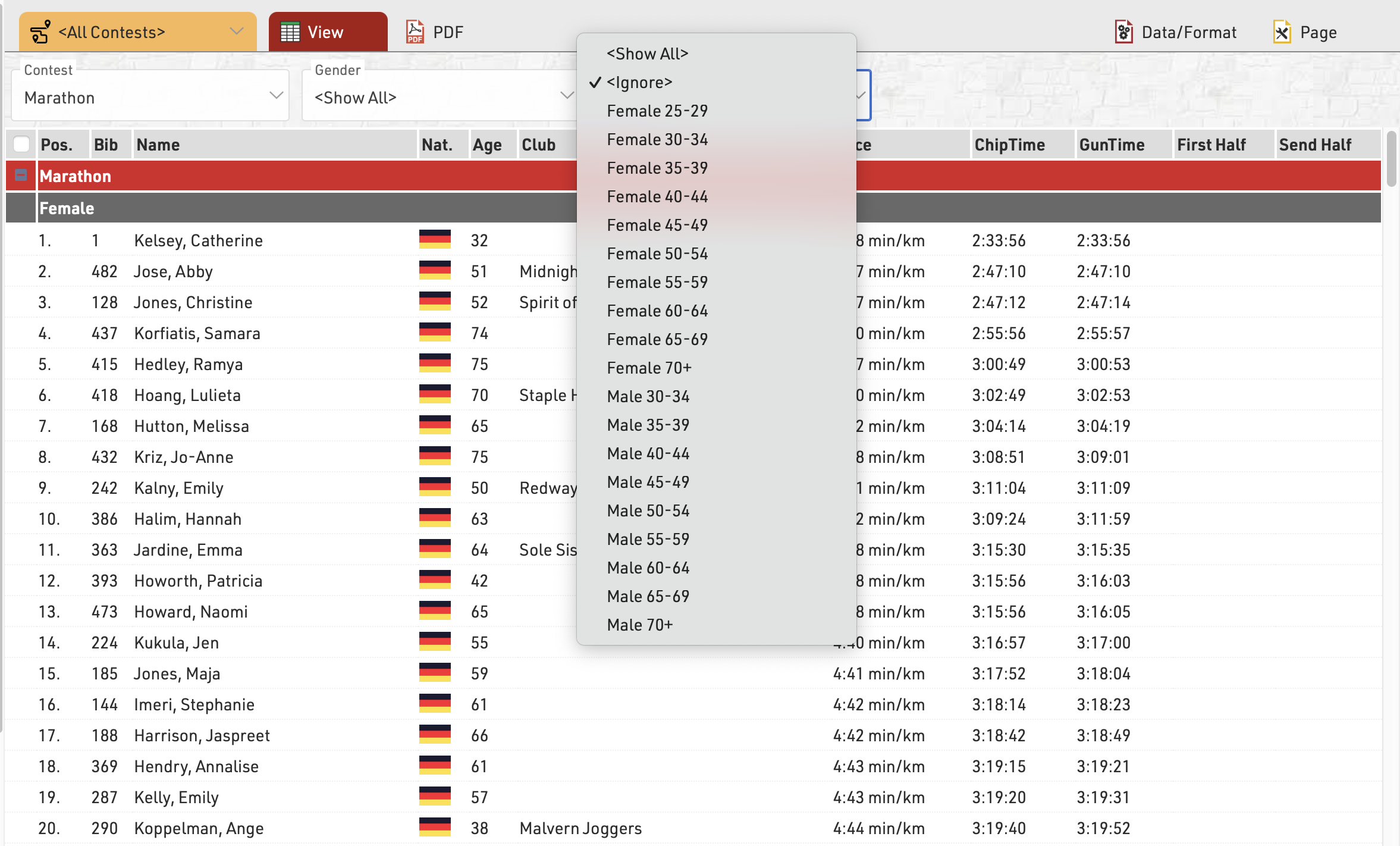
Fields can also be used as a Grouping or Filter, when used as a Grouping then a group header line will be inserted for each group value on all output types. Alternatively a list can be filtered by a group, with this setup an additional dropdown will appear in the preview and also on my.raceresult.com for each filter which can then show all groups, filter to a specific group, or ignore this level of grouping all together (if filter with ignore is selected). Filter is particularly useful for online results to make these easier to navigate / filter to the data somebody actually wants to view.
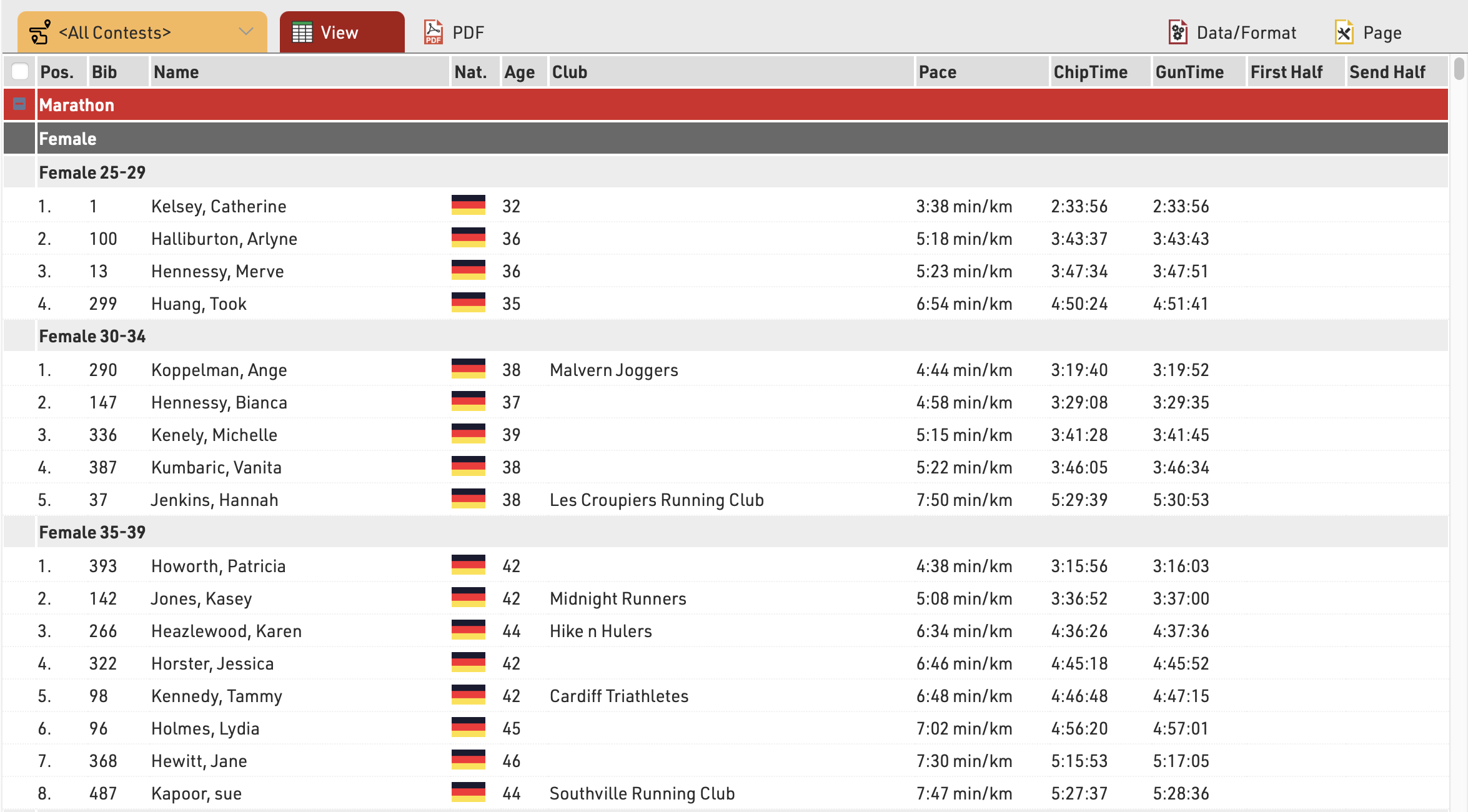
This list is grouped by contest, gender and age group:
and below the same list using a filter instead of simple grouping, where each level can be filtered using the dropdown menus.
See Grouping/Sorting Details for more details and option
Fields/Columns
In the section Fields/Columns select the fields which shall form the columns of your list.
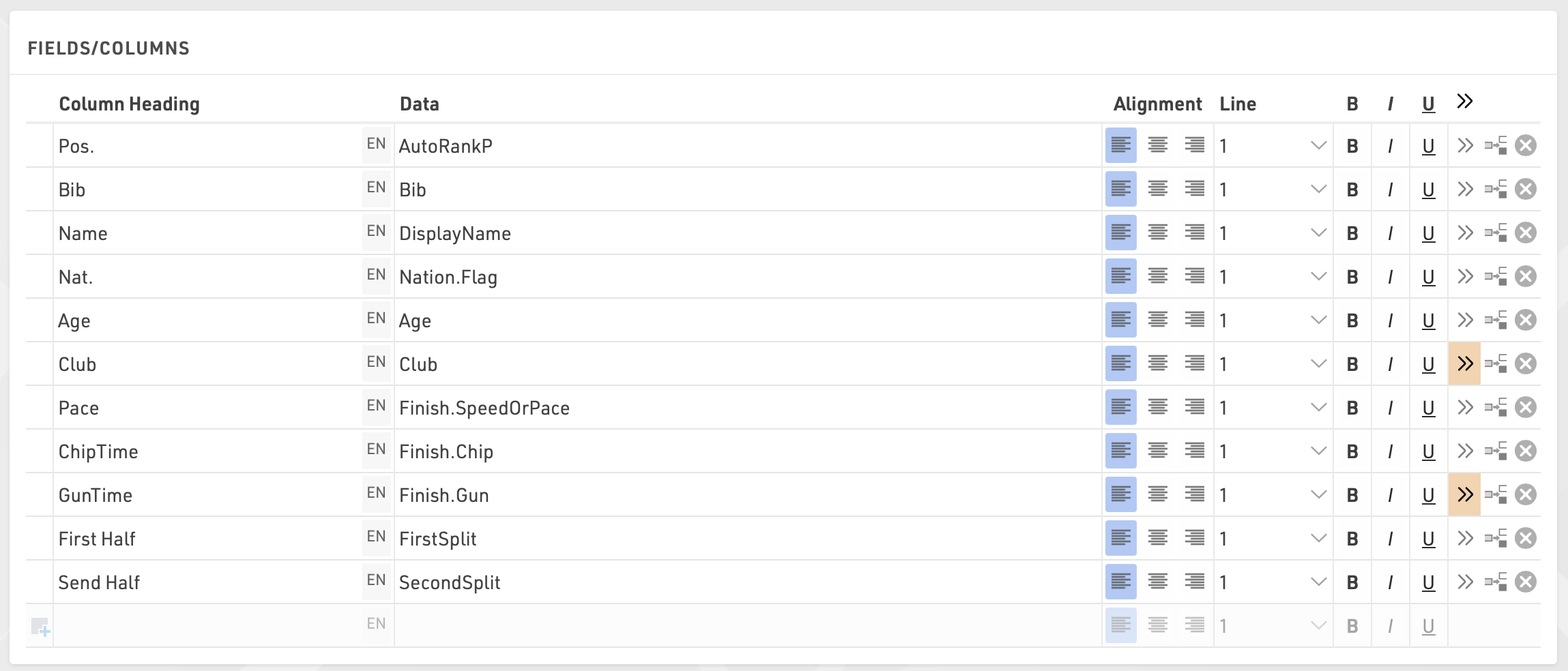
In Column Heading enter a description of the field and in Data select a field from the Field Wizard or enter an expression. For example, using an expression you can combine the fields Lastname, Firstname and YearOfBirth to: "Doe, John (70)"
The corresponding expression would be:
[DisplayName] & "(" & [YearOfBirth] & ")"
Select a line number greater than 1 to create Multi-Line Lists.
Additional formatting is available through the Extended List Column Settings.
Filter
By setting a Filter you can exclude certain records from the report. If you do not define a filter all records will be shown on the report.
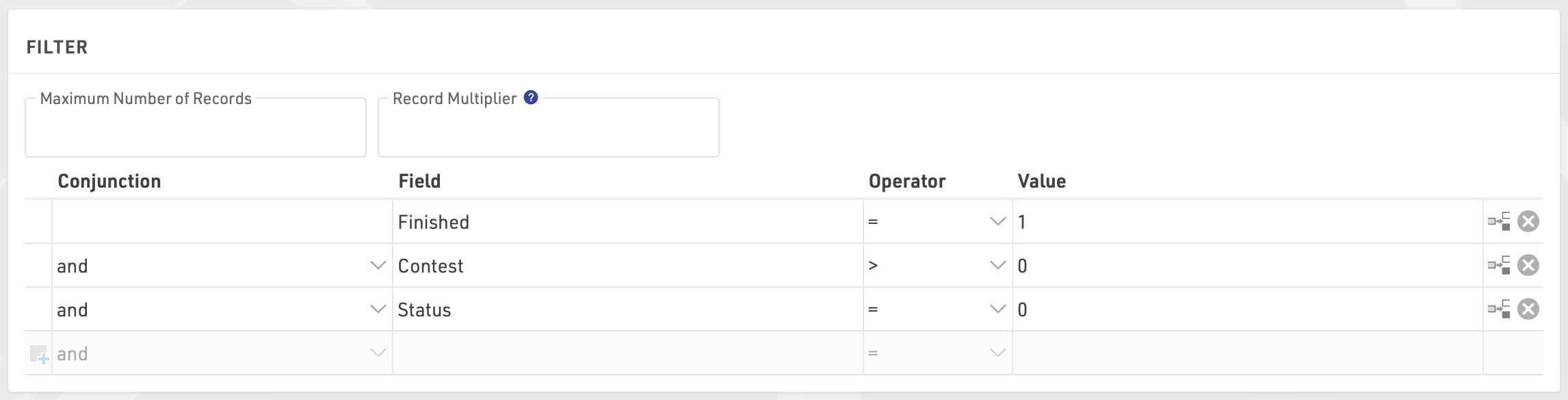
In particular, filters are important for result lists: you would like to show only those participants that have already finished. Usually, the filter will be that the rank must be greater than 0.
Instead of setting a filter, you can also limit the number of records shown on the list by setting a maximum number of records.
Besides, the Record Multiplier allows to show records more than once with different information (e.g. lap times) on a list.
Grouping/Sorting Details
Page Break
Using the Page Break setting, you can insert page breaks in the PDF output format, when the value of the sorting field changes. The following options are available.
- Flow: Default value. A new page is started if an additional record does not fit on the previous one.
- New Page: if the value of the sorting/grouping changes, a new page begins. For example, a list could have a new page for every contest.
- New Column: the same as New Page, however in case of multi-columned lists, a new column begins, not necessarily a new page.
- Keep Together: it is attempted to show all records of a group on the same page. If not all records fit on one page, a new page is begun. For example in case of team results, a new page can be started, if not the entire team fits on the page.
- Repeat: same as Flow, but the grouping header is repeated on the new page.
Colors
Click the  (More Details for this entry) button to define font and background colors:

Different Fields for Sorting and Grouping
Frequently, the list shall be grouped by a field, but not sorted by that field, for example sort by Contest ID but show the Contest name. In that case, simply enter the sorting field before the grouping field. In the example below, the list is sorted by the contest id, but the group header will show the contest name. Similarly, within the contests, the list is sorted by the age group position, but the group header shows the age group name:
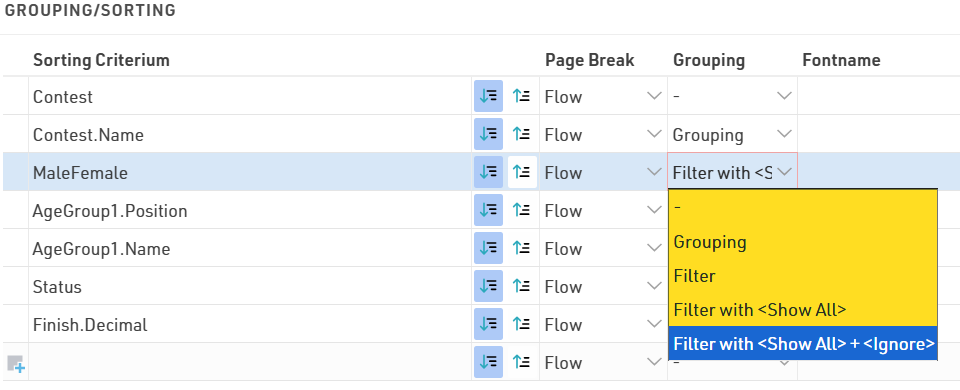
Filters can also be applied, these allow lists to be filtered manually using additional drop-down selectors according to the available values. These filters will also show on my.raceresult.com when using output lists online. Filter with ignore allows you to also ignore any grouping, for example if filtering by Gender it could be useful to ignore this and show all together. Note that when an ignore is applied then any filters /grouping below this will also be ignored.
Group Header Columns
In some cases it is helpful to create columns within the group header, for example in team results. In this case we want to show a group header for each team which has their team rank, team name and team time each in separate columns, then below we will show each team member and their individual details.
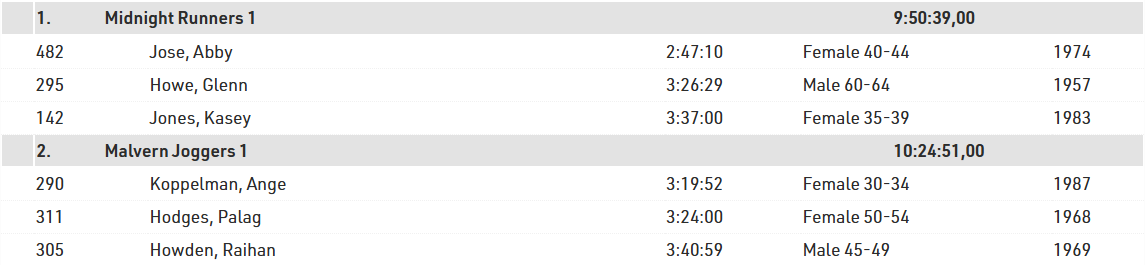
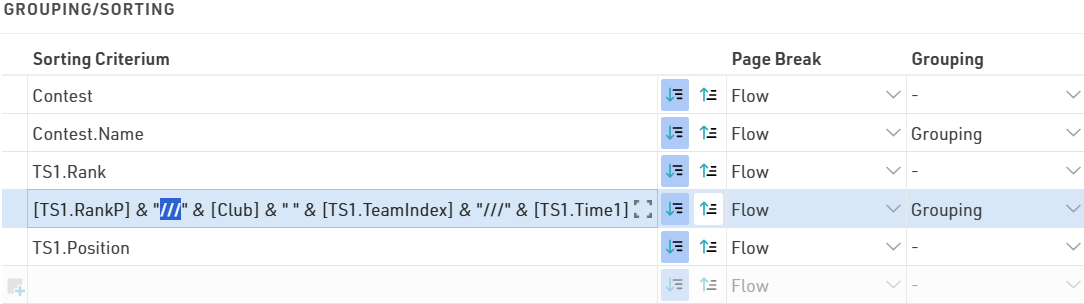
Columns will be created when the value of the grouping field contains three slashes (///). In other words, the three slashes are the column separator:
Extended List Column Settings
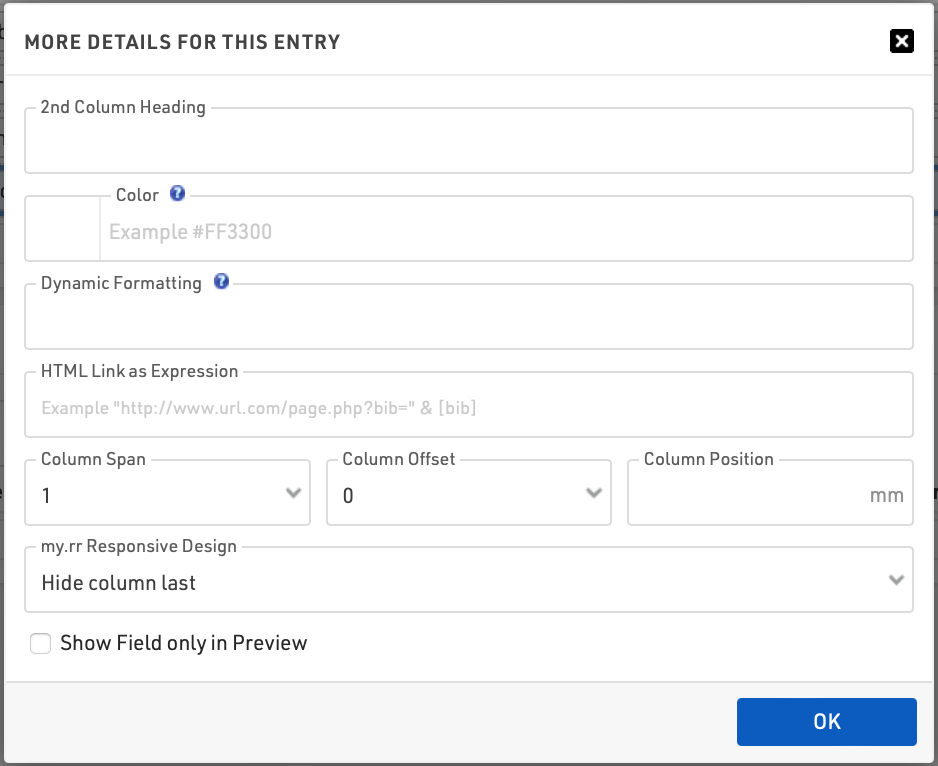
2nd Column Heading
The column header can have two lines. The second line will show if any field has an entry for this setting. This function is sometimes used for printed results that shall have column headings in two languages.
Color
Select a color for this column.
Dynamic Formatting
Different records can be formatted differently, see Dynamic Formatting.
HTML Link as Expression
When clicking a line in that column, the link will be followed. This is mostly used for results published on my.raceresult.com, for example, to create an individual link to a website with photos.
Column Span
If a field should span more than one column then define the column span accordingly, for example in multi-line lists where fields on different rows may have different lengths and so don't align in a single column.
Column Offset
The Column Offset setting serves for multi-line lists, see next section.
Column Position
Normally, RACE RESULT 14 automatically calculates the width of the columns depending on the content. In some rare cases, you may want to set the column position manually (only applies to PDF). Therefore enter the position in millimeters from the left.
my.rr Responsive Design
Use this setting to determine in which order fields should be hidden when being viewed on mobile, or narrower screens, through my.raceresult.com or your own custom embed. This helps optimize the spectator/participant experience since most results views are on mobile devices and you want to ensure that the most important fields are viewed easily. Read more about the Display Logic on Mobile Devices to understand how the settings work.
Show Field only in Preview
The field will only be shown in the preview, but not on the PDF. This may be used for the photo links as described above.
Multi-Line Lists
Multi-Line Lists are an easy way to put more information on a list, most commonly used for Details Lists for online results or Results with multiple splits which should be displayed. Each participant record can have up to 50 lines on the list, to create additional rows simply select a line number greater than 1.
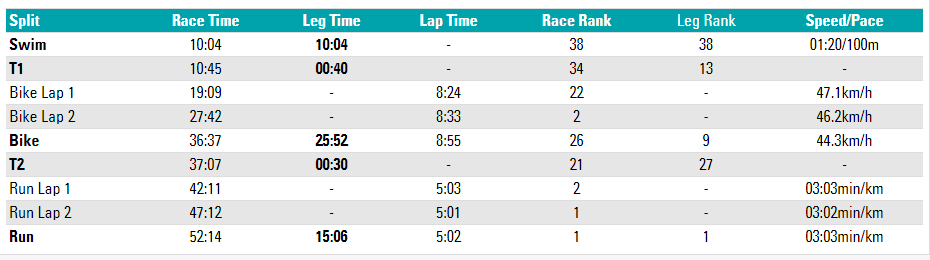
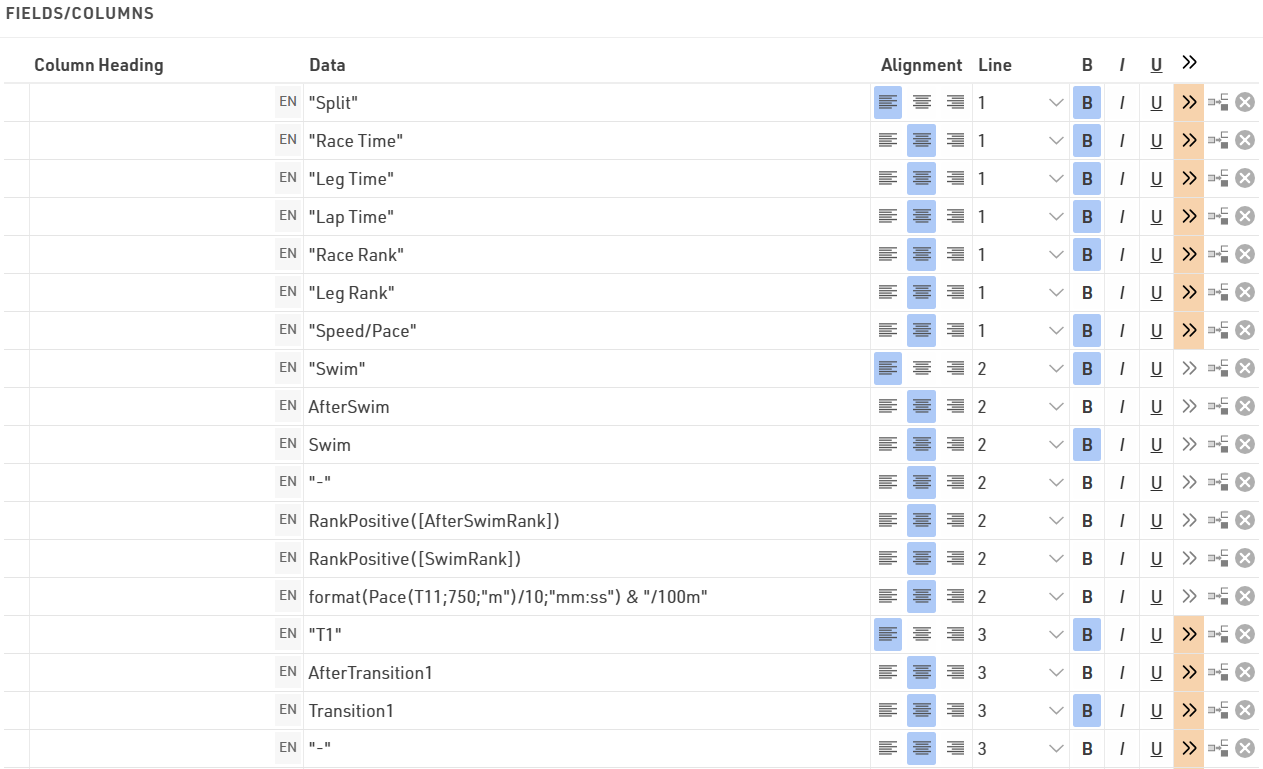
In this example each split for the race is shown on a new line, for each line the data fields are still shown in the order listed. The Row Headers are Line 1, using simple text with custom formatting. It may be necessary to add in blank fields using "" if you need columns to line up correctly.
Maybe you would like to have different column widths for the fields in the different lines like in the screenshot below: the lap times in the second and third line have different column positions than the basic information above. This is only possible in PDF output lists.
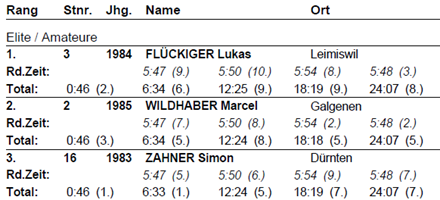
To do so, you have two options:
- Enter the exact column position in the extended field settings. This will disregard the column widths from other rows.
- Set a column offset. All lines will have the same columns, but for example in the second line the field will be moved one or several columns to the right, i.e. the previous column has a greater column span.
Record Multiplier
Using the Record Multiplier, records can be shown several times on a list, optionally with different data, for instance lap times.
The Record Multiplier setting in the Data/Format settings of the list can hold either a fixed value (e.g. 3) or a variable (e.g. DecimalTime6). If the result 6 saves the number of laps, the list will show one line for each lap time.
In order to show the lap times in the lines, the parameter {n} can be used, which will be iterated from 1 to n (=value of the record multiplier). If for example the lap times are saved in results with the names "Lap1", "Lap2", and so on, this field can be used:
[Lap{n}]Entering Complex Filters
The filter settings for a list offer an easy definition of your filter, for example:
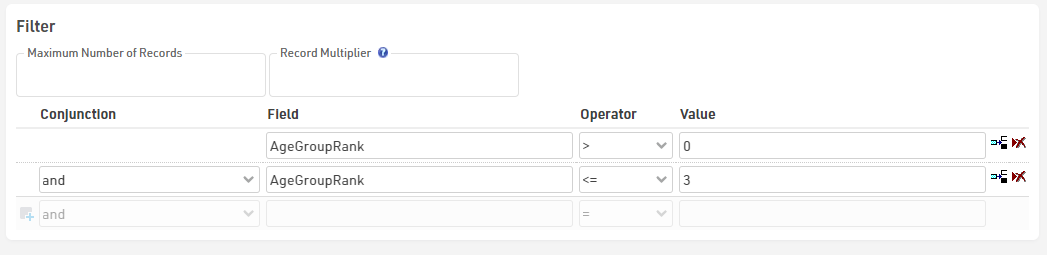
If you need to enter a complex nested filter, the GUI may be tedious. In that case simply enter your filter in the first line like this:
iif(([Contest]=2 AND T2>5) OR ([Contest]=3 AND T2=5); 1; 0) = 1