The Timing window contains important timing settings and the main interface for connecting to timing systems during the event.
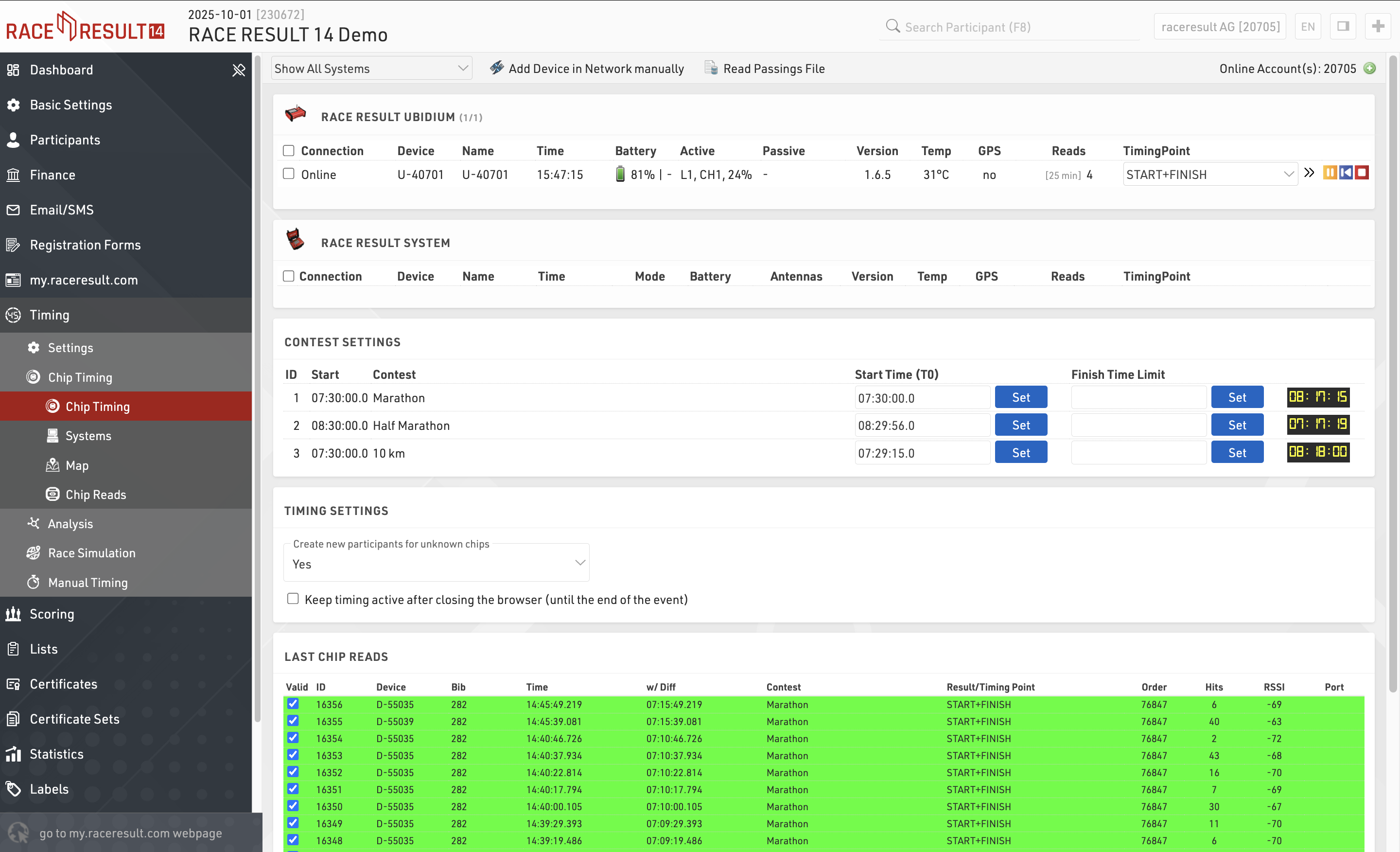
By default the Settings page will be opened if the current date is before the start of the event, after which the Chip Timing page will be opened automatically.
Settings
The settings primarily control how raw timing data should be handled by RACE RESULT 14.
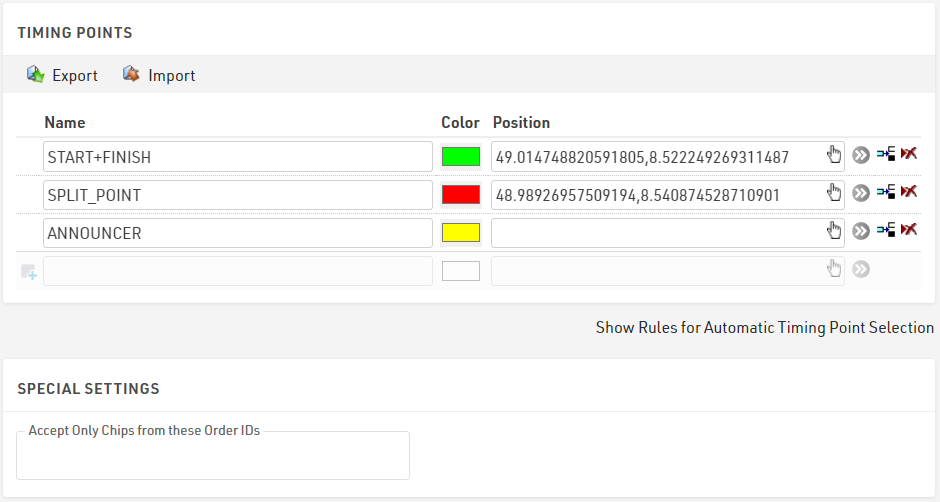
Timing Points - Each raw data record should be assigned to a timing point which identifies where it was recorded, for example the START, FINISH or your Split Timing Points on course.
Chip File - A chip file helps to identify to which participant a raw data record should be assigned.
Start Times / Finish Time Limits - The official start time (T0) to be used for timing the race, this is used by your Splits or Special Results setup to calculate race times. Optionally, a maximum time can be set.
Exporters / Forwarding - Trigger the sending of e-mails / SMS or to export/forward data to third party platforms if required.
Timing Points
A Timing Point is a location where one or more timing systems are placed. If you have a main and a backup line at a timing point, it is usually only one timing point unless you want to run statistics over the performance of main and backup.
Timing Points can be set up in Main Window->Timing Points.
Learn more about these settings in the sub-sections.
Chip File
Depending on your setup and type of transponders used it may be necessary to assign transponders to participants to ensure timing data is assigned to the correct participant.
By default, when using Passive RACE RESULT Transponders where the bib number is equal to chip number then it is not necessary to use a chip file or any transponder assignment. In most cases, when working with passive transponders the chip number (or chip code) is the same as bib number and so times are automatically allocated.
When working with reusable transponders such as the RACE RESULT HuTag or the Active Transponders, or when chip number is NOT equal to the bib number then you will need to use a chip file or alternative transponder assignment method.
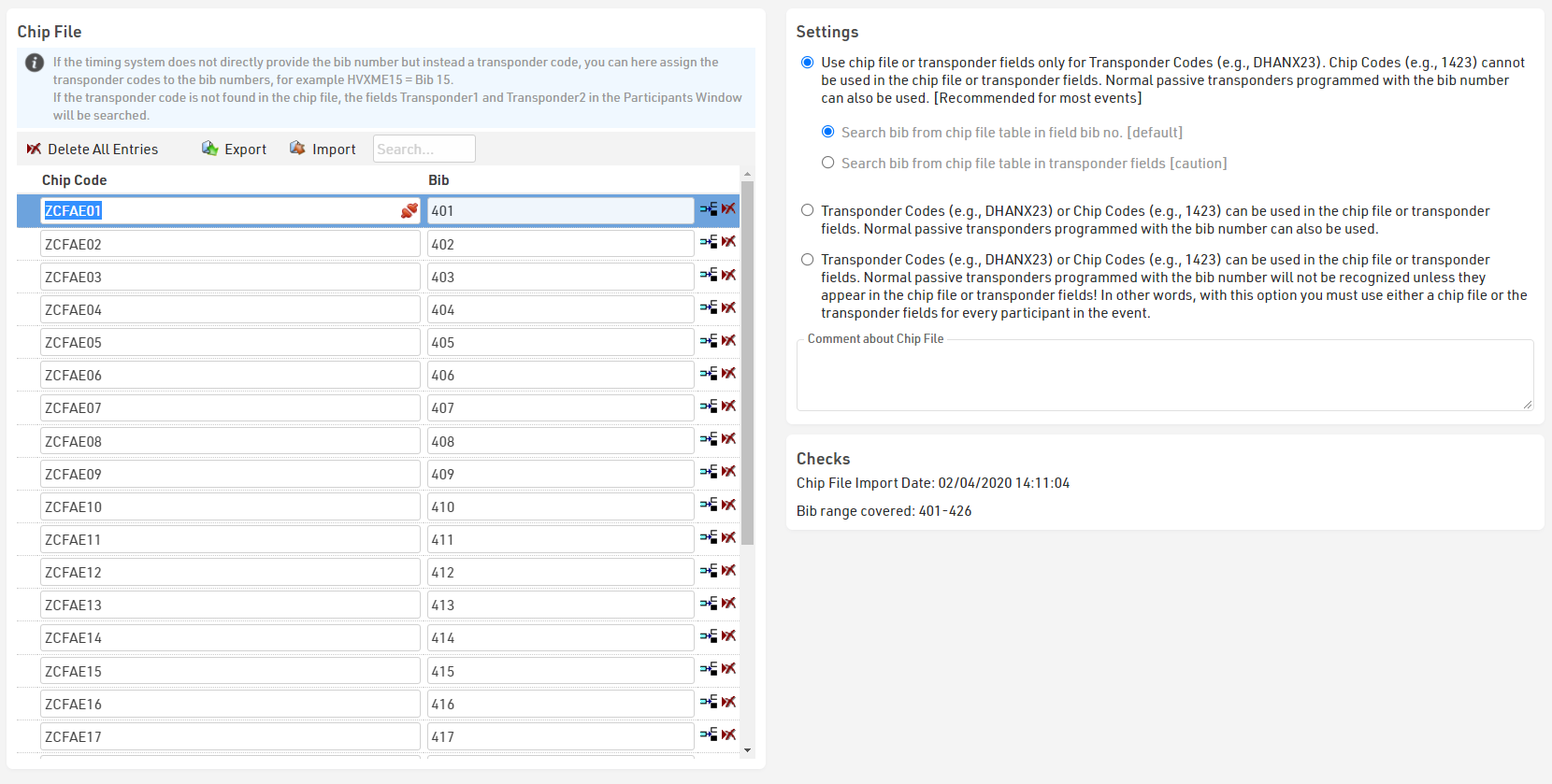
A chip file can be entered or imported in Timing ⇒ Settings ⇒ Chip File. Simply enter chip code and bib number in the table, or import an Excel, TXT or CSV file with the corresponding Bib and Chip Code fields.
You can also search the chip file by Chip Code or Bib to look up specific participants.
If you are using passive transponders with a chip file and need to map a different chip and bib numbers then you should pay attention to the Chip File Settings.
You can also create a two-step mapping for transponders which may be pre-labelled but where chip label is not necessarily equal to bib number.
Start Times (T0) / Finish Time Limit
Start Time (T0)
The Start Time (T0) is a special result which is relied upon by several other parts of the timing setup. Start Times will be defined in Timing ⇒ Settings ⇒ Start Times/Finish Time Limit either per contest, per bib range or based on any other field (Wave Start) and then automatically calculated for each participant.
Start Times are very important, because normally we want to ignore any detections before the start. Splits will only be calculated for times which occur after the Start Time, unless using a rule which overrides this, and when working with results the Start Time can be subtracted from the Time of Day for a simpler setup.
Finish Time Limits
Finish Time Limits on the other hand are used to define a time limit for an event, and how times should be handled after this time limit. They can also be defined either per contest, bib range or based on any other field / expression which is usually the same as your Start Times.
There are three options on how to handle Finish Time Limits, as different types of event may have different rules / requirements.
- Ignore chip reads after finish time limit
- Accept one last chip read after finish time limit
- Accept chip reads after finish time limit
For example - in some cycling events, the option Allow one last detection is important: before the winner arrives at the finish, the finish time limit is set to the current time and everyone can complete the current lap.
Setting Start Times / Finish Time Limits
Start Times and Finish Time Limits must be set according to the same reference as your timing system is running, if you are using GPS Time / Time of Day then these times should also be entered as a Time of Day. These values can also be updated at a later point in time and all results or calculations which rely on these values will automatically be updated.
If a timing system is connected to your event file, you will see the time running in the top right corner. You can then click the Set Start Time / Set Time button to save the current time for the corresponding Start Time or Finish Time Limit. Otherwise, the top right corner will show No Decoder Time Available and you can enter the start time manually.
For Start Times, if two or more contests start at the same time, you can select them using the checkbox on the left and then click the Set Start Time link at the bottom of the box to start all checked contests at the same time.
It may happen once in a while that you accidentally overwrite a start time. By clicking the Show History link in the top right hand corner of the box, you can still find the old value.
Exporters / Forwarding
Exporters can be used to trigger the sending of data to external sources, this can be used to either send E-mail / SMS templates or export timing data to other systems such as third party timing software, tracking partners, LED clocks and more.
Exporters include some built-in functionality for specific partners but it is designed to be fully flexible to support a wide range of uses.
The exporter runs on both online and offline versions of RACE RESULT 14, if you are working online and you are exporting to a local destination (e.g. local network IP address, Serial or File) then ensure to start the RACE RESULT Web Server on your computer.
Chip Timing
Chip Timing is used to handle the connections to your timing systems and the flow of raw timing data.
Chip Timing
The Chip Timing view gives a compact view of your connected systems and some basic settings for timing the event.
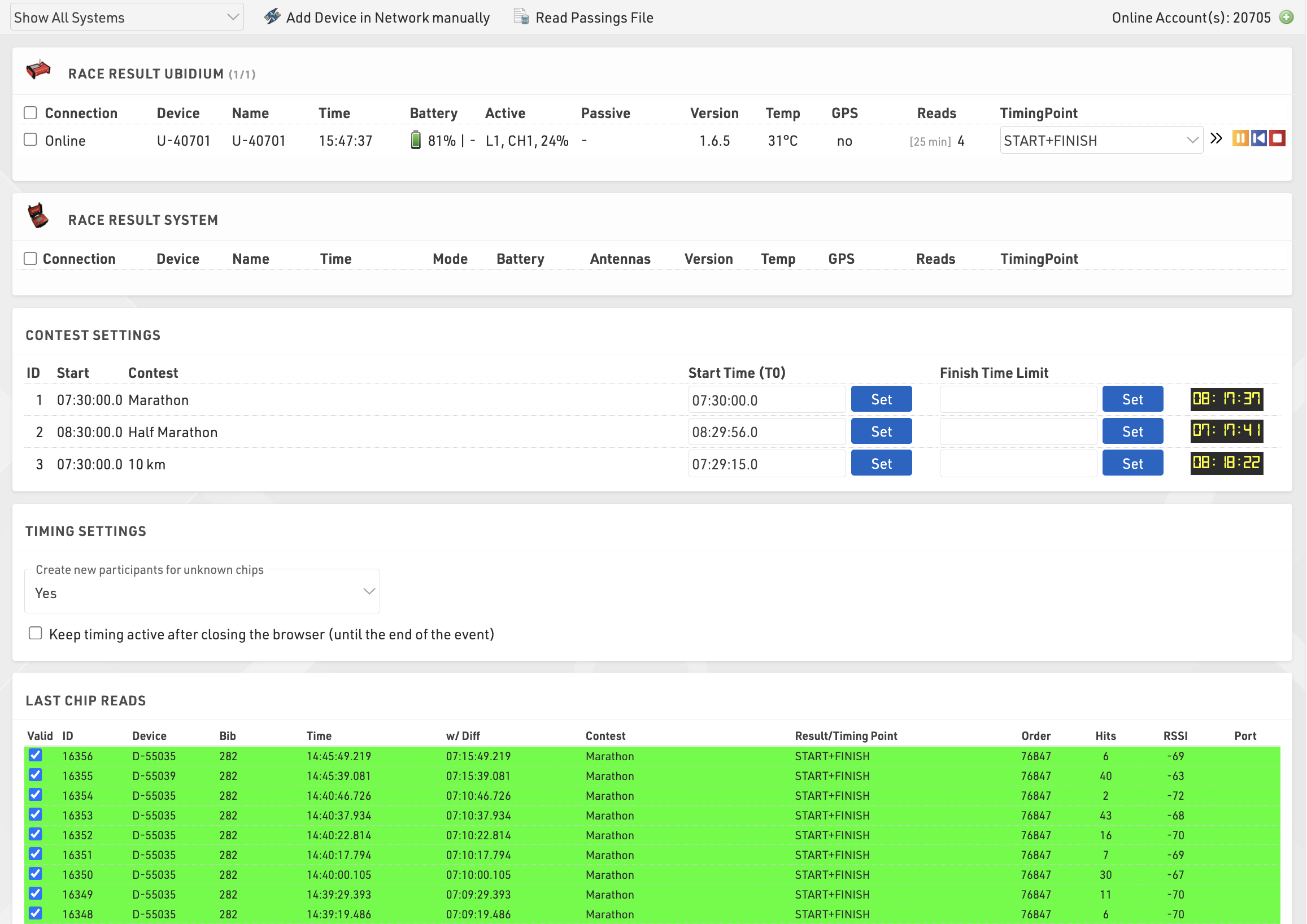
Any available devices (via your local network or online) are listed automatically, grouped by device type, a window is always shown for both RACE RESULT Ubidium and RACE RESULT System, additional device types will be shown if available either locally or online.
Systems can be filtered to show only those to which you are Connected or those within a certain distance based on the Basic Settings and the system GPS location.
Critical information about your systems is displayed here including connection, location, device name, device time, device mode, battery remaining and information about your antennas or loop settings, clicking on a Device ID will also open the System Control window with additional control settings and functions for the system.
If the system is reporting an error then the erroneous element may be shown in red to highlight any potential errors, errors will be cleared once acknowledged or cleared on the system.


If you are timing using RACE RESULT online and wish to connect to a locally networked Ubidium, Decoder, or USB Timing Box you will need to run the RACE RESULT Web Server on your computer as this will create the connection between the browser and your local devices.
If your locally connected system is not shown you can press Add Device in Network Manually in the top right corner to connect via the IP address of your timing system.
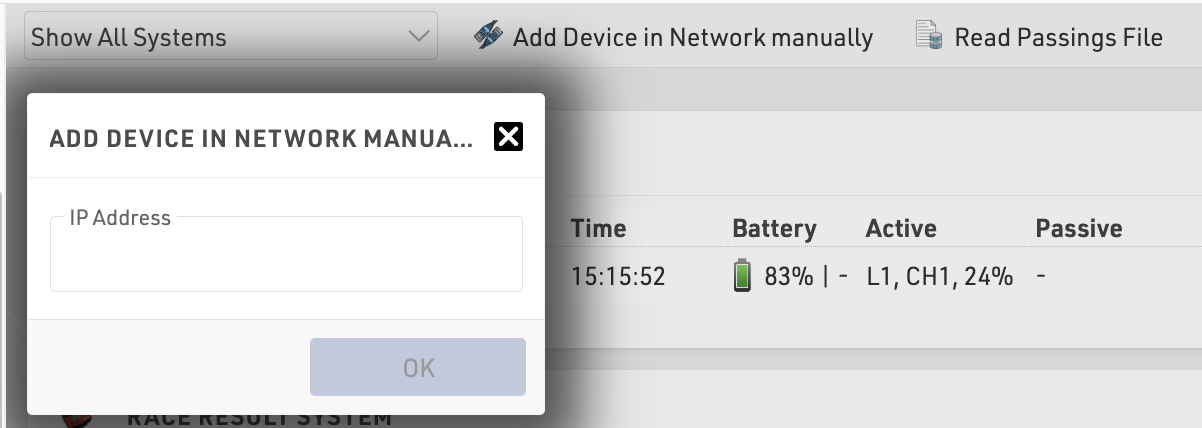
Passings files from systems can also be read in manually, see the below article for more information on how to obtain and handle the passings files.
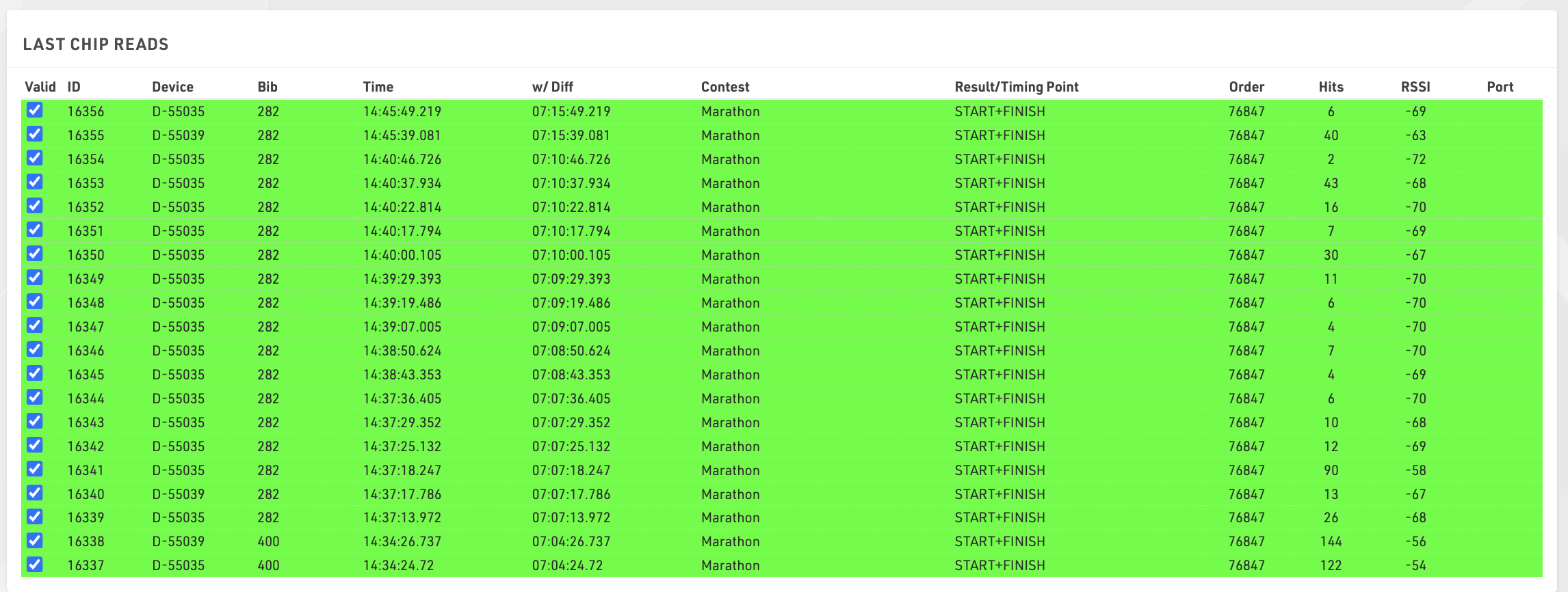
The chip timing view also has a window of the last chip reads which will automatically populate with the latest times received from all systems, the information shown is the standard columns from the Chip Reads screen.
Systems
The systems view shows a complete view of all systems including Ubidium, RACE RESULT Decoders, USB Timing Box and Track Boxes.
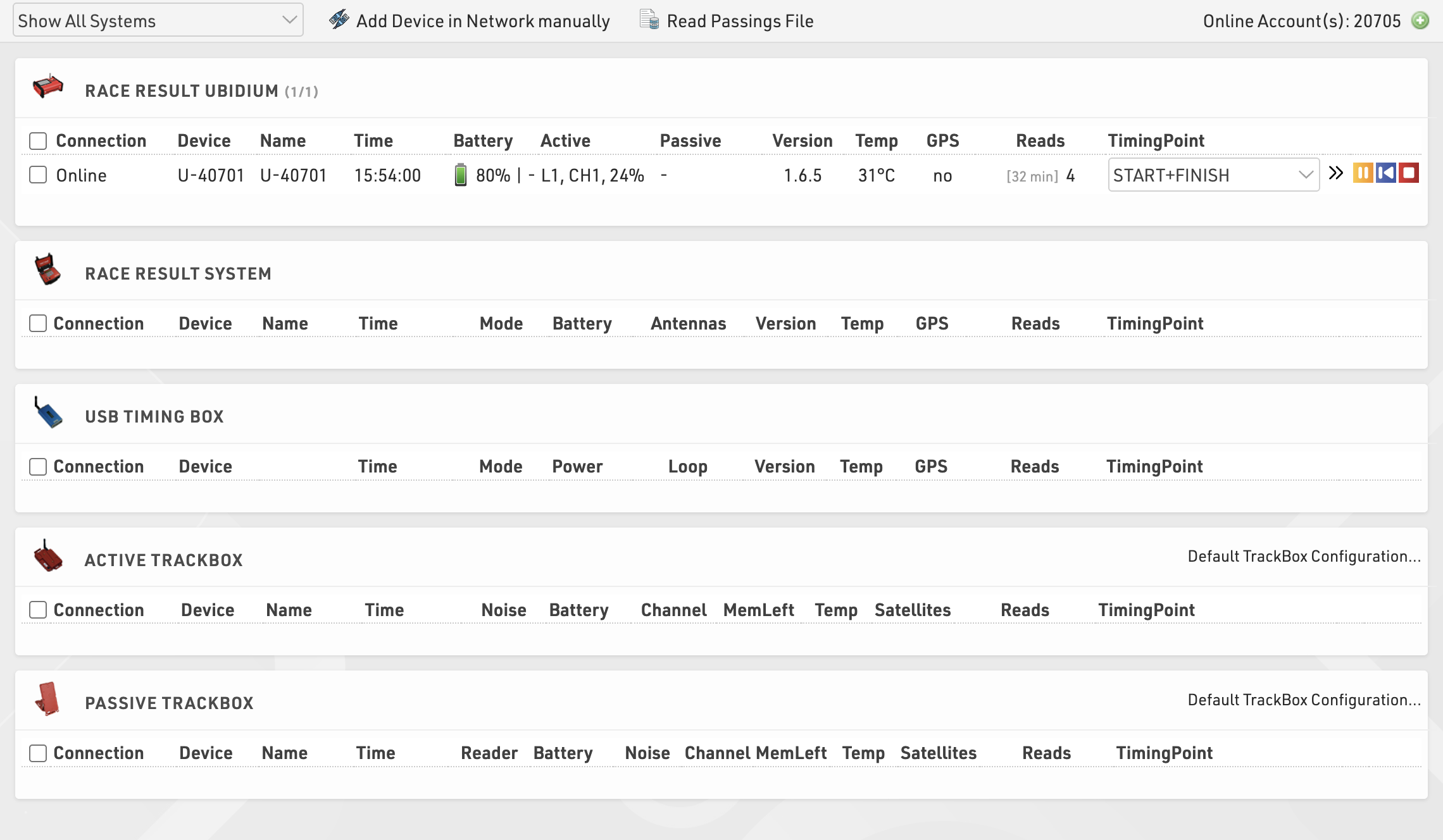
This has the same functionality as the main Chip Timing view but only for handling timing systems.
Map
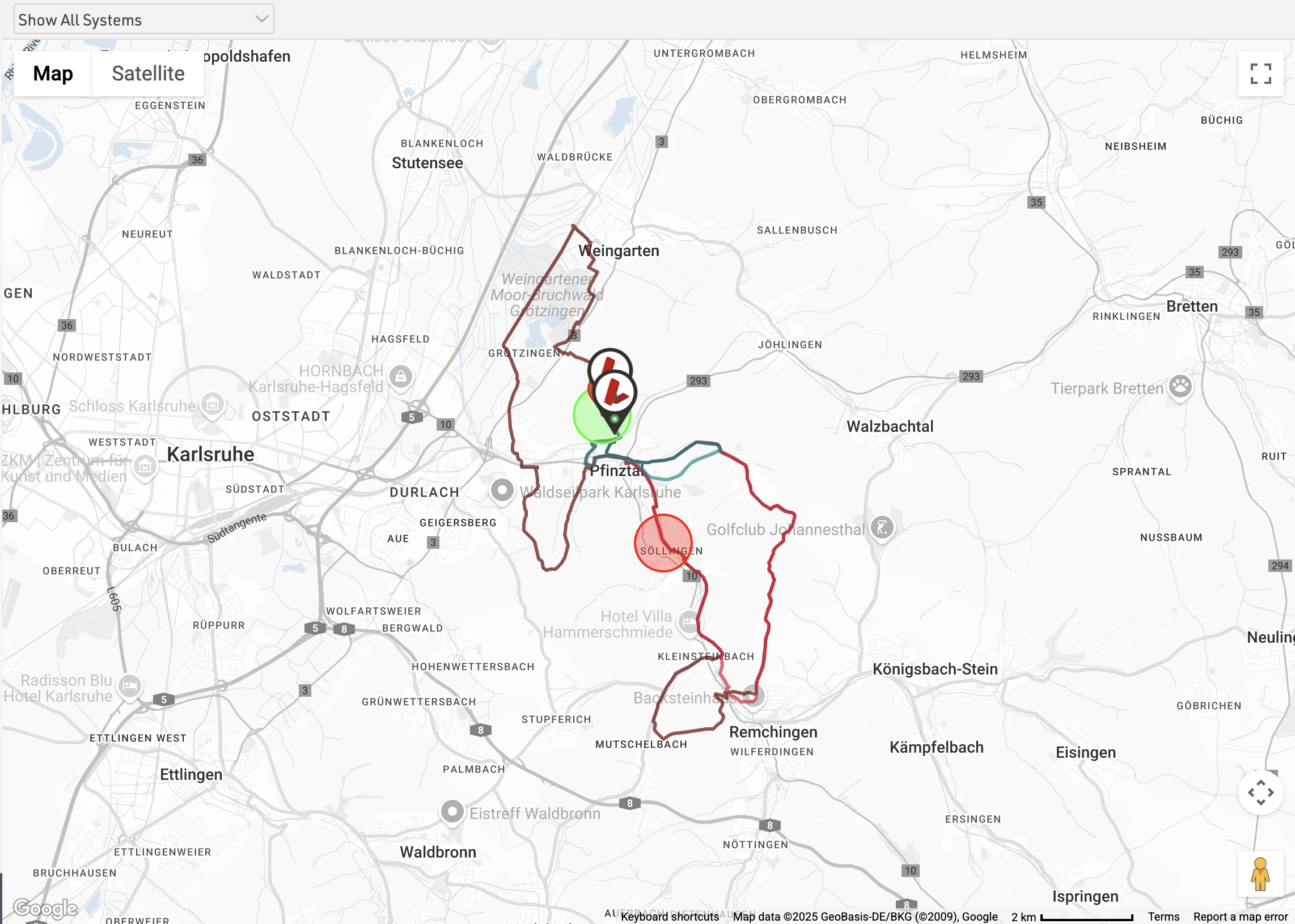
The Map will show your GPX course if you have uploaded one, and the location of the RACE RESULT Systems and Track Boxes which are online and sending data to your Customer ID.
Chip Reads
Chip Reads
You can view all of your raw timing data from connected RACE RESULT systems under Chip Reads, by default all your raw data is sorted by the time ID (most recently received times at the top). You can see the connection (system name), Bib, Time (of day), Time With Difference (from gun), Contest, Result / Timing Point, Order (your order number for the chip), Hits (number of times the chip was recorded) and RSSI (strength of the chip read).
In the bottom left you can select and choose fields you want to display. When exporting, it will always export exactly those fields that are visible at the time of the export.
If you are using an Active Loop Setup then you will also see displayed the Loop ID, Channel ID, Transponder Wake Up Count, Transponder Battery and Temperature.
Clicking on a column will sort the column by that field, which will allow you to sort times by time of day, bib or even battery for active transponders. Some columns can also be filtered to specific values.
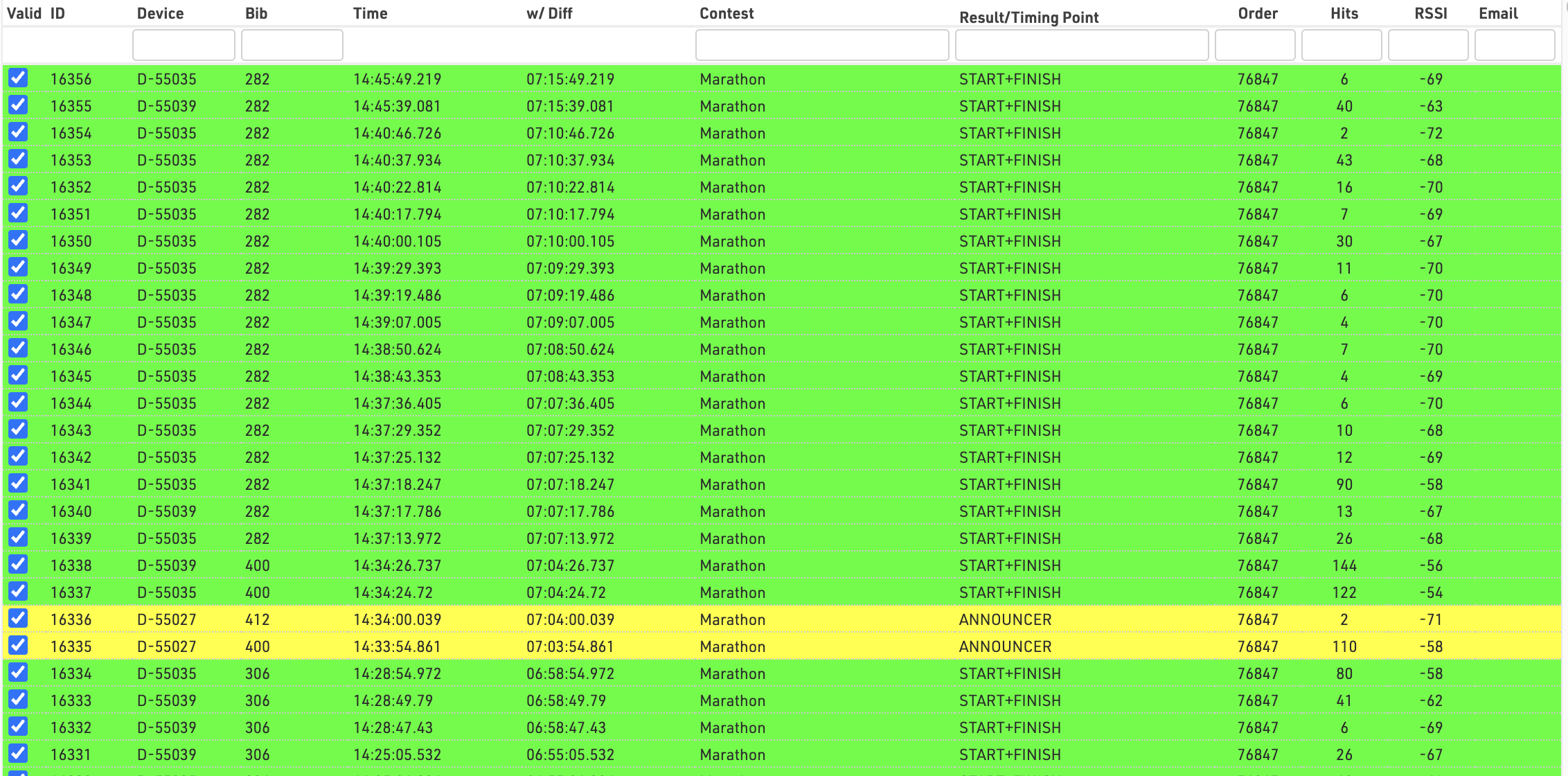
Read more about how to understand this data in Ubidium Ground Antenna Detection Data / Decoder Passive Detection Data / Active Detection Data
Analysis
Under Analysis you will find some tools which are useful for analysing your event whilst it is ongoing, these are designed to aid you with Timing the event by identifying any erroneous data, most often caused by participant error.
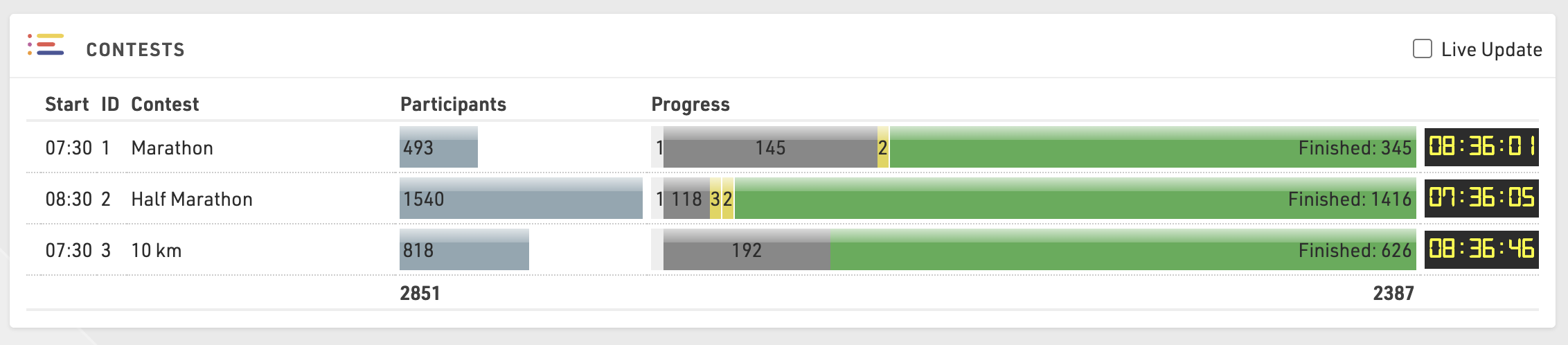
Contest Overview
This gives you an overview of each contest, showing the number of participants signed up, started / on-course and finished in each contest. Hovering over any of the segments gives a breakdown by gender also. You will also see a running clock next to each Contest which shows the elapsed time since T0.
Time Visualisation
Time Visualisation is a very helpful tool to check if participants miss reads and if times are realistic, or in other words to identify potential errors in data.
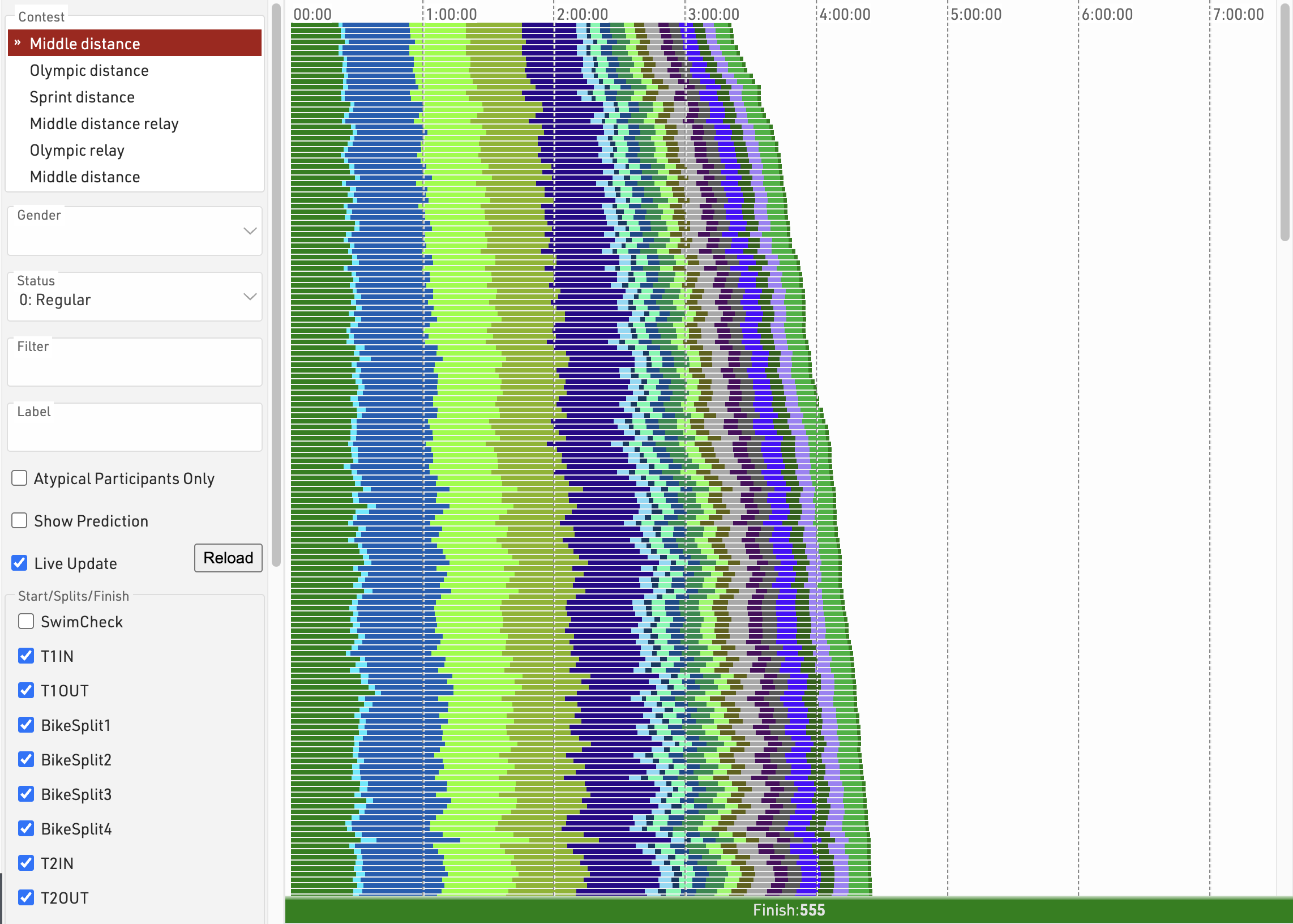
The tool shows one line for each participant. The different colors represent the section times between two split timing points. The length of the bar represents the time and the fastest athletes are at the top.
Clicking on a line will open a popup with the full details for that participant where you can additionally change their status.
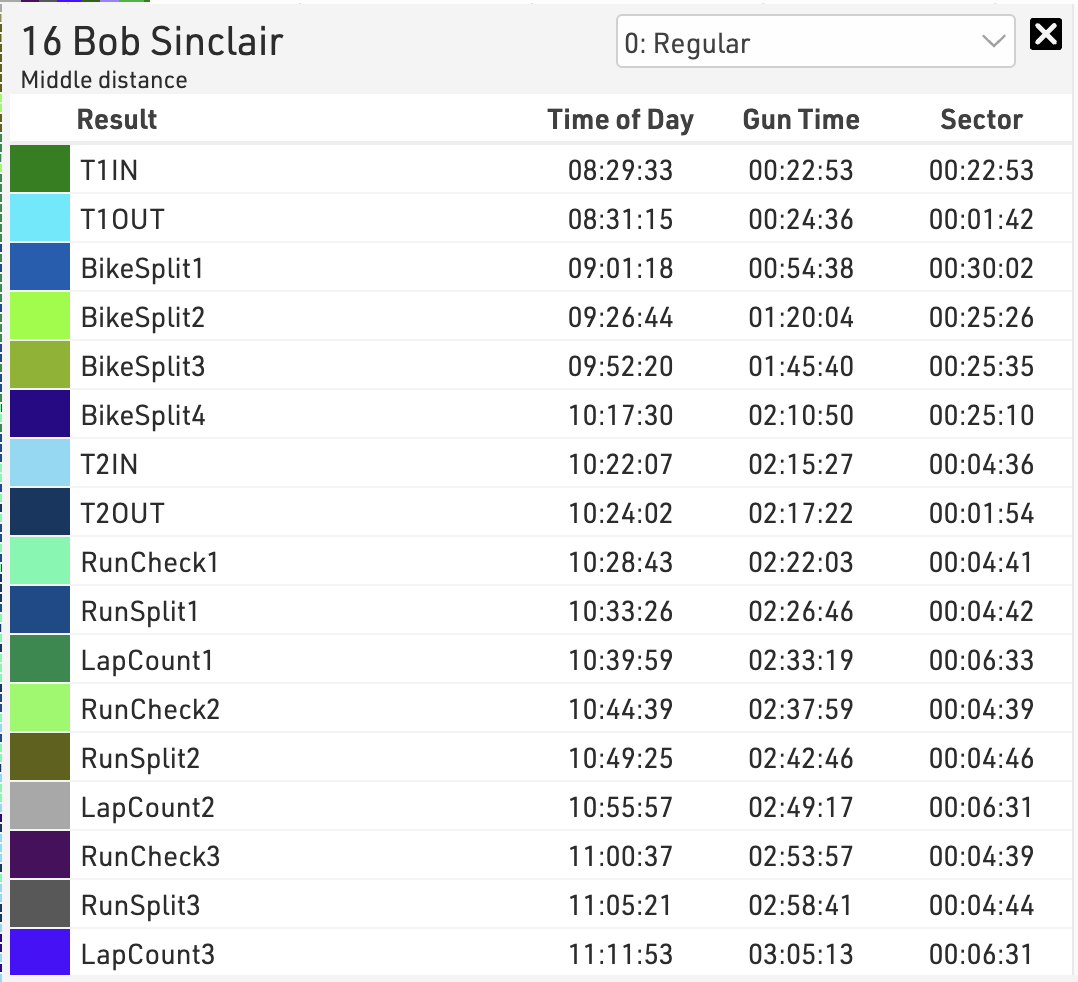
Use the settings bar on the left to select the contest(s), gender, status or apply any other filter, you should also select the splits or results that will be part of the visualisation. Sometimes you may want to exclude certain times. Usually you will want to see just the key timing data for each Timing Point, not the intermediate split times.
A label can be applied to each line, which can be useful when comparing multiple contests together.
If you only want to see participants who are missing data then click "Atypical Participants Only", the view also has a live update checkbox which will refresh the visualisation as new Results are calculated, this is useful for monitoring a race whilst it is in progress.
Read Rates
Read rates offers additional analysis of Splits to compare detection rates across the Primary & Backup timing points and also considering any manual raw data entries.
For each Split the expected number of participants is calculated, either based on the number of finishers (if Finishers only is ticked) or by the number of participants seen at this Split or a later one. This is then used to calculate the percentage of participants detected at the main timing point, backup timing point, a combined rate across both, the number of manual reads and the total participants detected at this point across all.
A table is generated for each Contest independently and the total read rates across all Splits is also shown at the bottom of the table.
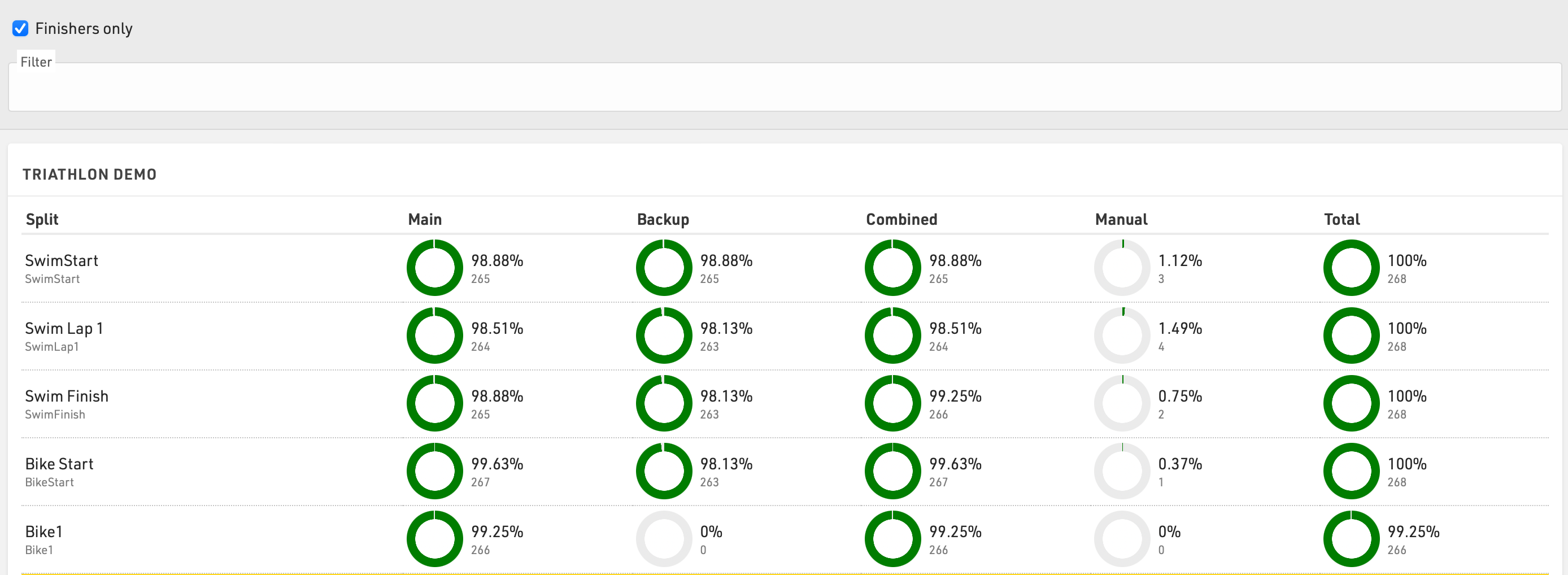
An additional optional filter can be applied.
Check Start Times
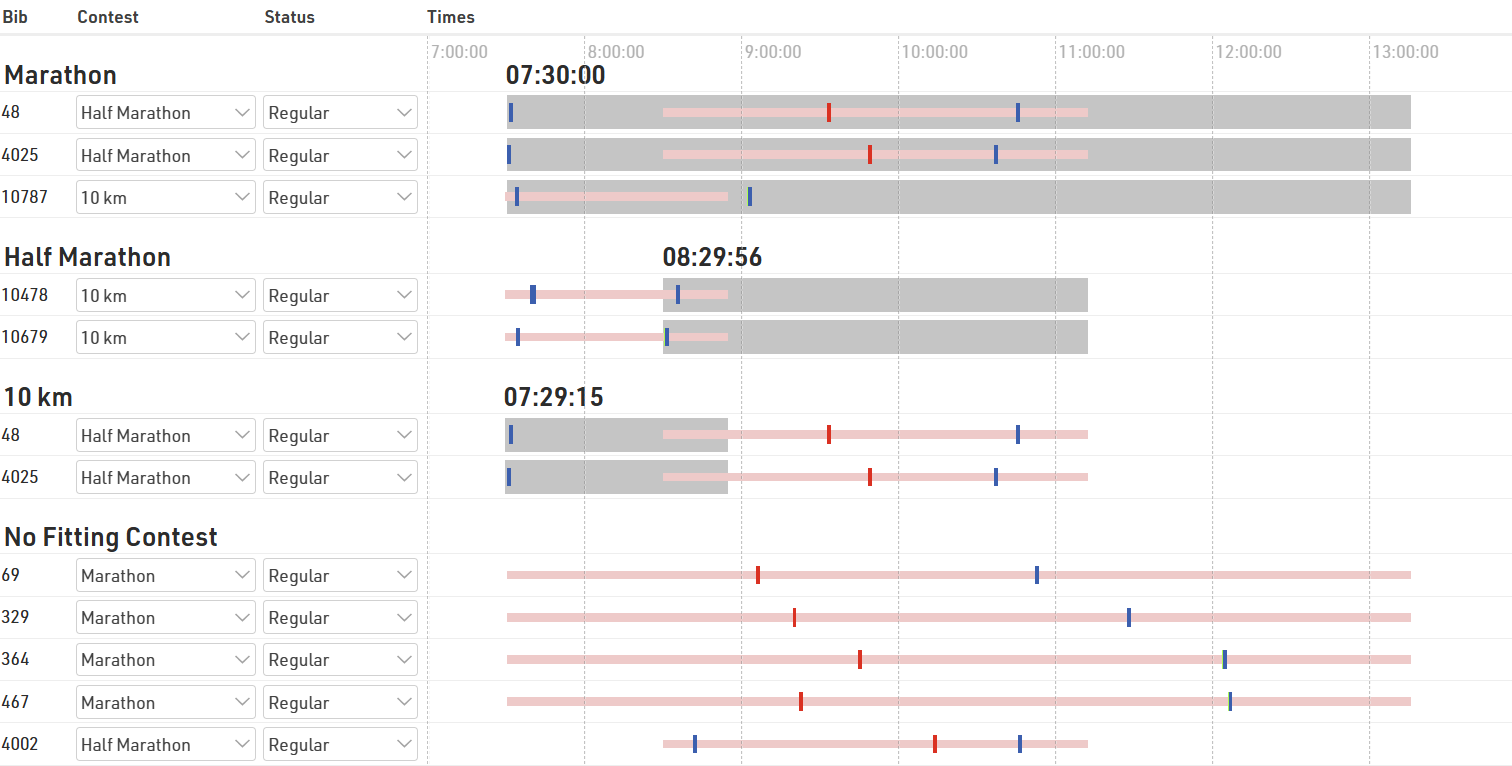
Check Start Times vs. Contest is a helpful tool to find participants who started in a contest other than the one they registered for. In particular when using Raw Data Mode, these may have no times in their results at all because all raw data detections are filtered due to the wrong contest. In consequence it would be difficult without this tool to find these participants.
Preconditions
Please consider the following preconditions for the tool to work:
- The timing system is running on time of day
- Start times will be kept
- The result that holds the start time is selected as Start Result in the Contest Settings.
What you see
- Underneath the headline with the name of the contest, those participants are listed that are registered for that contest, but started probably in another contest.
- The area with gray background color shows the time span the majority of participants needed to complete the proposed contest.
- The red bar, on the contrary, shows the time span of the contest the participant is actually registered for.
- The vertical lines show the participants' chip reads. The legend at the bottom of the screen shows which color belongs to which timing point.
- If there are many reads of the same chip with only small gaps in between, the reads may appear like a bar.
Making changes
You can either change the contest of the participant or change the status (for example to DSQ). When clicking on the bib number, the Participants Window shows on the right side of the screen and you can check the Raw Data in detail before making any changes.
Splits Analysis
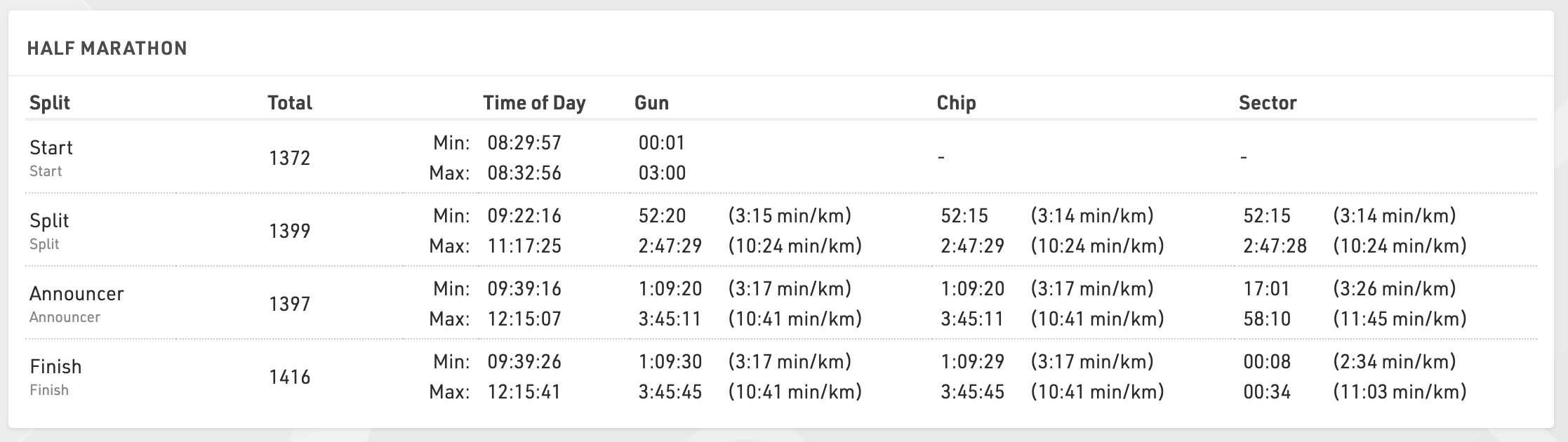
Splits analysis provides a breakdown of the fastest and slowest times for each split which can be used to help ensure your Splits setup is accurate.
Race Simulation
This tool serves to simulate the race before race day to make sure all your settings are correct. You can either generate all times all at once (so you basically get the final results after race day) or you can simulate the times live. The latter is helpful to test functions like announcer screens or result screens.
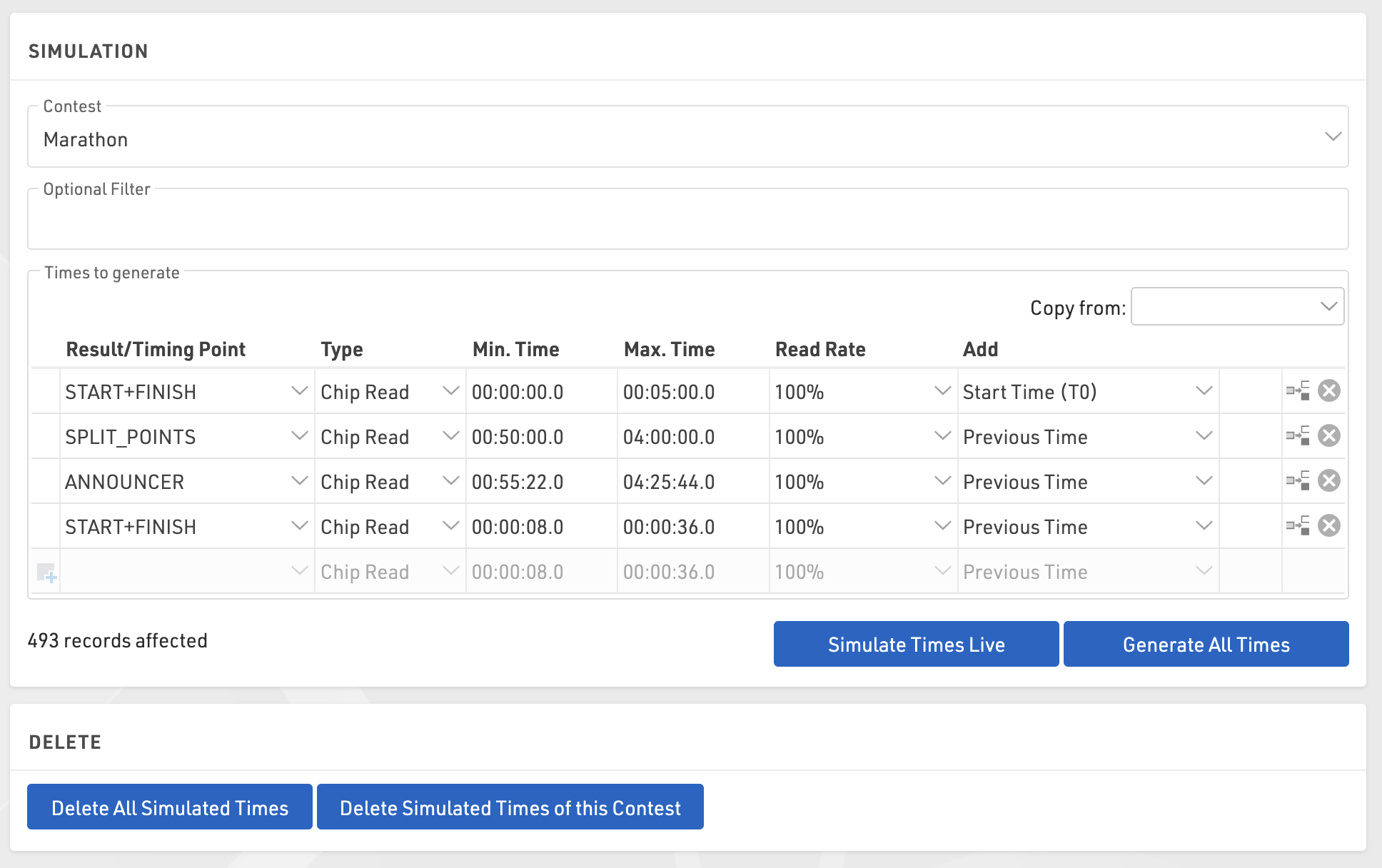
To use the function first select a contest for which times shall be generated and optionally enter a filter if not all participants shall be part of the simulation.
Manual configuration
Select which timing points should be used and enter a minimum and maximum time for each passing you want to simulate. In most cases, you will use the Add function to add the previous time in order to make sure that the time is greater than the previous time. Add T0 to your start detection. For realistic timestamps, set T0 to a realistic time as well. Your minimum/maximum time will then be the sector times. Example:
- Start: min 0:00, max 5:00, Add T0
- 10K: min 30:00, max 60:00, Add Previous Time
- 20K: min 30:00, max 60:00, Add Previous Time
- 30K: min 30:00, max 60:00, Add Previous Time
- 40K: min 30:00, max 60:00, Add Previous Time
- Finish: min 5:00, max 10:00, Add Previous Time
Copy from Splits
If you are using splits you can generate your race simulation based on the splits you configured under Scoring > Splits. To copy your split setup use the Copy from dropdown menu. Under the section labeled Splits select the contest you want to copy settings from.
Generate Times
Then click Generate All Times to generate all times all at once or Simulate Times Live to simulate the times live. In the latter case, you can see the clock running next to the button and you can also increase the speed of the clock. In most cases, you will open another browser tab or window to check the results of the live simulation while the Race Simulation tool remains open and running.
You can also select a Read Rate less than 100% if you want to simulate some missed reads at the start or if some timing points will not be passed by everyone (for example an optional timing line to donate a certain amount).
Manual Timing
The Manual Timing tool can be used to record times manually for each participant, whether as a primary split or finish time or as a manual backup. It can also be used to connect to serial devices which transmit data.
Setup
When loading the Manual Timing module there are some initial options to set.
- Accept times for this contest: Choose whether times should be accepted for a single contest only or for all contests
- Save times in: This setting to select a timing point or result only shows if you have more than one timing point or static result, otherwise times will be saved in the only available option.
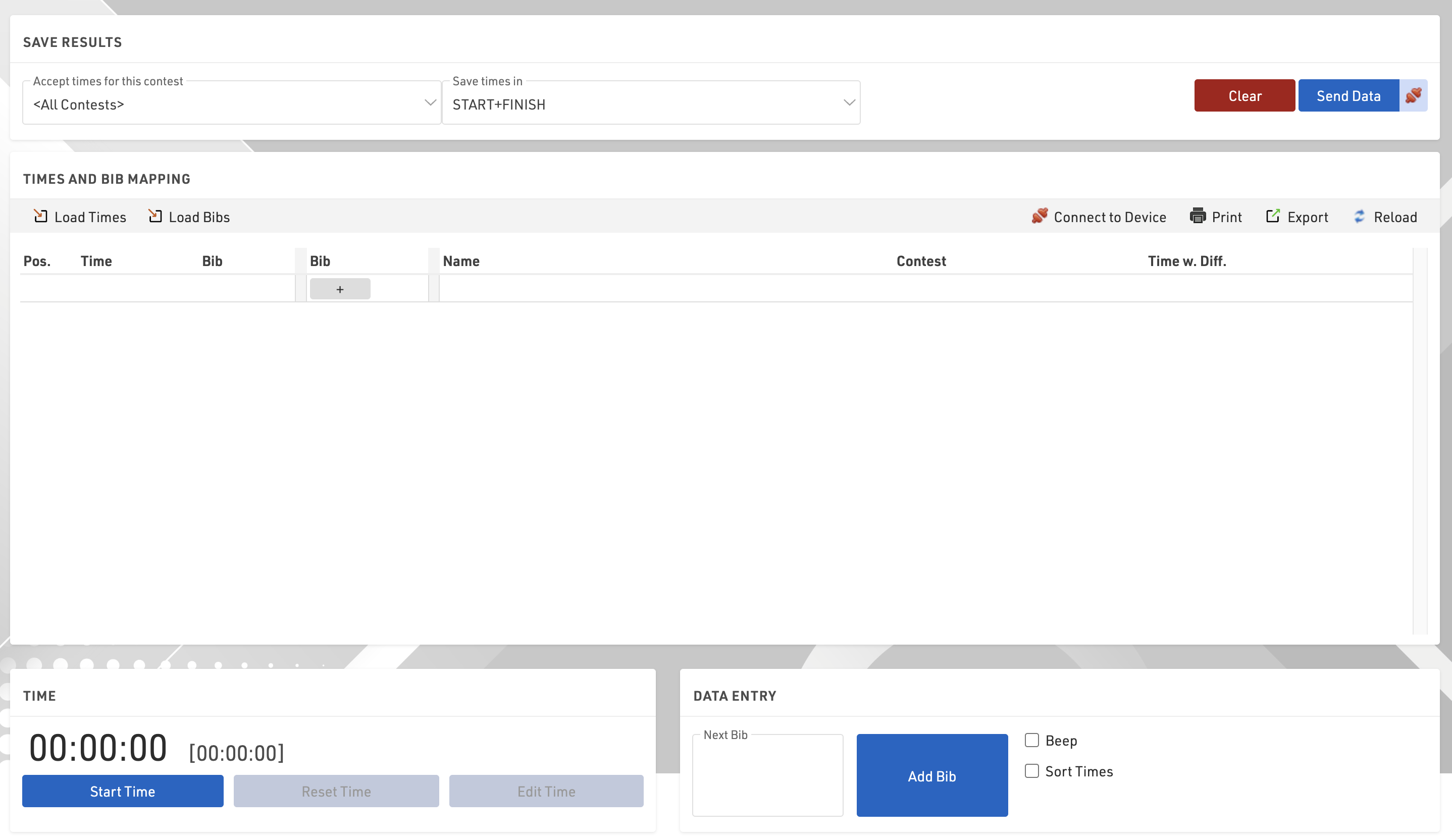
Time
Time is not set or started when opening, you can Start Time as running time, or once started click Edit Time to open additional options.
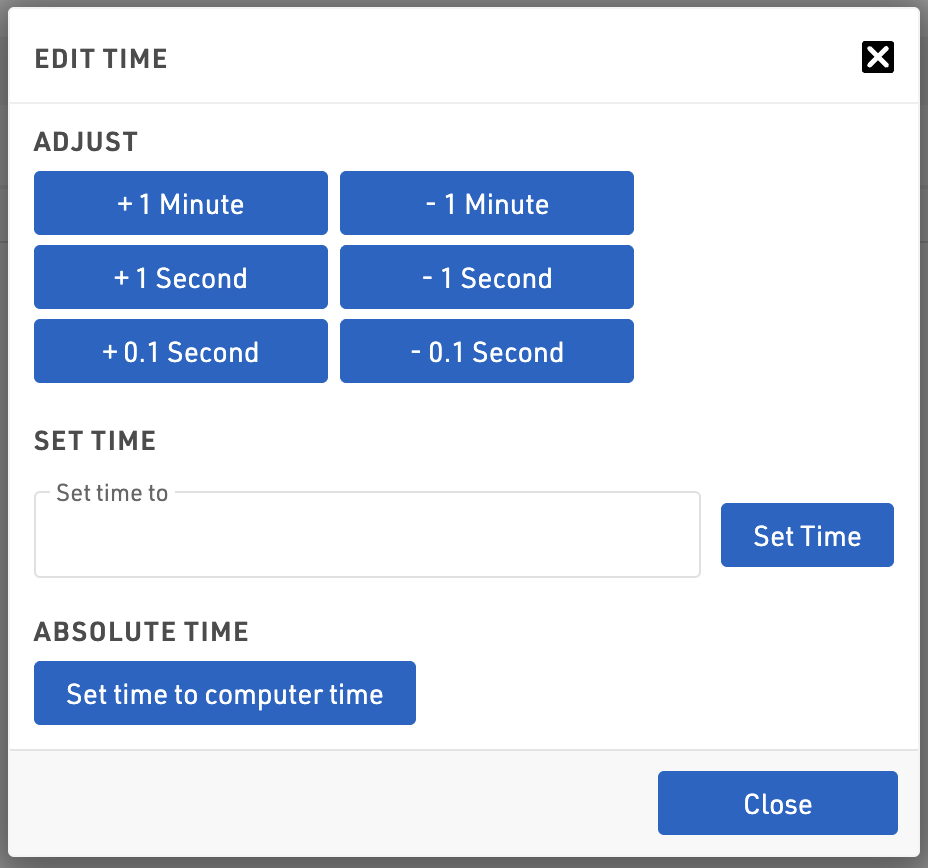
From here you can adjust the time in small increments, set the time to a certain time or set to computer time. Click the Black X to close the dialog.
Send Data
The manual timing module does not send data directly to your event file automatically, clicking Send Data will send the currently recorded data, or clicking the connection symbol next to this will activate live forwarding where all data is then automatically sent to the event file as it's recorded.

Recording Data
Data is captured using the Data Entry in the bottom right.
Normally you will enter the bib number of the participant and hit enter to record a time as they cross the timing point, if multiple finishers are approaching or the bib cannot be seen then you can also just hit enter to record a time (bib numbers can be filled in later on).
When capturing a time the time will be listed in the section above, normally with the Time, Bib and participant information. The record will also be highlighted with a colour depending on the status:
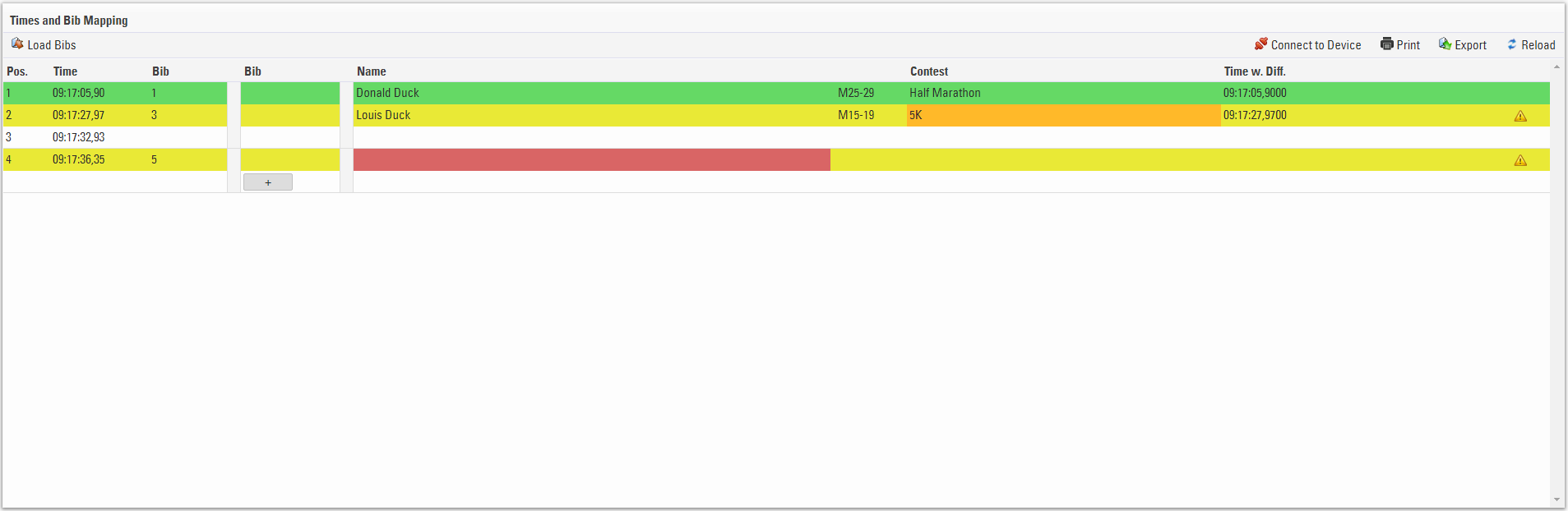
- Green - The bib number is recognised and the participant is valid / accepted
- Yellow - The bib number is not in the accepted Contest
- White - No bib number was recorded for the time
- Red - The bib number is not recognised.
If no bib number was captured for a time or you need to change the bib then clicking on the first bib column allows you to edit this value, save the field by pressing the down arrow key, times can also be edited in this way.

You may also wish to capture times and bibs separately, for this you can use the Load Bibs / Load Times feature which is where the second Bib column is used, see the Manual Timing Guide for more information on this.
Records can be manuallly inserted or deleted, hovering over the times will show the insert line and delete record options.

Connecting to Devices
The Manual Timing module supports the ability to receive data from serial connections from manual timing devices, such as Time Machines.
To connect to devices click Connect to Device, in the following window you will need to enter the correct COM port number for your device and the Baud rate. Note that this will be specific according to your device.
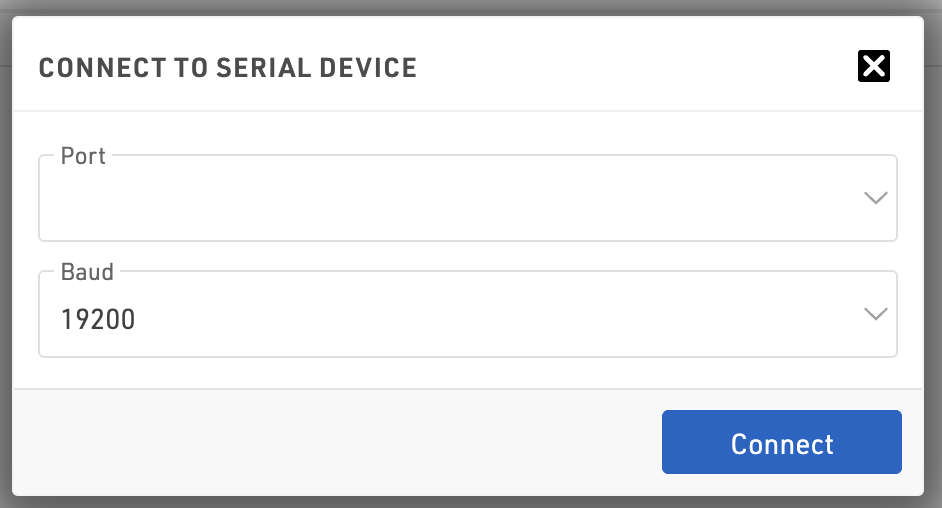
Not all devices are supported as it depends on the data which is being transmitted, with a sample of the data format we may be able to include support for other common devices.