| OPMethod | Abbreviation | Payment Method | RACE RESULT Fees | Supported Countries |
| Instant Payment Methods | ||||
| 2 | CCEUR | Credit Card EUR | 0.65€ + 4% | Eurozone |
| 3 | CCCHF | Credit Card CHF | 0.65€ + 4% | Eurozone |
| 6 | SPF | Swiss PostFinance | 0.65€ + 3% | Eurozone |
| 7 | PPAL | PayPal EUR | 0.78€ + 4% | Eurozone |
| 12 | UEBSOF | Sofortüberweisung.de | 0.55€ + 2.5% | Eurozone |
| 14 | PPALGBP | PayPal GBP | 0.78€ + 4% | Eurozone |
| 15 | PPALUSD | PayPal USD | 0.78€ + 4% | Eurozone |
| 16 | SEPA | SEPA | 0.06€ + 1% | Eurozone |
| 17 | CCGBP | Credit Card GBP | 0.65€ + 4% | Eurozone |
| 19 | SEPADATA | Collect SEPA Data ONLY | - | |
| 30 | TWINT | TWINT (CHF) | 0.65€ + 3% | Eurozone |
| Delayed Payment Methods | ||||
| 4 | UEBD | Transfer to European Bank Account | 1.00€ | Eurozone |
| 8 | UEBCH | Transfer to Swiss Bank Account | 1.50€ | Eurozone |
| 10 | EINZCH | Swiss Payment Order | 1.50€ | Eurozone |
| DIY Payment Methods | ||||
| 20 | OWNEPAY | Your Own EPay Account | - | Denmark, Finland, Norway, Sweden |
| 21 | OENPPAL | Your Own PayPal Account | - | Global |
| 22 | OWNWIRET | Wire Transfer to Own Account | - | Global |
| 26 | OWNONEPAY | Your Own OnePay Account | - | Vietnam |
| 27 | TELR | Your Own Telr Account (Auth + Capture) | - | UAE, Saudi Arabia |
| 28 | OWNONEPAYDOM | Your Own OnePay Account (Domestic) | - | Vietnam |
| 29 | FATORA | Your Own Fatora Account | 1.25% | Qatar |
| 31 | STRIPECARD | Your Own Stripe Account | 1% | Global |
| 32 | OWNPAYTRAILV2 | Your Own PayTrail Account (V2) | 1.25% | Austria, Belgium, Denmark, Estonia, Finland, France, Germany, Hungary, Ireland, Italy |
| 33 | TELRSALE | Your Own Telr Account (Sale) | 1.25% | Saudi Arabia, UAE |
| 34 | REDSYS | Your Own RedSys Account | 1% | Spain, Andorra |
| 35 | MOLLIEBANCONTACT | Your Own Mollie Account for Bancontact | 1.25% | Belgium |
| 36 | PAYTABS | Your Own PayTabs Account | 1.25% | Egypt, Iraq, Jordan, Kuwait, Oman, Saudi Arabia, UAE, |
| 37 | AsiaPay | Your Own AsiaPay Account | 1% | Asia |
| 38 | MercadoPago | Your Own MercadoPago Account | 1% | Australia, China, Hong Kong, India, Indonesia, Macau, Malaysia, Philippines, Singapore, Taiwan, Thailand, Vietnam |
|
39 |
Peach Payments | Your Own Peach Payments Account | South Africa, Kenya, Mauritius | |
| 40 | Pzelewy24 | Poland | ||
| 41 | Xendit | Hong Kong, Indonesia, Malaysia, Philippines, Singapore, Thailand, Vietnam | ||
| 42 | Tazapay | Global | ||
| Other | ||||
| 0 | No Payment | - | - | |
| 5 | BAR | Cash At Event | - | - |
| 9 | VOUC | Voucher | - | - |
| 99 | CB | Chargeback | - | - |
Charges / Payouts
Entry Fees collected by RACE RESULT (Instant Payment Methods and Delayed Payment Methods) will be paid out at the end of each month.
For DIY payment methods which incur a fee, RACE RESULT will invoice based on the total fees collected through the corresponding payment method. These invoices may be sent less frequently to avoid unnecessary accounting for small amounts. If you require an invoice sooner for your own accounting, please contact support@raceresult.com.
How are the payment fees calculated?
Example using the payment method PayPal (EUR) with 0.78 EUR + 4% of the total amount and an entry fee of 20.00 EUR plus 19 % VAT:
| PayPal (EUR) 0.78 EUR + 4% | |
| Entry fee | 20.00 EUR |
| Fixed fee | 0.78 EUR |
| Total amount | 20.78 EUR |
| 4% Transaction-based fee | 0.83 EUR |
| Total payment fee | |
| Fixed fee | 0.78 EUR |
| Transaction-based fee | 0.83 EUR |
| Total payment fee (excluding VAT) | 1.61 EUR |
| 19% VAT | 0.31 EUR |
| Total payment fee (including VAT) | 1.92 EUR |
Stripe API - Your Own Stripe Account
In order to accept Stripe payments, you need to connect your Stripe account using an API key. Stripe requires both a Secret and a Public key.
To obtain a Stripe API key, log in to your Stripe account on stripe.com. From there, select Developer in the top right corner and API keys from the available tabs toward the top of the screen. In the top right-hand corner, switch from Test Mode to Live Mode. In the center of the screen, you will find the necessary keys.
| Stripe | RACE RESULT 12 |
|---|---|
| Publishable key |
Public key |
| Secret key | Secret Key |
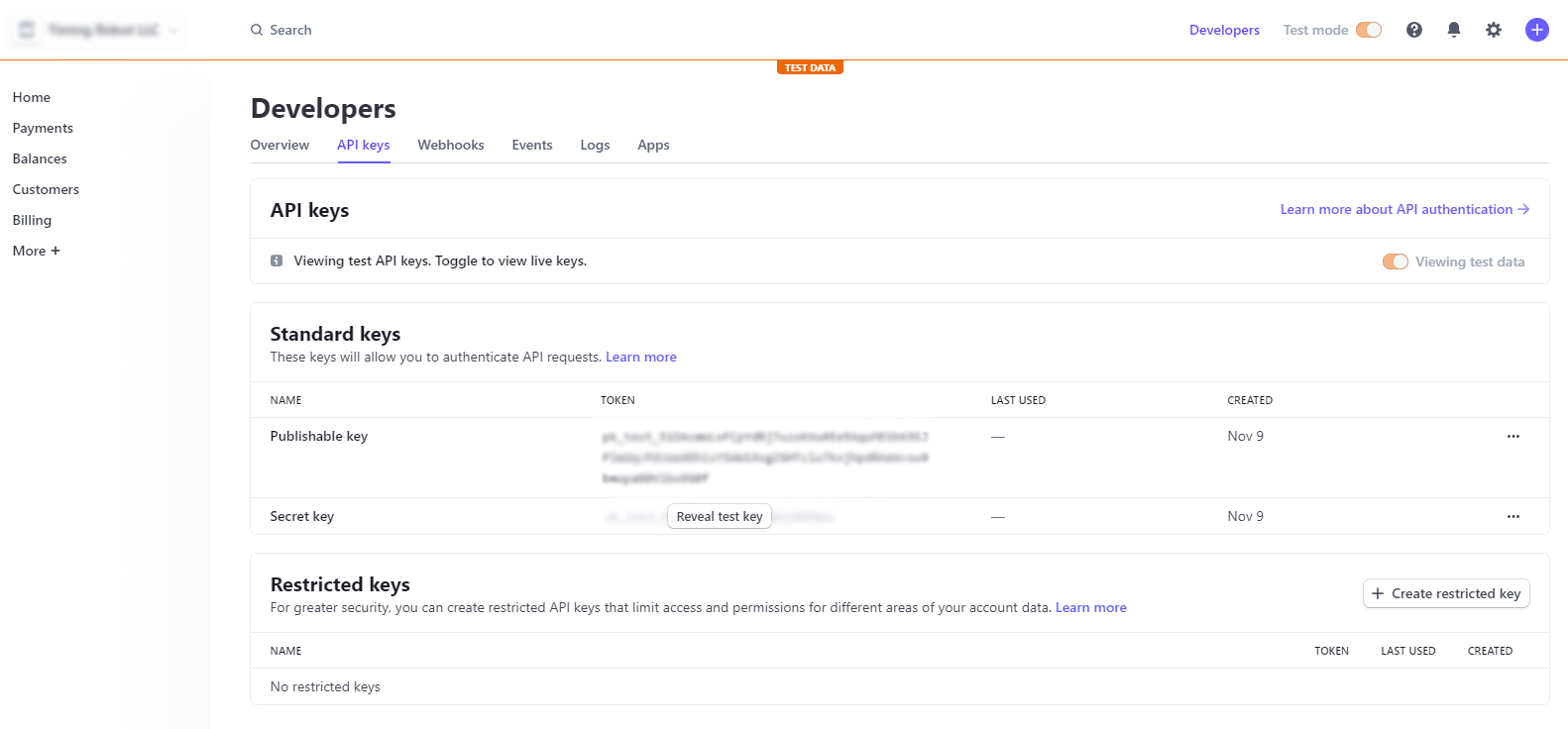
More information on Stripe API keys can be found here.
PayPal API - Your Own PayPal Account
Note: Instructions and screenshots are accurate at the time of writing. Updated on January 22, 2025. Subject to change.
You can only receive payments through PayPal API with a PayPal business account. If you have a personal PayPal account, you will have to upgrade it to a business account, or you will have to create a new PayPal account that is set up as a business account.
Log in to https://developer.paypal.com/dashboard with your business account and navigate to Apps & Credentials. In the top right corner, make sure to toggle to Live, then press Create App.
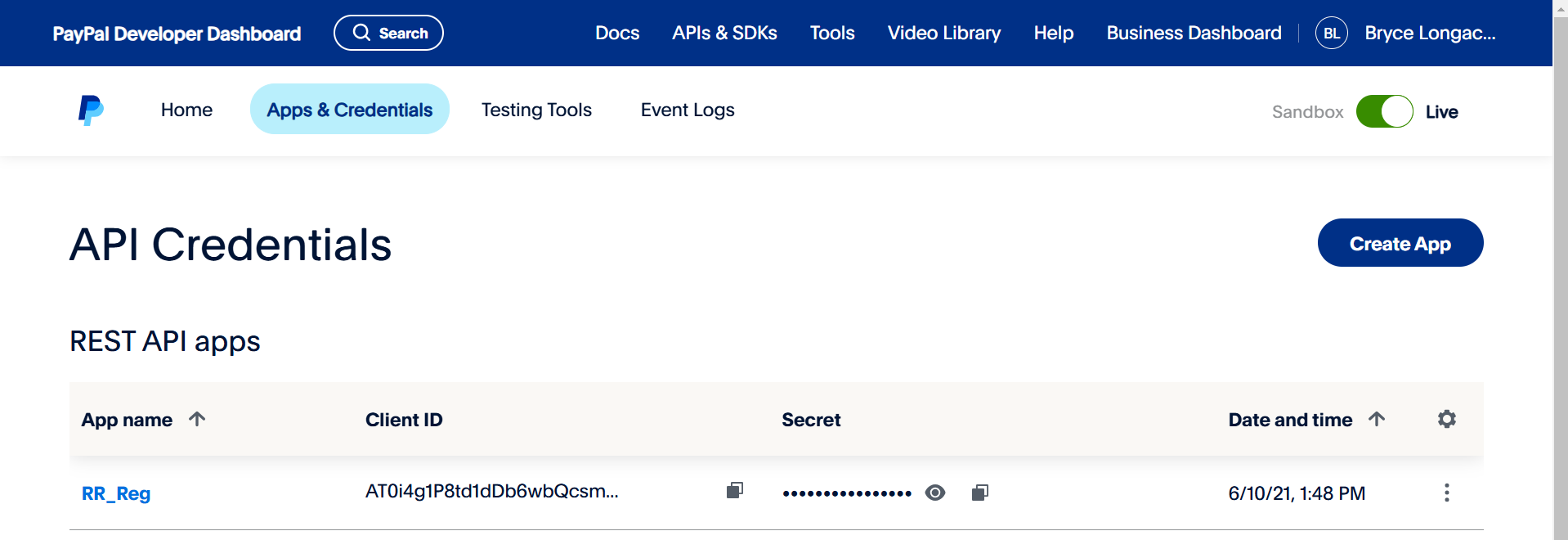
The app will generate a Client ID and Secret automatically. Make sure to copy these exactly as they are. The API signature is ONLY required for the legacy classic integration. Most events no longer use this legacy integration.
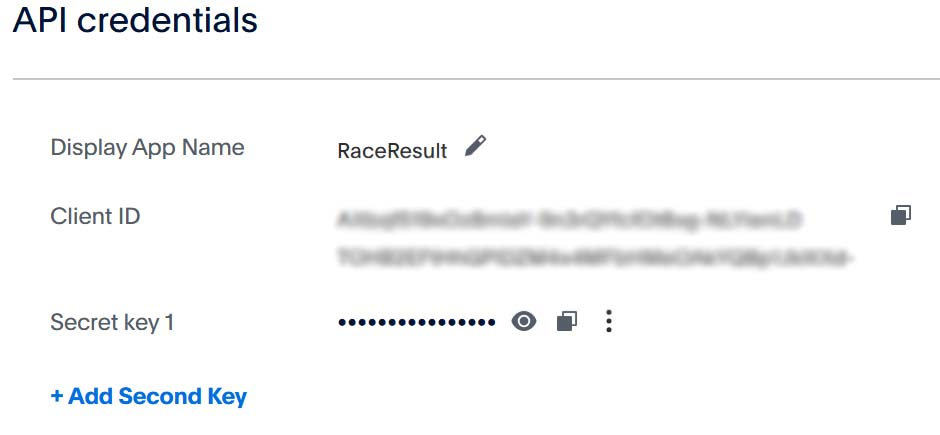
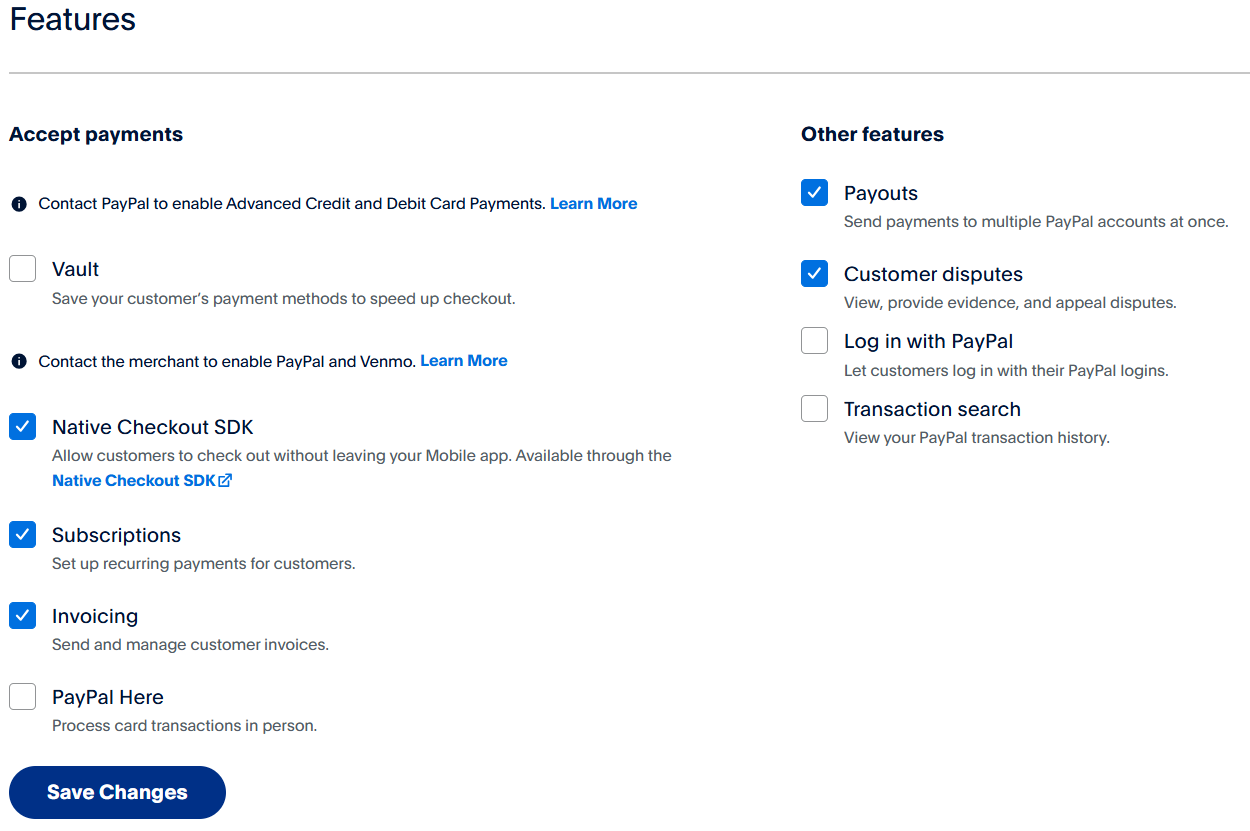
After naming and creating the App you may need to adjust some of the features to suit your needs.
Mercado Pago API - Configura tu propia cuenta MP
To accept Mercado Pago payments in RR12, you must connect your Mercado Pago account to RR12 using an API key. Mercado Pago requires a User ID and a Secret Key.
To obtain them, follow these steps:
-
Log in to your Mercado Pago account from a computer. (It is not possible to obtain these credentials through the mobile app.)
-
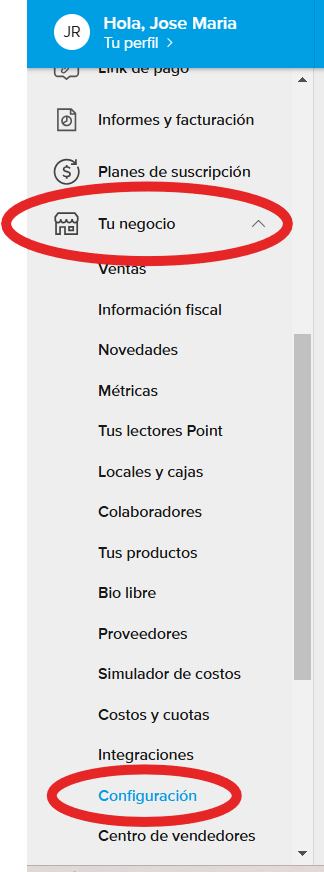
Once logged in, go to Your Business > Settings.
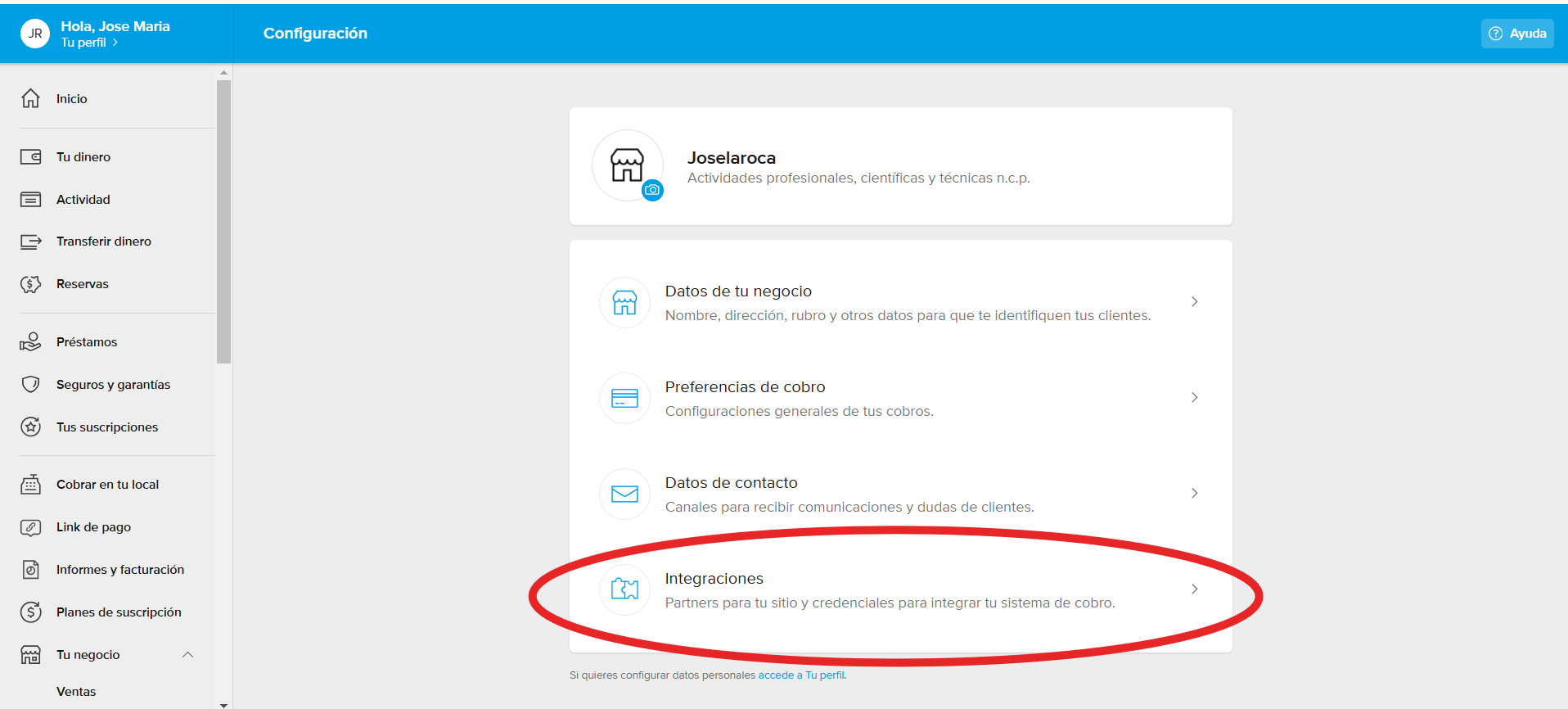
2 - Then, go to the "Integrations" menu.
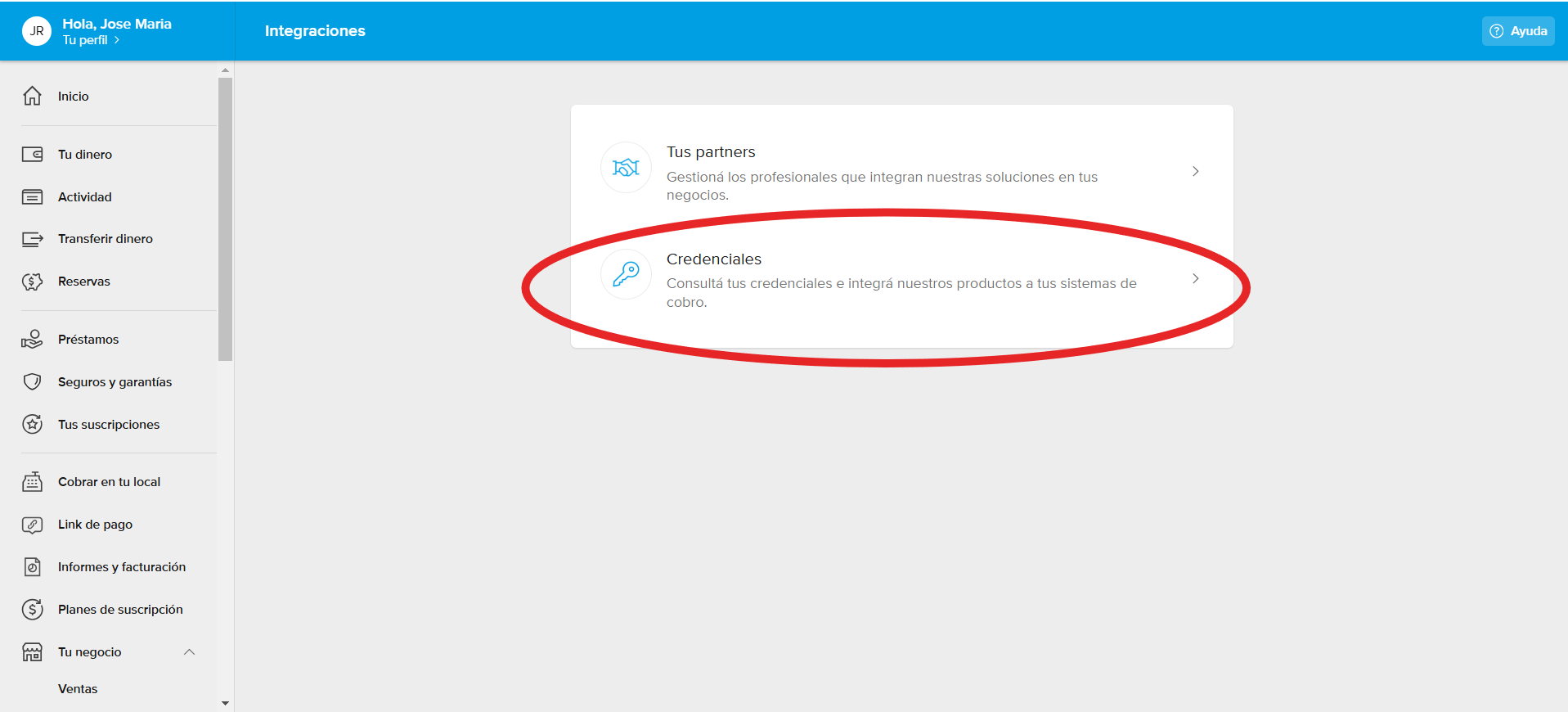
3 - Next, go to "Credentials".
4 - You will need to create an application to integrate with your Mercado Pago account by clicking the button shown below.
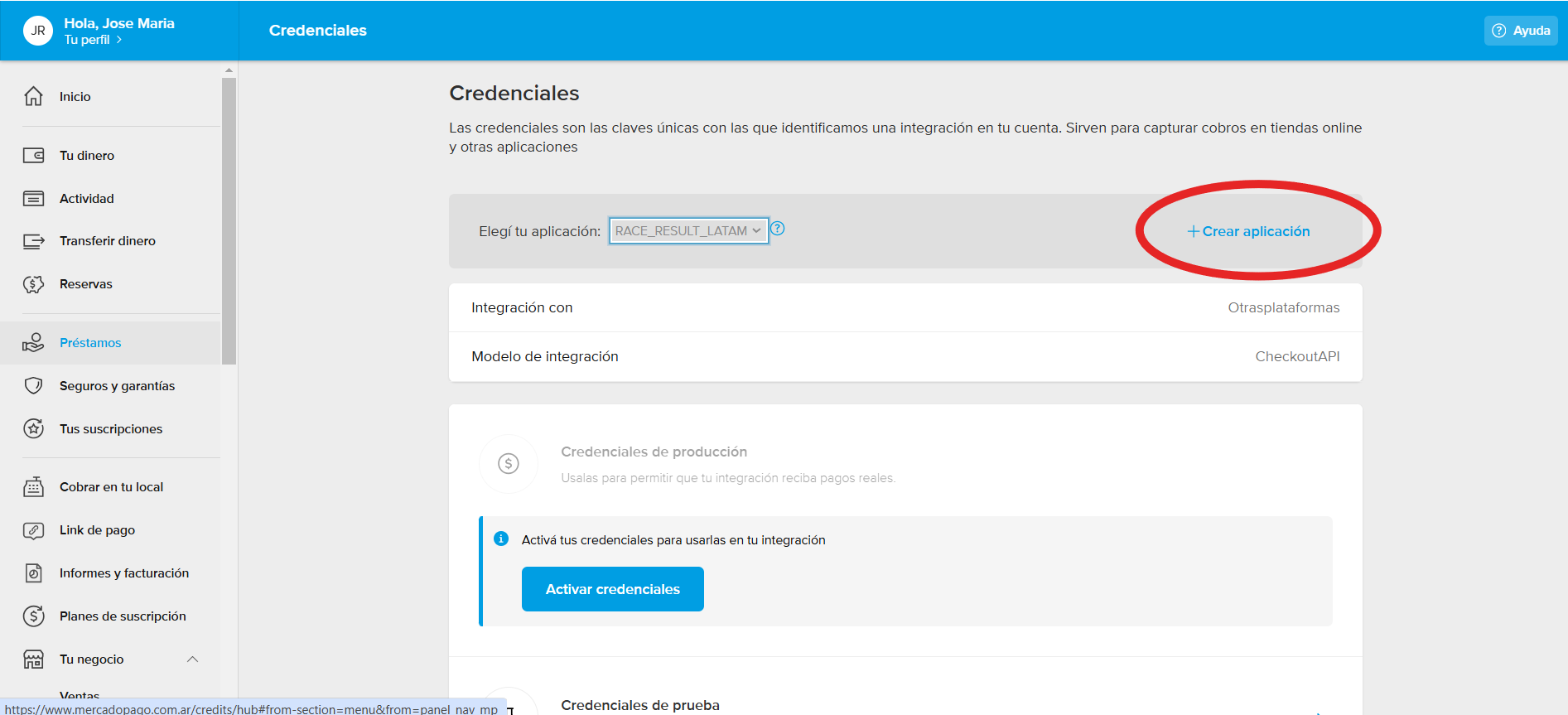
5 - Then, configure the integration type as "Other Platforms" > "Checkout API", as shown below:
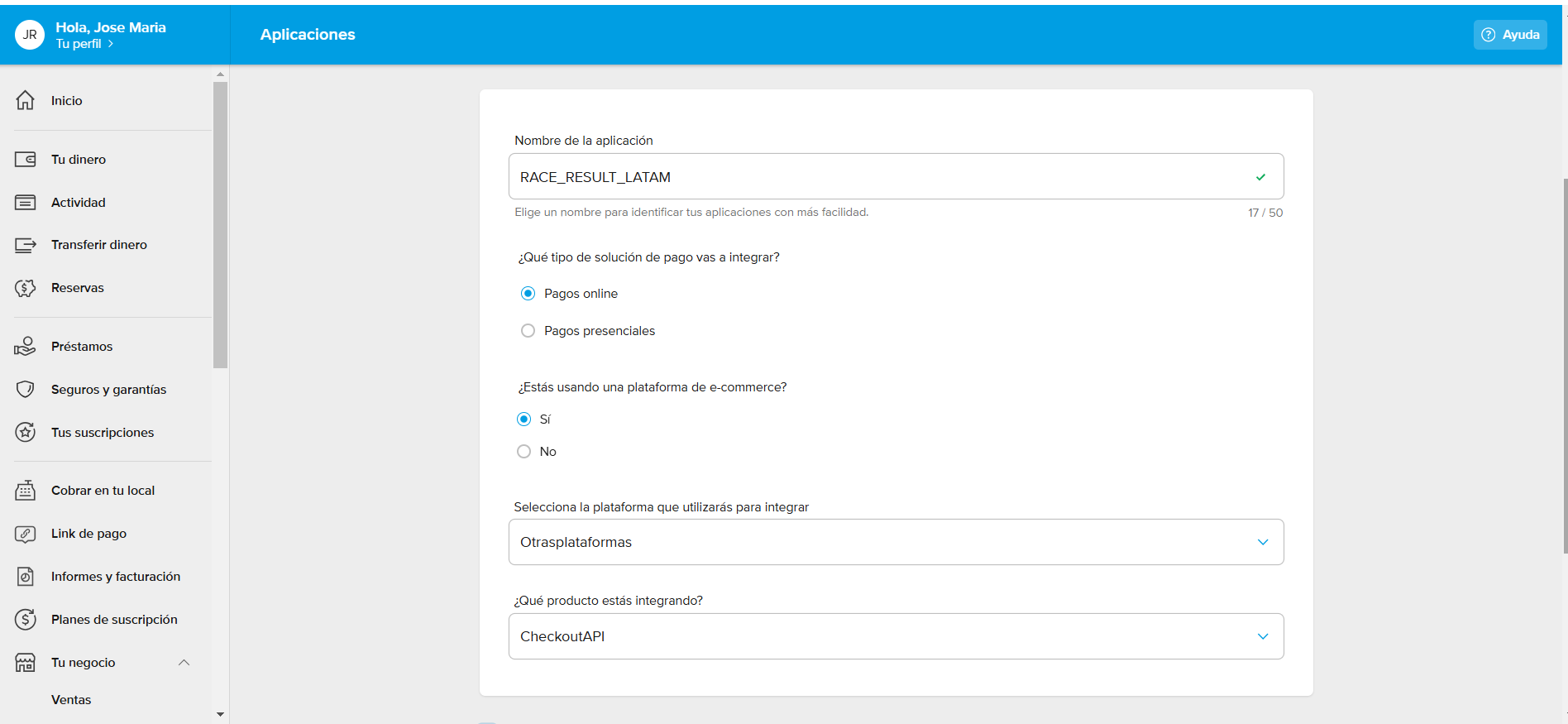
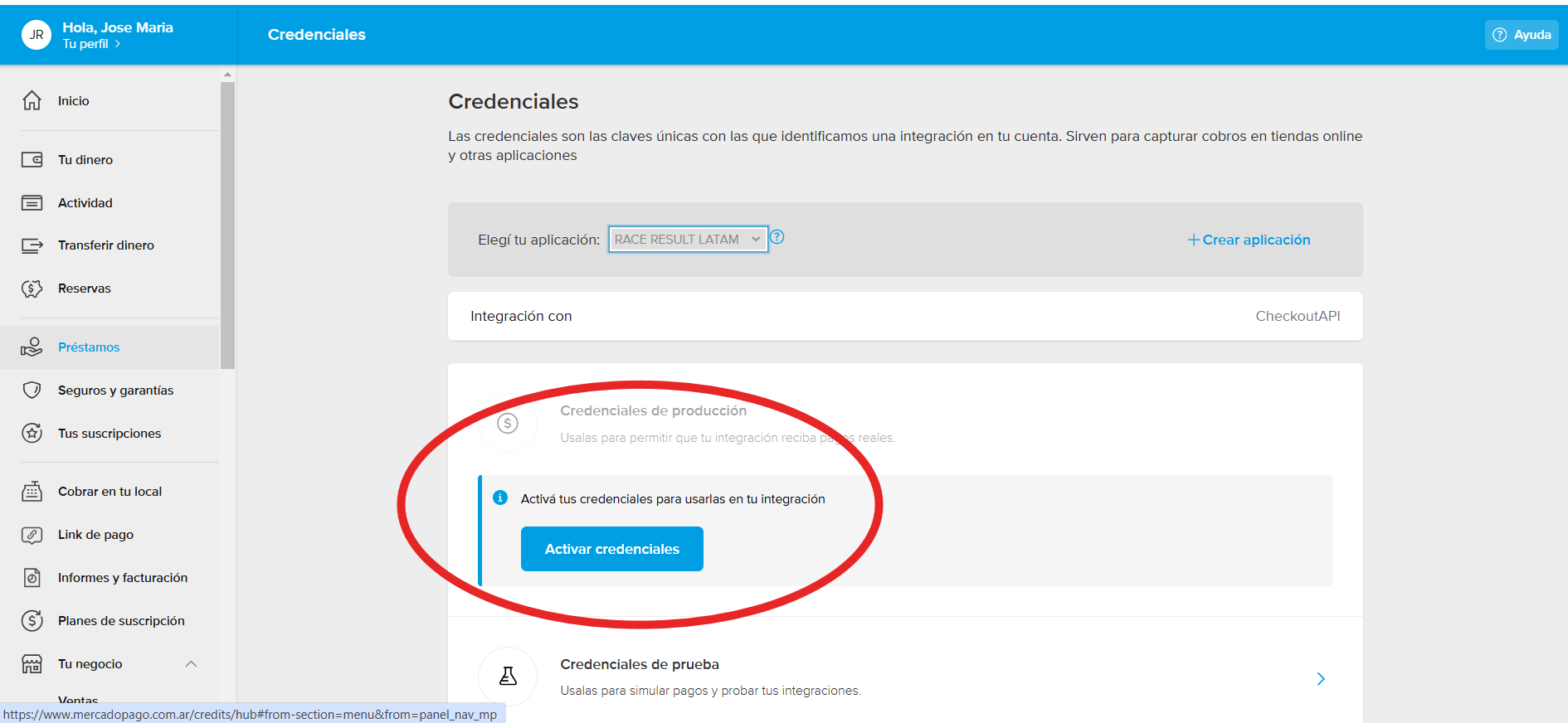
6- Once created, you will see the details of your new application as shown below. At this point, you must activate the credentials by clicking "Activate Credentials".
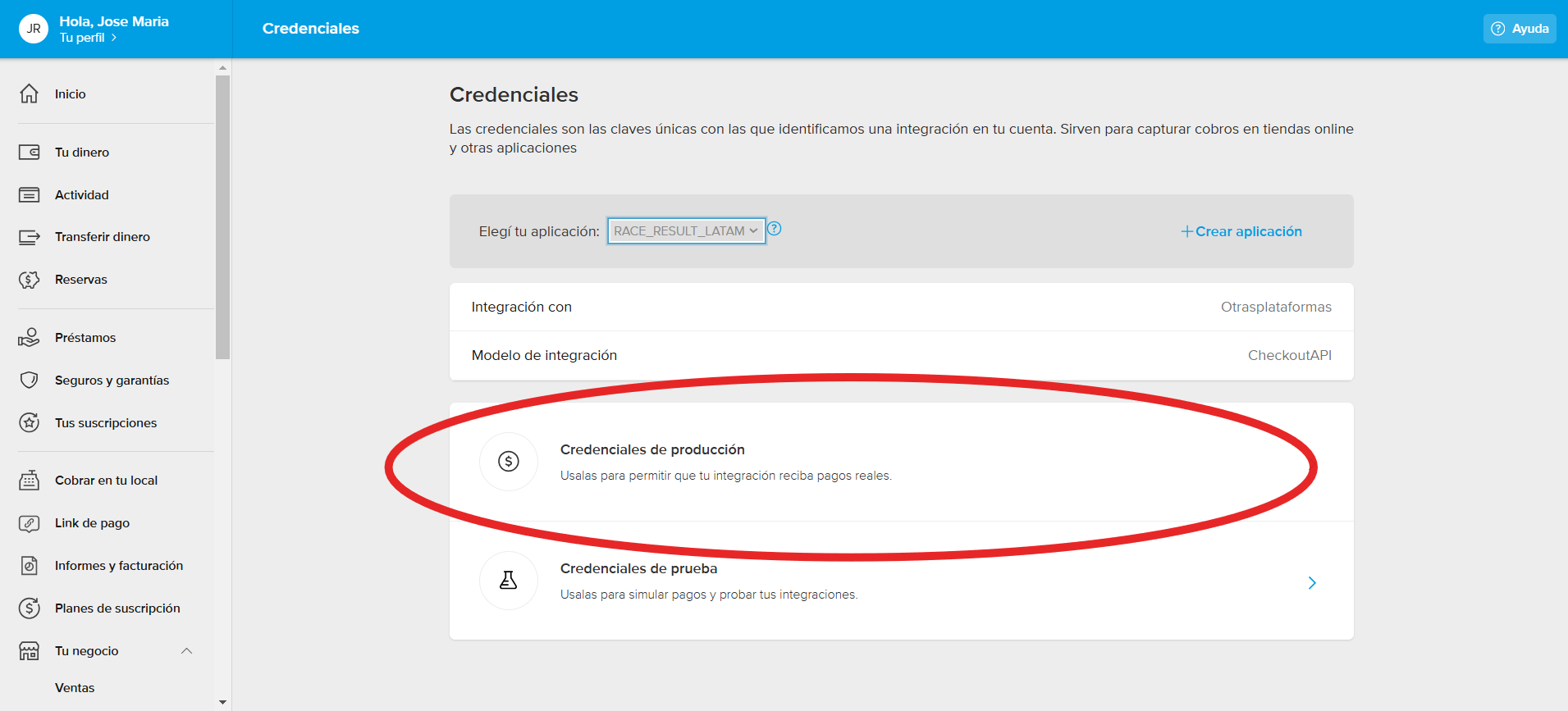
7 - Once activated, you will be able to access them to view your Client ID and Secret Key.
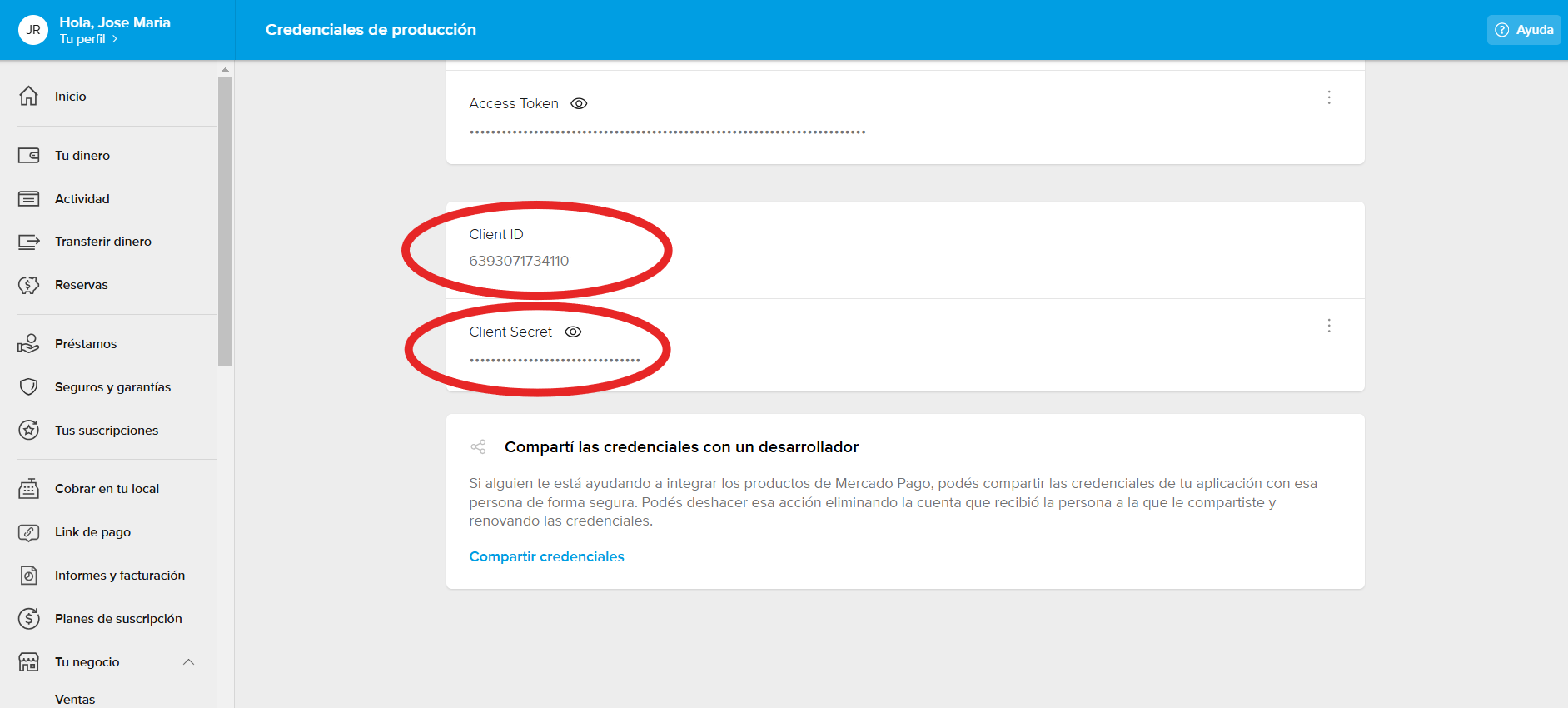
If you have any further questions about your Mercado Pago credentials, you can visit Mercado Pago's help and documentation platform by clicking here.