


RACE RESULT EventTools brings the Checkin Kiosks directly to your palms.
You can access Checkin kiosks either by logging in as normal to a RACE RESULT account, or via direct access from the main screen.
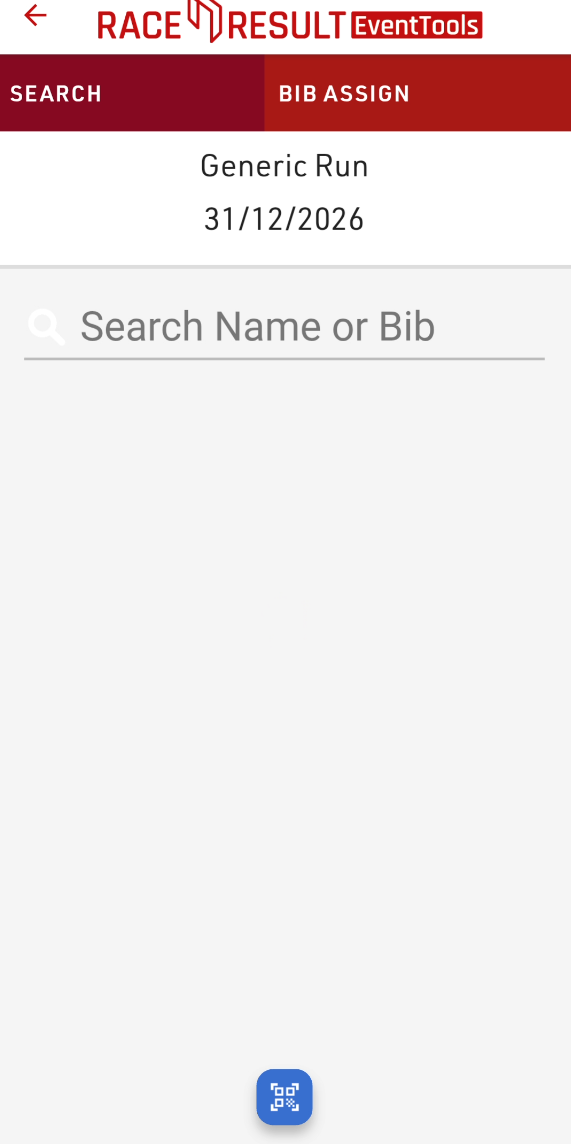
Once you open the kiosk you'll be able to search participants using your device camera by clicking the scan button at the bottom of the screen.
The scanner currently supports the following barcode formats:
- QR
- Code 128
- Code 39
- EAN 13
- EAN8
The value of the barcode should match the value of one of your search fields, it is recommended to ensure to use a unique value here such as a registration code, not simply the bib field.
Checkin Kiosks also support the use of BLE Readers, QR Scanner for data input. To enable this you will need to select the input method for the corresponding field in your edit step.
If using a BLE Reader to input to a field then you will be asked to connect a BLE Reader when opening the kiosk. When you open a step which accepts the input from a BLE Reader then the reader will automatically be started and the data will be entered in to the corresponding field.
If using a QR / Barcode input then a button will be displayed when the step containing that field is opened and the field will be automatically filled with the data of the barcode.
EventTools also supports the After Save Action to print a certificate. If an after-save action to print is enabled then you will be asked to choose the printing method when opening the kiosk.