RACE RESULT 14 is a complete software package for timing and scoring sports events, this also includes online registration and publishing of online results.
RACE RESULT 14 is available as an online software, or can be run as a standalone, offline, software. We recommend working online for your events as this brings a number of advantages to your work and simplifies the workflow.
Working online allows you to collaborate with your team from anywhere at any time before, during and after your event, through any web-enabled device. This also facilitates the fastest possible help from our global support team who can additionally access your events remotely. Note that you will still need to install the offline version of the software in order to connect to your locally connected timing devices even when working online.
For the purpose of this introduction and the subsequent timing guides, we will focus on working with the online software, but a more in-depth comparison of working online and offline is available below.
Accessing RACE RESULT 14
RACE RESULT 14 runs in your web browser and can be accessed either through your Customer Area, or by logging in directly through https://events.raceresult.com using your RACE RESULT Customer account.
Once logged in you will see a list of your events, new events can be created with the button at the top of the page.

To open an event simply click the event in the list.
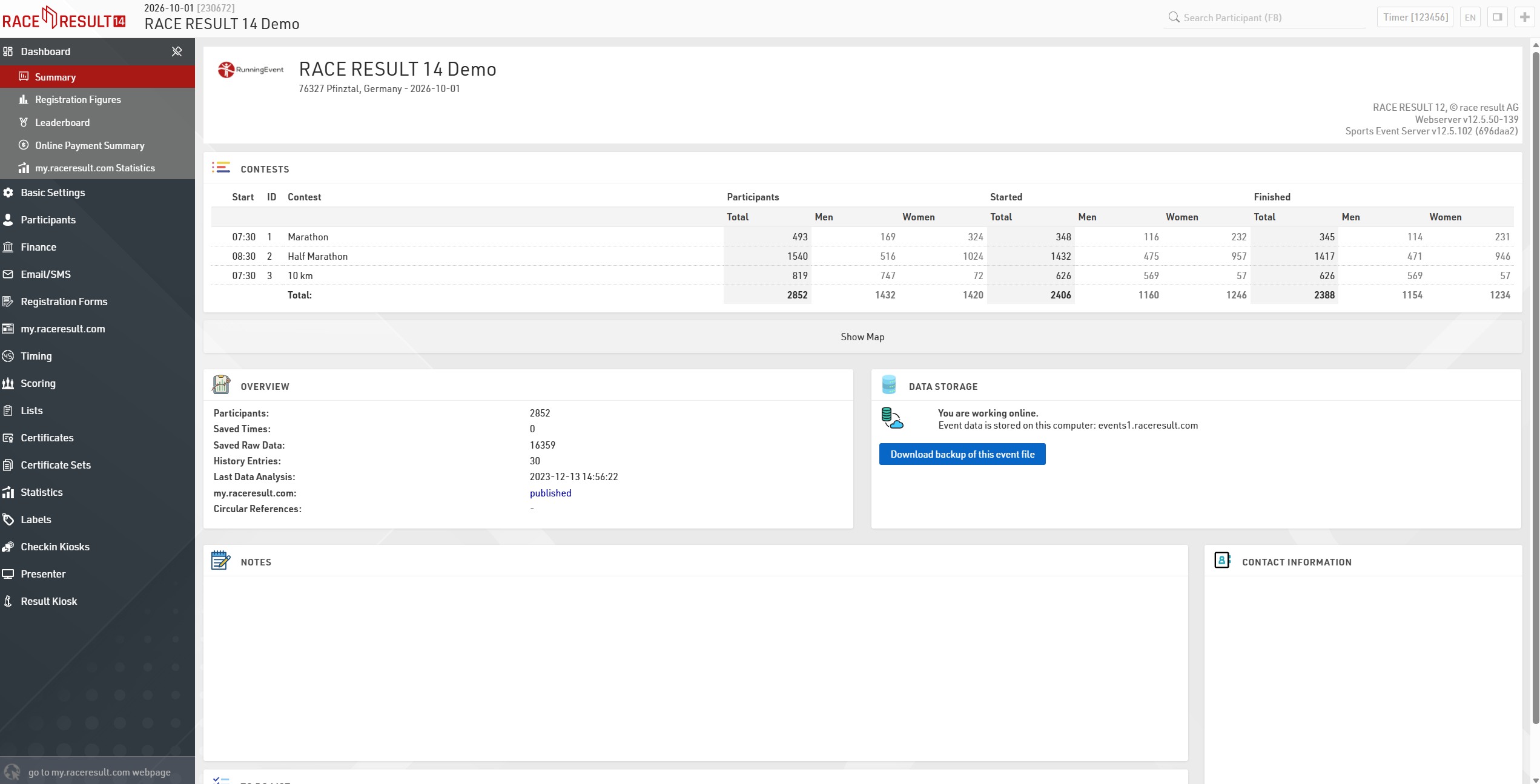
Navigating RACE RESULT 14
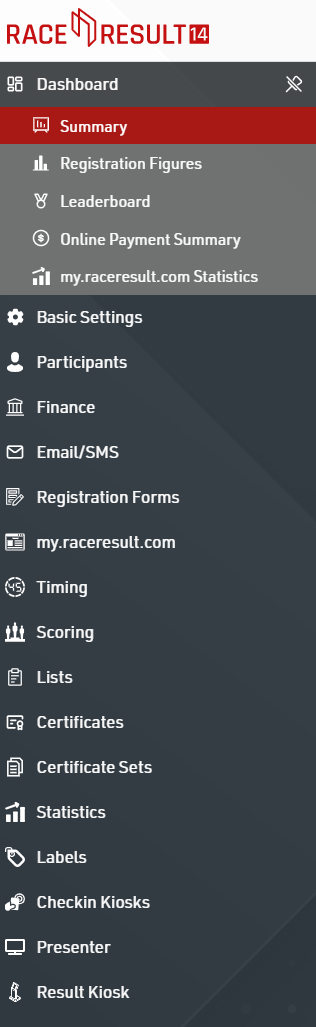
Navigating the RACE RESULT 14 menus and setting can primarily be done through the left hand sidebar. Each menu item will expand to provide a sub-menu or additional functionality, with the current window highlighted red.
Header and Search
The header provides event information, participant search, and basic settings. Clicking the RACE RESULT 14 logo will take you back to the main events list.
Use the search input to quickly search for participant records. When searching, the participant tab will be automatically opened.
To the right of the search bar you can manage the user account, language, toggle the right sidebar, and open additional windows.

On smaller screens, or with higher zoom levels the UI will automatically hide the menu in order to maximise the area used for scoring the event. When the left hand menu is hidden you can click the hamburger menu in the top left to expand the menu.
Right Sidebar
Clicking the  icon will toggle the right hand sidebar. This provides additional tools or references which can be useful whilst using RACE RESULT 14.
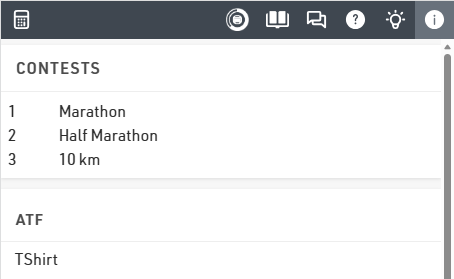
The icons offer the following menu options: Calculator, Timing Overview, Knowledge Base, Event Chat, RACE RESULT Forum, RACE RESULT News Feed, Event Information (data field reference and time calculators), and Participant View.
Saving Data
When making changes to any data within RACE RESULT 14 then a save icon will be shown to the right of the search bar indicating that the data is yet to be saved. Clicking this will save all changes made, additionally navigating to another menu will automatically save all changes.

Advanced Settings
Some settings may have extended / advanced settings which can be applied to the value, these can be accessed by clicking the grey icon with double arrows to the right side of the row.

The additional icons here allow you to insert a new line in a particular spot or delete an entry entirely.
Key Features of RACE RESULT 14
Unmatched Flexibility
RACE RESULT 14 offers the highest levels of flexibility in the timing and scoring of events at every point of the event.
Participant Data Structure - Create your own additional fields to store any relevant participant data.
Timing and Scoring - Use Special Results for any special scoring requirements for your event, or make use of the unlimited custom ranking and team score definitions.
Output Lists - Your participant lists and results lists can be customized to show whichever fields you want and in any order, take this further with multi-line reports or dynamic formatting.
Seamless Timing
RACE RESULT 14 integrates seamlessly with all RACE RESULT timing hardware to make timing as simple as possible. The advanced logic inside the software means that results are always updated in real-time no matter how complex the calculations may become.
Browser Based - Because RACE RESULT 14 is accessed through the web browser, you can access it at any time from any device with a modern web browser.
Monitoring Tools - Easily monitor your race through a range of built-in analysis tools such as Time Visualisation or Read Rate Analysis.
Kiosks
Whether it's race pack collection or post-race results, RACE RESULT 14 has the tools to create kiosks or displays to further enhance your event.
Check-In Kiosks - Search participants, check and update their data, assign bibs and transponders, or manage participant data during an event.
Results Kiosks - Allow participants to look up their results and even print a receipt with their personal results.
Presenter - Create unique displays for any type of screen whether you want to show a list of scrolling results, give your announcer a feed of finishers, create a leaderboard on a large format LED display or even just for your own monitoring of a race.
Online Platform
RACE RESULT 14 is linked to the my.raceresult.com platform for publishing your events online. This seamless integration allows for real-time results without any additional work.
Online Registration - Create your own customised online registration to capture participant data and collect payment all in one place. Send automated e-mails to participants or create online self-service forms to update their information.
Online Results - Publish your results live online during your race, show additional details and publish certificates or link to race photos directly from your results list.
Easy Embedding - With a simple HTML script you can embed registration or results lists directly in your own website.
Advanced Features
RACE RESULT 14 allows you to always continue to grow and expand your services and provides a range of additional features to allow you to build on top of the already broad list of features.
Raw Data Exporters - Push data instantly from your event file to third party platforms in any custom format.
APIs - Quickly and easy work with the Simple APIs within your event file to publish results to your own platform or integrate with third-party platforms.
Webhooks - Create powerful integrations to your own CRM database by combining APIs with Webhooks to always keep information up to date.
Working Online vs. Offline
RACE RESULT 14 offers the same functionality when working either online or offline, the main differences between the two working methods are in relation to the publishing of online results and accessing the event file from secondary devices.
Working Online
When working online your event file is hosted on the RACE RESULT 14 Server online, this allows you to login from any browser-enabled device to access your event file. Additionally - access can be granted to additional user accounts to login separately and access certain parts of the software on an event-by-event basis.
If you are using online/remote timing systems then these will be automatically shown in the timing tab of RACE RESULT 14. In order to connect to locally connected systems you will need to run the RACE RESULT Web Server on your computer as this creates a bridge between the browser and the local devices.
When publishing results to my.raceresult.com these are automatically updated and always in sync with the event file. If you are using online registration through RACE RESULT 14 then the event file must be hosted online, with this your online registration can remain open even if the event is ongoing.
All event files which are hosted online are additionally backed up regularly providing an additional fail-safe in the event of any issues.
Working Offline
To work offline you will open the Event file on your local installation of RACE RESULT 14, if you want to access the event file from other devices, you will need to be connected to the same local network.
It is possible to still have registration open during the event but this is only possible through another locally networked device. Note that payment through the registration is only possible if the event is linked to an online event (checked out), however the payment information may not be fully reflected until the event is checked-in again. Events which are only created and run offline cannot accept payment.
When using online/remote timing systems you can link your customer account in the timing tab to still retrieve data in real-time. Locally connected systems will automatically be shown.
If you still wish to publish results online during the event you can enable online-forwarding from the RACE RESULT Web Server which will push results online in near real-time.
When working in locations with a weak or unstable internet connection you may wish to "check-out" the file from the online server to work offline during the event, this ensures you can produce results on-site for the event. After the event you can then "check-in" the file again which updates the online event file with your working copy and allows you to access the event online again.
Pricing Model (Credits)
When working with RACE RESULT 14 online you will need to purchase software credits, these credits are used to activate the participants within your event file. You will need one credit for each participant record in your event file, credits can be purchased through your Customer Area and greater discounts are available for high volume purchases.
This small charge per participant covers the complete use of RACE RESULT 14, including use of the my.raceresult.com platform which is used for online registration and publishing of results. The sending of SMS messages through RACE RESULT 14 is charged separately.
Working Offline
If you are working offline with RACE RESULT 14 and using exclusively RACE RESULT timing hardware then the software is completely free to use, no credits will be charged.
How to manage credits properly
When using RACE RESULT 14 online credits are required to activate participants. There are a few things to consider when dealing with credits.
- You will need one credit per participant per event file.
- If an activated participant is deleted they lose their activation/credit.
- You can keep track of your credit usage by login into your RACE RESULT account at raceresult.com. From your customer page, you can press the Buy credits button. Here you can see your current credit balance and history of all credits added or removed from your account with the order ID or event ID associated with the change.
If you intend on publishing results online using my.raceresult.com then it is recommended that you create your event file online. When working with an online event file all participants within the event file are activated overnight. If you do not wish to use credits, for example, while running tests with test participants, you should set your event file to Test Event under Main Window > Basic Settings > Activation Mode. Make sure to set this setting back to Real Event before your event start or once you have the correct participants loaded and you know you don't need to make any further mass changes to your participant database.
If you do not intend on publishing results online and are planning on running RR14 offline only, we recommend creating your event file offline in the RACE RESULT Web Server.
Installing RACE RESULT 14 Offline
You can install RACE RESULT 14 on any computer running Windows 7 or newer with an Intel or AMD processor (available in 32- and 64-bit versions). Separate installation files are also provided for ARM processors and macOS.
The latest version of RACE RESULT 14 can be downloaded from the RACE RESULT website. The downloaded file will guide you through the installation process.
After installation you can open the RACE RESULT Web Server from the Windows Start menu.
It is recommended to always check for new updates before your event to ensure you are using the latest version of the software.