


Guidelines courtesy of Event Timing.
Transponder Integration (Hardware):
Ensure the laptop, decoder, and camera are on the same network.
Set the LapTime as in the screenshot below
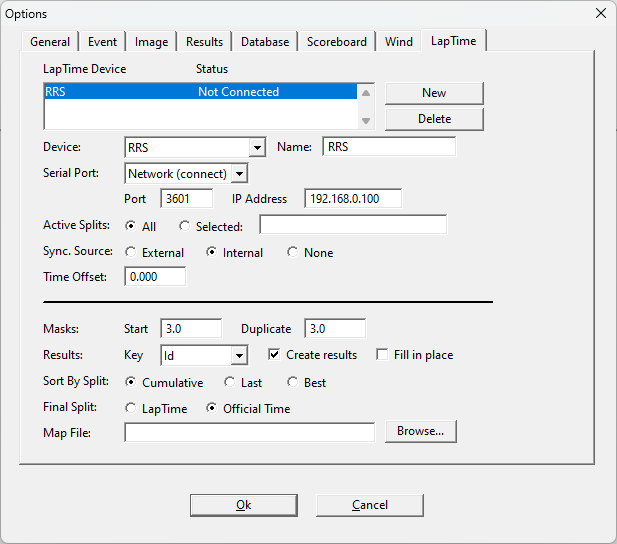
If you want to create the map file, note that the bib number must be in the first column and the transponder code in the second. Open the XLS file in Excel and reorder the columns, as outlined above, if necessary. Save the file as a .csv
Change the extension to .txt and ensure that all letters in the transponder codes are capitalized.
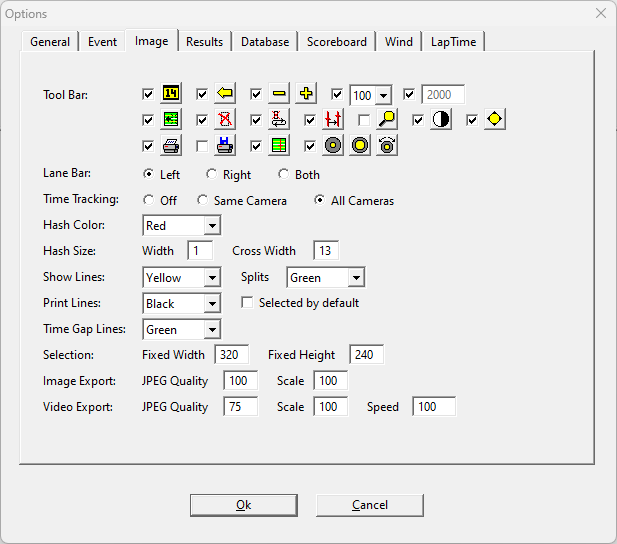
For enabling image overlay, go to Image >Print Lines and set a color.
To test if the transponder passage is showing on the image, use manual capture and take one long picture while passing the transponder.
If there is no passing visible on the image, check that a line colour is set for splits in the Image>Options menu.
Split times will be generated on the image and in the results window when a passing is detected
The competitors will be ordered in the results window based on split time, you may then go through and visually confirm the placing and rider ID with the transponder information.
The transponder split will not place the riders, typing in the rider number and placing it on the image will confirm that placing.
The transponder information can be used to determine the bib number of a rider where their number is not visible in the image.