Time Base
Ubidium always uses time of day to record times, the timebase of Ubidium is maintained by an internal clock with an accuracy of 0.28ppm when powered on, this is equivalent to a maximum drift of 0.024s per day.
By default Ubidium will use GPS time when available, during the Startup Process Ubidium will automatically try to sync to GPS time, this should always be done outside in an open space, away from any buildings, when possible. It is important to ensure that the Timezone is set correctly to ensure the GPS time is correct for your location.
If a GPS time sync is obtained then the system will continuously micro-adjust the clock to ensure maximum clock accuracy.
If no accurate GPS time can be obtained the system will attempt to fallback to NTP (Network Time Protocol), this is only available if an internet connection is available.
In the event that neither GPS time or NTP time are available the system will revert to the time stored on the internal clock.
The internal clock is maintained even when the system is powered off, however this uses a RTC with an accuracy of 5ppm which gives a maximum drift of 0.432s per day when switched off. The RTC will use the internal batteries when available or a backup CR2032 battery on the main board. The backup battery has an estimated life span of 20 years even if continuously used.
Passings Files
All Ubidium timing data will be stored in a passings file on the system, each file has a unique ID which is displayed on the passing information screen.
When starting Ubidium a new passings file will automatically be created, you can additionally create a new file by pressing and holding the START button until the button is illuminated orange, the file will be created upon releasing the button.
When connecting to Ubidium only the current passings file will be used.
Ubidium passings files cannot be deleted and so are permanently stored in the on-board memory, this has no impact on performance and storage capacity should not be a concern.
Accessing Passings Files
Passings files can be accessed either directly through the Ubidium System, through the RACE RESULT 14 Timing System Archives or through the RACE RESULT 14 System Controls System Controls for Ubidium.
To access past files from Ubidium directly - ensure that you have a network connection to the system either via LAN or Wi-Fi, and enter the IP address of the system into your web browser.
Below the image of the Ubidium System is a link to access the Files, clicking this will show a list of all available passings files on the system, and for each file you can see the total number of passings alongside the timestamps of the first and last passings within the file.
Each file can be downloaded in 3 different formats:
- .pbuf - Protocol Buffer files are non-human readable files designed to ensure consistent structured data.
- .jsonl - JSON Lines file where each line contains a JSON record of the passing data.
- .csv - Comma-Separated Values file, using a semi-colon to separate each field of the passing data within each line
If importing the passings file to RACE RESULT 14 - you should use the .csv file.
Alternatively, inserting a USB stick into the Ubidium triggers the automatic export of passings and settings data. When the transfer finishes, the device will confirm that “Settings have been copied to USB stick.” You can then import the generated .csv files into RACE RESULT 14.
Passive - UHF
Frequency Selection
The Ubidium system will automatically set the frequency of the Ubidium Reader Elements based on the location determined by both GPS and on-board Modem. If no location can be ascertained it will fallback to the last known configuration.
Ubidium contains the frequency settings of all known countries / territories to ensure compliance with local regulations with regards to frequency ranges, channel hopping and output power.
TrackTiming
TrackTiming is a software module which is integrated into the Ubidium system, it provides a simple solution for continuous timing of circuits and A-B courses. It is primarily designed for lap events and training sessions where participants may complete multiple laps or make multiple runs over a fixed course.
As TrackTiming is integrated into the Ubidium system, it can be accessed through any computer or mobile device which is connected to the system.
TrackTiming Features
- Fully integrated within the Ubidium system
- Persistent participant database meaning participants only need to register a single time
- Create multiple sessions of races for each event
- Time-based transponder assignments for specific events or races
- Ability to allow participants to access TrackTiming for direct access to registration and results screens
How does TrackTiming work
Once TrackTiming is enabled the Ubidium system will create a Wi-Fi network which can be used to access the TrackTiming software interface. This can be used by both operators and participants to access different areas of the software.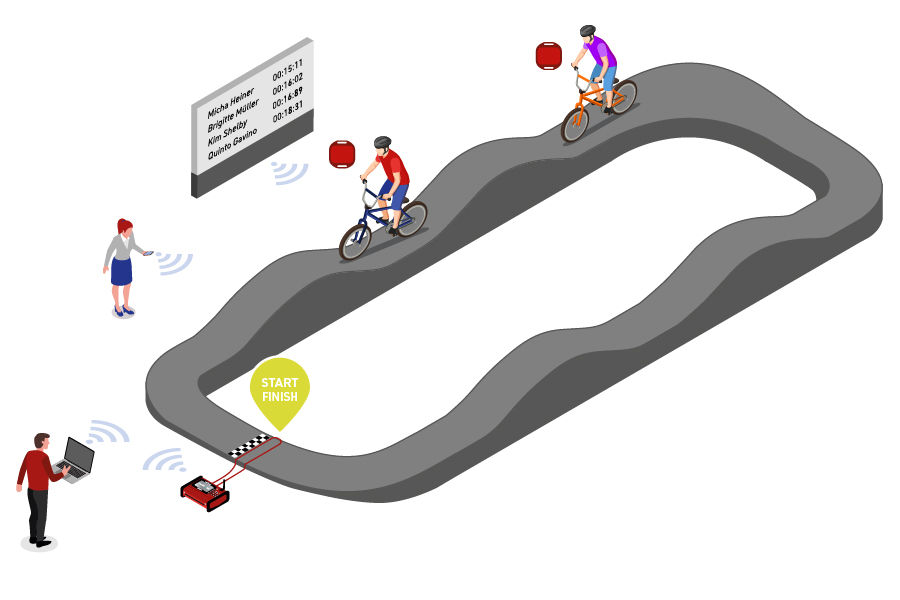
Within TrackTiming, events are defined for a specific course whether a simple circuit, for example a velodrome, or a fixed course with a defined start and finish, such as a BMX Track. Each event can have different races which may be used for different sessions or to separate different rounds, races can be started and stopped manually or run for a fixed time.
TrackTiming automatically receives all active passings generated on the Ubidium system, including data received from Loop Boxes, to then calculate every lap for participants within the current race. This then generates results lists based on each participant's fastest lap which can be accessed through the TrackTiming results display, results can be grouped or separated according to gender or age group.
Participants can also connect directly to TrackTiming for both registration or to view results without access to the system configuration.
Starting TrackTiming
TrackTiming is activated through the Detection Settings menu of Ubidium, once activated the System will additionally create a Wi-Fi access point which can be used to connect directly to the system.
The display will show two QR codes, the first can be scanned to connect to the Wi-Fi network of the Ubidium system, and the second will direct users to the IP address of the system which is used to access the TrackTiming user-interface.
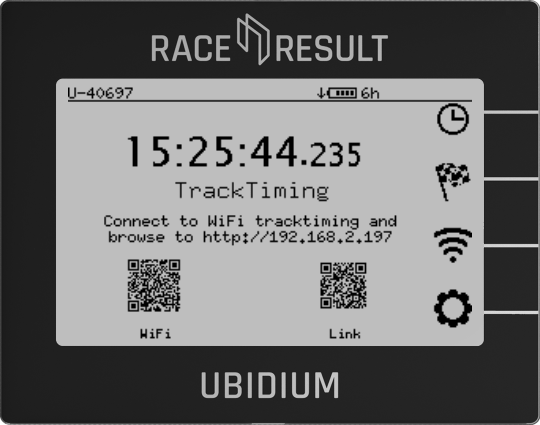
Alternatively, if the Ubidium is connected to your local network via ethernet you can access the user-interface by entering the system IP address as shown on the main display of the Ubidium system.
Operating System
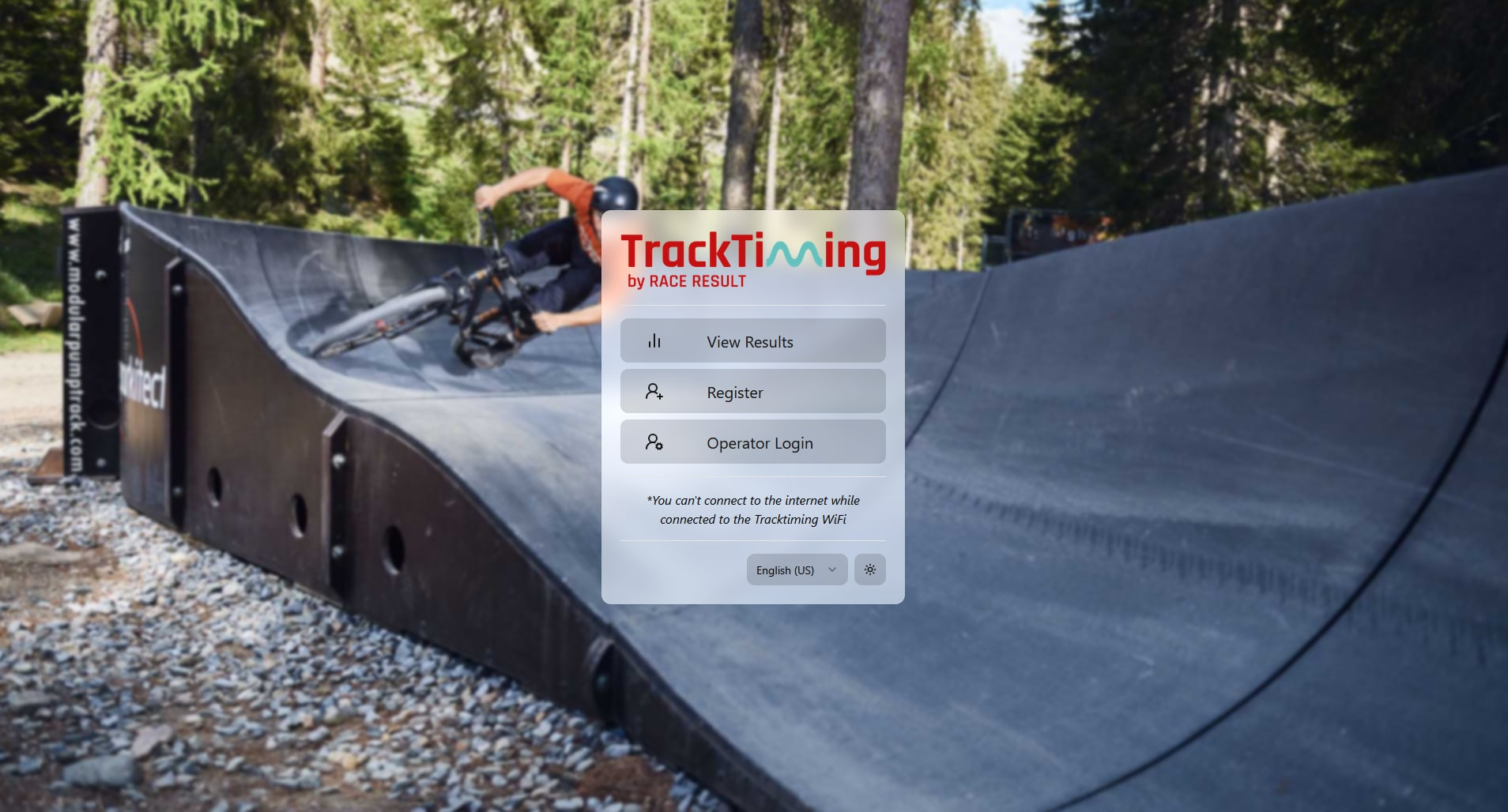
Upon loading the TrackTiming interface the main menu provides easy access to results, participant registration and a password-protected operator login, which is used to set up and manage the events.