This is a quick start guide for connecting a RACE RESULT system to Race Day Scoring using RACE RESULT14 as a middleware. For the purposes of this article, you will only need to focus on the Timing Tab of the event file.
Download RACE RESULT 14 and RDS template event file
- Download RACE RESULT 14 from our downloads page and install the program.
- Download the sample event file at the bottom of this page (RDS_Exporters.ses).
Open RACE RESULT 14
 From your computer's start menu, open the RACE RESULT Web Server application.
- Navigate to File > Open Event...
- Navigate to your Downloads folder and select the RDS_Exporters.ses file you downloaded.
- In the lower right hand corner of the software, click Open Event. This will open your event file in your browser.
Configure Exporter settings
- The provided template is configured, except for the file path for your backup file exporter.
- Navigate to the left hand menu, and go to Timing> Chip Timing then select Exporters + Tracking on the left
- Update the File path for the RDS_File Exporter
- Don't forget to include the file name and the .txt extension
- An example file path would be C:\Desktop\RDS.txt
Configure your hardware
RACE RESULT offers a variety of hardware. This guide will focus on two:
the Ubidium System and the 5000 Series System. Other systems will follow a similar protocol once connected to RR14.
Ubidium
Ubidium
- Out of the box, Ubidium should be ready to go for a local connection
- Connect antenna by plugging in the cable to the back of the decoder
- Press the ON button to turn on the system
- The system is in Timing mode by default
- You should verify the time is synced and matches your current time zone

5000s
5000 Series
- Power on the decoder by pressing the ON button. Give the decoder a minute or two to power on. The main screen of the decoder should look like the below example.

- NOTE: The MENU button is in the center. The OK button is on the lower right.
- Navigate to Menu > Time > Configure GPS time.
- Use the left and right arrow keys to select your correct time zone. Press OK to confirm.
- Press Cancel once to navigate back to the Time menu.
- Select Set GPS Time. Wait for the decoder to connect to GPS.
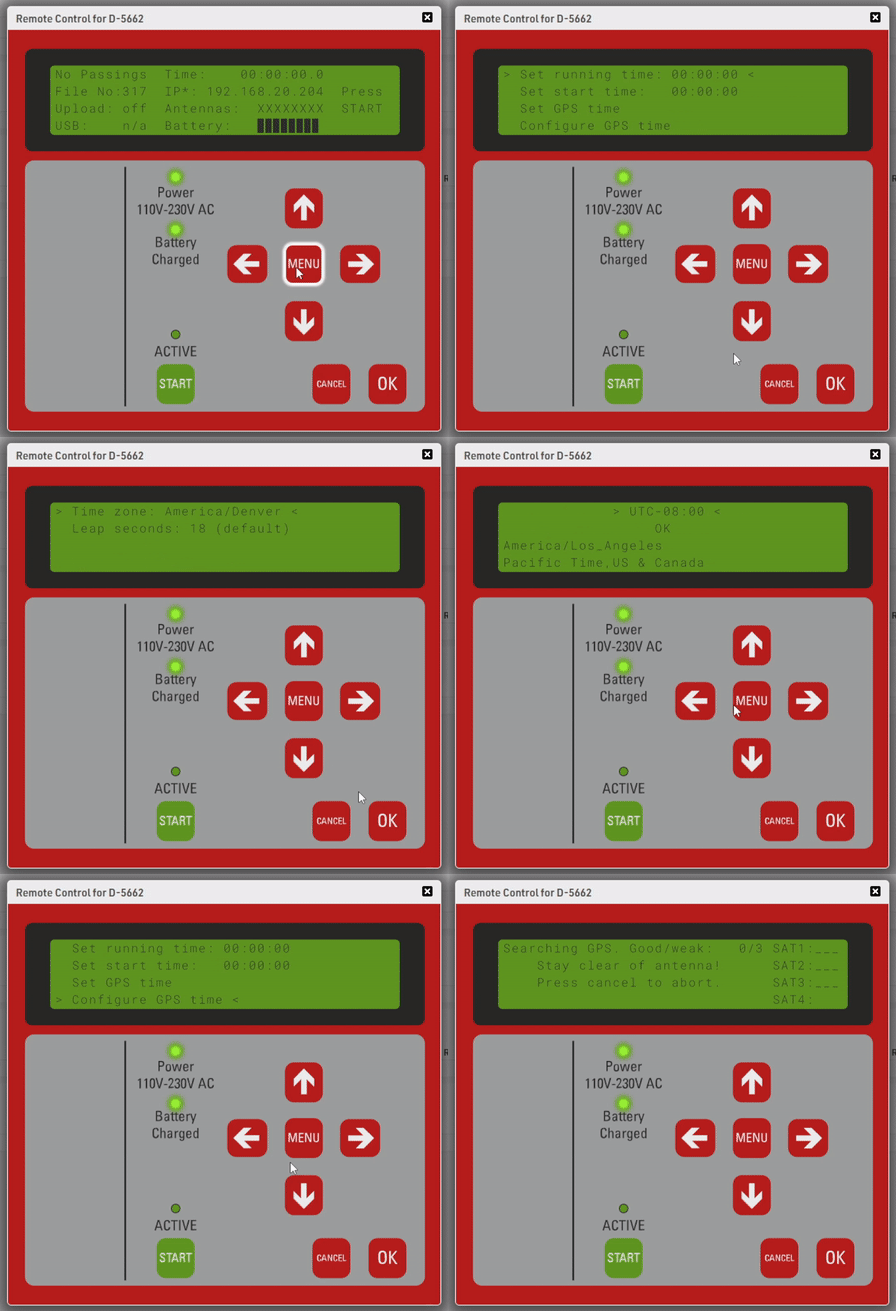
- Once the decoder finds GPS, you will see a clock at the top of the screen. Make sure this is showing the correct time of day. If not, double-check your Time Zone and sync GPS time again.
-
IMPORTANT! Press the green START button on the decoder to enable timing mode.
Start Exporters
- From the Timing tab, select Chip Timing in the left-hand menu.
- Find the section Exporters + Tracking.
- Press the green play button next to the RDS_Direct and RDS_File exporters to start them.

Connect to your hardware in RR14
- Connect your timing system to your computer using the provided Ethernet cable.
- Note, if your computer does not have an Ethernet port, you will need to get a USB to Ethernet adapter to continue.
- From the Timing tab, select Chip Timing in the left-hand menu.
- Find the section for RACE RESULT Ubidium or RACE RESULT System, depending on what system you own.

- Select the ALL_DATA Timing Point from the drop-down list in the Timing Point column.
- Press the green play button to open the connection to the timing system.
Online Devices
If you need to connect to an online device, you need to ensure your event file is connected to your Race Result account. To verify this, in the Chip Timing section, you will see Online Account(s) listed in the top right corner. If you do not see your account, select the green plus button to add it. Once you log in, any devices connected to your account and online will appear in your event file.

Final Setup - Confirming your setup is working
- Once everything is configured and all connections are open, your Timing Tab should look like this:

- To test to make sure everything is working, you can trigger a Marker on your timing system by pressing the green Start button.
- You can verify that the Marker made it into RR14 by navigating to the Chip Reads section on the left-hand menu of the Timing Tab. Look for a row that says MARKER.
- Now you can verify that the Marker is in the Chip Reads section of RDS.
- Another confirmation would be to look at the Reads column under your system connections, as well as the Count and Sent columns under your exporter.
- For the exporter, the Count represents the number of raw reads available to be sent. The Sent column represents the number of reads that have successfully been sent to RDS.
- Below, you can see that each timing system has received one passing. The exporters have each sent 2 passings since there are a total of 2 passings in RR14 available to be sent.
