Power and data communication ports for Ubidium are located under the Water Resistant Flap.
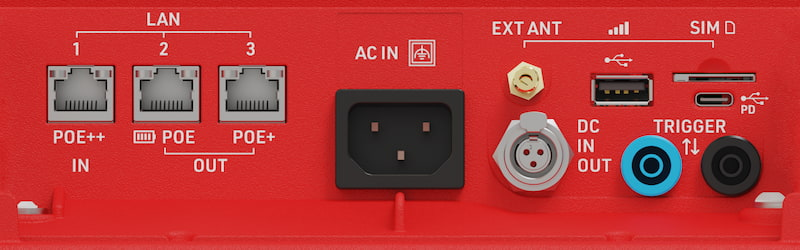
| LAN Ports |
Provides networking (see: LAN / Ethernet Network Settings) Power in / out via POE (see: Power Over Ethernet (PoE)) |
| USB-A | For retrieving data from the system |
| USB-C |
Provide power to the system (see: USB-C Power Delivery) Provide local data connection |
| SIM Card |
External SIM card slot (see: External SIM Settings) Accepts 2FF SIM cards |
| External 4G/LTE Antenna | Connect an external antenna to boost signal strength of 4G / LTE mobile networks. |
| AC Port | Power supply, 110-240V AC, 50/60Hz |
| DC Port | DC Power in / out (see: DC Power) |
| Trigger Port |
For connecting third party timing devices (see: Trigger Port) This must not be used for connecting a Loop Cable for Active timing. |
Regulatory Compliance
 |
Only use shielded ethernet cables with the system such as those rated CAT6 S/FTP |
USB
The Ubidium system has a USB-A and a USB-C port. Both ports can be used to download/upload data to the device and to connect external peripherals like a keyboard. The USB-C port can also be used to connect to the Ubidium for timing.
Connecting a flash drive
When a flash drive is connected to either USB port, you will be prompted with the message below, telling you that settings have been copied to the drive.
Note: When connecting a flash drive, only the FAT32 file system is supported! If the wrong file system is used, the system will not recognize the drive.

Downloading Passings
Once a flash drive is connected, all passing files will be copied to the drive. While the flash drive remains connected, any new passings generated for the current file will continue to sync to the drive. On the passing information screen, you will see a message at the bottom showing a USB drive is connected.

System Settings
A flash drive can also be used to copy Ubidium settings from one device to another. See Settings for more information on this process.
Timing Connection
The USB-C connection can be used to connect to your system for timing. Using a data capable USB-C to USB-C cable, connect one end to your computer's USB-C port and the other to the Ubidium USB-C port. With the Race Result Web Server running, you will see the system appear in the Timing tab of RR14 like you would any other system connection.
USB Keyboard
A USB keyboard can be connected to the system using either USB port to navigate the system and enter values for various settings. Use the arrow keys to move through screens and the F1–F4 keys to select the corresponding menu buttons (F1 for the top menu, F4 for the bottom). To return to a previous screen, press the Backspace key.