There are three ways how to set up a Relay Race:
- A relay-team can be recorded as one data-set like a normal single participant. The handling does not differ from handling of single participants. The team has only one chip. Data like name, age or sex of relay-members can be set in Additional Fields.
- Team members are saved as individual participant records, but the team has only one chip, so all times will be saved in one of the participant records.
- Team members are saved as individual participant records and each team member has his own chip.
One Participant Record and One Chip per Team
This option is the easiest to implement a relay race. The software does not even "know" that there are relays. One participant record will be created per team and the names of second, third, .. team membere will be stored in Additional Fields.
Go through the following steps to set up the event file:
- Create additional text fields for the data of the second, third, ... team member:

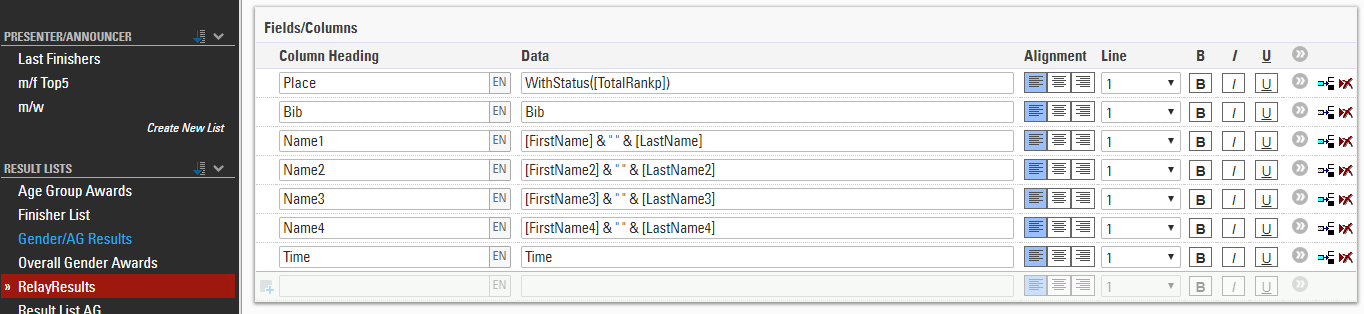
- Create a copy of a result list for the relay race and add the names of the other team members as columns:
- In many cases, the relay race will be one of several contests. If you would like to offer an Online Registration for your event, you have several options:
- Use the Contest Dependent Registration. Add the ATFs for the names as form fields of the online registration and in the column Show In select the relay contest.
- Use a Special Registration (Single) for the relay contest and add the ATFs to the form fields as before.
- Use the normal online registration, add the ATFs to the form fields and in the Extended Settings define: Show if: Contest = Relay Contest
Several Participant Records, One Chip per Team
In this case, there will be a participant record for each team member, but there will be only one chip for the team that will be handed over. This chip will be assigned to the first team member, so this record will have the finish time of the team and also all split times, whereas the other team members will not have any times.
The main advantage of this option is that you can easily store all information of all team members (like name, date of birth, email, phone, etc.). There needs to be a field with a unique team name which defines who belongs to the same team. Let's assume the Club field will be used for that.
Go through the following steps to set up the event file:
- Set up a team scores which links the members of a team:
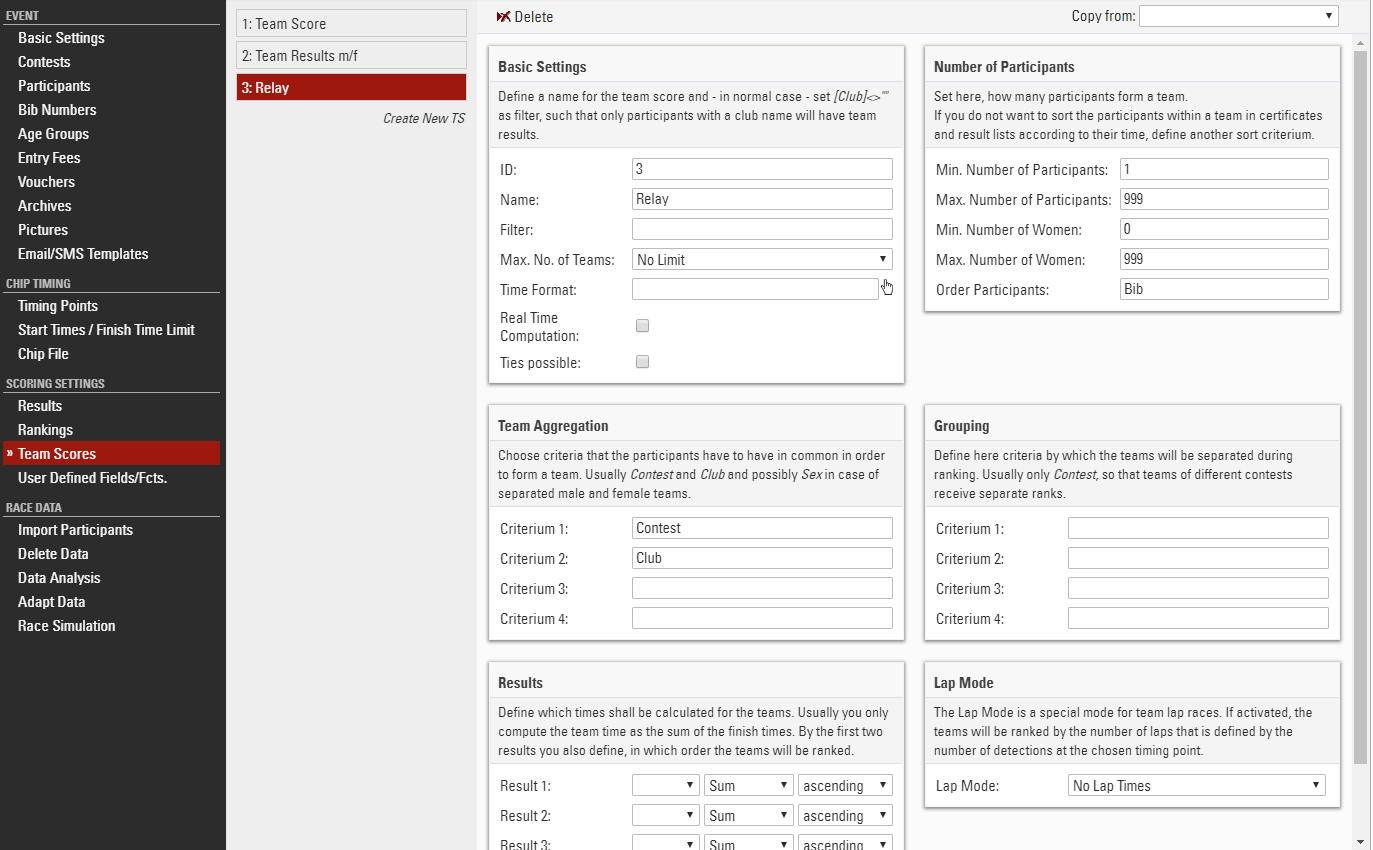
Here, team score 3 (TS3) is used. The team is aggregated by contest and club, so the team members must be registered for the same contest and must have the same team name in the club field to be part of the same club.
Note that the maximum number of participants is set to 999, so all participants with that team name will be put in that team.
Also note that no results are selected at the bottom of the settings. This way, athletes will also be part of the team if they do not have any times. This is important since only the first member of the team will have times.
Finally, note that the participants are ordered by Bib: This assumes that the team members will race in the order of their bib numbers.
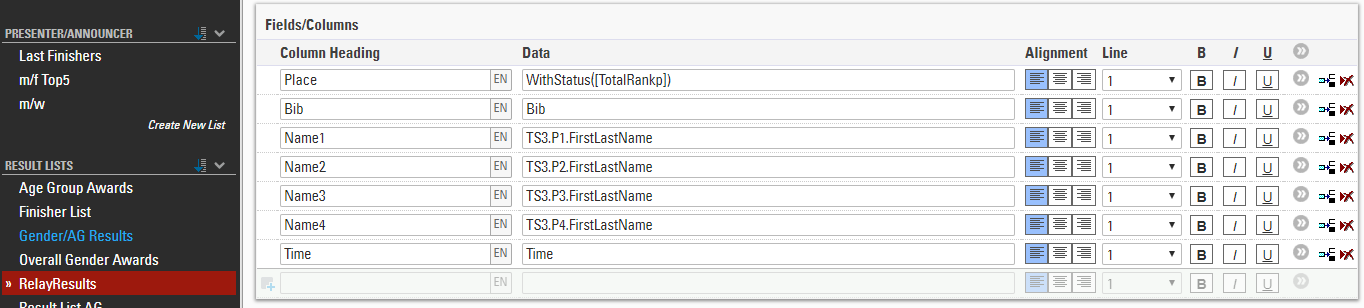
You can now access the xth participant of the team via TS3.Px, for example TS3.P2.LastName would return the lastname of the second athlete.
- Similar to the previous example, create a copy of a result list and adapt it to show the names of all members of the team:
- If you wish to offer an online registration for your event, you will need a Group Registration in this case. You can either use the Contest Dependent Registration or the Special Registration (Group) for the relay contest. Make sure to add the Club field as a common field and to mark it unique for the contest in the Extended Settings.
One Chip per Team Member
First of all, note that this option is not recommended! If each team member has his own chip, things can end up in a big chaos. The biggest problem is team members waiting for other teams or watching other team members while being in the read field of the timing system. You will get a lot of unwanted reads and it can be close to impossible to find out which reads are actually those you need. This can become even more complicated if team members swap the parts they are supposed to run.
Note that if there is only one chip like in the previous two cases, all these problems cannot happen.
If you still wish to give one chip to each member of a team, set up your event file in the following steps:
- Make sure there is a unique field that defines who belongs to the same team. Let's assume the Club field is used for that.
- Set up a team score and activate the Lap Mode. The Lap Mode is intended for team lap races like 24 hour races, but it can also be used for this type of relay where each team member completes only one lap/section.
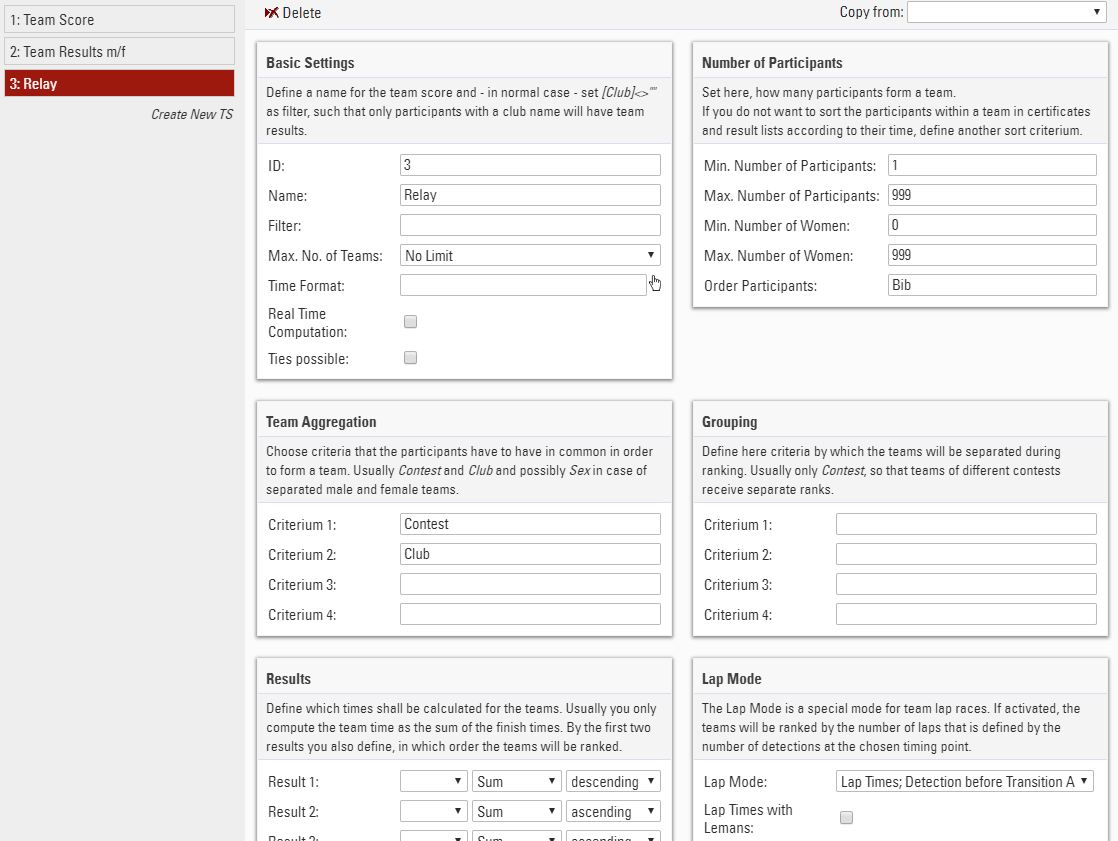
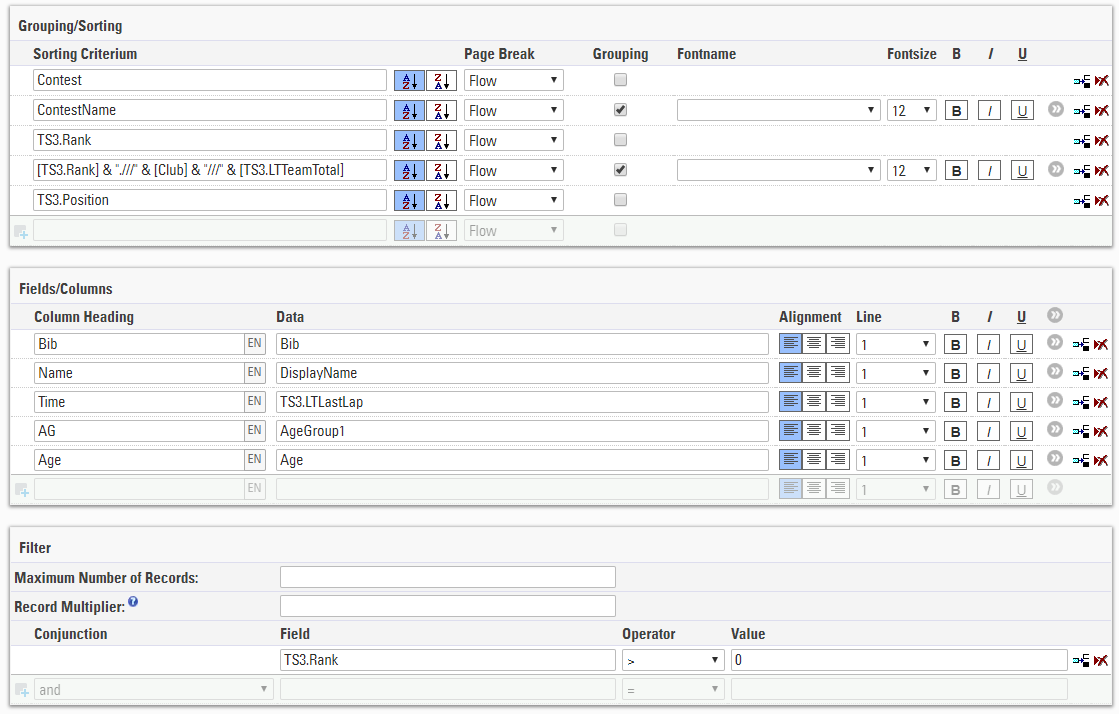
- Create a copy of the Team Results list, adapt it from TS1 to TS3, replace Time by TS3.LTLastLap, and replace TS1.Time in the grouping by TS3.LTTeamTotal:
- If you wish to offer an online registration for your event, you will need a Group Registration like in the previous case. You can either use the Contest Dependent Registration or the Special Registration (Group) for the relay contest. Make sure to add the Club field as a common field and to mark it unique for the contest in the Extended Settings.