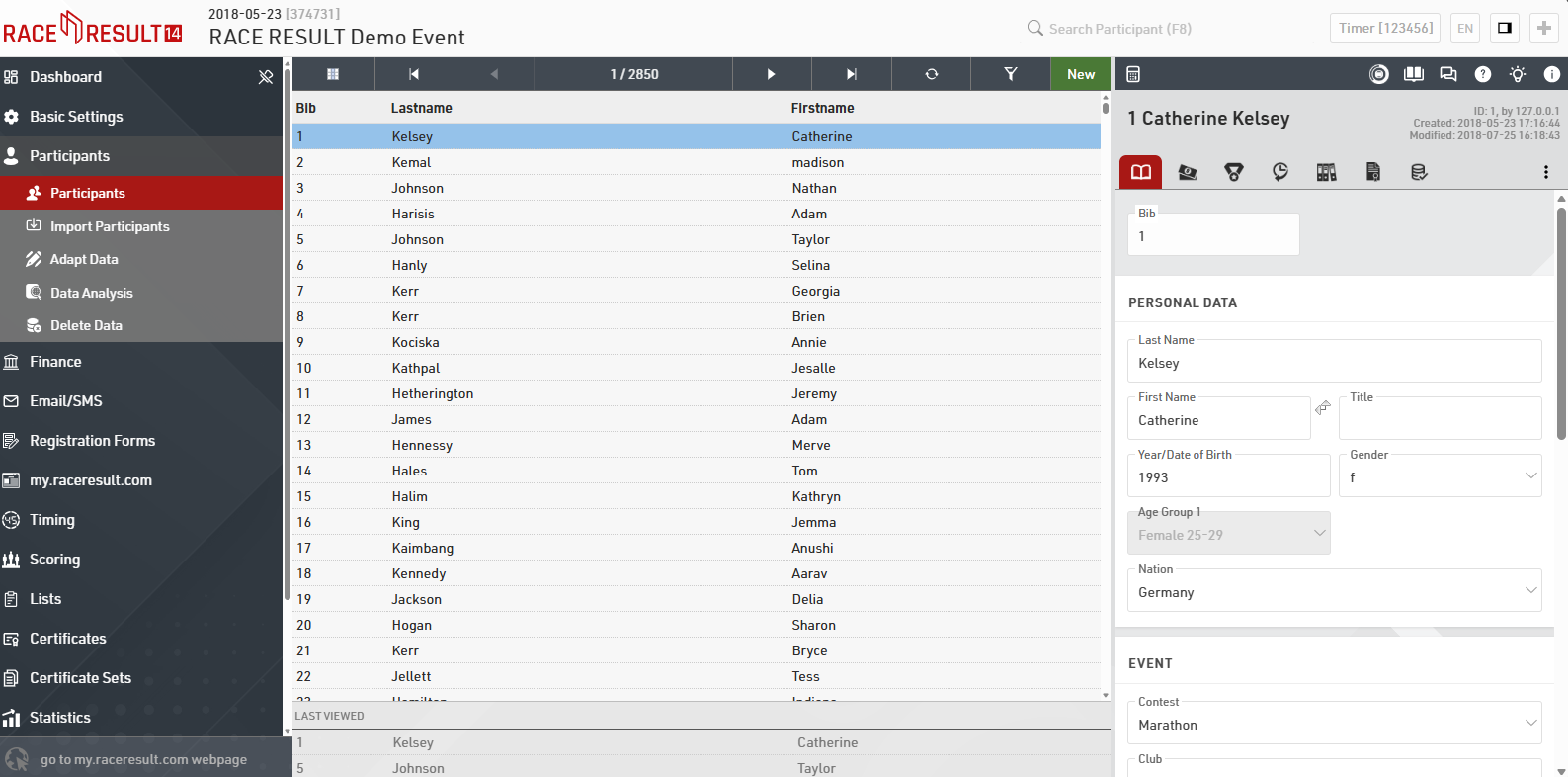
Each participant record contains a variety of information that is grouped in categories at the top of the screen: General, Entry Fee, Results, History, Archives, Certificates and Timing Raw Data.
- General specifies the most basic participant information (e.g. name, year of birth, gender, etc.).
- Entry Fee shows all the Entry fees applied to the participant based on the settings under Main Window > Entry Fees.
- Results shows all calculated results for a given participant. The participant's rankings (for example, Gender Rank, Age Group Rank, etc.) are also displayed in this tab.
- History records all changes that have been made to the participant's information. Being able to track the history is particularly helpful when there is confusion about race results or other data.
- Archives show all recent runs / registrations for each individual participant, provided you are using the participant archives.
- Certificates allows you to view and print a single race certificate for the participant
- Timing Raw Data shows all the raw data reads of the participant from any connected timing systems and allows manipulation of timing data.
Navigation
In the main window, a list view of all participants is shown. You can scroll the list and load a participant in the right panel by clicking on them, by clicking on the Go to First / Go to Previous / Go to Next / Go to Last arrows at the top of the main window you can quickly and easily move through consecutive participants. In addition to navigation, you can reload the list or filter based on your own requirements. You can also add / remove any additional columns to the list view and sort on these by clicking the field name once for sorting smallest to largest, clicking again will sort largest to smallest. The most recent viewed participants are shown at the bottom of the page.
Search
In order to search for a specific participant, you can use the search bar in the header at the top of the page or search a specific participant from the List View.
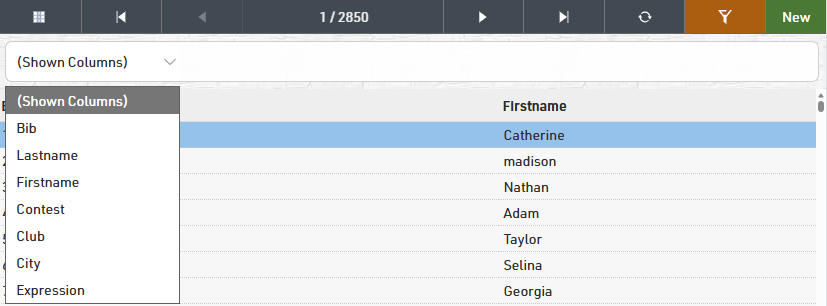
Using the search filter you can search specific fields either with no filter on fields, this will match anything from the bib, firstname or lastname fields. Alternatively you can use the drop-down to search a different field.
Alternatively you can also apply an expression for the search. For example [Contest]=1 AND [Bib]<100 will search for all participants registered in Contest the ID 1 and with a Bib lower than 100.
When searching you will automatically be taken to the Participants window and search results will be loaded in the list view on the left side window.
Changing participant information
If you need to change a participant's data, you can simply click on the appropriate (text) field and change the information. Once you start making changes, a little disk symbol will appear in the upper right hand corner.

If you want to save the changes without switching to a different data set, you can click on that disk symbol to save the newly entered info. The symbol in the upper left hand corner will then disappear.
Note: generally, RACE RESULT 14 saves all changes you have made when you navigate away to a different page (automatically), or if you click on the disk symbol (manually). If you do not want to save any changes you just did, than you have to close the whole tab you are working with.
How to add a participant
To add a participant to your event, simply click on New Participant in the upper left hand corner or press F10. An empty form will appear where you enter the participant's information. The document will again be saved automatically or manually.